

Before you start
The agent needs a phone number in the flow’s global settings (Phone number, “Assign a phone number for calls.”). Without one, the panel warns: “Transfer call won’t work unless a phone number is added to the global flow settings.” See Phone numbers.Add a Transfer call step
1
Add the step
On the canvas, click Add node and choose Transfer call (“Transfer call to another number”).
2
Set the destination
Under Transfer configuration, enter Transfer to phone number.
3
Choose the transfer type
Pick Cold transfer or Warm transfer in Transfer type.
4
Write the transfer message
Open Transfer message and write what the agent says before the transfer, such as “I’m connecting you to our billing team now.”
5
Connect On Failure
Connect On Failure to a step that tells the caller and offers another way forward.
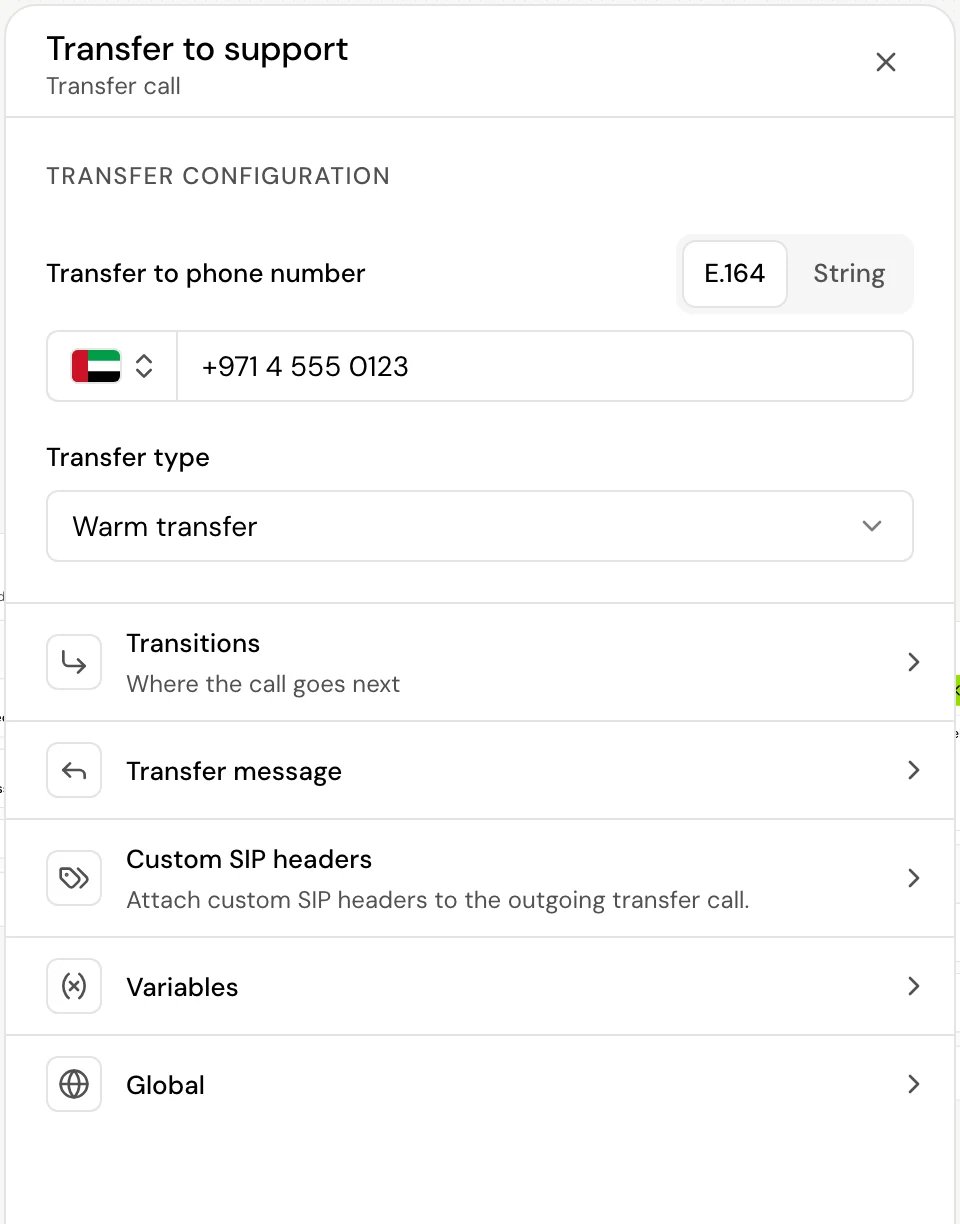
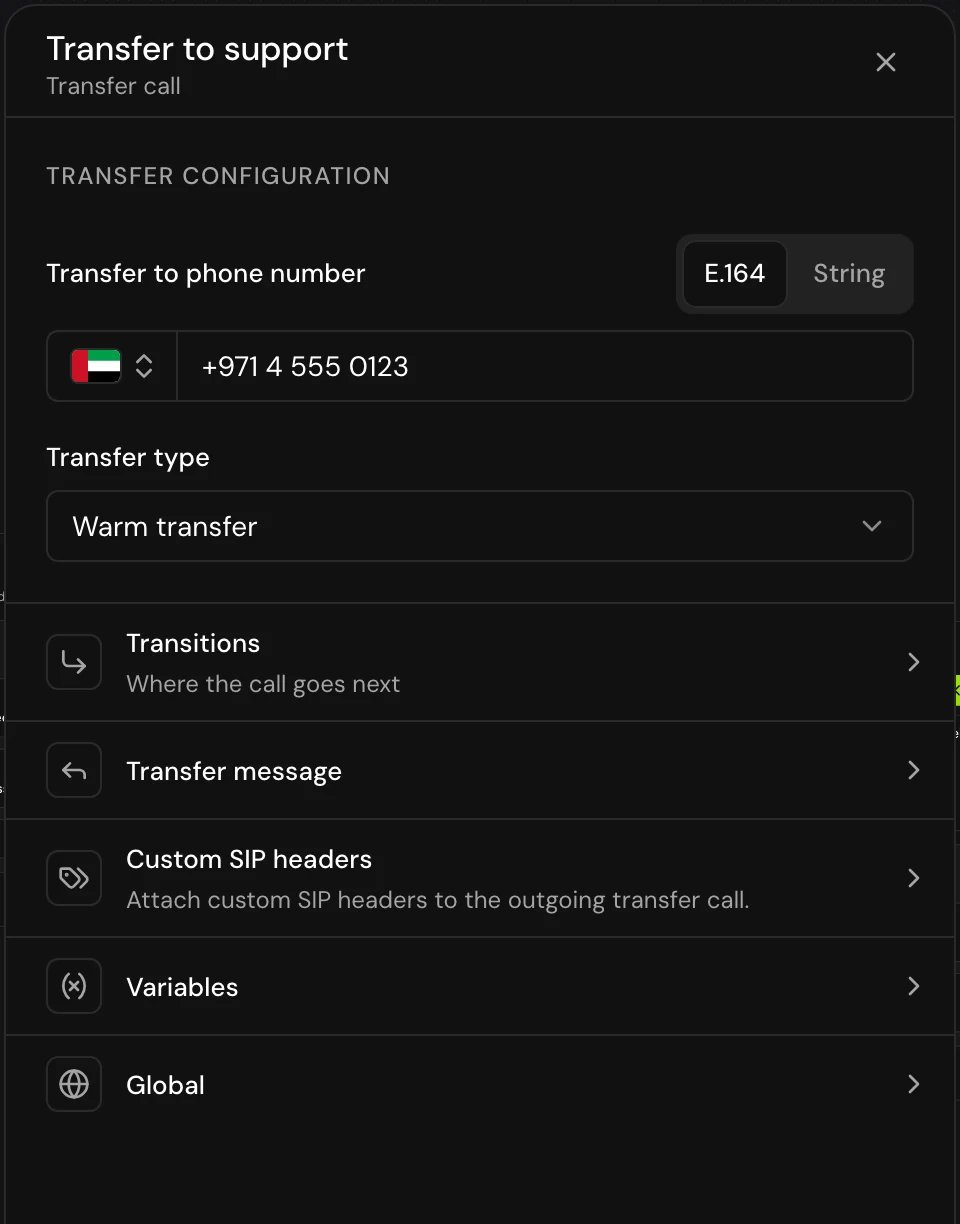
Fields
With String, the value you enter (after variables are filled in) is dialed like this:
Use String to transfer to a number you got during the call, or to an extension or SIP address on your own phone system.
Cold or warm
On a warm transfer:
- The agent tries up to 3 times, for up to 5 minutes in total, waiting up to 90 seconds for each attempt to be answered.
- While the caller waits, the agent tells them every 30 seconds that everyone is still busy and asks them to stay on the line.
- If nobody takes the call, the hold music stops, the agent apologizes that no one is available and offers to keep helping, and the call takes On Failure.
Transitions
On Failure is created with the step and can’t be removed. There’s no success path: once the transfer goes through, the caller is with the destination and the flow ends.
You can also add Skip if to this step: when its conditions already hold as the call arrives, the call goes straight to its target and the step doesn’t run. See Skip if.
How it works on a call
- Any hold music from an earlier step stops. What the caller said while the flow was working stays in the transcript but isn’t answered.
- The step’s local variables are set, and variables in the number and header values are filled in. Headers whose value comes out empty are left off.
- The agent speaks the transfer message, if there is one. It can’t be interrupted.
- The transfer starts: cold right away, warm as described above.
- If it fails, the call takes On Failure and the agent is back with the caller.
Good to know
- Test transfers on a phone call. In a browser test there’s no phone line to transfer.
- The E.164 check in the panel is stricter than what’s dialed: if a number you need is refused, enter it with String.
- Confirm before proceeding, in the Global section, makes the agent check with the caller before transferring.
Related
Transfer to agent step
Hand the call to another agent instead of a phone line.
Phone numbers
Add the number your agent calls from.
Bring your own number
Connect your own SIP trunk, for transfers to your PBX.
Global steps
Make transfer reachable from anywhere, such as “talk to a person”.