

Route the call with a key
Add a DTMF input transition for each key the caller can press.1
Add the transition
On a Conversation step card (or the Start step in conversation mode), click Add and choose DTMF input (“Keypad input detection”).
2
Pick the key
Click the transition on the card. Its settings open in the step’s settings panel. Under Keypad key (“The call takes this path when the caller presses the key.”), pick 0 to 9, * or #. The key is saved as you pick it, and the transition reads “Press 1” (for key 1).
3
Connect it
Drag from the transition’s handle to the step that key leads to.
4
Tell the caller
Say the options in the step’s message, for example “Press 1 for sales or 2 for support. You can also just tell me what you need.”
Capture digits into a variable
Use this for numbers the caller types, such as an account number or a PIN. The digits are saved when the caller presses a finishing key,# or *.
1
Add DTMF capture to the step
On a Conversation step (or the Start step in conversation mode), open Variables, click Add variable and choose DTMF capture.
2
Name the variable
Enter a Variable name in snake_case, for example
account_number. The field is required.3
Add the finishing key
Add a DTMF input transition with 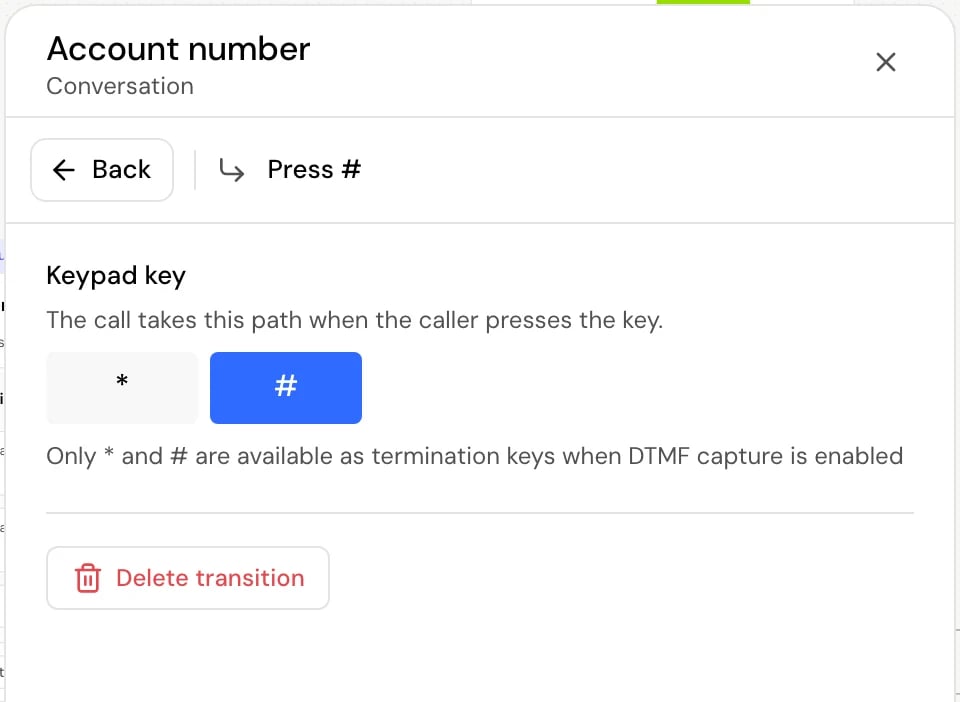
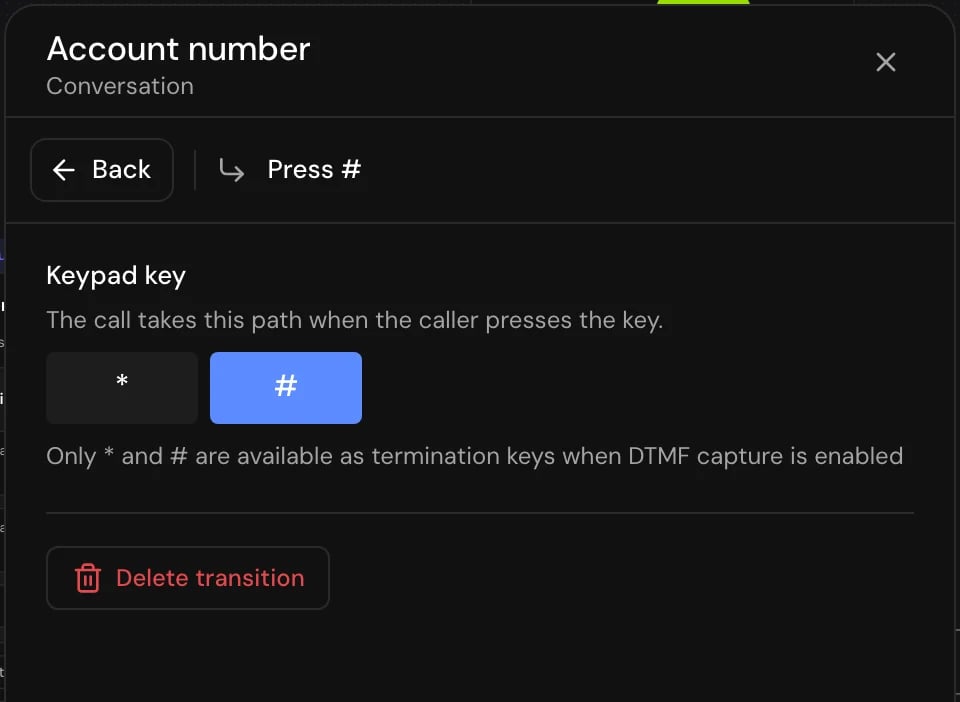
# (or *) and connect it to the step that uses the number. Without it, the digits are never saved.4
Tell the caller how to finish
For example: “Please type your account number, then press the hash key.”
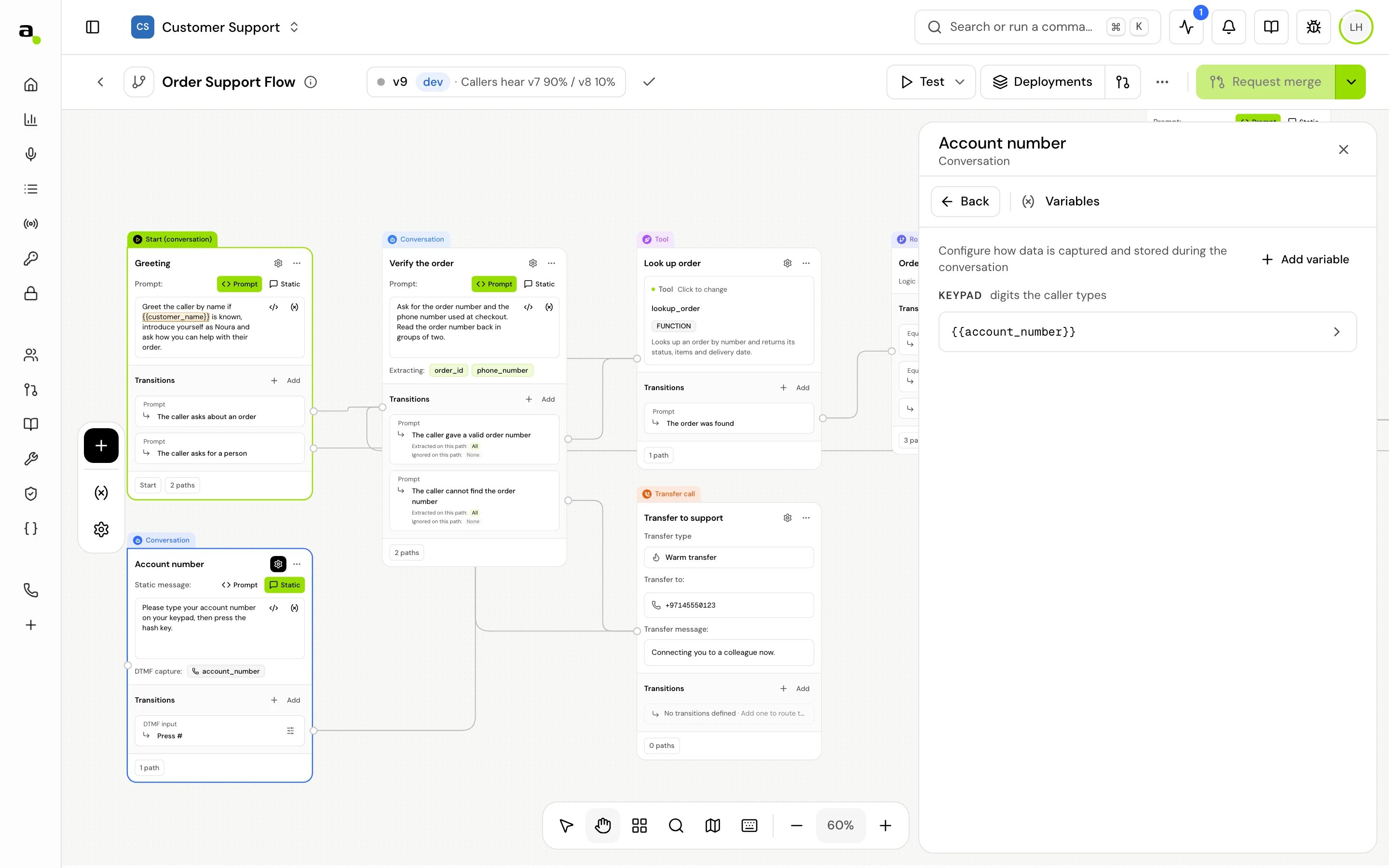
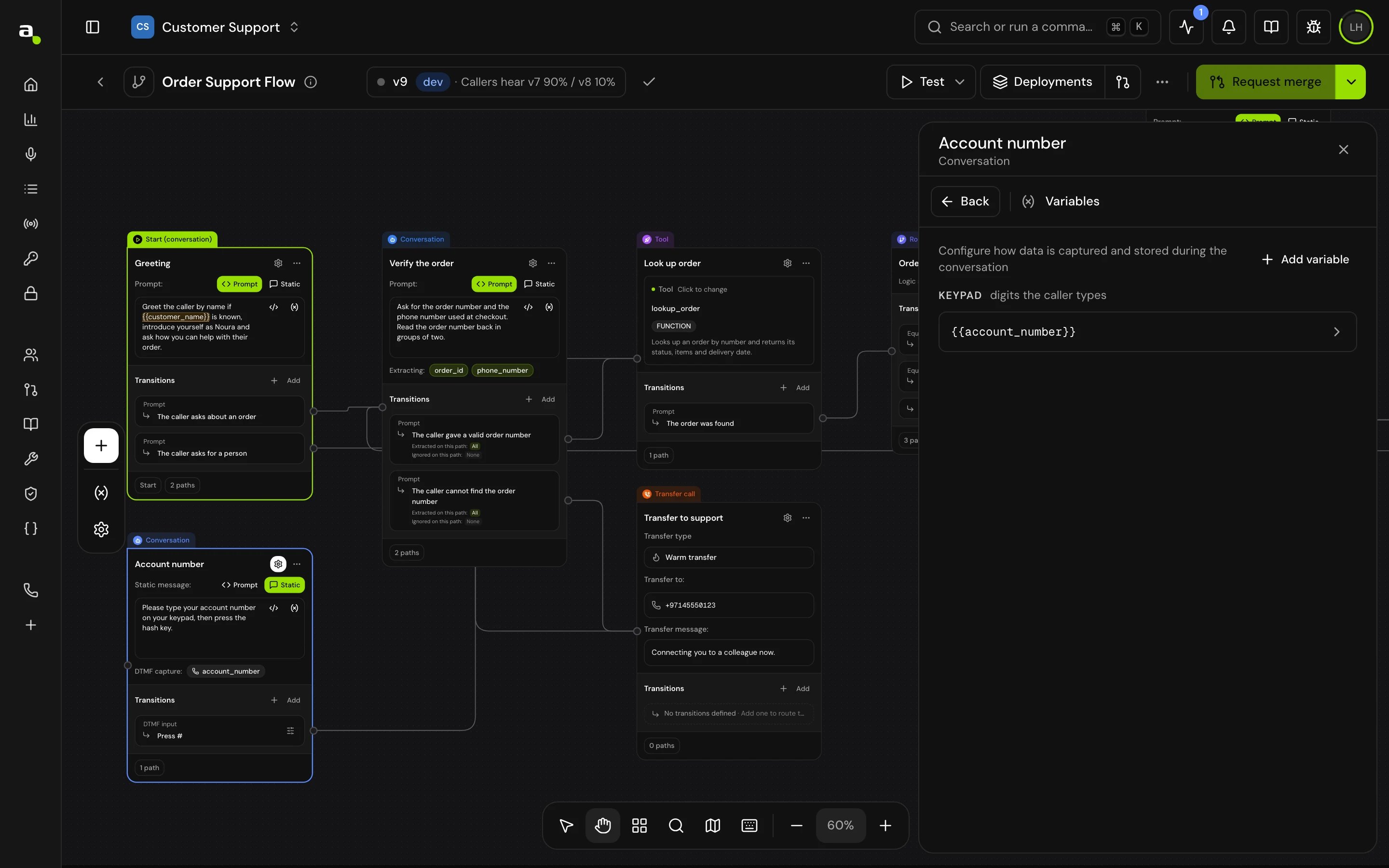
{{account_number}}. See Variables.
While capture is on for a step:
- Only
*and#can be picked for its DTMF input transitions (“Only * and # are available as termination keys when DTMF capture is enabled”), and at most two of them. - Existing number key transitions on the step are turned off: “This number key transition is disabled because DTMF input capture is enabled. Disable DTMF capture to use this transition.”
How it works on a call
- Keys work only on the step the call is in, and only while it waits for the caller.
- Any key press stops the agent if it’s speaking.
- A key that matches one of the step’s DTMF input transitions moves the call at once. Before it moves, the step’s Variable on node exit variables are taken from the conversation so far.
- With capture on, any other key is added to the digits typed so far. When the caller presses the finishing key, the digits are saved to the variable, the agent sees them in the conversation as “[keypad input: 12345]”, and the call moves on.
- Without capture, a key with no matching transition is ignored.
- Each time the call enters a step, the typed digits start empty.
Test it
In a browser test call, click Keypad in the call controls to press keys. See Test your agent.Good to know
- A key press can’t start a global step. To offer the same key everywhere (for example 0 for a person), add a DTMF input transition with that key on each step where the caller may press it. See Global steps.
- If the caller never presses the finishing key, the digits are lost when the call leaves the step. Mention the finishing key in the step’s message.
- Digits are saved as text, so leading zeros are kept.
Related
Transitions
All transition types and how they’re chosen.
Conversation step
Messages, interruption and variables.
Start step
The first step of every flow.
Test your agent
Use the keypad in a browser test call.