

Before you start
What you can do depends on your role. These are the defaults; an owner can change them per member in Roles and permissions.
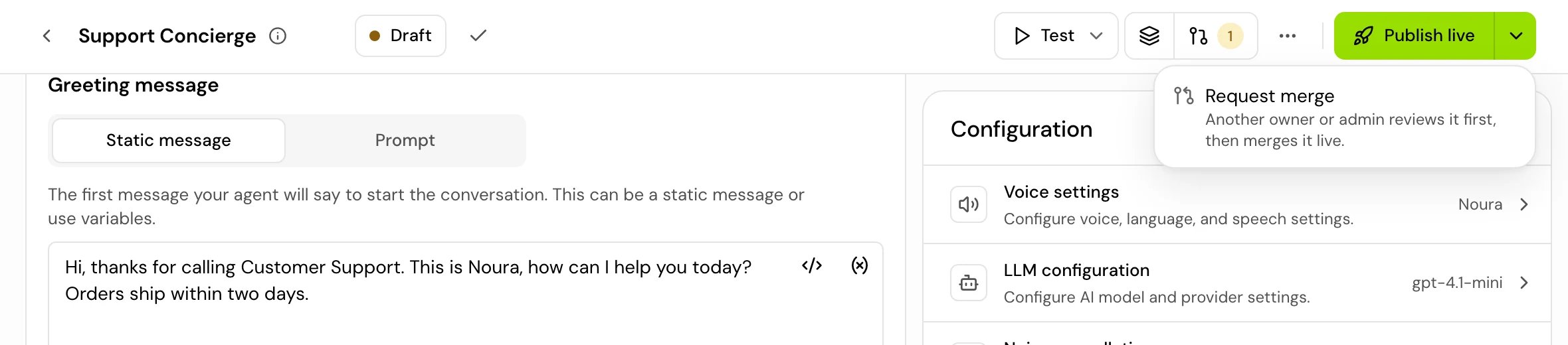
A member can’t publish. When a member’s draft is ready, they request a merge and an owner or admin publishes it. See Merge requests.
Two ways to release an agent
Each agent uses one of two release modes. You see which one in Releases.
Turning on deployments can’t be undone. See Environments and releases.
Your draft
Every member, owners and admins included, edits a private draft. “Your own draft. Only you see it until you request a merge.” Owners and admins see “…until you publish it or request a merge.”- It saves on its own. The header shows “Saving…” and “Saved”. If a save doesn’t go through, the header says why (see When a save doesn’t go through). Your changes are kept on the device until they save.
- One tab at a time. If the agent is open for editing in another tab, the editor says “This agent is open for editing in another tab.” Click Use here to edit in this one.
- Unsaved work survives a reload. After a reload the editor shows “Unsaved changes restored”. Click Keep to save them or Discard to drop them.
- It expires after 7 days without an edit. The editor warns you: “Your draft expires {when}. Any edit keeps it.” A draft in a merge request doesn’t expire.
- It follows the newest version until you edit it. If someone publishes a version while your draft has no changes, your draft moves onto that version on its own.
When a save doesn’t go through
The save status sits in the editor header, beside the version chip. Hover it for the details.



When two saves of your draft collide
Your draft has one writer, you, but you can save it from more than one place: another tab or window, or the API with your key. If your draft was saved from somewhere else while you were editing here, and both changed the same thing, autosave stops and the editor asks you what to keep. Changes that don’t clash are combined on their own. The review opens by itself when you ask for a save (for example when you publish). When autosave meets the conflict, the header shows Unresolved conflict · Review instead, so nothing opens while you type. You can’t publish until it is settled: “Resolve the conflict first: your changes are not saved yet.”

1
Open the review
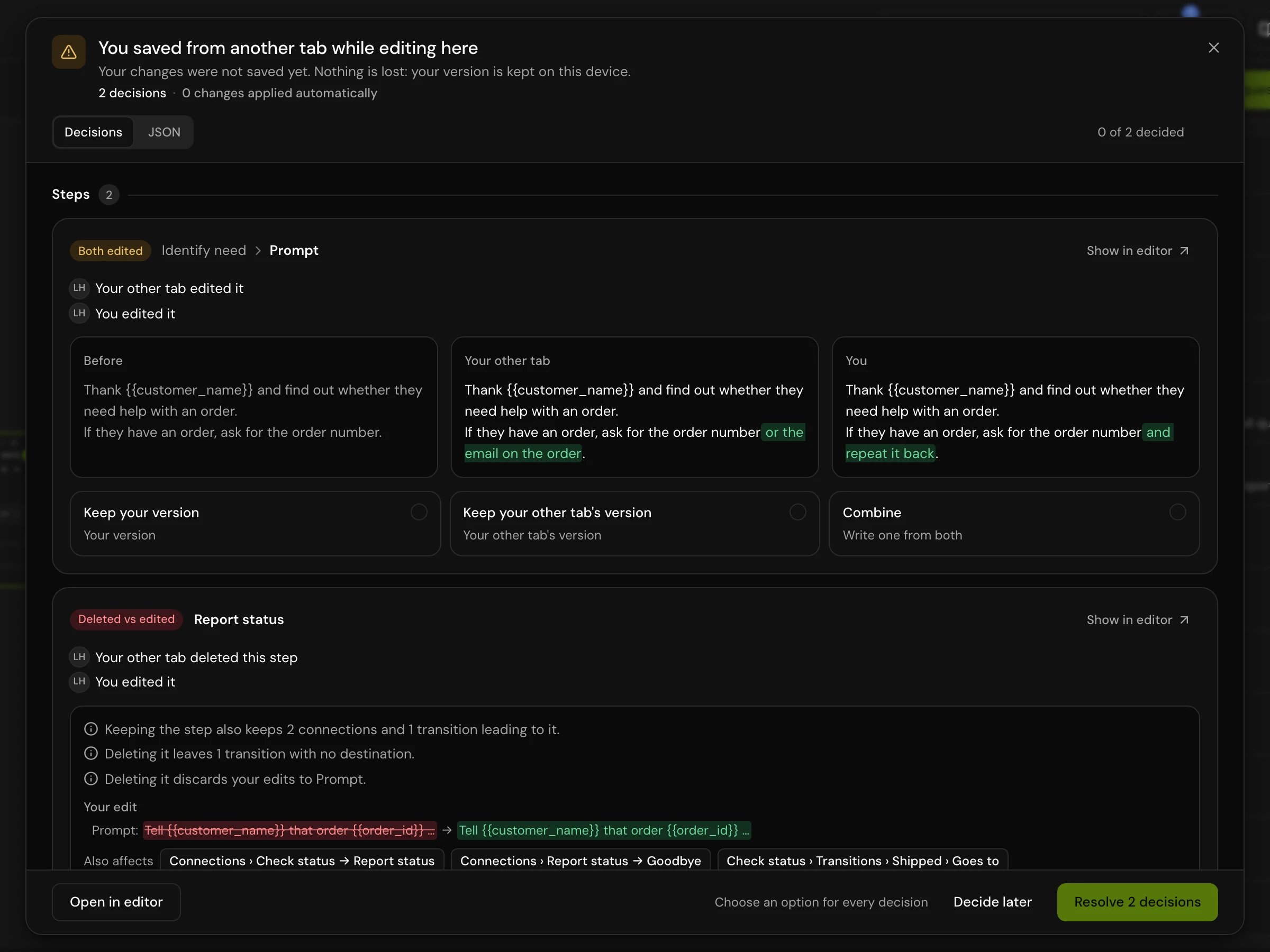
Click Review in the header. The title says where the other save came from, for example “You saved from another tab while editing here”. “Your changes were not saved yet. Nothing is lost: your version is kept on this device.”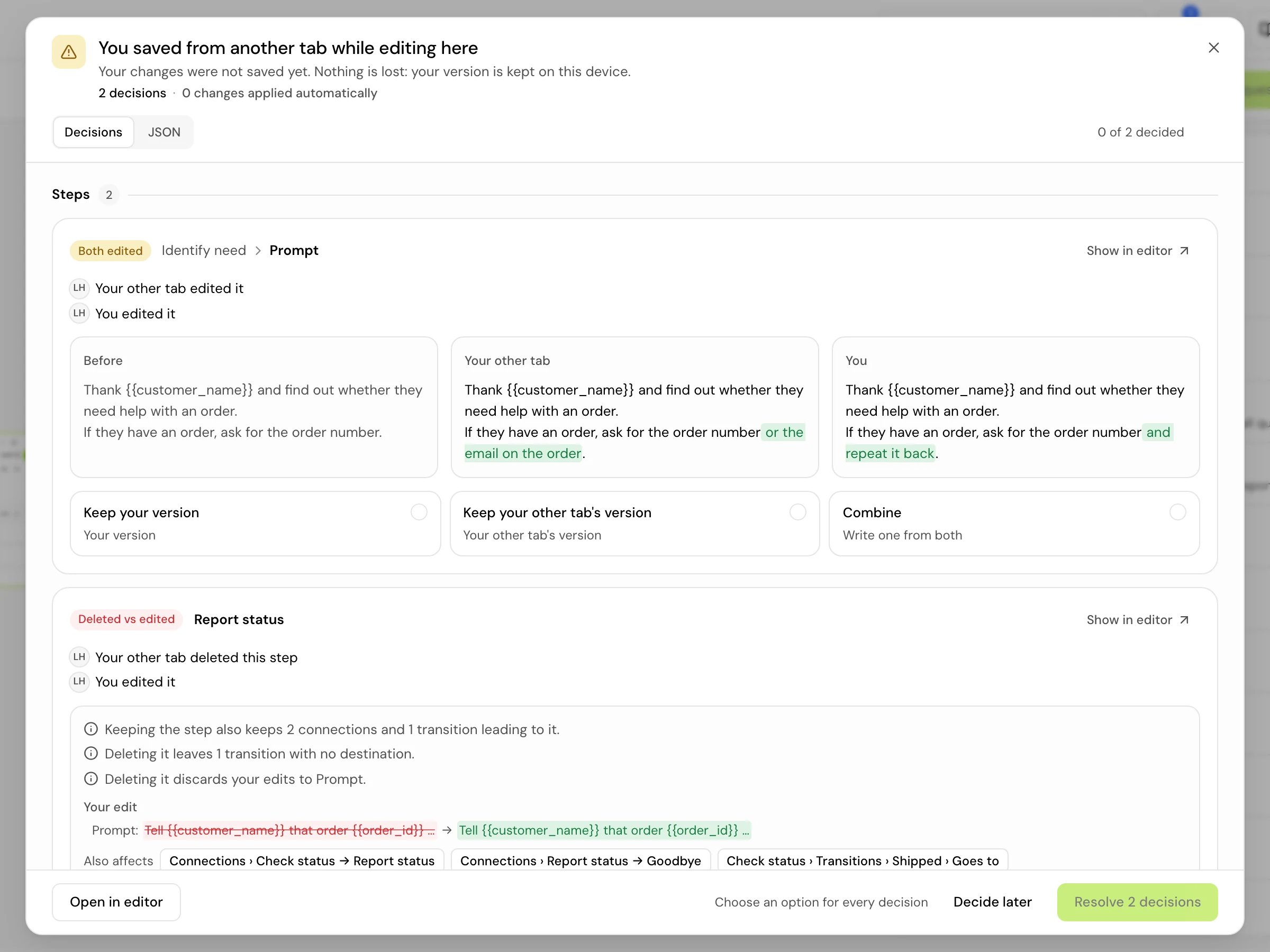
2
Read each decision
Decisions are grouped by area (Steps, Tools, Variables and so on). Each one says what kind of clash it is, such as Both edited or Deleted vs edited, shows the value before and each side’s version, and says what each choice also changes. Show in editor takes you to that place in the editor.Switch to JSON to see the same decisions as the agent’s settings, side by side.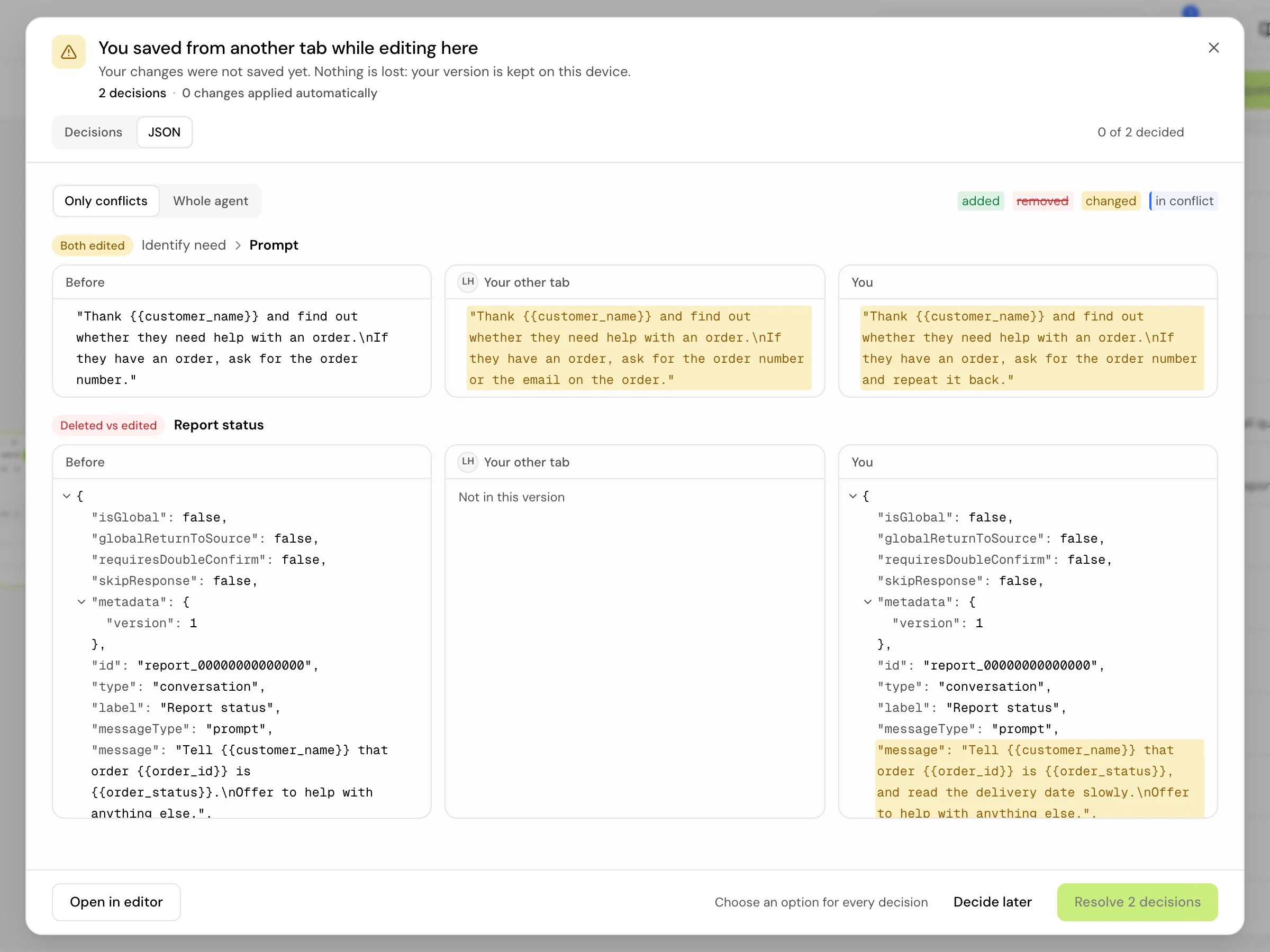
3
Choose what to keep
Pick an option on every decision, for example Keep your version, Keep your other tab’s version, or Combine (“Write one from both”). The review counts them: “{done} of {total} decided”.
4
Resolve
Click Resolve {count} decisions. “Conflict resolved. Your decisions are saved.” If the result would break something, for example a transition left with no destination, the review lists it and the button reads Resolve anyway.
Discard your draft
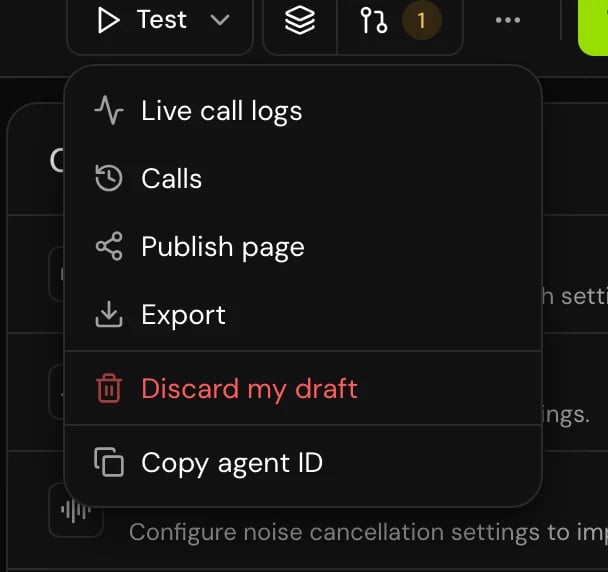
Open the ⋯ menu in the editor header and click Discard my draft. “Draft discarded. You can bring it back for 30 days.” Click Bring back to restore it. After 30 days it is deleted.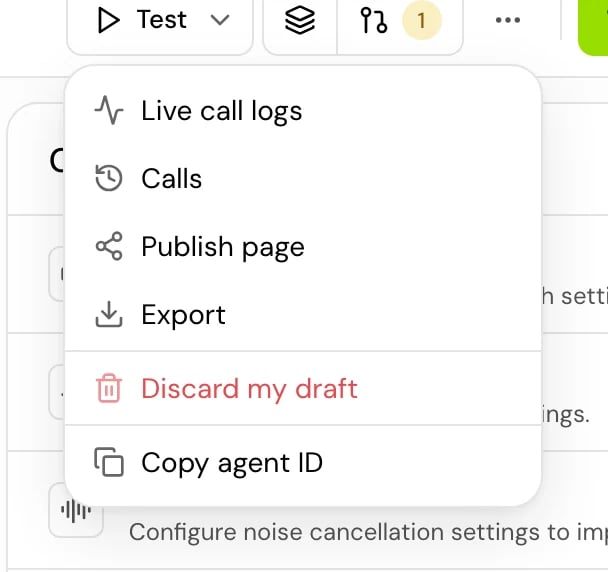
Publish a version
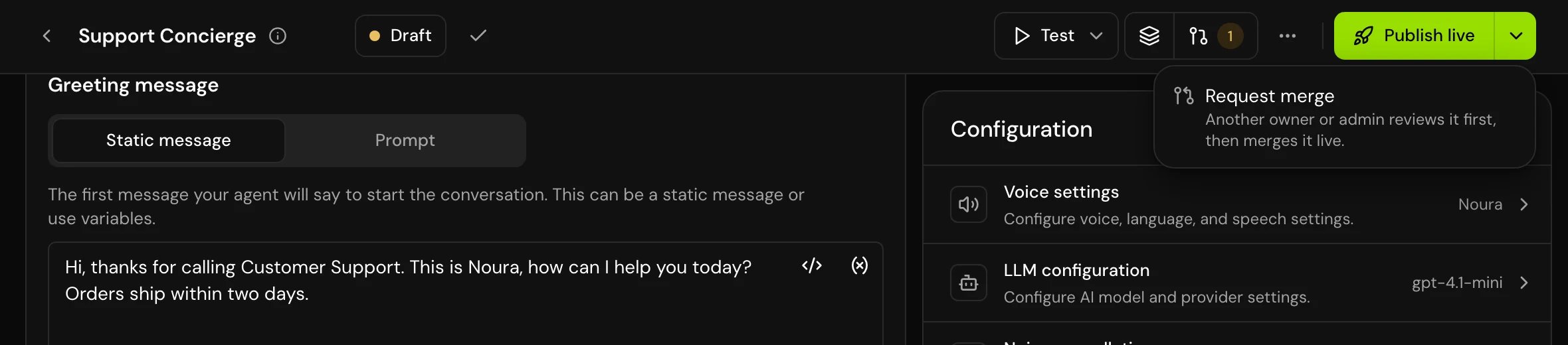
Owners and admins publish from the editor header. The button you see depends on the mode:1
Click Publish live or Publish version
2
Say what changed
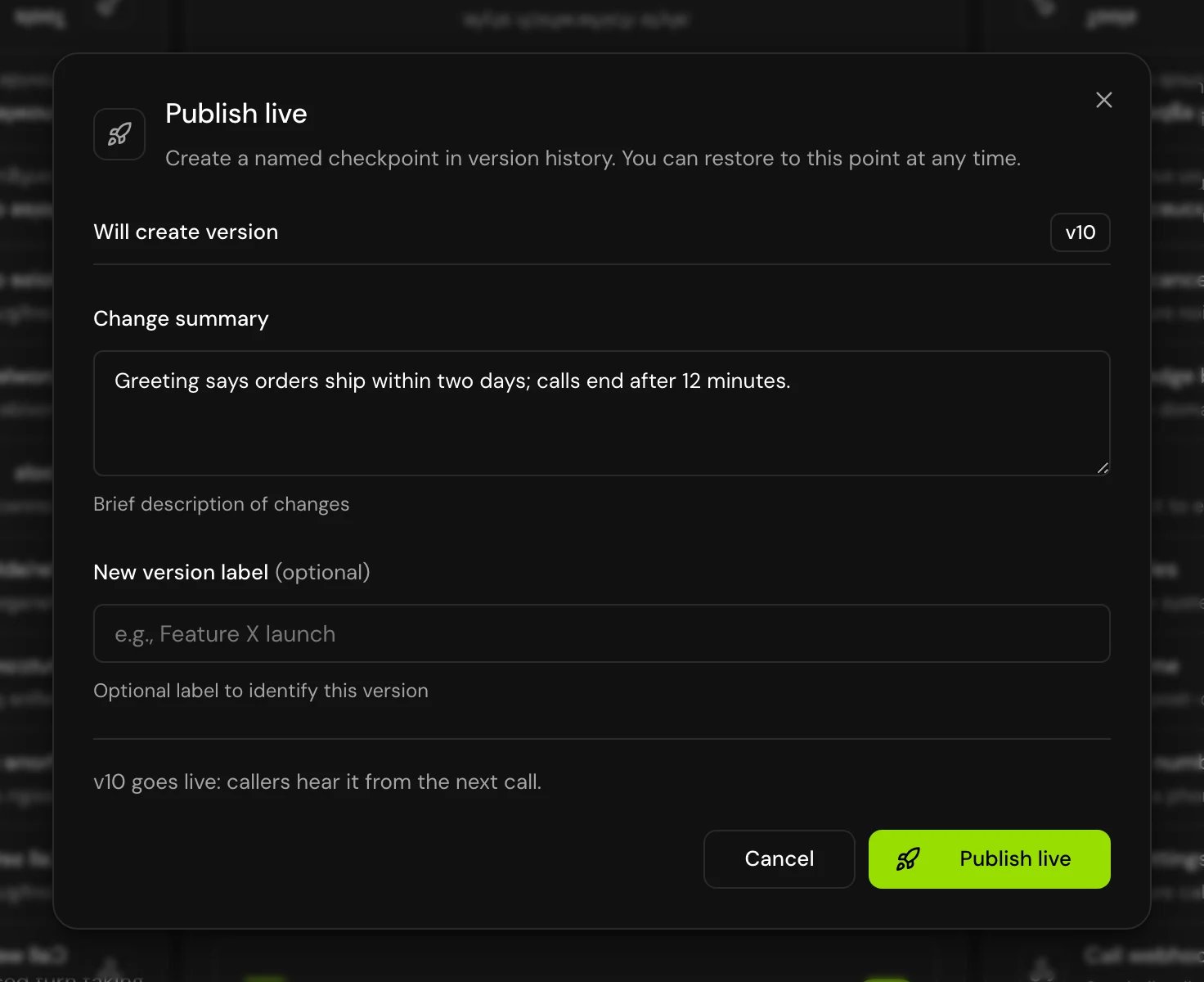
Fill in Change summary: “Say what changed: it is what your team reads later.” It is required, up to 500 characters.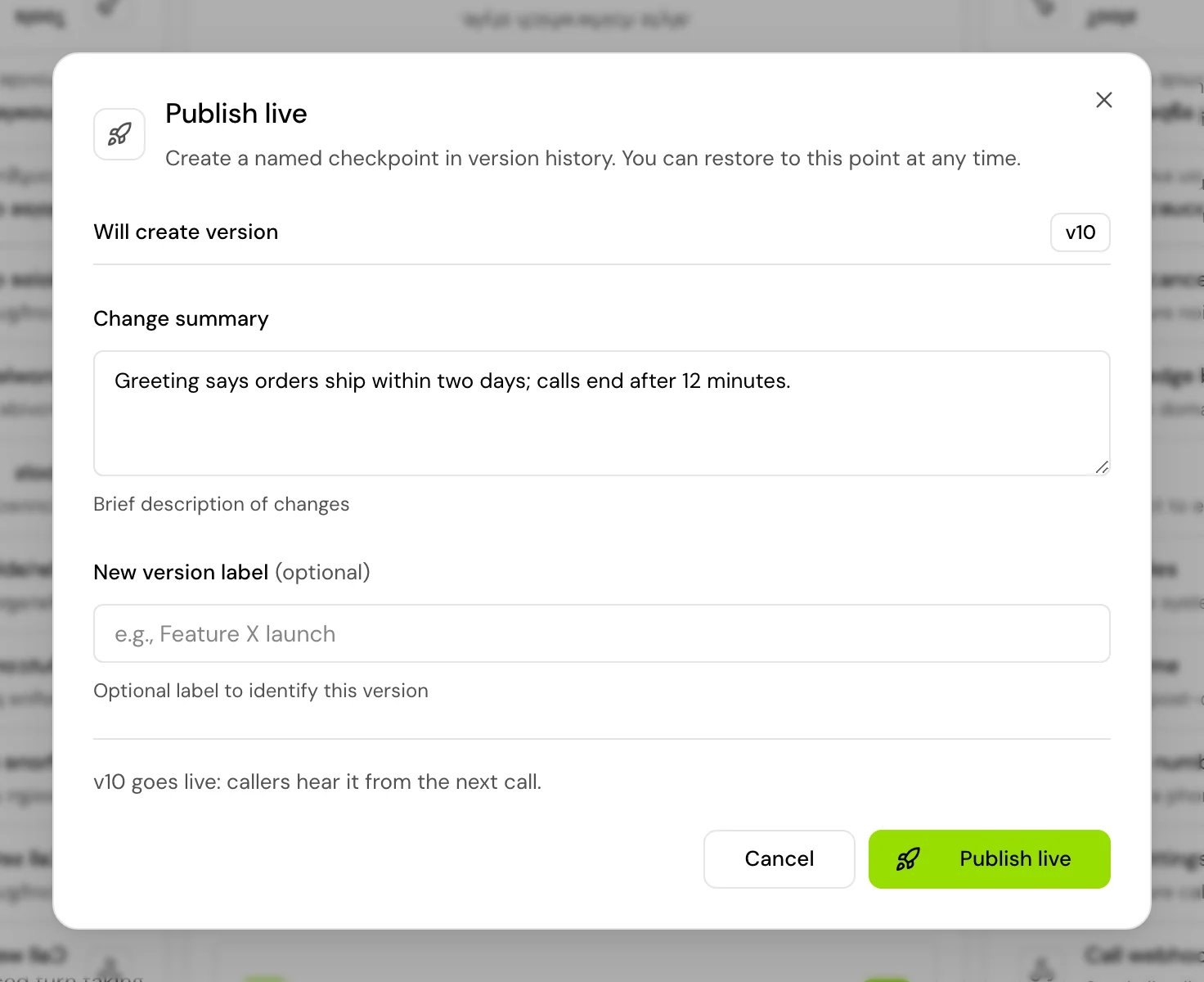
3
Add a label, if you want one
New version label is optional, up to 100 characters, for example “Feature X launch”.
4
Add your test values, if you used any
If you tested with test values, you can add them to dev (deployments on) or prod (deployments off) as part of publishing.
5
Publish
With deployments off: “v{version} goes live: callers hear it from the next call.” With deployments on: “v{version} lands in dev. Promote it to staging and prod from Releases; callers hear nothing new until it reaches prod.”
- The agent has errors: “Fix the errors in this agent before publishing it.”
- Nothing changed: “Nothing new to publish: the draft matches {version}.”
What a version holds
A version is a snapshot of the agent: its prompt or flow, greeting, model, call settings and variables, and which voice, tools, knowledge base items and dictionaries it uses. Some of those belong to the whole project, so a version stores which one it uses, not its content. An old version shows today’s content for:- Knowledge base items
- The voice itself, and the entries in its pronunciation dictionaries
- Phone numbers. Moving a number never needs a publish.
- Policies & guardrails and Functions & macros. Turning one on or off for an agent, or editing it in the library, changes live calls right away, whichever version they run.
Find and view versions
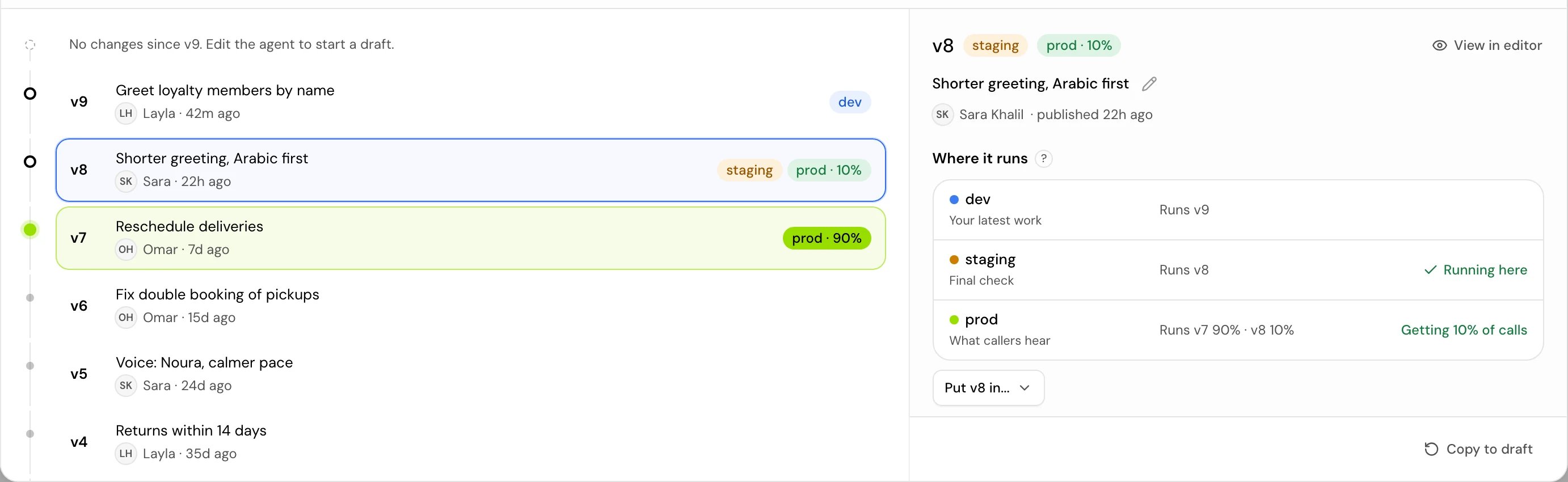
Version history lives in Releases. Click the version chip in the editor header to open it. On a narrow screen, open ⋯ > Deployments.Read the version chip
The version chip in the editor header says what is on your screen and whether callers hear it. A green dot means callers hear what you see; an amber dot means your draft has changes that aren’t in any version yet.
Hover the chip for the whole picture: what callers hear, what dev and staging run (for example “dev v9 · staging v8”), and your draft. On a narrow header, the chip shows fewer tags; the tooltip still has them all.
When you open a version to view it, a banner replaces the draft’s view:
Select a version to see:
Compare a version with live
To see how a version differs from the one callers hear now:1
Select the version
In Releases, select any version other than the live one.
2
Open the comparison
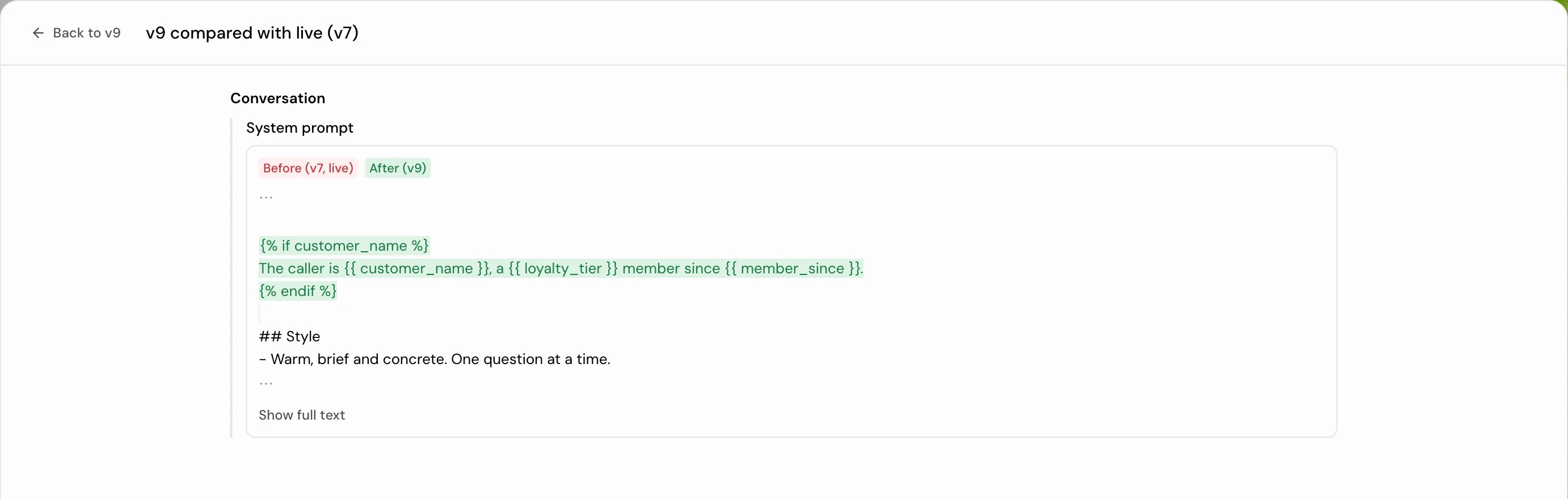
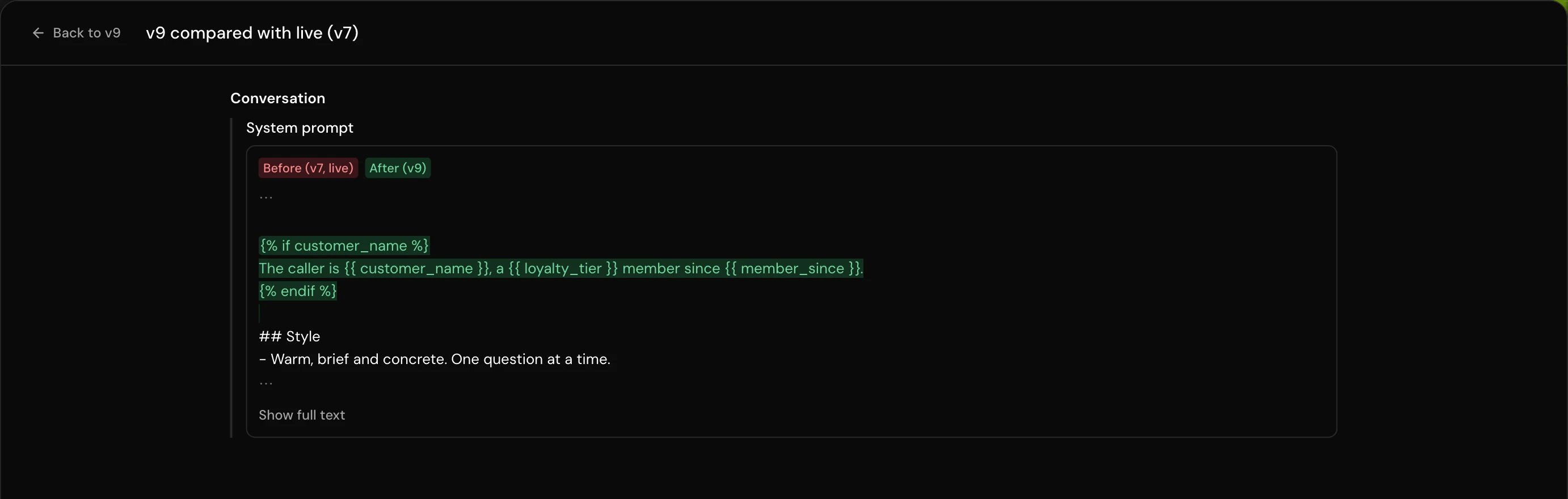
Under Compared with live, click Compare with live (v7) (the live version’s number). The comparison takes the whole of Releases, titled “v9 compared with live (v7)”.
3
Read the differences
“Every difference between this version and the one callers hear now, older version first. Read only.” The prompt shows as a word-by-word change, followed by every setting that differs. The older version is always Before and the newer one After, whichever of them is live, so an old version reads as what changed since, and a newer one as what it would bring.
4
Go back
Click Back to v9, or press Esc, to return to the version.
Copy an old version to your draft
To start again from an older version, open it and click Copy to draft. This “replaces the draft”; “Nothing callers hear changes. Publish to make it a new version.” Every member can copy a version to their own draft.Rename a version
Owners and admins can change a version’s label and summary (Rename v{version}). “Only the label and summary change. What this version contains stays exactly as it was published.”Good to know
- If someone publishes while you edit, your draft is still based on the version you started from. A merge request shows how many versions behind it is, and reviewers see your changes merged onto the newest version.
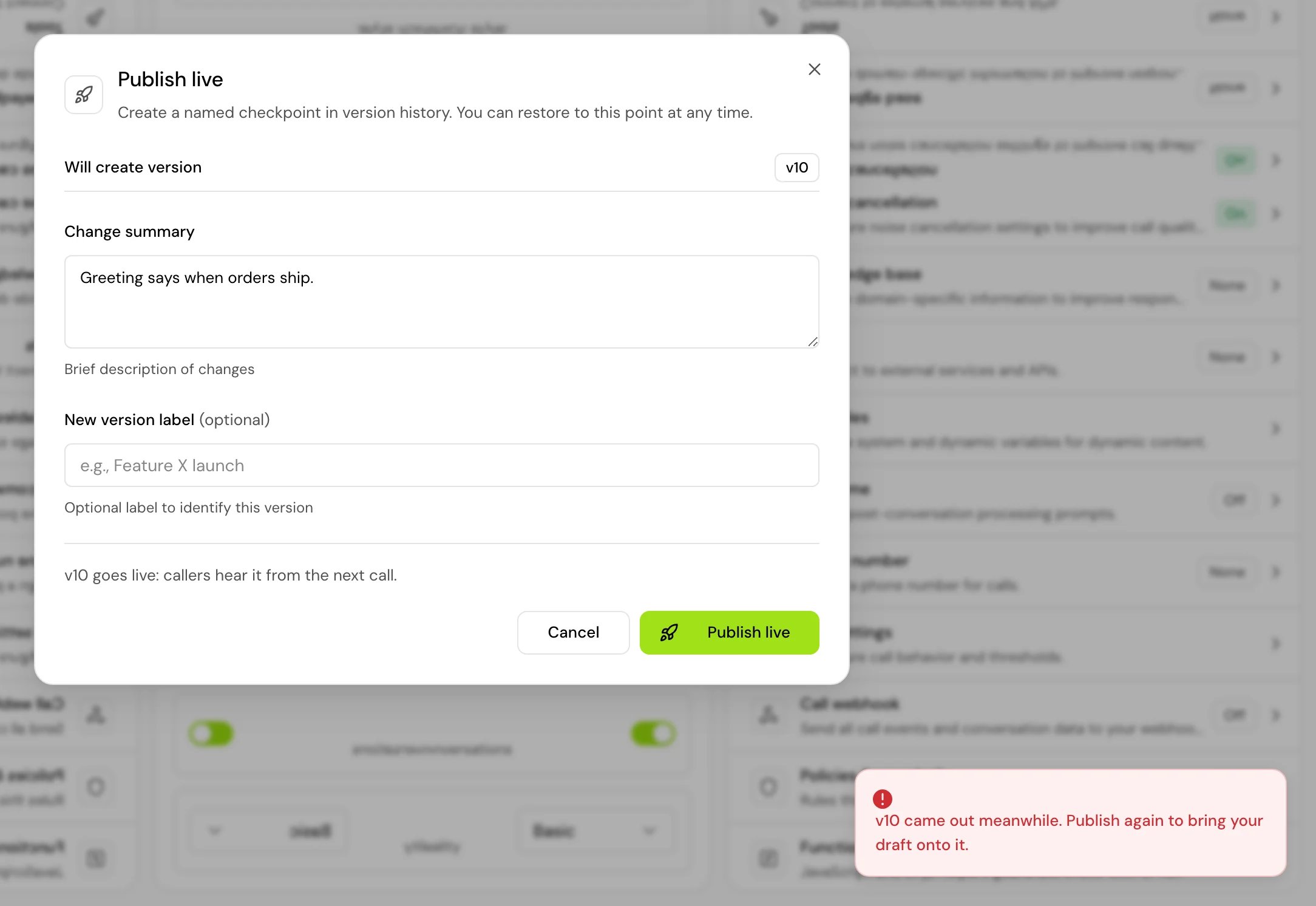
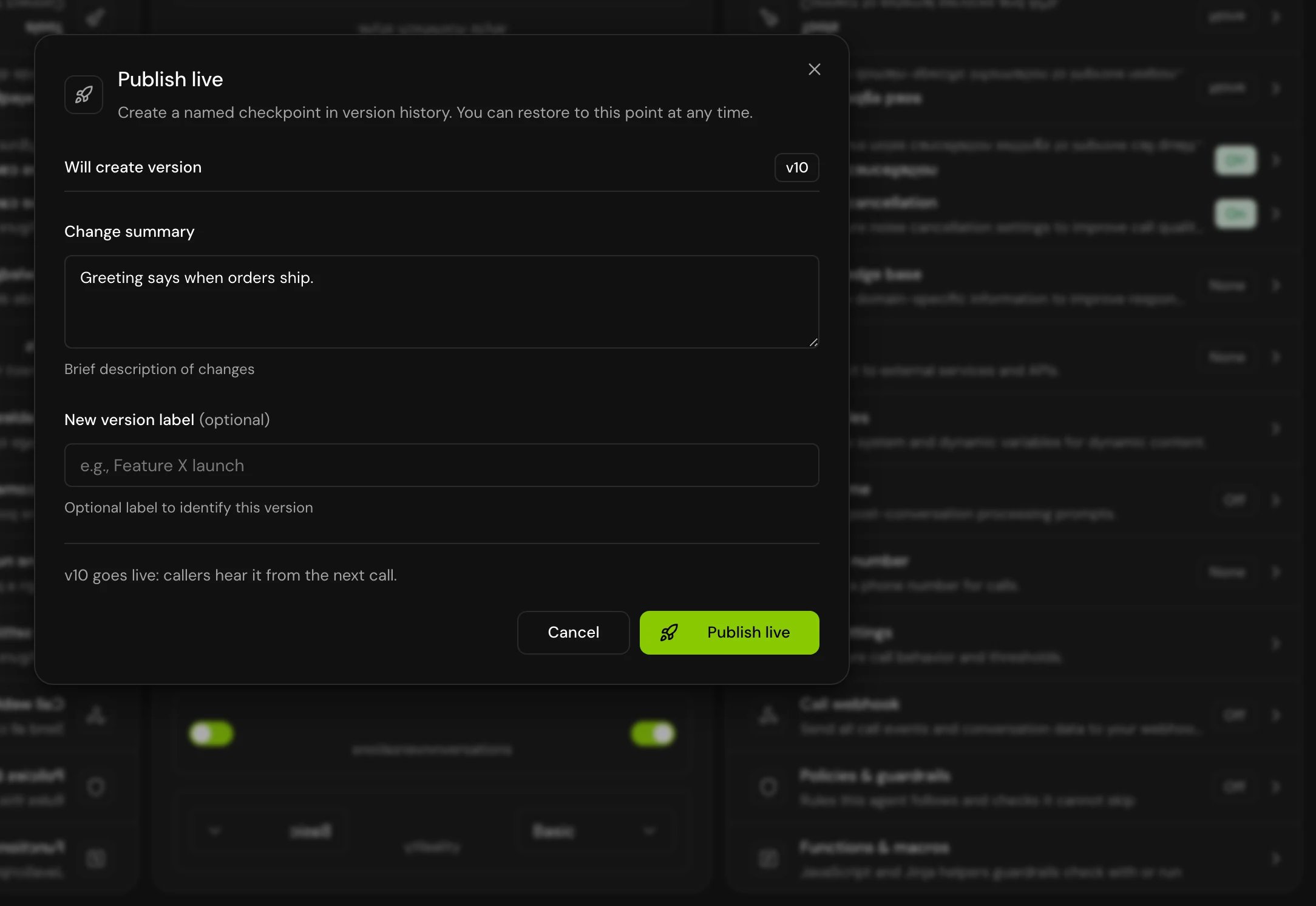
- When you publish a draft that is behind the newest version, the editor first brings your draft onto that version, then publishes. Where your edits and the newer version changed the same thing, you choose what to keep in Update your draft to {version}: “Choose what to keep for each decision. Nothing changes in your draft until you finish.” If your draft can’t be brought onto it then, for example because you closed that review, publishing stops with “{version} came out meanwhile. Publish again to bring your draft onto it.”
- If deployments are switched on or off while you work, the app asks you to reload: “Deployments were switched on or off meanwhile. Reload and try again.”
Related
Merge requests
Ask an owner or admin to merge your draft.
Environments and releases
Promote versions through dev, staging and prod.
Test your agent
Try your draft before you publish it.
Roles and permissions
What owners, admins and members can do.