

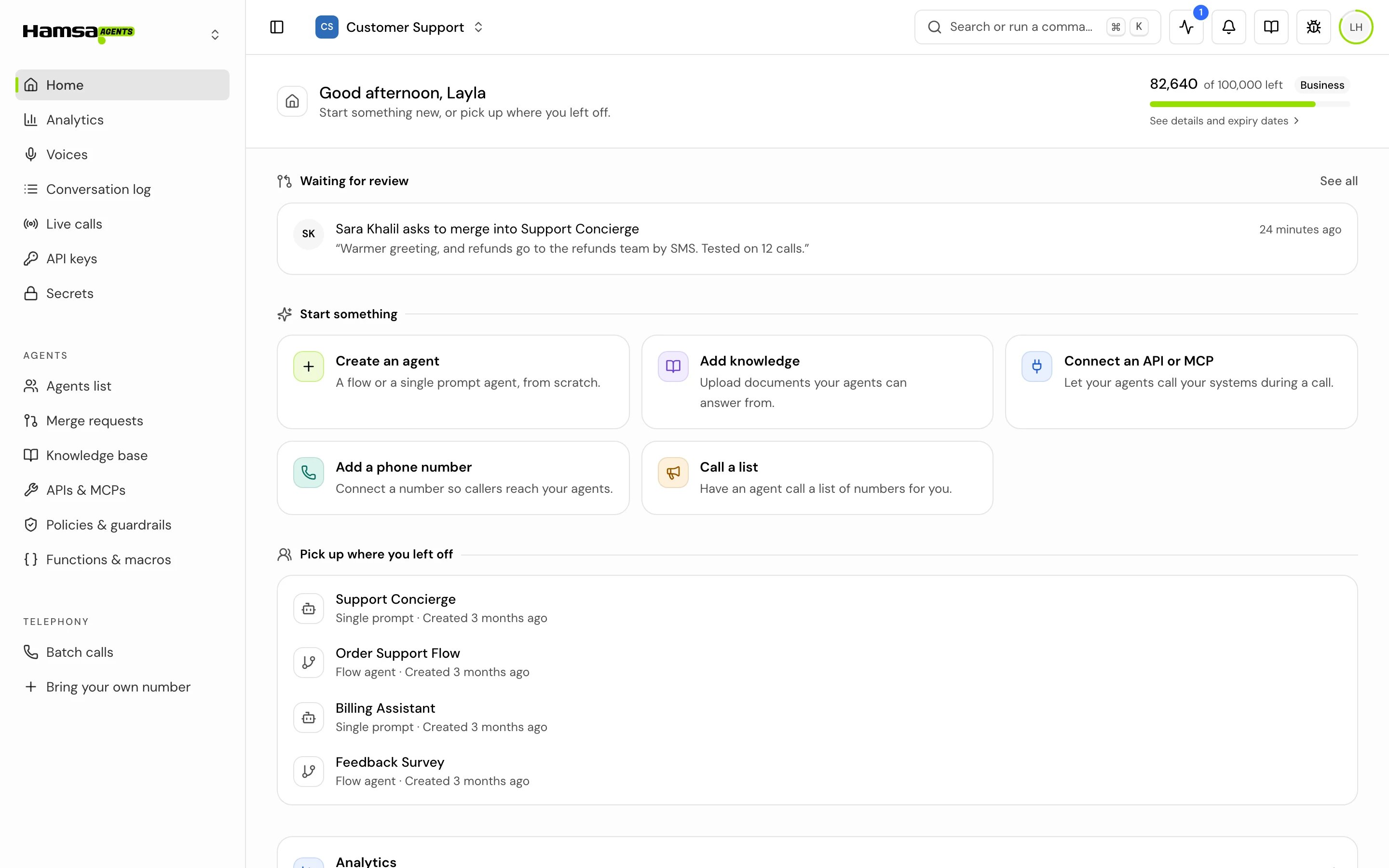
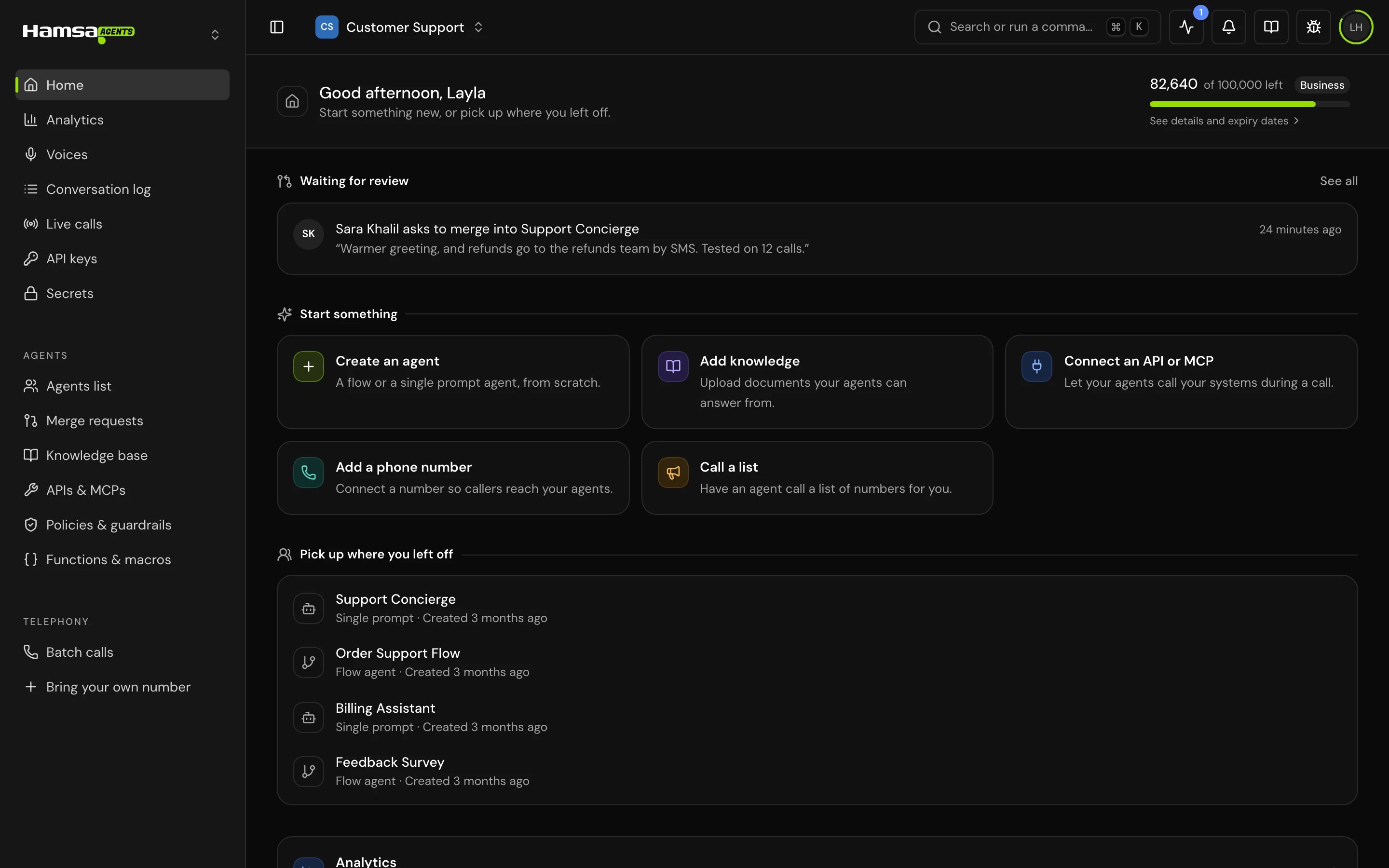
The sidebar
The sidebar has three groups. You see the pages your role lets you open.
To make room, collapse the sidebar to icons with the button at the start of the header, or press Cmd+B (Ctrl+B on Windows). The flow builder opens with the sidebar collapsed. On a phone or a narrow window, the sidebar opens as a drawer from the same button.
Switch to Hamsa Media
The Hamsa logo at the top of the sidebar is the platform switcher. Click it and pick Media platform (“Create content with AI”) to open Hamsa Media in the same tab. Agents platform (“Build AI agents”) is the one you’re in, marked with a check.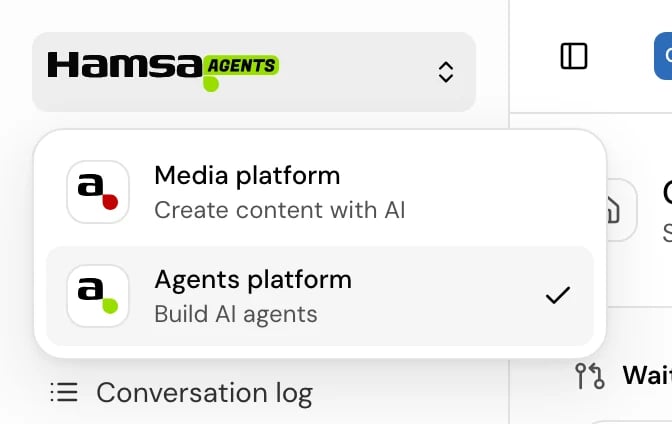
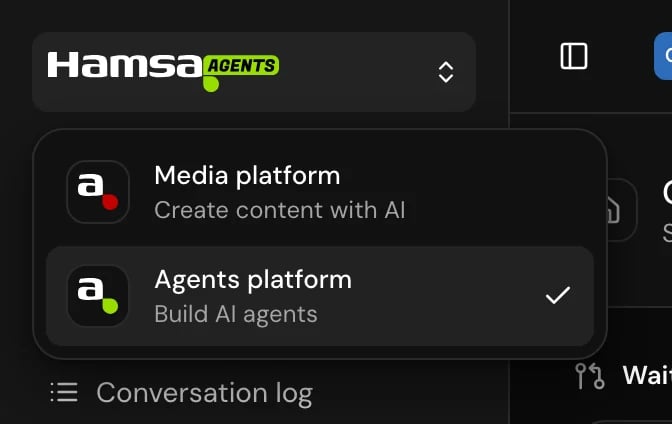
The header
From start to end:Switch project
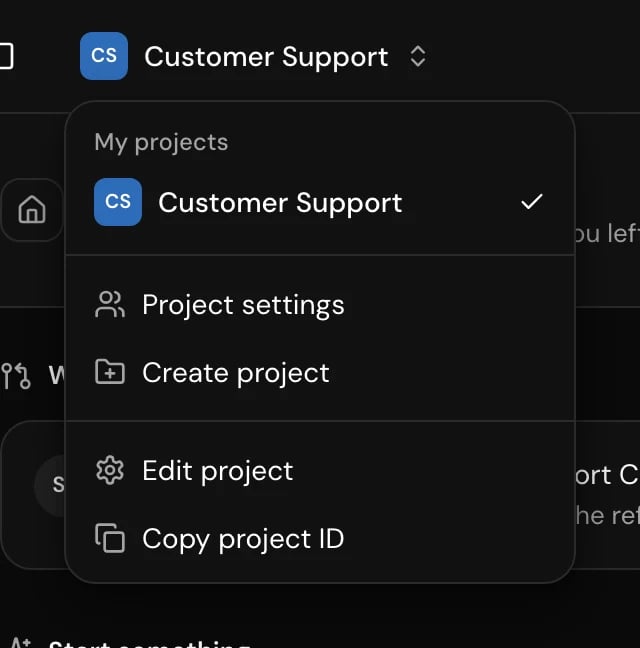
Click the project’s name in the header. Your projects are under My projects and projects you were invited to under Invited projects, each in alphabetical order. With more than five projects, a search field appears at the top.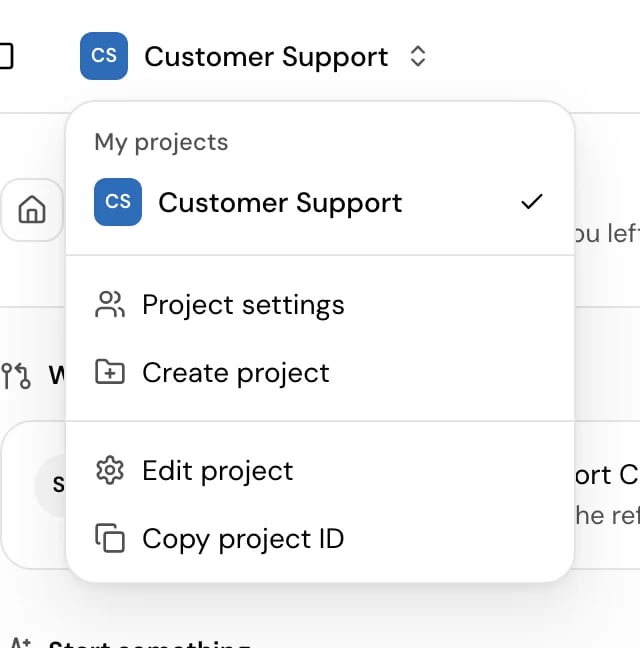
The command palette
To search or run a command from any page, press Cmd+K on Mac or Ctrl+K on Windows, or click “Search or run a command” in the header. Type to filter, use the arrow keys to move, Enter to pick and Esc to close.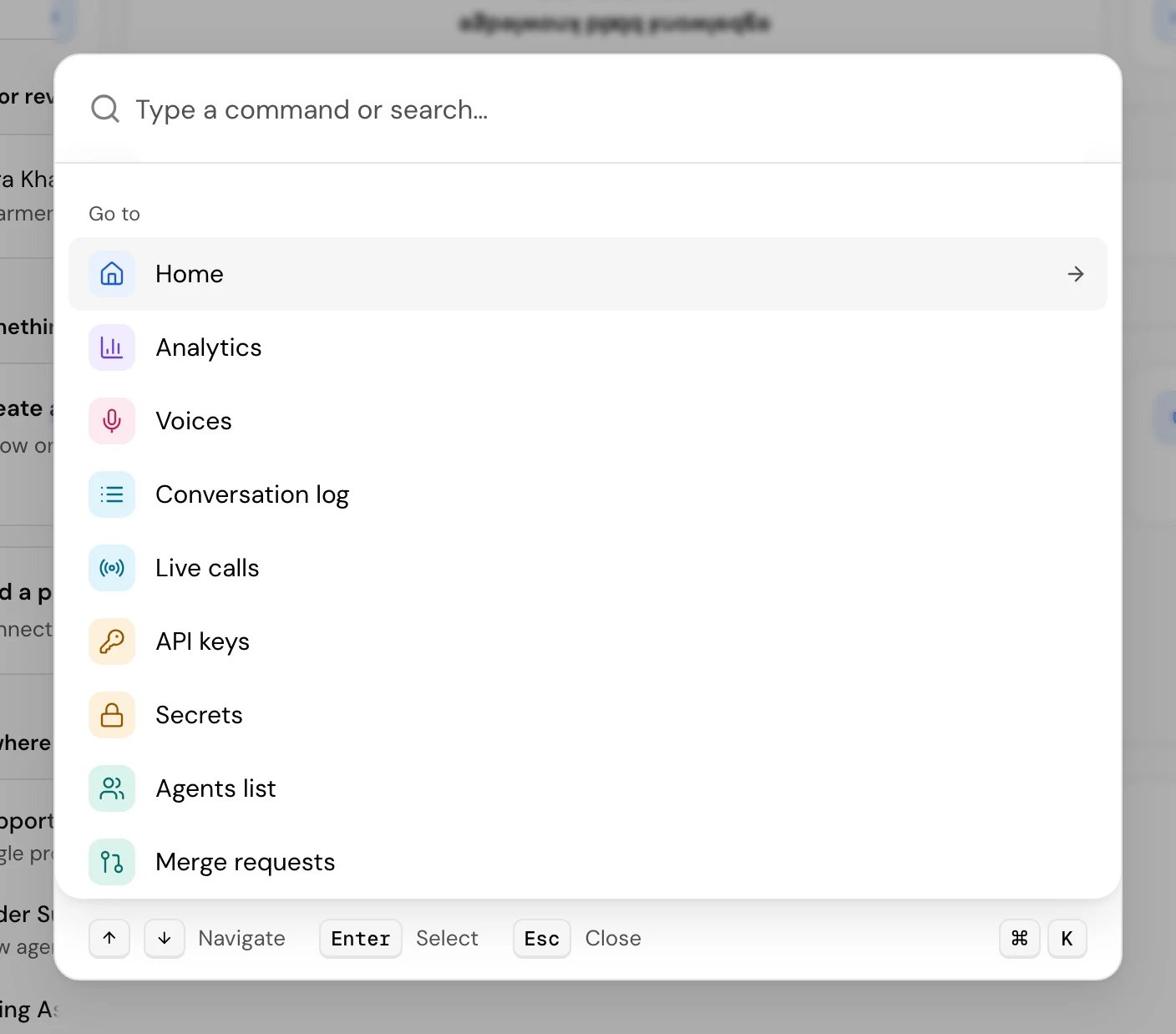
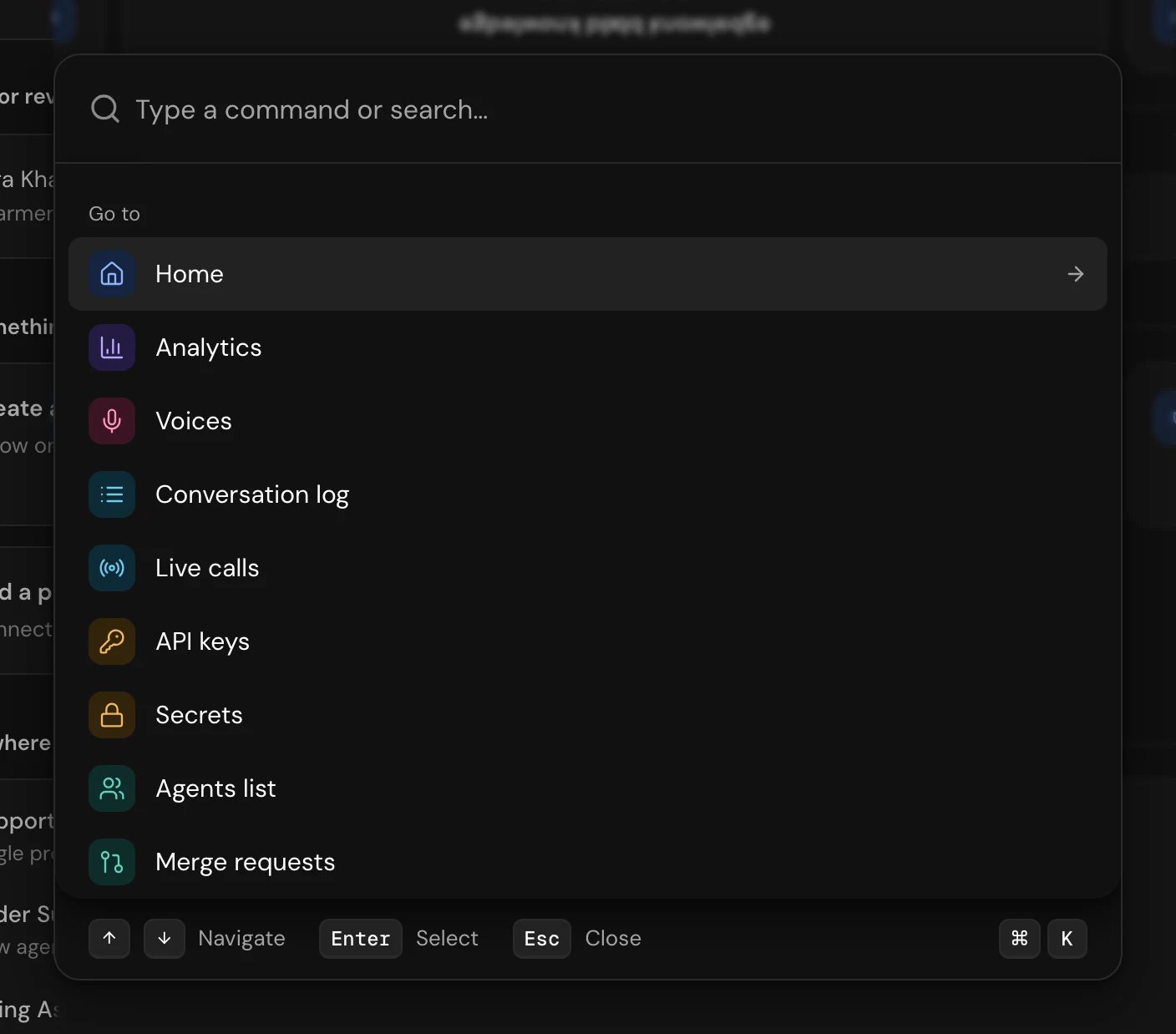
The palette shows only what your role lets you do. Words can come in any order; every word you type must match.
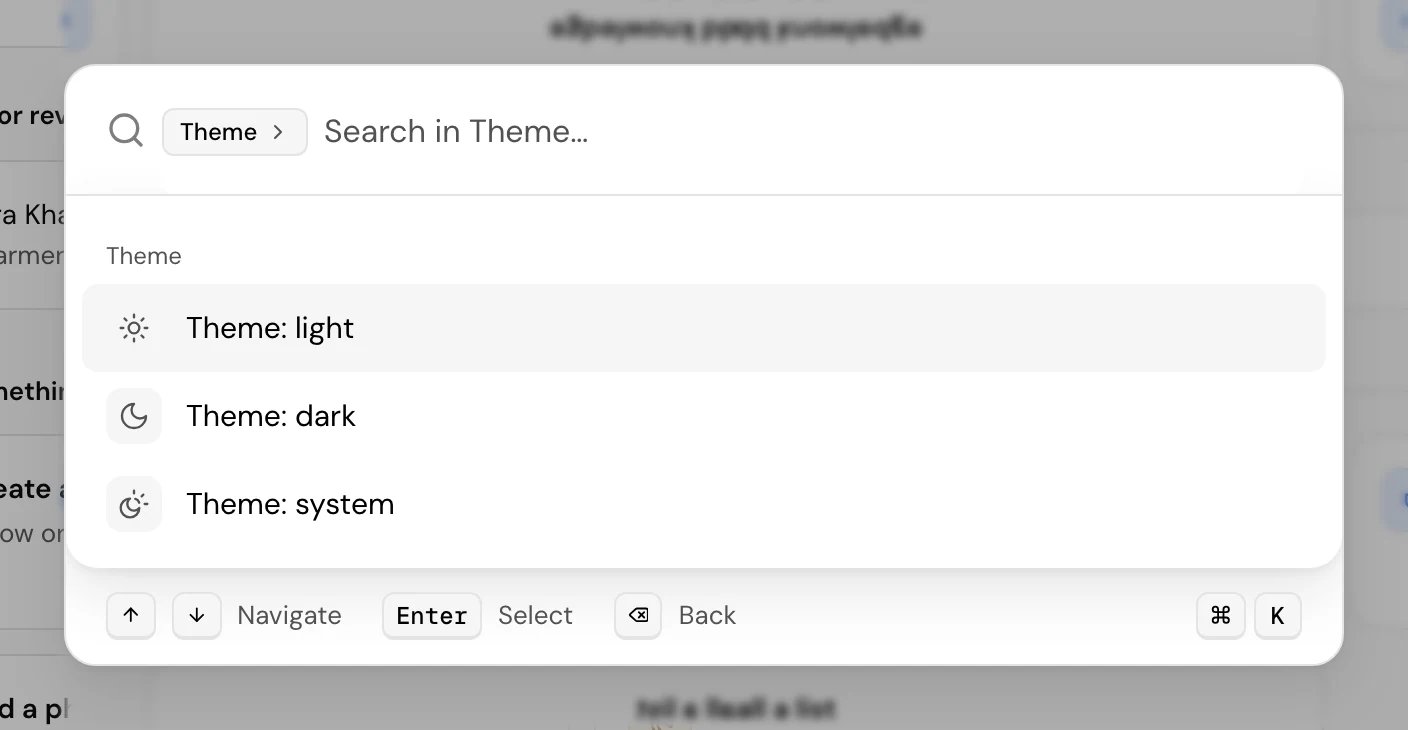
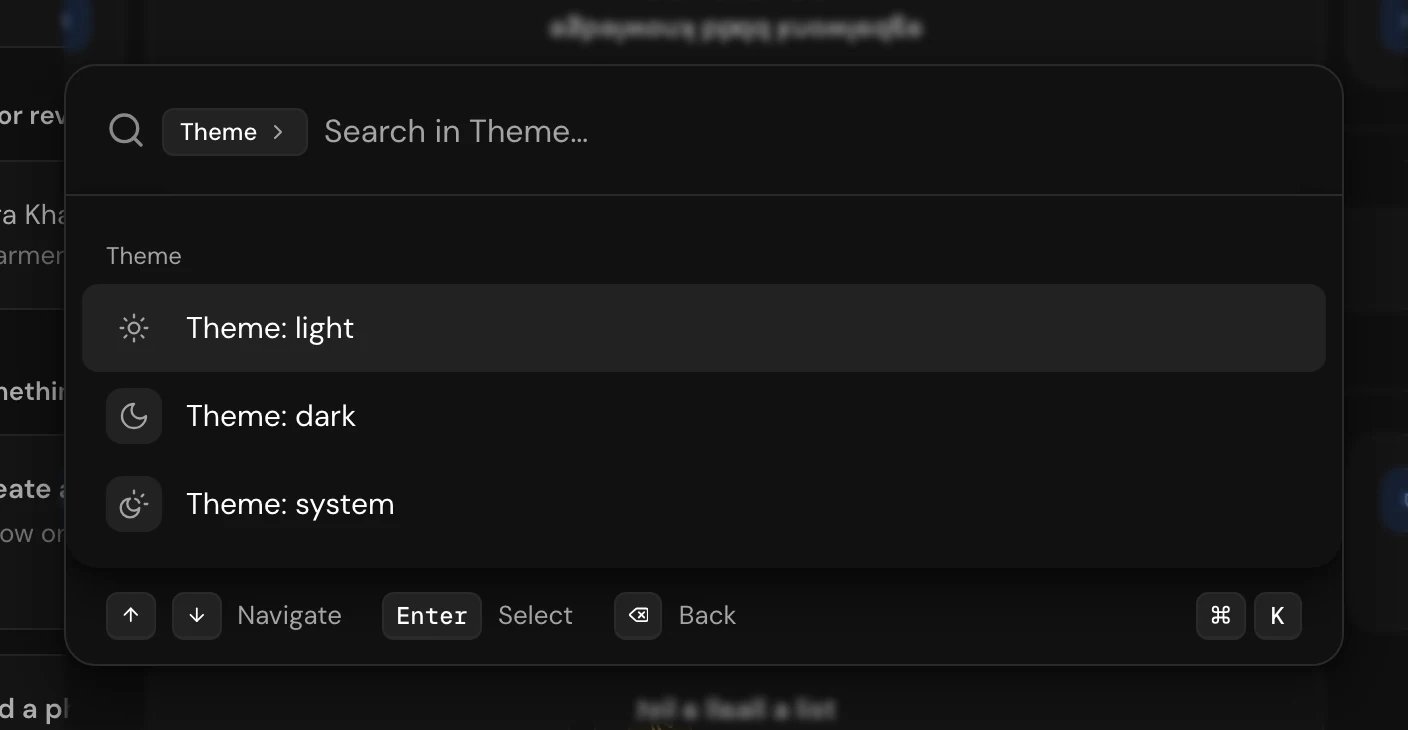
Some commands open a list of their own, such as Theme (Theme: light, Theme: dark, Theme: system) and Language (Language: English, Language: Arabic). The command’s name appears as a chip in the search field. Press Esc, or Backspace with the field empty, to step back.
Find calls, documents and tools
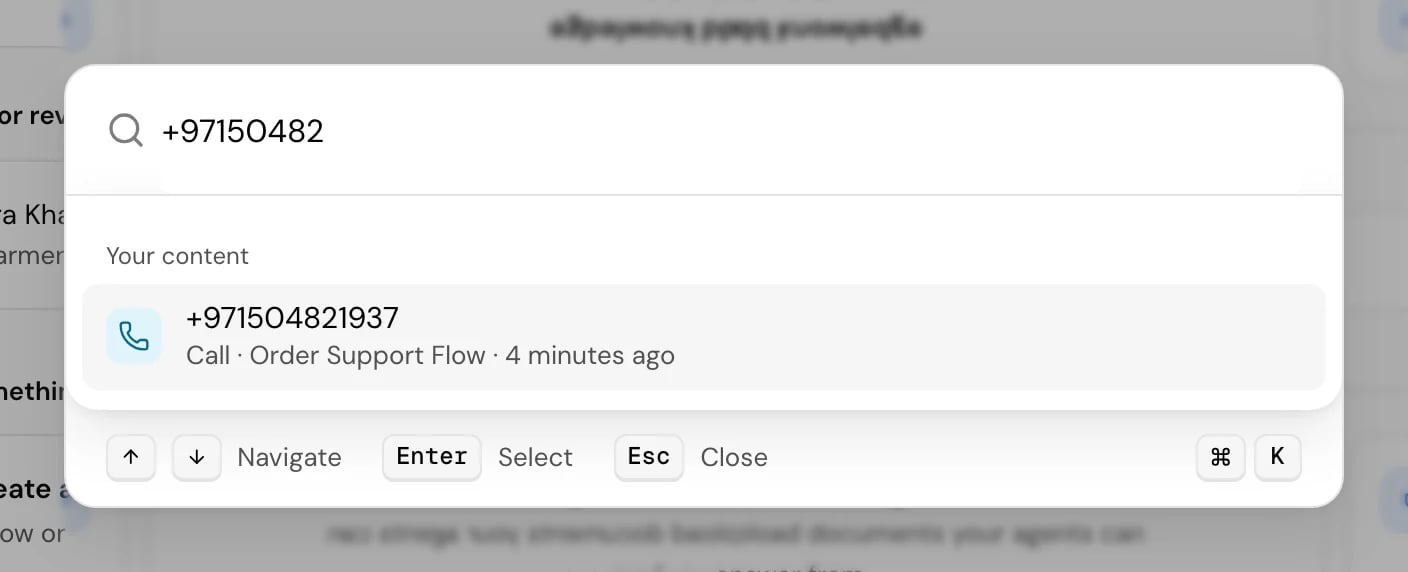
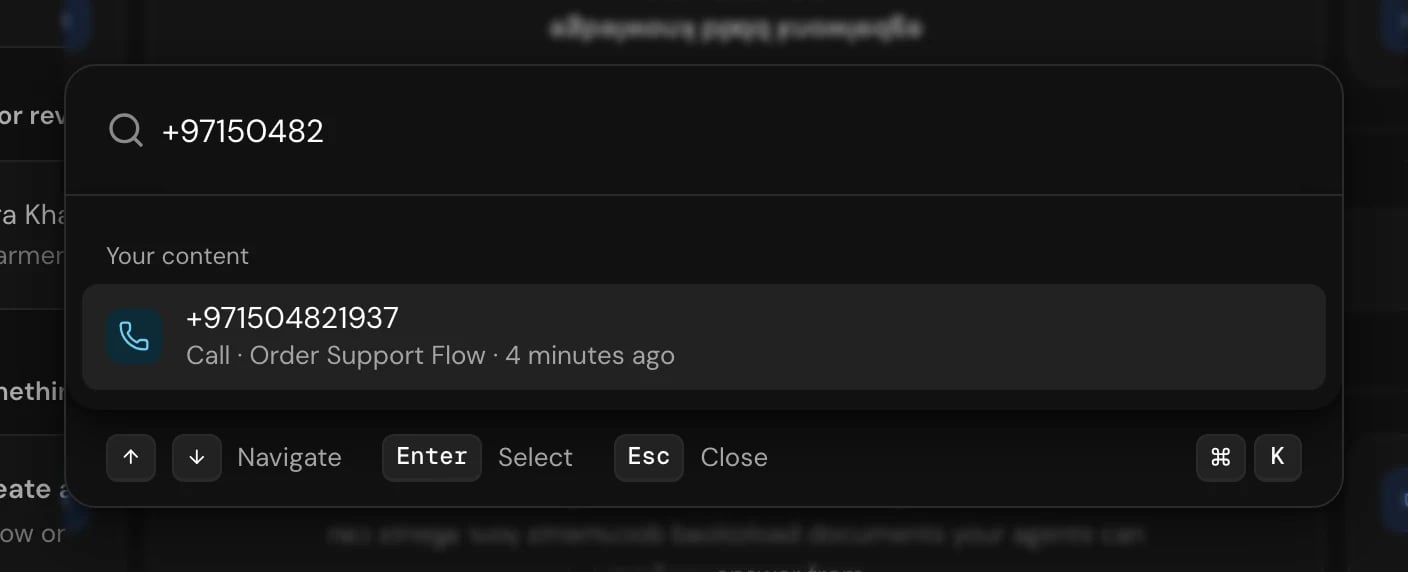
Type two characters or more and the palette also searches Your content in the current project, up to four results of each kind. “Searching your calls, documents and tools…” shows while it looks.
Each result shows its kind, the call’s agent where there is one, and how long ago it was made. A result you open stays in Recent for this project. You only see the kinds your role lets you read.
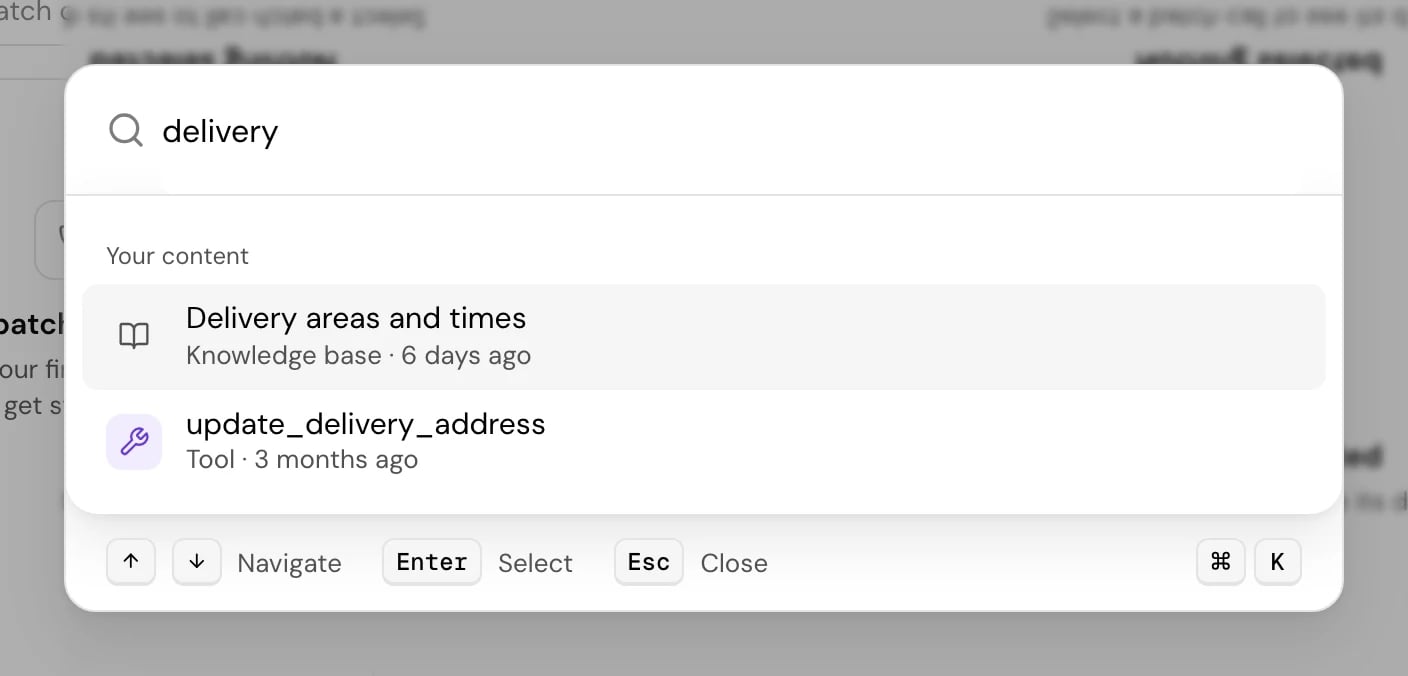
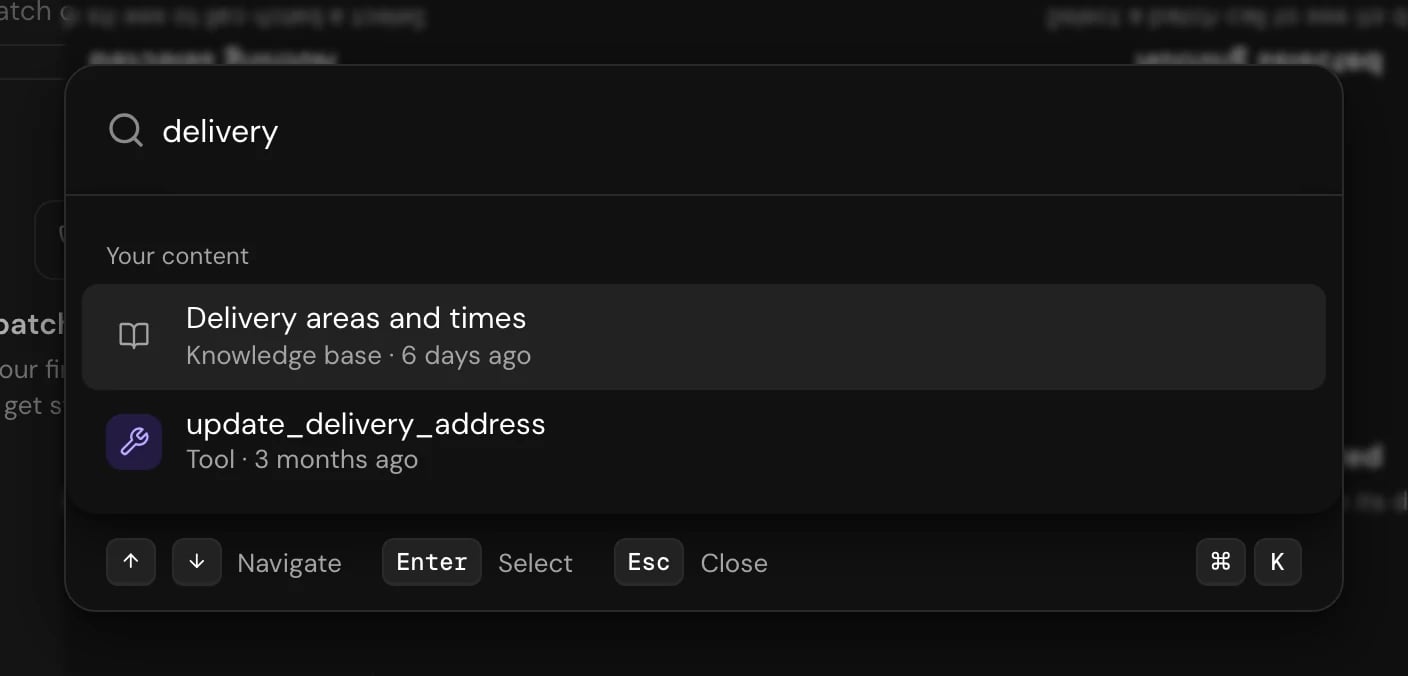
Examples of what you can type
Keyboard shortcuts
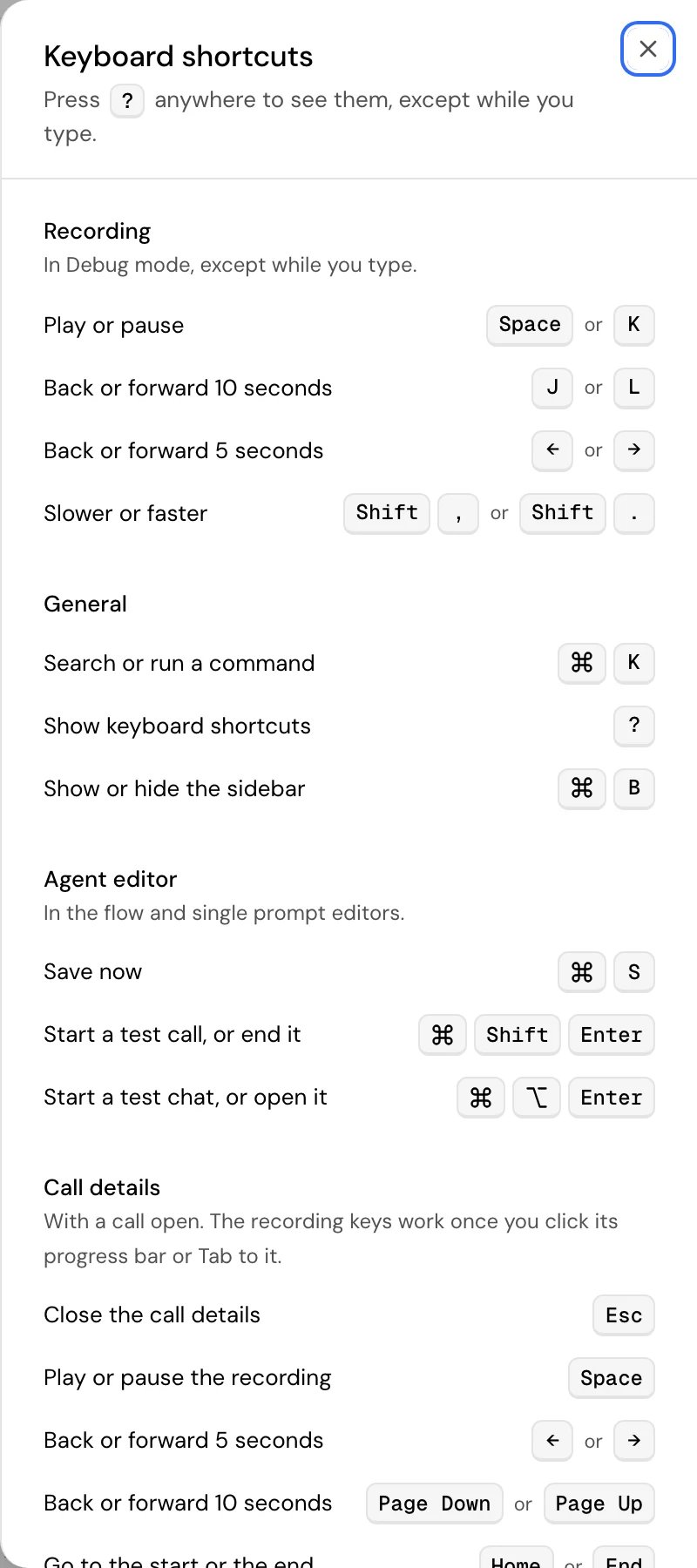
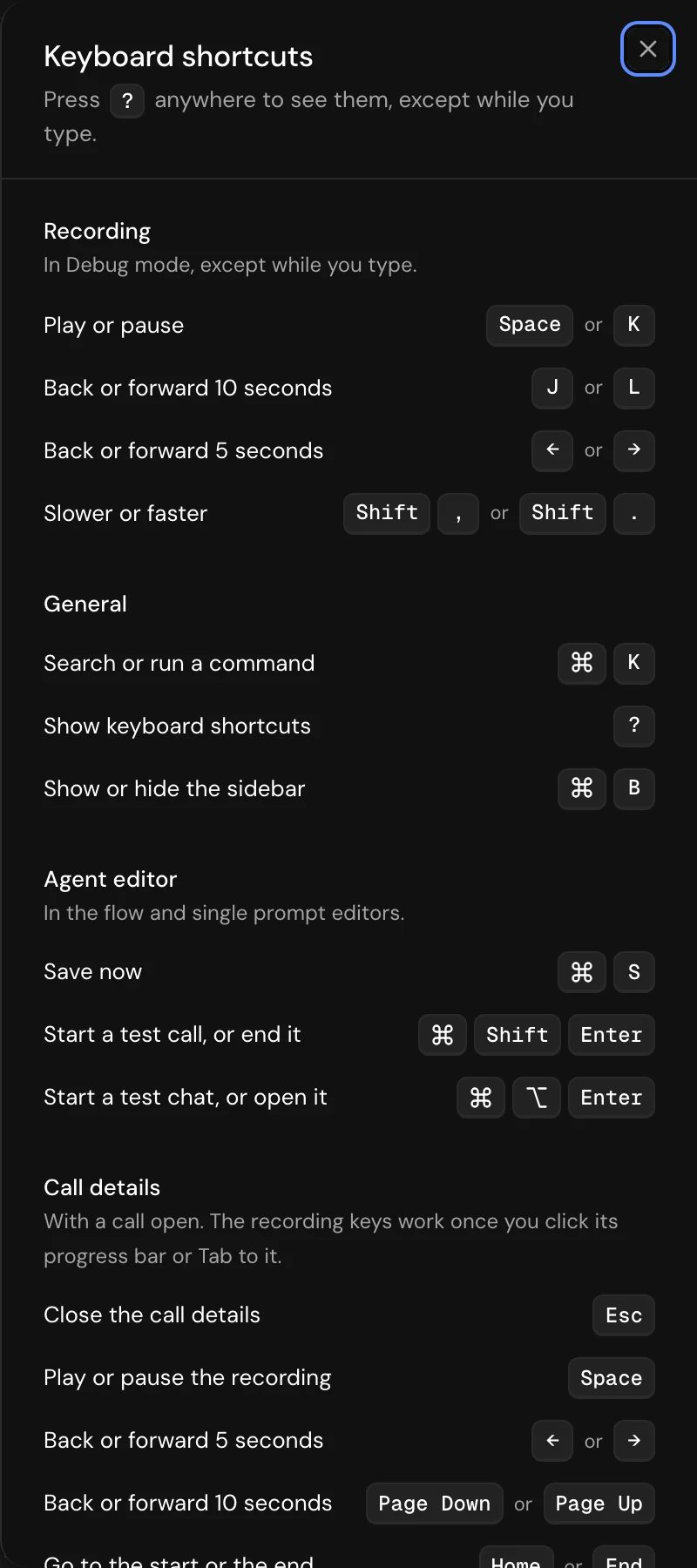
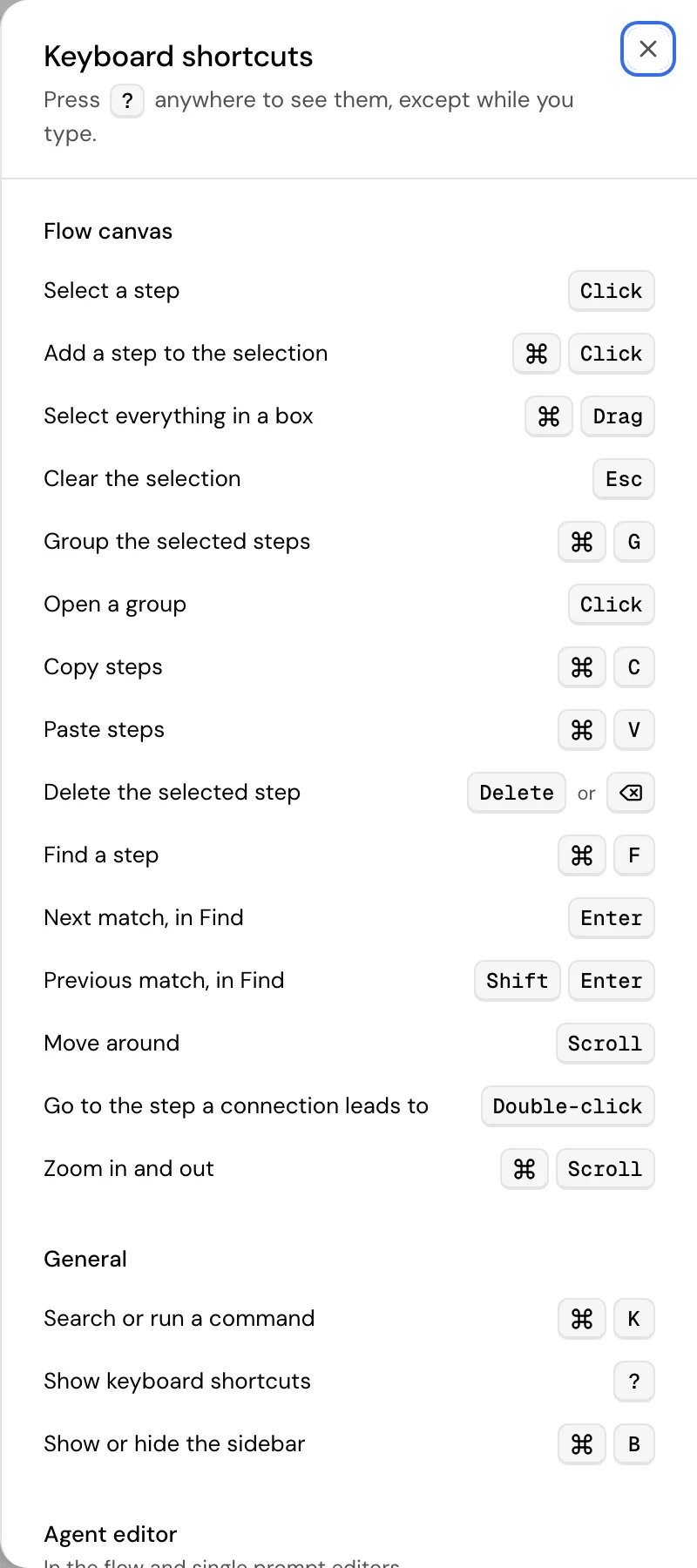
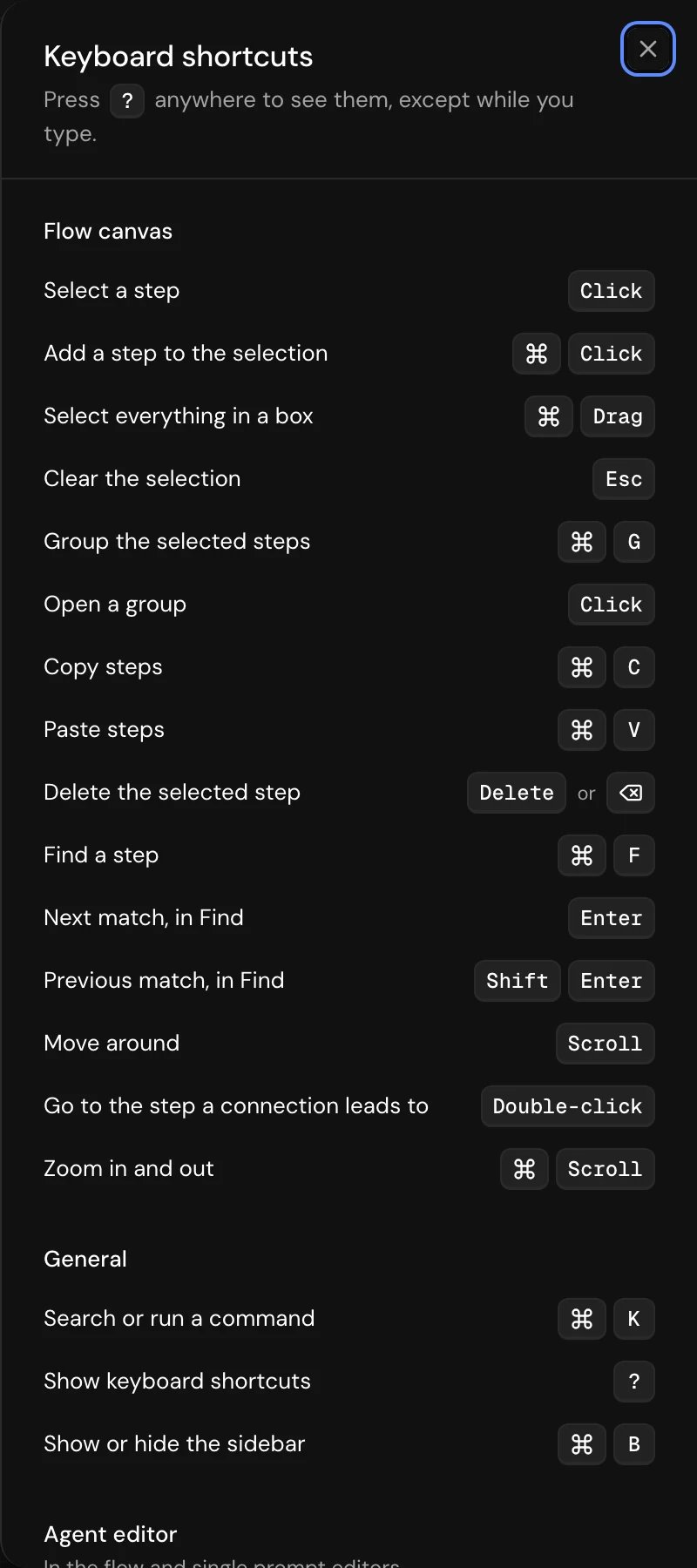
Press ? on any page, except while you type in a field or with a dialog or menu open, to open Keyboard shortcuts. You can also pick Keyboard shortcuts in Cmd+K. The sheet lists the keys that work everywhere and those of the page you’re on; on the flow canvas or with a call open, their keys come first.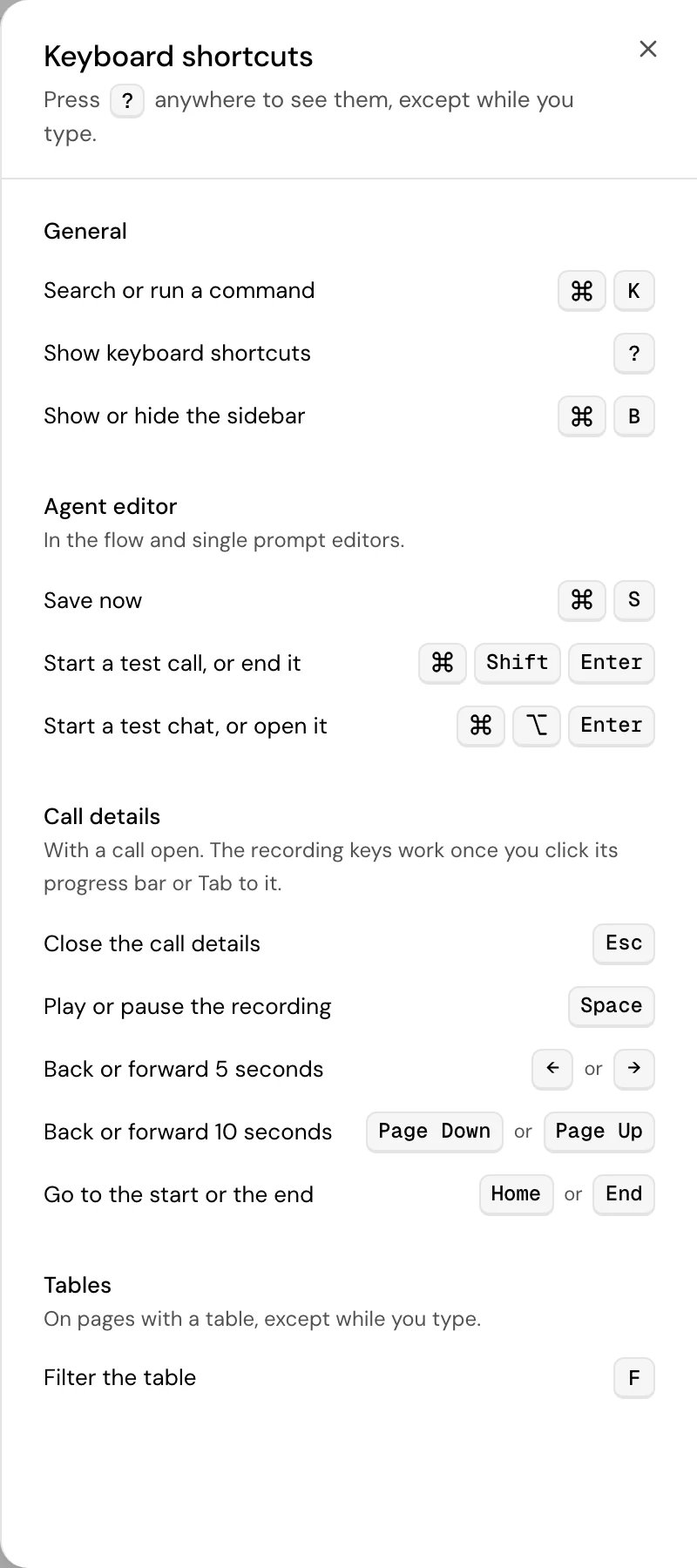
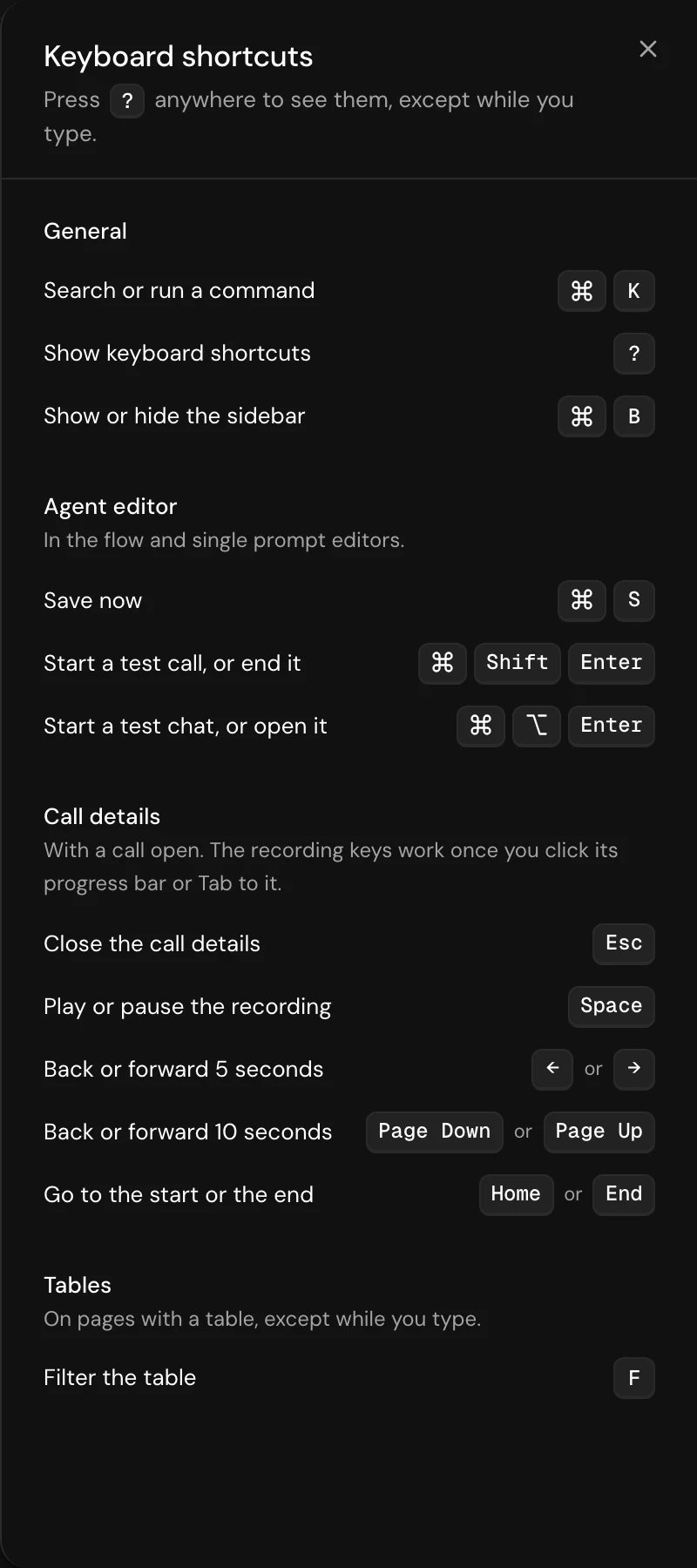
The recording keys work the same way in Debug mode. Single-letter keys don’t fire while you type in a field, or while a dialog or menu is open. Space presses a focused button instead of playing; K always plays and pauses.
With a call open, the sheet lists the recording’s keys first:
Send feedback
Use the bug icon in the header to tell the Hamsa team about a problem or an idea, pointing at the exact part of the page.1
Start
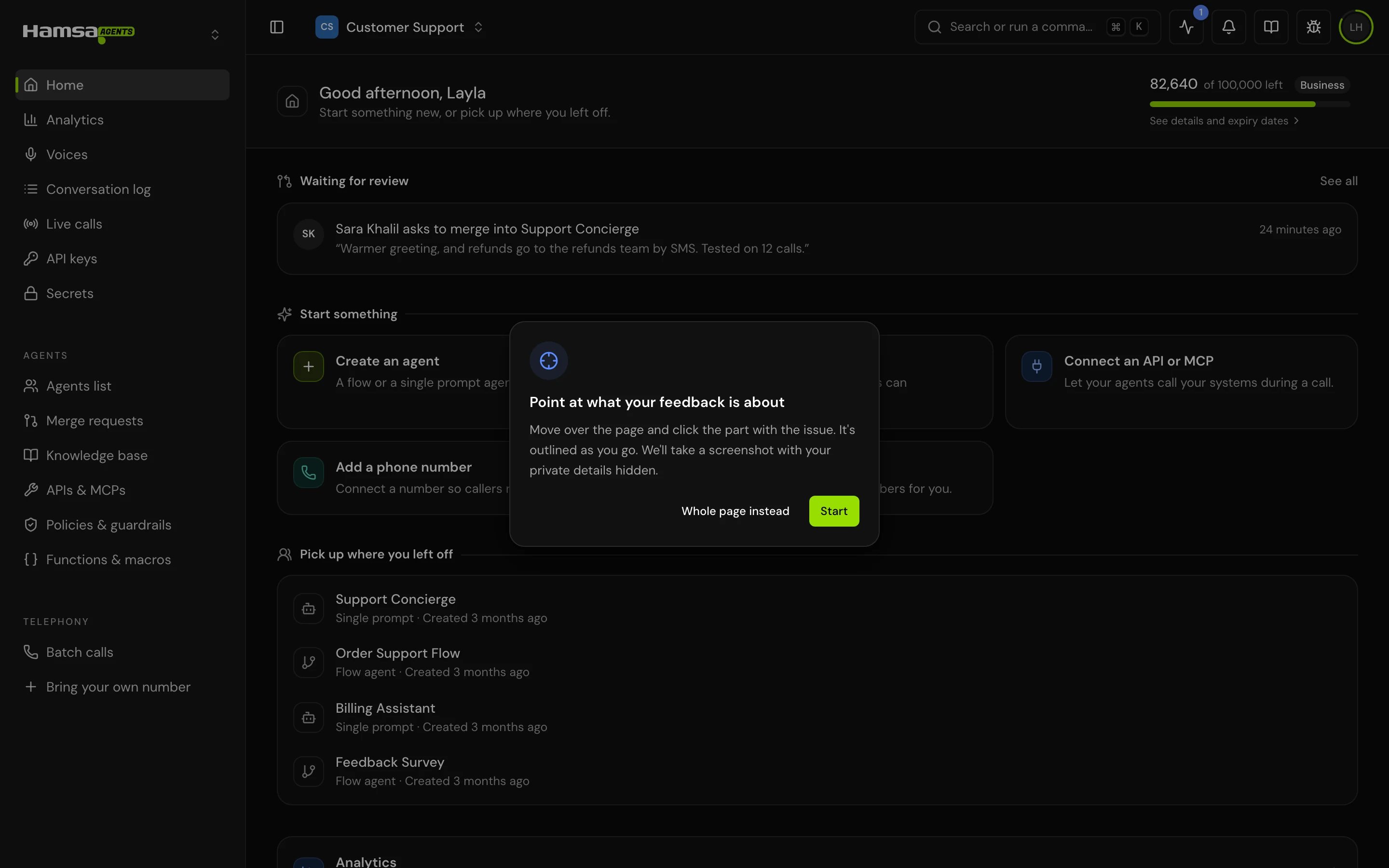
Click Send feedback in the header. The first time, a card explains how to point: “Point at what your feedback is about”. Click Start, or Whole page instead.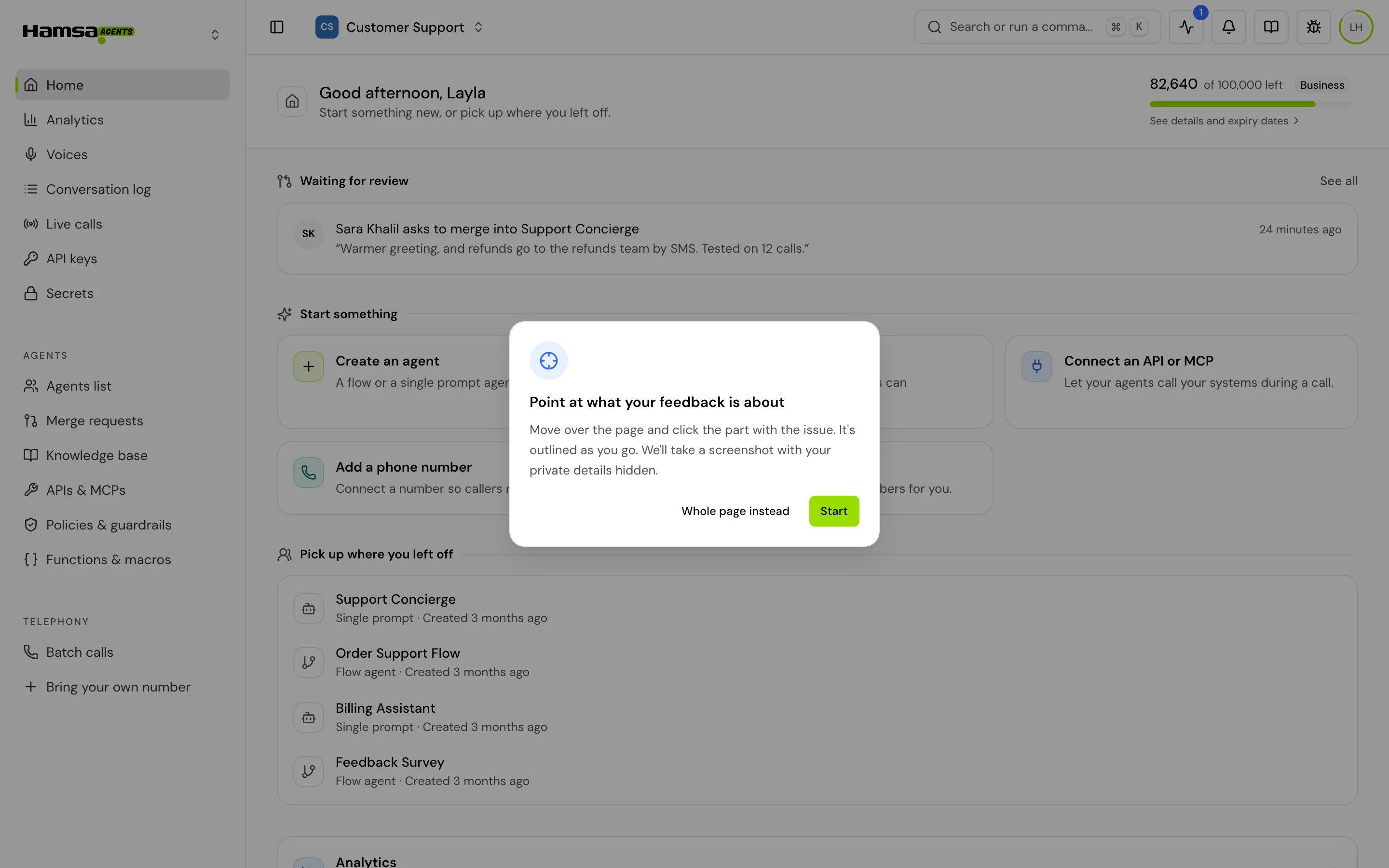
2
Point at the part
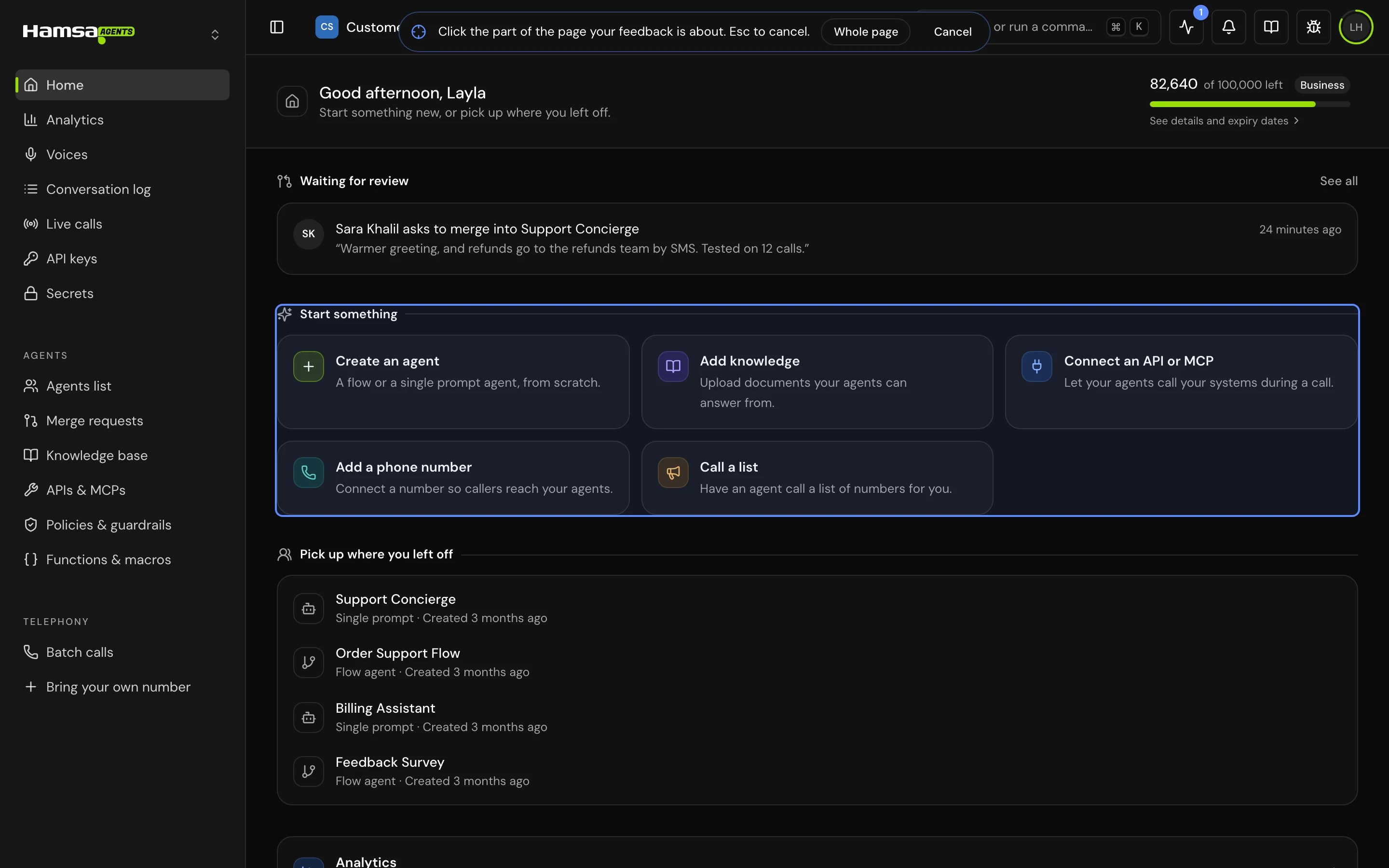
Move over the page: the part under your cursor is outlined. Click it. Press Esc or Cancel to stop, or click Whole page in the bar at the top.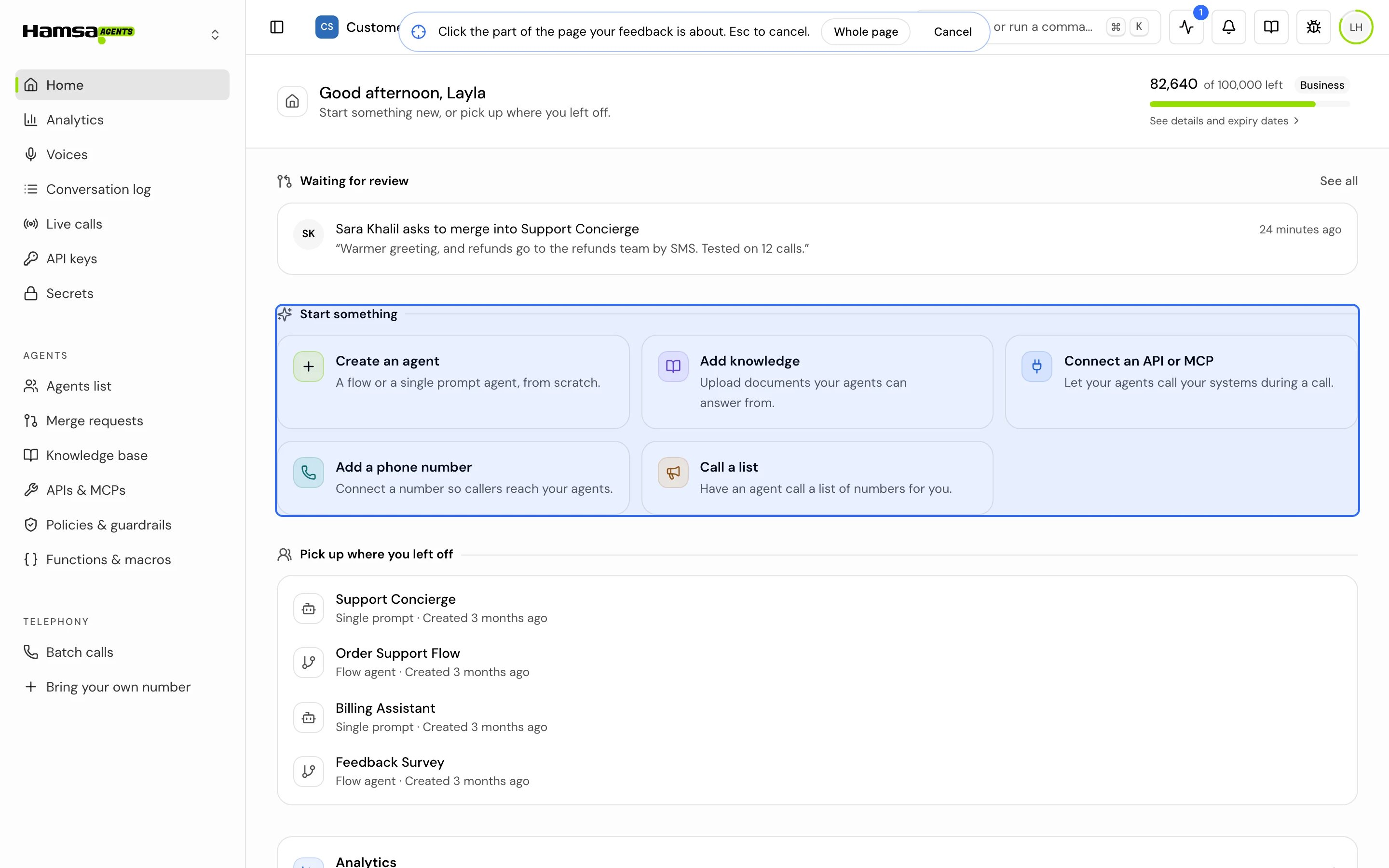
3
Write and send
The Send feedback form shows what you picked (Pick again to change it). Write Your feedback, keep or switch off Include a screenshot, and click Send feedback. “Thanks, your feedback was sent.” confirms it.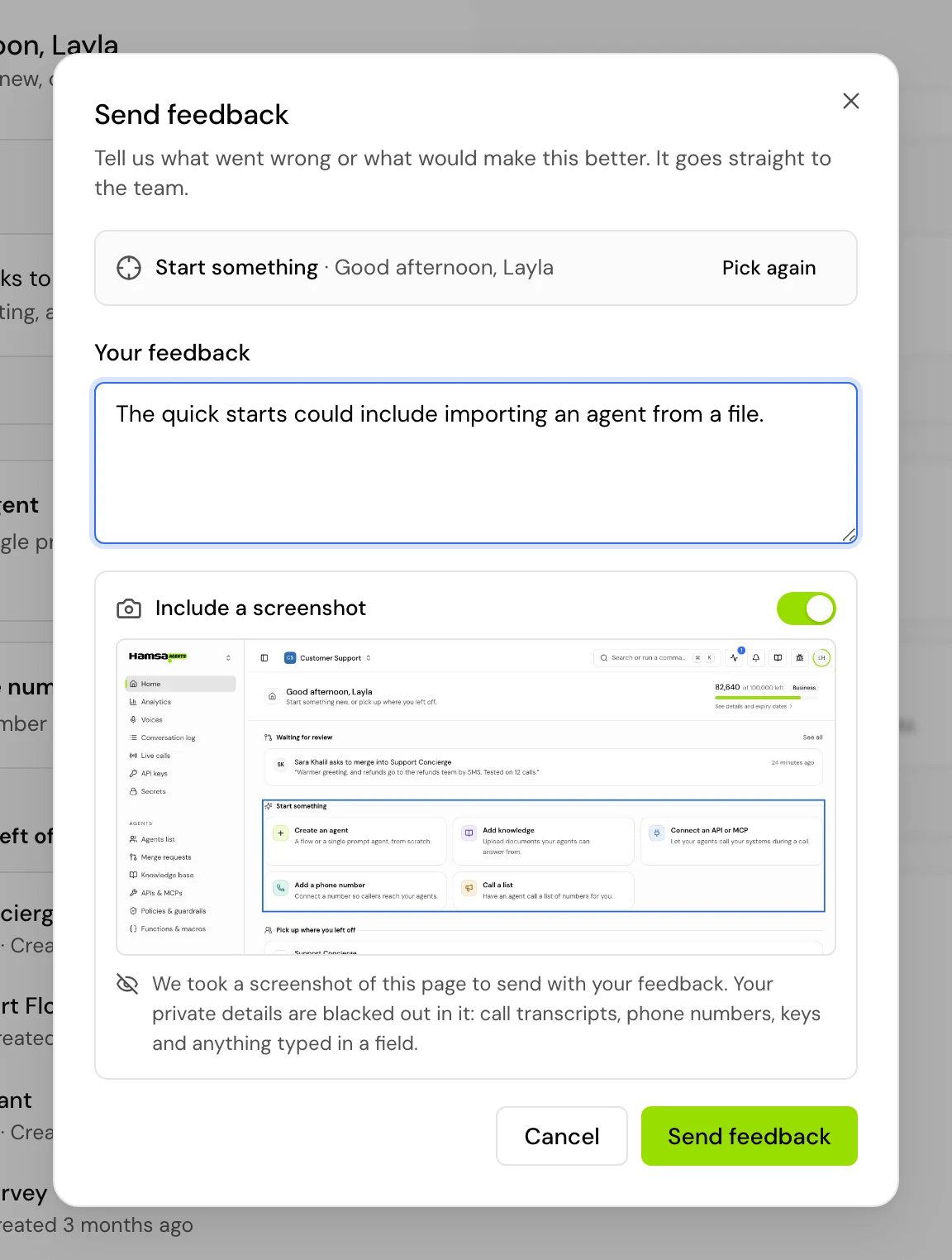
When the connection drops
A bar under the header tells you when Hamsa Agents can’t reach Hamsa well:- “You’re offline. Some things can’t load or save until you’re back online.” Your device has no connection. When it comes back, what’s on screen refreshes by itself. Changes in the agent editors are kept on this device and save once you’re back online.
- “The connection is slow.” Several requests in a row failed or took more than 8 seconds. Click Retry to load what’s on screen again. The bar goes away once requests answer in good time.


On-premises installations
If your organization runs Hamsa on its own servers, the frame differs in a few places: the logo doesn’t switch platforms (unless your installation turns it on), there is no Send feedback, no Billing in the account menu, and the Knowledge base item can be hidden.Good to know
- In Arabic the sidebar moves to the right and pages read right to left. Switch the language from your avatar or with Language in Cmd+K.
- A link to a page in another project (for example from a notification) opens that project first.
- Cmd+K lists only pages that are switched on for your account and that your role lets you open.
Related
Home
Quick starts, merge requests and your recent agents.
Conversation log
Every call, with filters and search.
Account settings
Profile, security, theme and language.
Projects
What a project holds and who’s in it.