

When to use a flow agent
Pick a flow agent when the call has a shape you want to control. Pick a single prompt agent when one set of instructions can handle the whole conversation.Create a flow agent
1
Start a new agent
In Agents list, click Create agent and choose Create flow agent.
2
Name it
In Create flow agent, enter the Agent name and click Create. The flow builder opens with a Start step on the canvas.
3
Write the system prompt
Open Global settings and fill in System prompt. A flow can’t be saved without it. See Flow settings.
The parts of a flow
- Steps. Boxes on the canvas. Every flow has one Start step, where the call begins. You add the rest with Add node (the app says “node” on some buttons and labels; these docs say “step”). See Step types.
- Transitions. Each step lists the ways out of it. You connect each transition to the step it leads to. See Transitions.
- Global steps. Steps the agent can jump to from anywhere, for example a step that answers “what are your opening hours?” in the middle of a booking. See Global steps.
- Variables. Values the flow knows or collects: the caller’s number, values passed when the call starts, details the caller gives, results from an API. Steps can read them in messages and conditions. See Variables.
- Live variables. Values the agent keeps up to date after every caller turn, in every step, such as the caller’s name or a request for a person. A transition can move the call as soon as one matches. See Live variables.
- Global settings. Settings for the whole flow: system prompt, model, voice, tools, live variables, call settings. See Flow settings.
Step types at a glance
How a call moves through a flow
1
The call starts at the Start step
In conversation mode it speaks its message. In tool mode it calls a tool first and follows On Success or On Failure.
2
Steps run one after another until one waits for the caller
Routers, tools, set variables and change settings steps run straight away and move on through their transitions. The caller doesn’t hear anything from a router or a set variables step.
3
A conversation step speaks and waits
It plays its message, then waits for the caller’s reply. The model can’t take a transition while it speaks a step’s opening line, so the caller always gets a chance to answer. (A step with an Auto transition is the exception: it plays its message and moves on.)
4
The next step is chosen
When the caller replies, the model decides whether one of the step’s prompt transitions (or a global step) fits what the caller said. Other transition types follow fixed rules: a key press, a rule on a live variable, or “the caller replied”. Transitions explains each one.
5
The call ends
At an End call step, after a transfer, or when the caller hangs up. A router whose conditions don’t match and whose Else isn’t connected also ends the call.
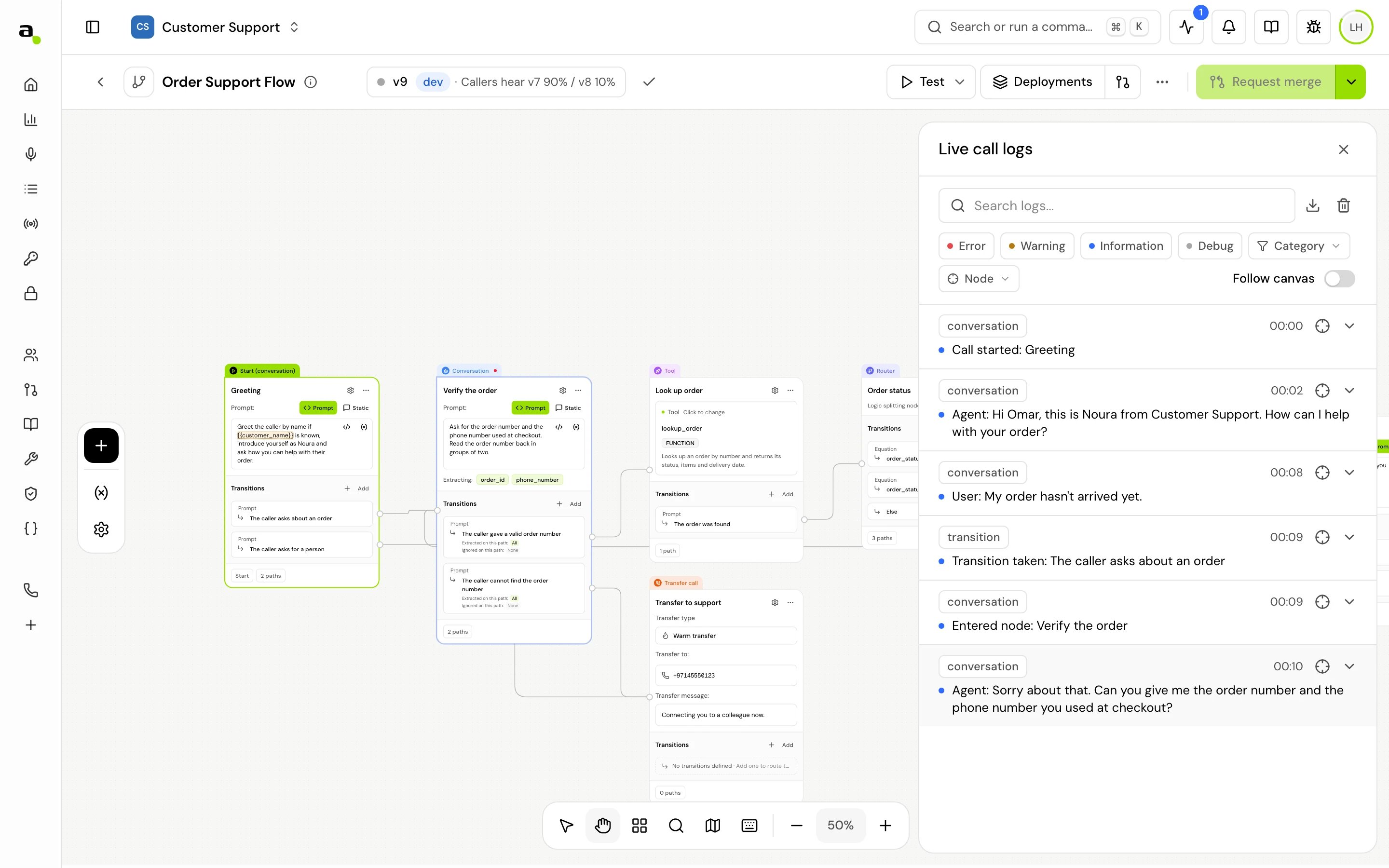
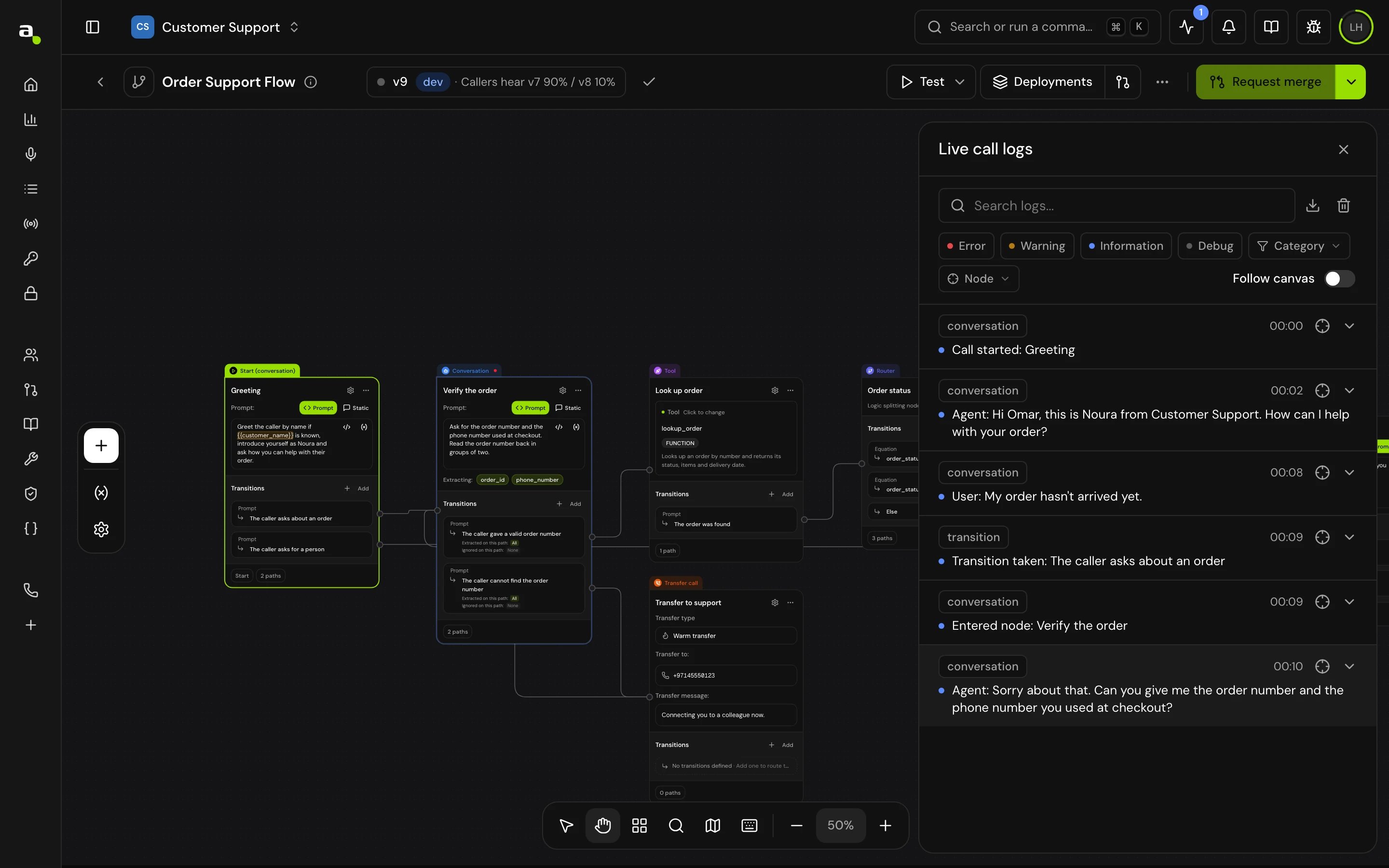
How it works on a call
- The system prompt applies on every step. Each conversation step adds its own message as instructions for that part of the call, so the model always knows which step it is in.
- Only conversation steps (and the Start step’s opening message) can be interrupted by the caller. Every other step plays its message to the end. See Call behavior settings.
- While the caller is in a step, the model can only move to the steps that step’s transitions point to, or to a global step. It can’t skip ahead on its own.
Related
Work in the flow builder
Add and connect steps, group them, find them.
Transitions
How the next step is chosen on a call.
Design flows that hold up
Advice based on how the runtime behaves.
Test your agent
Call your flow from the browser before you publish.