

When to use it
- To switch to a voice for another language or dialect once you know what the caller speaks.
- To give the agent a different system prompt for one part of the call, such as a stricter one for payments.
- To give the caller more time to answer, for example while they look for a card number.
Add a Change agent settings step
1
Add the step
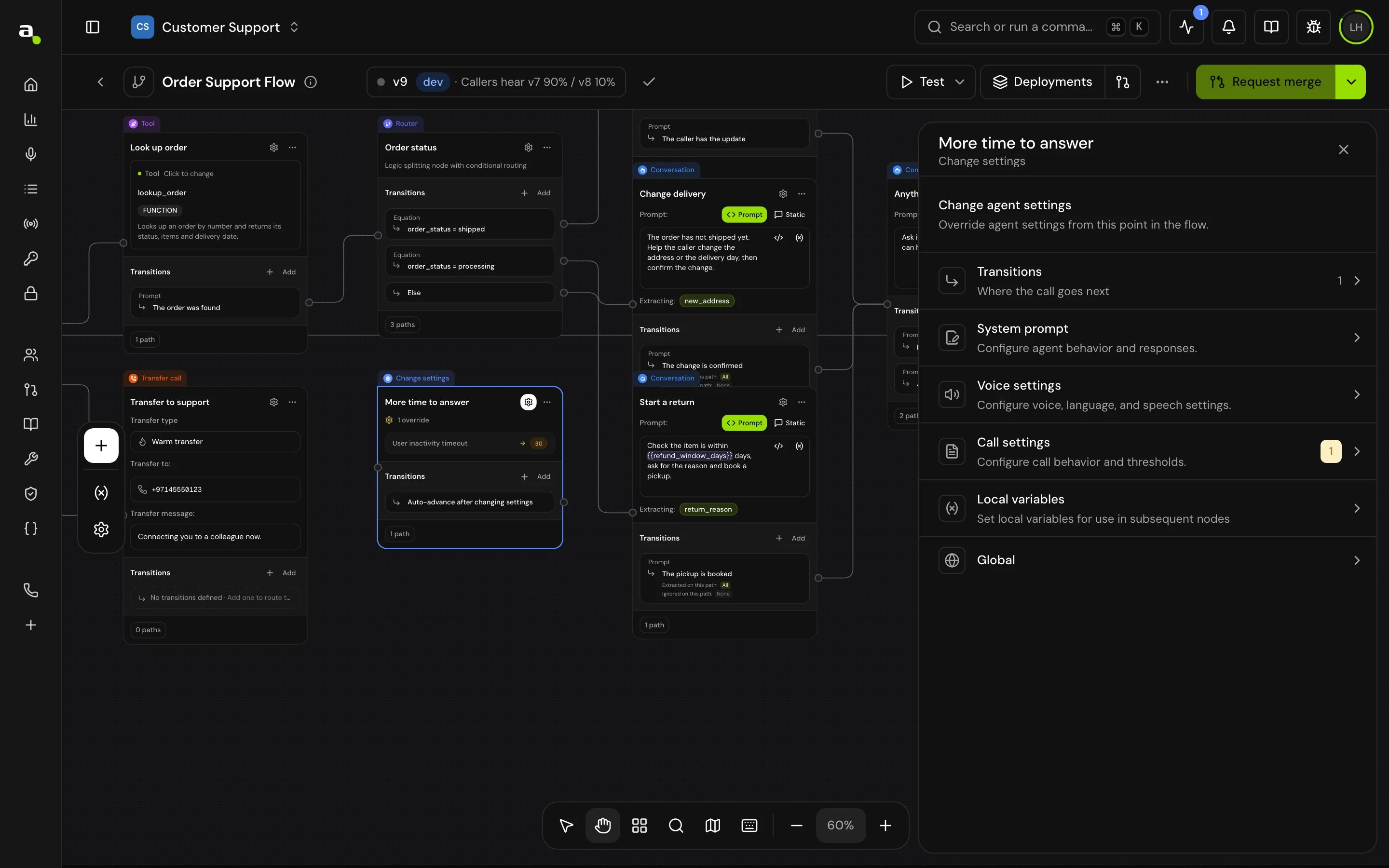
On the canvas, click Add node and choose Change agent settings (“Override agent settings mid-flow”). The panel title reads Change settings: “Override agent settings from this point in the flow.”
2
Change what you need
Open System prompt, Voice settings or Call settings and change the fields you want. Each field starts at the value the call would have at this point; any field you change becomes an override.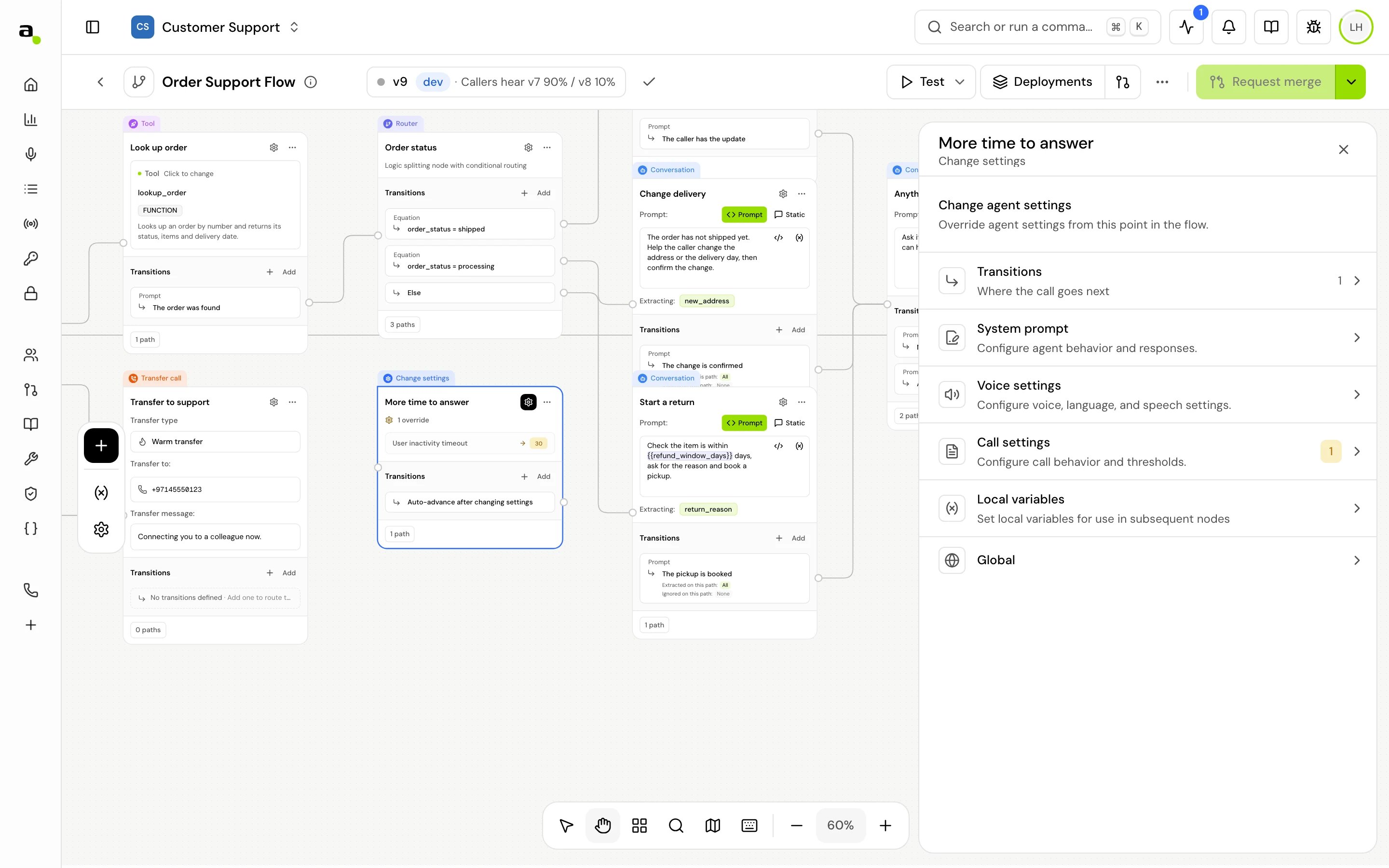
3
Connect Auto-advance
Connect the step’s Auto-advance transition to the next step.
Settings you can change
System prompt
Voice settings
The section also has Expressiveness and Voice dictionaries. Both take effect from this step for the rest of the call, like the voice. See Pronunciation dictionaries.
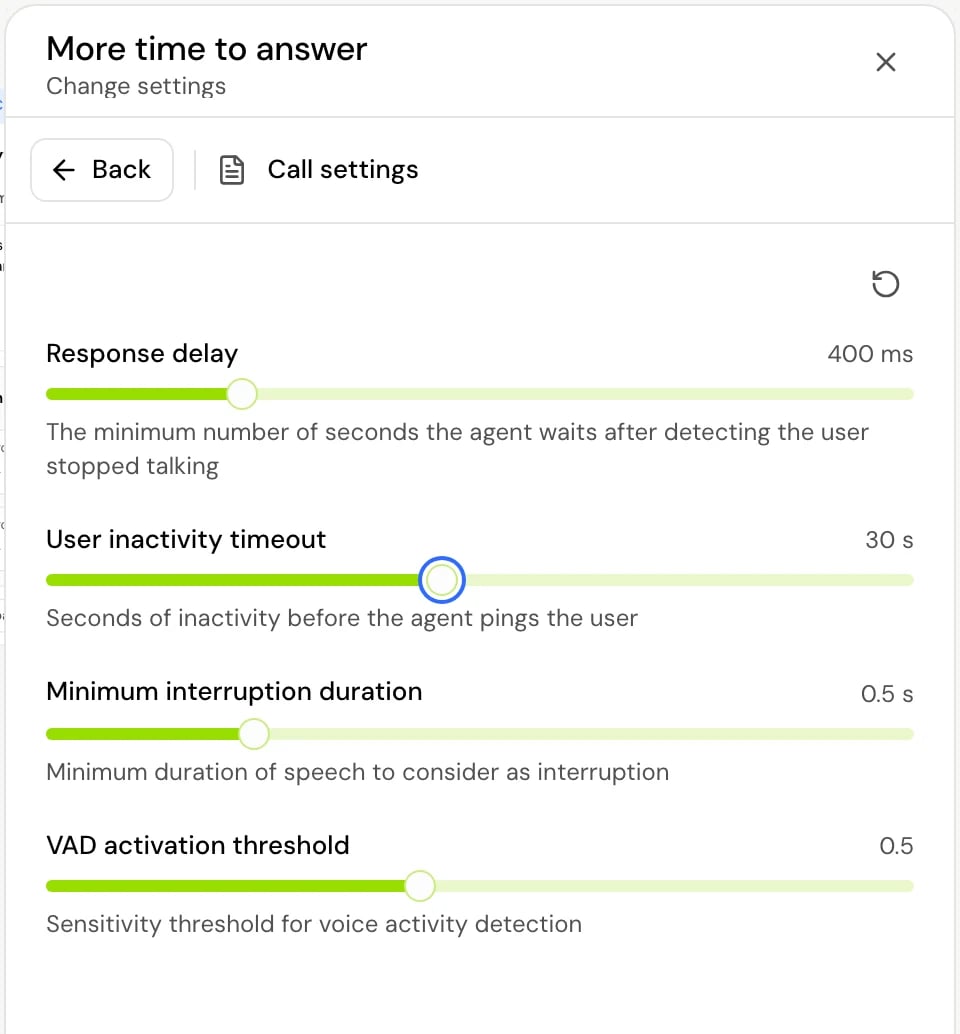
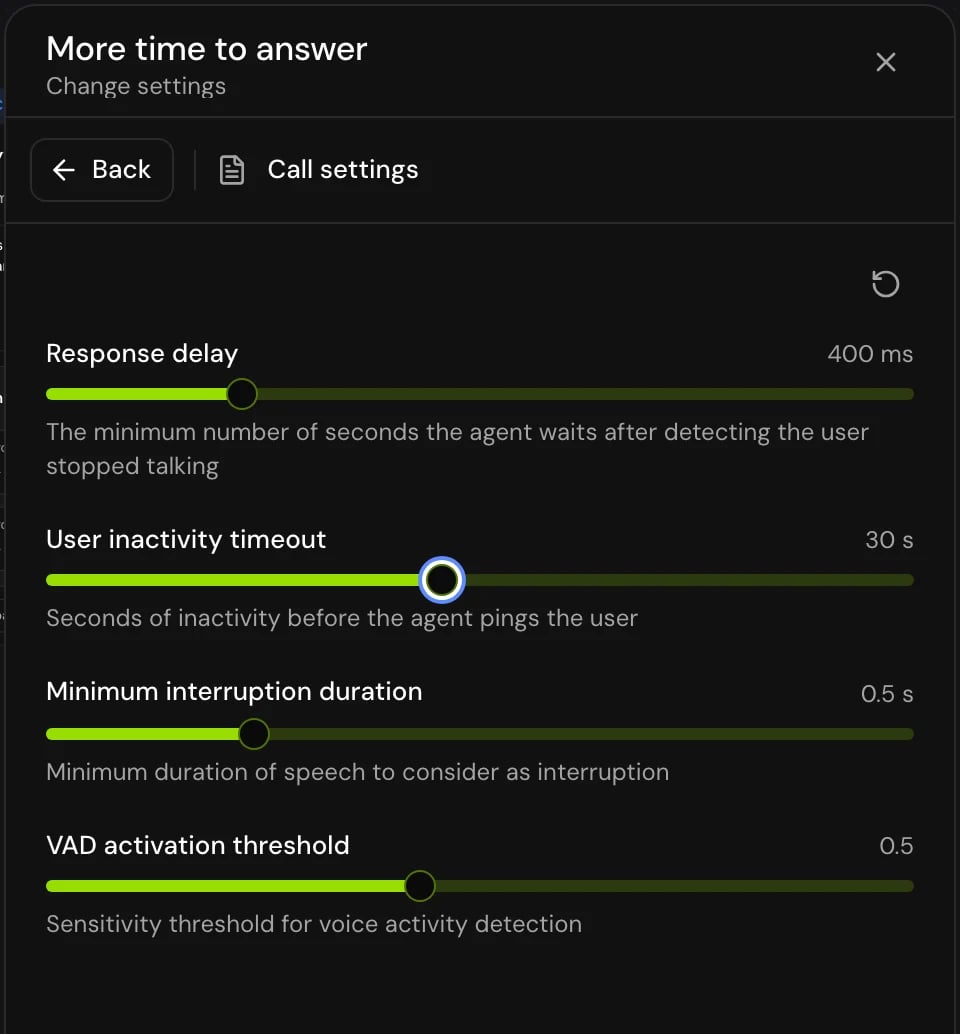
Call settings
These work as in Call behavior settings. Interruption isn’t set here: use the Interruption setting on each Conversation step.
Local variables
Local variables sets variables when the call reaches the step, as in a Set local variables step.Transitions
Auto-advance is created with the step and can’t be removed.
You can also add Skip if to this step: when its conditions already hold as the call arrives, the call goes straight to its target and the step doesn’t run. See Skip if.
How it works on a call
- The step’s local variables are set.
- The overrides are applied to the live call: the new voice, system prompt and call settings take effect from the agent’s next reply.
- The call moves on through Auto-advance. Nothing is spoken.
Good to know
- The step has a Global section, without Confirm before proceeding.
Related
Call behavior settings
What each call setting does for the whole agent.
Voice, language and dialect
The agent’s voice and language settings.
Conversation step
Turn interruption on or off per step.
Step types
Every step type at a glance.