

Who does what
These are the role defaults. An owner can change them per member in Roles and permissions. A member who opens the Merge requests page sees “Owners and admins review merge requests”.
Request a merge
1
Edit your draft and test it
Make your changes and test them. Your draft saves on its own.
2
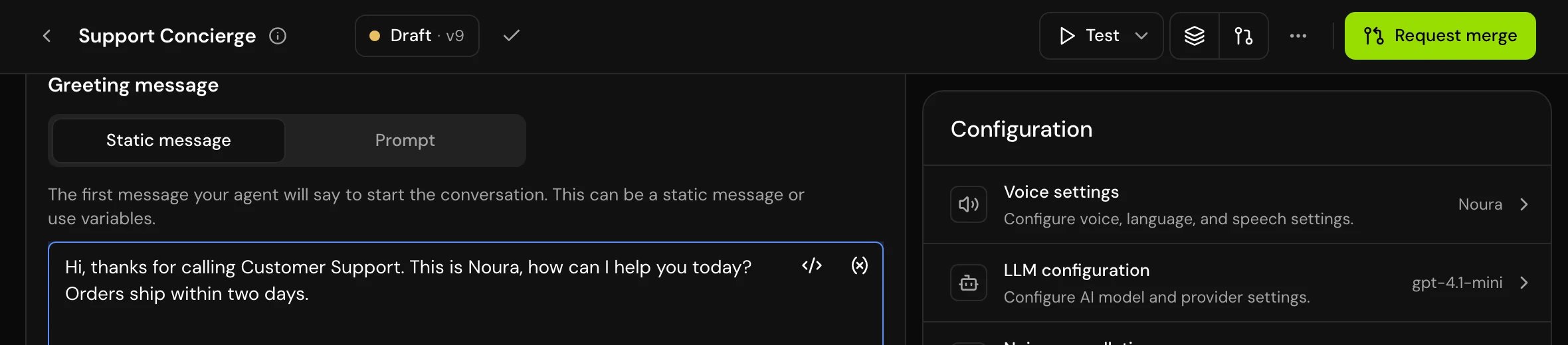
Click Request merge
It is in the editor header. Owners and admins with deployments off find it in the menu beside Publish live.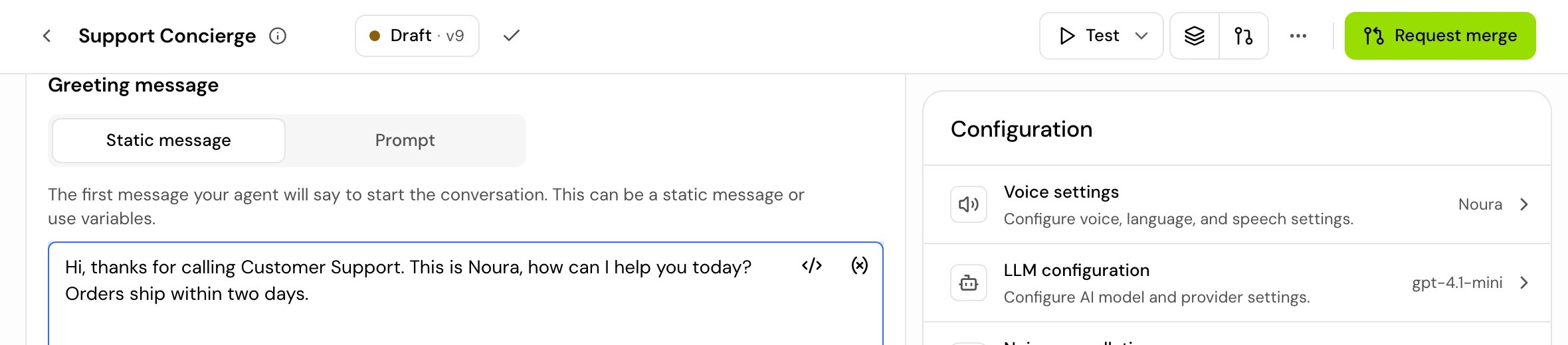
3
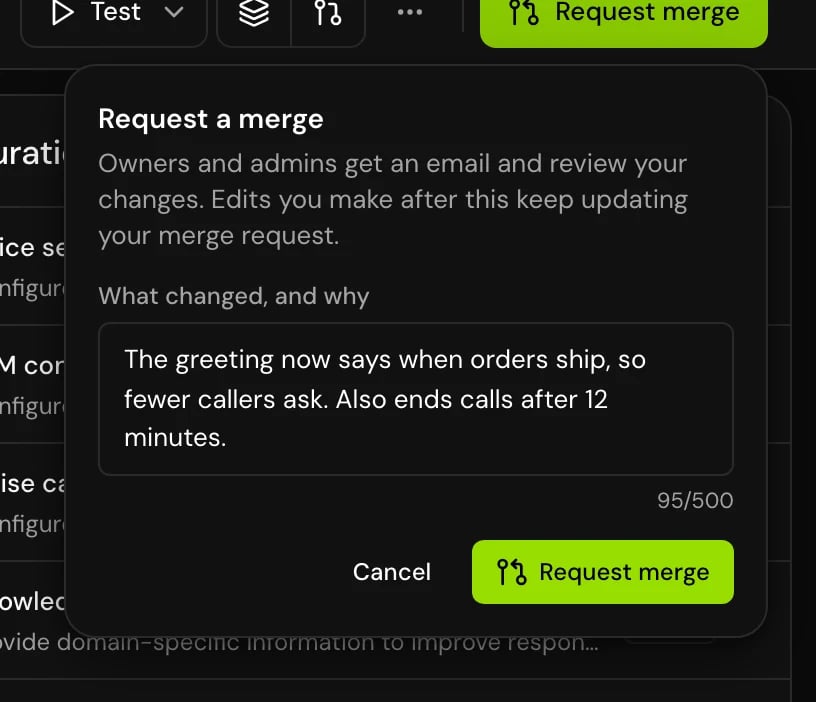
Say what changed
In What changed, and why, write a note for reviewers. It is required, up to 500 characters: “reviewers read it, and it becomes the version message.”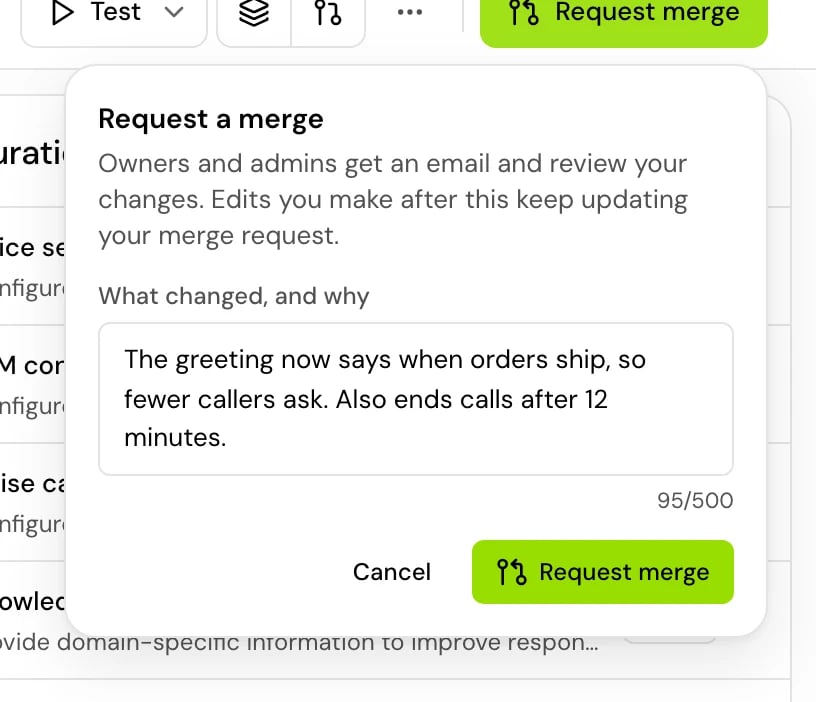
4
Send it
“Merge requested. Owners and admins got an email. Your edits keep updating it.” Owners and admins see “Merge requested. The other owners and admins got an email, and you can merge it yourself. Your edits keep updating it.”
Merge your own merge request
Owners and admins can merge a request they made themselves, without waiting for someone else:1
Open your request
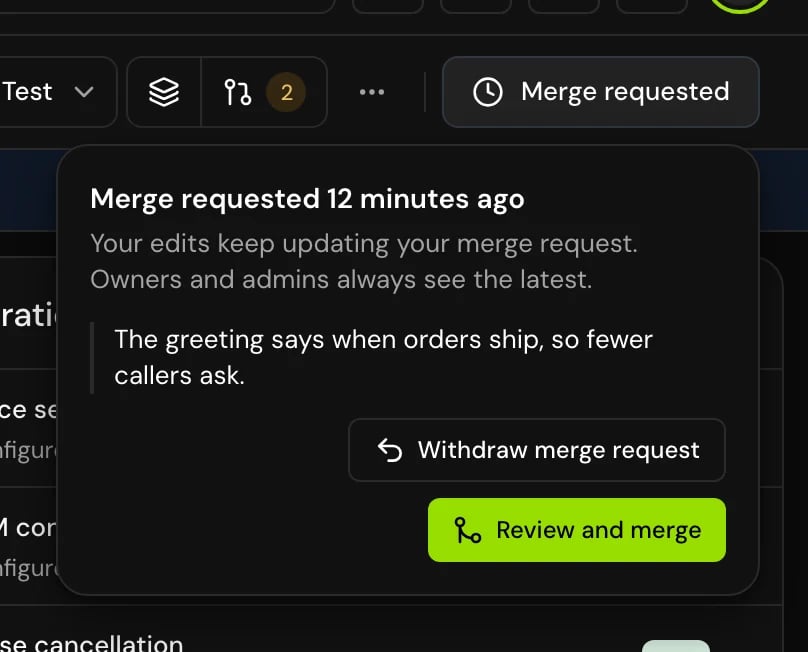
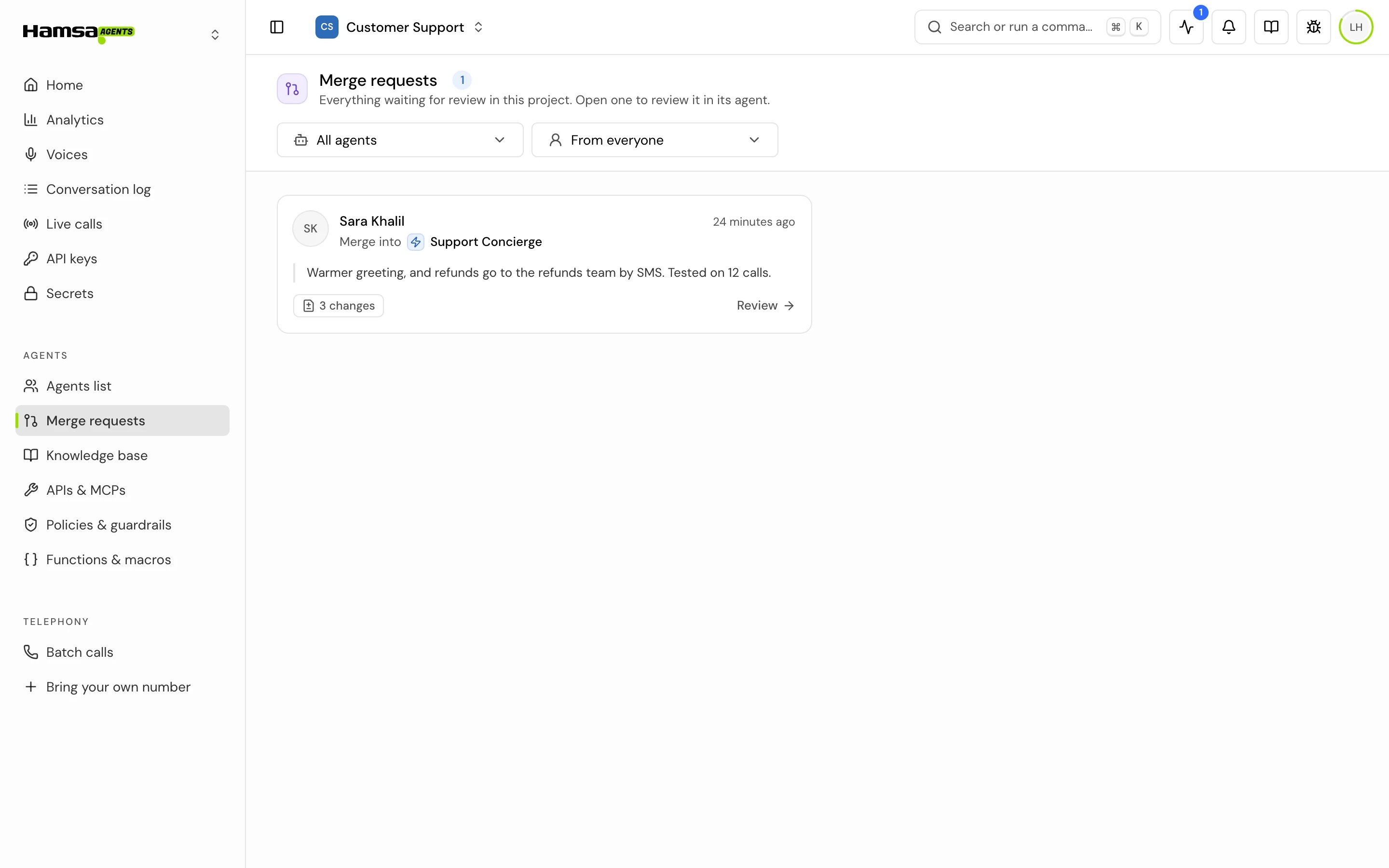
In the editor header, click Merge requested and then Review and merge. It also shows on the Merge requests page with a Yours tag.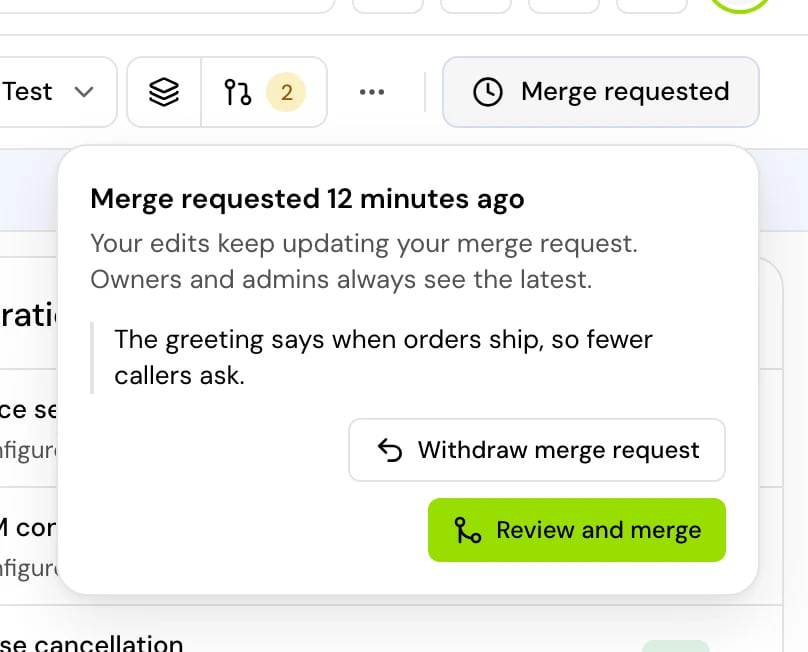
2
Merge it
Your request opens in Releases > Merge requests, with a Yours tag: “Your merge request. Merge it yourself, or leave it for another owner or admin to review. Withdraw it to keep working on it privately.” Click Merge as you would for anyone’s request.
- Keep editing if you need to. “Your edits keep updating your merge request. Owners and admins always see the latest.”
- A draft in a merge request doesn’t expire.
- To take it back, click Withdraw merge request. “Withdrawn. Your draft is private again.”
- Your draft is the same as the version it started from: “Nothing to merge: your draft is the same as the version it started from.”
- Only test values changed: “Test values alone can’t be merged. Change the agent too, or ask an owner or admin to set the values in Releases.”
What happens next
You get an email and a notification when a reviewer acts.Review a merge request
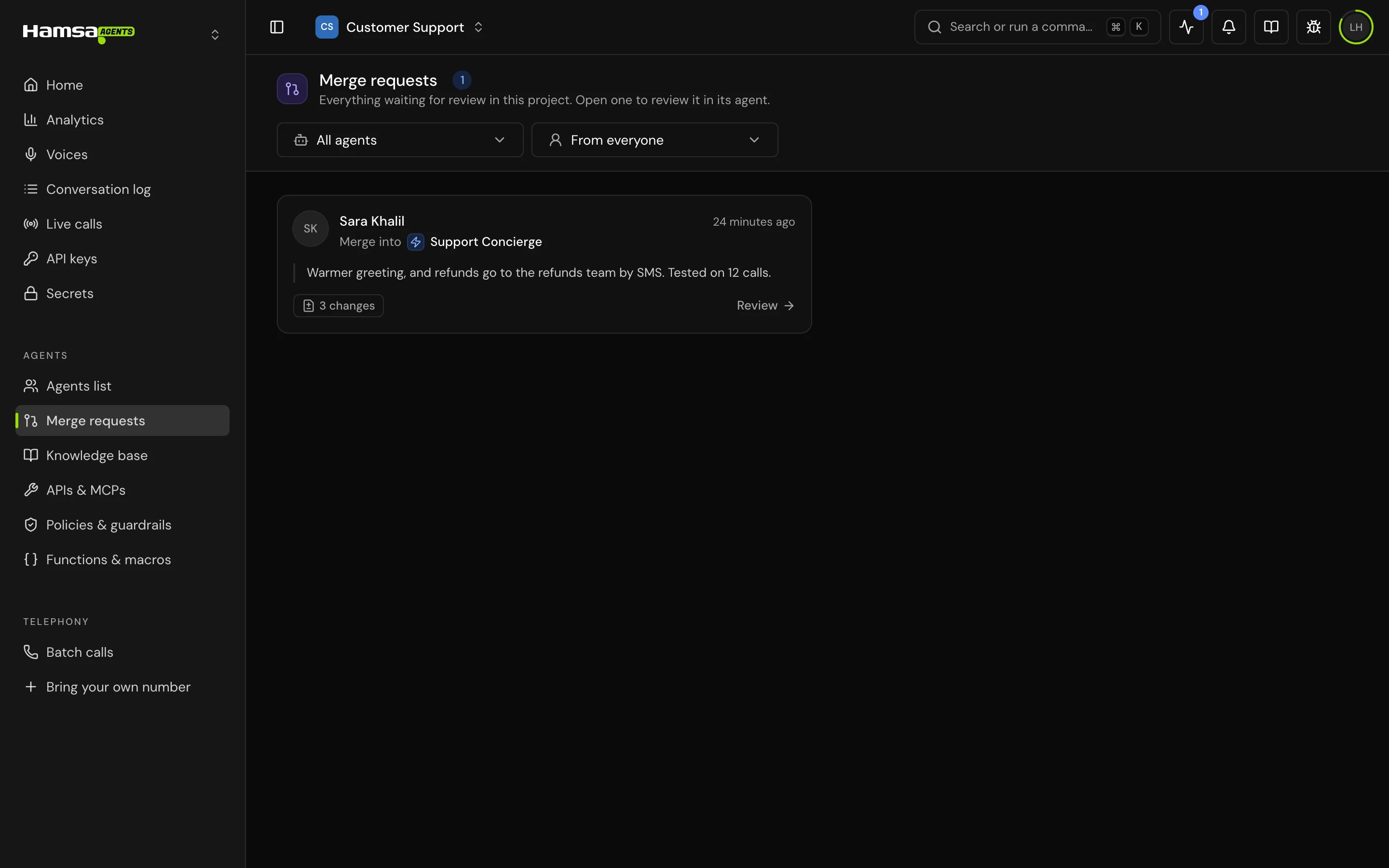
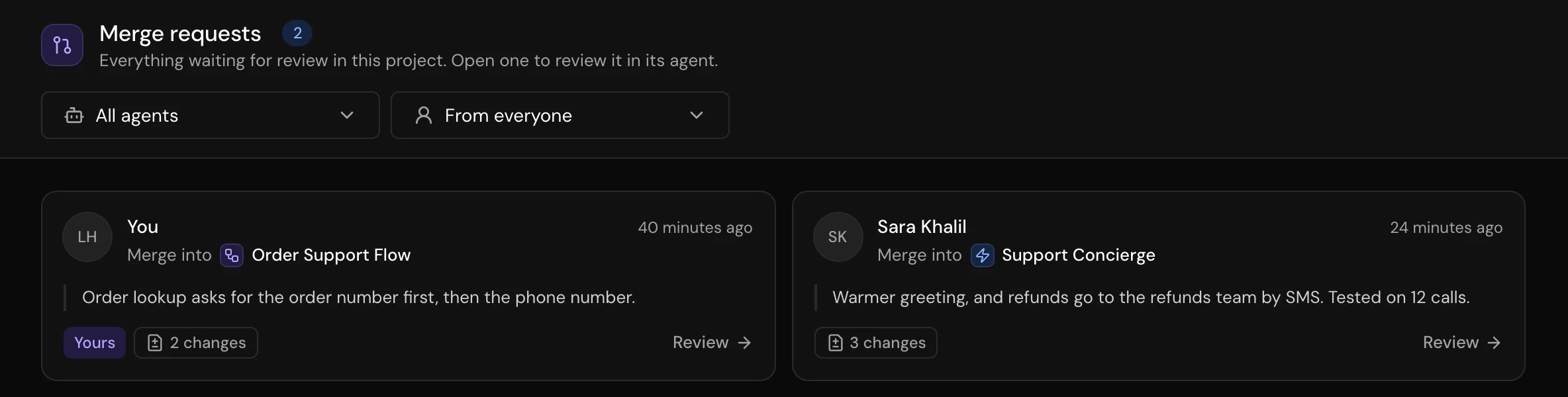
Owners and admins find merge requests in four places:- The Merge requests page in the sidebar: everything waiting for review in the project, with filters by agent and person. Your own requests are on it too, tagged Yours.
- Home, in the Waiting for review card.
- The editor header: the merge requests button beside your publish button shows a count.
- Releases > Merge requests inside the agent.
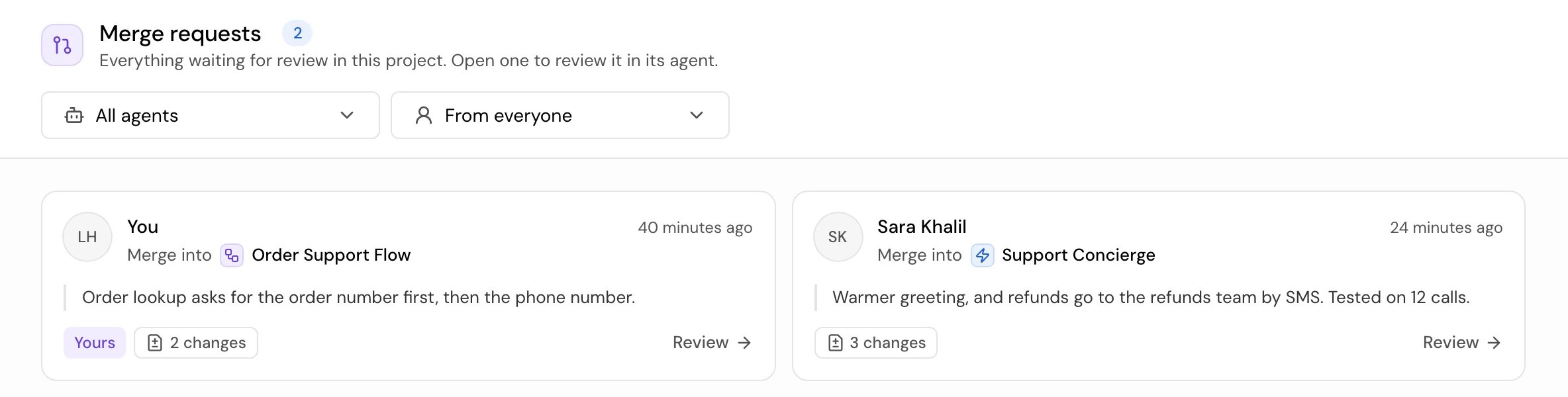
1
Open the request
Click View to read the note and the Changes. Open in editor shows the whole agent as the author left it, read-only.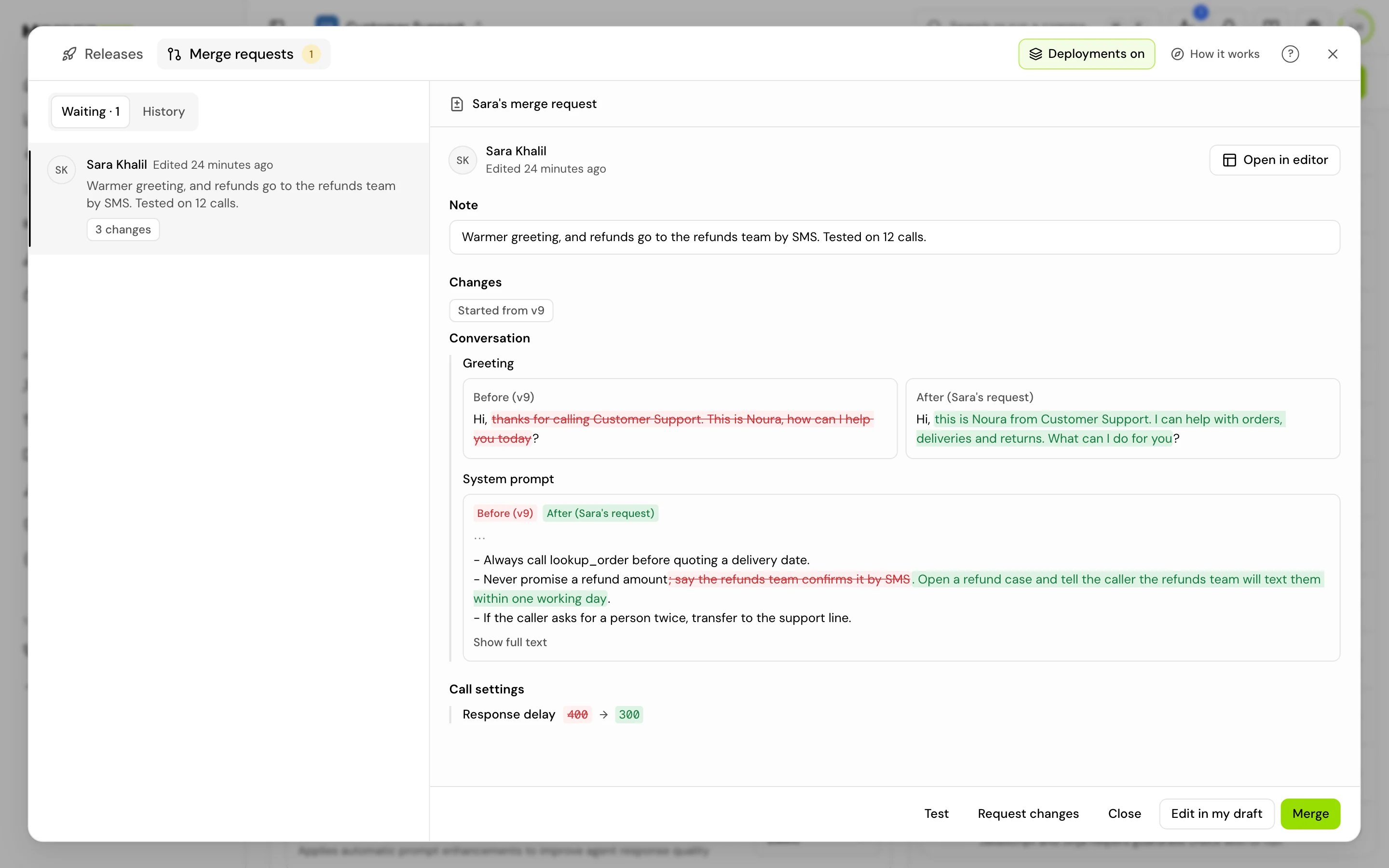
2
Test it
Click Test. “Test calls and chats run {name}‘s merge request, not your draft.” Click Back to my draft when you are done.
3
Decide
Pick one of the actions below.
Merge and Request changes wait until the author has not saved for 10 seconds, “so nothing half-written goes out.”
If two reviewers act at once, “Whoever decides first goes through, and the other decision is refused.”
When the merge is checked
- Names that aren’t defined don’t block a merge: “Fine if calls or campaigns pass them in.”
- Broken references do. If the request uses a variable or tool by an old name, or something it points at no longer exists, the merge stops and lists the places. Use Request changes to send it back, or Edit in my draft to fix it yourself.
- An older starting point is handled for you: “It started from {base}, so it was put onto {newest}, the newest version.”
Test values on merge
If the author tested with test values, the merge dialog shows Add test values to {env}. Ticked values are set in that environment with the new version. New keys start ticked, because “without a value there, the version reads them empty.” With deployments on, the environment is dev.Combine merge requests
To release several requests together, tick two or more in the list and click Combine {count} merge requests. They go into your own draft. Test the result, then merge it once. A combination takes at most 20 requests. If your own draft already has changes, you are asked first: Include my changes or Discard my changes. If you have your own merge request open, merge or withdraw it before you combine.Resolve conflicts
When two requests change the same place, or a request and a newer version collide, you choose what to keep: “Choose what to keep for each decision. Nothing is merged until you finish.” For each decision, the options include Keep your version, Keep {name}‘s version, Combine both edits and Keep the result as is and fix it in the editor. Changes that don’t clash are applied automatically. Members can look at a conflict but not decide it: “Only owners and admins decide here.”History
Releases > Merge requests > History lists “Merge requests handled in the last 30 days. Older ones are deleted.”, with who requested, merged or closed each one.Good to know
- Merge requests made through the API show “Through the API with {key}”.
- Drafts and requests that were closed or expired are kept for 30 days.
Related
Drafts and versions
Your private draft and how publishing works.
Test your agent
Test a draft or a merge request on a call.
Environments and releases
Where a merged version runs next.
Roles and permissions
Who can review and merge.