

Before you start
- To open Secrets you need permission to view secrets. By default Owners and Admins can create, edit and delete them; Users can only see the list. See Roles and permissions.
- Secrets belong to a project. Every agent in the project can use them.
Create a secret
1
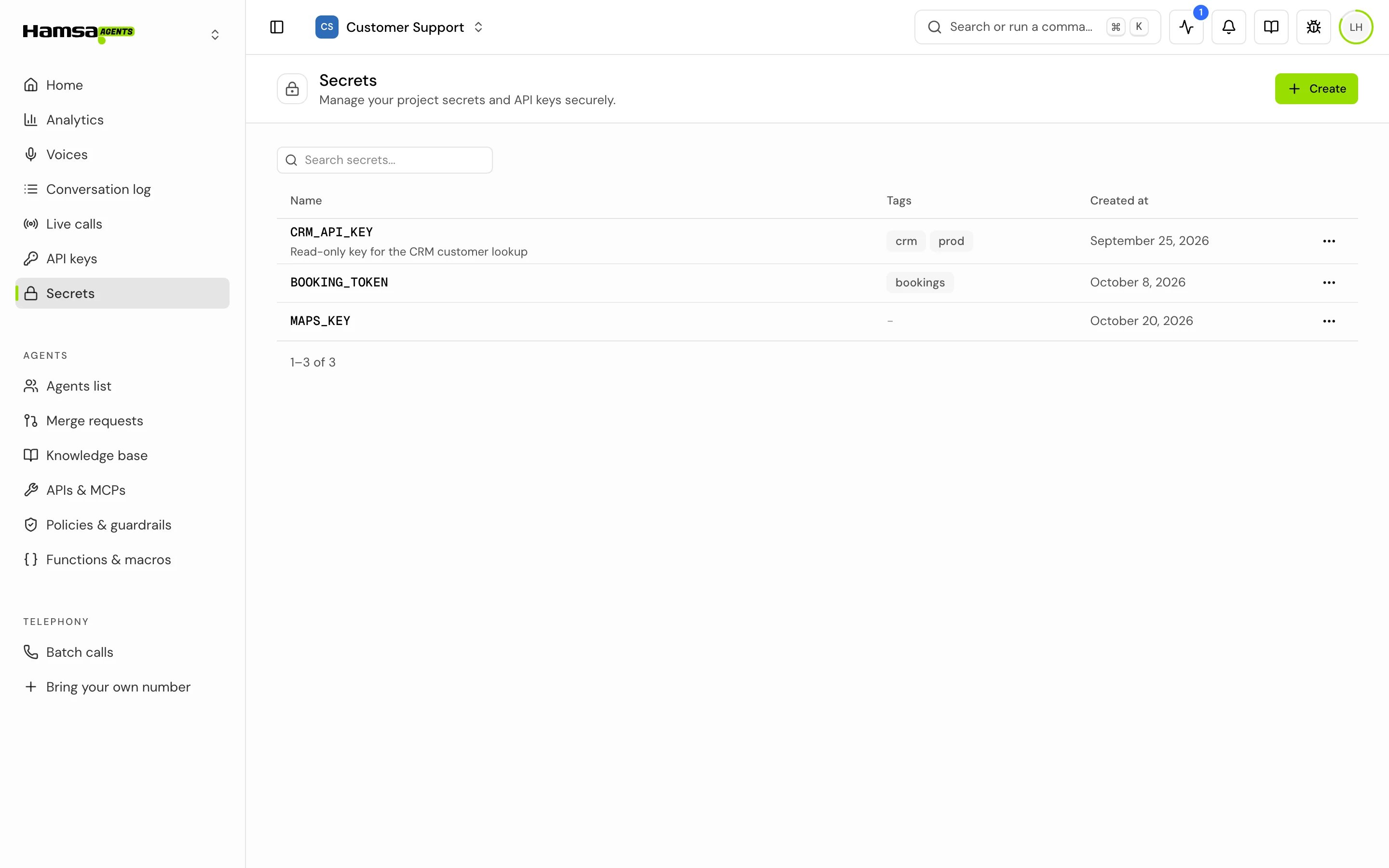
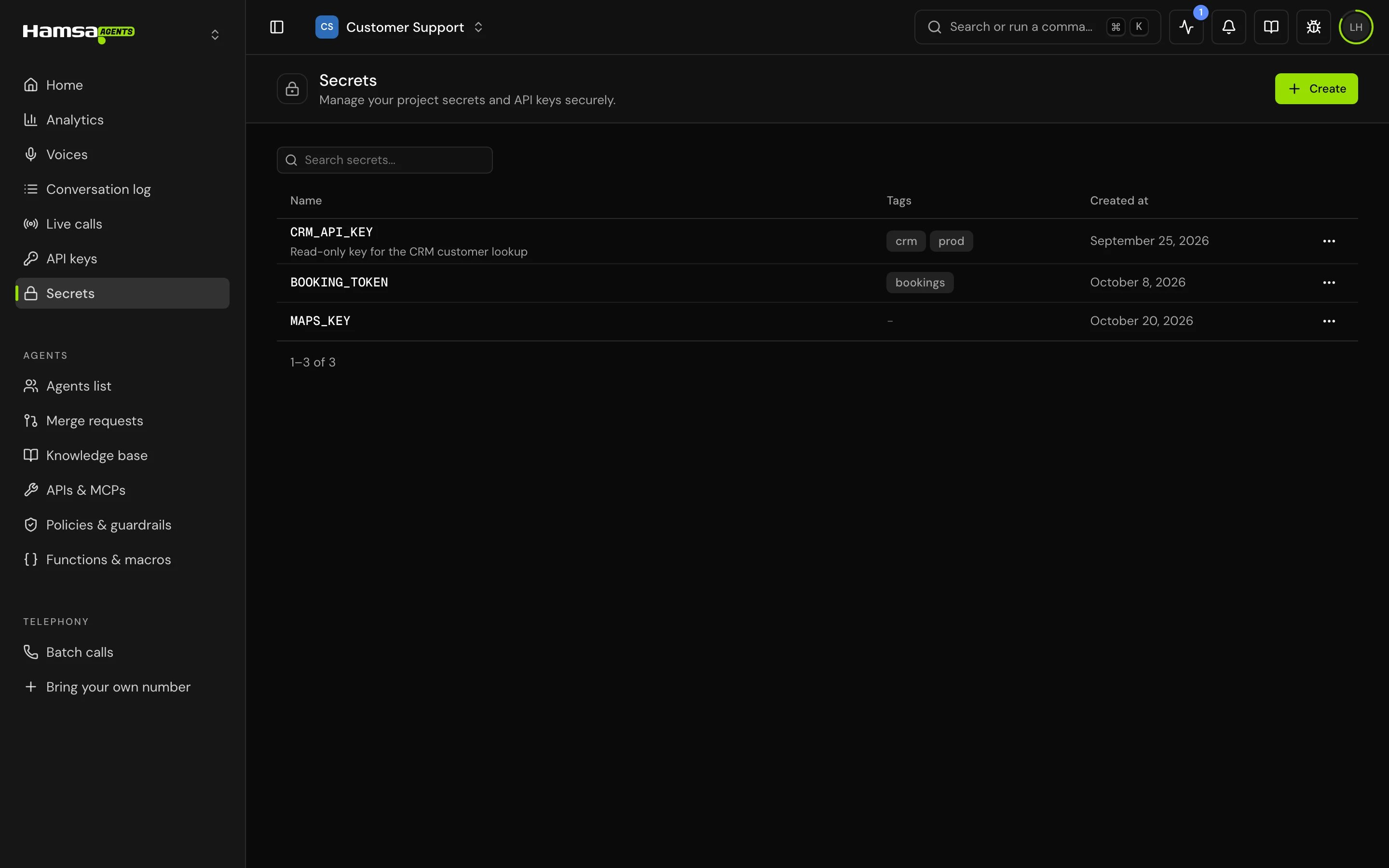
Open Secrets
Click Secrets in the sidebar.
2
Start a new secret
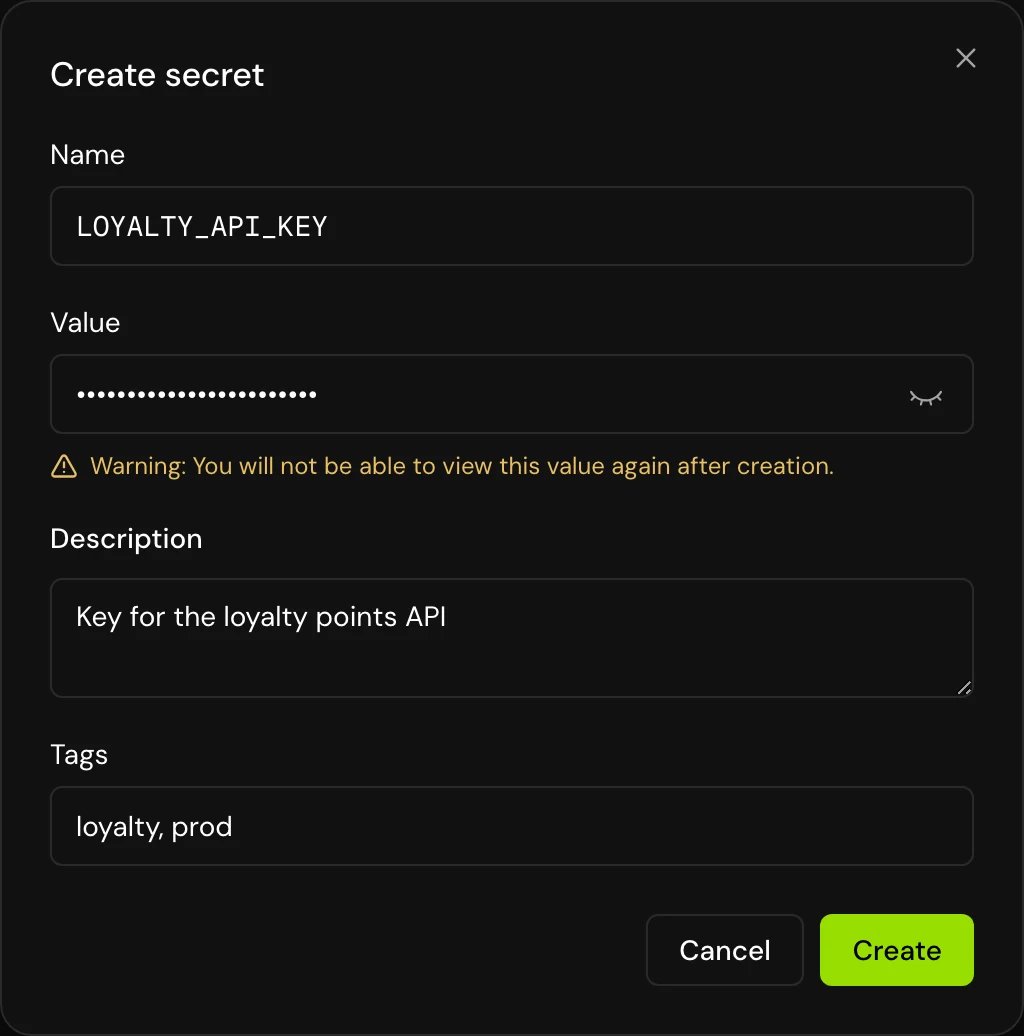
Click Create. The Create secret dialog opens.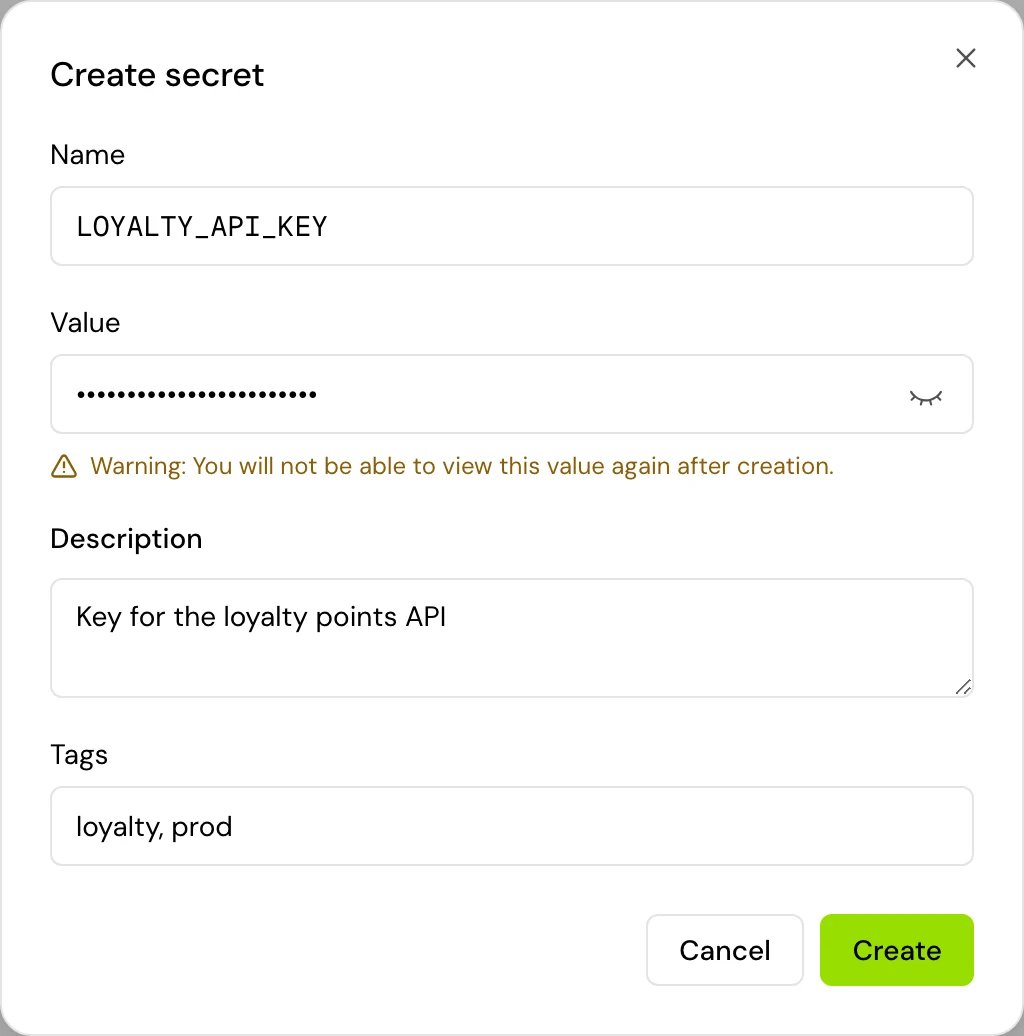
3
Fill in the fields
Enter a Name, such as
CRM_API_KEY, and the Value. Add a Description and Tags (comma separated) if they help your team find it.4
Save
Click Create. You won’t be able to see the value again.
Use a secret in a tool
1
Open the tool
Open the tool in APIs & MCPs and click Edit, or open the agent’s Tool configuration for that tool.
2
Insert the secret
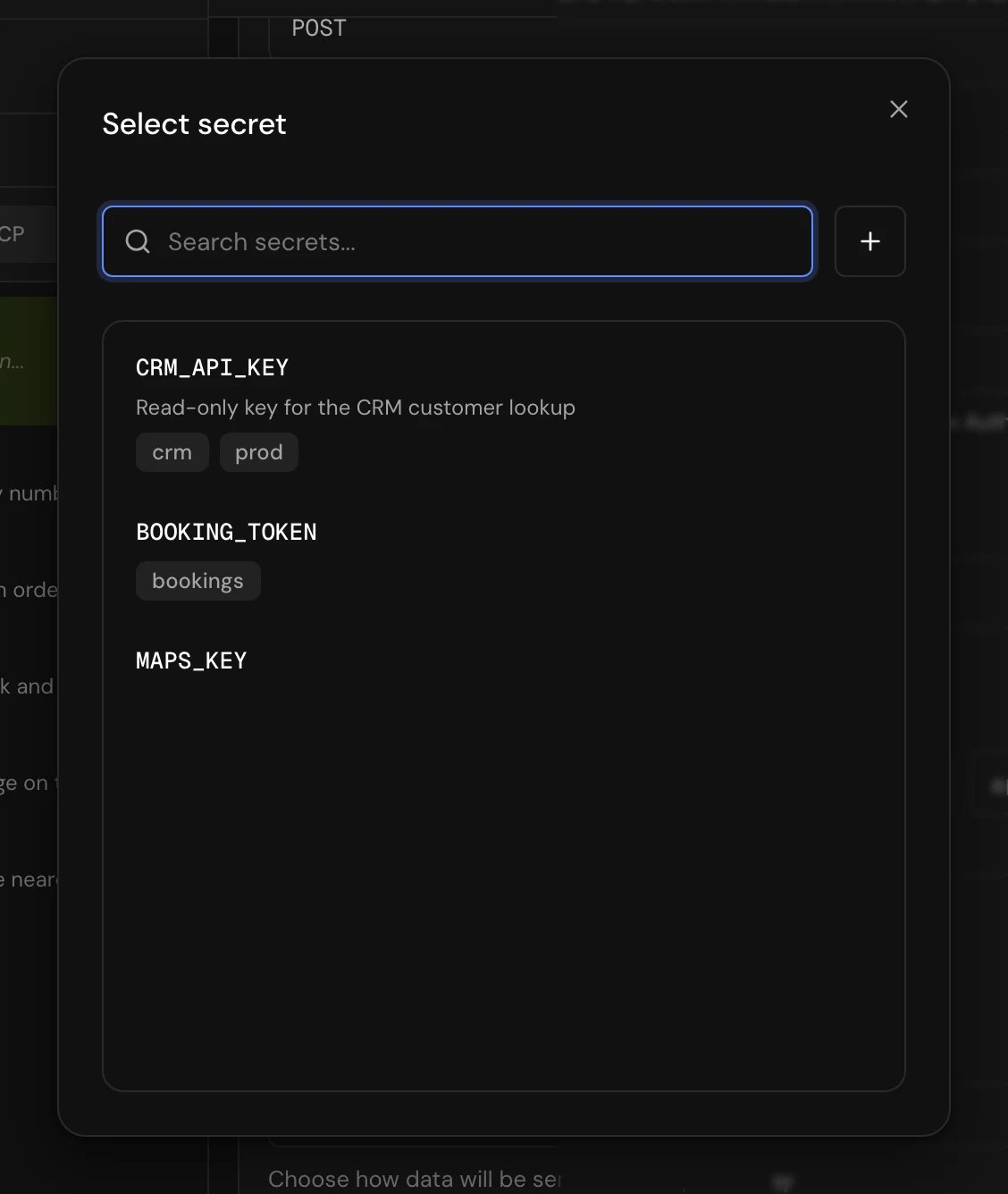
Next to the token field or a header value, click the key icon (Insert secret) and pick the secret in Select secret. The field now holds 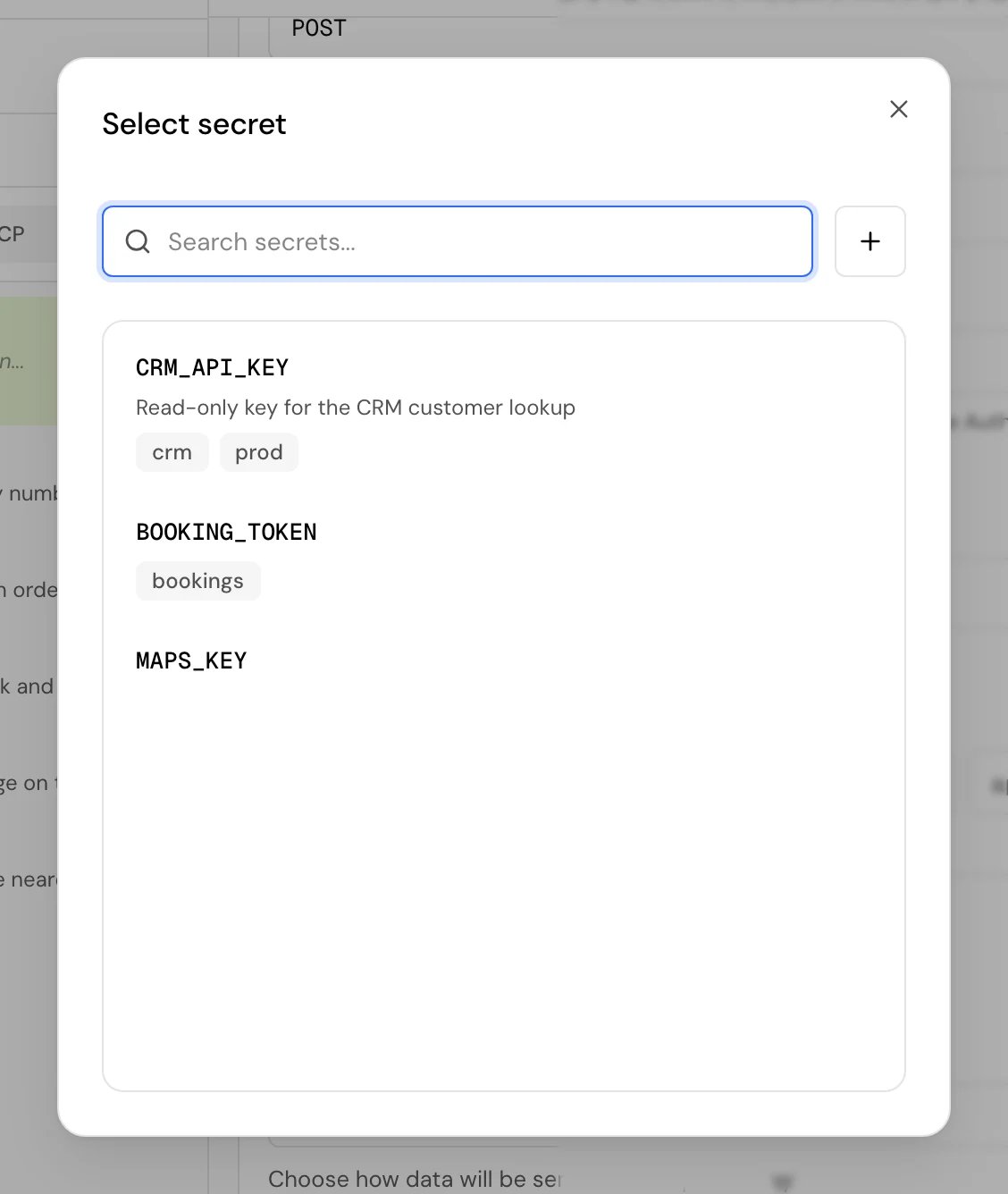
{{secrets.NAME}}.3
Save the tool
Save. On calls, the agent puts the secret’s value in place of the reference when it sends the request.
ApiKey {{secrets.CRM_API_KEY}}.
Where secrets are filled in
Single prompt and flow agents fill in a secret wherever a tool uses it:- API requests: the URL, header values, token, and parameter values set in Tool configuration.
- MCP servers: header values and the token.
- In the app: Test and Connect and list functions.
Manage secrets
- Search. Search secrets… finds secrets by name.
- Edit. In the row menu, click Edit. You can change the Name, Description and Tags. To replace the value, type it in New value (optional); leave it empty to keep the current one. Click Save changes.
- Delete. In the row menu, click Delete, then Delete in the dialog. This can’t be undone.
Good to know
- Renaming or deleting a secret doesn’t update the tools that reference it. Update those tools too: a reference to a secret that doesn’t exist is filled in as empty, so the request goes out without the credential.
- Basic authentication can’t use a secret: the username and password are stored with the tool.
- Never put a secret in a web tool’s parameters. Web tool arguments go to the visitor’s browser.
- Secret names are case sensitive:
{{secrets.crm_api_key}}doesn’t findCRM_API_KEY.
Related
Connect an API
Authentication and headers for API requests.
Connect an MCP server
Connect a server that needs a key.
Environment variables
Different values for dev, staging and prod.
Roles and permissions
Who can see and change secrets.