

e_ before the model, the conversation history or the logs see it. When the agent says the code back, it is turned into the real value right before it is spoken, so the caller hears the number they gave.
What gets protected
To stop the agent asking for or reading out other sensitive data, add the Privacy templates “Never ask for secrets” and “Don’t read back full numbers” as well. See Policies & guardrails.
Before you start
- Policies & guardrails and Functions & macros must be available in your project.
- Owners, admins and members can all add the template to an agent by default.
Set it up
1
Add the template
Open the agent’s Policies & guardrails settings, click Add and pick Protect personal data from the templates. You can also start it from Policies & guardrails in the sidebar: Create > From a template.
2
Check what it created
The template adds a guardrail and two functions, 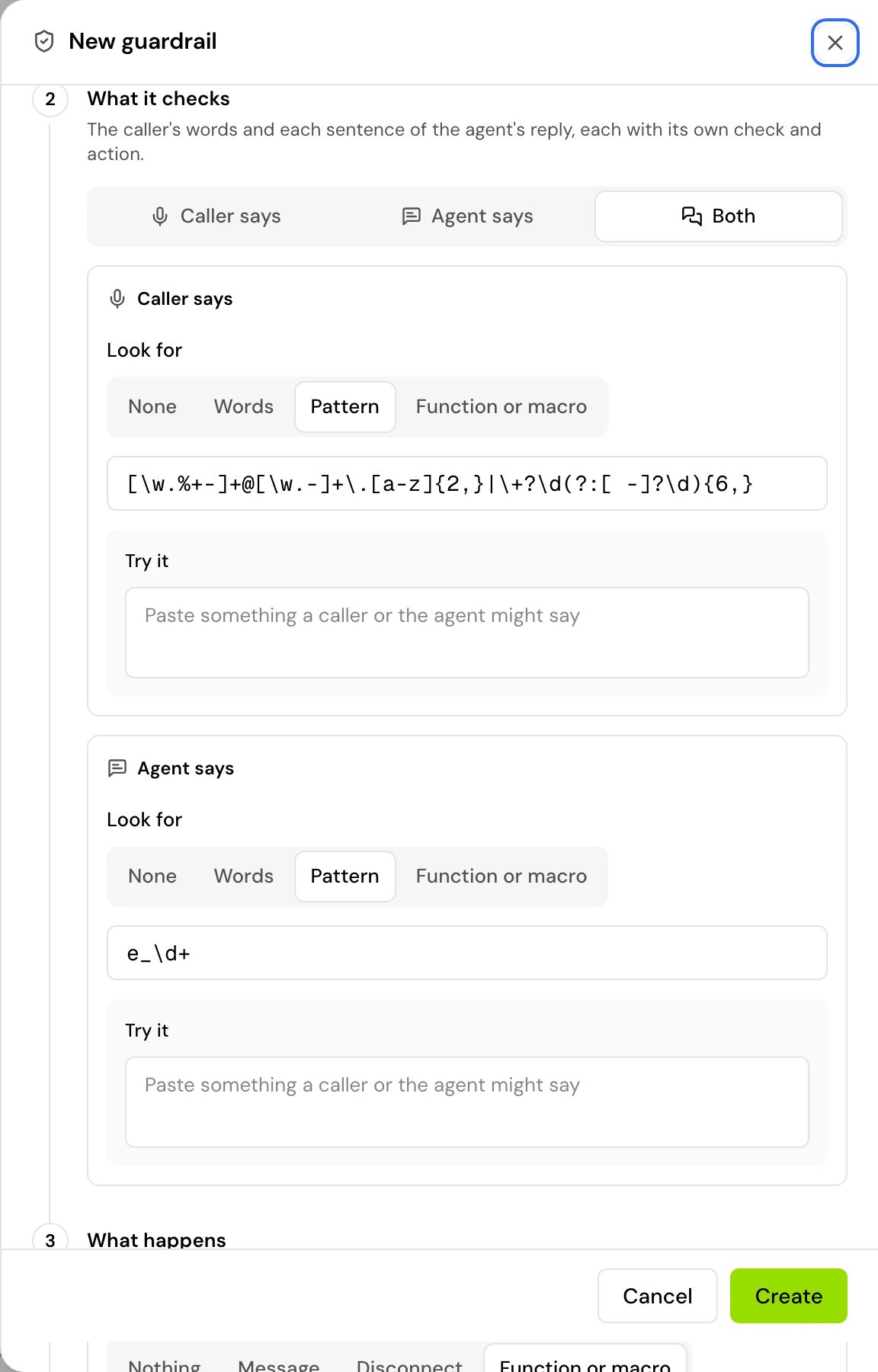
maskPersonalData and unmaskPersonalData, with a new random key written into both. The guardrail is set up for you:- Check: Both.
- Caller says: a pattern for emails and 7 or more digits, then Function or macro with the function
maskPersonalData. - Agent says: the pattern
e_\d+, then Function or macro with the functionunmaskPersonalData. - Severity: Critical. Mode: Enforce, because only an enforced guardrail rewrites what was said.
- An instruction that tells the model to copy
e_codes exactly and never mention them.
3
Make sure both functions are on the agent
In the agent’s Functions & macros settings, both functions must be on the agent and switched on. If one isn’t, the guardrail shows that it never runs here.
4
Test it
Test the agent, say a phone number, and ask the agent to repeat it. Then open the call to check that the transcript shows it as hidden.
Show the real values in call review
The conversation history keeps the codes, so in call details protected values show as Hidden: “Encoded value. Enter the key to show it.”1
Open Show encoded values
Click a Hidden value, or Show values in the bar that says “Personal details on this call are hidden.”
2
Enter the key
Paste the key from the two functions under Key and click Show values. “The key stays in this browser tab.” A wrong key shows “That key doesn’t open these values.”
3
Hide them again
Click Hide values when you are done.
maskPersonalData and unmaskPersonalData. Both functions must use the same key, and so does whoever reads the values in call review. To change it, edit it in both functions.
How it works on a call
- The caller’s words are masked first, before the model sees them and before extracted variables are filled in. An extracted phone number or email holds the
e_code, not the real value. - The agent’s reply is checked sentence by sentence. Codes are turned back into the real values right before each sentence is spoken.
- A tool that the agent calls with a protected value receives the code, not the value.
- The caller’s own number, from the call itself, is not affected:
user_numberholds the real number. Use it when a tool needs the caller’s phone number.
Good to know
- This is encoding, not encryption. In the code’s own words: “It hides values from casual reading; it is not encryption against someone who has a token and time.”
- Anyone who can open the functions can read the key. By default that is every member of the project.
- If you make your own copies from the built-in
maskPersonalDataandunmaskPersonalData, they start with the keychange-this-secret-key. Change it in both. - The model only sees codes, so it can’t check a number’s format or read part of it back.
Related
Policies & guardrails
How guardrails check and rewrite what is said.
Functions & macros
The functions that mask and unmask values.
Call details
Review a call and show its hidden values.
System variables
Values the call provides, like the caller’s number.