

Where to find it
- Single prompt agent
- Flow agent
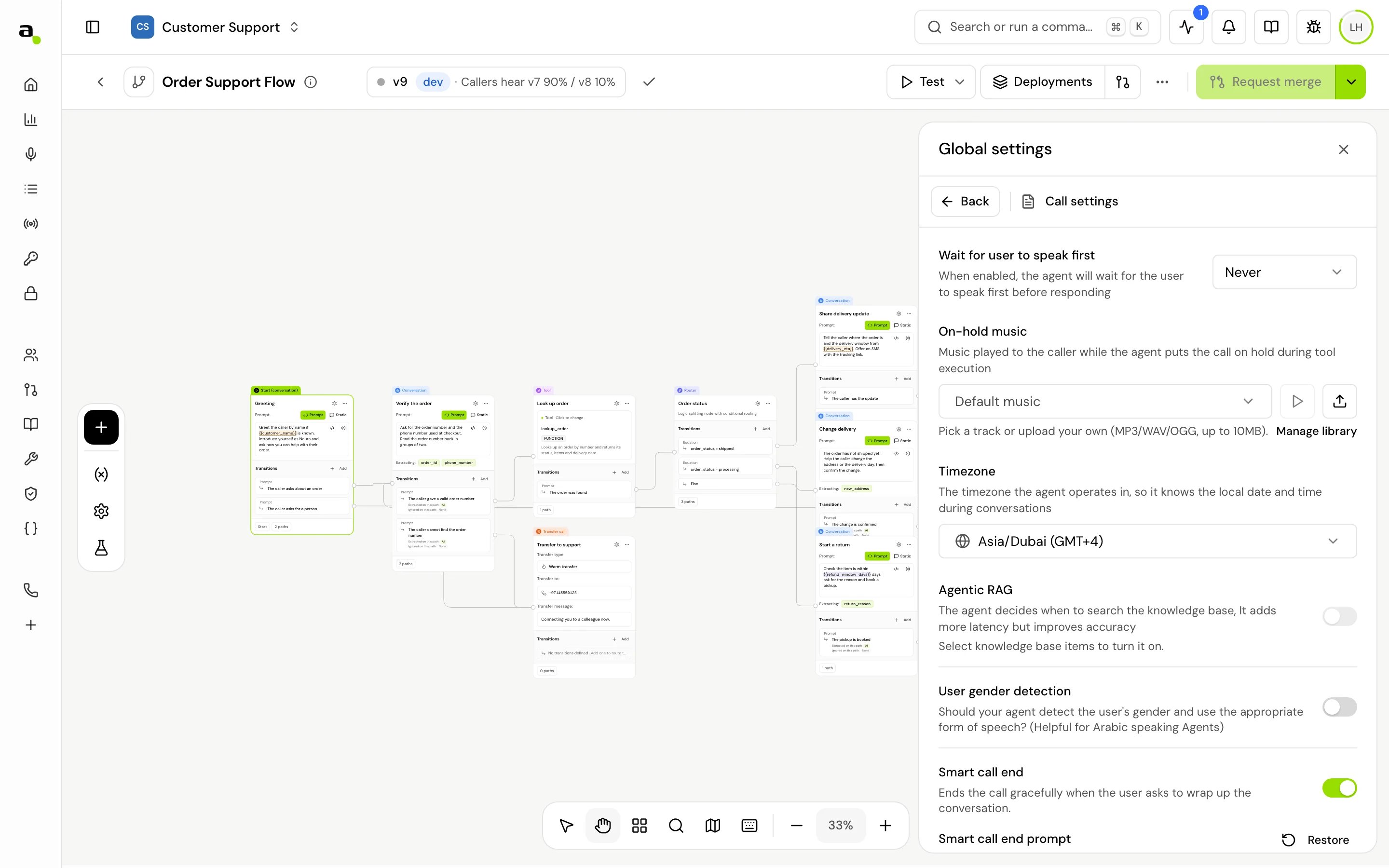
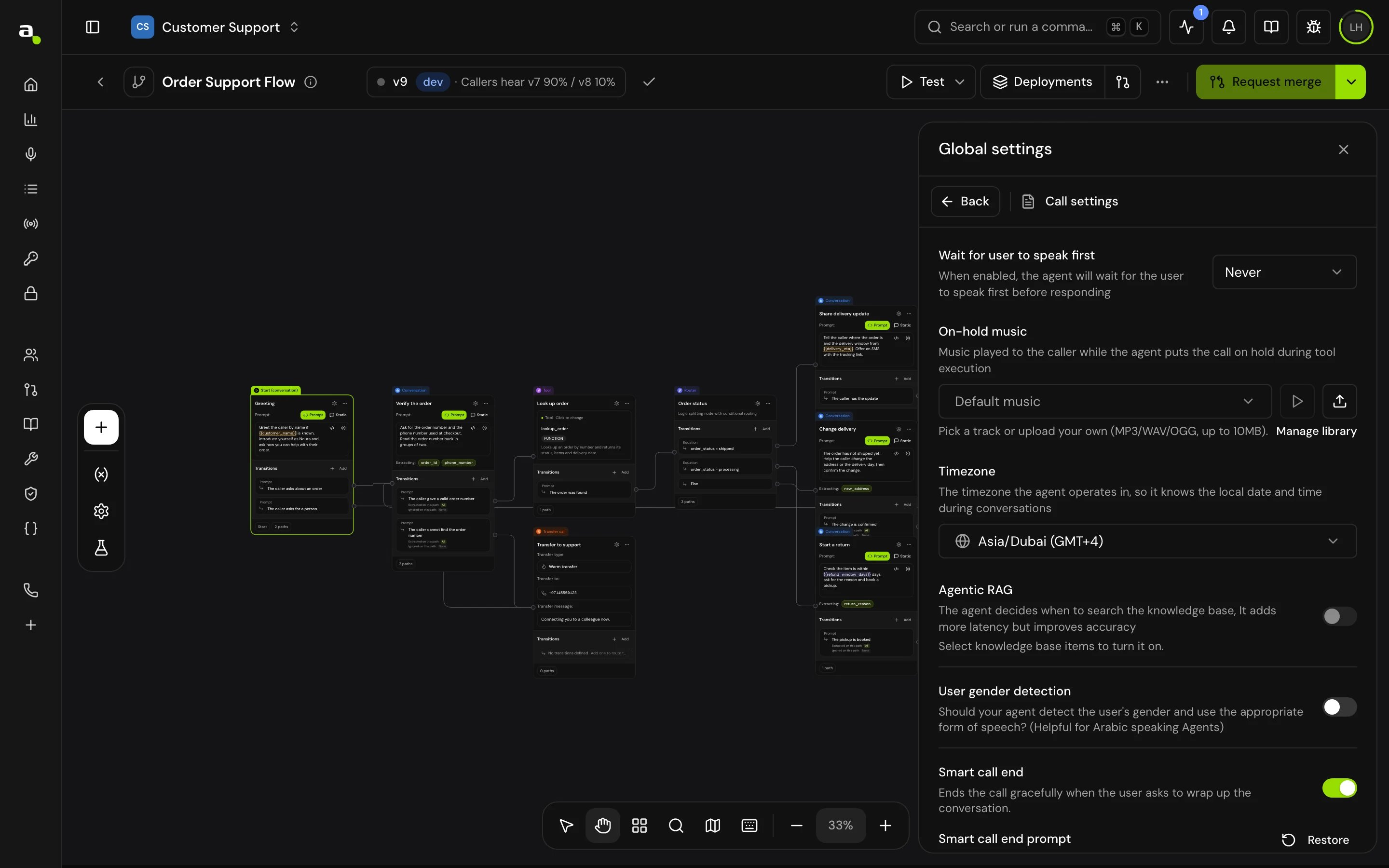
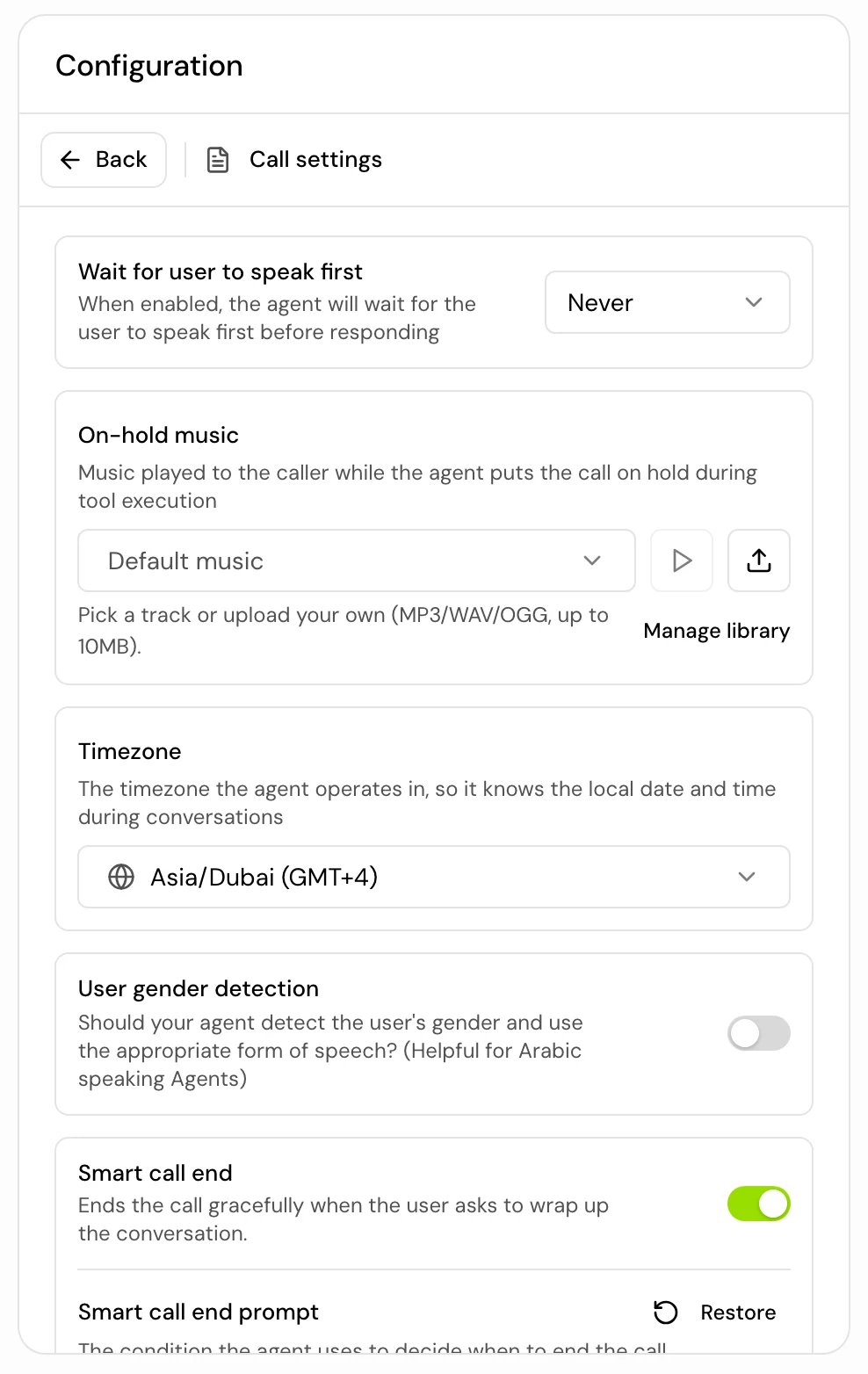
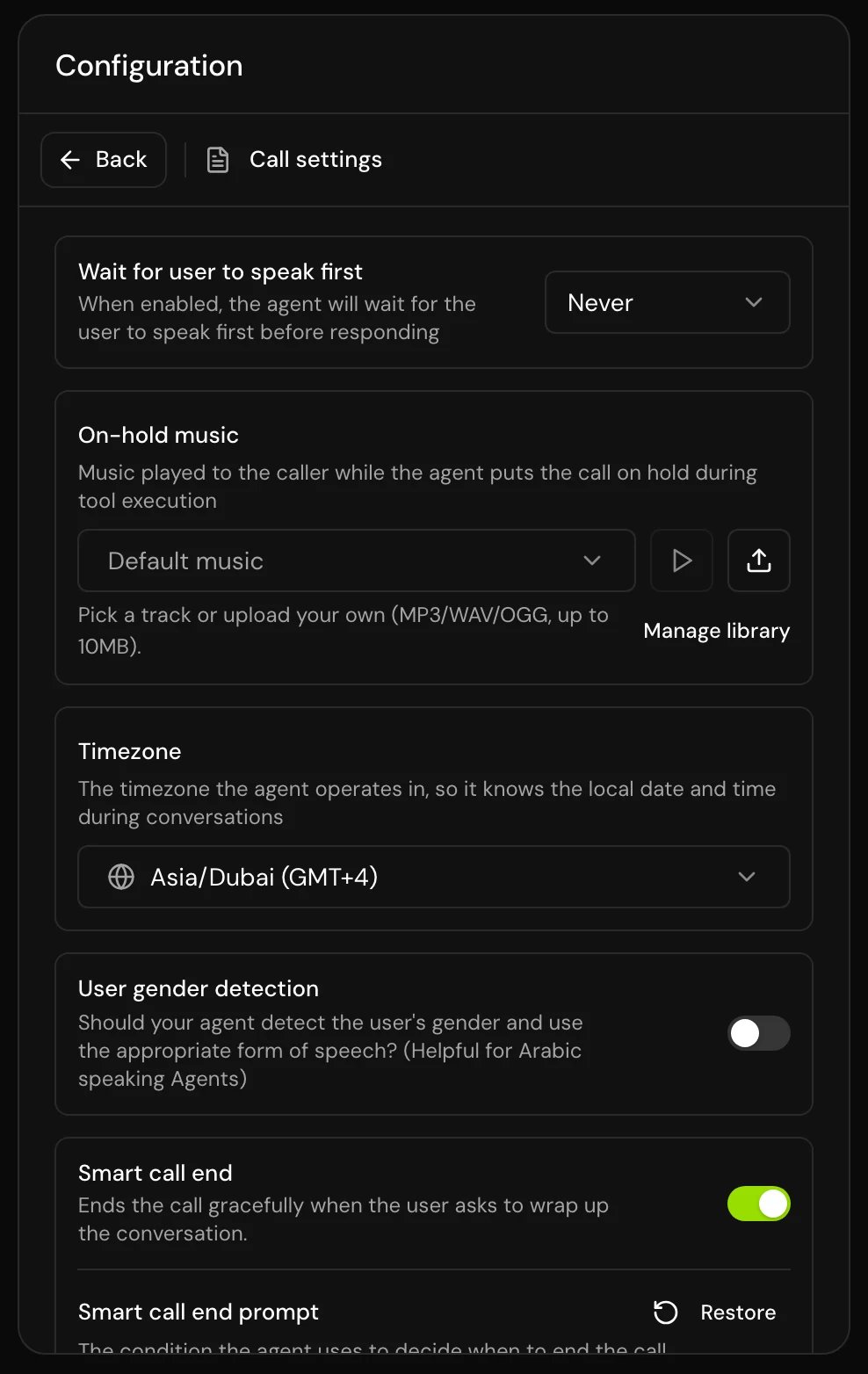
In the editor’s Configuration panel, open Call settings. Noise cancellation is its own section in the same panel. Enhanced turn taking sits under Agent instructions.
Start of the call
Wait for user to speak first decides whether the agent opens the call.
Use Outbound calls when your agent calls people: many people answer with “Hello?” and expect to hear who is calling after that.
Turn taking and interruptions
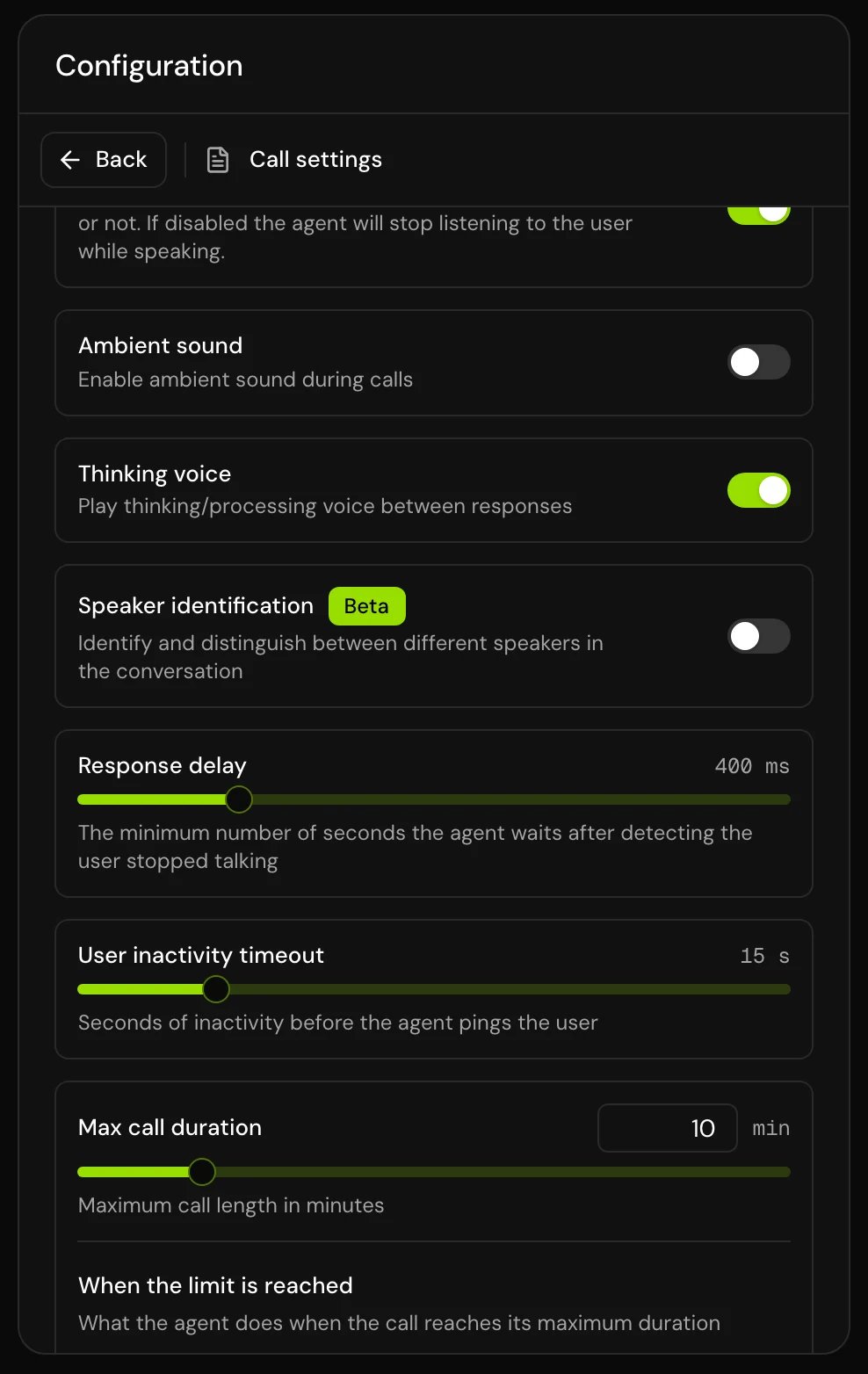
These settings control when the agent decides the caller has finished, and whether the caller can talk over the agent.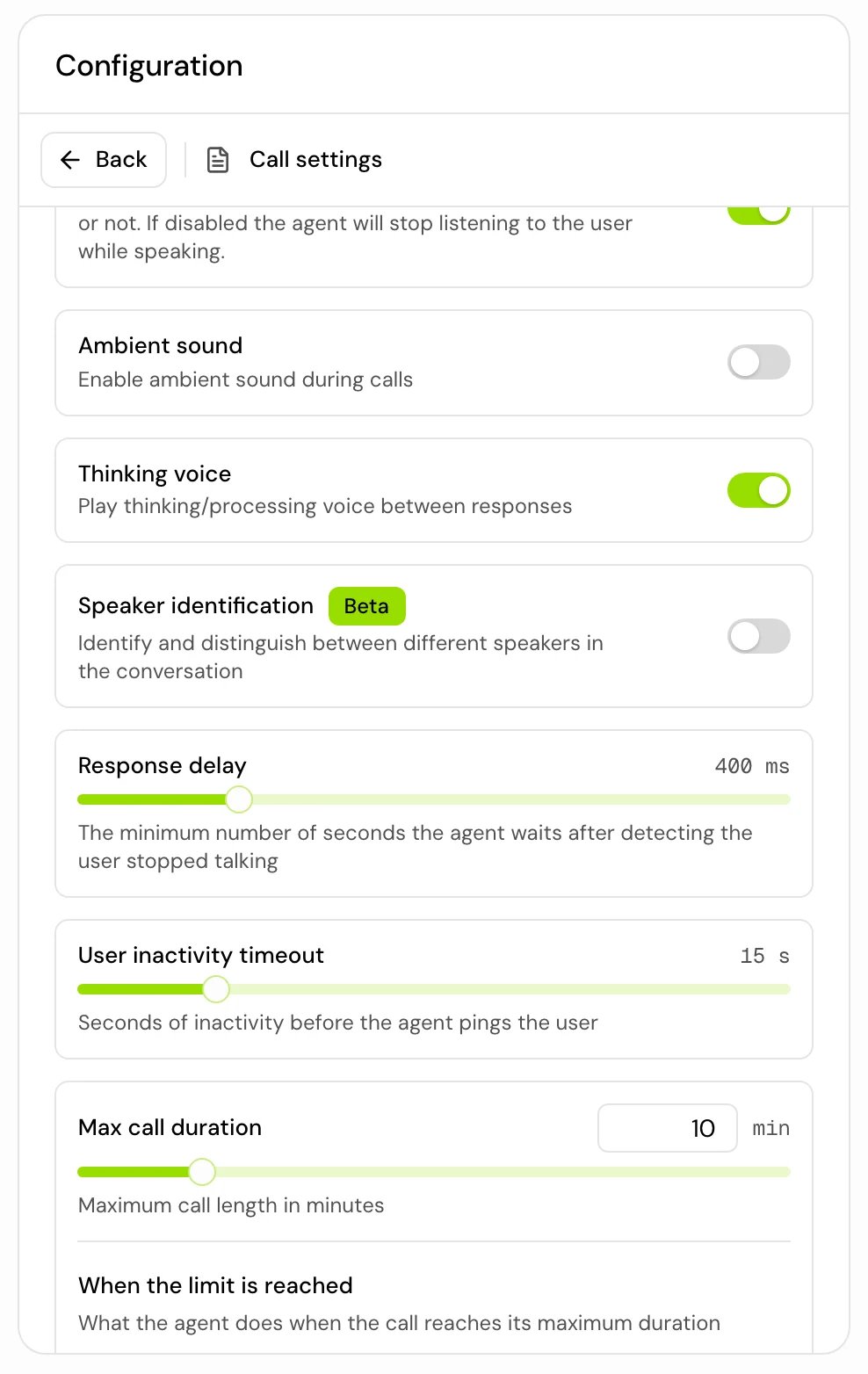
When to change them:
- The agent cuts callers off mid-sentence, for example while they read a number: turn on Enhanced turn taking, or raise Response delay.
- Replies feel slow: lower Response delay in steps of 100 ms.
- Background noise stops the agent: raise Minimum interruption duration or VAD activation threshold, or turn on noise cancellation.
- Callers can’t stop a long answer: check Interrupt is on.
- Single prompt agent
- Flow agent
Interrupt applies to everything the agent says, apart from the lines above.
When the caller goes quiet
User inactivity timeout (5 to 60 seconds, default 15) is how long the agent waits in silence before it checks in. When the timeout passes, the agent asks whether the caller is still there and if it can help. It asks again after every further timeout. The agent doesn’t hang up because of silence, so pair this with a sensible Max call duration.End the call
Smart call end
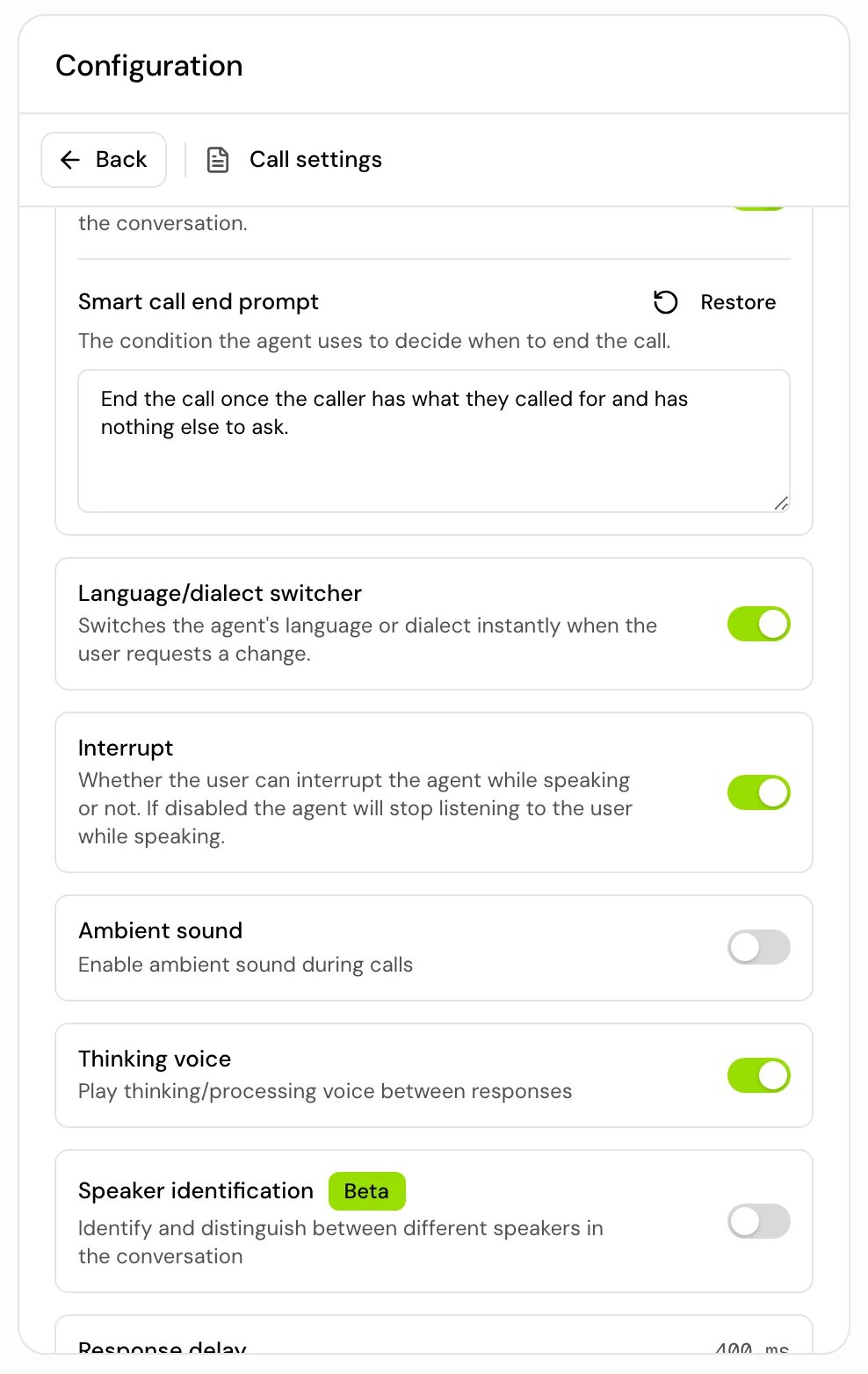
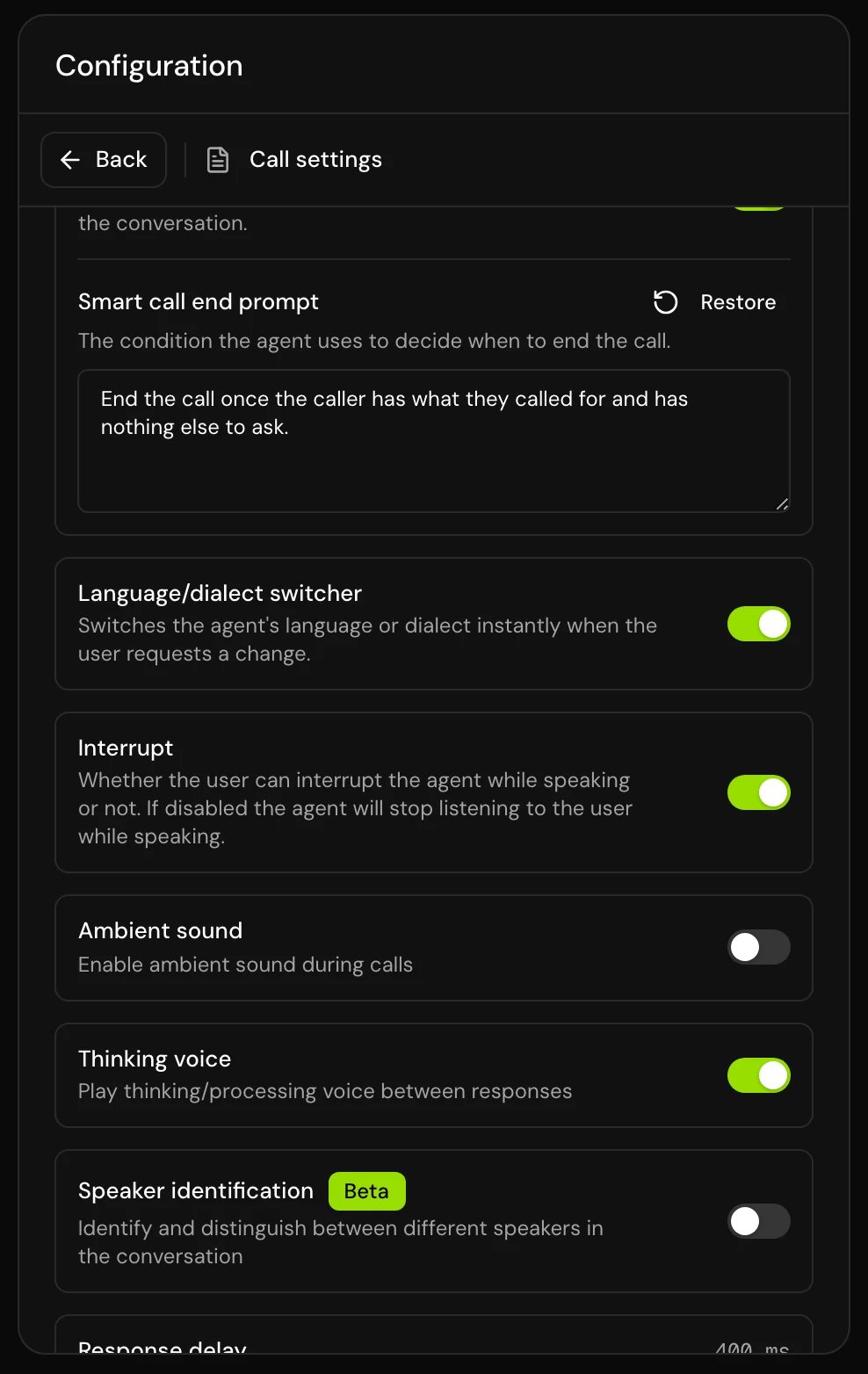
Turn on Smart call end to let the agent hang up when the conversation is done. The agent decides from the Smart call end prompt, which starts with this text:Terminate the call when: (1) all customer inquiries have been resolved, (2) the conversation has reached a natural conclusion, (3) the customer’s goal has been achieved, or (4) further conversation would be unproductive. Use this tool only when you’ve achieved the primary objective of the call.Edit the prompt to match your calls, for example “End the call after the appointment is confirmed and the caller has no other questions.” Click Restore to go back to the default text. When the agent ends the call, it says a short goodbye first.
- Single prompt agent
- Flow agent
With Smart call end off, a single prompt agent never hangs up on its own; the call ends when the caller hangs up or the maximum call length is reached.
Maximum call length
Max call duration caps every call, from 0.5 to 60 minutes in steps of 0.5. The default is 5 minutes. Raise it for agents that handle long calls. When the limit is reached sets what happens then: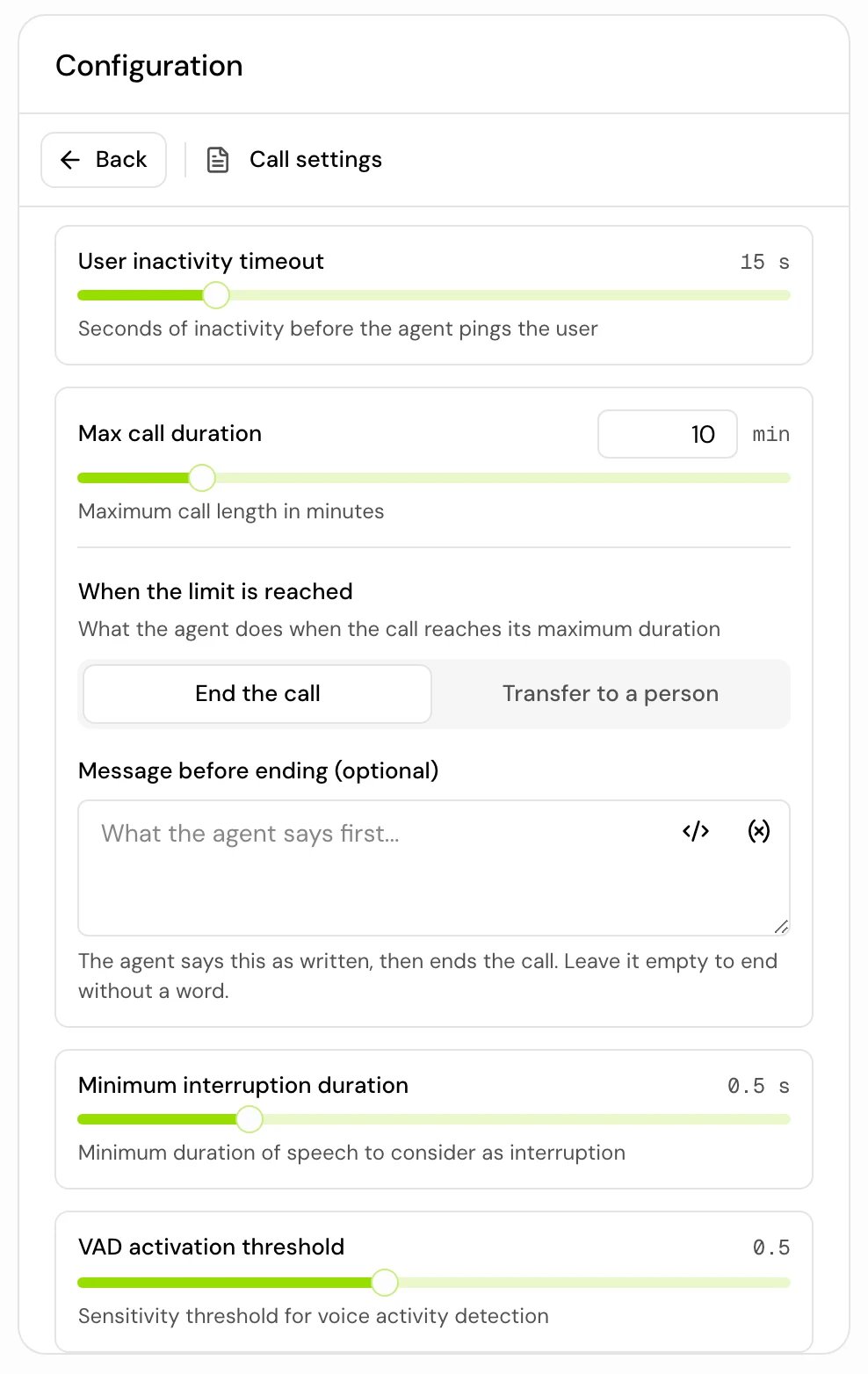
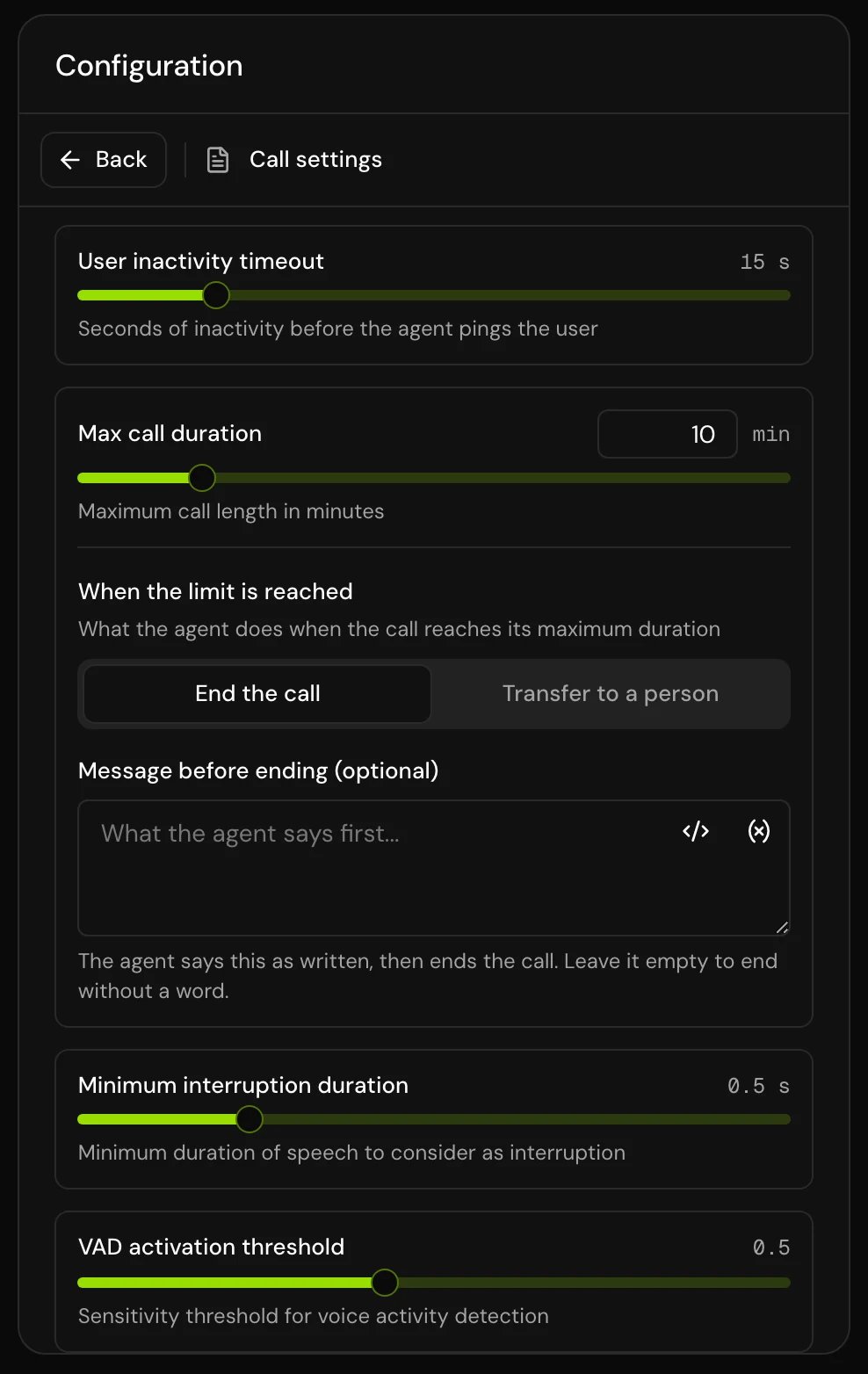
- The message (Message before ending or Message before transferring) is optional, up to 2,000 characters, and can use variables. If you leave it empty, the agent says a short goodbye explaining that the maximum call time was reached.
- Before ending, the message is said as written. Before a transfer, choose Static to say it as written, or Prompt to give it to the agent as an instruction, such as “Tell the caller you’re passing them to a colleague”.
- For a transfer, enter the number in international format (for example
+962791234567), or a variable such as{{ manager_number }}. - Transfers only work when a phone number is assigned to the agent, so they don’t happen on browser calls. If a transfer fails, the call ends.
- The caller can’t interrupt the message.
Noise cancellation
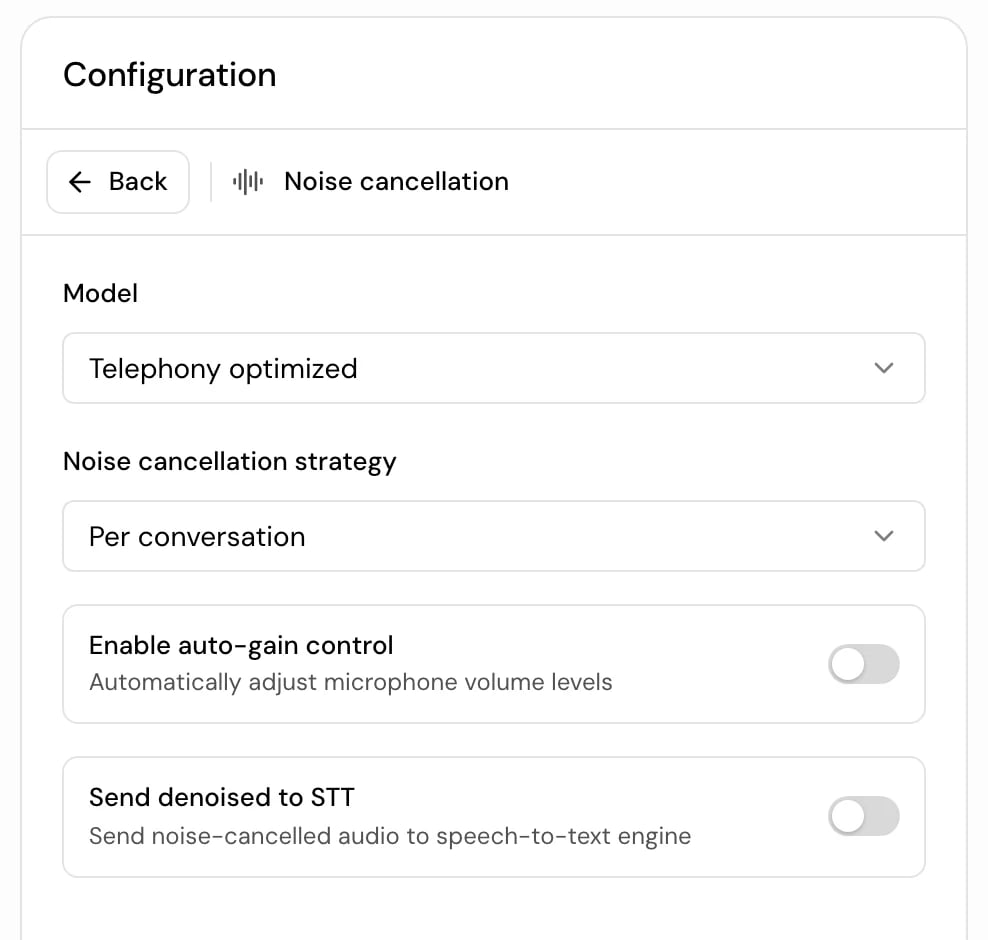
Noise cancellation filters background noise from the caller’s audio before the agent listens to it.- Single prompt agent
- Flow agent
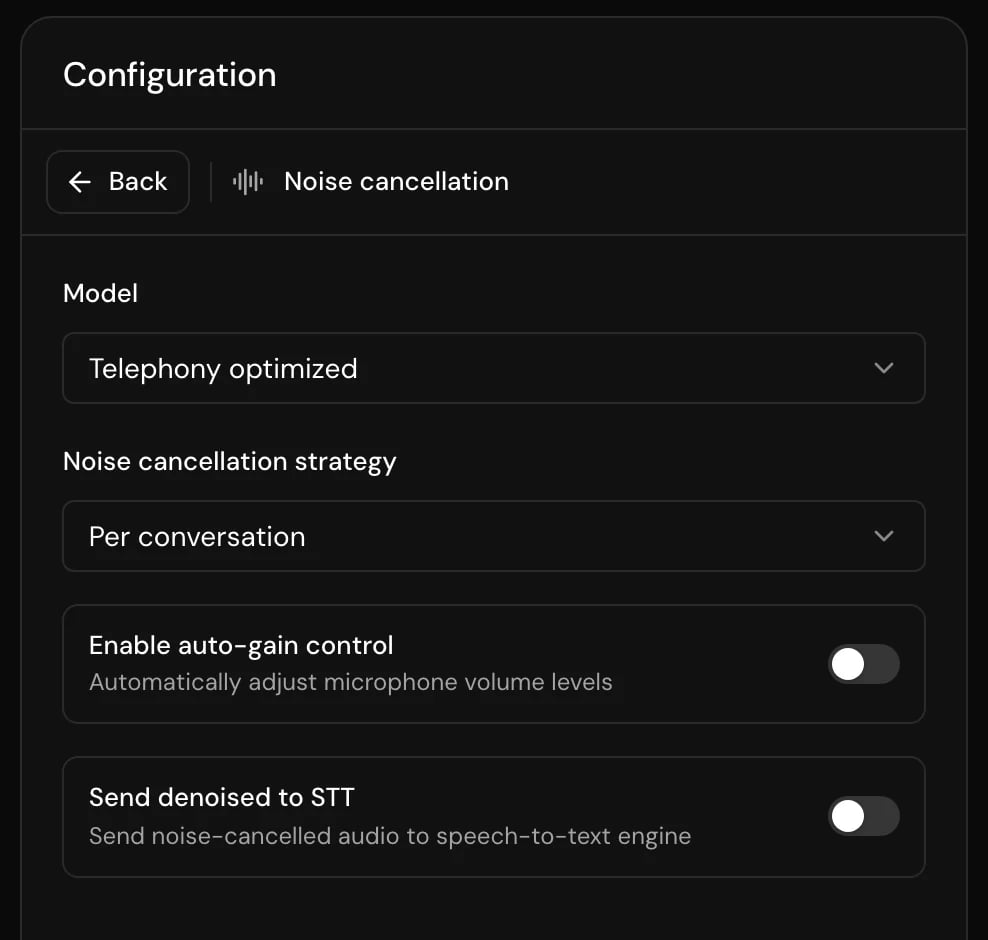
In Noise cancellation, pick a Model: Disabled, Telephony optimized or General use-cases. The other fields appear when a model is picked.
Sounds the caller hears
These work on phone and browser calls alike.
Pick or upload a track
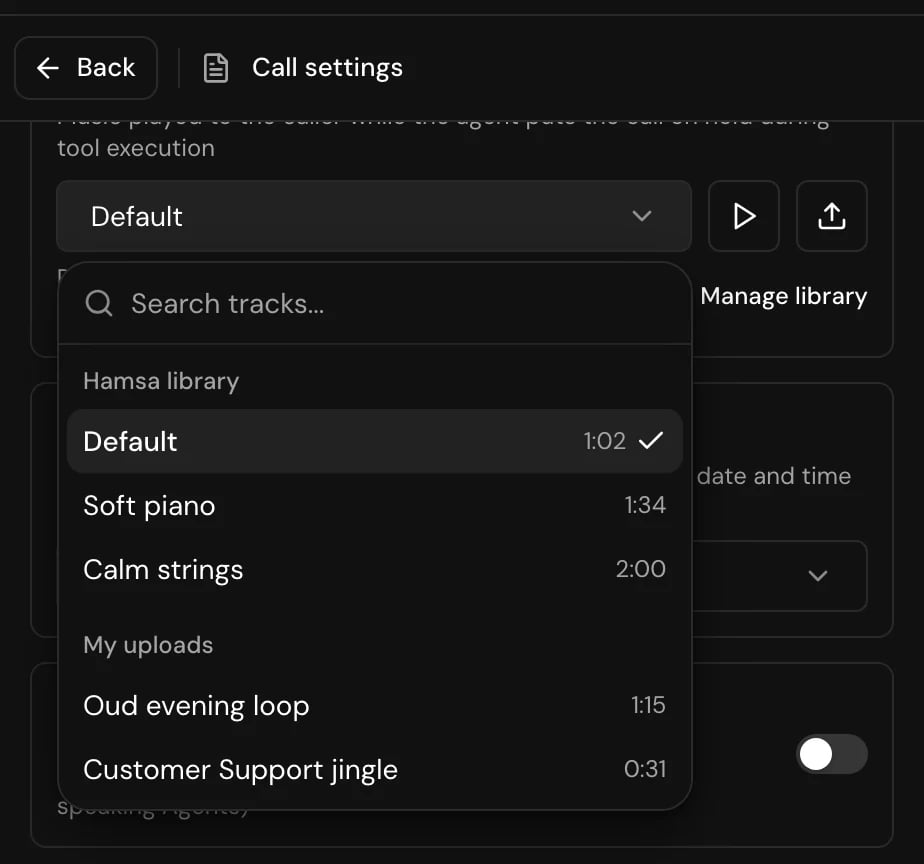
On-hold music and Ambient sound track each have a track picker. It lists Hamsa’s tracks under Hamsa library and your project’s under My uploads. Beside the picker, Preview plays the selected track, Upload music adds one, and Delete track removes the selected upload. Hamsa’s own tracks can’t be deleted.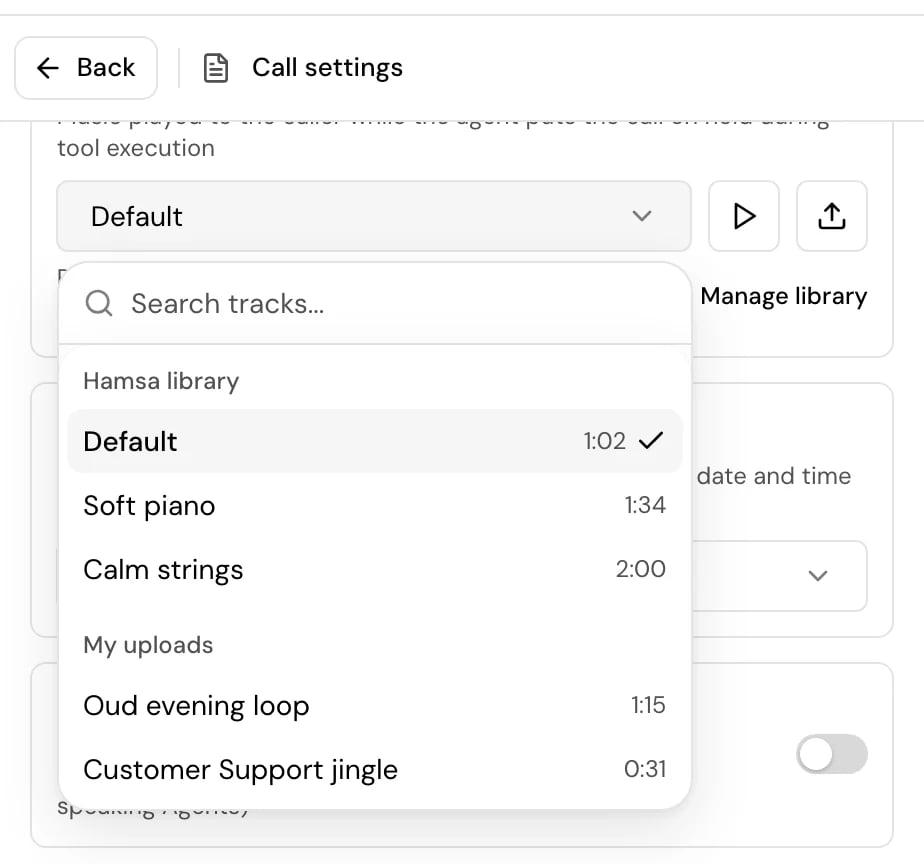
1
Open the library
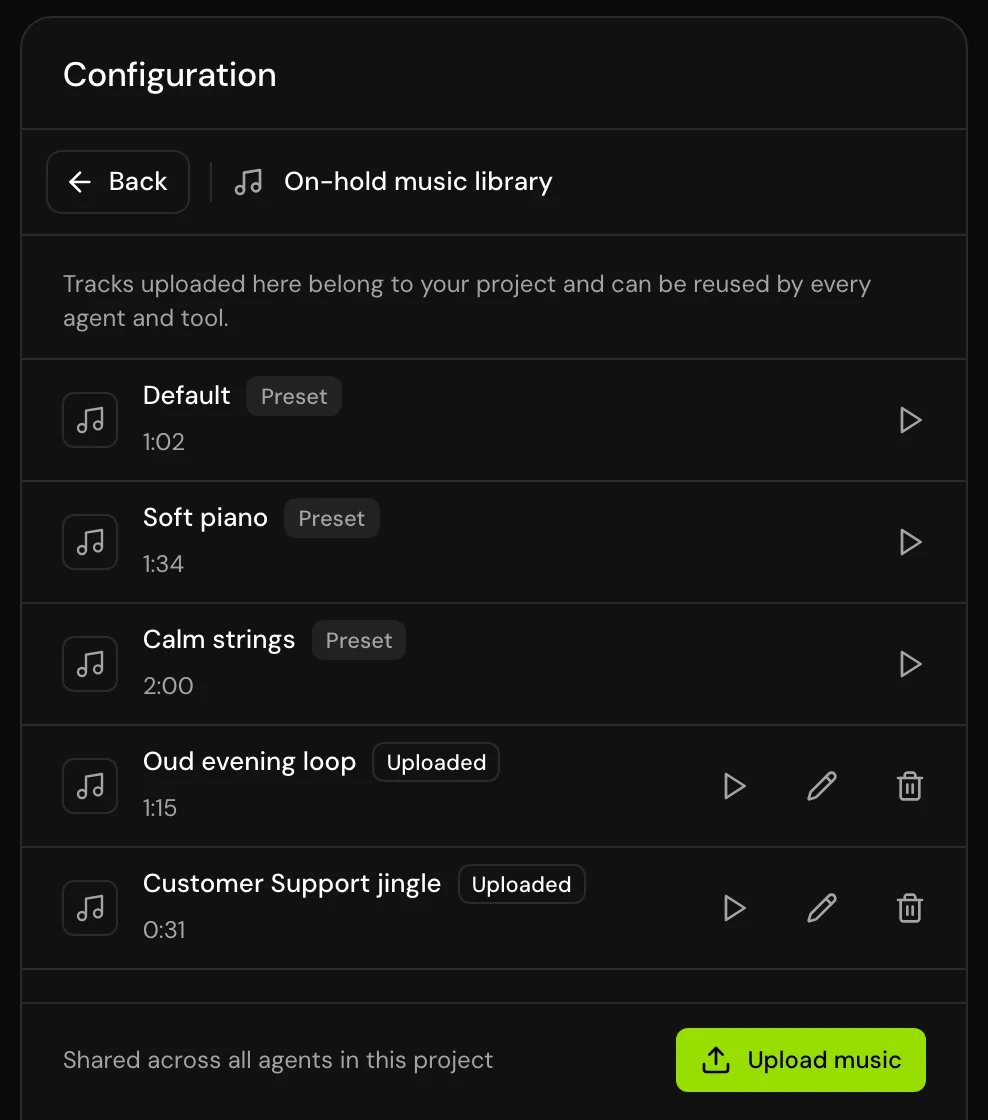
Under the picker, click Manage library. The On-hold music library (or Ambient sound library) lists every track with its length. Hamsa’s tracks are marked Preset, yours Uploaded.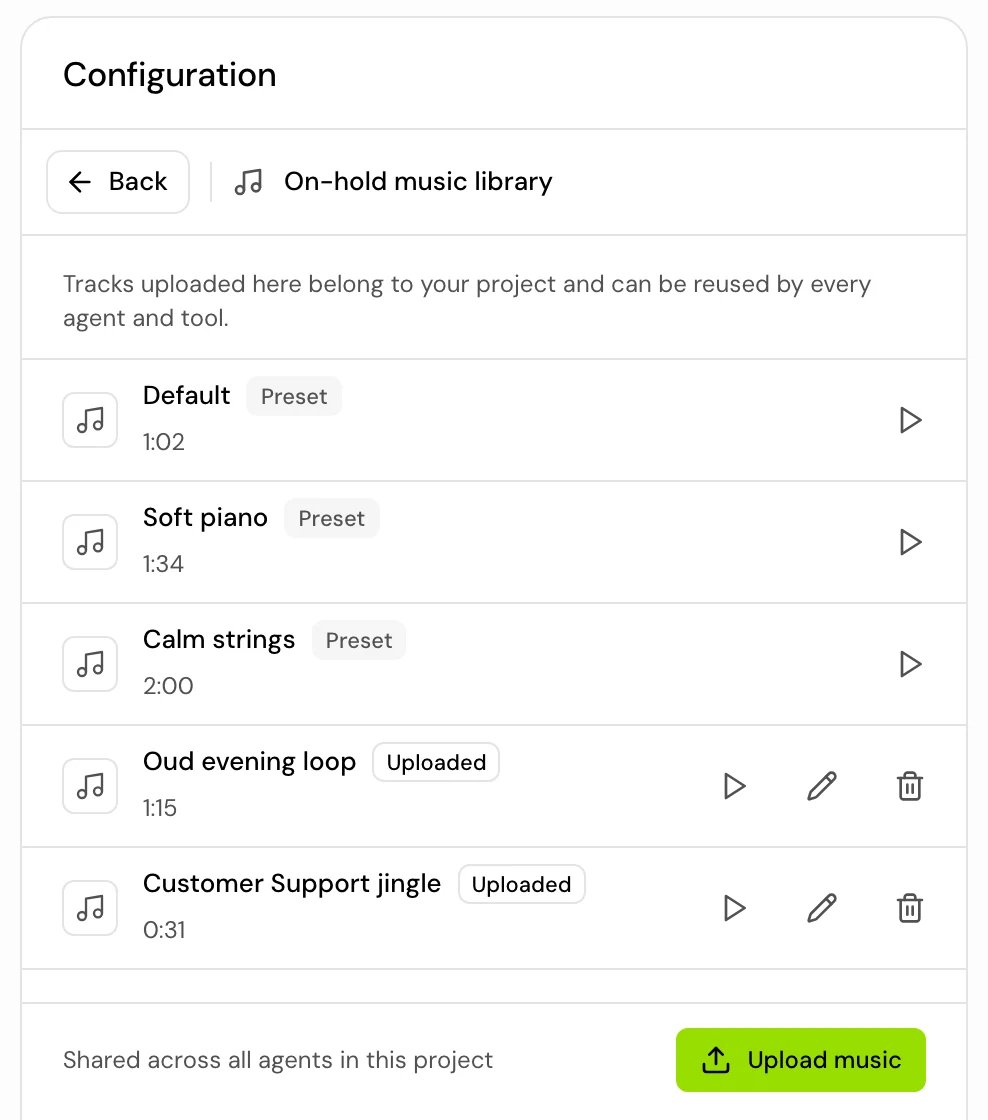
2
Upload a track
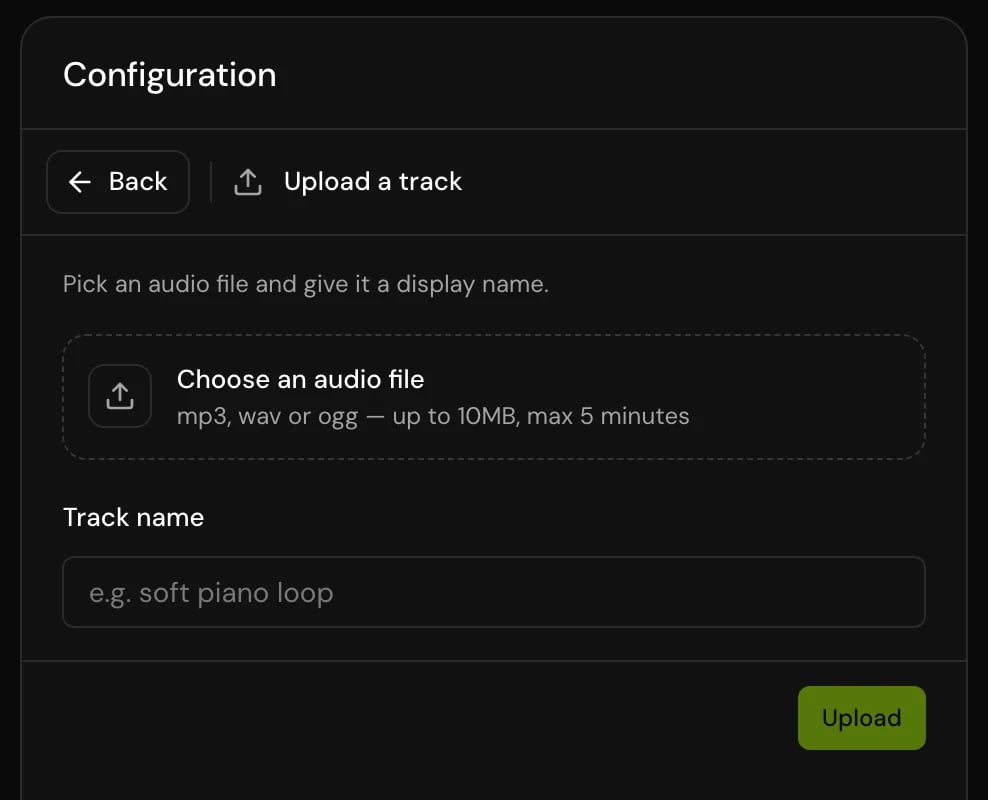
Click Upload music. In Upload a track, click Choose an audio file and pick an mp3, wav or ogg file of up to 10 MB and 5 minutes, enter a Track name, and click Upload. Each name can be used once.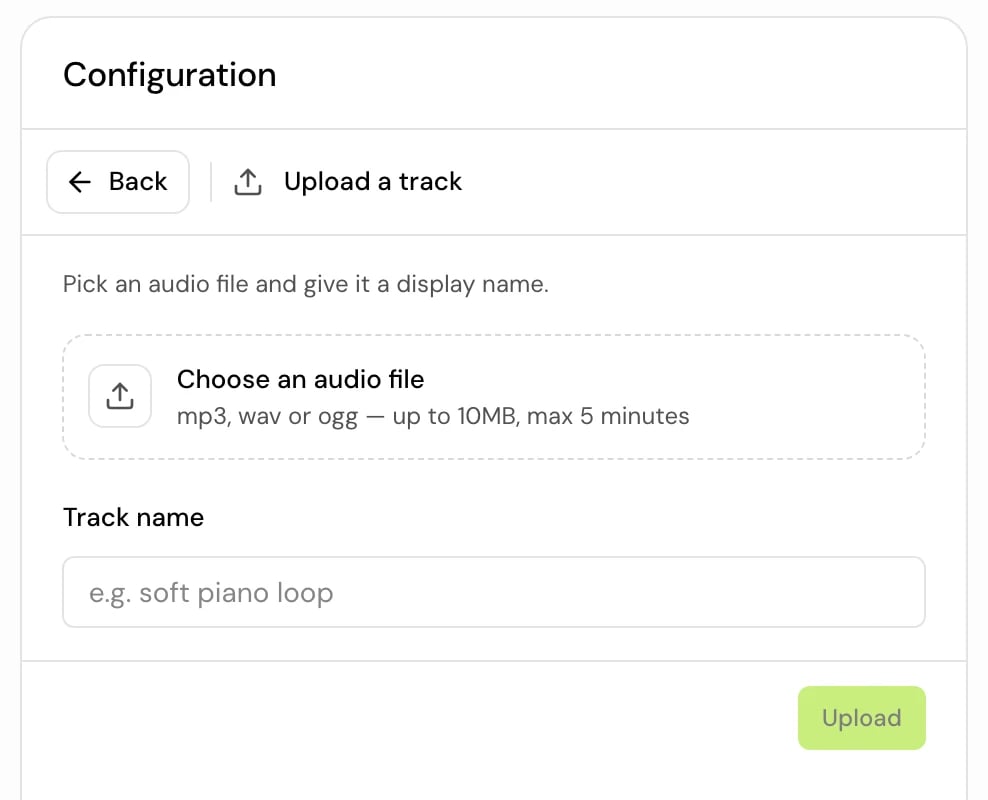
3
Rename or delete an upload
In the library, click Rename or Delete track on one of your uploads.
Know who is speaking
Time zone
Timezone is the time zone the agent works in. It sets the time variables in prompts and messages ({{ current_time }}, {{ current_date }} and the rest), and the date and time the model is given on every turn.
Set it to your business’s time zone: search for a city or region and pick it. If you leave it on Default (UTC), calls use the platform’s default time zone, which may not be UTC, so always set it when your agent talks about dates, opening hours or appointments.
Settings reference
Flow agents also have Agentic RAG in Call settings; single prompt agents have it in Knowledge base. See Knowledge base.
Good to know
- Settings changes go to your draft. Calls in progress and callers on the live version aren’t affected until you publish.
- The agent never hangs up because of silence. Only the caller, smart call end, an End call step (flows) or the maximum call length end a call.
- Browser test calls use these settings too, with two differences: the VAD activation threshold is scaled differently, and transfers at the call limit need a phone call.
Related
Voice, language and dialect
Voice, speech recognition and the dialect switcher.
Choose the model
The language model behind the agent.
Test your agent
Hear the effect of each change.
Change agent settings step
Change settings partway through a flow.