

Before you start
- You need permission to add knowledge base items (Owners, Admins and Users have it by default).
- Your account needs storage left. When the Knowledge base usage meter shows Storage full, the add buttons are disabled. See Storage.
Add free text
Use free text for short facts you want to type in directly, such as opening hours, a returns policy or answers to common questions.1
Open the form
In Knowledge base, click Add free text.
2
Name it
Enter a Text name, up to 100 characters.
3
Add the content
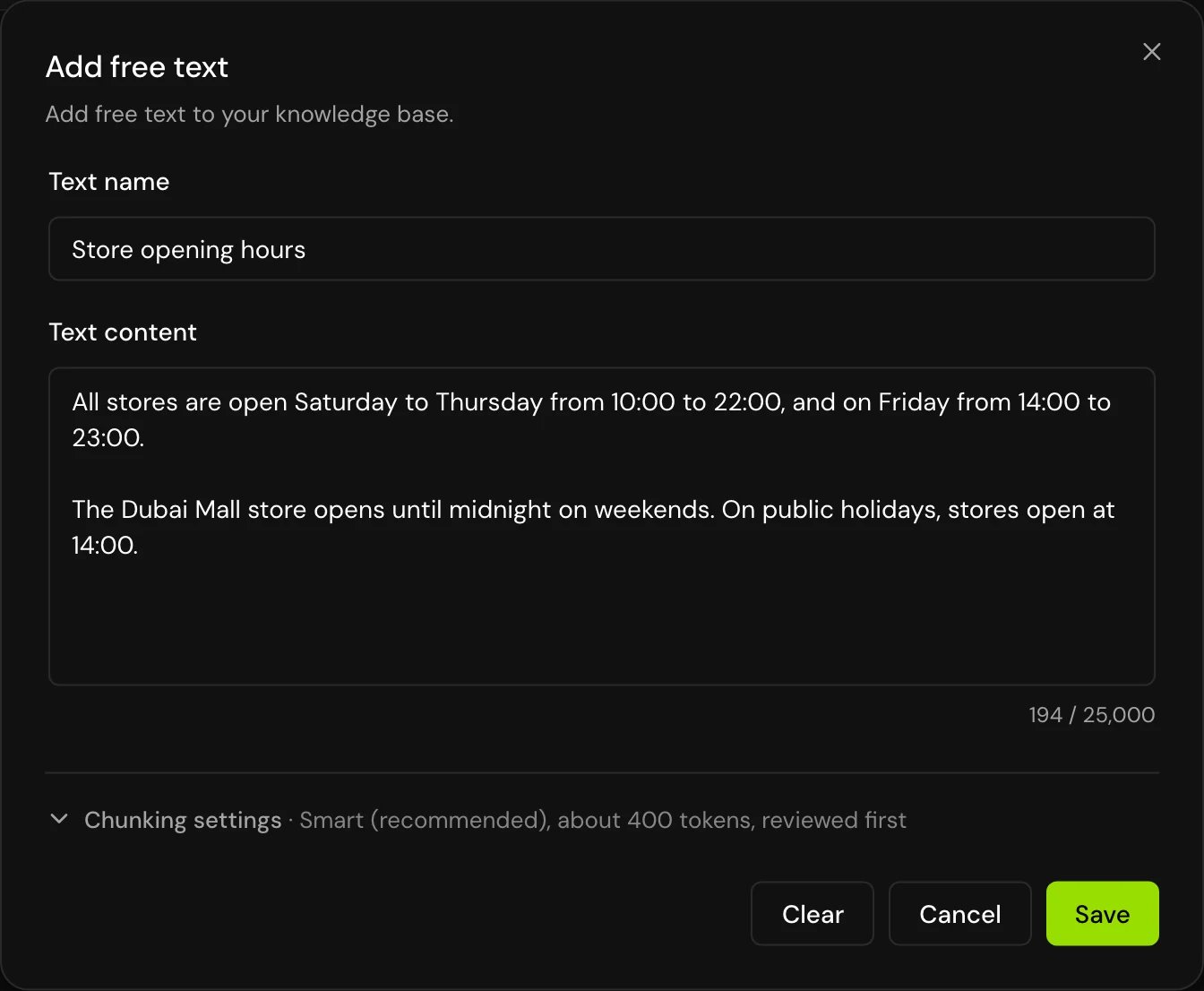
Type or paste the Text content: at least 50 and at most 25,000 characters. The counter shows how much you have used.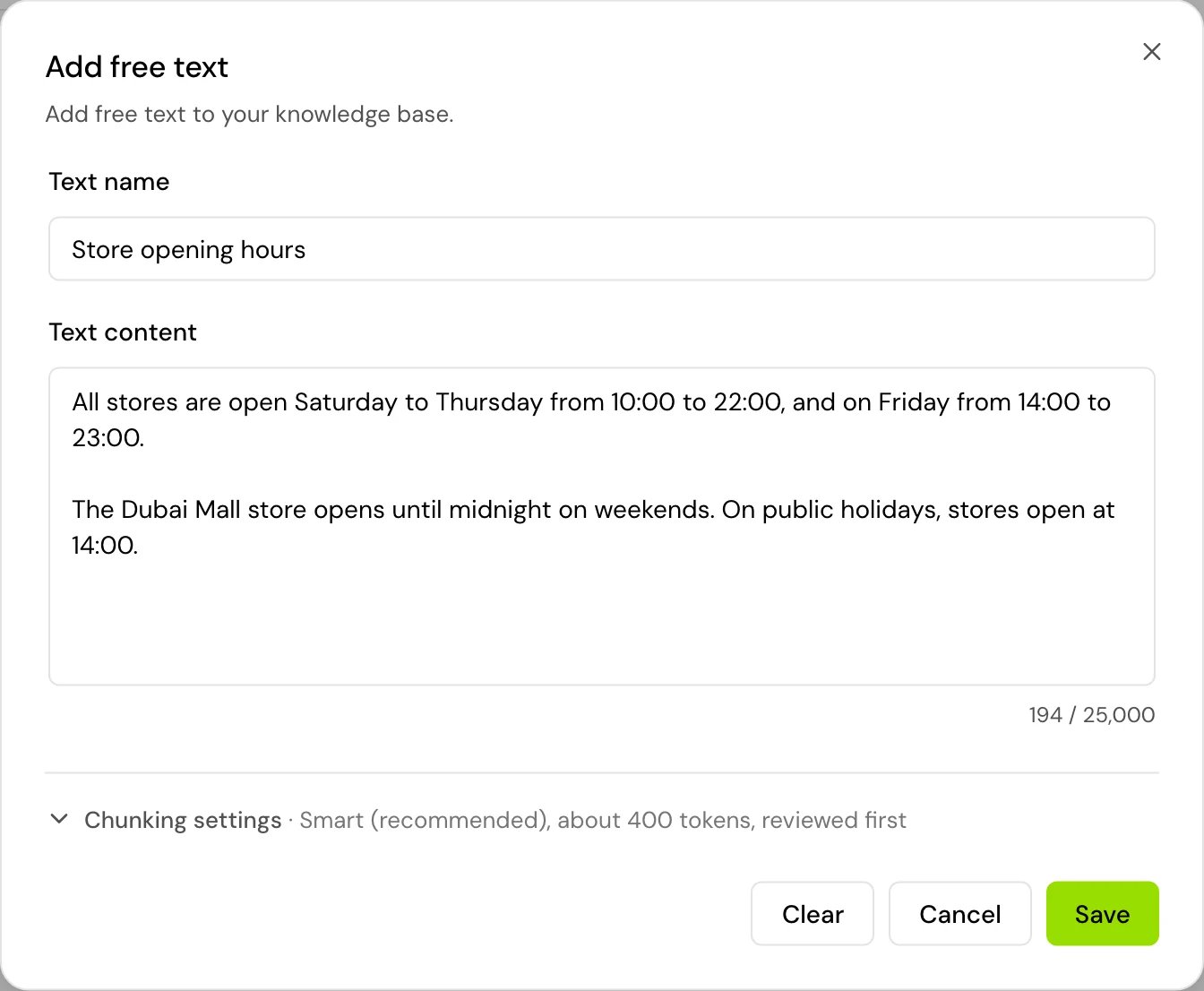
4
Check the chunking settings (optional)
Open Chunking settings to change how the text is split, or leave the defaults. See Chunking settings.
5
Save
Click Save. “Item created successfully.” confirms it, and the item appears in the list as Processing.
Add documents
1
Open the form
In Knowledge base, click Add document. You can also drop files anywhere on the Knowledge base page, or paste files you’ve copied.
2
Choose the files
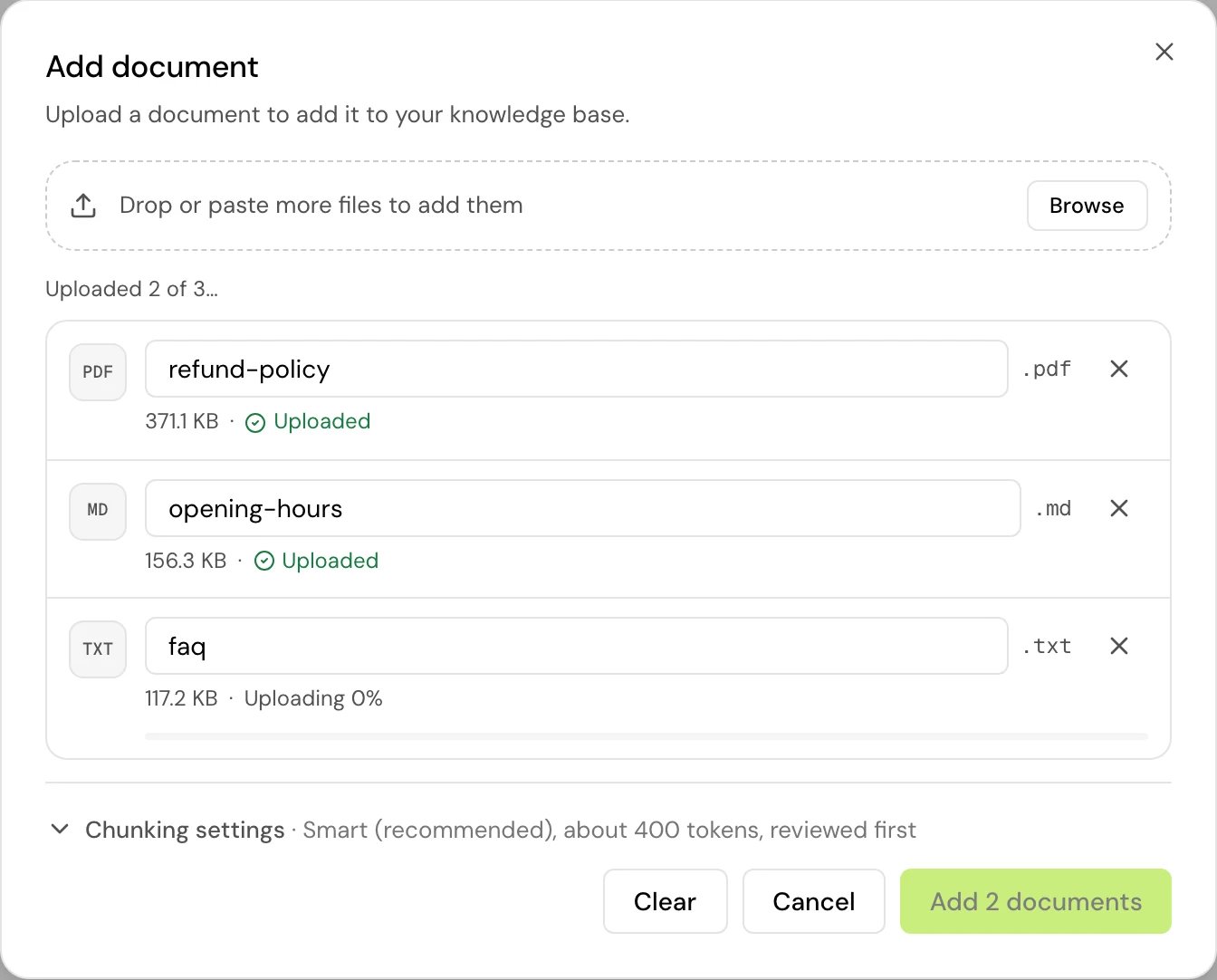
Drop files on “Drop documents here, or click to choose”, or click Browse. You can add several files; each becomes its own item.
3
Name each file
Each file gets a name (up to 100 characters), filled in from the file name without its extension. Change it if you want a clearer name in the list.
4
Wait for the uploads
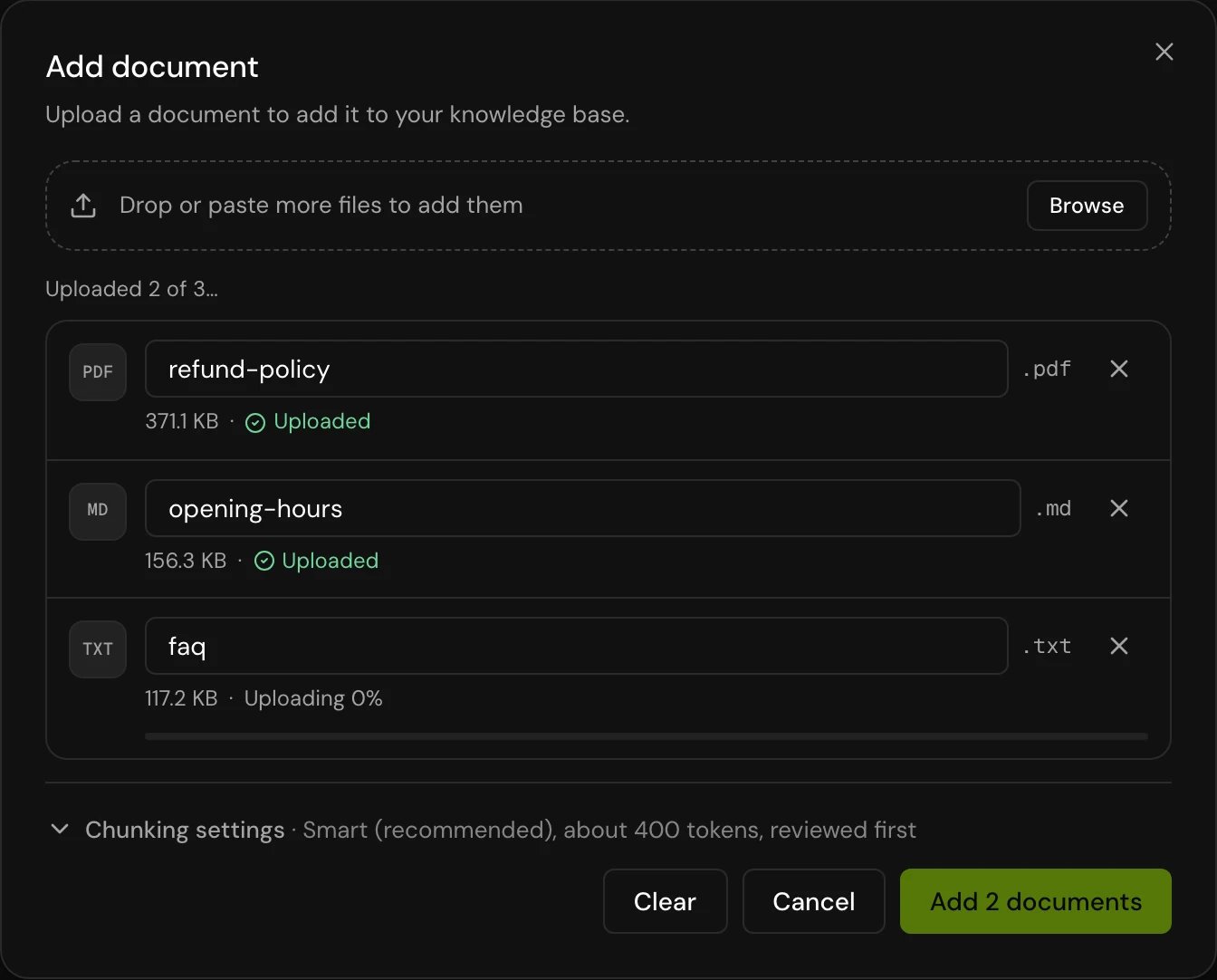
Files upload two at a time, each with its own progress (“Uploading 40%”, “Uploaded”). If one fails, try it again or click Retry all.
5
Add them
Open Chunking settings if you want to change them, then click Add N documents.
Supported files
Each file can be up to 21 MB. Files of another type, or larger than 21 MB, are refused when you pick them (“not a supported type”, “over 21 MB”). If the files you picked add up to more than the storage you have left, the form warns you that some may not be added.
What happens next
Hamsa reads the content and splits it into chunks. The item shows Processing while that runs; the list updates itself.- With Review before indexing on (the default), the item then waits at Pending review. It isn’t searchable yet. Open Review chunks, check the pieces and click Index. See Review chunks and index.
- With Review before indexing off, the item is indexed straight away and becomes Completed.
Drafts
If you close the form before saving, what you entered is kept in this browser. Add free text and Add document then show that a saved draft is waiting, and opening the form continues it. Clear empties the free text form.Good to know
- You can’t edit an item’s text or replace its file after you add it. You can edit its chunks, rename it once it is Completed (Edit title), or add a new item and delete the old one.
- Storage counts the size of each file and of each text item. There is no limit on the number of items.
- Website (URL) items can’t be added.
- While an item is processing, you can stop it from Item details with Cancel processing (Owners and Admins by default). This removes the item from the knowledge base.
Related
Review chunks and index
Check the pieces and make the item searchable.
Knowledge base
Attach items to agents and see how they are searched.