

Before you start
You need the View permission on the Conversation log (“See calls, transcripts and recordings.”). Owners, Admins and Users have it by default. Exporting needs Export, and ending pending calls needs Monitor (live), which Owners and Admins have by default. See Roles and permissions.Find the calls you want
1
Open the log
Click Conversation log in the sidebar.
2
Pick a quick view
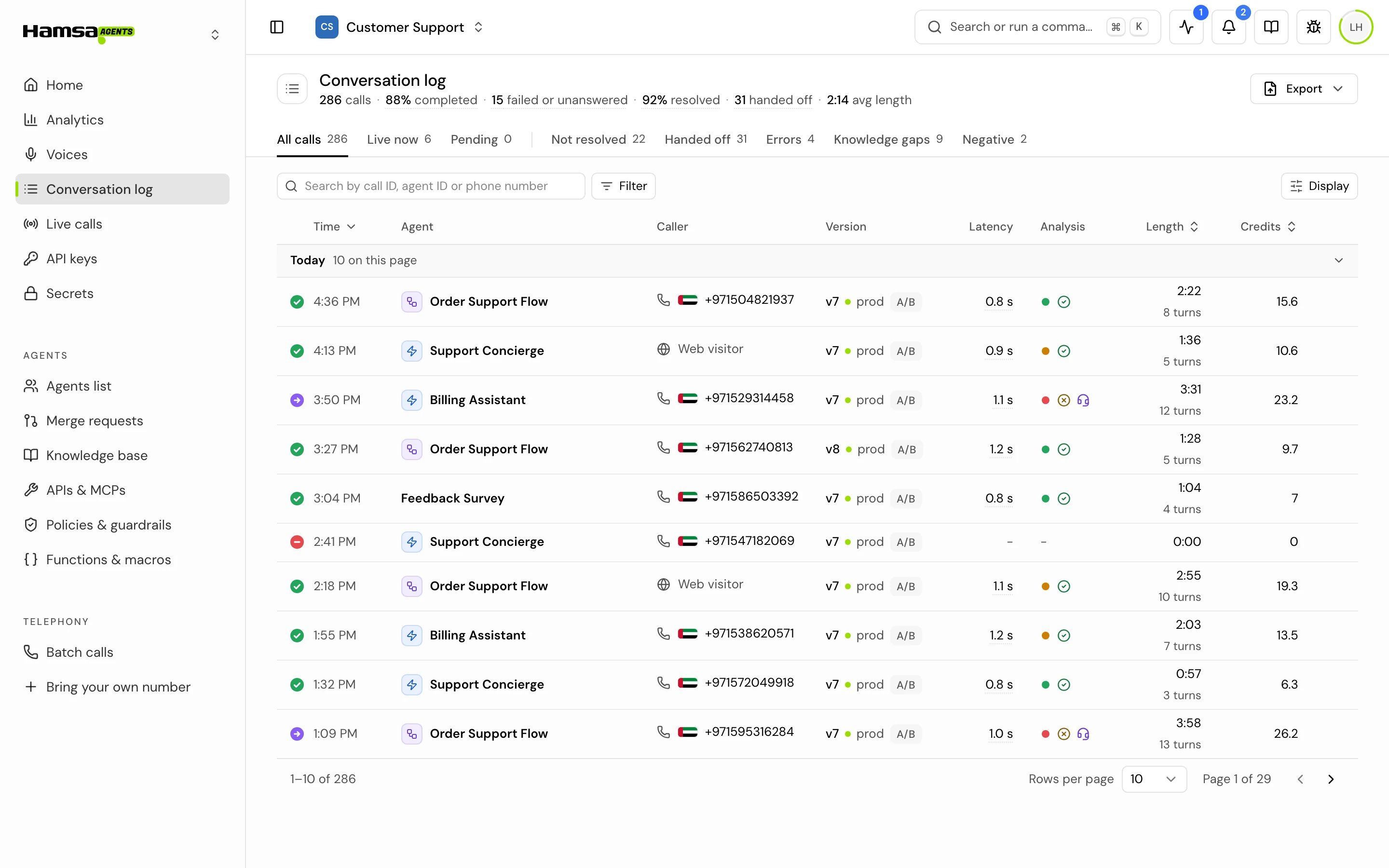
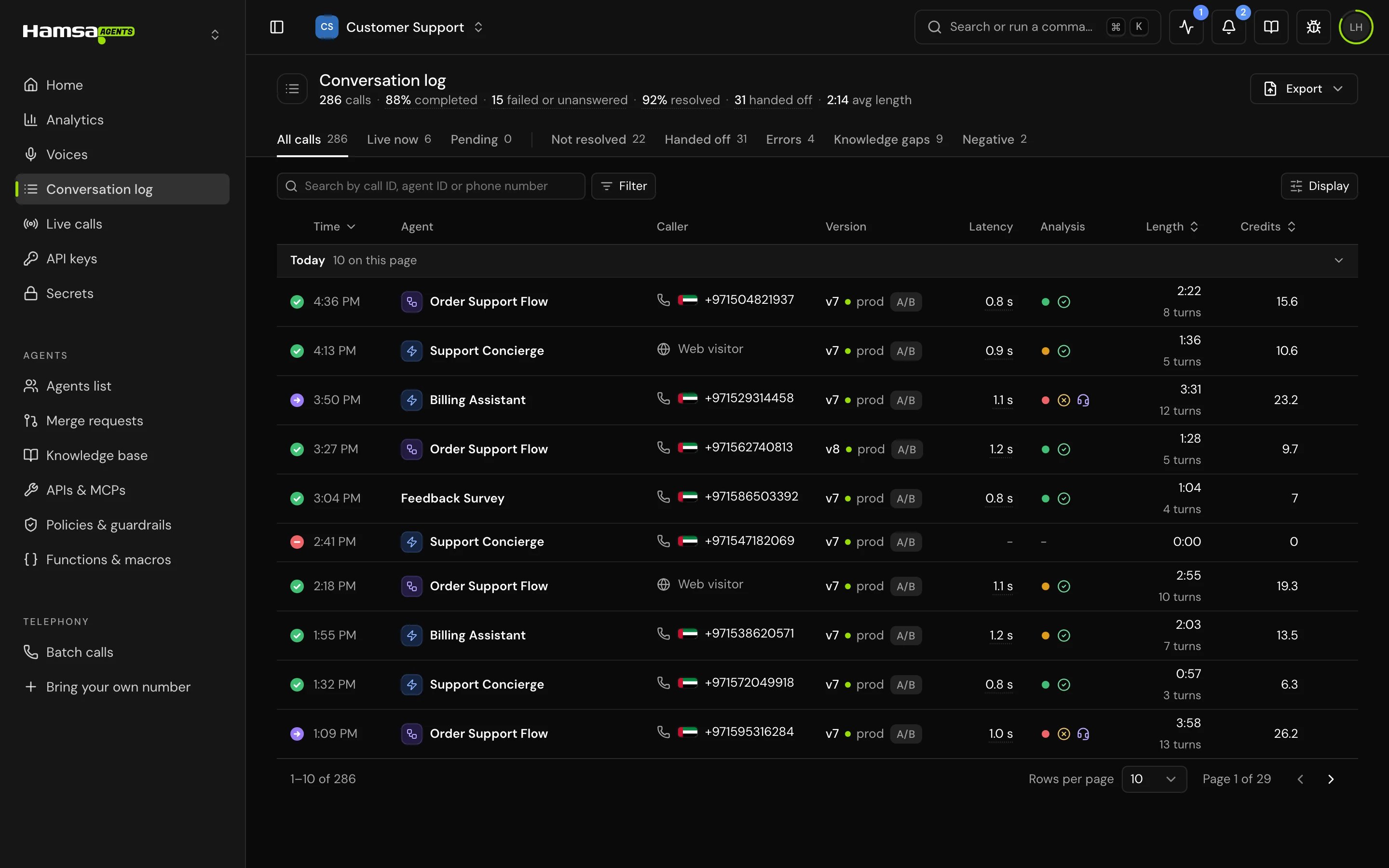
The tabs above the list are quick views, each with its count. All calls shows every status. Use the others to jump to calls worth a look.
3
Add filters
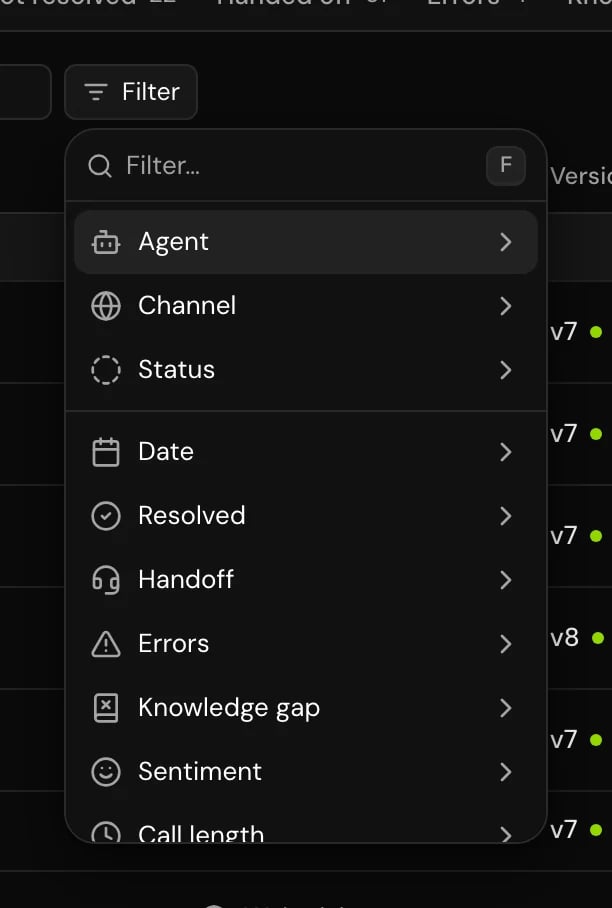
Click Filter and pick what to narrow by. Each filter you add shows as a chip, for example “Date · is within · Last hour”. Click a chip to change it, or Clear to remove every filter and the search.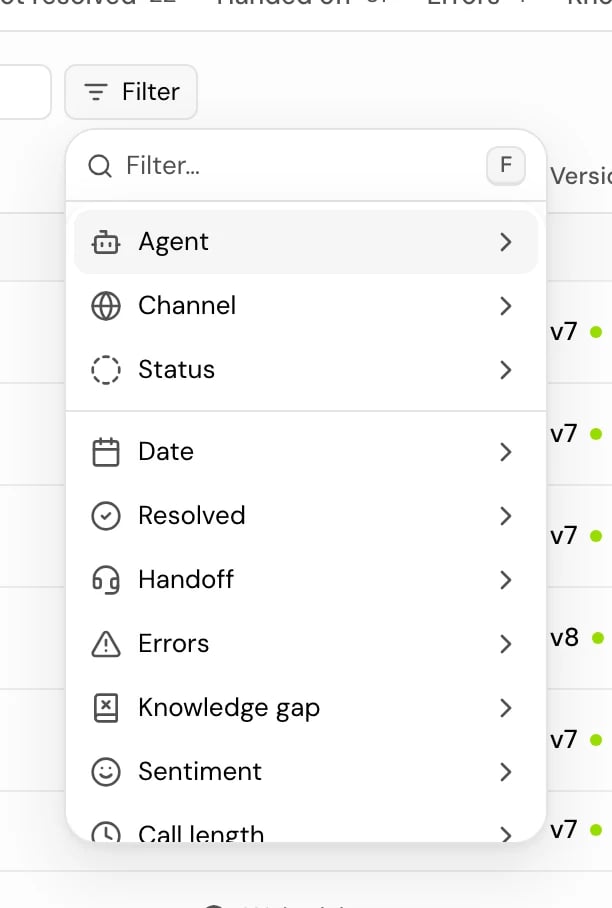
4
Open a call
Click a row to open its call details beside the list.
Quick views
The last five views use the AI analysis that runs after each call. Analytics explains how it works. Use the arrow keys, Home and End to move between the tabs.
Filters
There is no “All” date option: to see every date, remove the date chip. Dates follow your browser’s time zone.
Search
Type in Search by call ID, agent ID or phone number. Search matches:- a full call ID, exactly,
- a full agent ID, exactly,
- the caller’s phone number, or any part of it.
Read the list
The summary line
Above the list, one line sums up the calls on screen, for example “185 calls · 75% completed · 3 failed or unanswered · 64% resolved · 12 handed off · 0:52 avg length”. Click a figure to list only those calls.- resolved is out of the calls the analysis judged, not all calls. Hover it to see how many that is.
- avg length follows only the agent and date filters.
- On an agent with an A/B test on prod, it adds how many calls came from the test.
Columns
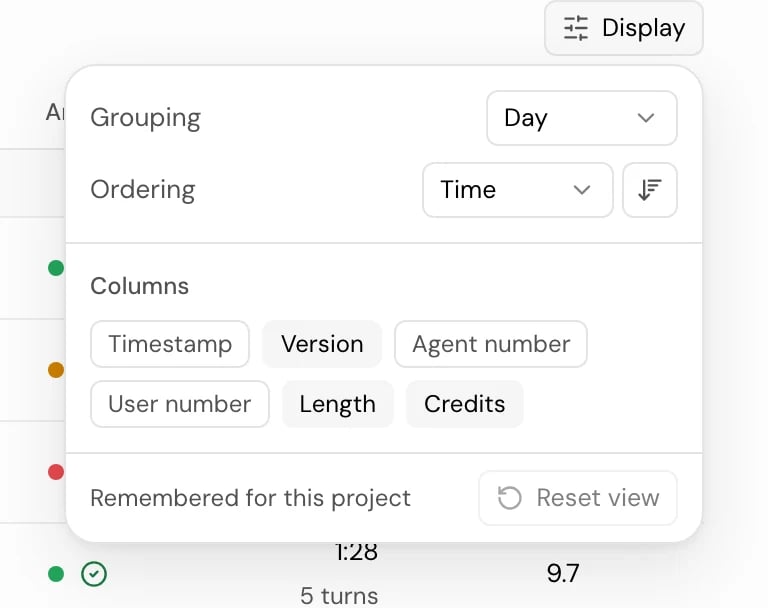
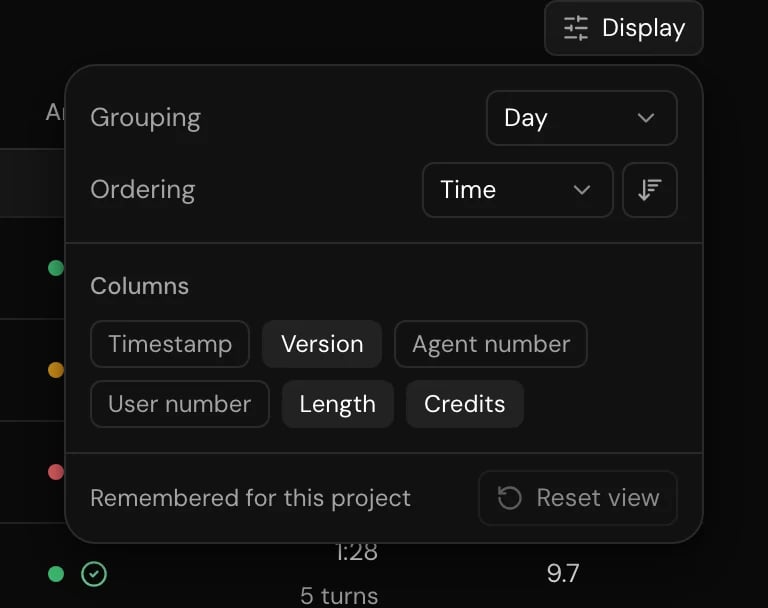
Hidden by default: Timestamp, Agent number and User number. Turn them on under Display > Columns.
Some rows carry flags: Human took over (a member took over the call), Tool failed, and Slow replies (average reply over 1.5 seconds).
Sort, group and arrange
Open Display to change how the list looks:- Grouping: Day (the default, while sorted by time), Agent, Status or None.
- Ordering: sort by time, Length or Credits, ascending or descending. You can also sort from a column header’s menu. The default is newest first.
- Columns: show or hide columns.
- Reset view: back to the defaults.
Refreshing
The list refreshes every 20 seconds, and when you come back to the browser tab. It stops while the tab is hidden. The length of a call in progress counts up every second.See one agent’s calls
To see only one agent’s calls, use one of these:- In the agent’s editor, open the header menu and choose Calls (“All calls for this agent”).
- In the agents list, click the agent’s call count or View calls.
- In the agent’s releases, click View prod calls (or staging, dev).
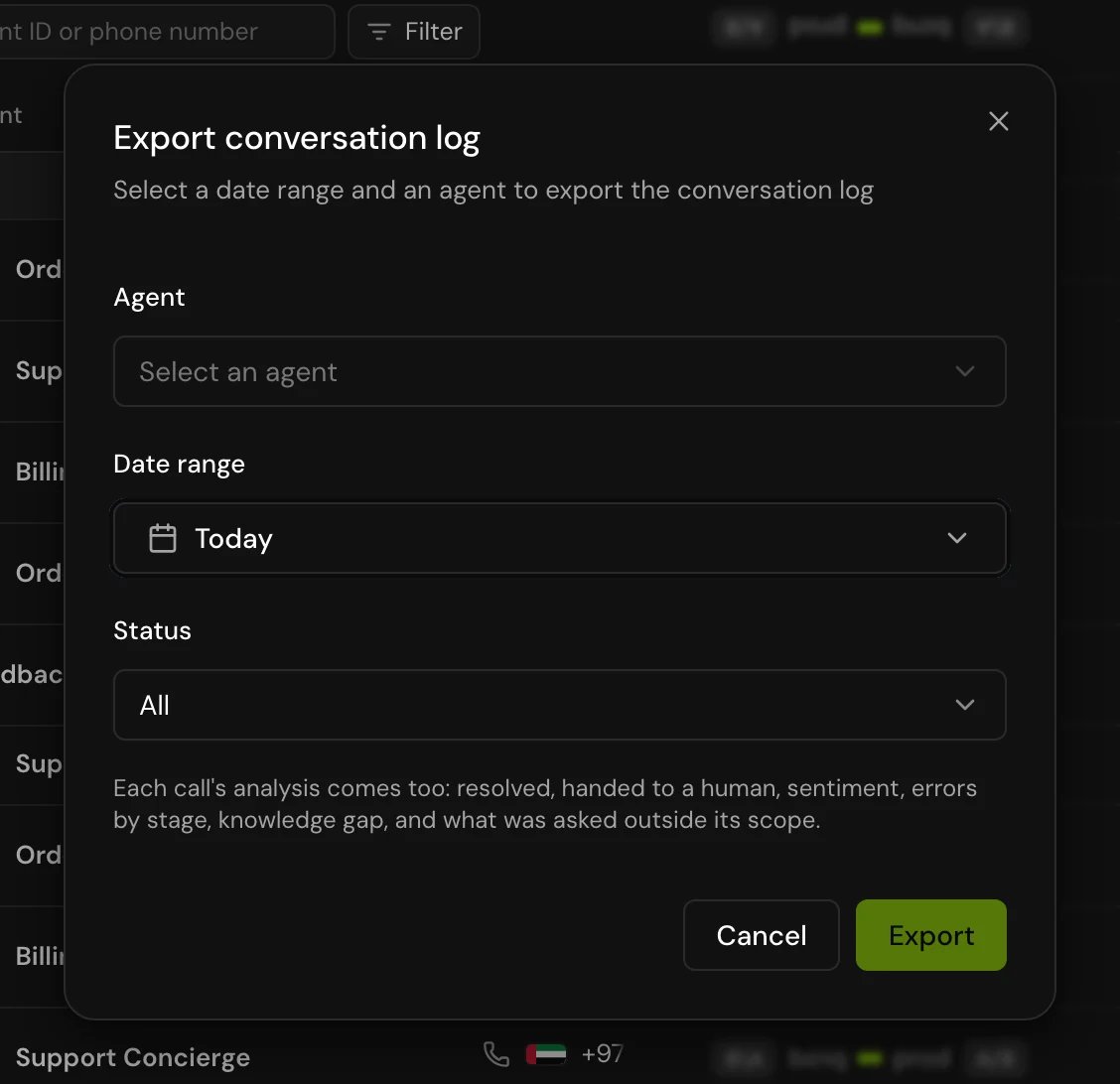
Export the log
Click Export and choose one of these: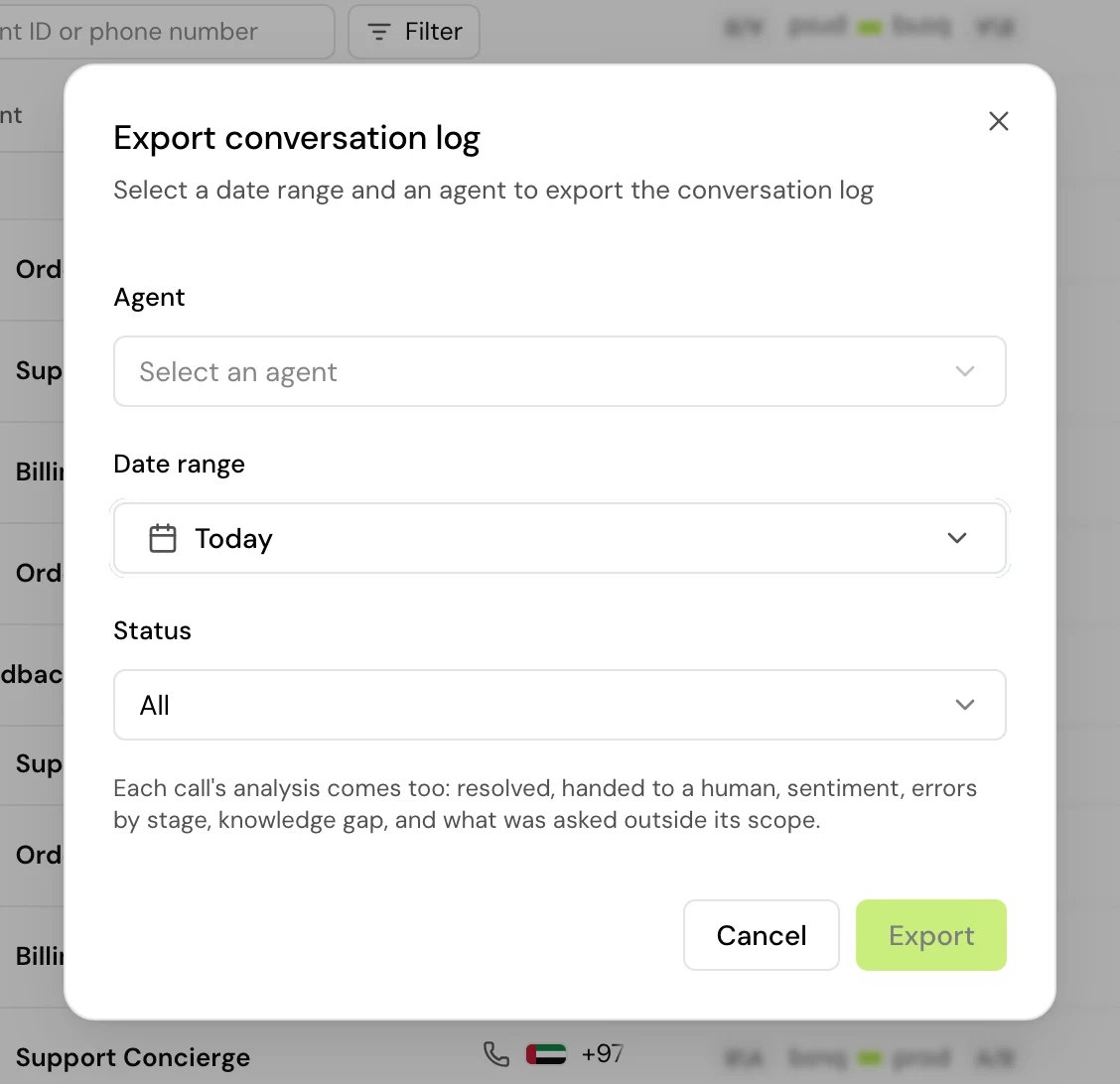
End calls that haven’t started
Calls in Pending are waiting to start. They count against your project’s limit on calls at the same time, so you may want to clear calls you no longer need.- One call: on a pending row, click the end button and confirm.
- Every pending call: open the Pending view and click End all N pending. Confirm with End N calls. This ends every pending call that matches your filters. Calls in progress are not touched.
Good to know
- The sidebar shows Conversation log and Live calls to every member. Without the View permission, the page says “You don’t have access to this feature.”
- Status and channel are filters, not columns. The status shows as an icon next to the time.
- Analysis filters and views only find calls the analysis has finished. A call that just ended can take a moment to show up in Not resolved or Negative.
- On a narrow window, each call shows on one line, and call details open over the list instead of beside it.
Related
Call details
Transcript, recording, analysis, details and logs for one call.
Live calls
Listen in, instruct the agent, or take over a call.
Analytics
The same calls as figures and trends.
Webhooks
Get call results in your own systems.