

Before you start
- You need to be an Owner or Admin in the project.
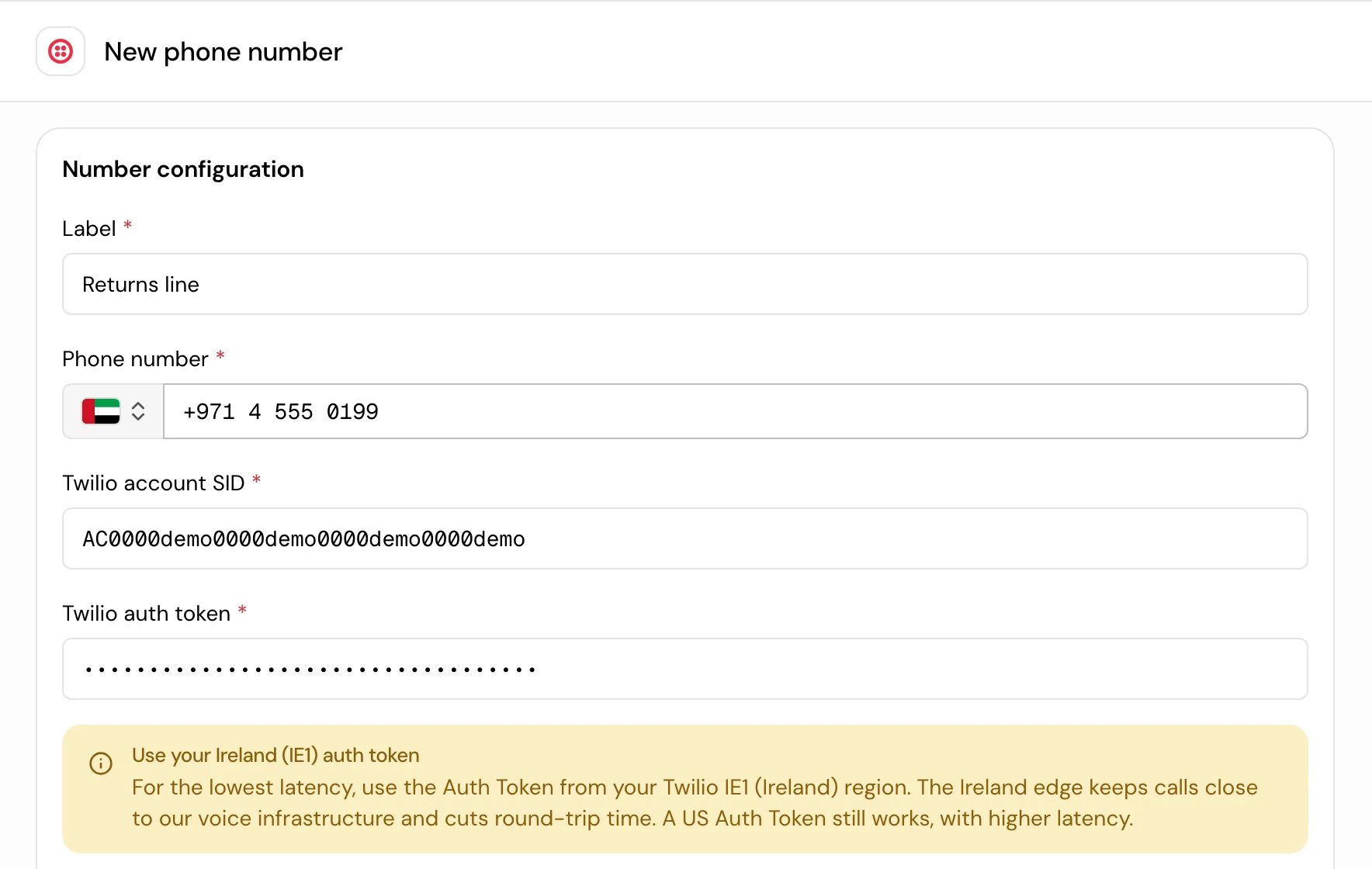
- For Twilio: the number, your Twilio account SID and auth token.
- For a SIP trunk: the number, your provider’s SIP address, and the trunk username and password if your provider uses them.
Add a Twilio number
1
Open Bring your own number
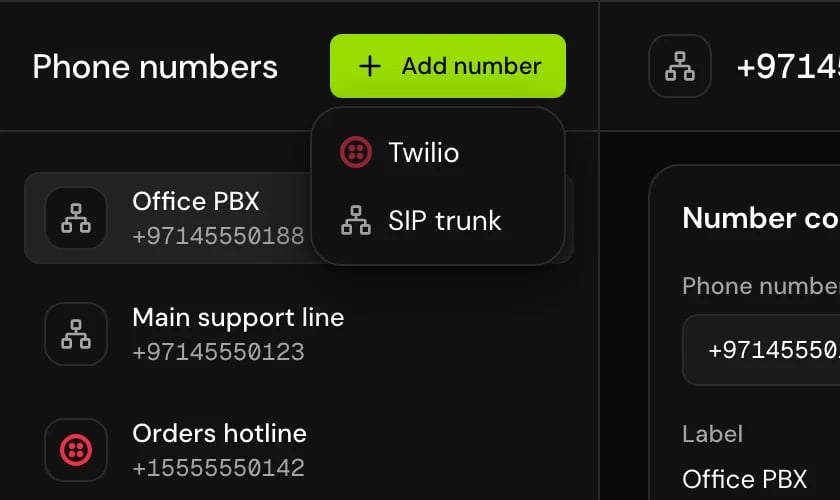
In the sidebar, open Telephony > Bring your own number and click Add number > Twilio.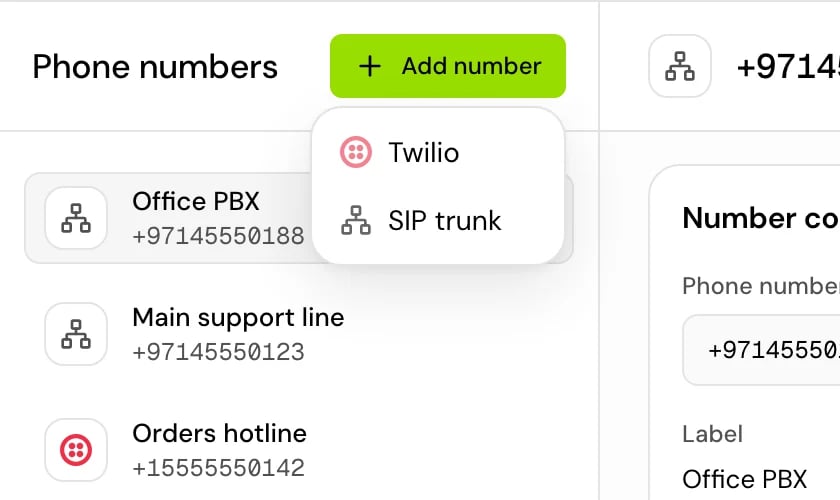
2
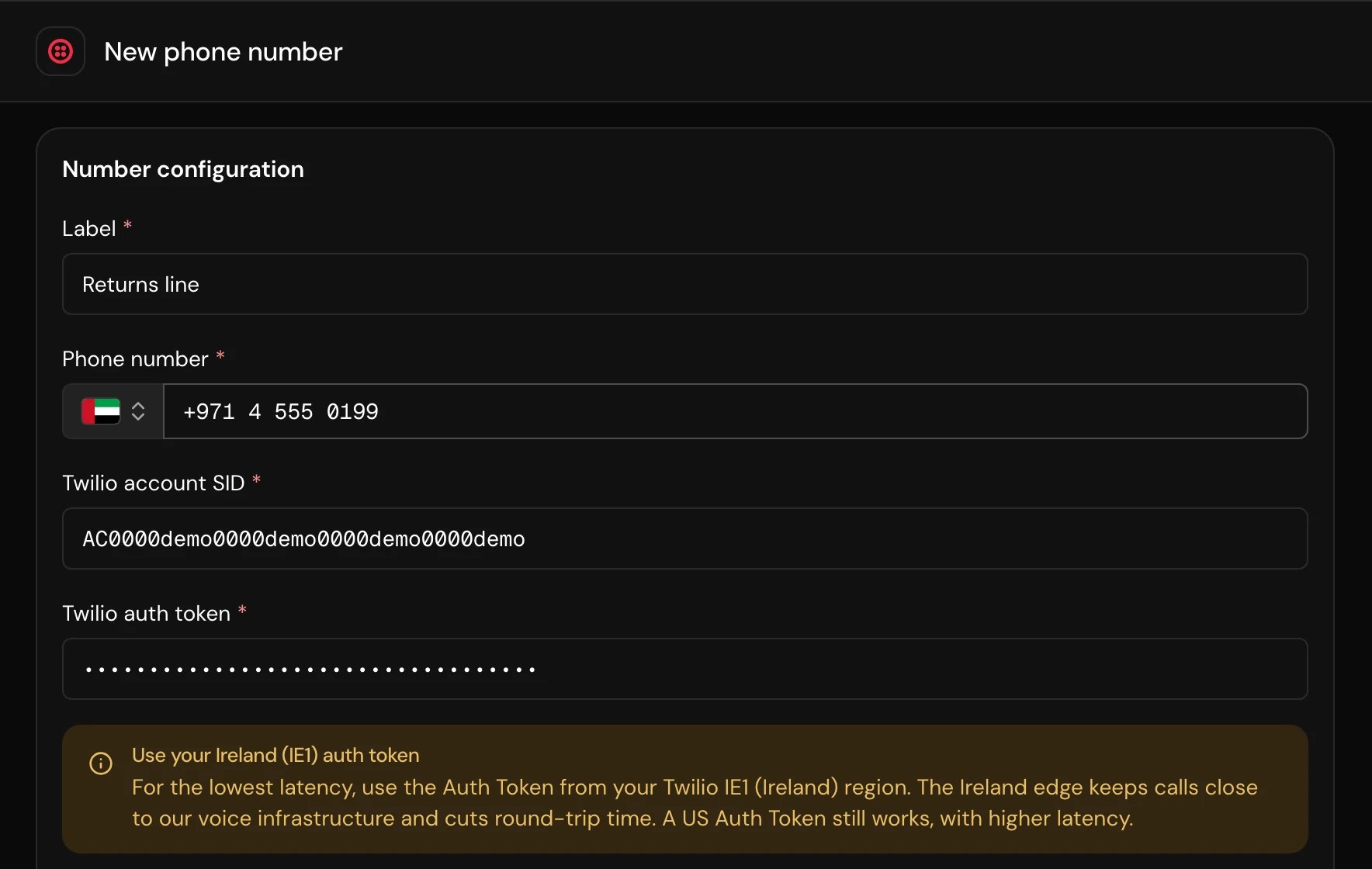
Fill in the number
3
Click Add
Hamsa checks your credentials, checks that the number belongs to that Twilio account, and connects it.
Add a SIP trunk number
1
Open Bring your own number
Click Add number > SIP trunk.
2
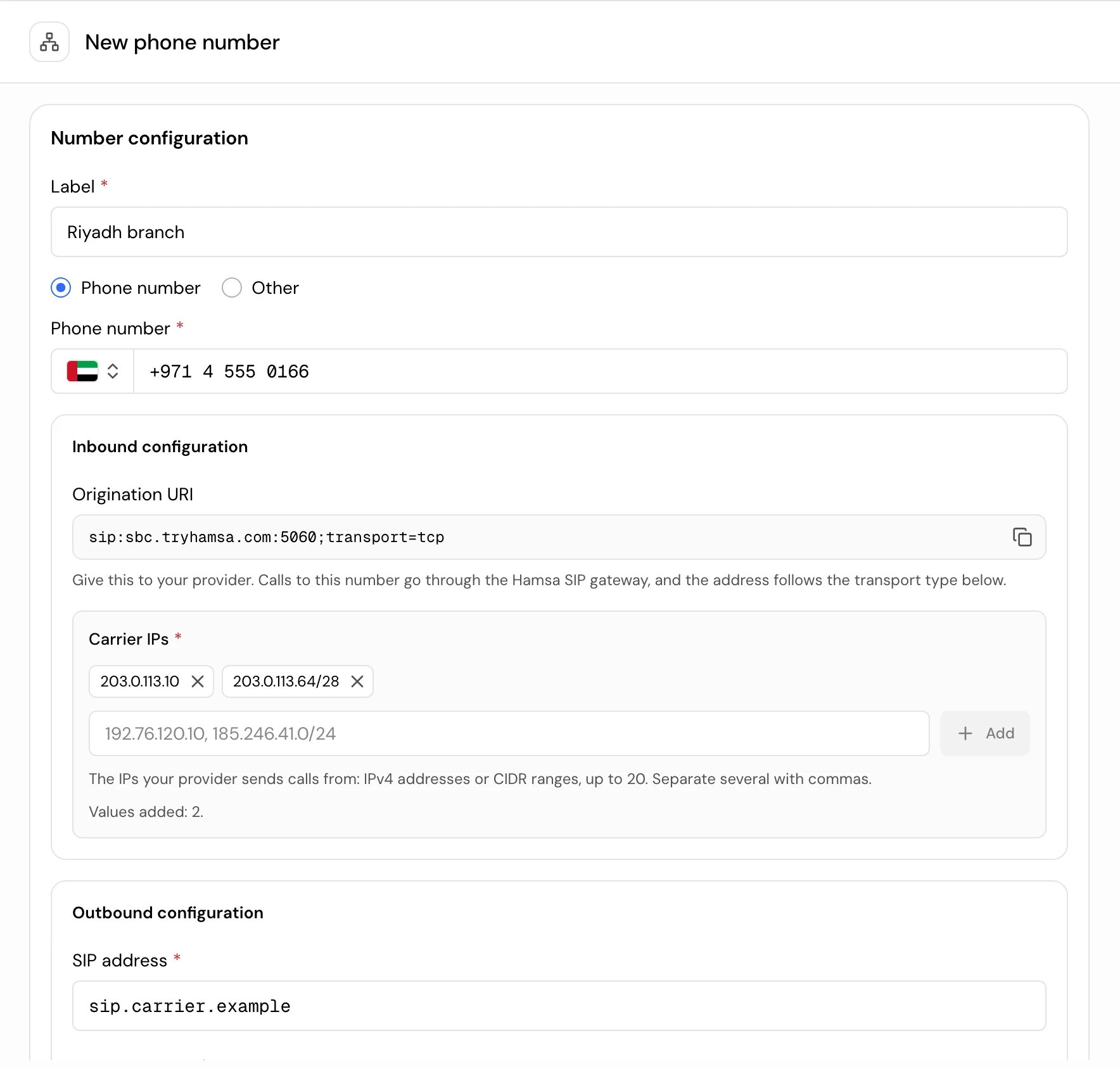
Enter the label and number
Enter a Label. Under the number, choose Phone number for a regular number, or Other for an extension or short code your system dials, such as
1000.3
Copy the inbound address
Under Inbound configuration, copy the Origination URI. Your provider sends the number’s calls to this address. If the form also asks for Carrier IPs, enter the IP addresses your provider sends calls from (see The Hamsa SIP gateway).
4
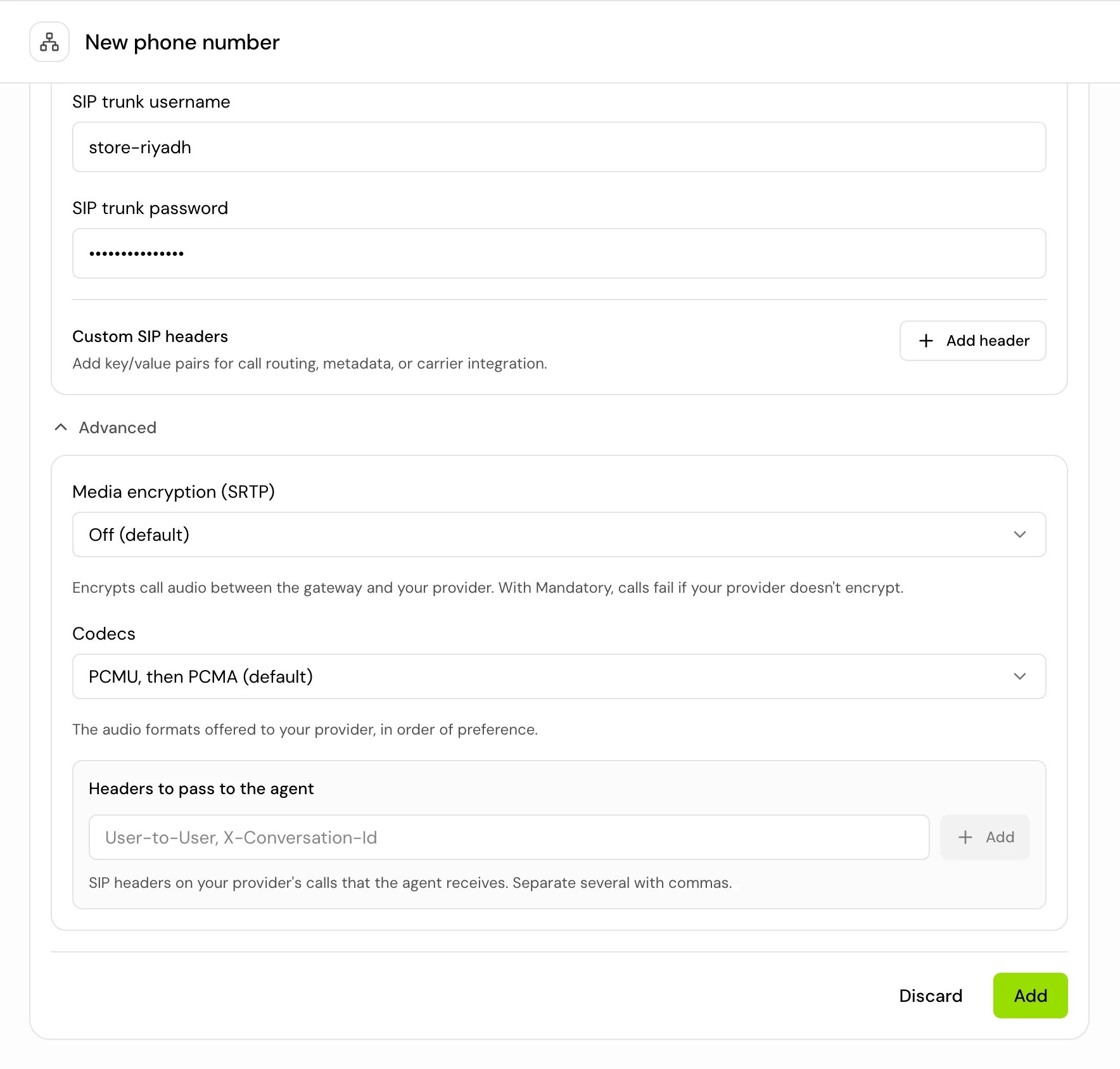
Enter the outbound details
Under Outbound configuration, enter where Hamsa sends calls when your agent dials out: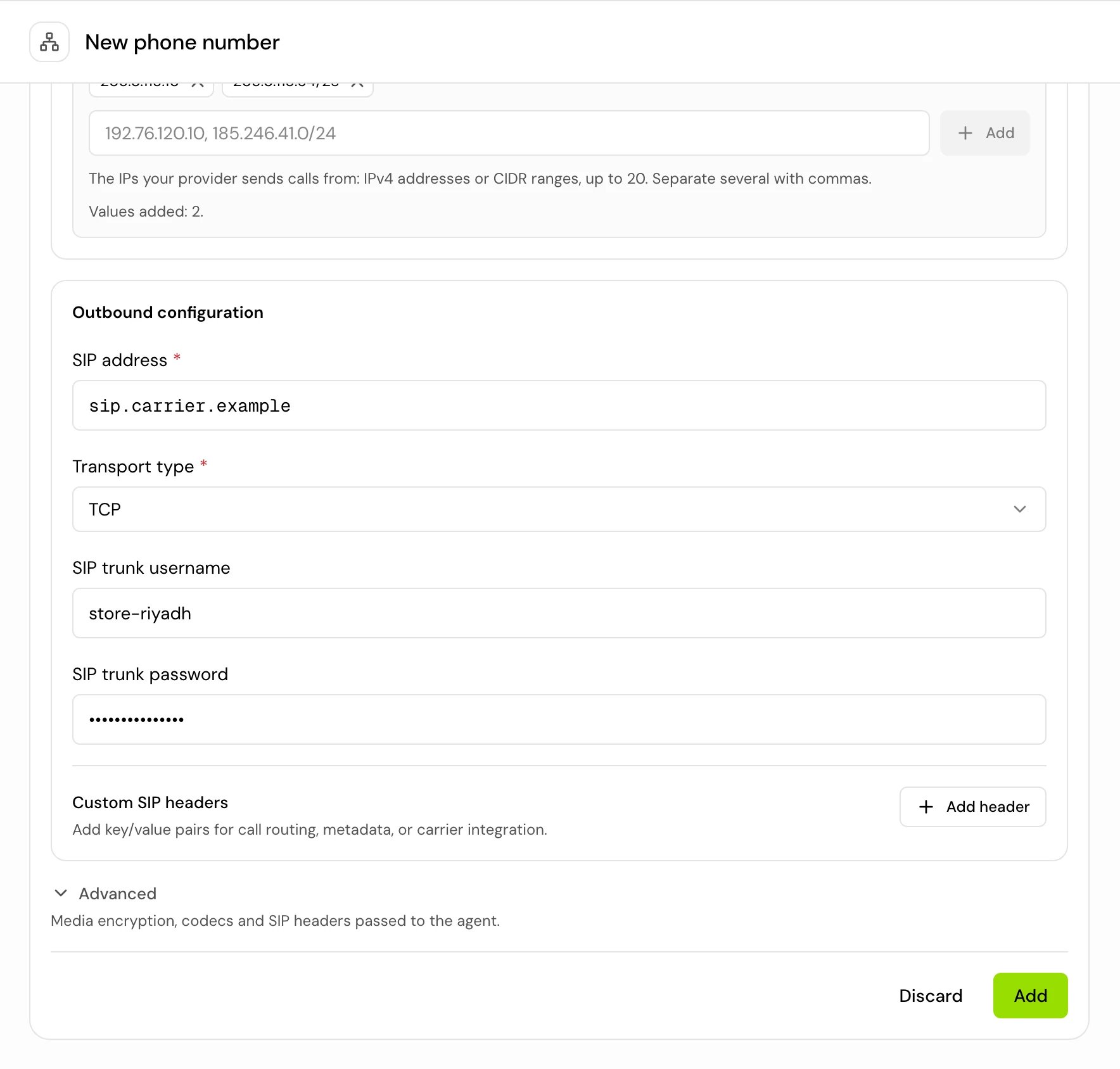
5
Click Add
The number is saved. Give your provider the values on its page (see below).
The Hamsa SIP gateway
On Hamsa cloud, SIP numbers in international format (a+ and 6 to 15 digits) and short numbers (2 to 15 digits) go through the Hamsa SIP gateway. The gateway sits between your provider and your agent and gives you extra settings. The form shows the gateway fields when your number qualifies.
Extra fields for gateway numbers:
sip:sbc.tryhamsa.com:5060;transport=tcp for TCP, sip:sbc.tryhamsa.com:5060;transport=udp for UDP and sips:sbc.tryhamsa.com:5061;transport=tls for TLS. Always copy it from the form.
After you add a gateway number, its page shows Carrier setup with what your provider needs:
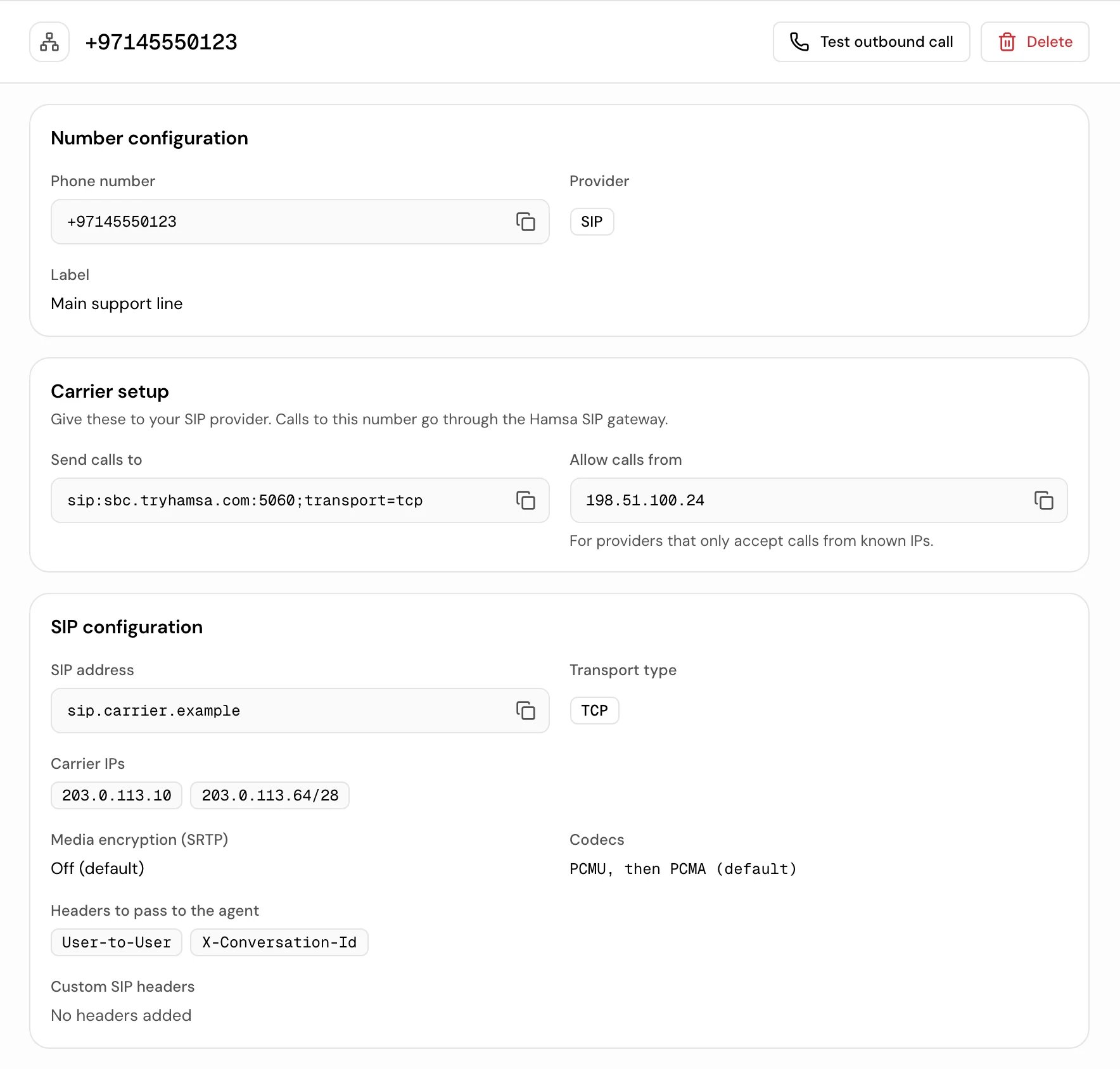
The gateway’s addresses
The gateway uses one static IP for SIP signalling and call audio. Give these to your provider, or to whoever sets up its firewall:Use SIP headers in your agent
Headers your provider sends on inbound calls are available to the agent as{{sip.headers['header-name']}}, with the header name in lowercase, whatever case your provider uses. For example, {{sip.headers['x-conversation-id']}}. On gateway numbers, only the headers listed in Headers to pass to the agent reach it. See System variables.
Good to know
- Each number can be added to Hamsa once, across all projects.
- Twilio numbers are checked against your Twilio account when you add them. SIP numbers aren’t checked: a wrong address only shows when a call fails.
- There’s no connection test in the form. Place a test call after adding the number (see Test a call from a number).
- If the SIP address or credentials are wrong, inbound calls can still work while outbound and batch calls fail when they dial.
Related
Phone numbers
Assign the number to an agent and test it.
Make an outbound call
Have your agent call someone.
System variables
Read the caller’s number and SIP headers in prompts.
Batch calls
Call a list of people from the number.