

Before you start
- Click Knowledge base in the sidebar, under your agents. You need permission to view the knowledge base to see it.
- By default Owners, Admins and Users can add and edit items. Only Owners and Admins can delete items or cancel processing. See Roles and permissions.
- The knowledge base belongs to the project. Every agent in the project can use its items.
From upload to answers
1
Add an item
Click Add free text or Add document. Hamsa reads the content and splits it into chunks, the pieces the agent searches. See Add to the knowledge base.
2
Review the chunks
With Review before indexing on (the default), the item stops at Pending review. Open Review chunks to check and edit the pieces.
3
Index
Click Index. When indexing finishes, the item is Completed and searchable. See Review chunks and index.
4
Attach it to an agent
Select the item in the agent’s knowledge base settings (below). The agent searches only the items you attach.
Attach items to an agent
- Single prompt agent
- Flow agent
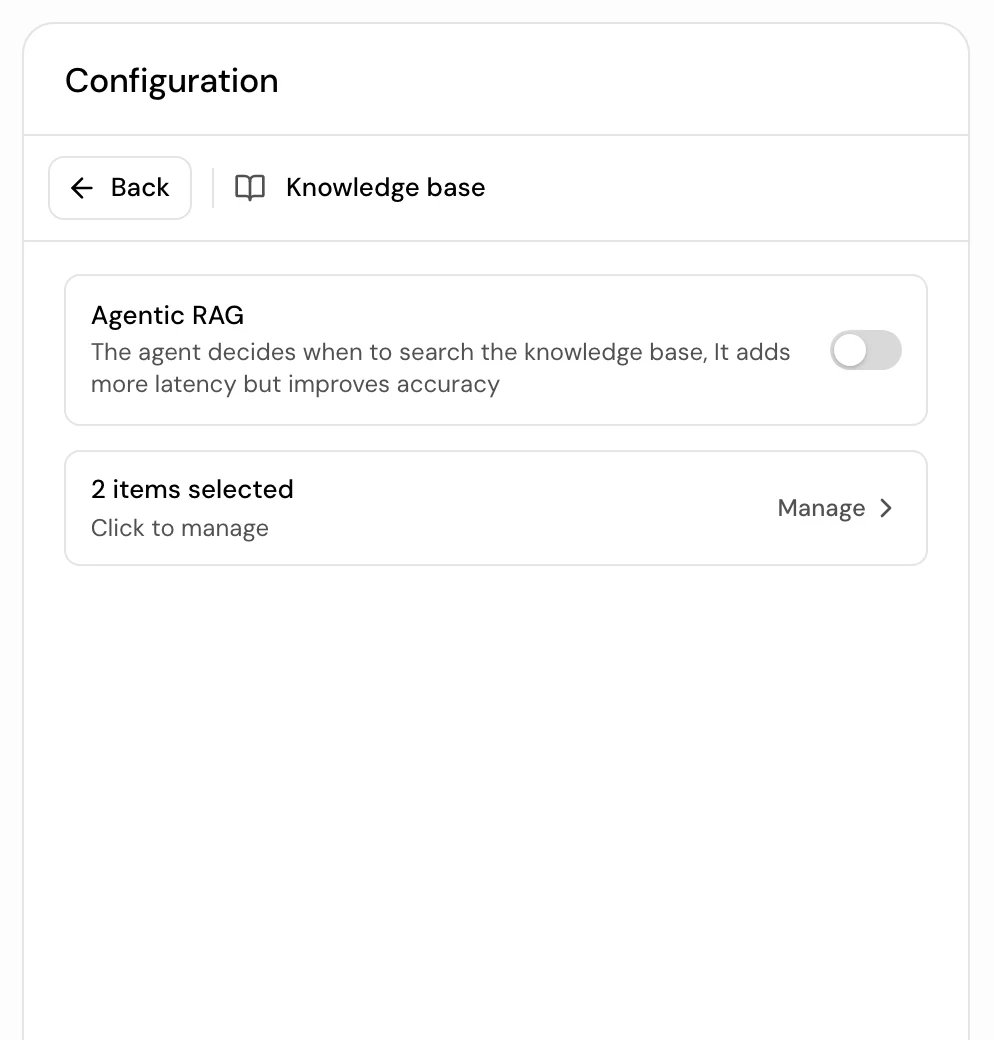
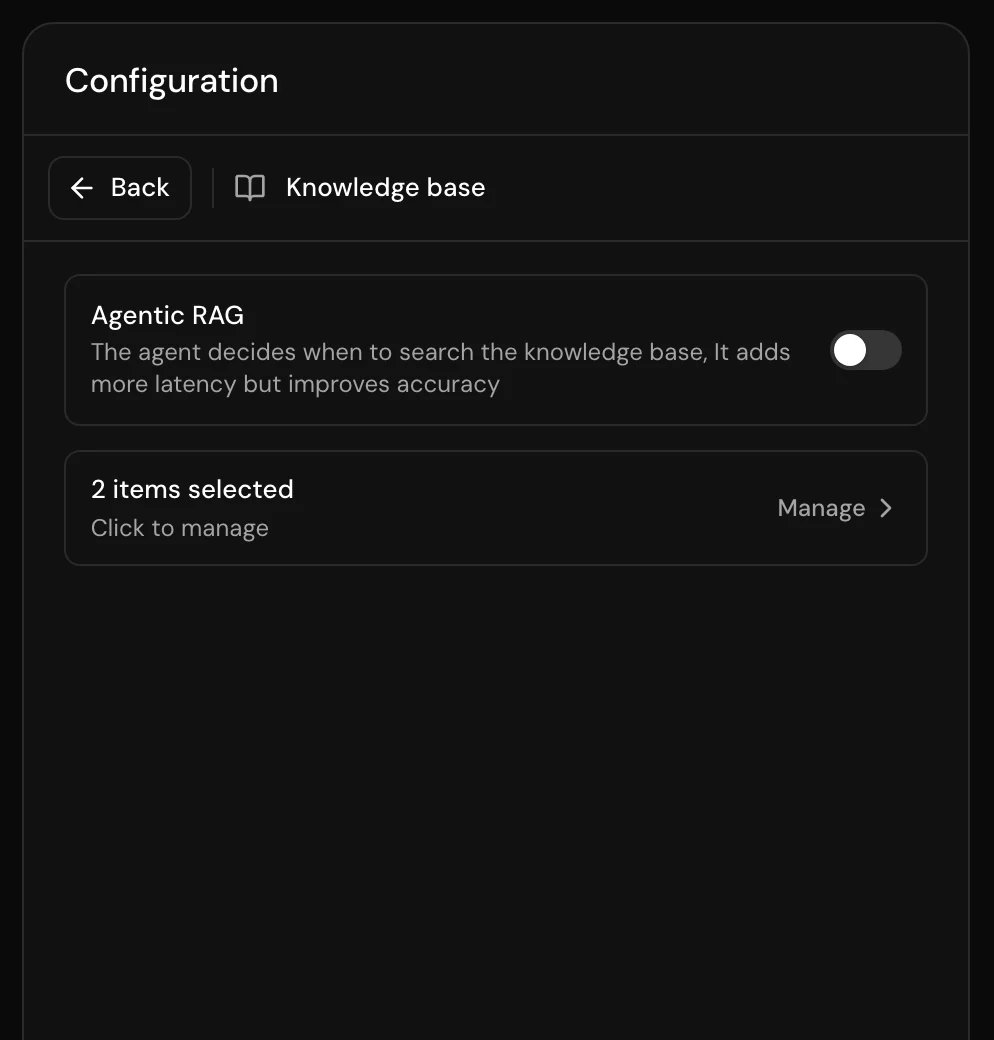
In the agent’s configuration, find Knowledge base (“Provide domain-specific information to improve responses.”) and click Manage. In Select knowledge base items, select the items and click Done.
How the agent searches on a call
The agent searches the items attached to it by meaning, not by exact words, so a caller doesn’t have to use the same words as your document. This works for Arabic and English. How often it searches depends on Agentic RAG. Agentic RAG off (default): a search on every turn.- When the caller speaks, the agent searches with what they said. The search starts while the caller is finishing their sentence, and the reply waits up to 2 seconds for it.
- It keeps up to 3 passages that match closely, each shortened to about 600 characters, and gives them to the model with the turn.
- Passages stay in a short memory for 3 turns after they last matched, so a follow-up like “and how much is that?” still has the facts.
- Very short turns (under three words) and turns made only of filler words (“ok”, “yes”, “نعم”) don’t start a new search, but still see the memory.
- If a search takes longer than 2 seconds, the reply goes ahead without it, and the result is added to the memory for the next turn.
- The agent gets a knowledge base search tool and decides itself when to search and what to search for. Answers that need a search take a little longer, because the agent searches before it answers.
- Each search waits up to 5 seconds and returns up to 3 close passages in the same way.
Manage items
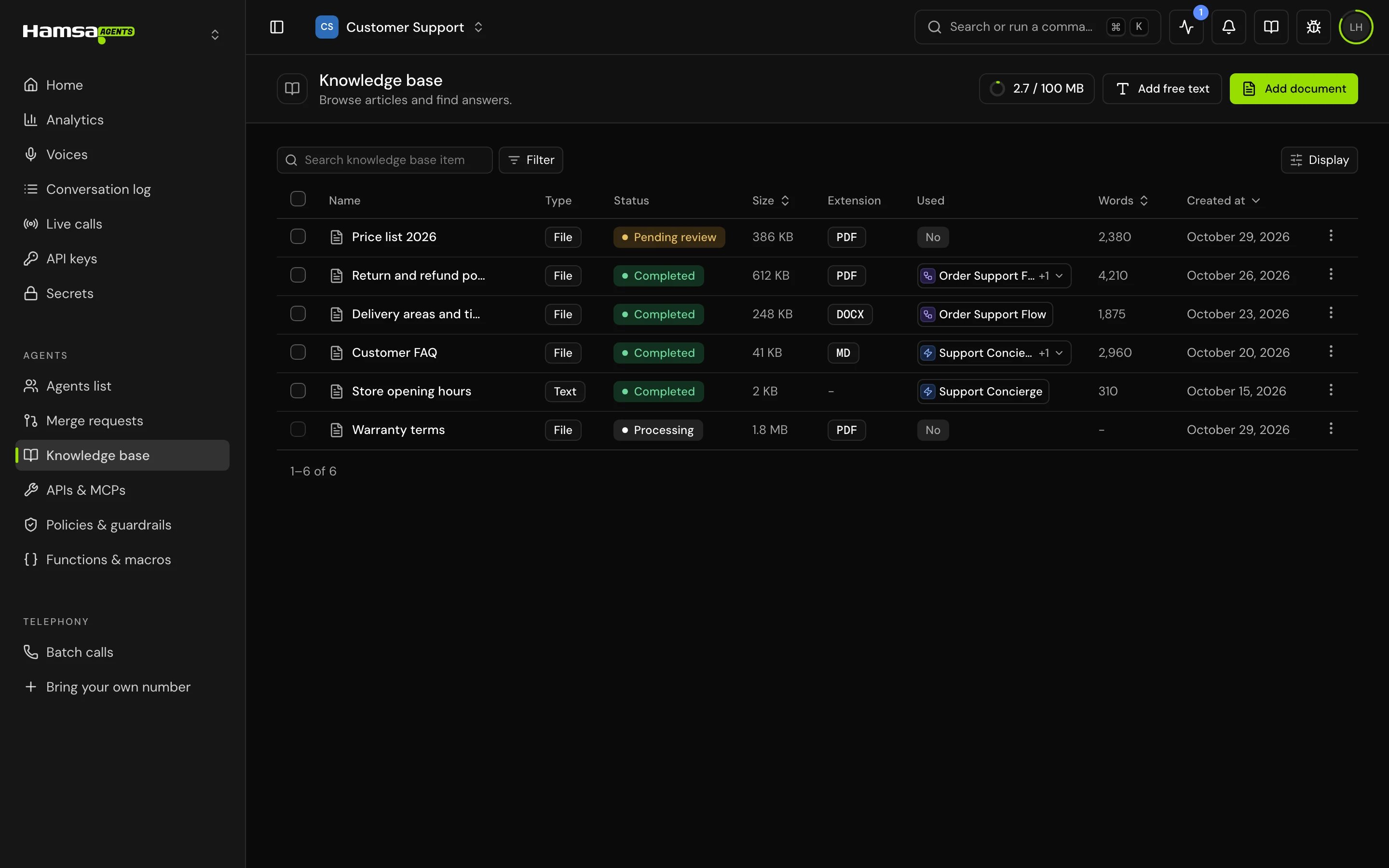
The list shows each item’s Name, Type, Status, Size, Extension, Used (how many agents use it), Words and Created at.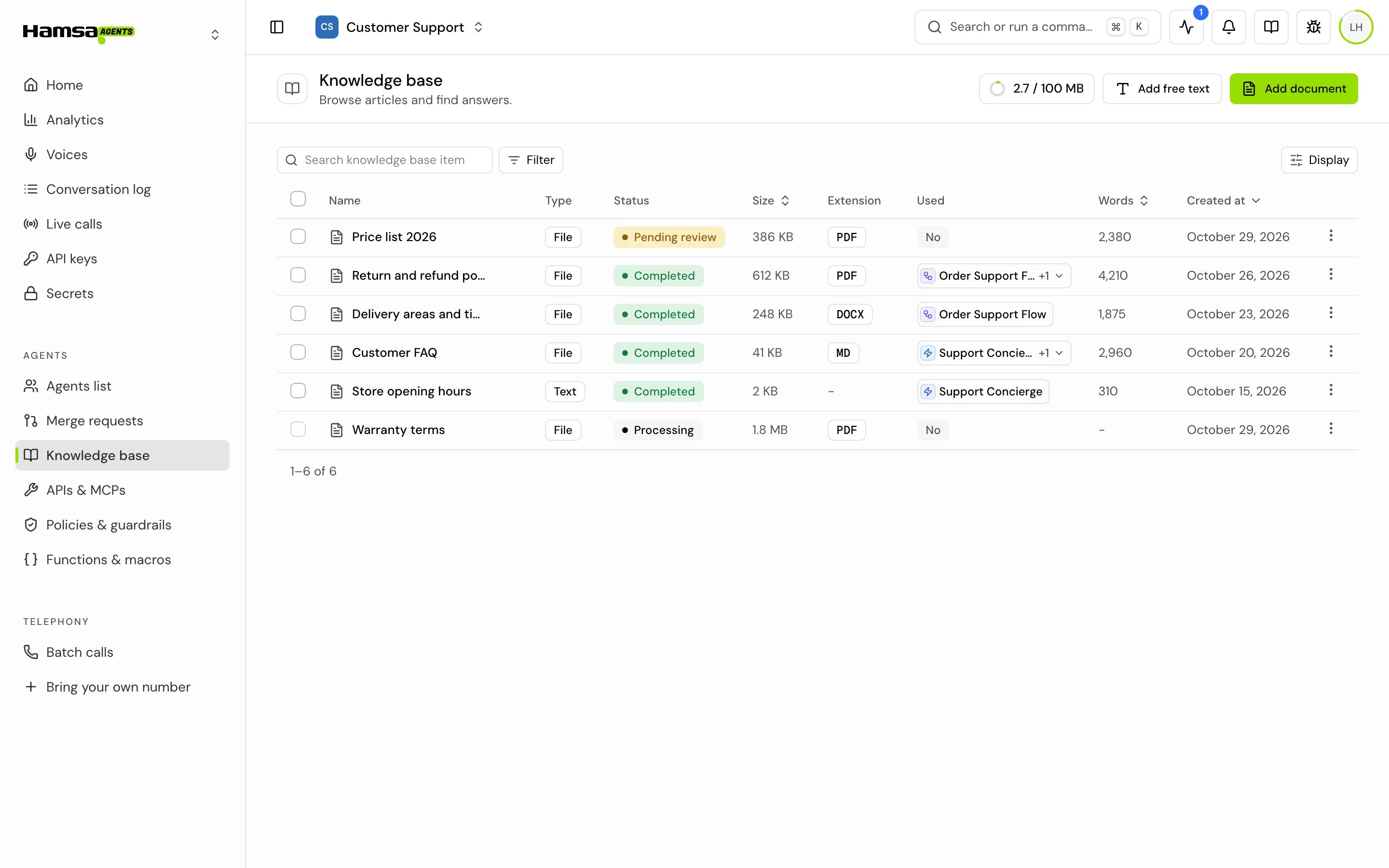
- Search and filter. Search knowledge base items… matches names. Filter by Type (Text, File), Status, Extension (files only) and Used.
- Open an item. Click a row to open Item details: its status, whether agents use it, and its content or a Preview of the file (PDF, DOCX, DOC, TXT and MD).
- Row menu. Copy ID, Review chunks, Edit title (Completed items), Download (text items, as a .txt file), View (files) and Delete.


- Several at once. Select rows to download or delete them together. Items that agents use are skipped when you delete.
- Delete. Choose Delete, type DELETE and click Delete. You get a few seconds to undo. If agents use the item, the app names them and you have to remove it from those agents first.
Storage
The Knowledge base usage meter shows how much of your plan’s storage your account uses: the size of every file plus the size of every text item, across every project owned by this project’s owner. A new project’s meter starts at the storage the account already uses. It warns you from 90%. When storage is full, Add free text and Add document are disabled until you delete items. There is no limit on the number of items, only on their size. See the plan comparison in Billing for your plan’s storage.Good to know
- You can’t change the text of an item after you add it. Edit its chunks in Review chunks, or add a new item and delete the old one.
- The agent uses passages from your items as background for its answer. Whether it quotes them word for word depends on your prompt and the model. To get a fixed wording, say so in the prompt.
- Keep one topic per item where you can. It makes items easier to review and to attach only where they are needed.
Related
Add to the knowledge base
Add text and documents, with limits and chunking settings.
Review chunks and index
Statuses, editing chunks and making items searchable.
Write a prompt that works on calls
Tell the agent how to use what it finds.
APIs & MCPs
Look up live data instead of stored documents.