

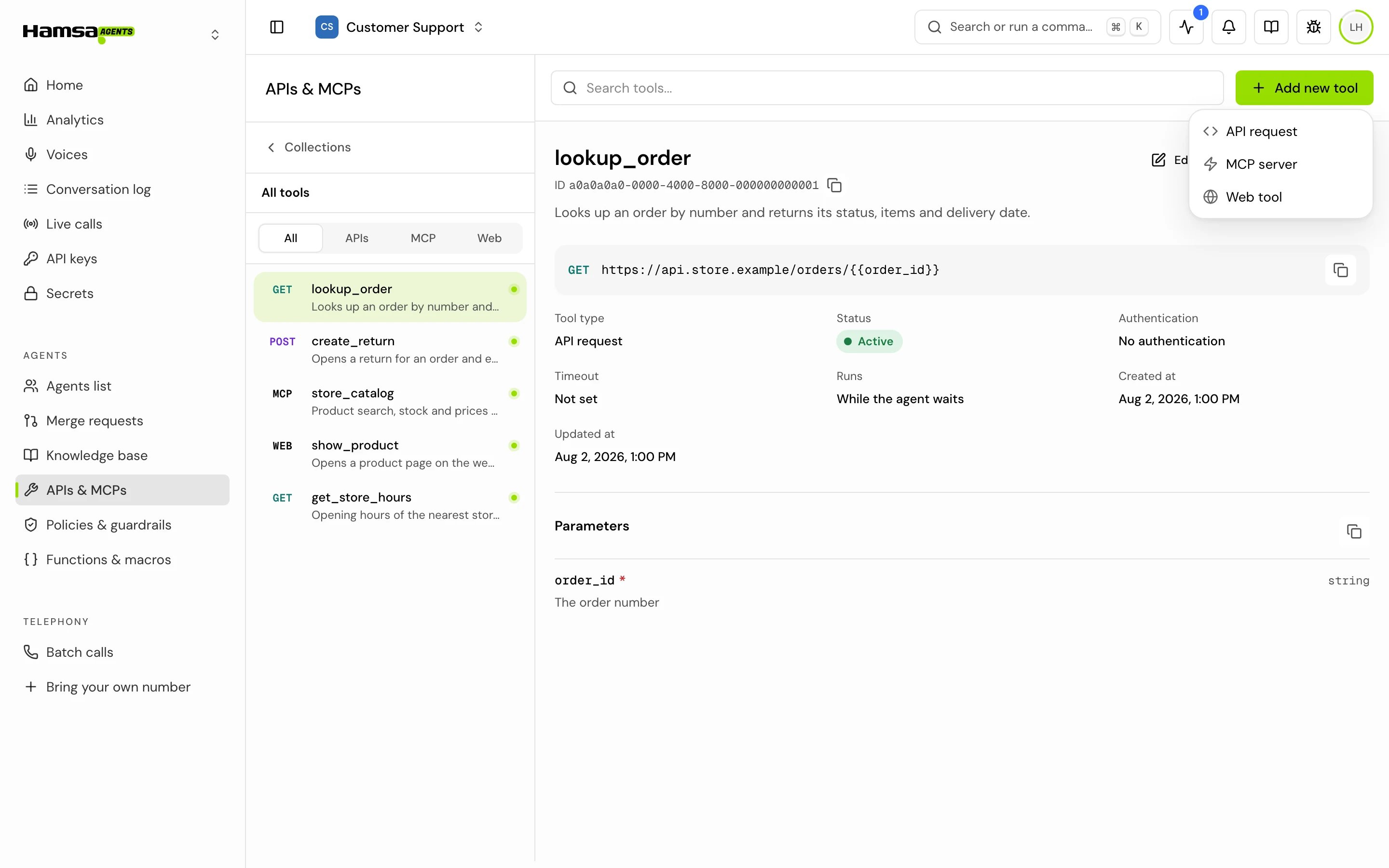
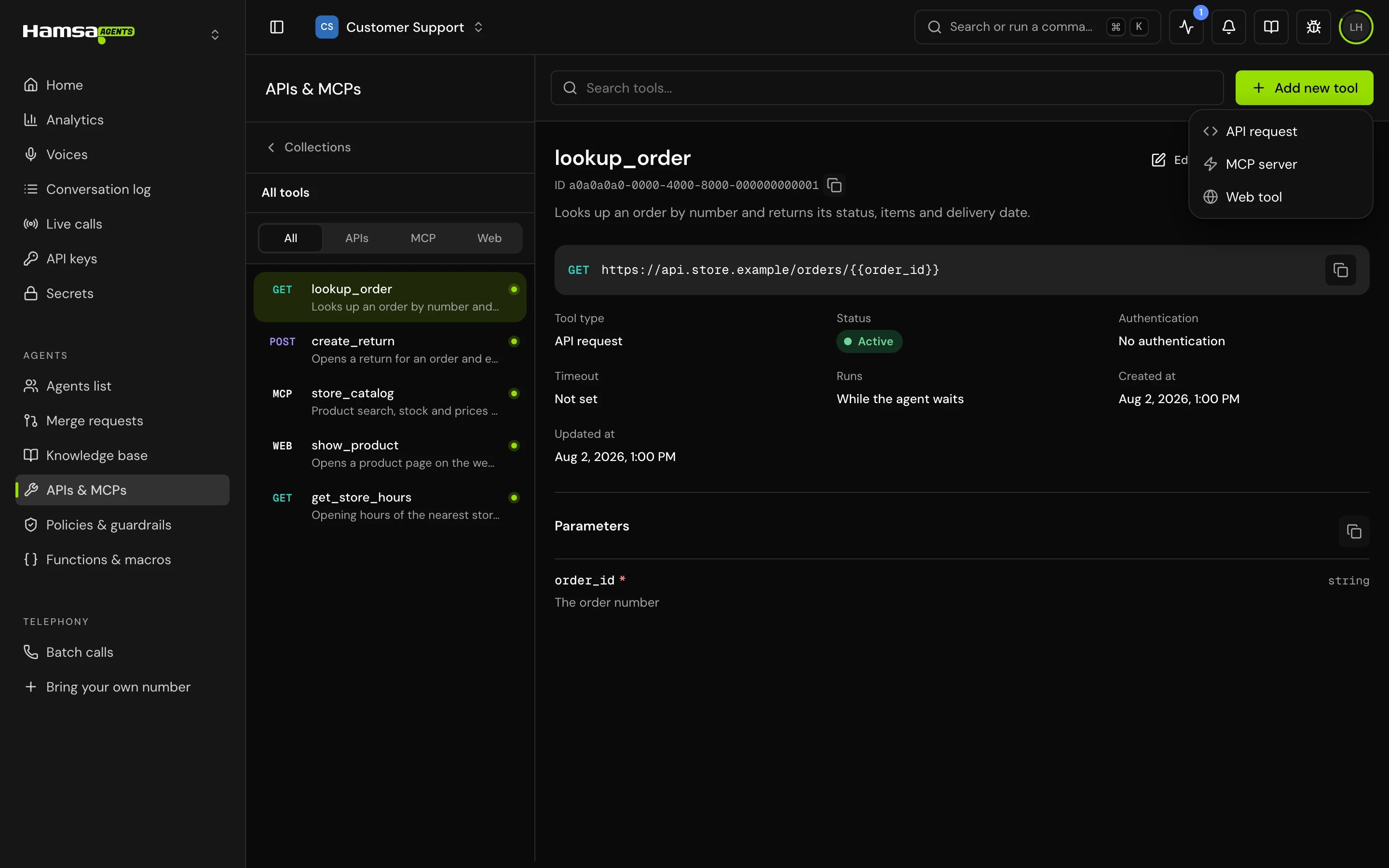
Kinds of tools
Agents also get some tools without you creating them, for example the knowledge base search when Agentic RAG is on. See Knowledge base.
Before you start
- To see APIs & MCPs in the sidebar you need permission to view tools. To add tools you need permission to create them. By default Owners, Admins and Users can create and edit tools; only Owners and Admins can delete them. See Roles and permissions.
- Have the details of the system you want to call: its URL, how it authenticates, and what it expects in the request.
Create a tool
1
Open APIs & MCPs
In the sidebar, under your agents, click APIs & MCPs.
2
Pick the kind of tool
Click Add new tool and choose API request, MCP server or Web tool.
3
Fill in the form
Give the tool a Tool name and a Description. The agent reads both to decide when to use the tool, so describe what it does and when to call it. Then fill in the settings for that kind of tool.
4
Save
Click Create. Until you do, the tool is a local Draft in your browser, listed above your saved tools. Discard draft removes it.
Attach a tool to an agent
How you attach a tool depends on the type of agent.- Single prompt agent
- Flow agent
1
Open the agent's Tools section
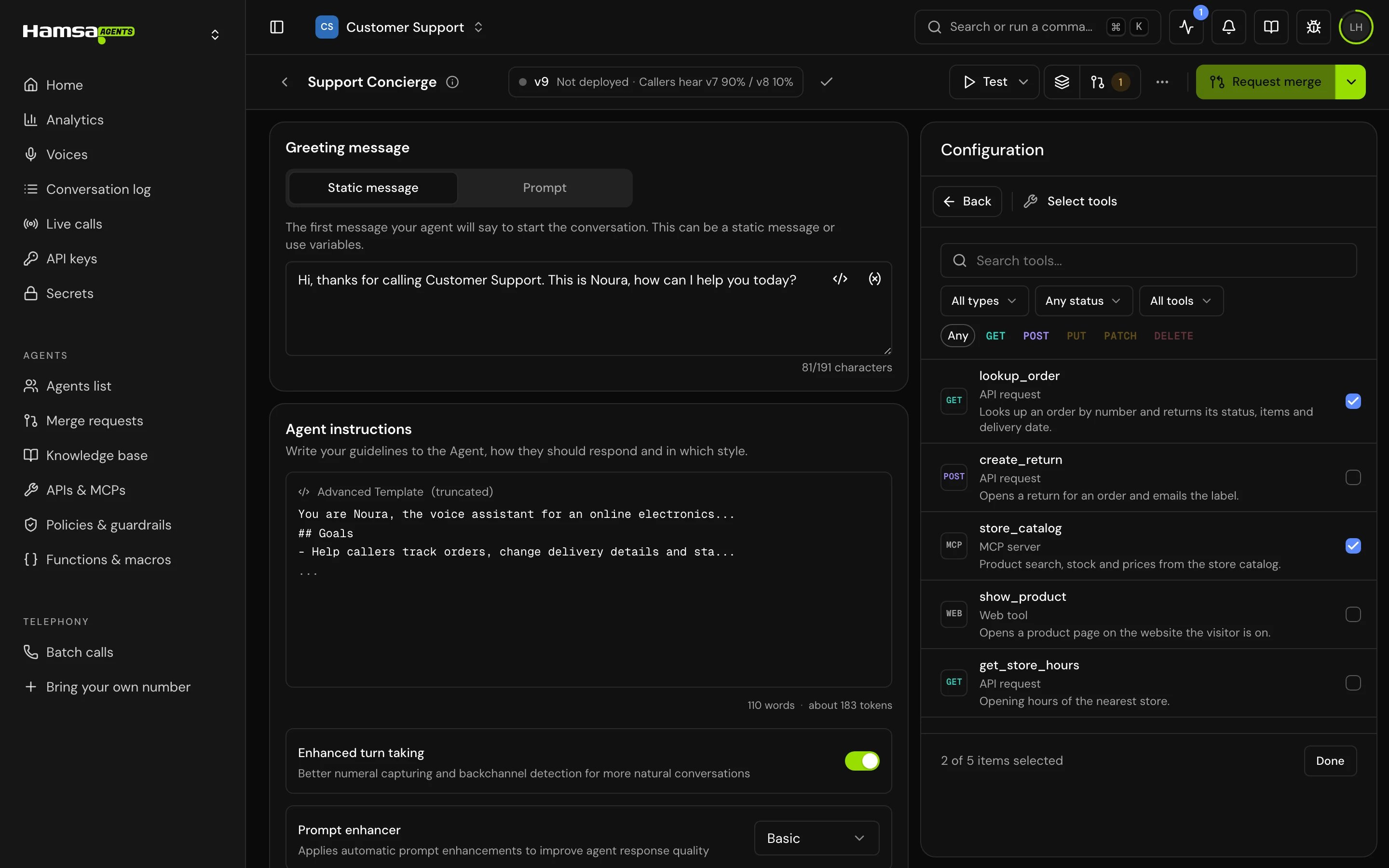
In the agent’s configuration, find Tools (“Connect to external services and APIs.”) and click Manage.
2
Select the tools
In Select tools, search or filter by Type (API request, MCP server, Web tool) and select the tools the agent may use. Click Done.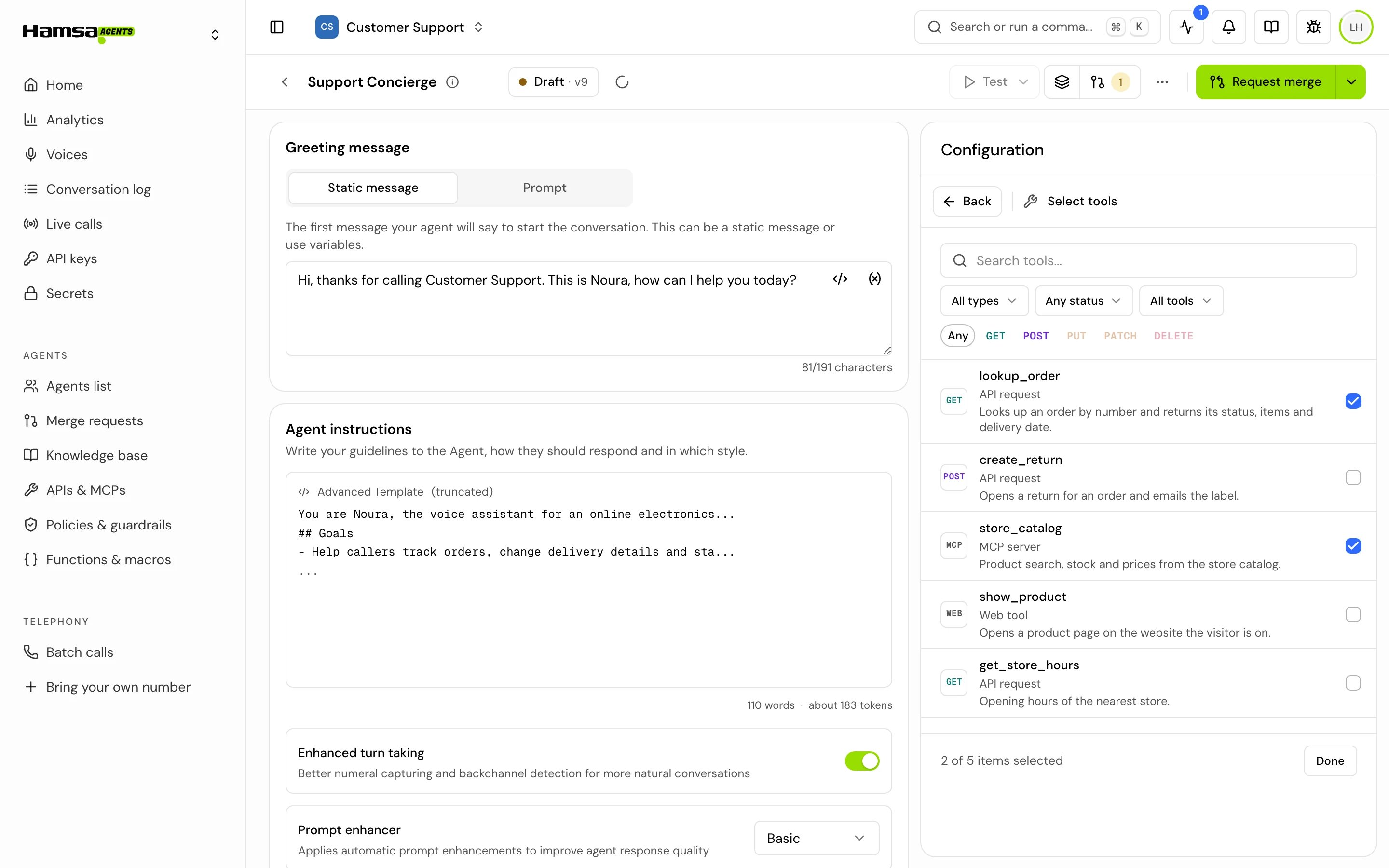
3
Adjust per agent (optional)
Under Tool configuration, open a tool to change its settings for this agent only, for example to set a parameter to a fixed value or a variable instead of asking the caller.
How it works on a call
What the agent does with a tool’s result differs between the two types of agent.
On both types of agent:
- Failures stay out of the conversation. If a tool can’t run (a timeout, a network error, an MCP failure), the agent is told the action couldn’t be completed and to continue without mentioning technical problems. The original error stays in the call details.
- The caller isn’t timed out. While a tool runs, the agent doesn’t count the silence as the caller being away.
- Hold music is the agent’s own on-hold track from its call settings. A tool doesn’t have its own track.
Manage tools
- Search and filter. Search tools… matches tool names. Filter by kind (All, APIs, MCP, Web), and for APIs by Method.
- Collections. Group tools with New collection, and move a tool with Move to collection. Tools in no collection show under Uncategorized. Deleting a collection moves its tools to Uncategorized.
- A tool’s page. Click a tool to see its settings: ID, Status (Active when at least one agent uses it), Authentication, Timeout and Runs (In the background or While the agent waits). API requests have a Test button.
- Versions. Every time you save a tool, it gets a new version. Agents keep the version they were set up with. When a newer one exists, the agent’s tool shows Update available; Sync to latest updates the tool definition and keeps your per-agent changes.
- Delete. Click Delete, type DELETE and confirm. You get a few seconds to undo. You can’t delete a tool that an agent uses: remove it from those agents first.
Good to know
- The ID on a tool’s page belongs to that version, so it changes each time you save.
- You can’t change a tool’s kind after you create it.
- Async execution makes the agent move on without waiting for the result. On single prompt agents the agent never gets the result; on flow agents the result can still fill the step’s variables. See Connect an API.
- Store passwords and API keys as Secrets instead of typing them into tools.
Related
Connect an API
Call your own endpoints during a call.
Connect an MCP server
Give the agent every function of an MCP server.
Web tools
Let your web page answer the agent.
Secrets
Keep credentials out of your tool settings.