

no_answer or error event instead. Use it to update your CRM, open a ticket or start a follow-up.
Set up a webhook
The webhook belongs to the agent. Every call with that agent sends to it: inbound, outbound, batch, website and test calls.- Single prompt agent
- Flow agent
1
Open Call webhook
In the agent, open Configuration > Call webhook.
2
Enter the URL
Enter your endpoint in Webhook URL. It must start with
https://.3
Choose the authentication
In Authentication, pick No auth, or Bearer and enter 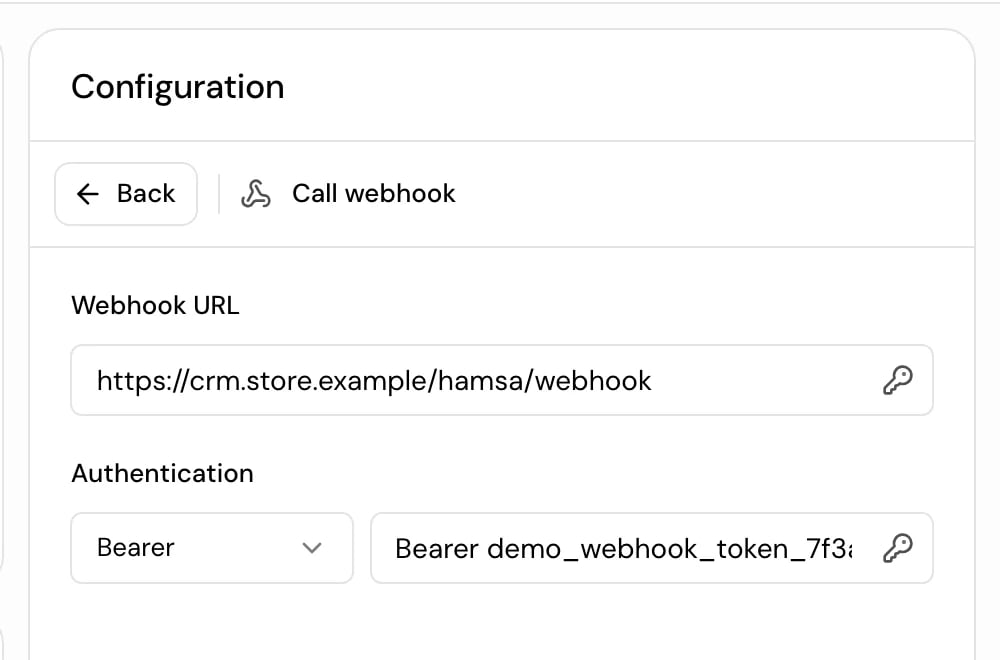
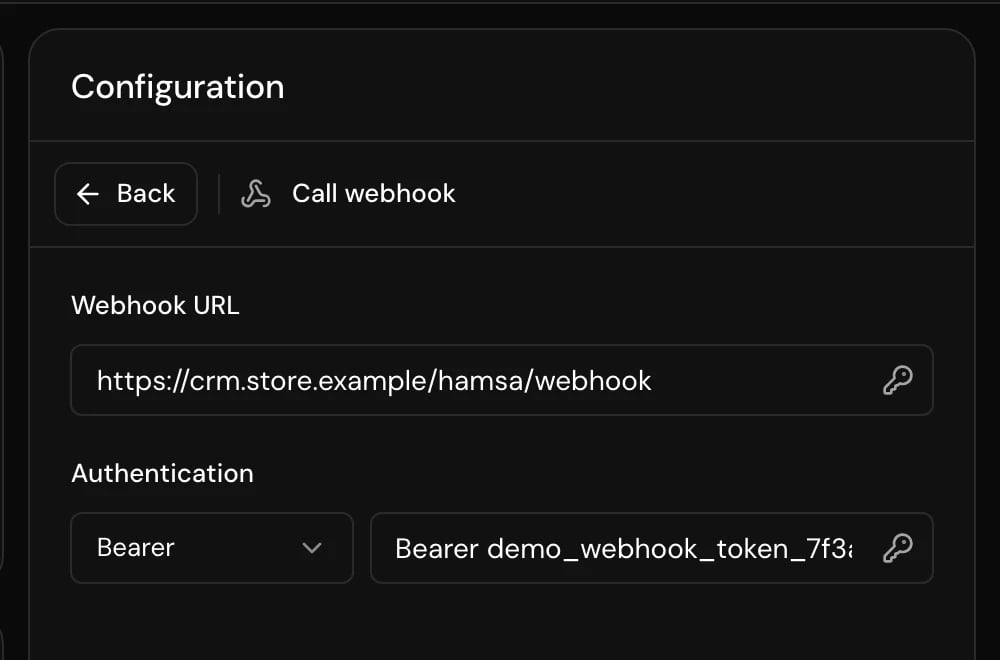
Bearer <token> in the secret field.4
Publish
When you publish, Hamsa checks that the URL answers. If it doesn’t within 2 seconds, publishing stops with “Webhook URL is not reachable”.
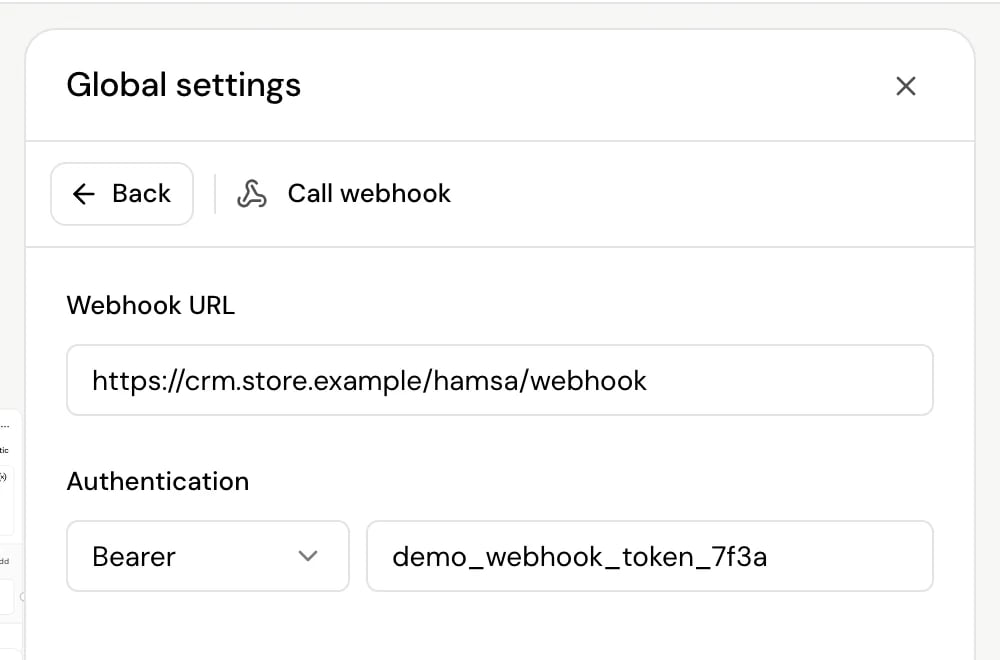
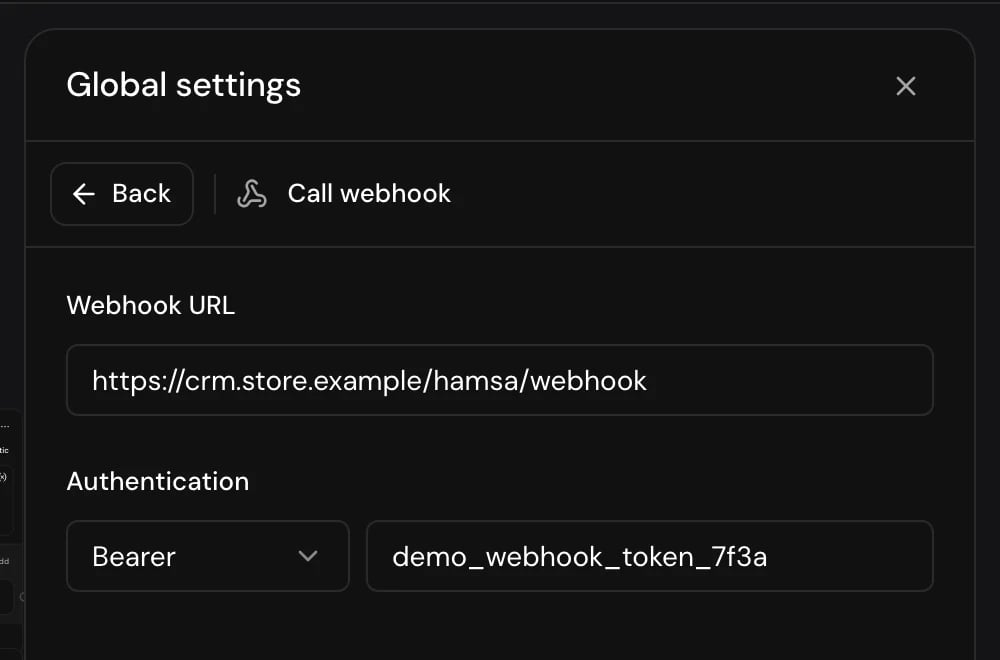
Authorization: Bearer <token> with each request. Check it on your side to make sure the request comes from Hamsa.
Events
Nothing is sent when a call starts or while it’s in progress.
Payload
Every event is aPOST with a JSON body in the same envelope:
caller_info
call_end
no_answer and error
Delivery
- One
POSTper event, withContent-Type: application/json. Hamsa waits up to 30 seconds for your server. - There are no retries. If your endpoint is down or times out, that event is lost.
- Any response counts as delivered, including
4xxand5xx. - Requests aren’t signed. Use the Bearer token to check that a request is from Hamsa.
- Hamsa checks your TLS certificate, so a self-signed certificate fails. It follows redirects.
call_endis sent after Hamsa has saved the call. If saving the call fails, nocall_endis sent.
200 and do slow work after you reply. If you need every call, compare against the Conversation log now and then.
Set the webhook through the API
If you create or update agents through the API, the webhook is two fields on the agent:- Send the token in
authSecret, with or withoutBearer. Hamsa addsBeareronly when the value doesn’t already start with a scheme, so both arrive asBearer YOUR_TOKEN. - For no authentication, send
"webhookAuth": nullor leave it out. - The API accepts any valid URL. Use
https://.
Related
Make an outbound call
Start a call and match its jobId in the webhook.
Batch calls
Each call in a batch sends its own events.
Call details
The same transcript and outcome in the app.
Conversation log
Every call, to check against what you received.