

Open Global settings
In the flow builder, click Global settings in the tool rail. Each section shows a short summary (such as On, Off, Not set, a count, or Needs attention). Click a section to open it.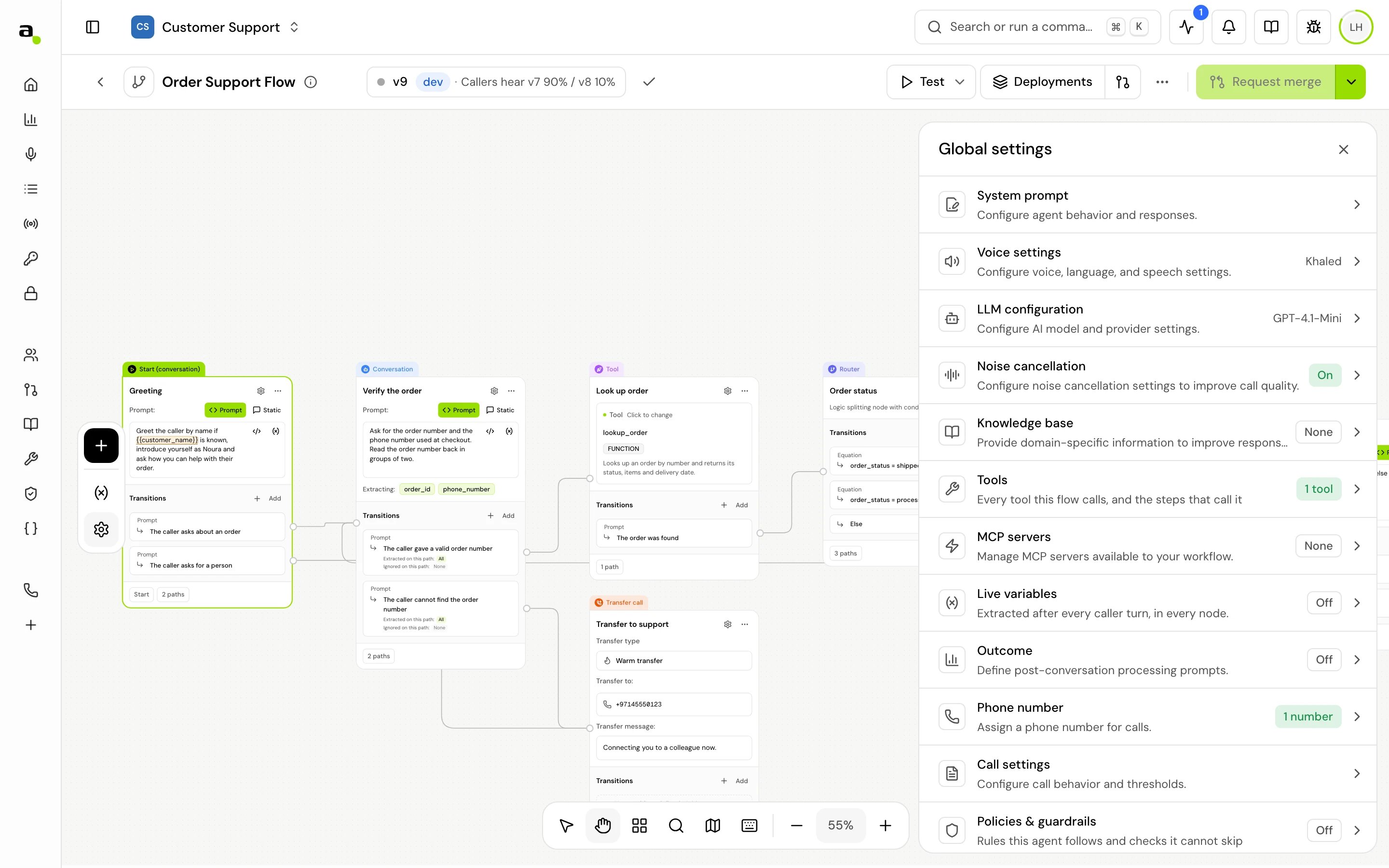
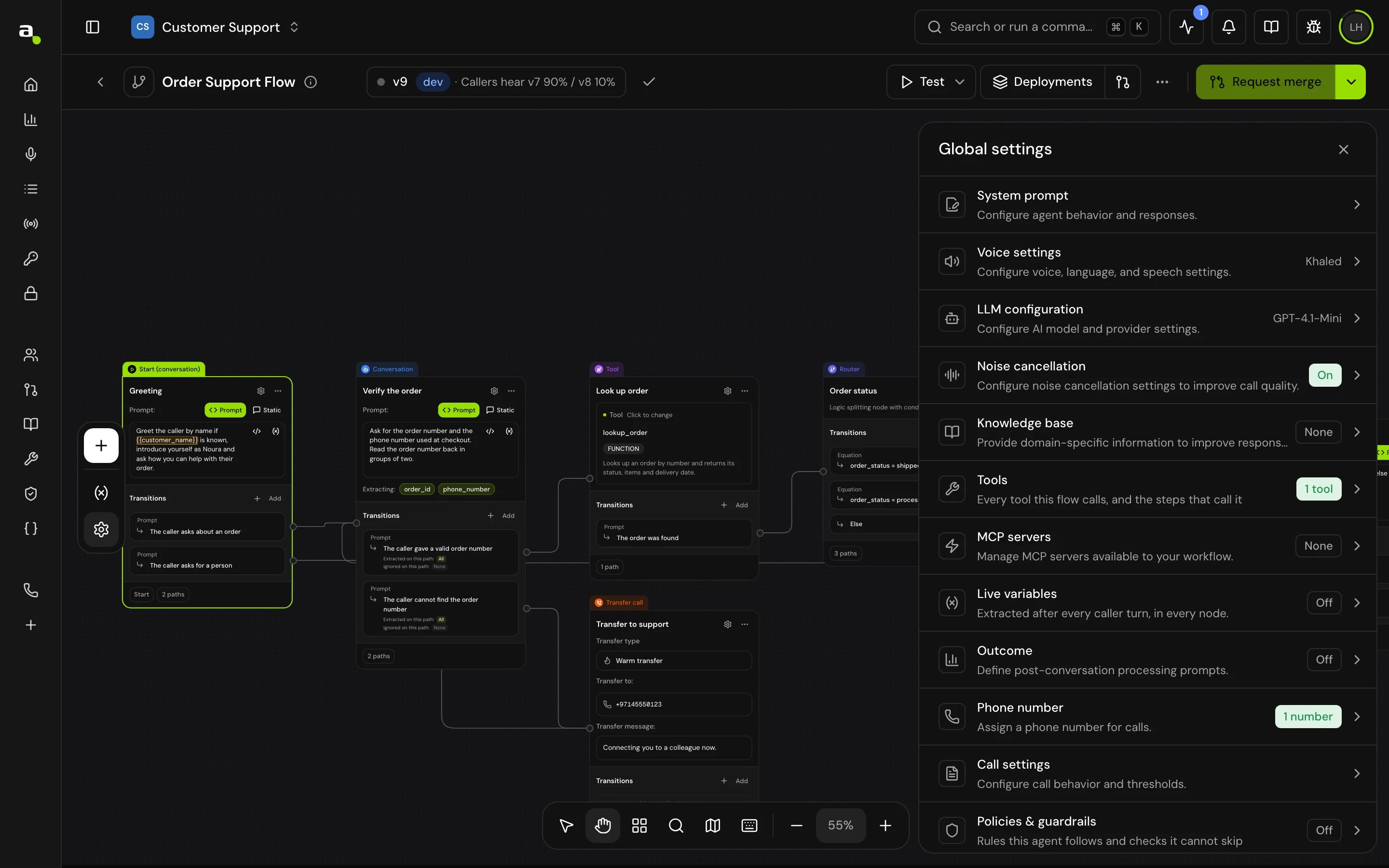
Sections at a glance
To change the system prompt, voice or call settings for one part of the call only, use a Change agent settings step.
System prompt
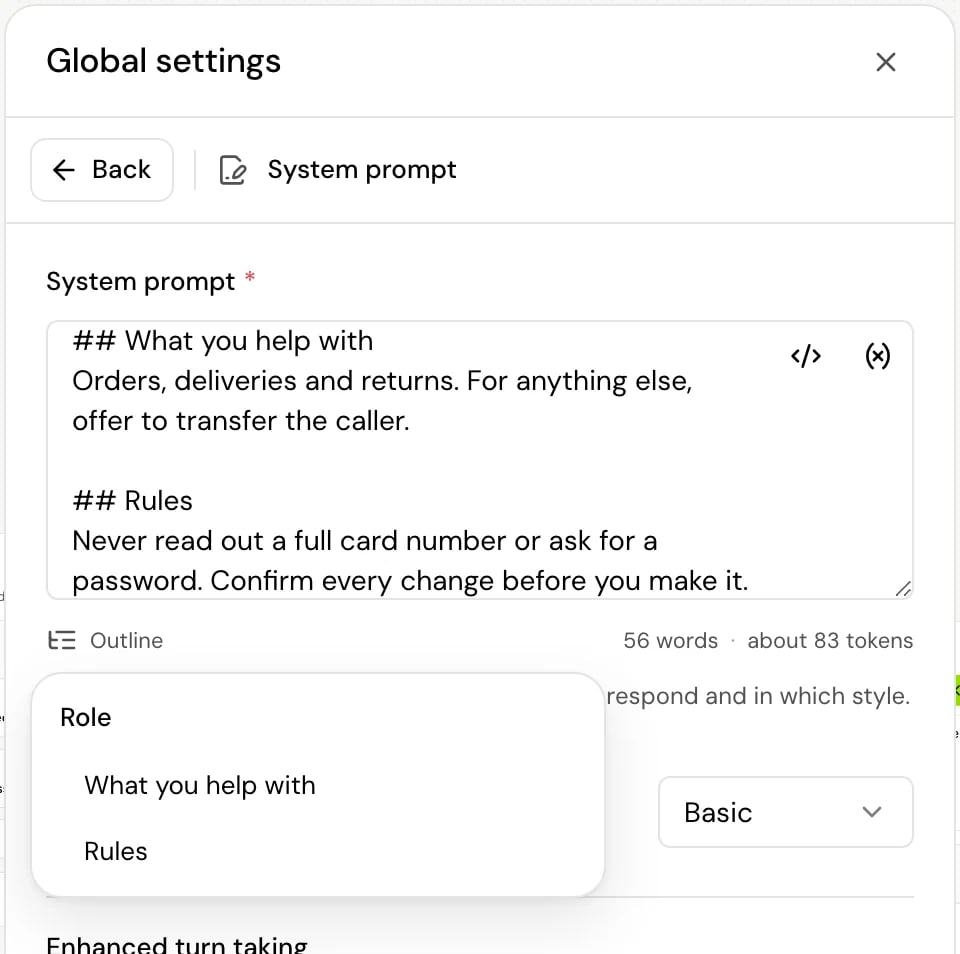
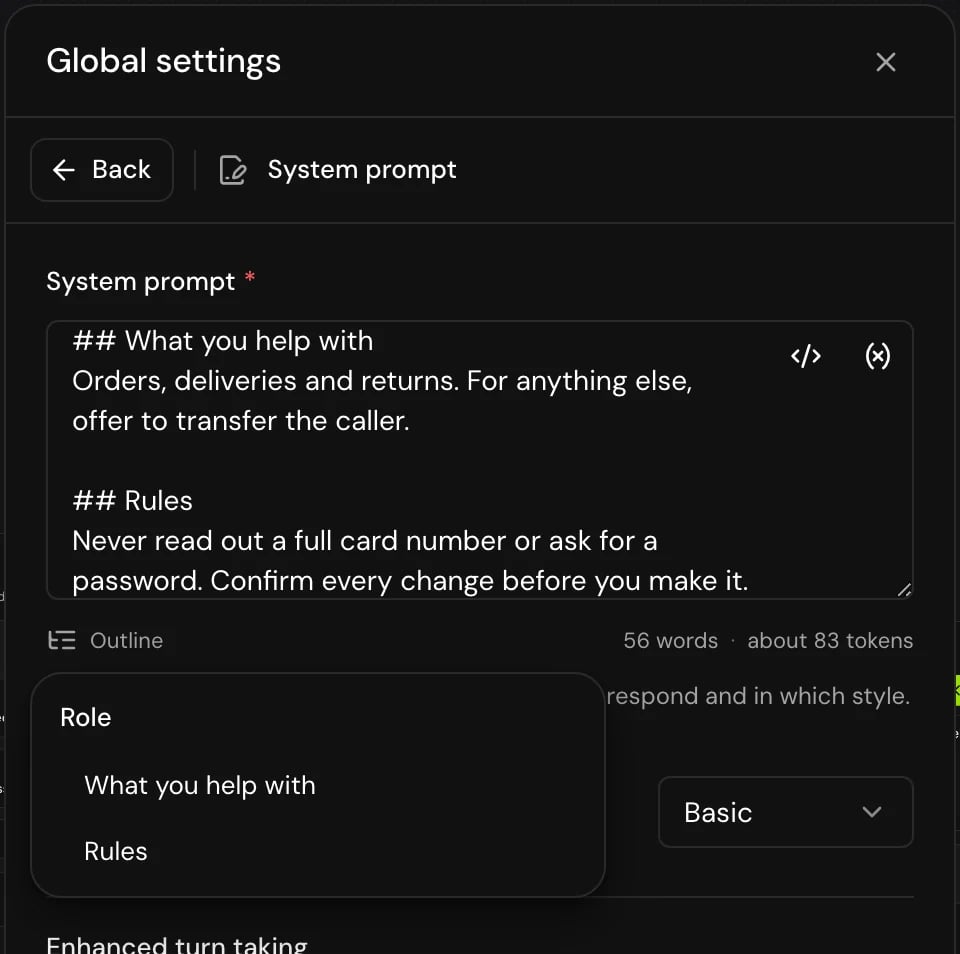
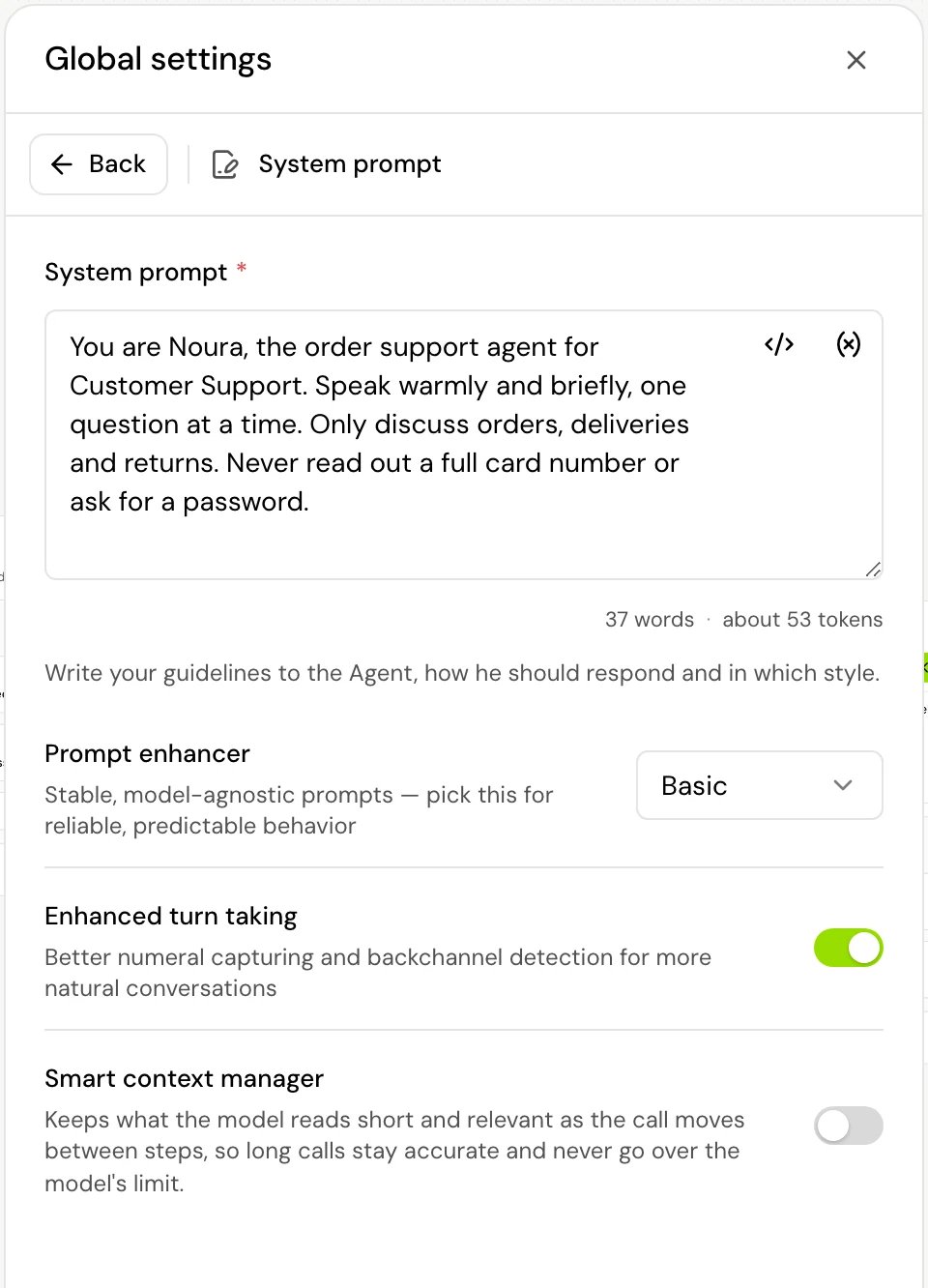
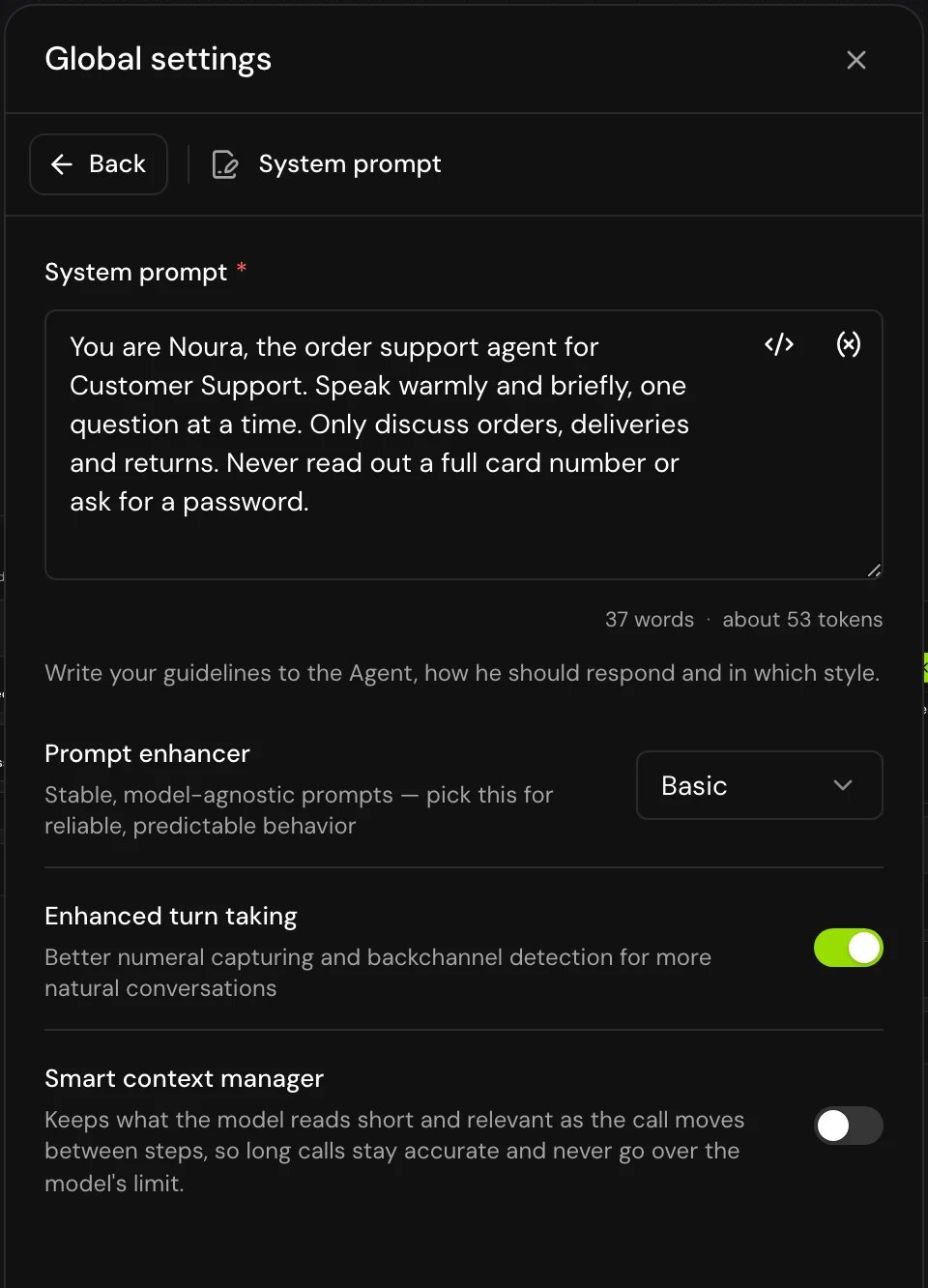
System prompt is required: “System instructions are required” until you fill it in. Write who the agent is, how it should speak and what it must never do. It applies on every step of the call. Each Conversation step’s message adds the instructions for that part of the call on top of it, so keep step-specific instructions in the steps and shared rules here. See Write a prompt that works on calls. Under the box, the editor counts the prompt’s words and estimates its tokens (“56 words · about 83 tokens”). The token count is an estimate of what the prompt costs on every turn; the model counts its own way. When the prompt has two or more Markdown headings (#, ## or ###), an Outline menu appears next to the count: pick a heading to jump to it. A prompt with Jinja blocks shows as a preview, so it has no outline.
Smart context manager
On long calls, the conversation the model reads keeps growing, including what earlier steps left behind. With Smart context manager on, the agent builds a trimmed view of the conversation for each reply: it tidies up what earlier steps left once a new step is under way, and keeps the total within the model’s limit. The full transcript is kept as is. If anything goes wrong while trimming, the agent uses the full conversation for that reply. Turn it on for flows with many steps or long calls.Tools
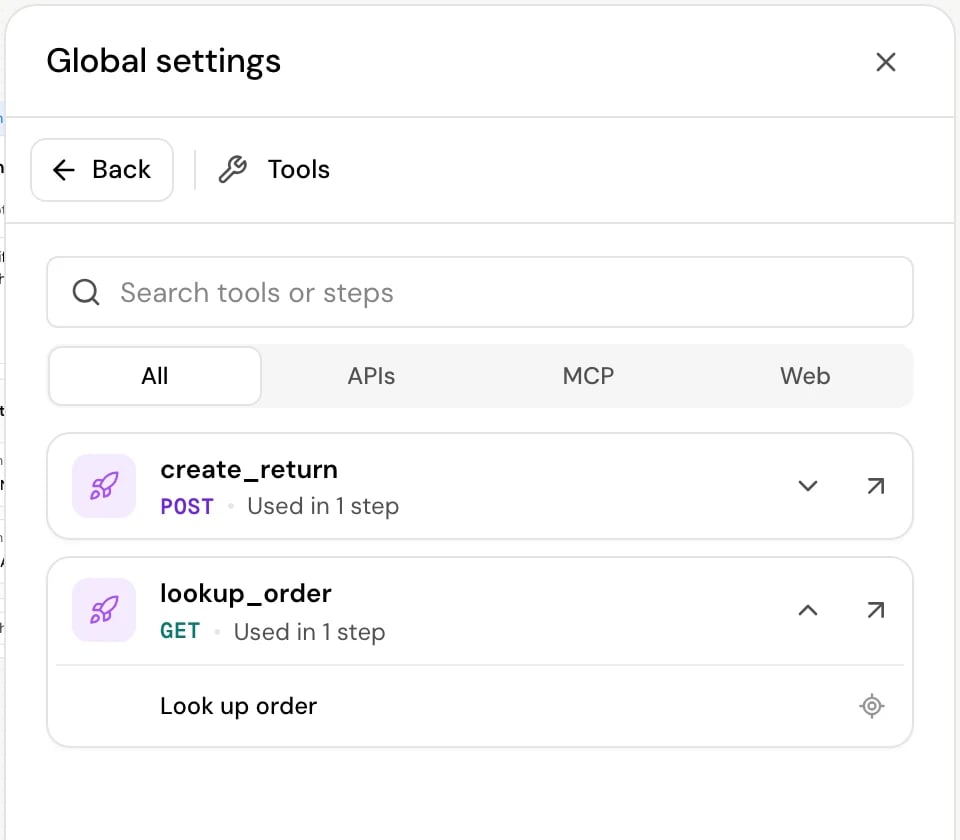
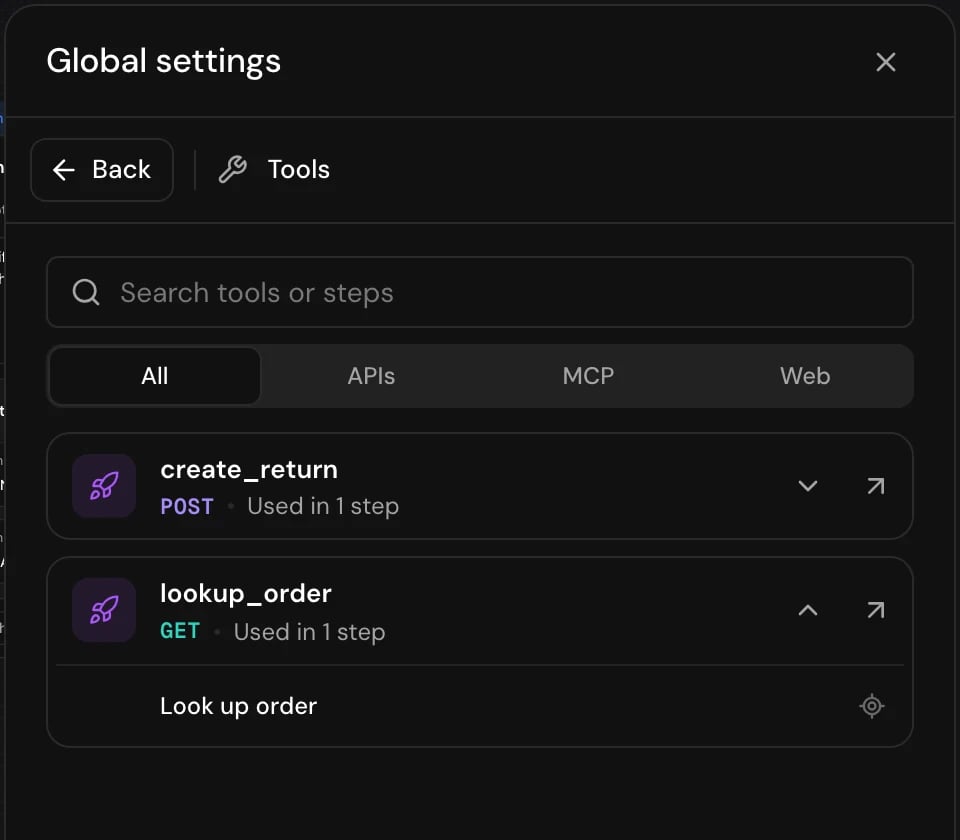
Tools (“Every tool this flow calls, and the steps that call it”) is a read-only overview. You add a tool to the flow by adding a Tool step or a Web tool step, not here.- Each tool shows its method (or MCP or WEB) and how many steps use it (“Used in 3 steps”). The most used come first.
- Each tool’s steps are folded. Click the tool to list them; click a step’s name to open its settings, or Locate to center it on the canvas.
- With two or more tools, Search tools or steps finds a tool by its name or a step by its name, and All, APIs, MCP and Web narrow the list by kind. With APIs, you can also pick a method.
- Mixed versions means the flow’s steps use different versions of the same tool. Each step then shows its version, such as
v2. - Whole flow marks an MCP server attached to the whole flow rather than to a step.
- Open … in Tools opens the tool in APIs & MCPs.
MCP servers
MCP servers (“Manage MCP servers available to your workflow.”) attaches MCP servers to the whole flow. Click Add MCP servers to pick from the servers in your project, or Manage servers to change them. “Their functions are available on every step”: the agent can call them at any point in the call, whichever step it’s in. Every function each server offers is available to the agent; you can’t pick functions or fix their parameters here. When a newer version of a server exists, its row shows Update available with Update. To take a server off the flow, click its ×. To set up a server first, see Connect an MCP server.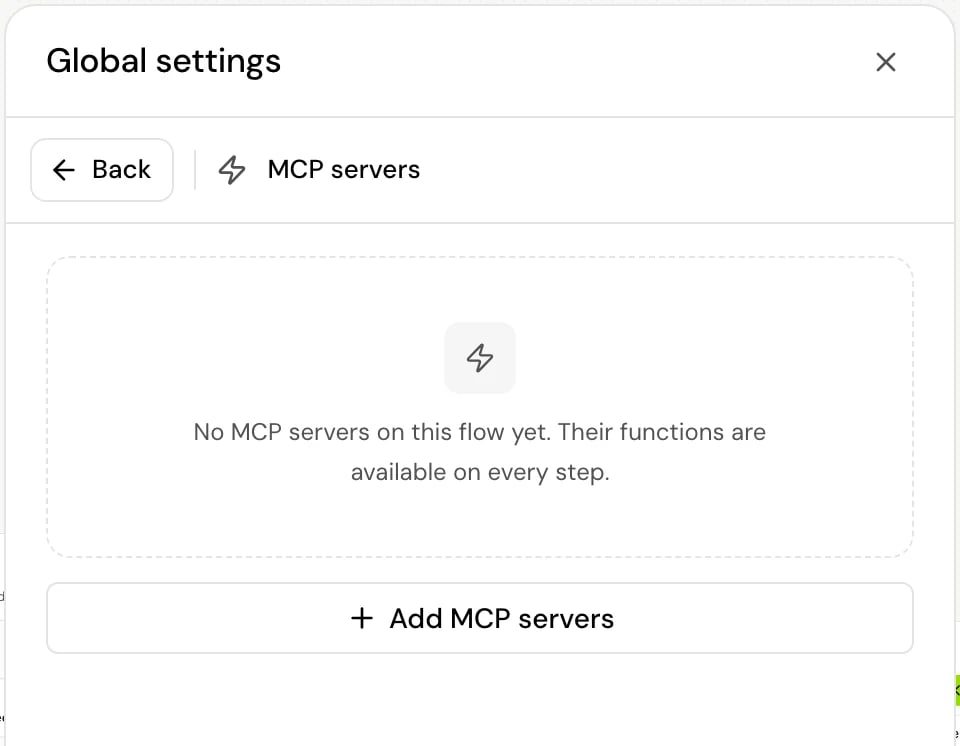
Live variables
Live variables are “Extracted after every caller turn, in every node.” Define a value once here, and the agent keeps it up to date for the whole call, whichever step the caller is in: their name, a new delivery date, or asking for a person. Each one is a row that opens its card, with Back to return. A step can switch an agent-wide live variable off, or add its own, and a When a live variable matches transition can move the call as soon as one matches. For setup, value checks and how they behave on a call, see Live variables.Good to know
- With versioning, Phone number is read-only here: which number reaches which environment is managed in releases.
- Changes save to your draft as you make them. They reach callers when you publish. See Drafts and versions.
Related
Call behavior settings
Turn taking, interruptions, timeouts and call length.
Choose the model
Providers and models for your agent.
Change agent settings step
Change settings for part of a call.
Live variables
Values the agent keeps up to date for the whole call.