

Browse voices
Open Voices in the sidebar. Use Section to switch between Voices and Dictionaries.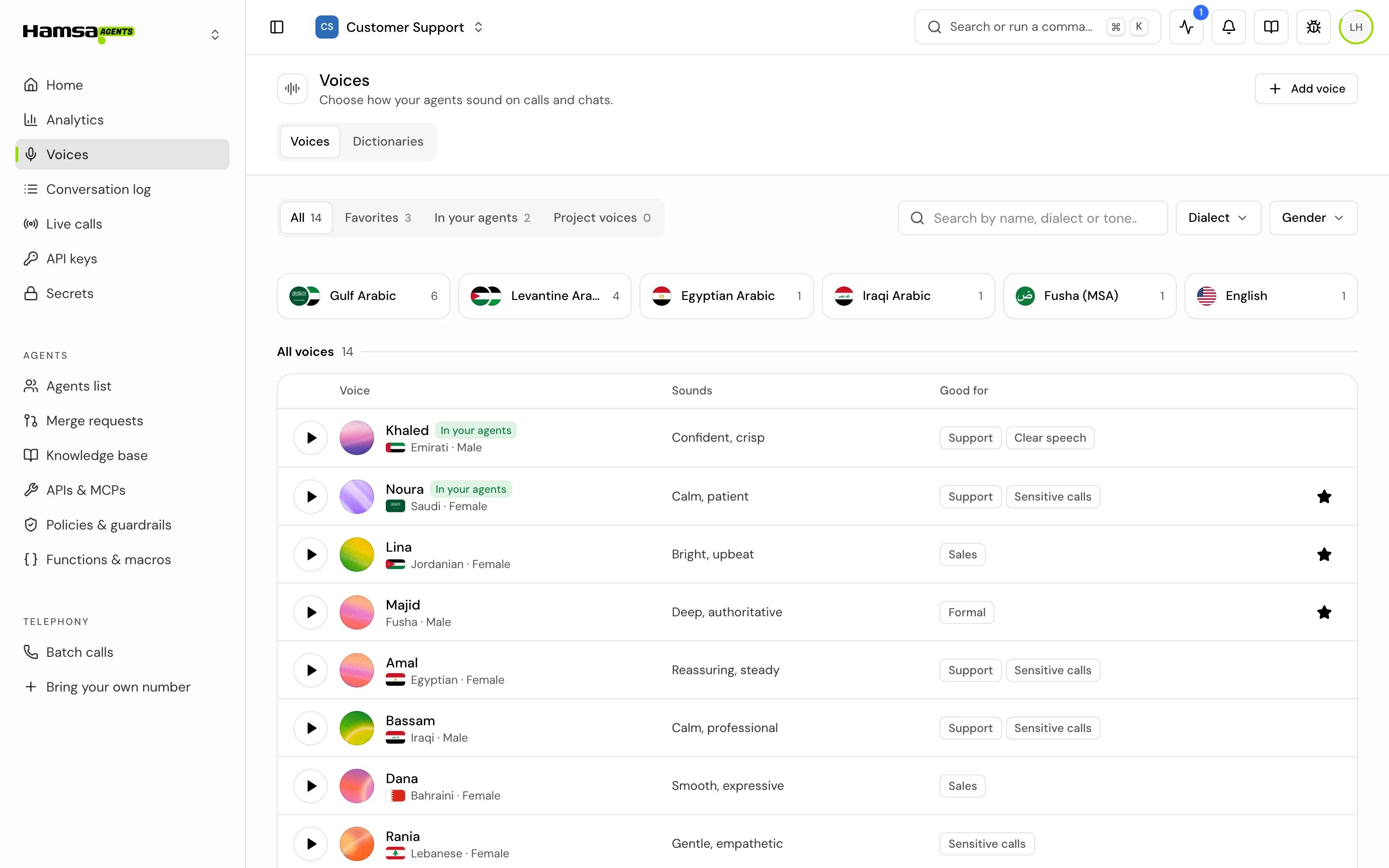
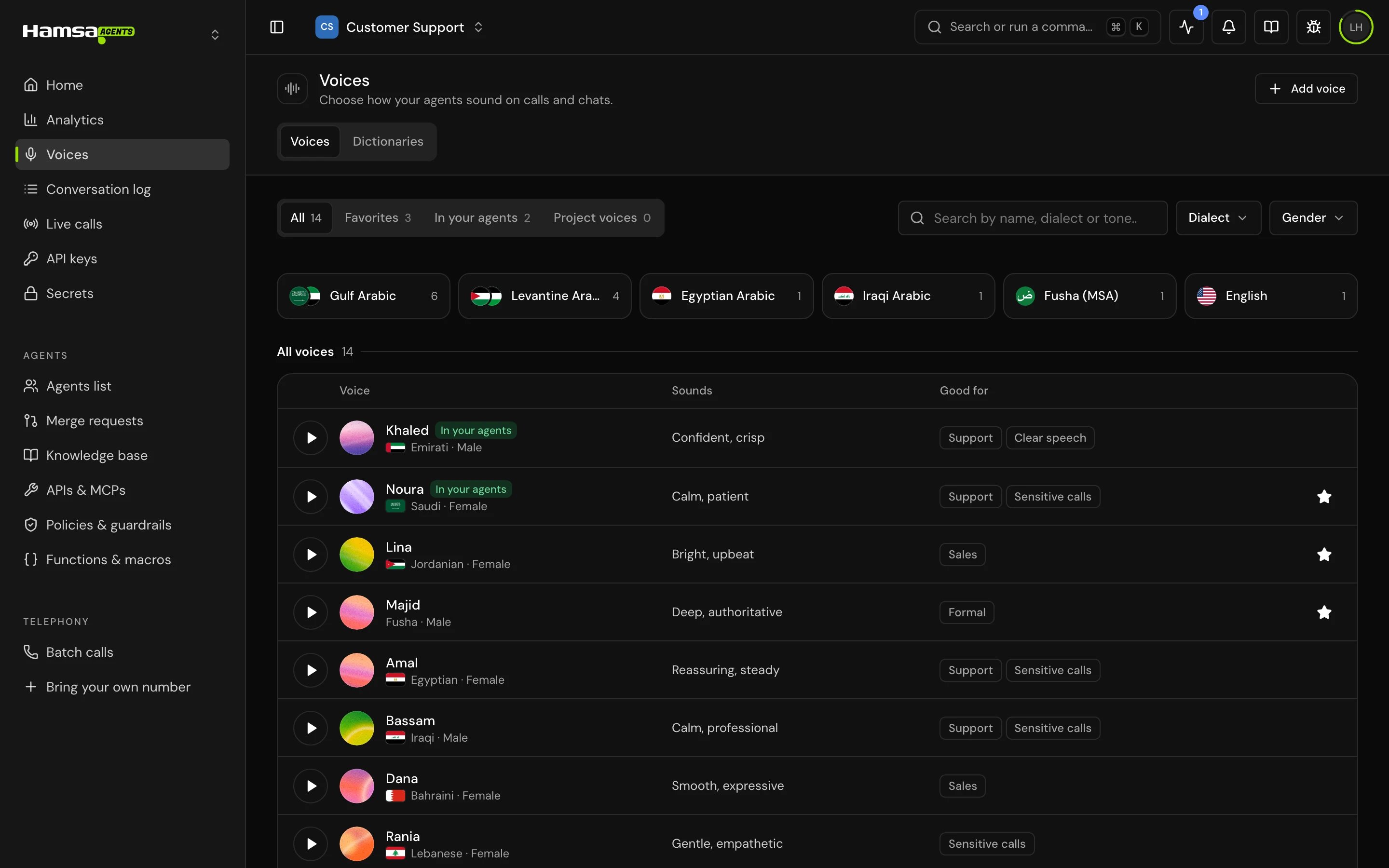
To find a voice faster:
- Search by name, dialect or tone.
- Filter by Dialect (the caller’s dialect) and Gender.
- Open a dialect collection from the row of tiles at the top: Gulf Arabic, Levantine Arabic, Egyptian Arabic, Iraqi Arabic, Fusha (MSA) and English.
Use a voice in an agent
1
Open the agent's voice settings
In a single prompt agent, open Voice settings. In a flow agent, open Global settings. See Voice, language and dialect.
2
Open the voice picker
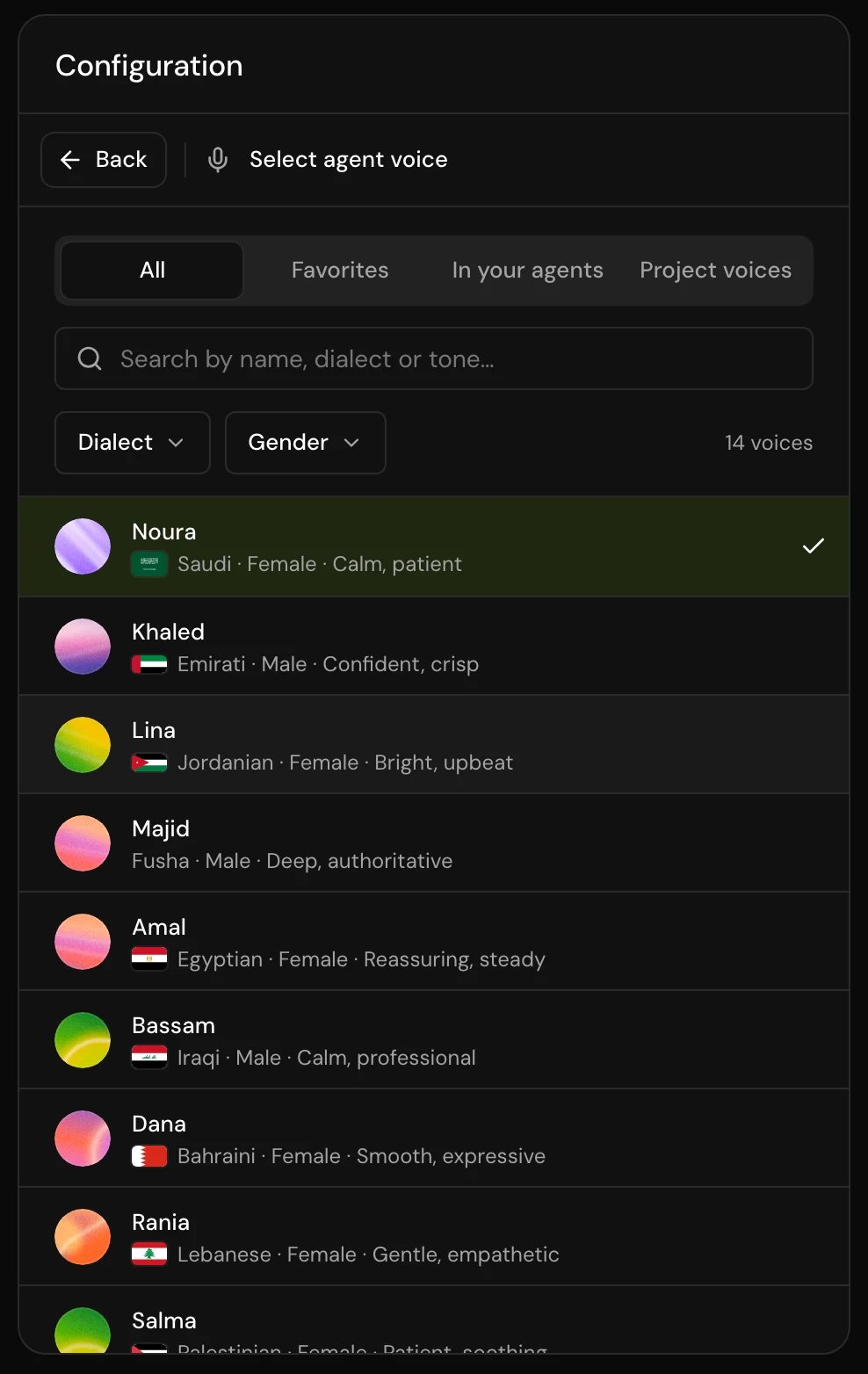
Click the voice field (Select voice, or Change if a voice is set). Select agent voice opens in the Configuration panel, with the same Show options, search and filters as the Voices page.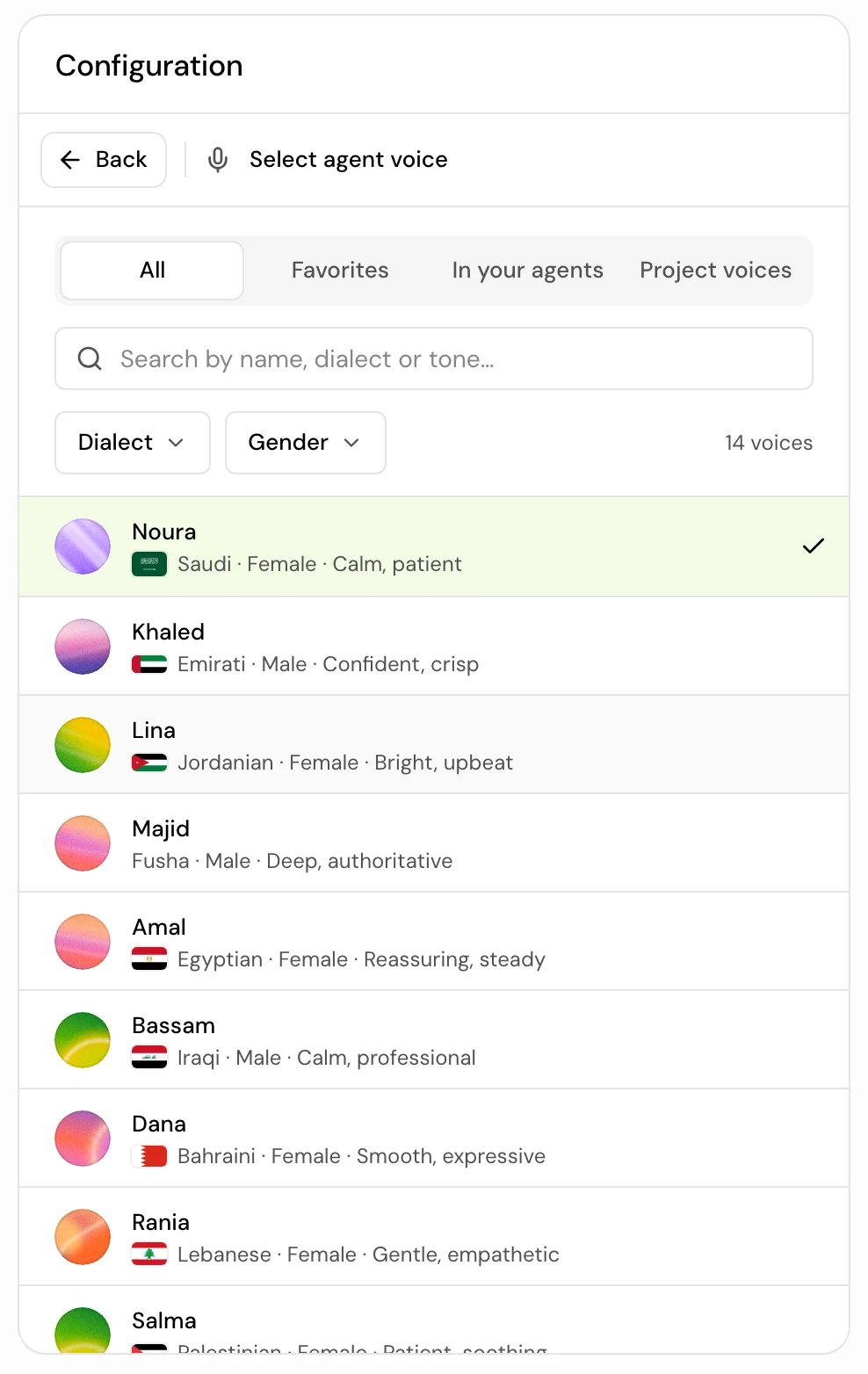
3
Pick a voice
Select it. The agent’s language becomes the voice’s language (Arabic or English), and its speech dialect becomes the voice’s dialect. There is no separate dialect control for the speech.
4
Publish
The voice is part of the agent’s version. Callers hear the new voice only after it is published. See Drafts and versions.
Manage voices
Members can browse, listen to, star and use every voice, but can’t add or delete voices by default. An owner can change that in Roles and permissions.
Only project voices can be deleted. Voices from the catalogue can’t be changed or deleted.


Good to know
- There are no speed or stability controls; Expressiveness is the only voice control.
- Each Arabic voice has its own dialect. Pick a voice in your callers’ dialect, for example a Gulf voice for callers in Saudi Arabia.
- If a word comes out wrong, fix it with a pronunciation dictionary rather than switching voices.
Related
Add a voice from a recording
Clone a voice for your project.
Pronunciation dictionaries
Fix how the agent says specific words.
Voice, language and dialect
The rest of the agent’s voice settings.
Drafts and versions
Publish a voice change so callers hear it.