

Before you start
Watching the board needs the View permission on the Conversation log. Listening in, sending instructions, ending a call and taking over need Monitor (live) (“Listen in on calls while they happen.”). Owners and Admins have it by default; Users don’t. See Roles and permissions. Listening needs no microphone. Taking over needs a microphone, a browser that allows it, and a secure (HTTPS) connection. Use headphones so the caller doesn’t hear an echo.See the calls going on now
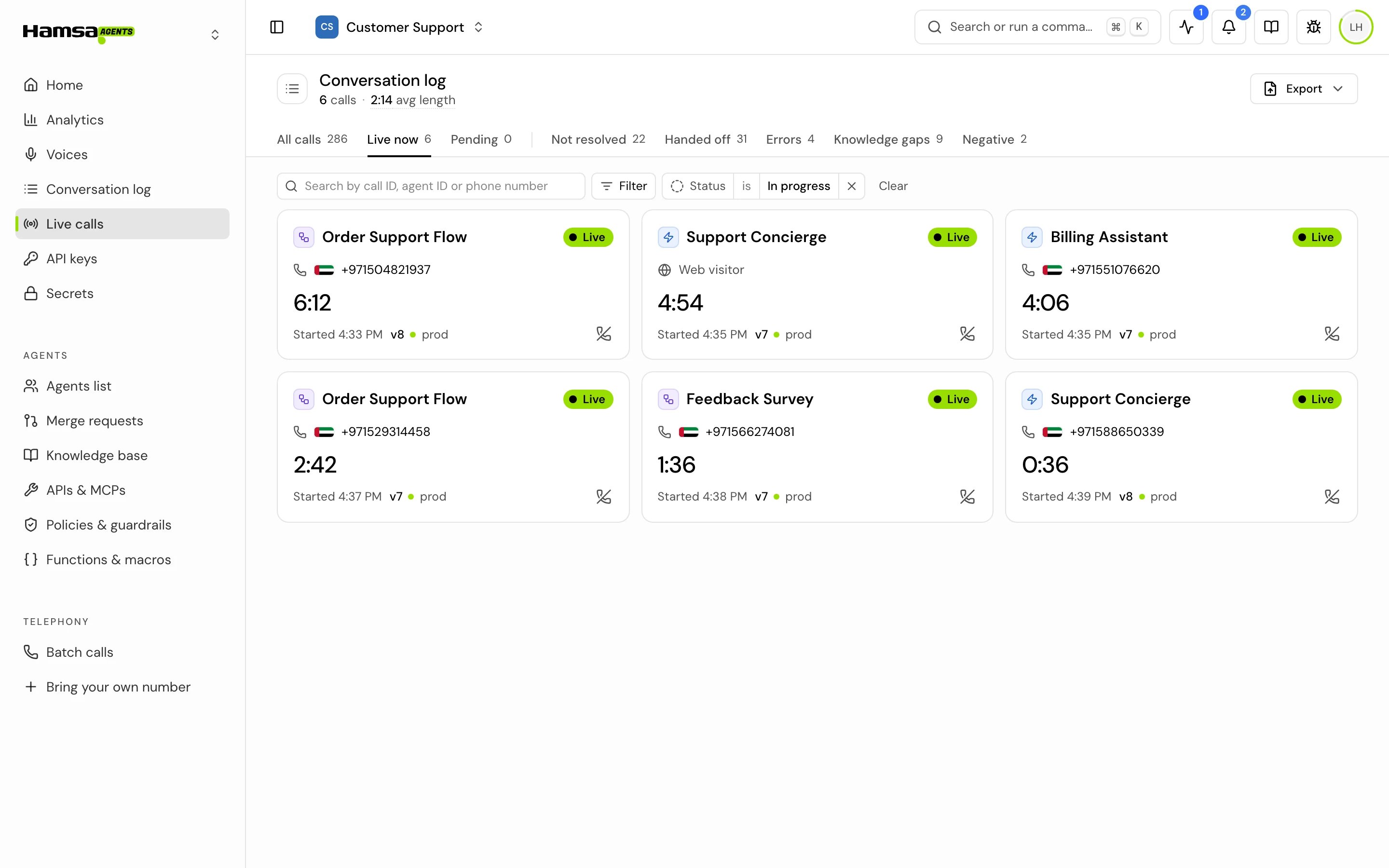
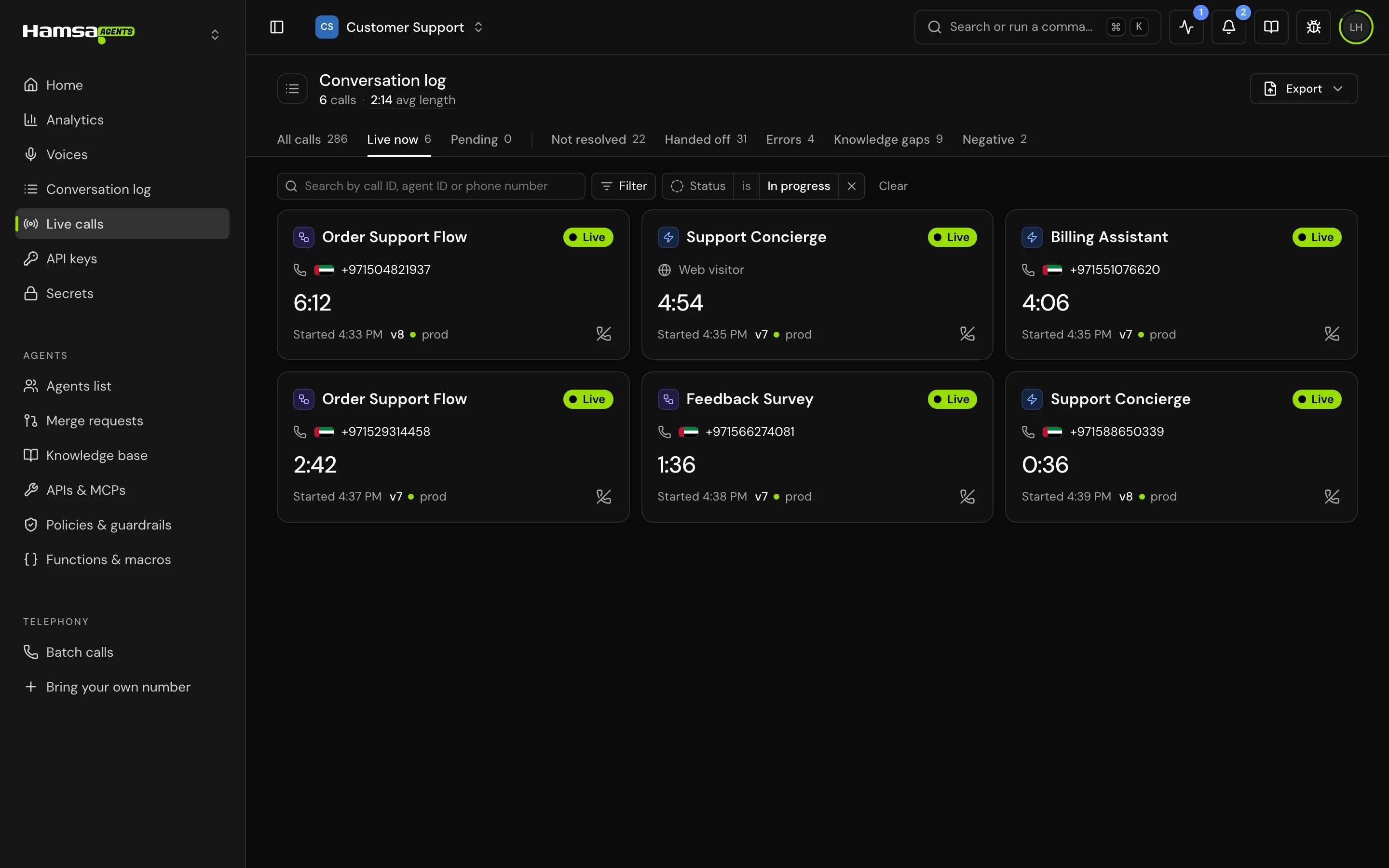
Click Live calls in the sidebar. The Conversation log opens on its Live now view, which shows calls in progress as a board, “Calls going on now”. Each card shows the agent (or the caller, when you’re looking at one agent’s calls), the Live pill, the caller, any flags, how long the call has run, when it started, and the version that answered. The board shows up to 30 calls, longest running first. With more, it says how many of the total it shows. The board refreshes every 20 seconds. The agent filter still applies, so you can watch one agent’s calls only. With no calls in progress, it says “No calls right now”. Click a card to open the call.Listen in on a call
1
Open the call
Click its card on the board, or its row in the Conversation log.
2
Start listening
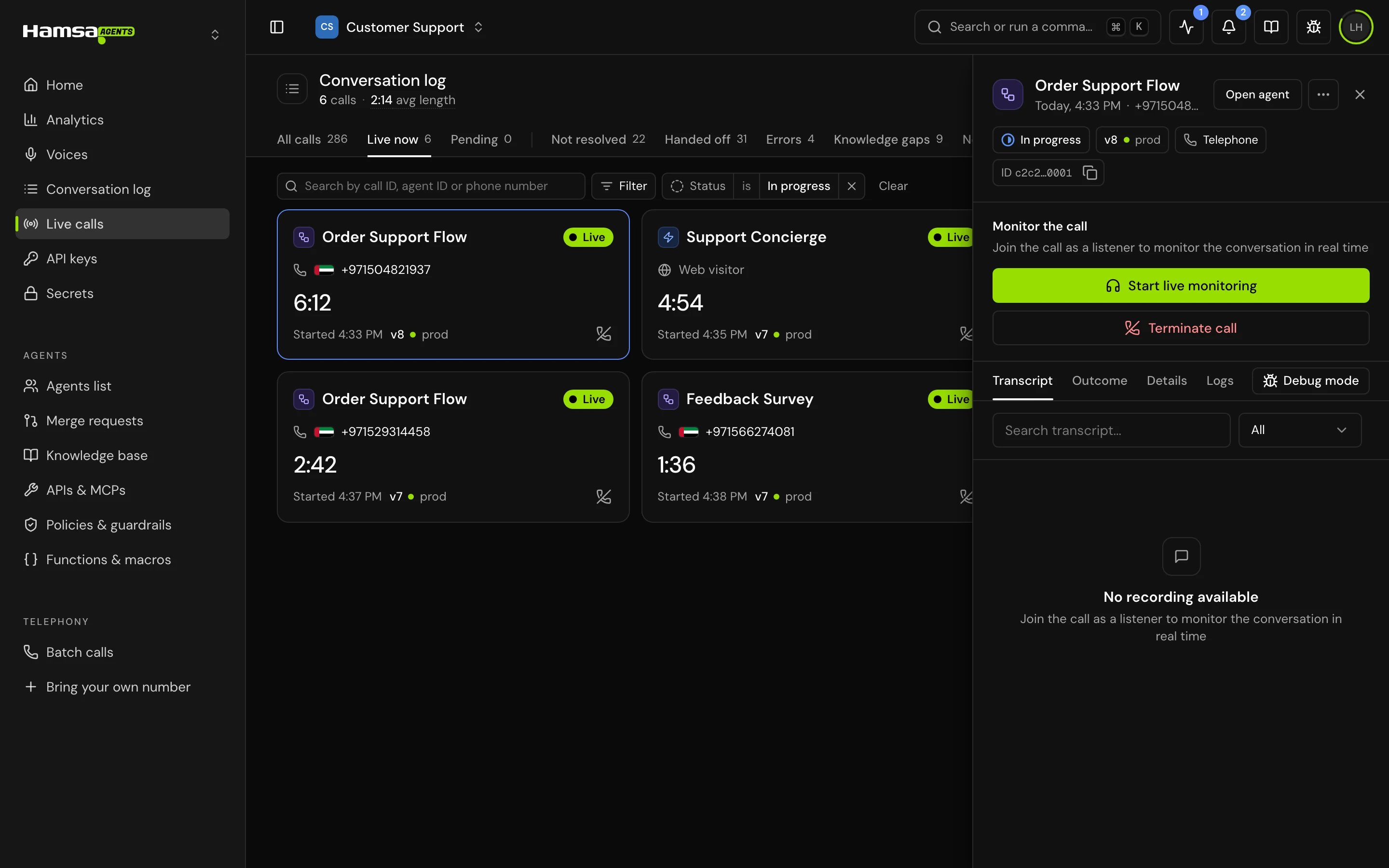
Under Monitor the call, click Start live monitoring. You see “Joining as listener…” and then Live call.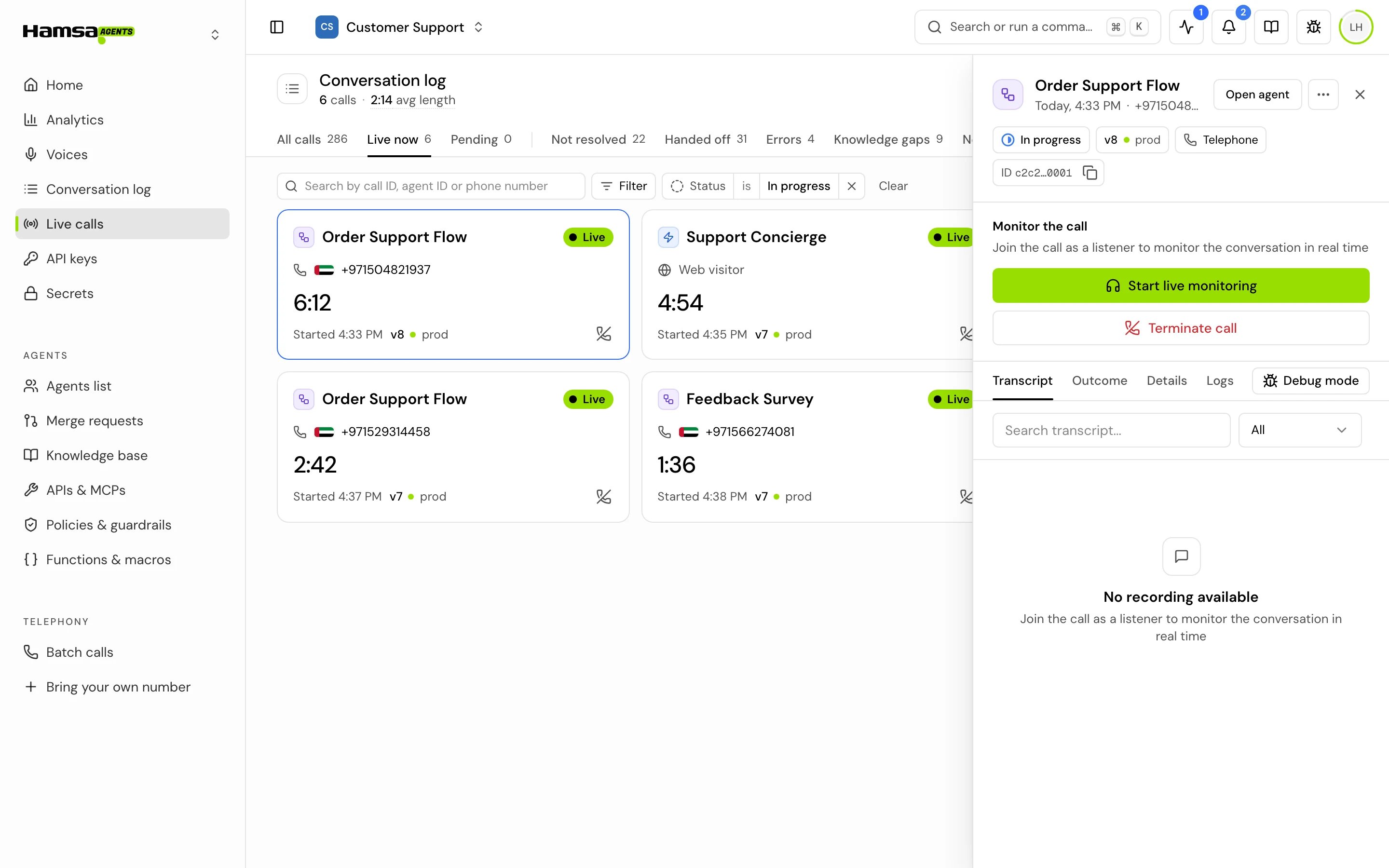
3
Follow the conversation
You hear the call, and the Transcript tab fills in as people speak (“Live transcription active”).
4
Leave when you're done
Click Leave call. The call goes on without you.
Send the agent an instruction
While you listen, you can tell the agent what to do. Type in Send instruction to agent… and press Enter, or click the send button. You see “Instruction sent to agent”. The agent acts on it straight away. It treats your message as an instruction from a supervisor, and replies to the caller at once, following it. The caller hears that reply, never your instruction. For example:- “Offer the caller a 10% discount on the renewal.”
- “Ask for the order number before you look anything up.”
- “Wrap up politely and end the call.”
End a call
Click Terminate call while you listen, or on the call’s card on the board, and confirm. The call ends at once and the caller is disconnected. The call gets the status Terminated. For a chat, click End conversation.Take over a call
Taking over puts you on the call in the agent’s place. The agent stops at once, and you talk to the caller with your microphone until the call ends.1
Listen in first
Open the call and click Start live monitoring.
2
Click Take over
Click Take over. The dialog Take over this call? reminds you that the agent leaves the call and can’t be brought back, the caller hears you as soon as you connect, and your microphone is turned on.
3
Confirm
Click Take over call. Allow the microphone if your browser asks. You see “Checking microphone…”, “Taking over…”, “Connecting you to the caller…” and then “You are live with the caller”.
4
Talk to the caller
The banner says “You have taken over this call. The AI agent has left.” Speak normally.
5
End the call
When you’re done, click Terminate call. While you hold the call, you can’t leave it without ending it, so the caller is never left alone.
Afterwards, the call is flagged Human took over in the Conversation log.
If takeover doesn’t work
How it works on a call
- Listening is silent. The caller and the agent carry on as before.
- An instruction reaches the agent between turns. The agent replies right away as if the caller had just spoken, following your instruction. If the agent is still starting up, the instruction is kept and applied on its first turn.
- Ending a call disconnects everyone at once.
- Taking over stops the agent at once, even in the middle of a sentence, including speech that callers normally can’t interrupt. From then on the agent doesn’t hear the caller, doesn’t reply, and doesn’t check in when the caller goes quiet. Instructions are no longer offered, because the agent has stood down.
Good to know
- The board has no time limit: a call shows as long as it is in progress. The “live now” count on Analytics only counts calls that started in the last 10 minutes, so the two can differ.
- A call’s reply time, analysis and outcome fill in after it ends, not while you listen.
Related
Call details
Transcript, recording and analysis once the call ends.
Conversation log
Find calls, including ones a member took over.
Transfer call step
Let a flow agent hand calls to a person on its own.
Roles and permissions
Who can listen in and take over.