

Set test values
1
Open Test values
In the agent editor, open the Test menu and choose Test values. A badge shows how many you have.
2
Change a value
Each environment key your draft reads is listed with the value it has now. Type your own value next to the key you want to try.
3
Add a new key (optional)
Click Add a key, type the key in capital letters and click Add, then give it a value. Use it in a prompt or tool as
{{NEW_KEY}}.4
Save
Click Save test values. Your next test call uses them.
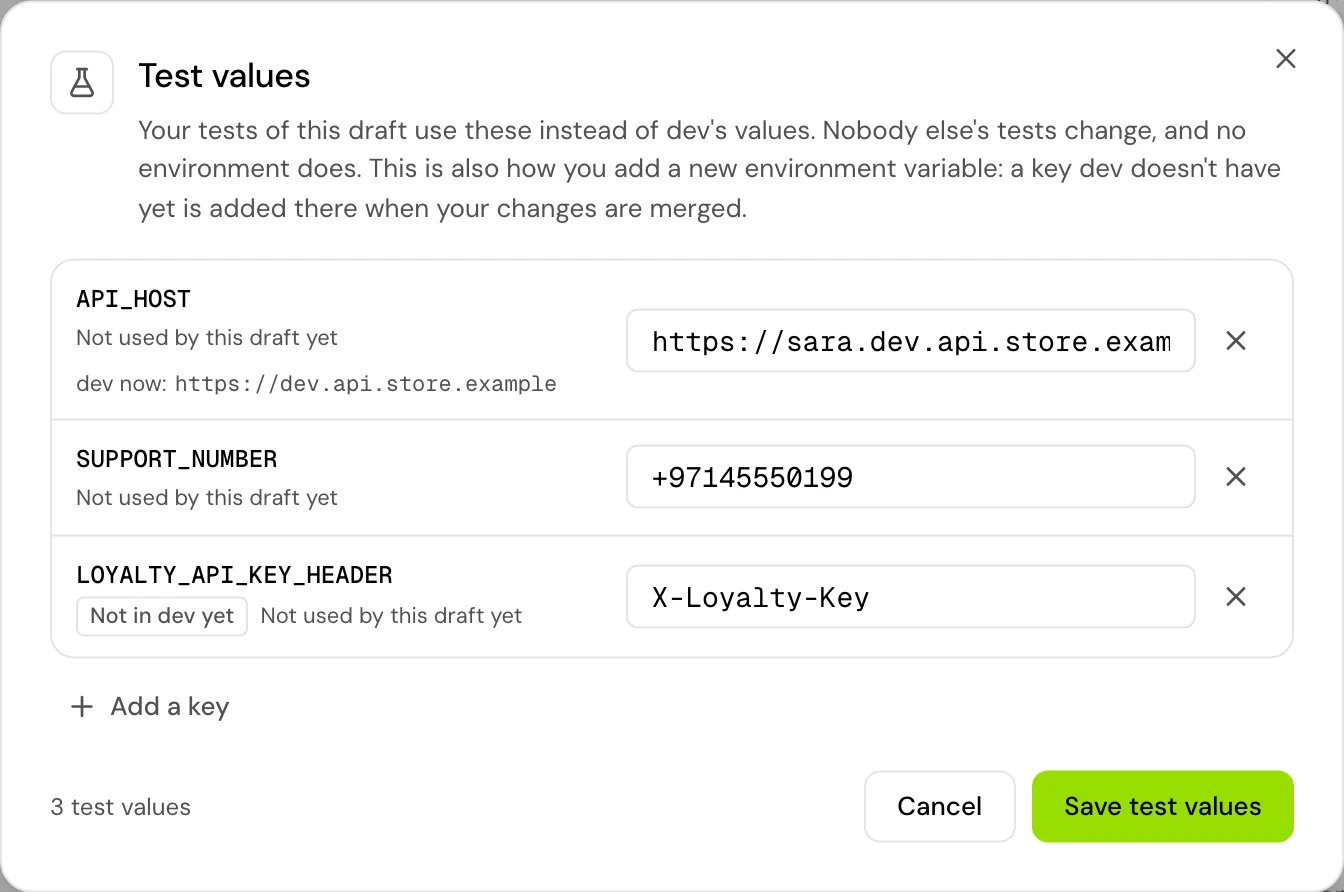
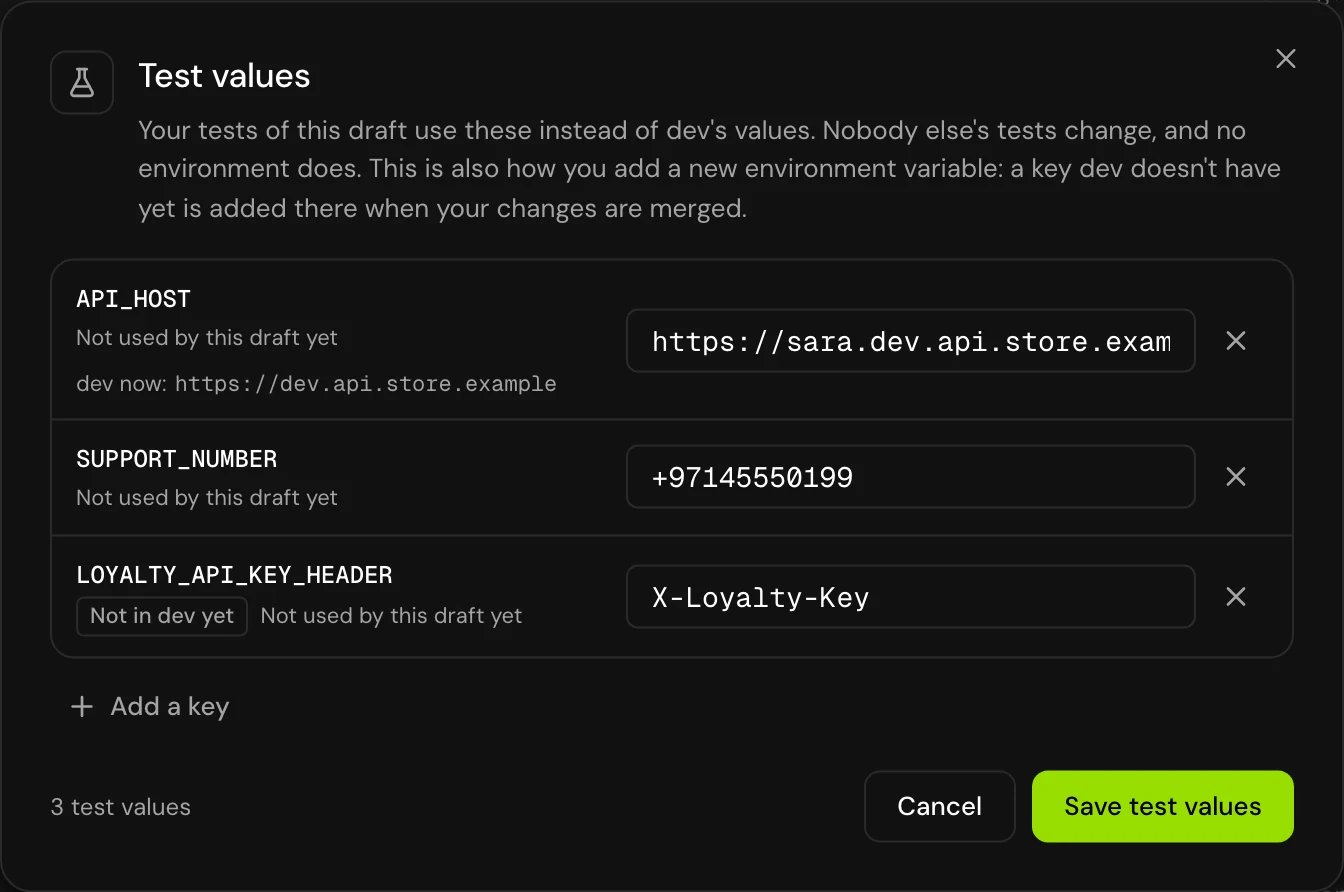
To go back to the environment’s value, clear your value for that key.
The editor also offers keys you’ve written in your draft that no environment defines yet (capital-letter names such as
{{NEW_KEY}}), so you can give them a value right away.
Rules
How test values reach a call
- Only test calls on your own draft use your test values. They read the environment’s values, with your test values on top.
- Calls to a version, calls in an environment and real calls never see test values.
- When someone tests your merge request, the Test menu shows your test values under your name (“Sara’s test values”), and their test calls use them.
- When your changes are merged, the person merging chooses which test values to set in the environment (Add test values to dev). New keys start ticked: “without a value there, the version reads them empty.”
The not defined chip
In flow steps, a variable shows as an amber chip when nothing defines its name: no step, live variable, dynamic variable, environment variable or system variable in the app’s list. Hover over it to see “customer_tier isn’t defined in this agent.”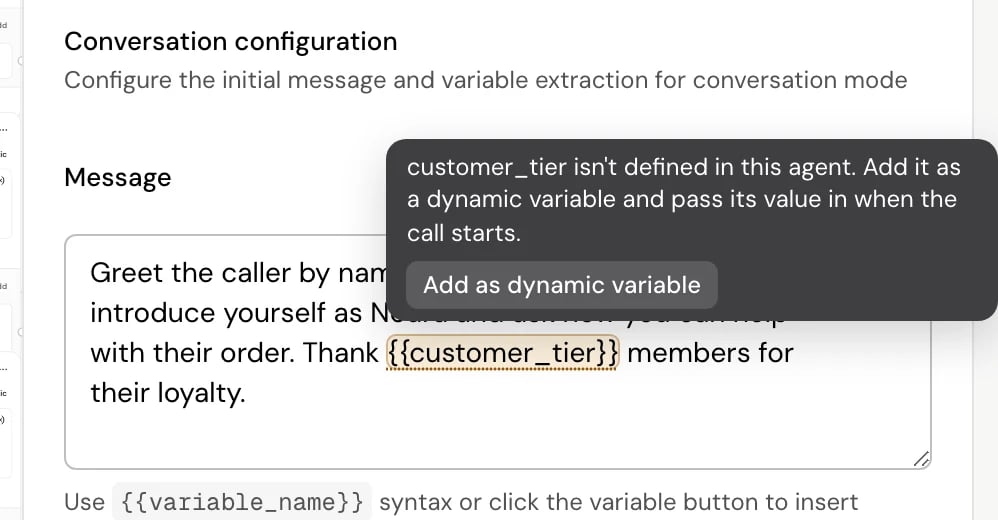
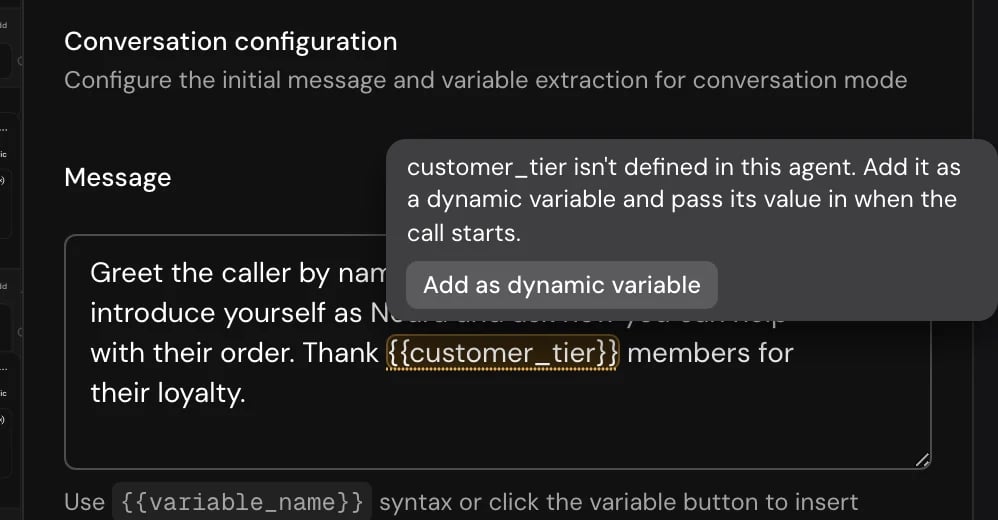
Add as dynamic variable appears only for snake_case names, in text you can edit.
A few names work on calls even though the editor marks them:
agent_language, agent_dialect and sip.headers. See System variables.
May be undefined
In the variable picker, a May be undefined section lists variables that are “only set on some paths into this node”. They’re defined, but a call that reaches the step another way hasn’t set them, so they render empty there. Give them a fallback with{{ name | default("...", true) }}, or set them on every path. See Jinja.
Good to know
- Test values don’t change what callers hear. Nothing reaches an environment until a merge.
- A variable that’s not defined doesn’t break a call: it renders empty. The chip is there so you notice before a caller does.
Related
Test your agent
Browser calls, phone calls and debug mode.
Environment variables
Values per environment, and who can change them.
Merge requests
Get your draft, and its test values, into dev.
Dynamic variables
Values you send when the call starts.