

Before you start
- You need the Call permission to start a test. Owners, admins and members all have it by default. See Roles and permissions.
- Save your changes first. While the editor has unsaved changes, Test is disabled and its tooltip says “Please save changes before testing”.
- For a phone call test, the agent needs a phone number. See Phone numbers.
Start a test
1
Open the Test menu
In the editor header, click Test.

2
Choose how to test
- Browser call: talk to the agent through your computer’s microphone.
- Phone call: enter Your phone number and the agent calls you.
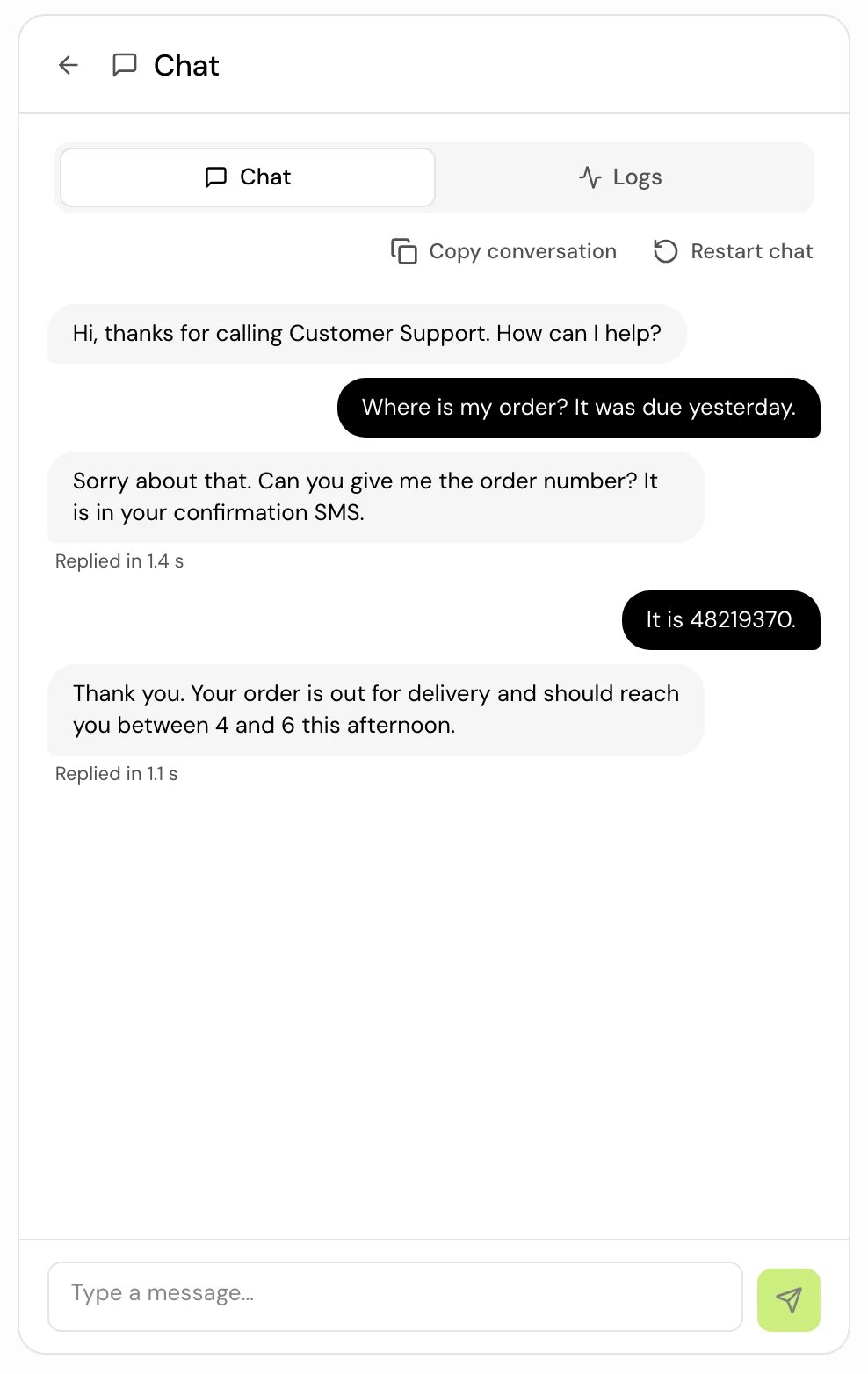
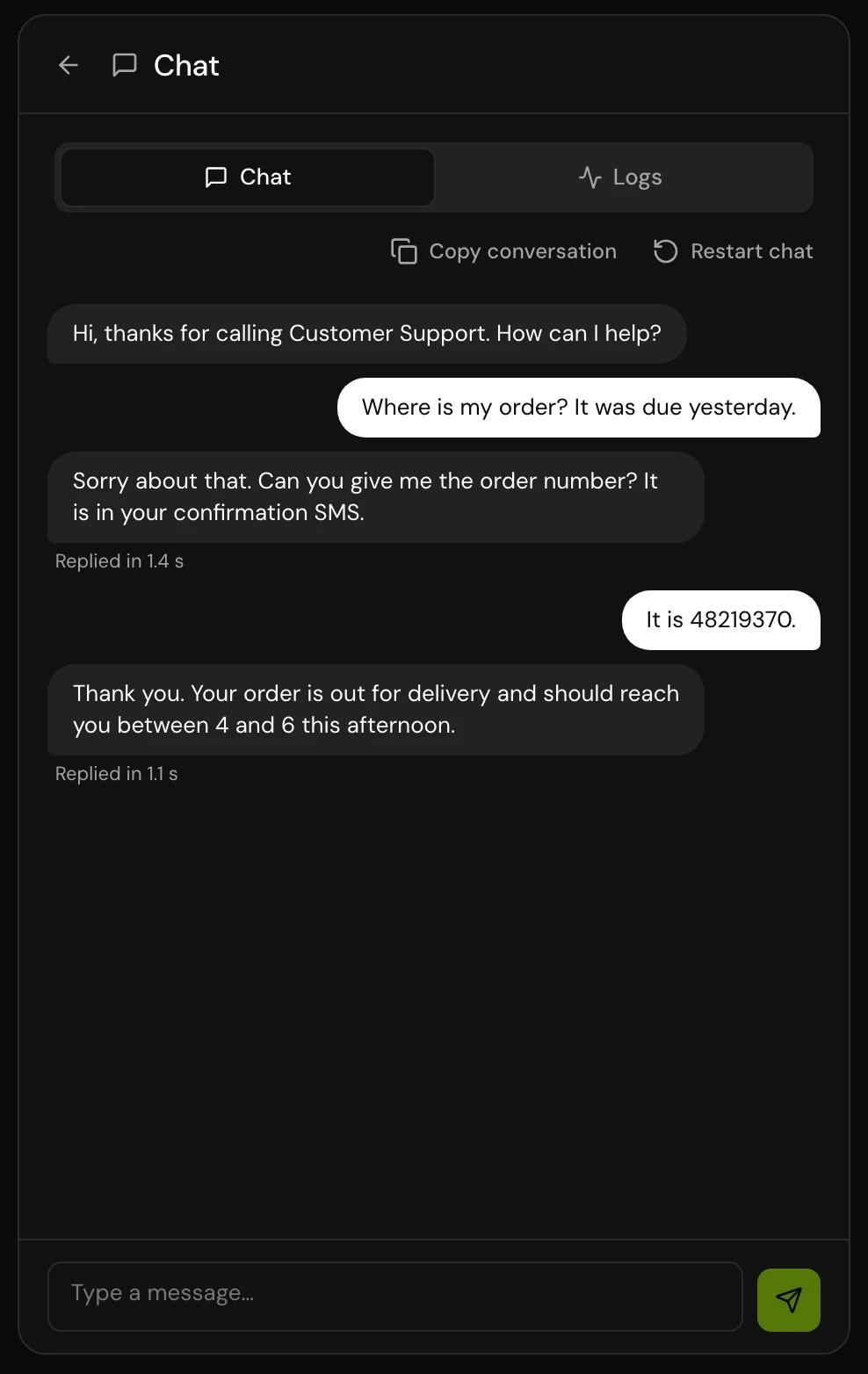
- Chat: the same agent in text, with the same prompts, tools and values.
3
Fill in dynamic variables, if asked
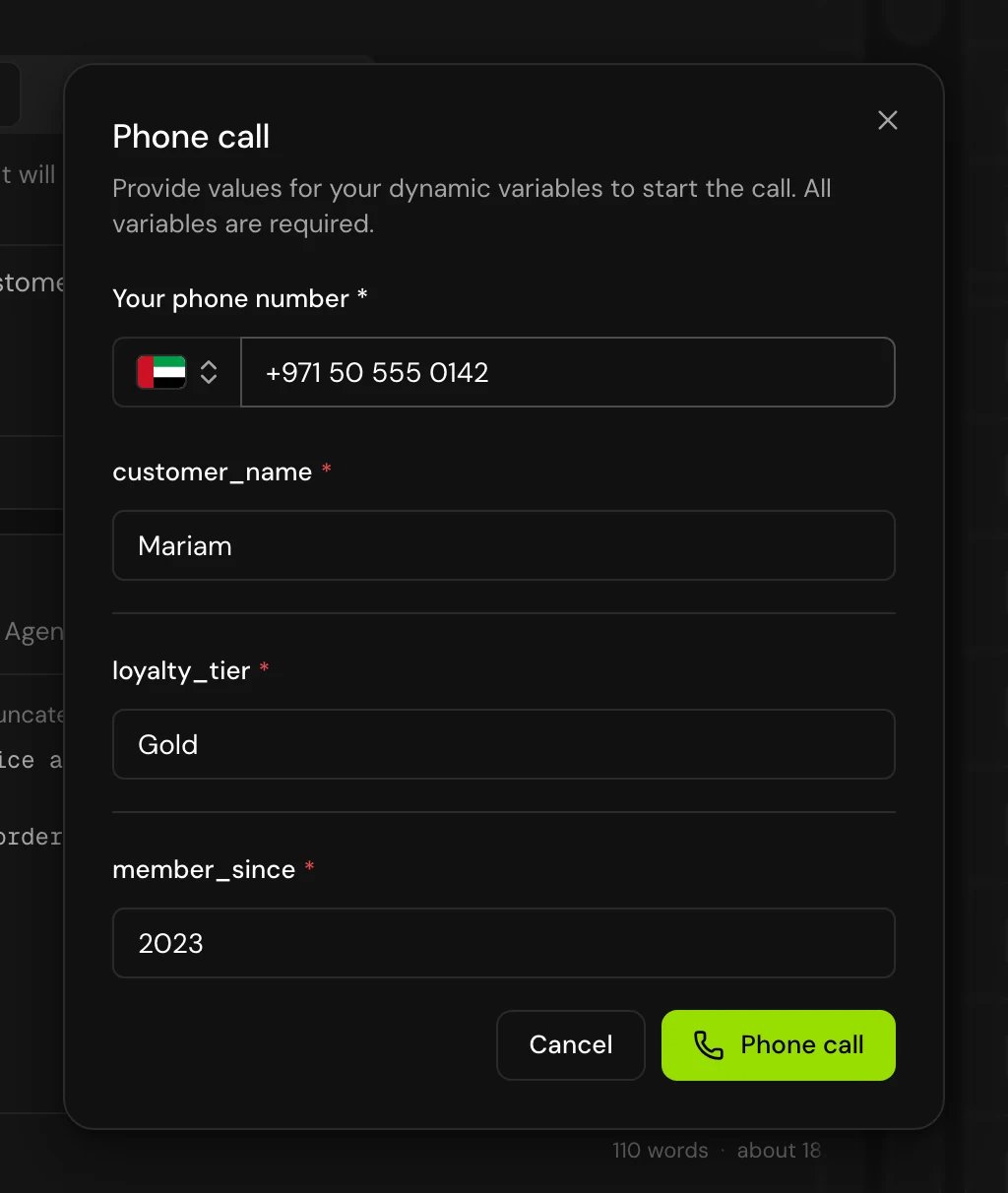
If the agent uses dynamic variables, a dialog asks for a value for each one before the call starts. Every variable needs a value.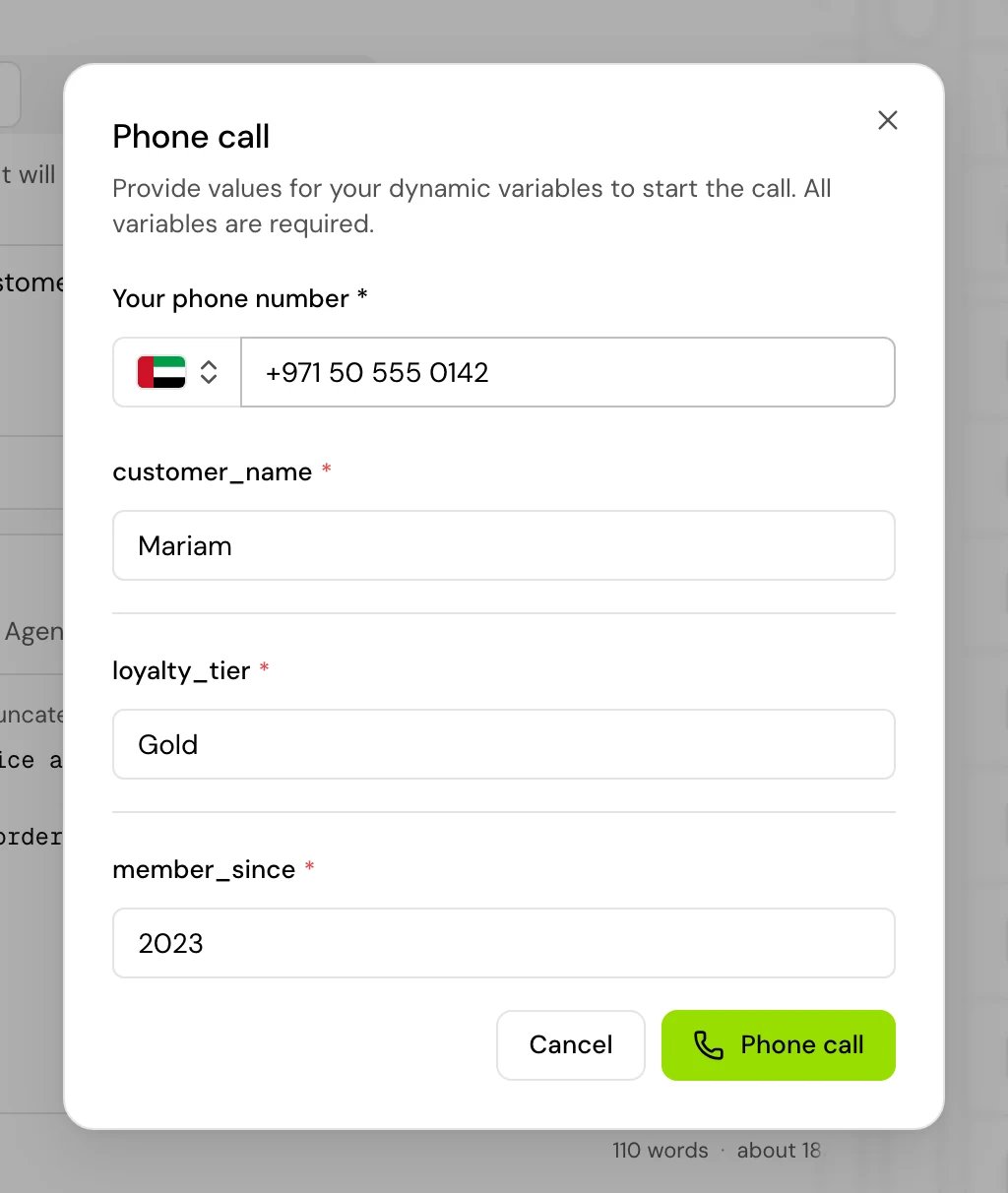
4
End the test
Click End call, or end the chat from the chat panel.
Chat with your agent
The chat opens in the panel beside the editor, so you can keep working while you chat. Type a message and press Enter to send it; Shift+Enter starts a new line. Each of the agent’s replies shows how long it took (“Replied in {seconds} s”), from the moment you sent your message to the reply.- Copy conversation copies the whole chat as text, one line per message (“You: …”, “Agent: …”).
- Restart chat ends this chat and starts a fresh one with the same agent.
- Logs shows the test’s logs, as for a call.
Choose which values your test reads
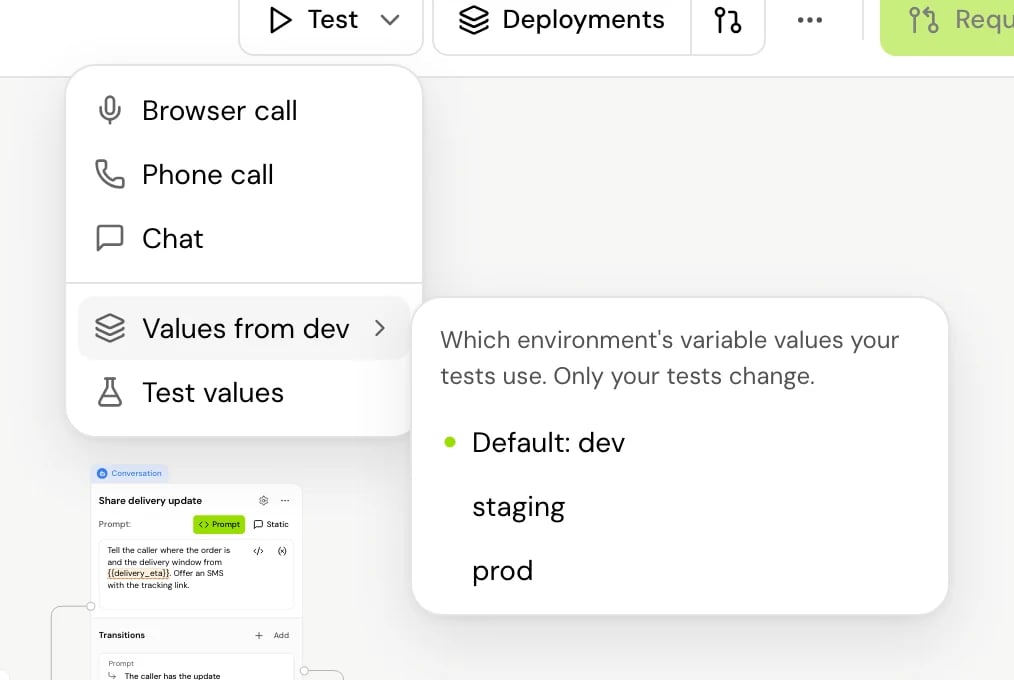
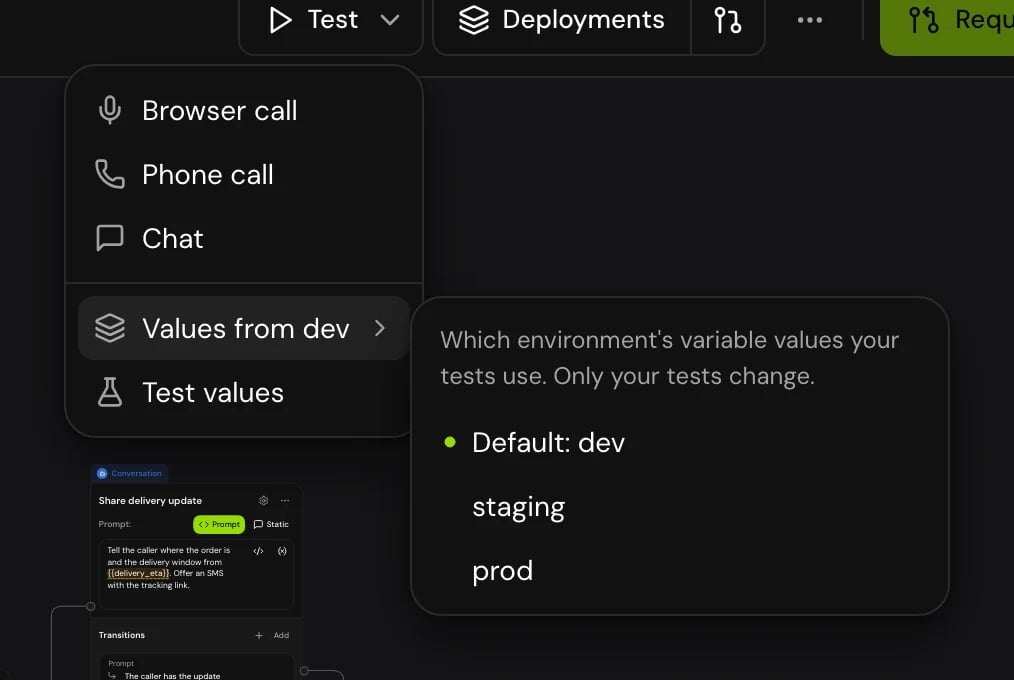
When an agent uses environment variables, each test reads the values of one environment.- With deployments on, the Test menu has Values from {env} (for example Values from dev). Pick another environment there to test against its values. “Only your tests change”: nothing is saved, and no colleague or real call is affected.
- With deployments off, tests read the prod values.
Use test values
Test values in the Test menu let you replace an environment’s values for your own tests of this draft. “Your tests of this draft use these instead of {env}‘s values. Nobody else’s tests change, and no environment does.”1
Open Test values
Click Test > Test values.
2
Add a key and a value
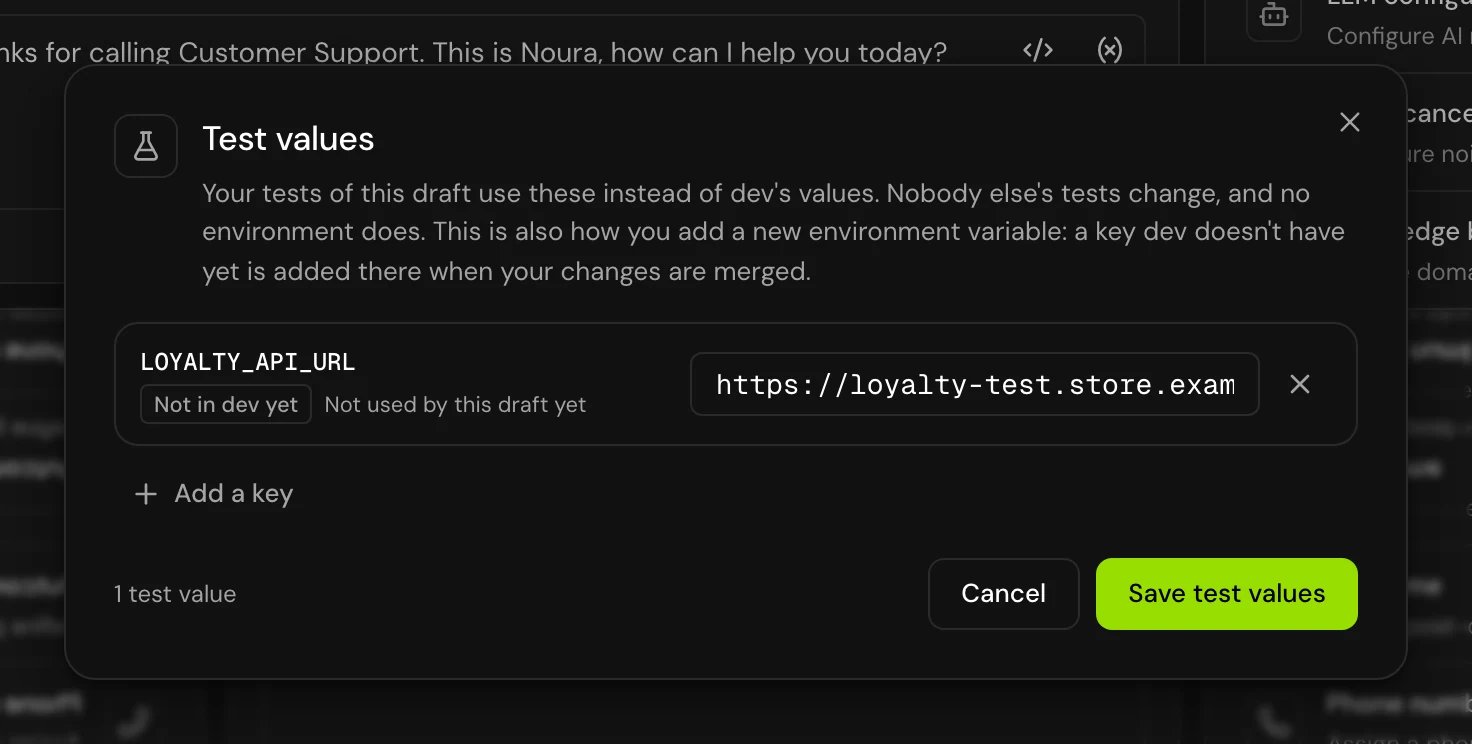
Click Add a key, type the key, then its value. Each key shows whether it is “Not in {env} yet”, “Differs from {env}” or “Same as {env}”.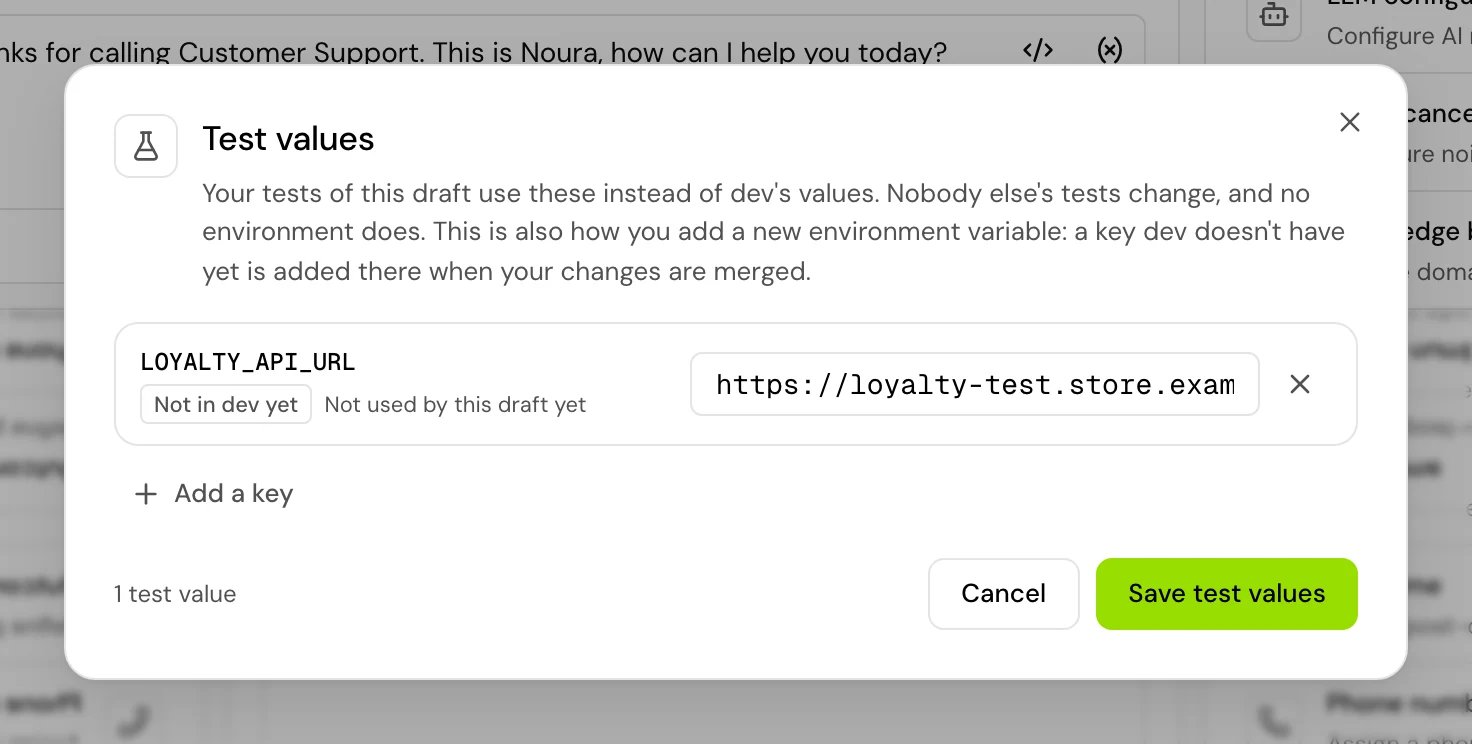
3
Save
Click Save test values. Your next test uses them.
{{KEY}} in a prompt or tool, and test. When your changes are merged, the person merging chooses which test values to add to the environment. See Merge requests.
To stop using one, clear it. “Cleared. Your next test uses {env}‘s values.”
Follow a test while it runs
In the flow builder, the Live call logs panel shows what happens during the call: the conversation, step changes, tool runs and system events. Open it from the ⋯ menu in the editor header. Search the logs, filter by type (Error, Warning, Information, Debug) or Category, or export them.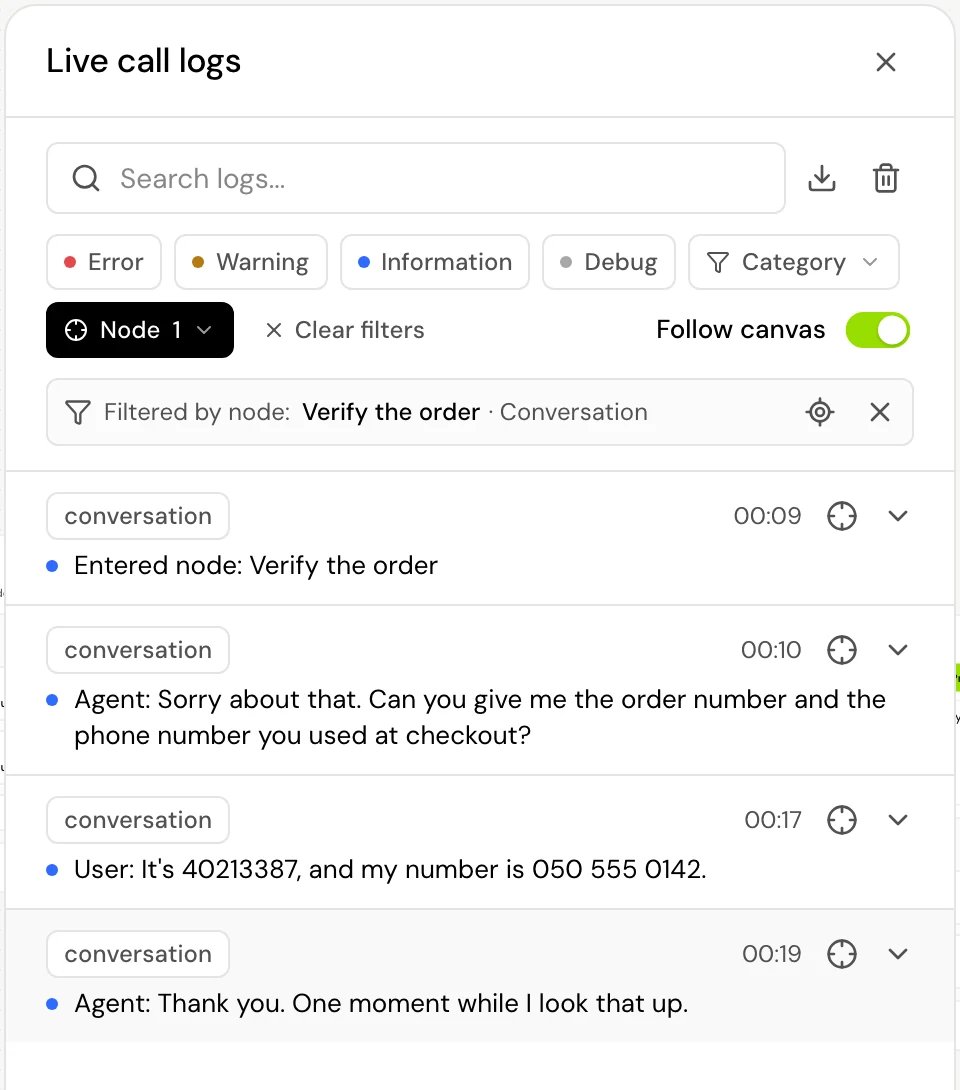
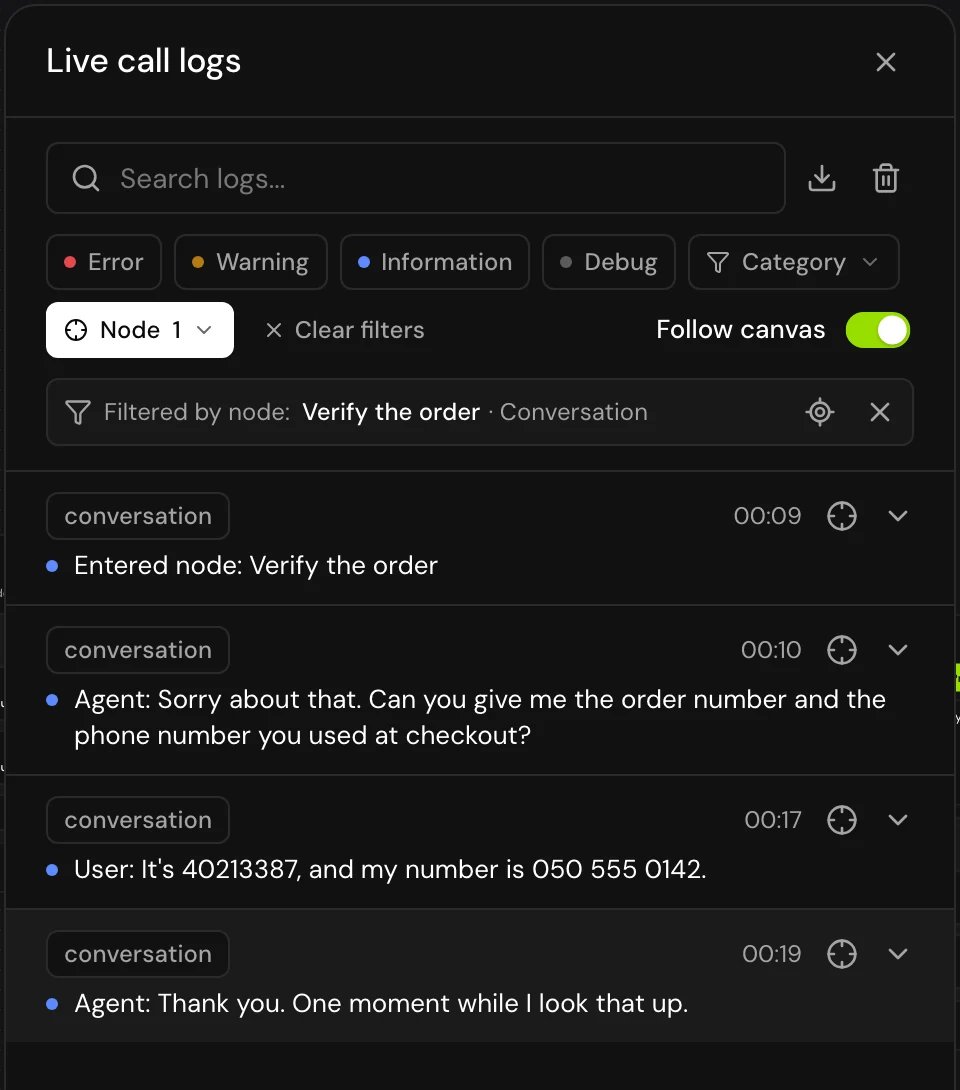
Your choice of Follow canvas and Open groups is kept in this browser, for every flow you open.
- Every test call is saved with the agent’s other calls. Open Calls in the editor header to find it, then open it in call details. From there, Debug mode steps through the call on its flow, with its recording, visits and logs.
Test someone else’s merge request
Owners and admins can test a member’s merge request before merging it. Click Test on the request. A banner says “Test calls and chats run {name}‘s merge request, not your draft.” and its test values are used. Click Back to my draft to return to your own draft. See Merge requests.Good to know
- A test runs the agent’s draft as you saved it. Save before you test.
- Test calls never see another member’s test values, and real calls never see test values at all.
- Test calls are left out of A/B test comparisons.
- Phone numbers aren’t part of a version. Changing which number the agent uses doesn’t need a publish.
Related
Test values and undefined variables
Preview values in the editor and spot variables with no value.
Drafts and versions
Your private draft, publishing and version history.
Environments and releases
dev, staging and prod, and what each one runs.
Call details
Transcript, recording and debug mode for any call.