

Before you start
Owners and admins create, import and delete dictionaries by default; members can view them. See Roles and permissions.Write a good correction
“Write the correction the way the agent should say the word.” Two common Arabic cases:
Keep corrections short, and test each one on the voice your agent uses: “a correction isn’t guaranteed to sound right on every voice”, and corrections “don’t always carry over between voices”.
Create a dictionary
1
Open Dictionaries
Go to Voices and set Section to Dictionaries. From an agent, you can also open Voice dictionaries > Manage library.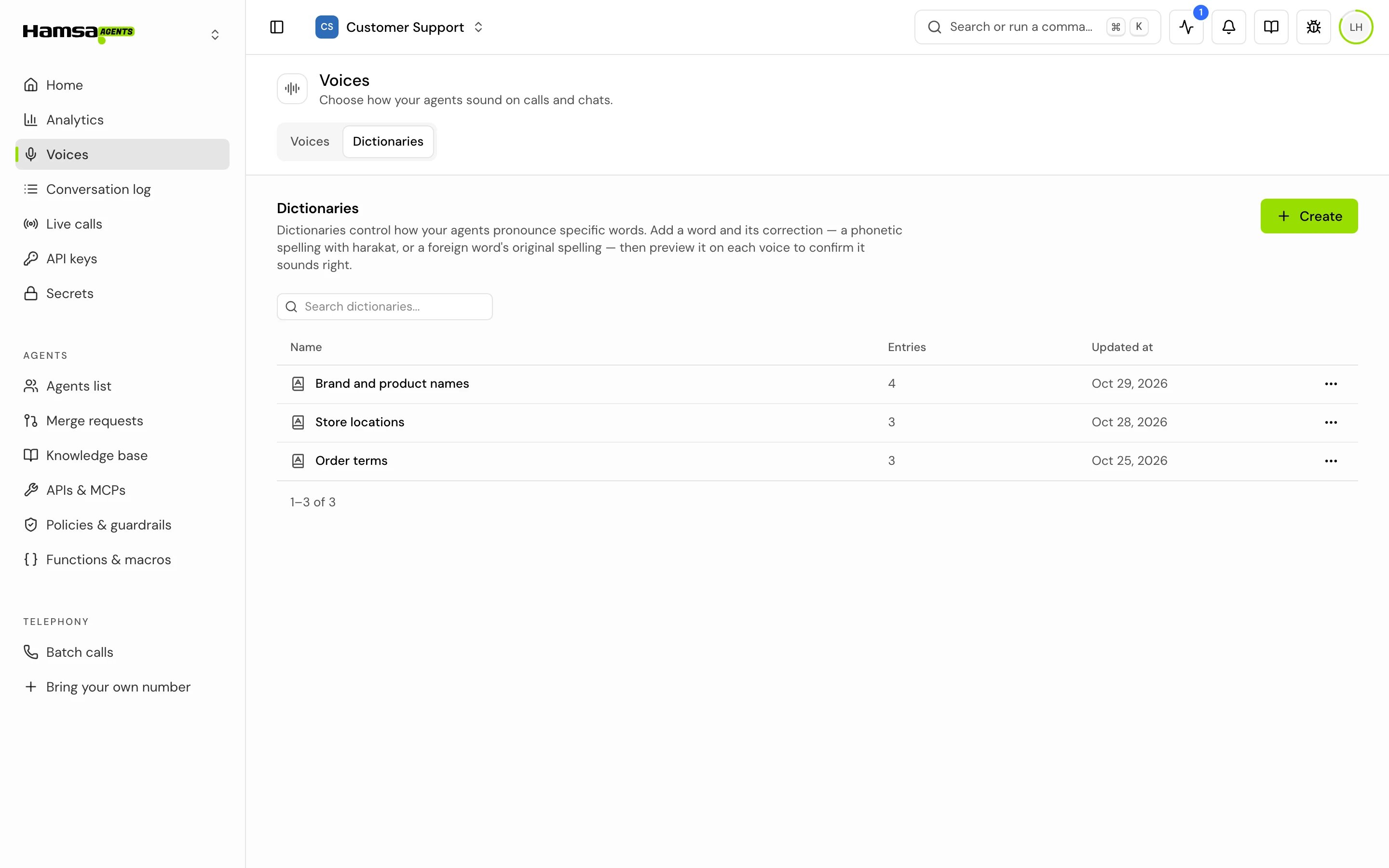
2
Create it
Click Create, enter a Dictionary name (up to 100 characters), and click Create.
3
Select a voice
Pick the voice to preview with, usually the one your agent speaks with. A voice is required to save. It is used only for previews and tests; on calls the agent’s own voice says the corrections.
4
Add entries
Click Add entry. Under Source, type the word as the agent writes it. Under Correction, type how it should be said. A source can be a phrase of several words.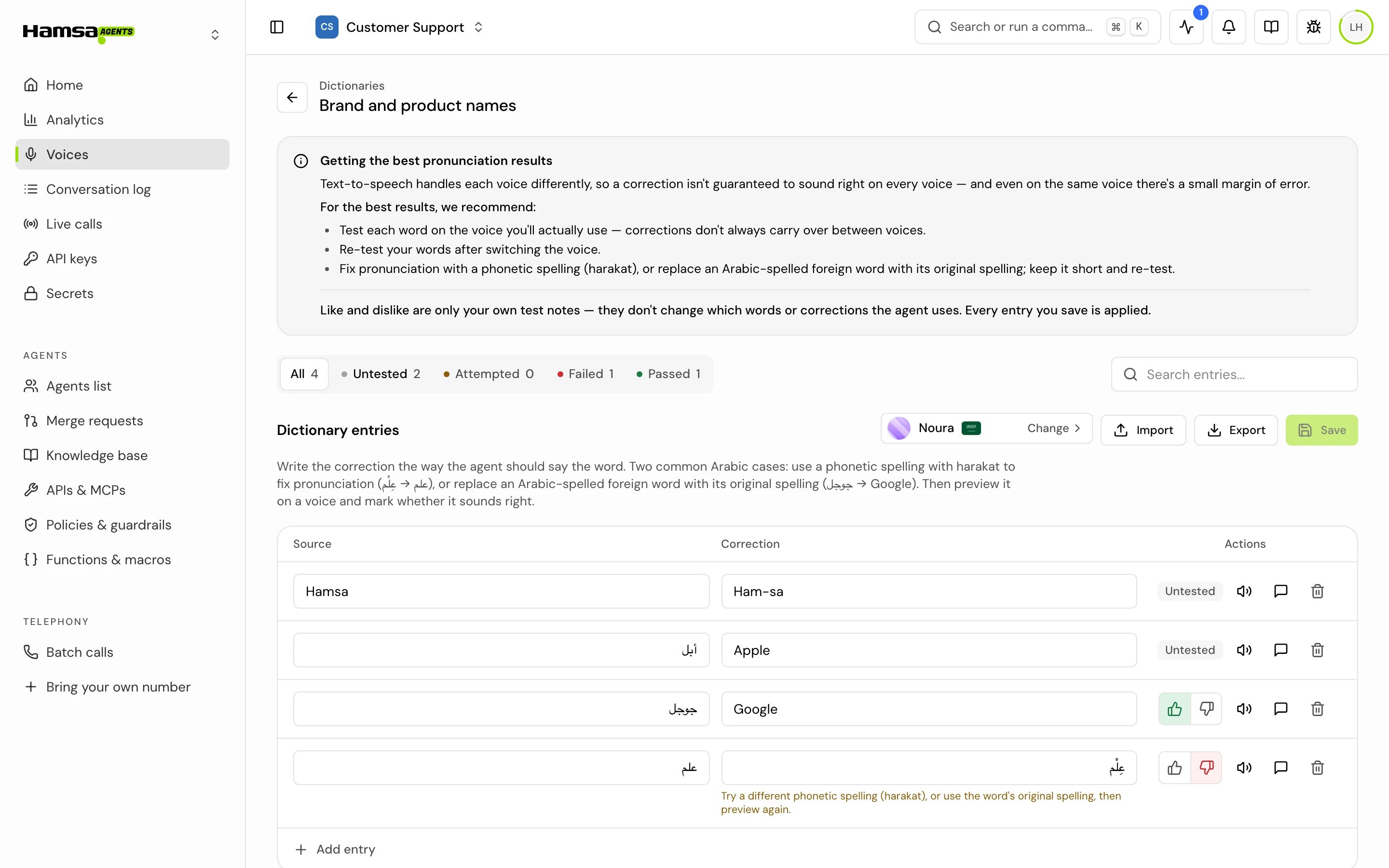
5
Test each entry
Click Preview pronunciation on the selected voice, then mark it Sounds right or Doesn’t sound right. To hear it in context, use Preview in your own sentence.
6
Save
Click Save. Saving is blocked while two rows have the same source word, or a row is missing its source or correction.
Import and export entries
To add many words at once, click Import and upload an Excel (.xlsx) or CSV file with a “source” column and a “correction” column. Download CSV template and Download Excel template give you a file to fill in.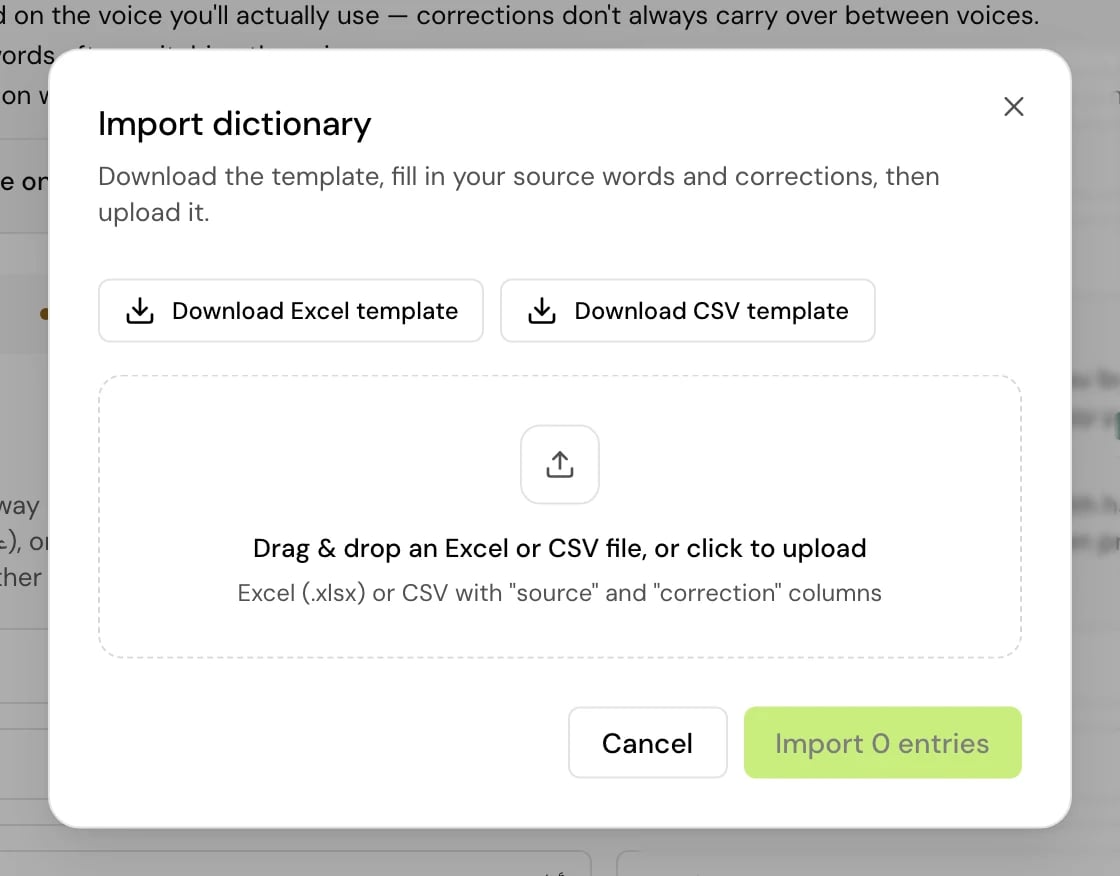
- Empty rows, and rows missing a source or correction, are skipped.
- If a source appears twice in the file, the last value is kept.
- A source that is already in the dictionary is updated with the new correction.
Turn a dictionary on for an agent
- Single prompt agent
- Flow agent
In the agent’s settings, find Voice dictionaries and click Manage. In Select voice dictionaries, tick the dictionaries to use and click Done.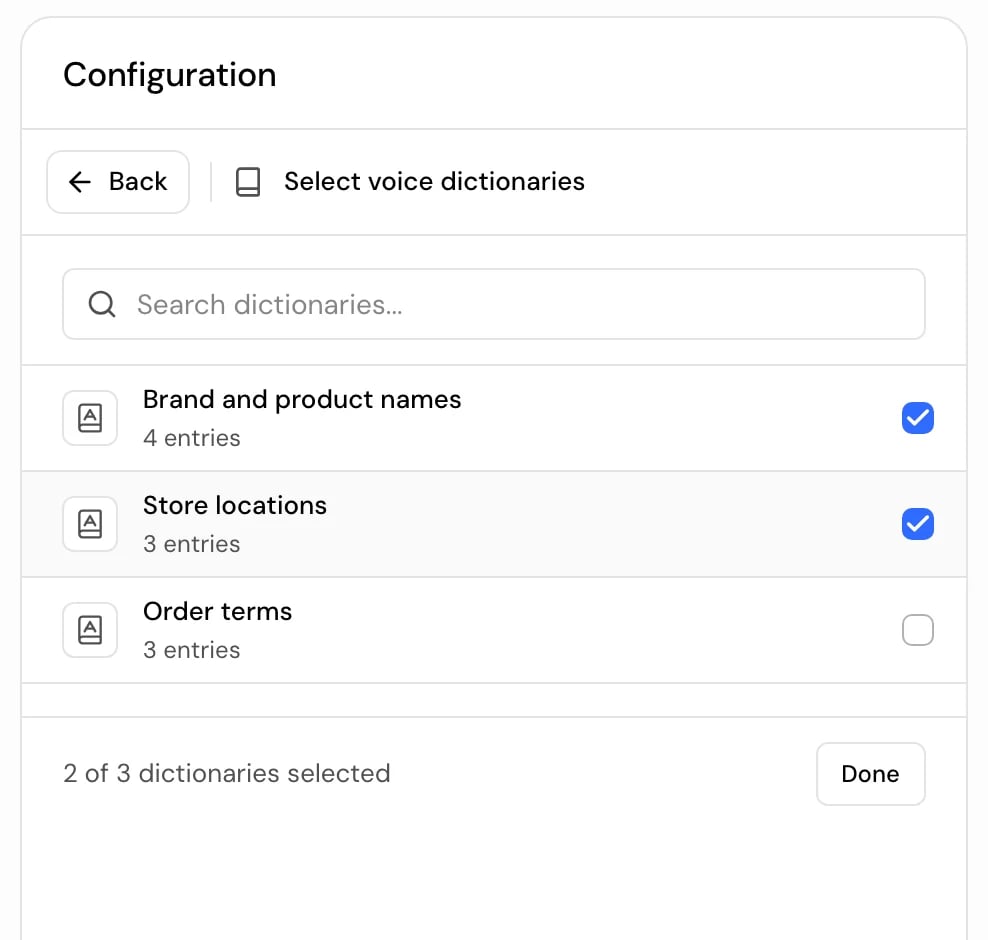
How it works on a call
- The agent writes its reply, and right before it is spoken, each source word or phrase in it is replaced by its correction.
- If two of the agent’s dictionaries have the same source word, only one of the corrections is used. Keep each word in one dictionary.
- Arabic diacritics are ignored when matching, so عِلْم and علم match the same entry. The correction is spoken with the diacritics you wrote.
- Only whole words match. A word with a letter attached, such as وجوجل for جوجل, is a different word: add it as its own entry if the agent says it.
- When two entries overlap, the longer phrase wins.
- Matching respects letter case. Add each spelling the agent may write, for example both “Hamsa” and “HAMSA”.
- The transcript shows what the agent wrote. Only the speech changes.
- A Change settings step can switch the dictionaries for the rest of the call.
Good to know
- A dictionary name is 1 to 100 characters.
- When you delete a dictionary, a toast offers Undo for about six seconds. After that the dictionary is deleted for good.
- Use a dictionary for words the voice says wrong. To change what the agent says, change its prompt instead.
Related
Choose a voice
Pick the voice your agent speaks with.
Voice, language and dialect
The rest of the agent’s voice settings.