

Before you start
- To review and index items you need permission to edit the knowledge base (Owners, Admins and Users by default).
- The item must be Pending review, Completed or Ingestion failed. Those are the statuses that offer Review chunks.
Statuses
Hold the pointer over a failure to see the reason after “Failure reason:”.
Review and index an item
1
Open the chunks
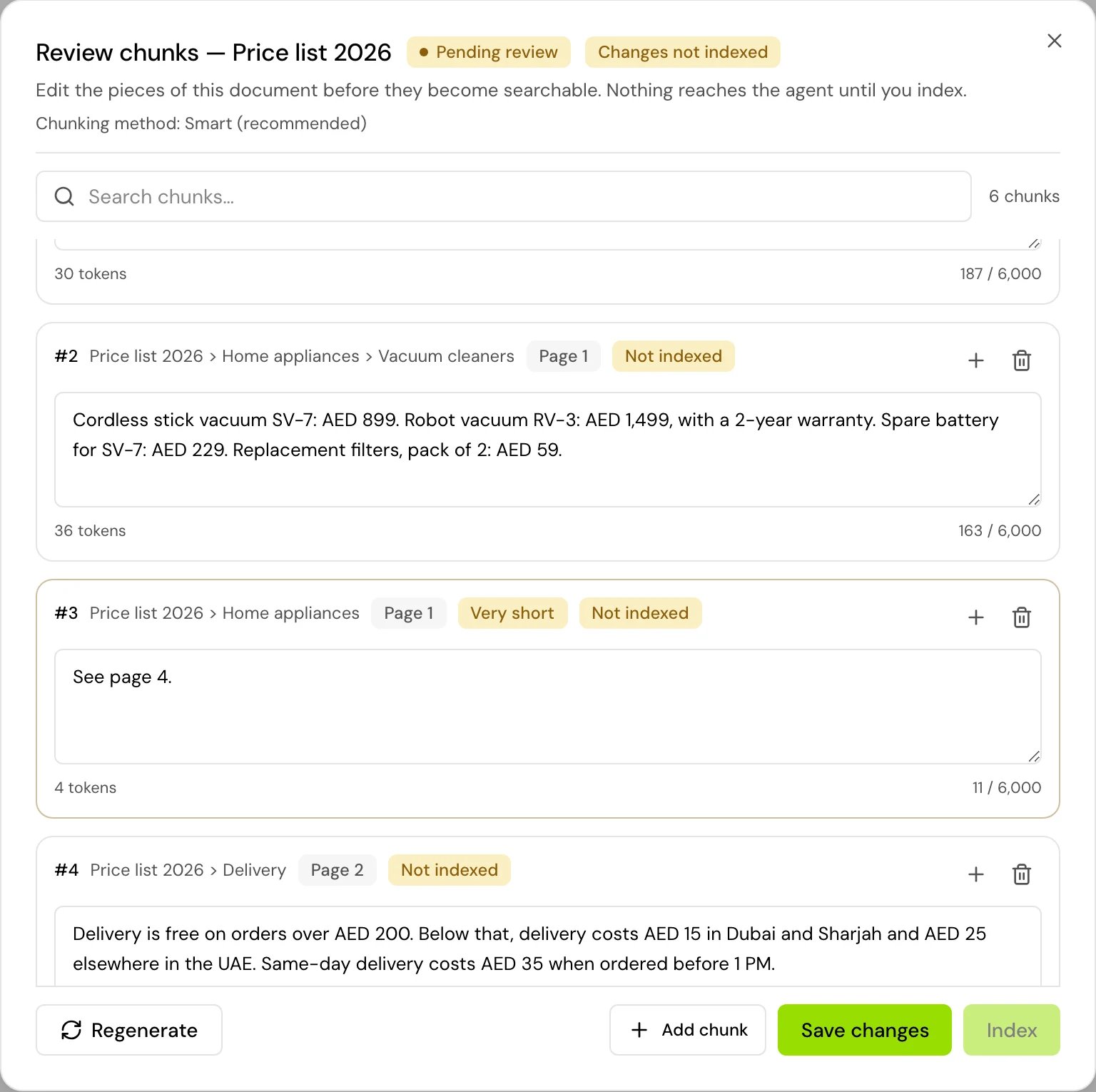
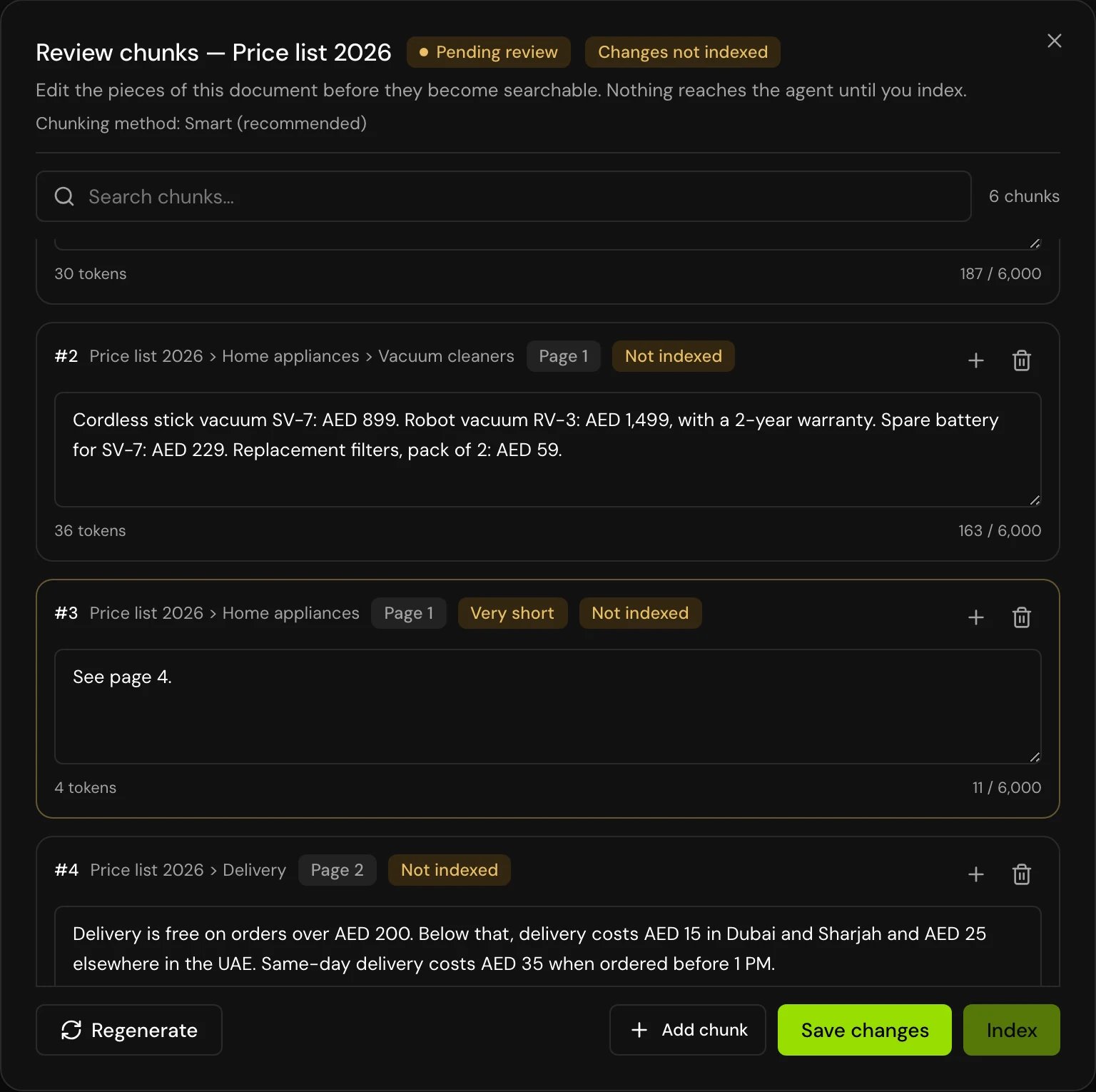
In the item’s row menu, click Review chunks. The editor lists every chunk with its size in tokens and any flags (below).
2
Edit what needs it
Edit a chunk’s text in place. Use Insert a chunk after this one or Add chunk to add one, and Delete chunk to remove one (Undo brings it back). Search chunks… finds text across the item.
3
Save
Click Save changes.
4
Index
Click Index. The item shows Processing while it is indexed, then Completed, and the app tells you the item is searchable.
Flags
Limits
- A chunk can hold up to 6,000 characters.
- An item can have up to 5,000 chunks.
- One save can hold up to 500 changes.
- You can’t edit chunks while the item is processing.
Regenerate the chunks
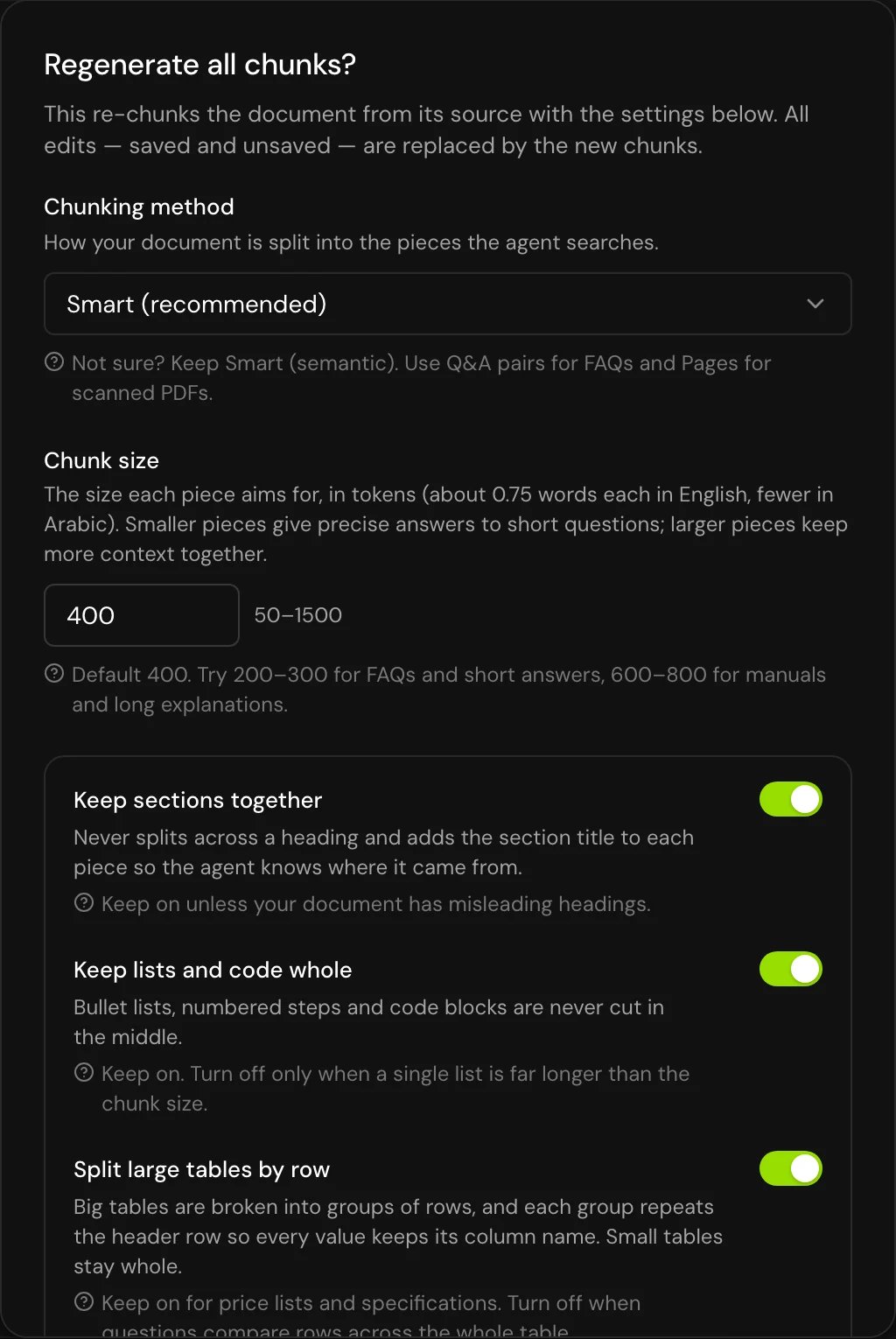
Regenerate splits the item again from its original content, with the chunking settings you choose in the dialog. All your edits, saved or not, are replaced by the new chunks. Use it when the split is wrong overall, for example a FAQ that should be split by question.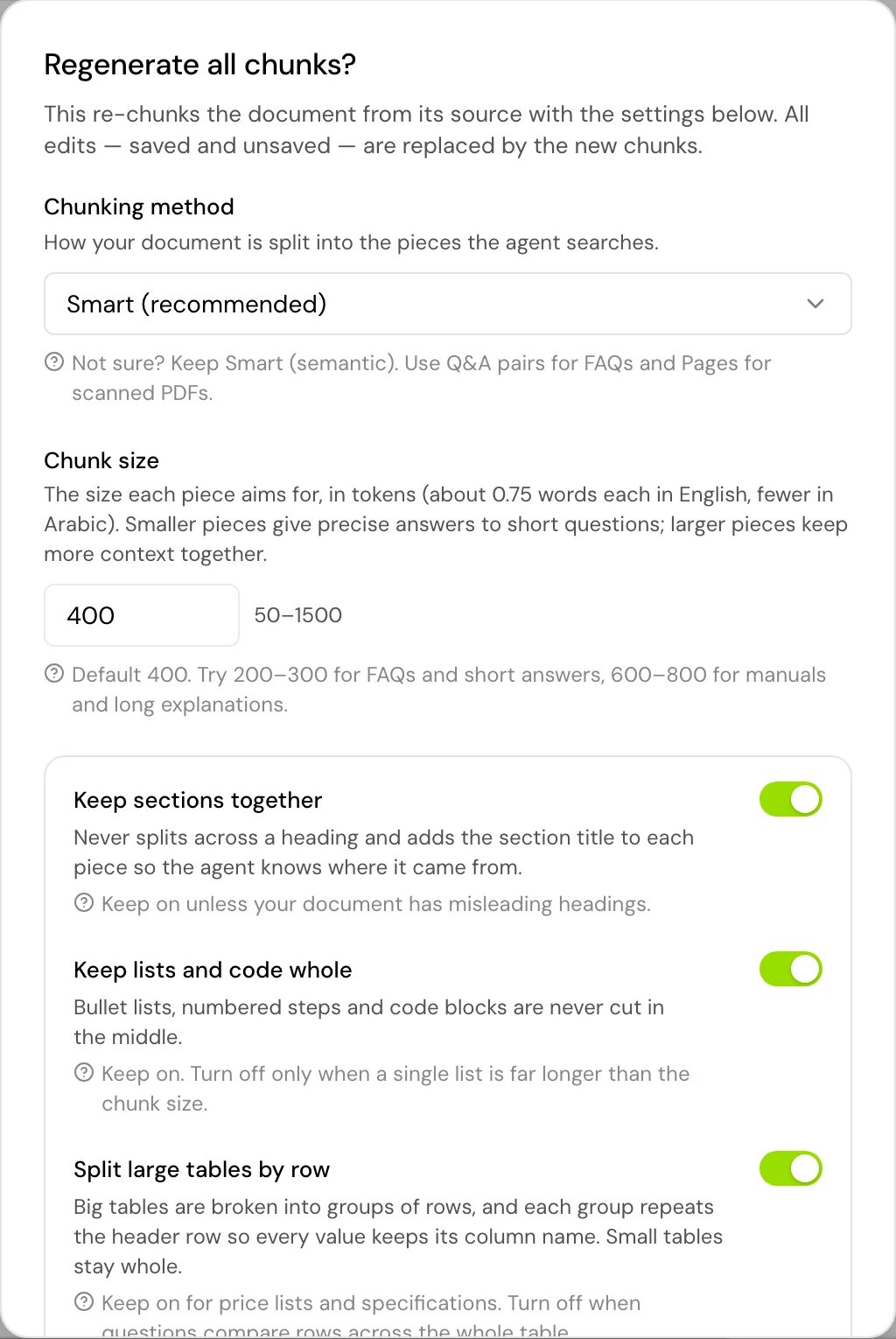
Chunking settings
You set these under Chunking settings when you add an item, and again when you regenerate. The defaults suit most documents.Chunking method
When a method can’t be applied, the item is split by Paragraphs instead: Q&A pairs when no questions are found, Pages for files without pages, and AI-guided or Smart when their model isn’t available. The editor shows the method actually used.
Size and structure
Minimum chunk size, Maximum chunk size, Overlap and the switches below them are under Advanced settings.
Good to know
- With Review before indexing off, an item goes straight from Processing to Completed.
- Cancel processing stops an item and removes it from the knowledge base. It isn’t possible once processing has finished.
- An item at Pending review doesn’t appear when you pick items for an agent. If an agent can’t find an item you added, check its status first.
Related
Add to the knowledge base
Add text and documents.
Knowledge base
How agents search your items on a call.