

Before you start
- Open Billing from the account menu: click your avatar at the top right, then Billing. Billing isn’t available on on-premises installations.
- To see the plan and credits, you need View on Billing. The Owner has it, and can give it to any member.
- To pay, change the plan, buy credits or open Manage subscription, you need Edit on Billing. Only the Owner has it, and it can’t be given to anyone else. See Roles and permissions.
Credits belong to the owner’s account
Credits, the plan, the concurrency limit (how many calls can run at once) and knowledge base storage belong to a person’s account, not to a project. Every project that person owns uses the same balance and shares the same limits, and so does every member working in those projects.- If you own three projects, a call in any of them spends credits from your one balance, and their knowledge base items all count towards your one storage limit.
- If someone invites you to their project, your work there spends their credits, and their Billing page is the one that applies.
- Deleting a project doesn’t change your credits or your plan.
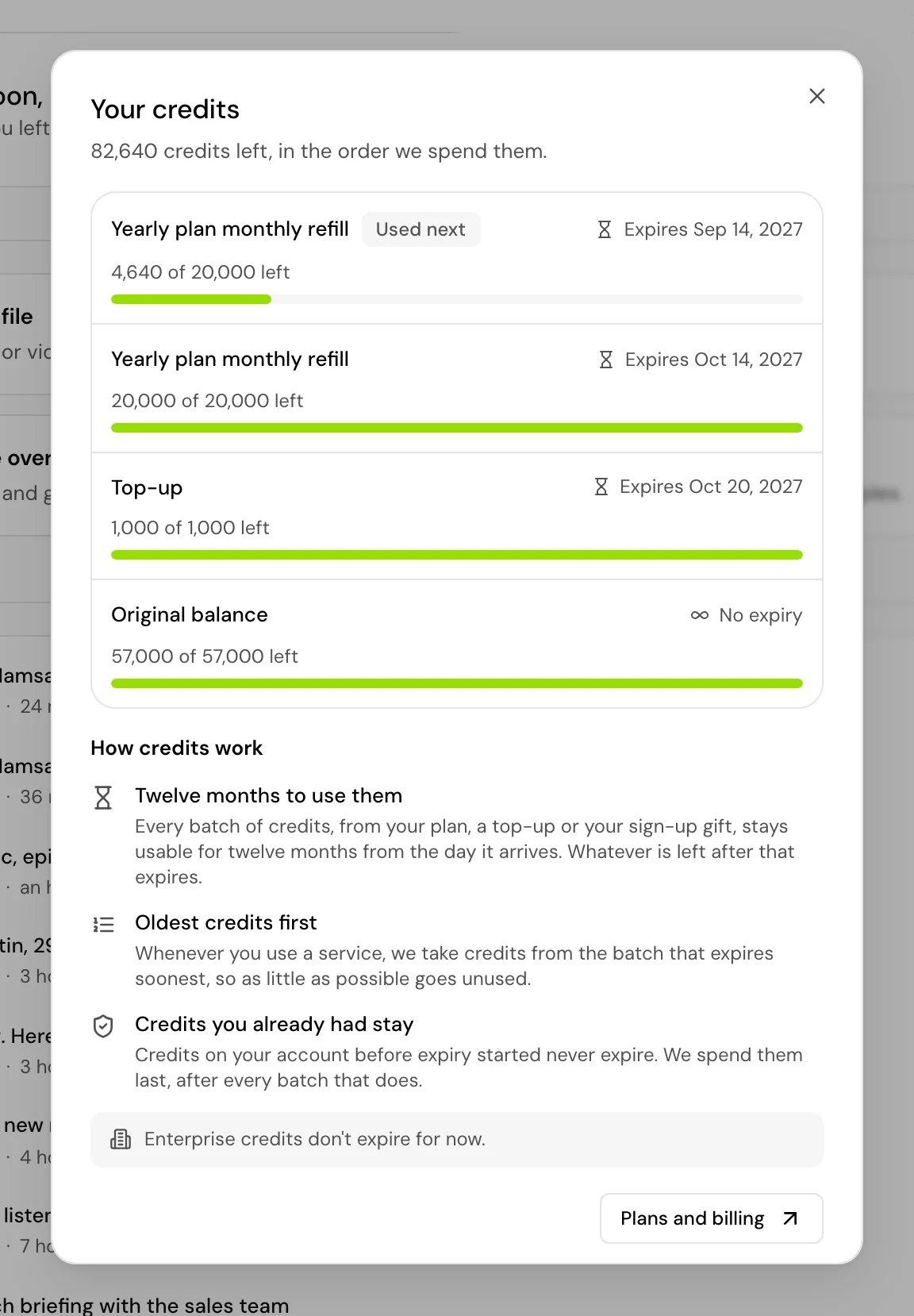
How credits work
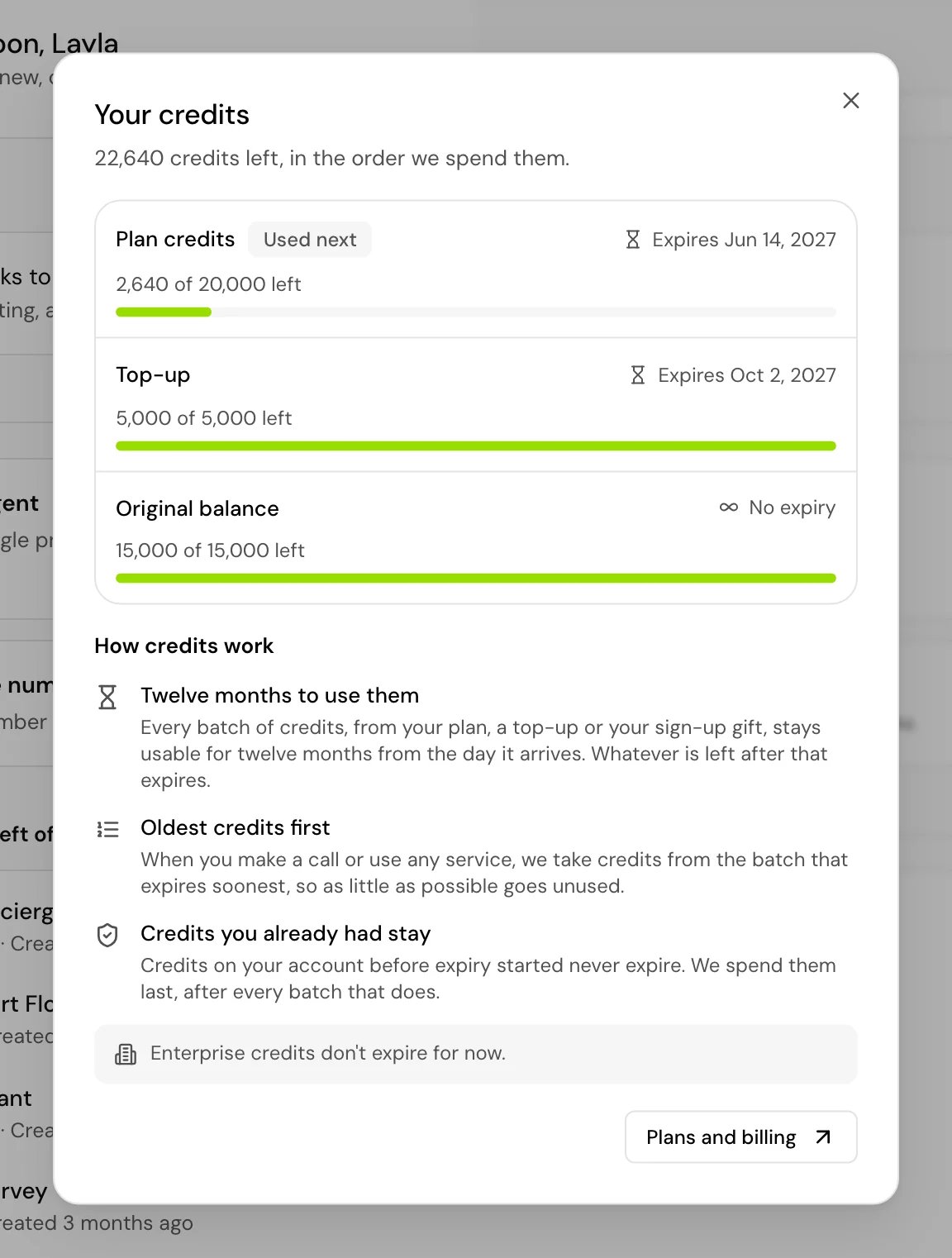
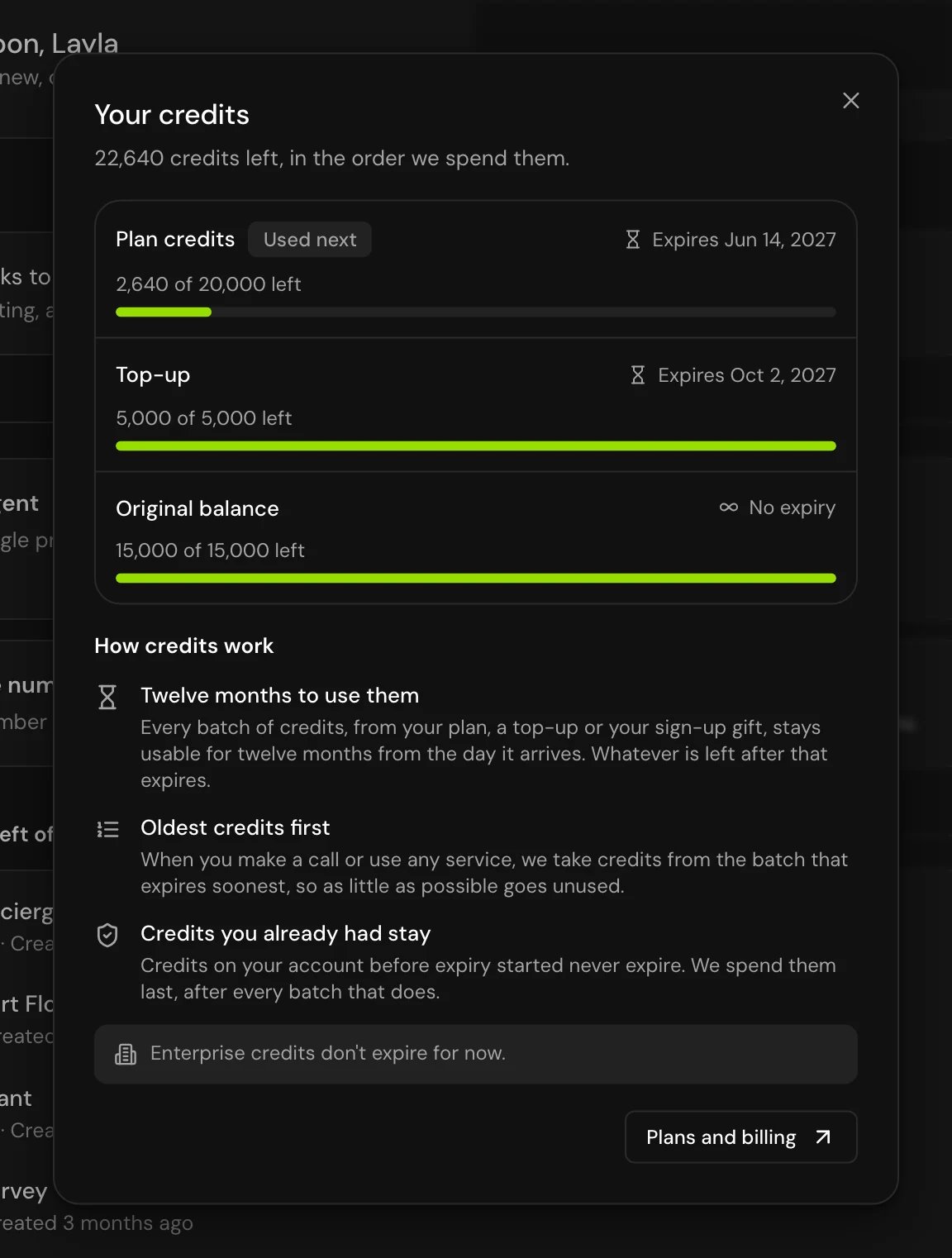
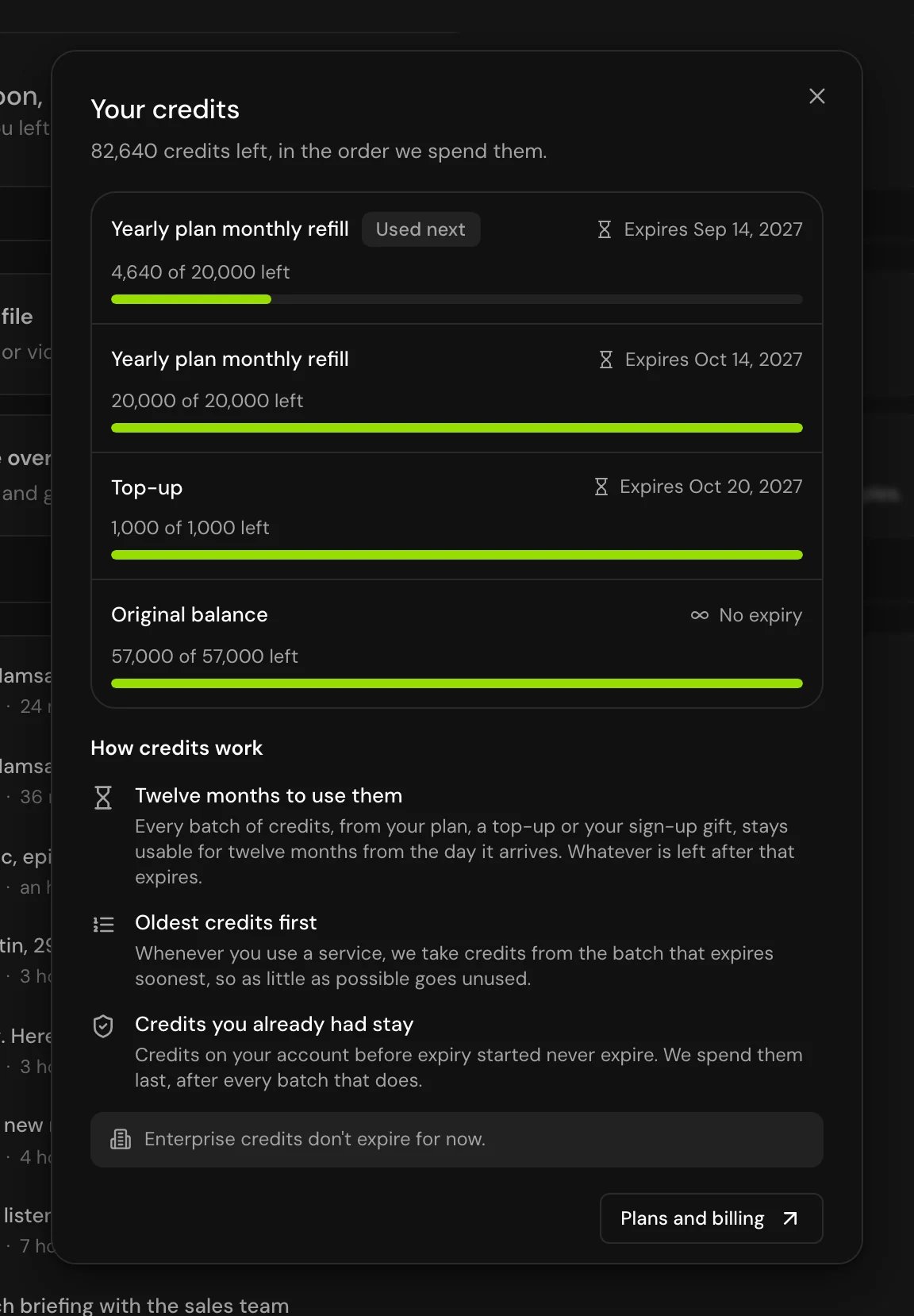
For example, on a monthly plan, month 1’s credits can be used until the end of month 12, and month 2’s until the end of month 13. On a yearly plan, credits still arrive every month, and each month’s batch lasts twelve months.
When a batch expires, your balance can take up to an hour to show it. Expired credits can’t be used in the meantime.
Each service uses a different number of credits. The Plans tab shows what each plan includes.
See your credits
Your credits show in three places, for members with View on Billing:- The ring around your avatar at the top of the page. Hover it to see “remaining / total credits remaining”. The ring turns red when less than 10% is left.
- The account menu, which shows your plan and Credits remaining.
- Home, which shows how many credits are left of your total.
The Billing page
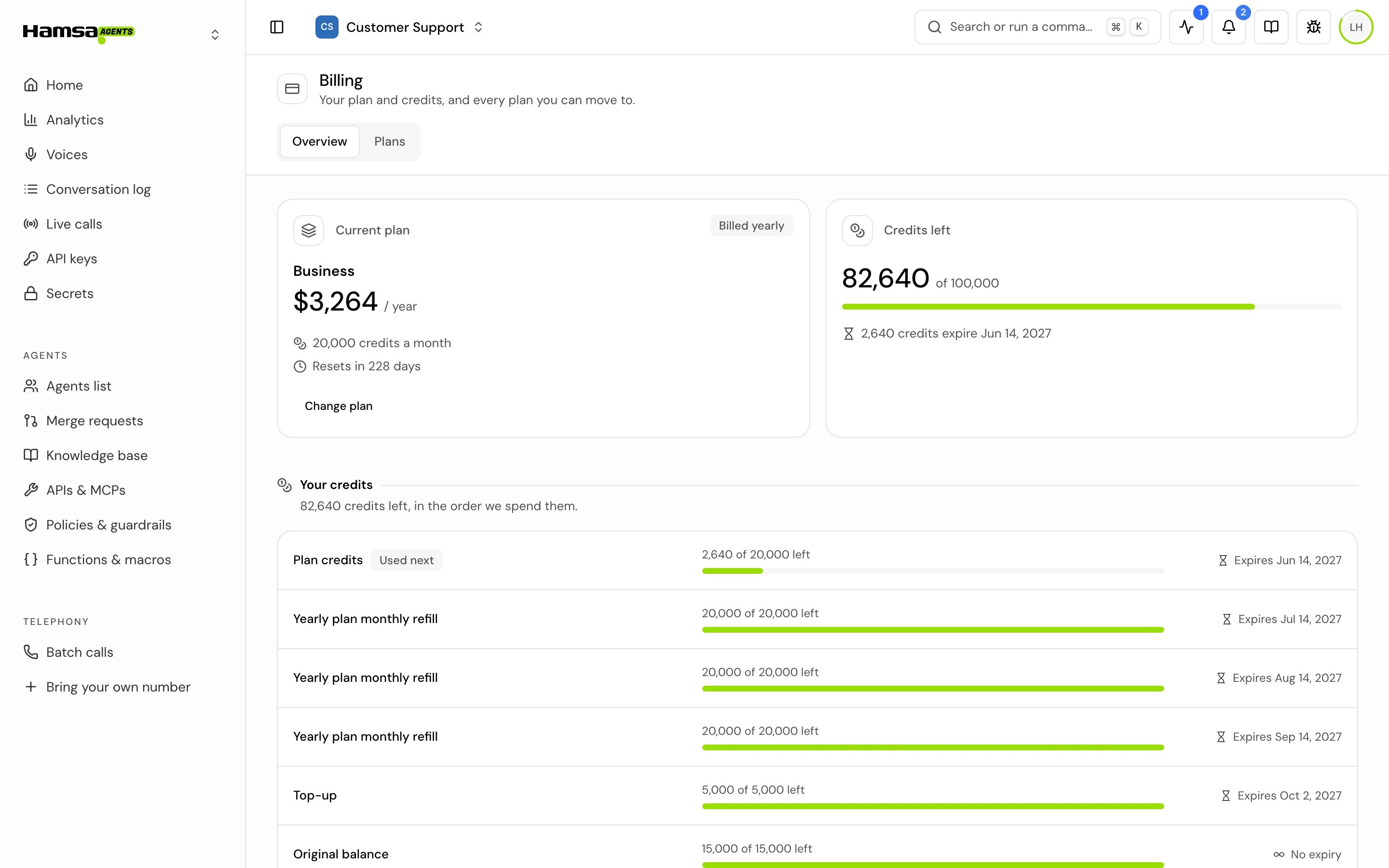
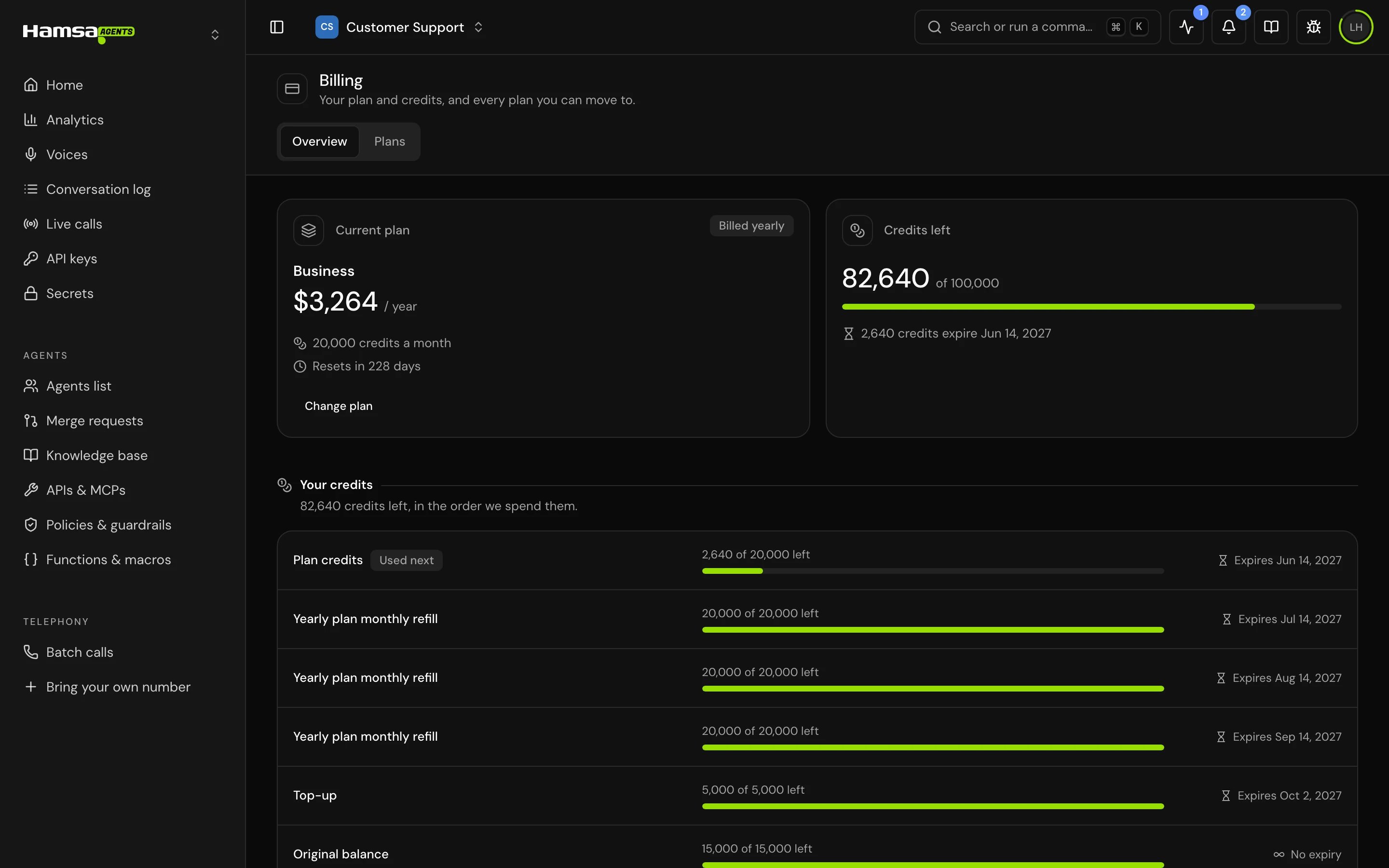
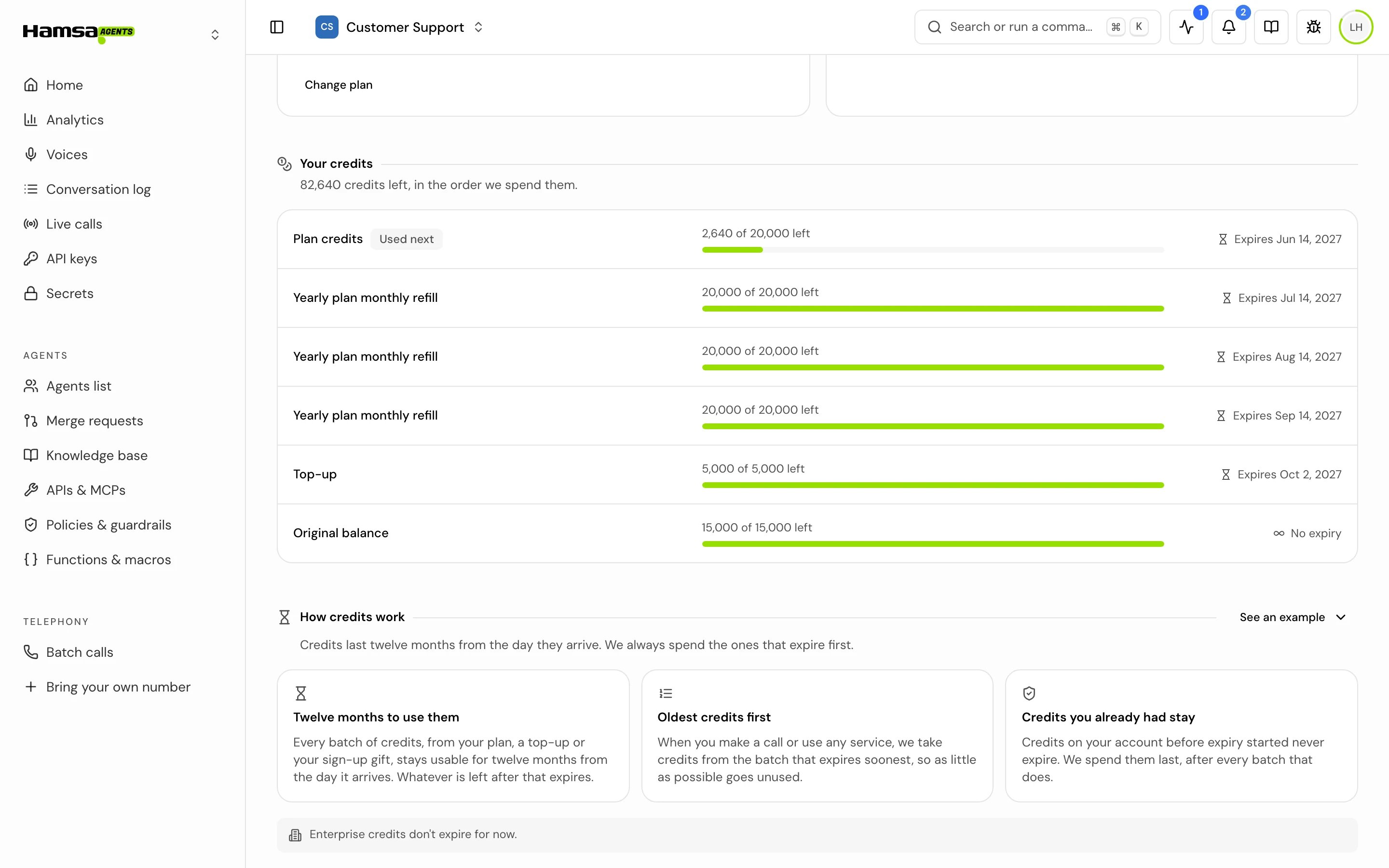
The Overview tab opens first. It has:- Current plan: the plan’s name, price, whether it is Billed monthly or Billed yearly, its credits a month, and how many days until it resets.
- Credits left: your balance against your total, and when the next batch expires (for example “1,200 credits expire in 5 days”) or None of your credits expire. A date within 7 days turns amber.
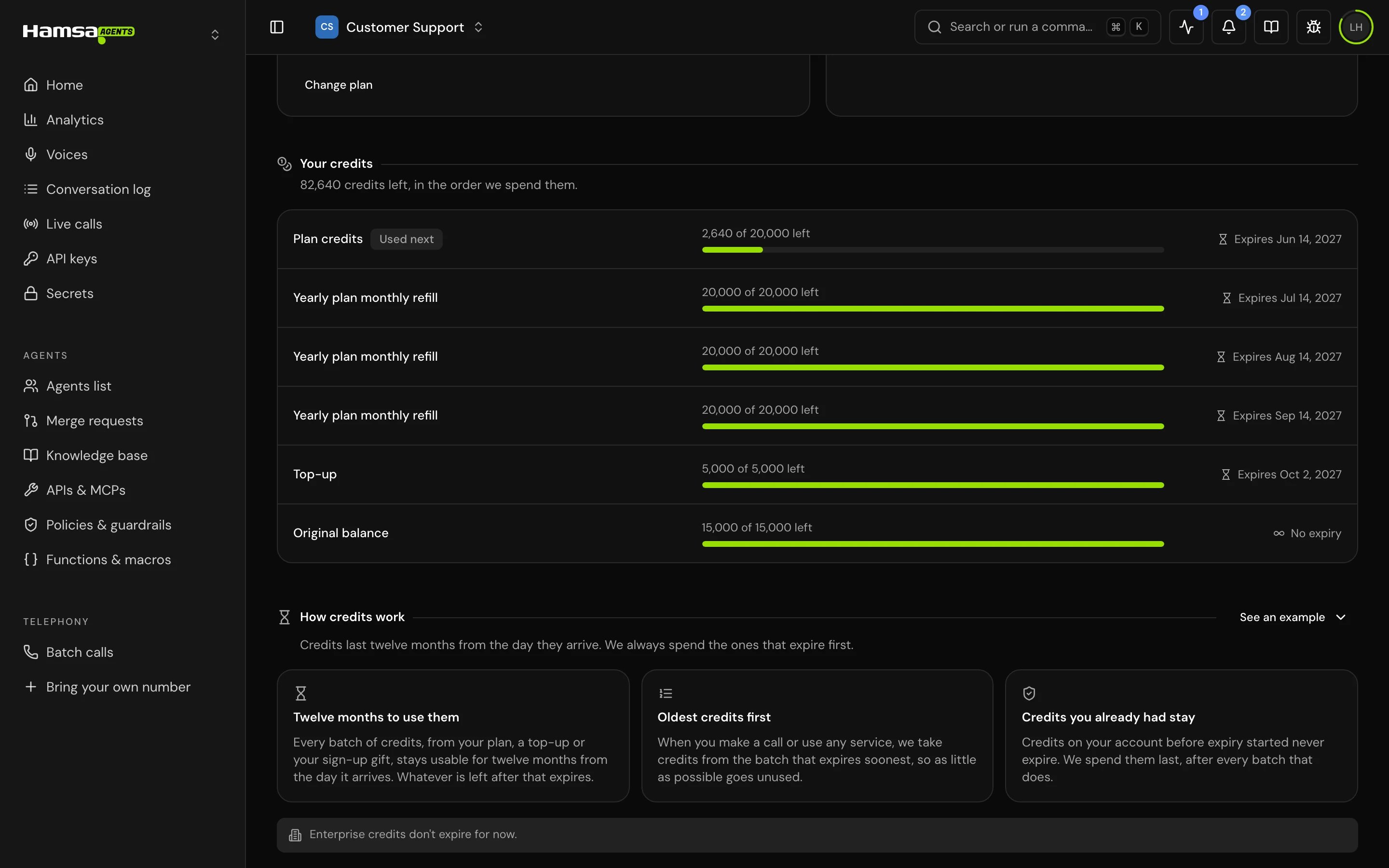
- Your credits: the full list of batches, in the order they are spent.
- How credits work: the rules, with an example.
Plans
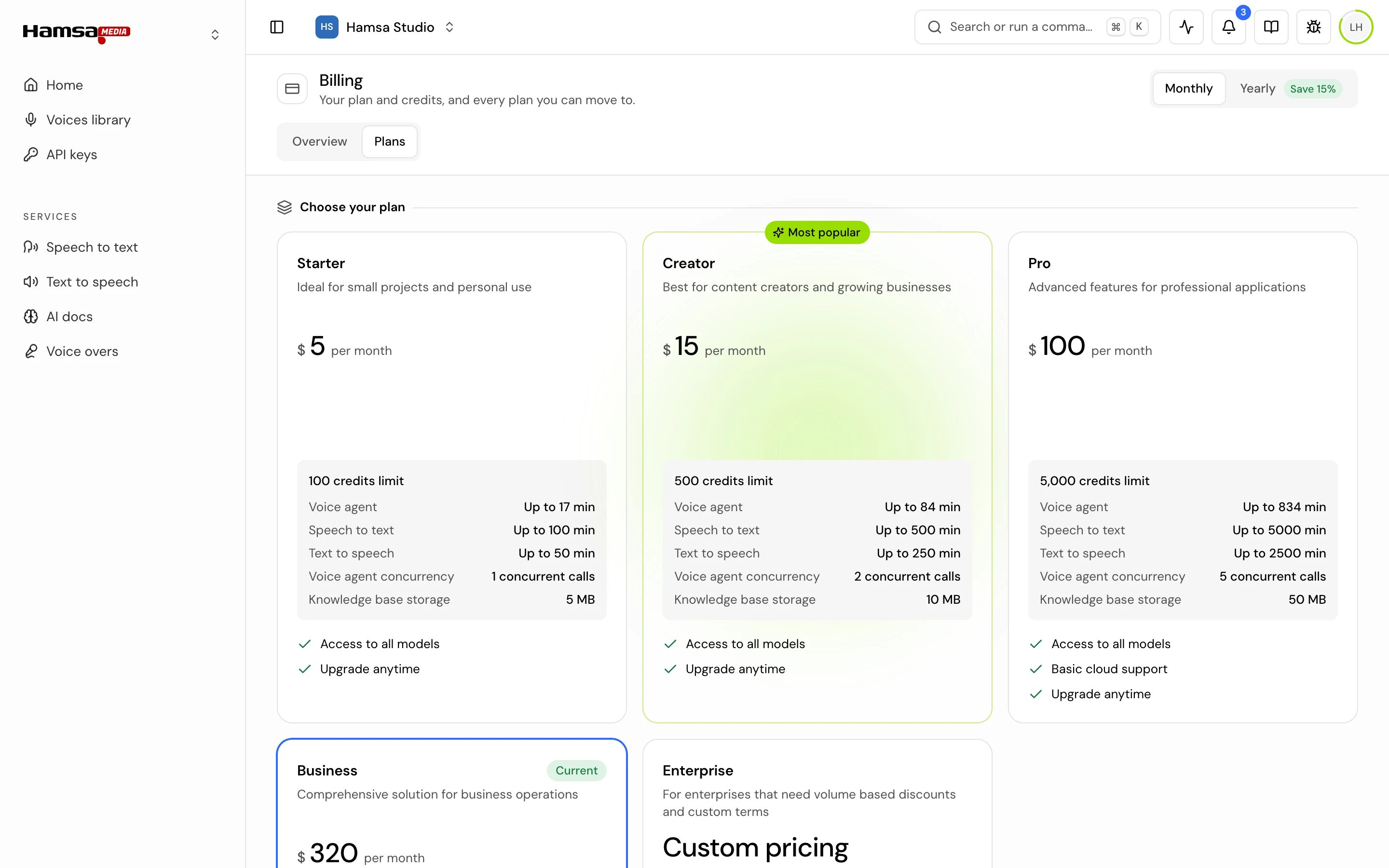
The Plans tab lists the plans you can move to: Starter, Creator (marked Most popular), Pro, Business and Enterprise. Use the Monthly and Yearly switch at the top to compare prices. Yearly shows how much you save. Each plan card shows the plan’s credits, the minutes it gives for voice agents, speech to text and text to speech, the number of concurrent calls, and the knowledge base storage. Open Compare all features for the full table, and the questions at the bottom for common answers.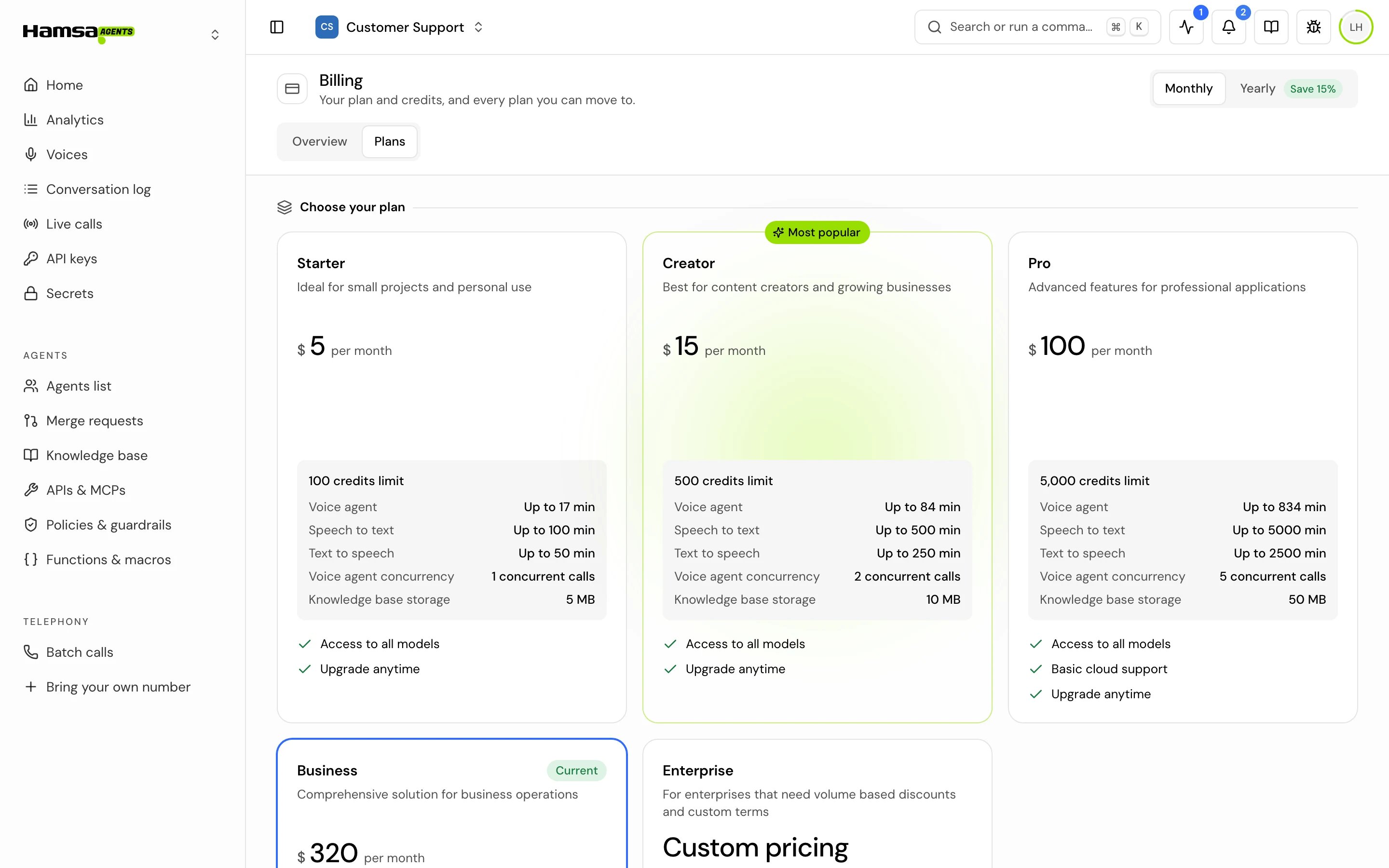
The Free plan
Every new account gets free credits to try Hamsa, usable for twelve months. They are granted once, at sign-up. The Free plan never renews and you are never charged. If you’re on it, a banner at the top of the Plans tab says so.Subscribe or move to a higher plan
1
Open the Plans tab
In Billing, click Plans, or click Change plan (or Upgrade on the Free plan) on the Overview tab.
2
Pick monthly or yearly
Choose Monthly or Yearly at the top.
3
Choose the plan
Click Upgrade plan on the plan you want. Payment opens on a secure Stripe page.
4
Pay
Complete the payment. You come back to Billing with a confirmation, for example “Subscribed to the Pro plan (Monthly).”
Monthly or yearly billing
- Monthly to yearly: switch any time. On your current plan’s card, with Yearly selected, click Switch to yearly.
- Yearly to monthly: you can’t switch your plan to monthly directly. Its card reads Can’t downgrade to monthly. Cancel your yearly subscription in Manage subscription, wait for the year to end, then subscribe to a monthly plan. A higher plan’s monthly price is the exception: it counts as an upgrade, so you can pick it on the Plans tab straight away.
Moving to a lower plan
The Plans tab offers only moves up: lower plans have no button. To move down, cancel your subscription in Manage subscription, wait for the current period to end, then subscribe to the plan you want.Buy more credits
On plans that offer a top-up, the Owner can buy extra credits at any time.1
Open Billing
Open Billing on the Overview tab.
2
Buy
On the Credits left card, click the buy button, for example Buy 1,000 more credits. The number depends on your plan. Payment opens on a secure Stripe page.
Manage your subscription, card and invoices
Manage subscription, on the Current plan card, opens Stripe’s billing portal. Change your card, see and download invoices, and cancel your subscription there. There is no invoice list inside Hamsa. Only the Owner sees this button.When you run out of credits
- A call in progress is never cut short. It finishes, and your balance can go below zero.
- Nothing new can start until you add credits. New credits cover the amount below zero first.
- In the app, the Insufficient credits dialog opens with Upgrade plan and Buy credits. Members who can’t pay see “You do not have permission to change the plan or buy credits. Ask a project owner to do it.” On the highest plan, it says “You’re already on the highest available plan.”
- Through the API, requests that need credits are refused with
402and “Balance is insufficient, please renew or upgrade your plan!”.
Concurrent calls
Your plan sets how many voice agent calls can run at the same time. The limit is for the owner’s whole account: calls in all of the owner’s projects count toward it. Calls over the limit are turned away, and the Calls and integrations notifications tell you when that happens.Enterprise
An Enterprise agreement is set up with the Hamsa team for your organization. To ask about one, the Owner opens the Plans tab and clicks Contact sales on the Enterprise card. With an agreement in place:- Current plan shows Enterprise with your monthly payment, monthly credits and monthly minutes.
- The second tab is Agreement instead of Plans.
- Enterprise credits don’t expire.
To change your agreement, its limits or the billing details, or to leave Enterprise, contact support.
In Hamsa Media
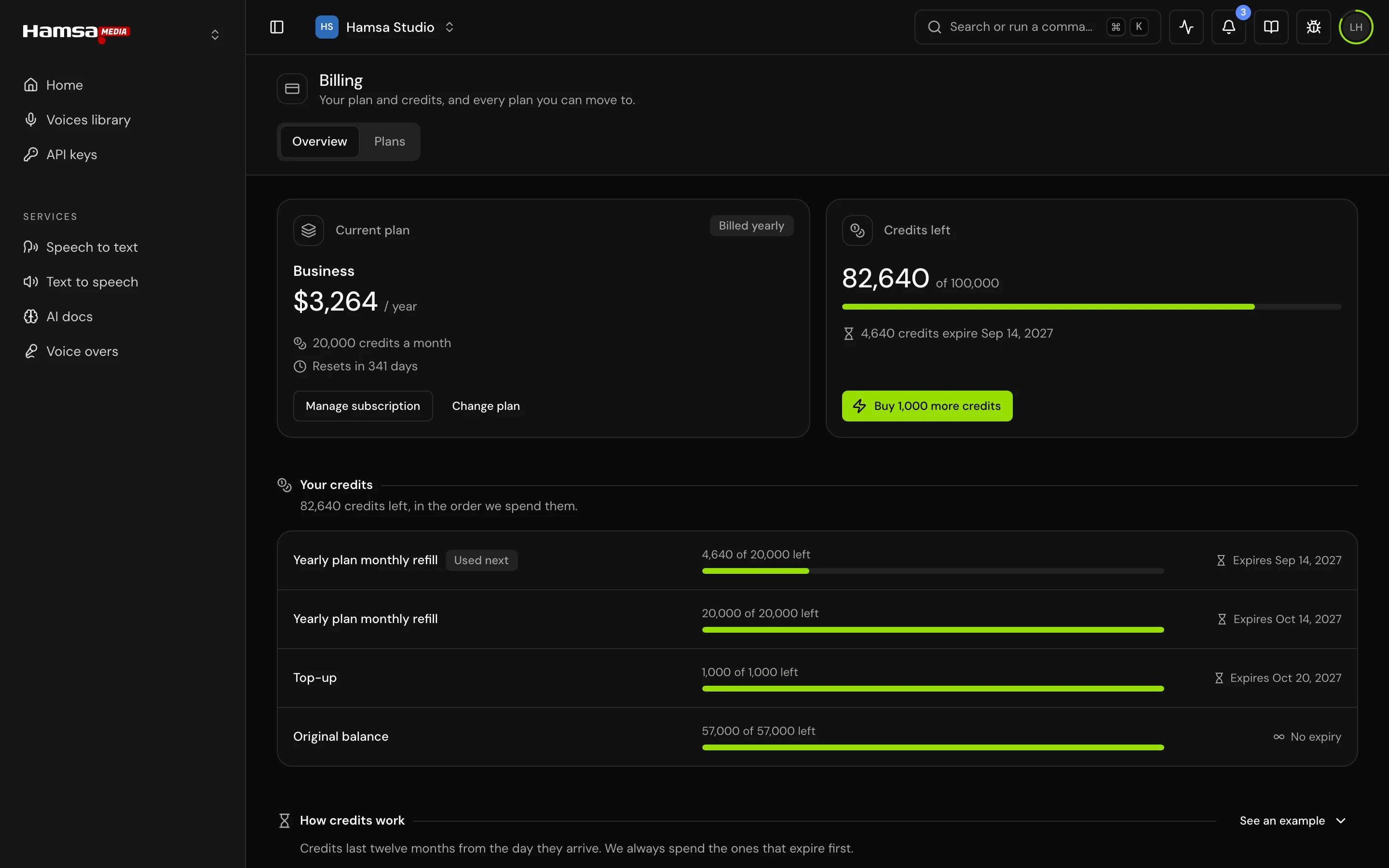
Billing in Hamsa Media is the same page, with the same plan, the same credits and the same expiry: every batch lasts twelve months from the day it arrives, whichever app you use it in. Open it the same way, from your avatar and then Billing. The credit ring, Your credits and the credits on Home work as described above.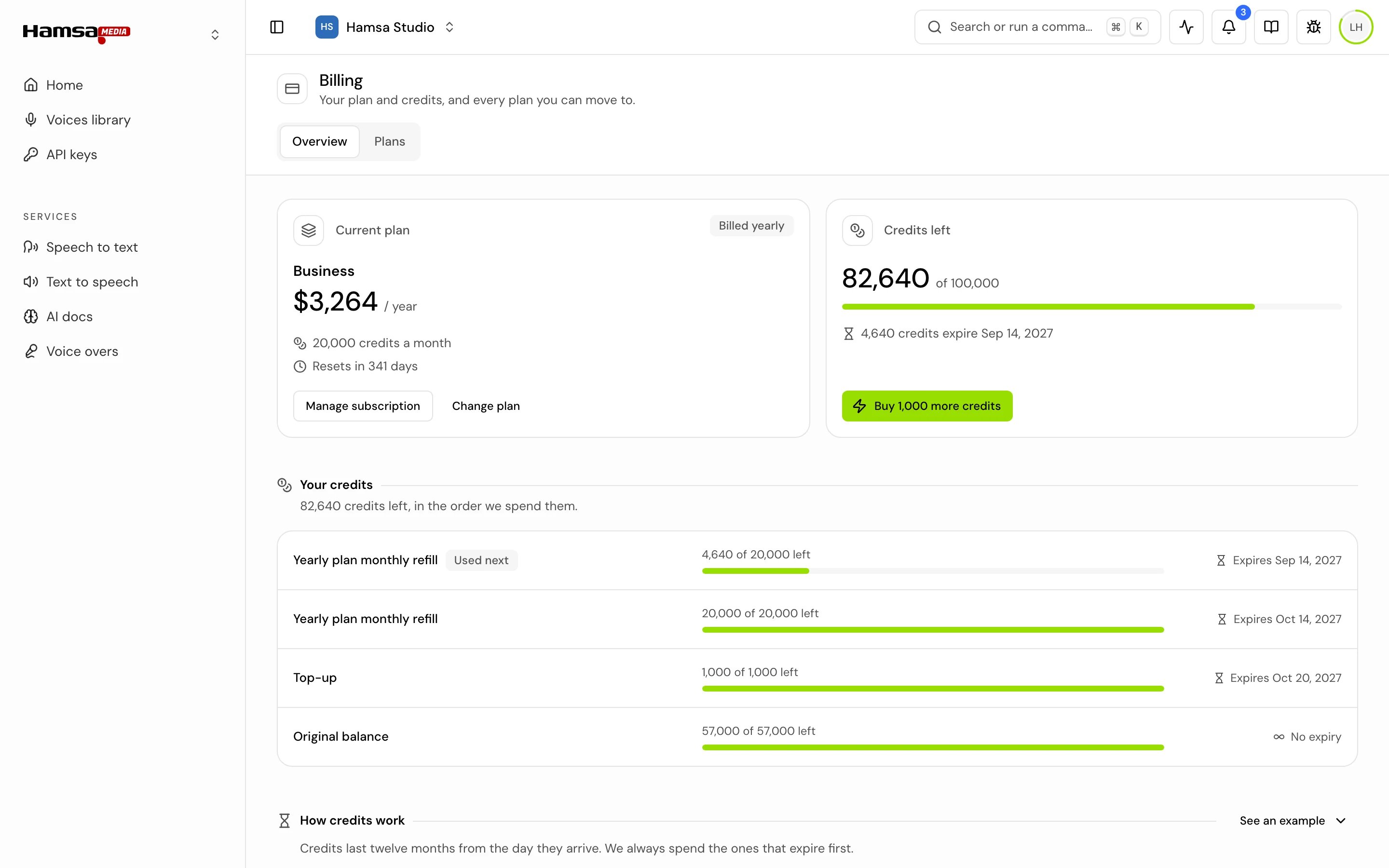
- Credits pay for Media’s services. Speech to text, text to speech, voice overs, AI docs and the other services spend credits from the project owner’s balance, the same one that pays for calls. When there aren’t enough, the Insufficient credits dialog opens, as described in When you run out of credits.
- Some features need a minimum plan. The web reader needs Pro or higher. Opening it on a lower plan offers an upgrade, which opens the Plans tab with only the plans that include it.
- The Plans tab’s questions in Hamsa Media don’t cover credit expiry. The rules on this page apply in both apps: unused credits carry over, and each batch expires twelve months after it arrives.
- Without View on Billing, the page says “You don’t have access to this feature.” instead of the Agents message.
Good to know
- Receipts and other account emails are always sent, whatever your notification settings.
- On the Free plan, the Current plan card says “Your sign-up credits. They don’t renew.”
- When a subscription ends, the Current plan card says Your plan has ended. Credits you already have keep their own expiry dates.
Related
Projects
What belongs to a project and what belongs to your account.
Roles and permissions
Who can see billing and who can pay.
Notification settings
Low-credit and expiry notices.
API keys
Keys your server uses, and the errors they get.