

Authorization: Token <key> header (the WebSockets take it differently: see Where each key works).
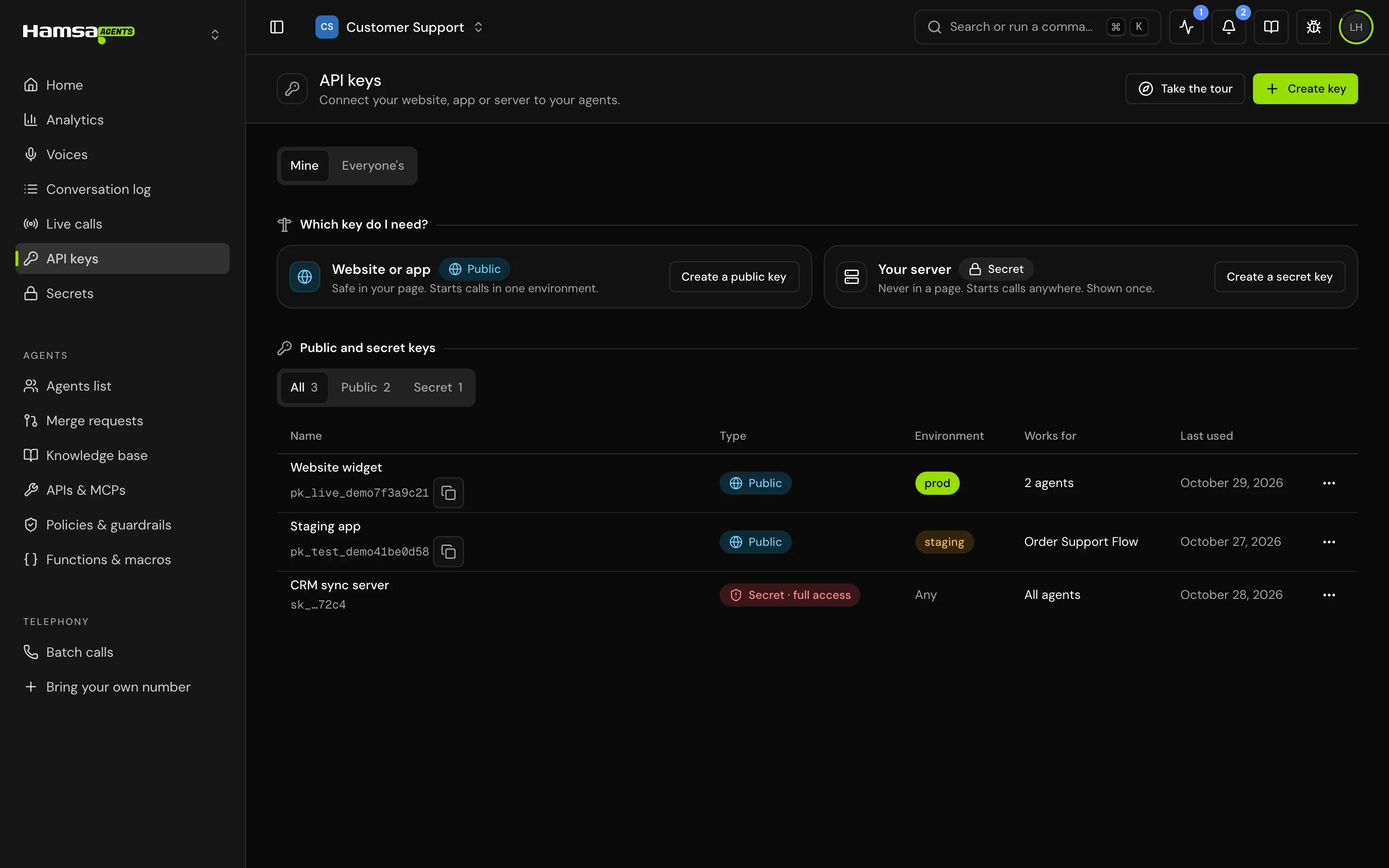
Which key do I need?
Keys made before public and secret keys are listed under Older keys. They keep working; see Older (legacy) keys to understand them and move to the new kinds.
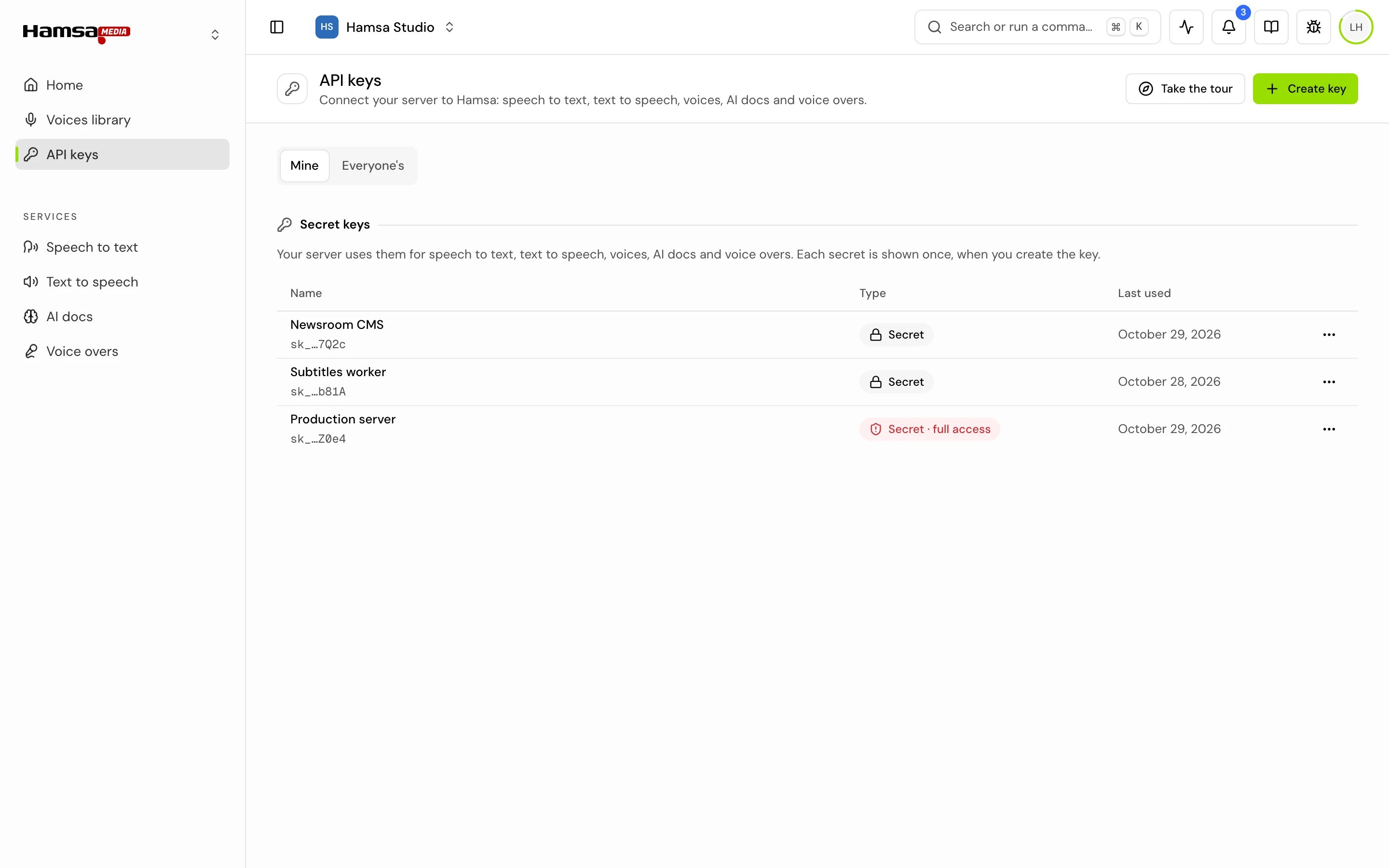
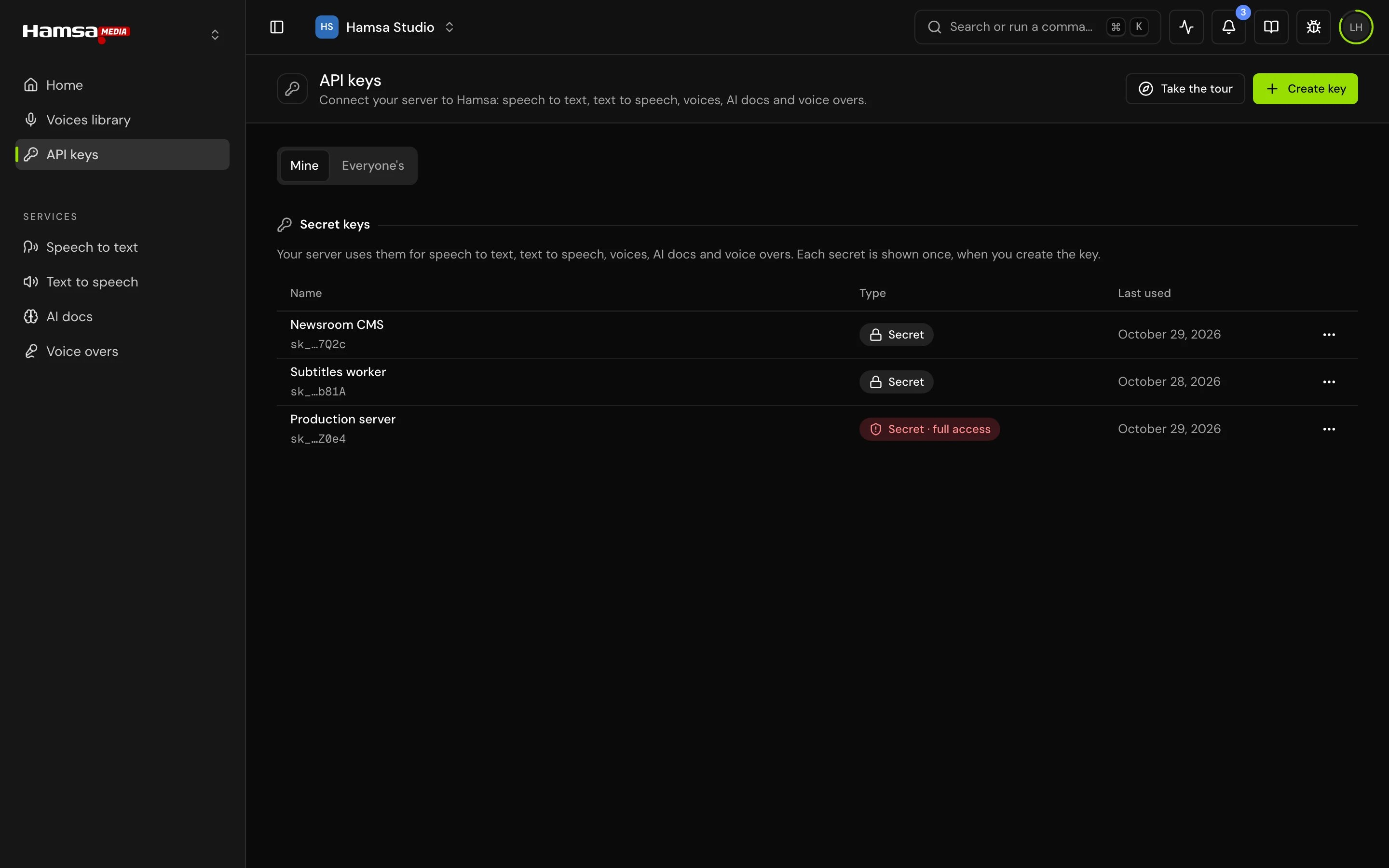
In Hamsa Media, you create secret keys only. Your server uses them for speech to text, text to speech, voices, AI docs, voice overs and the rest of the API. You don’t need a key to use Hamsa Media in your browser: what you start in the app runs as you. Public keys made in Hamsa Agents for the same project don’t show in Hamsa Media; manage them in Hamsa Agents.
Before you start
- Every member of a project can create and manage their own keys. There is no separate API key permission.
- A key can never do more than you can. It follows your current role and permissions in the project, so if you lose a permission, your keys lose it too.
- You can’t create keys while the project is deactivated.
Create a key
1
Open API keys
Click API keys in the sidebar.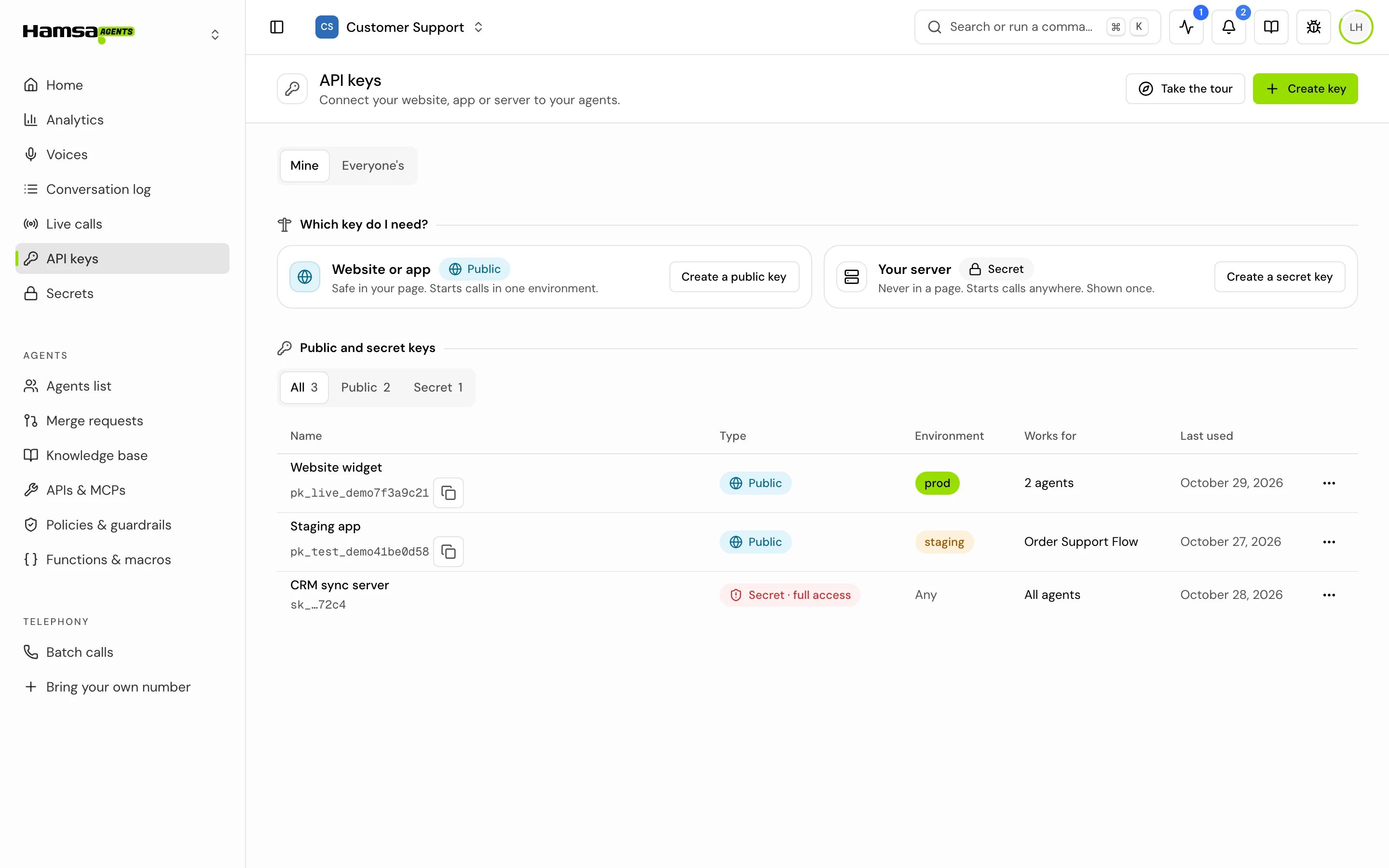
2
Click Create key
Click Create key at the top of the page. You can also press Cmd+K on Mac or Ctrl+K on Windows and run Create API key.
3
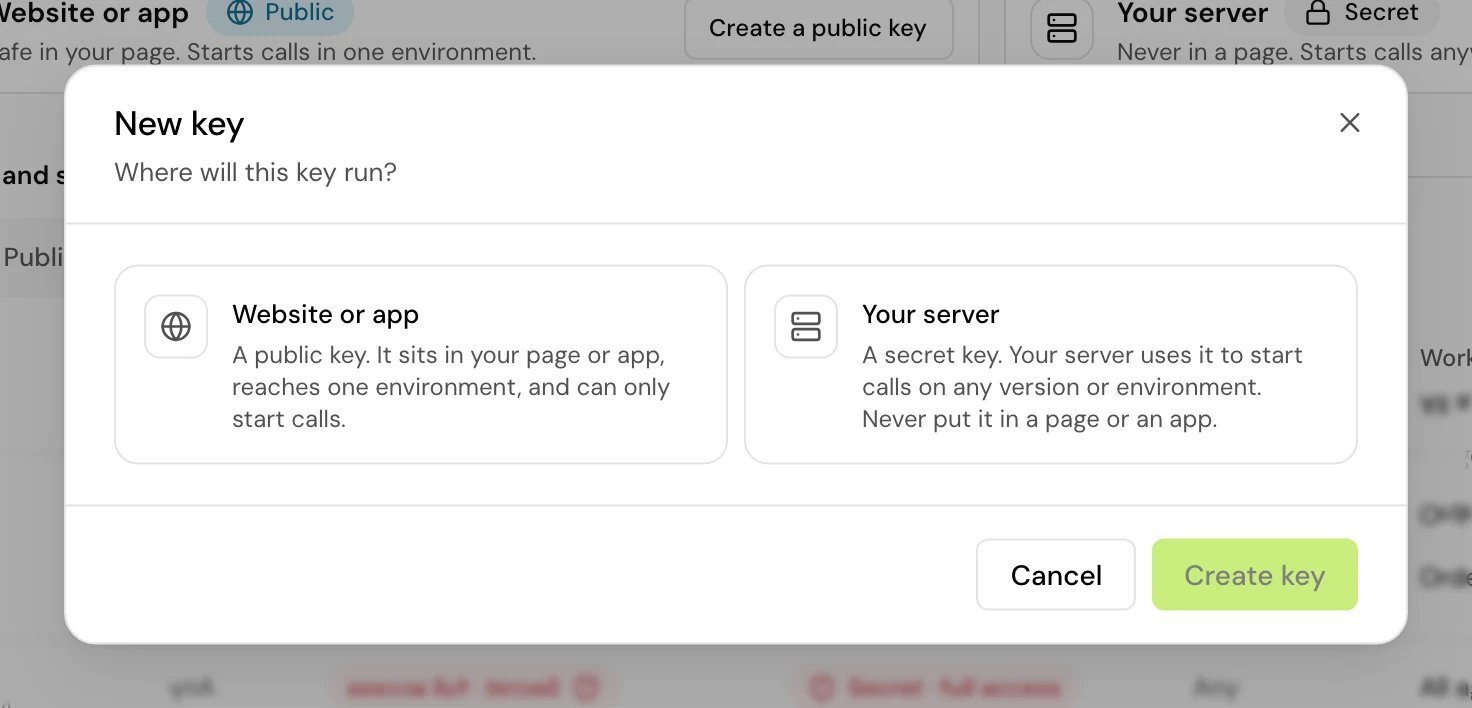
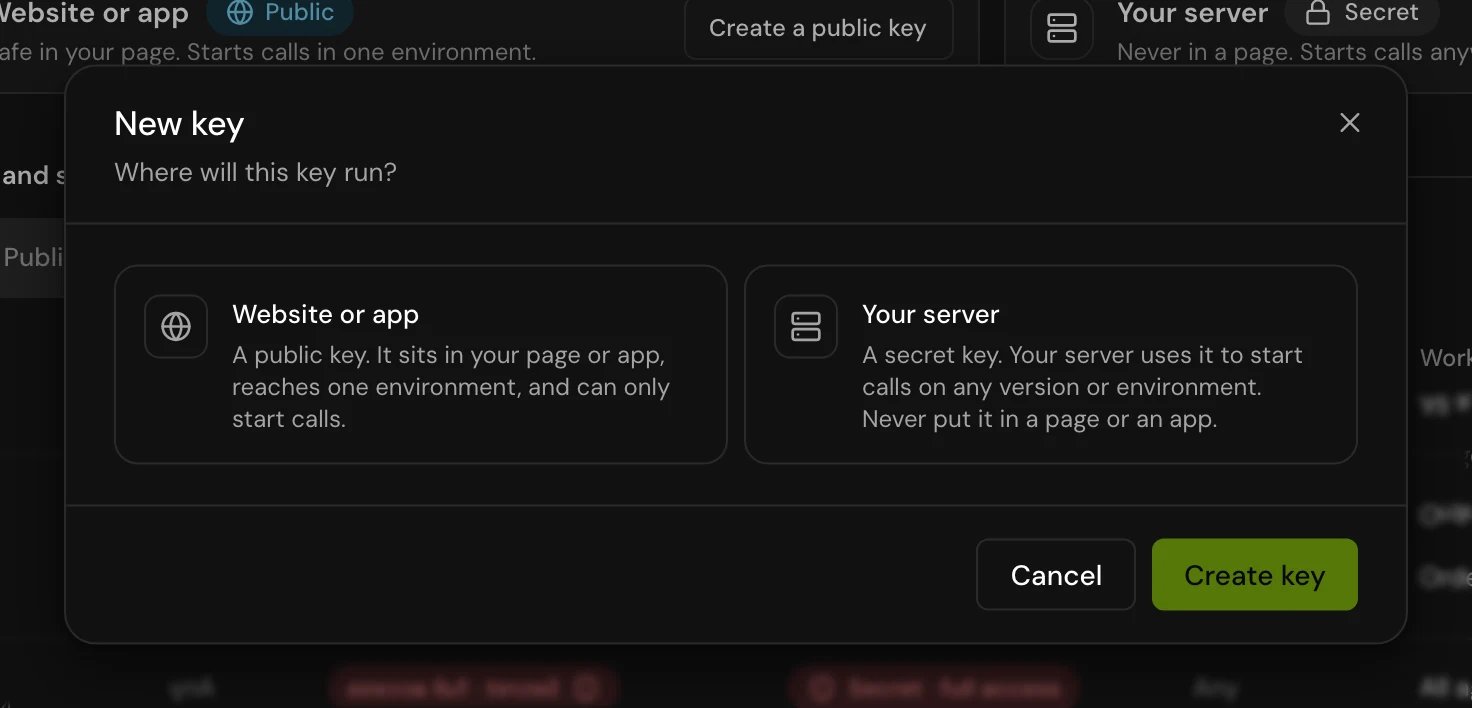
Say where it will run
Under Where will this key run?, choose Website or app for a public key, or Your server for a secret key. Hamsa Media skips this step and opens New secret key.
4
Fill in the fields
Give it a Name and set the fields for that kind of key (below).
5
Create it
Click Create key. For a full-access secret key, the button reads Create full-access key.
Public key fields
Allowed origins are checked when the request comes from a browser. An app or a server sends no origin, so it can still use the key.
Secret key fields
Hamsa Media doesn’t show Works for. A key made there works for all agents, and editing it in Hamsa Media leaves a limit set in Hamsa Agents as it is.
A full-access key can do everything you can do in the project through the API. To create one, tick “I understand this key has full access, and I will keep it secret on my server.” If you know what your server needs, a limited key is safer.
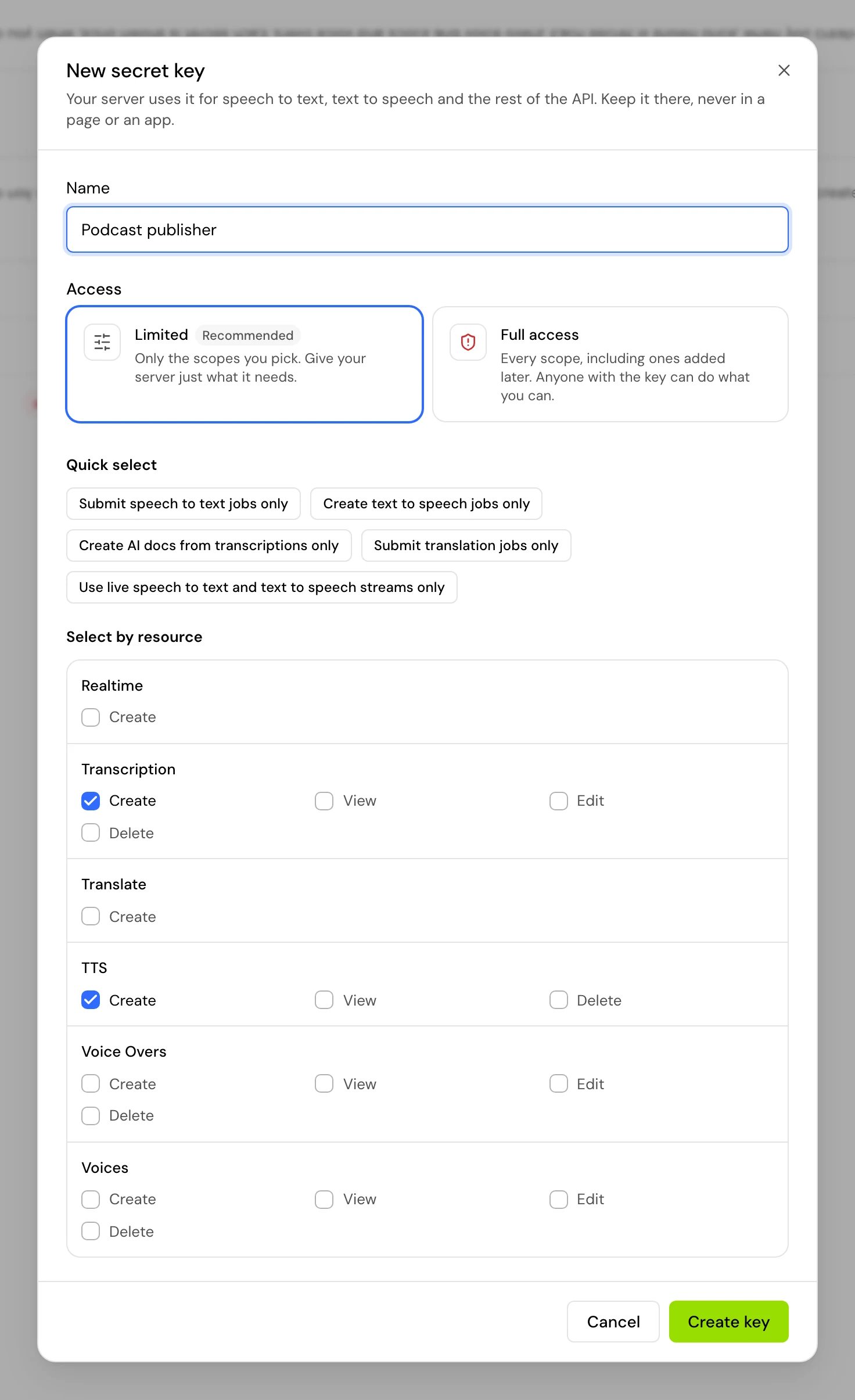
Scopes for Hamsa Media
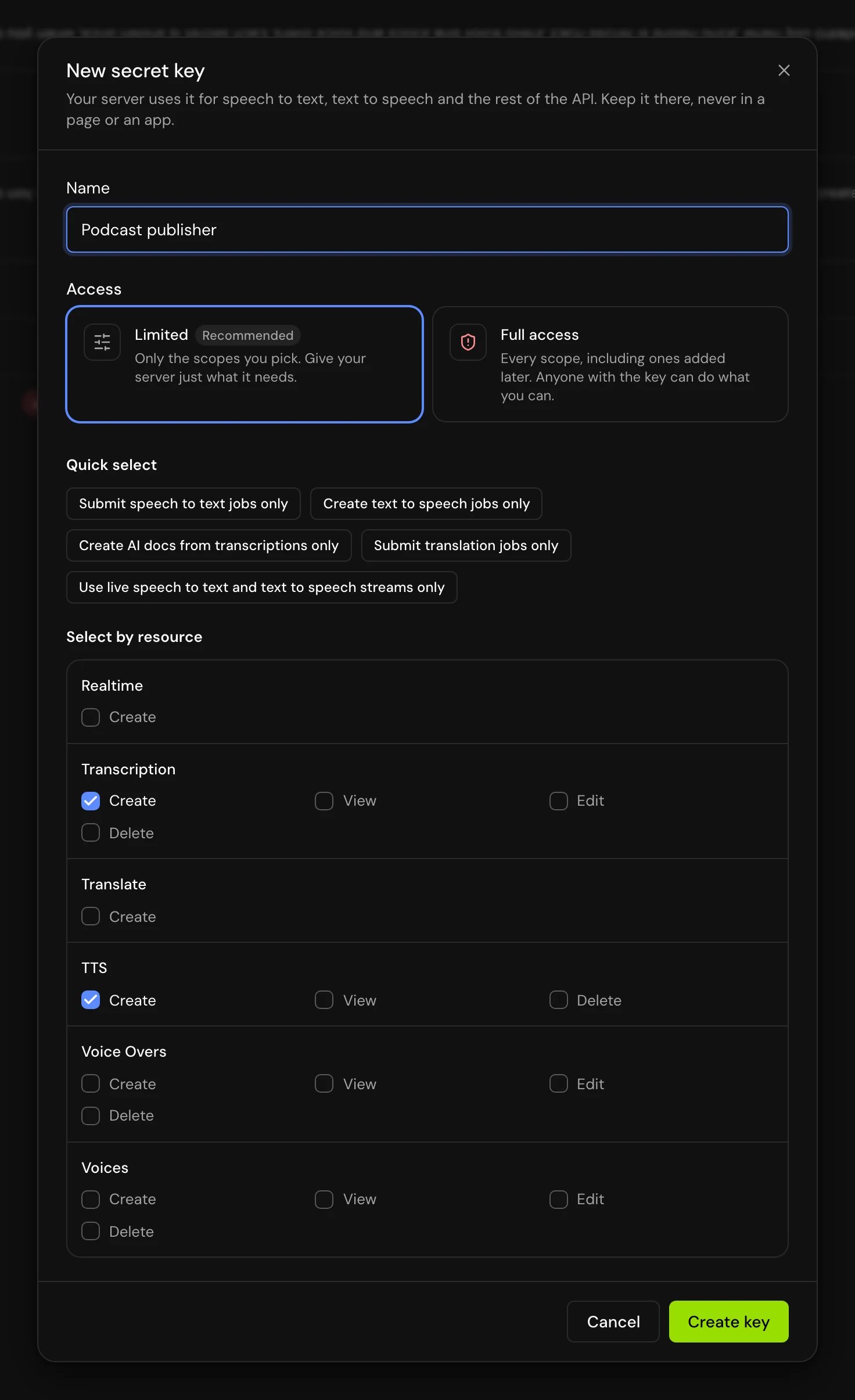
In Hamsa Media, a Limited key starts with two scopes ticked: Create on TTS and Create on Transcription, which is what most media servers need. Change them before you create the key. Quick select in Hamsa Media offers only presets for the Media API:
Select by resource in Hamsa Media lists only the Media resources. Each shows only the actions your role allows, so a User sees View under Voices and nothing more.
In Hamsa Agents, Quick select and Select by resource list every preset and resource, the Media ones included.
Store a secret key
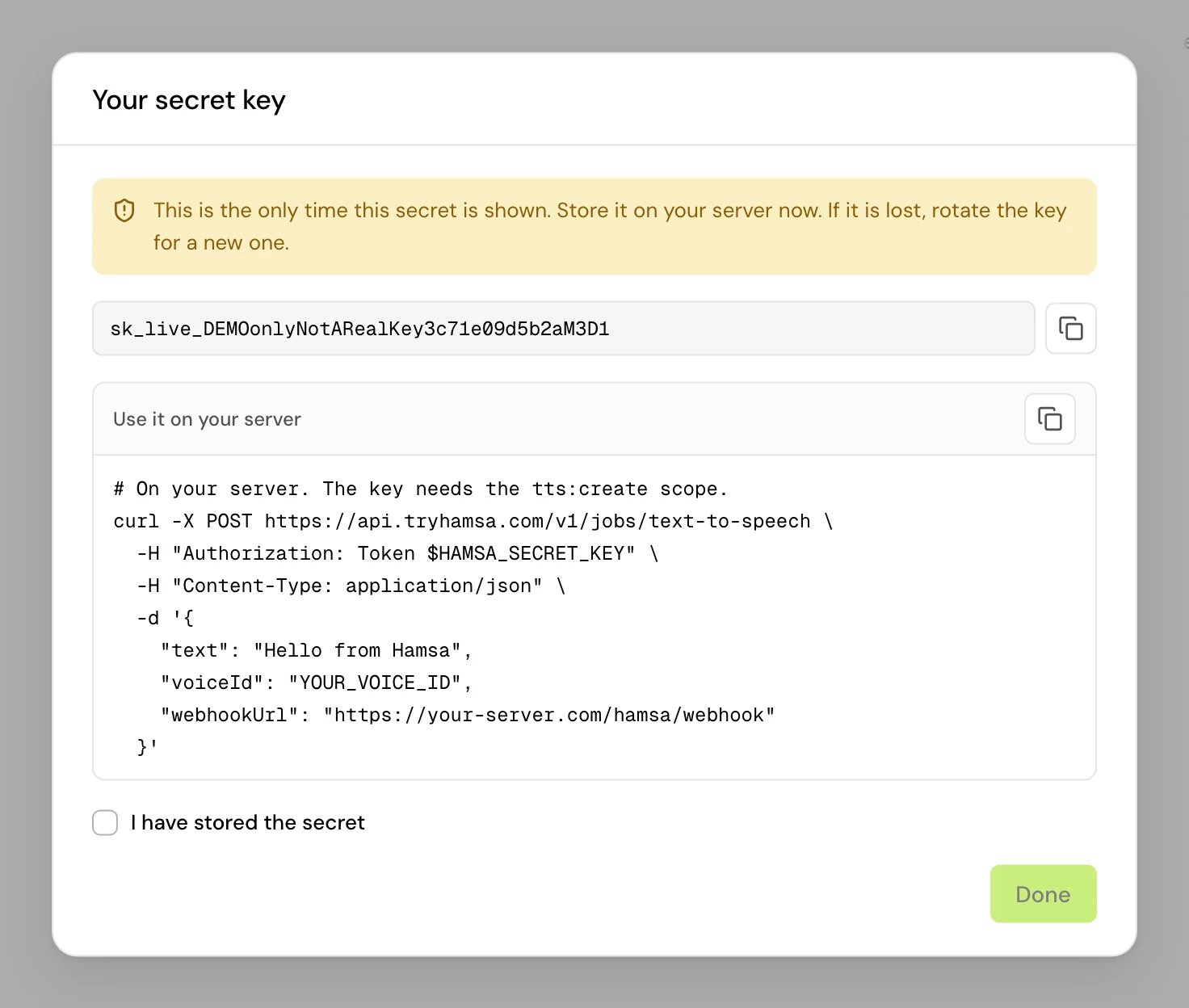
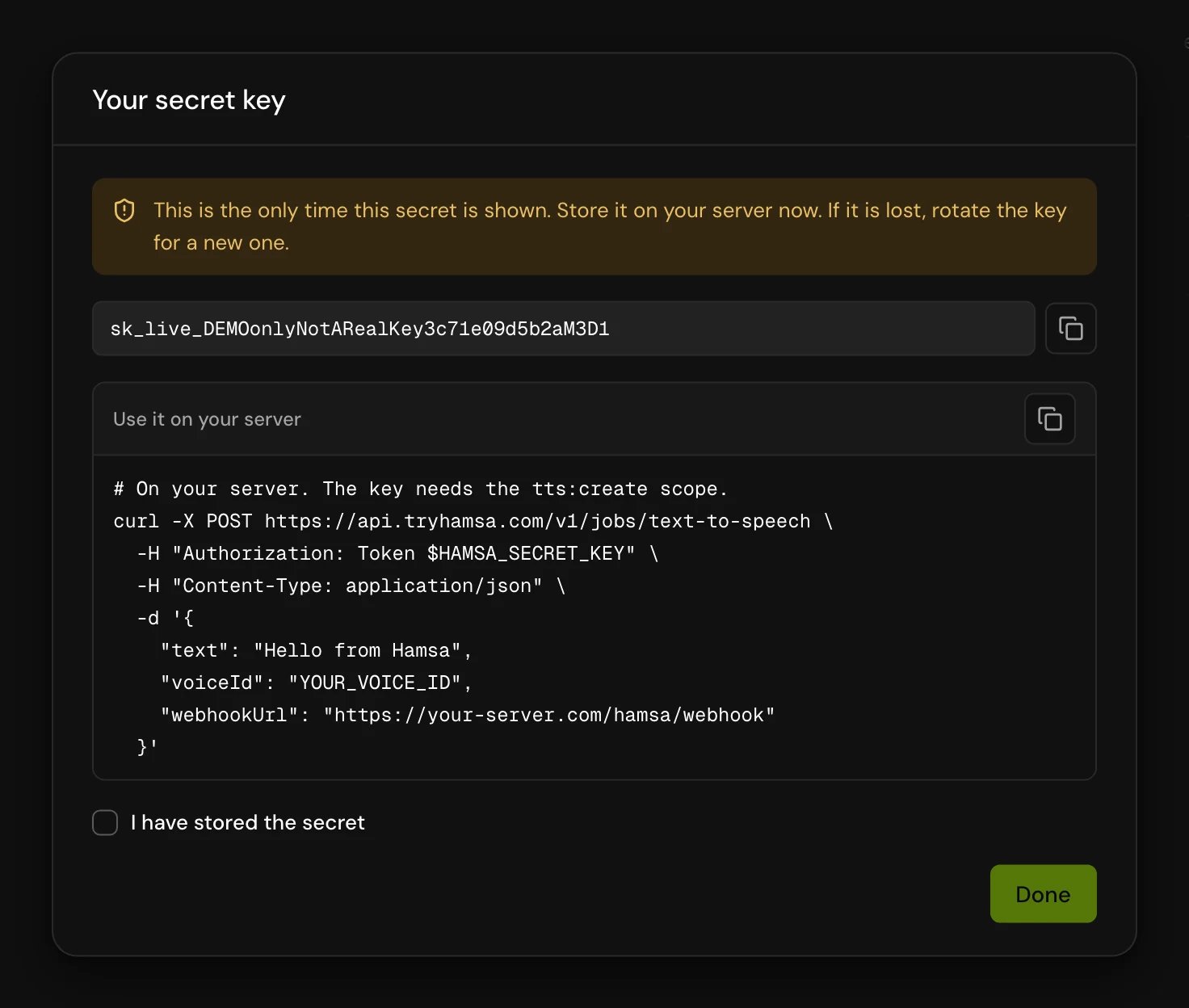
After you create a secret key, Your secret key shows its value once. Copy it into an environment variable or a secrets manager on your server. Done stays off until you tick I have stored the secret. If you lose it, rotate the key to get a new value.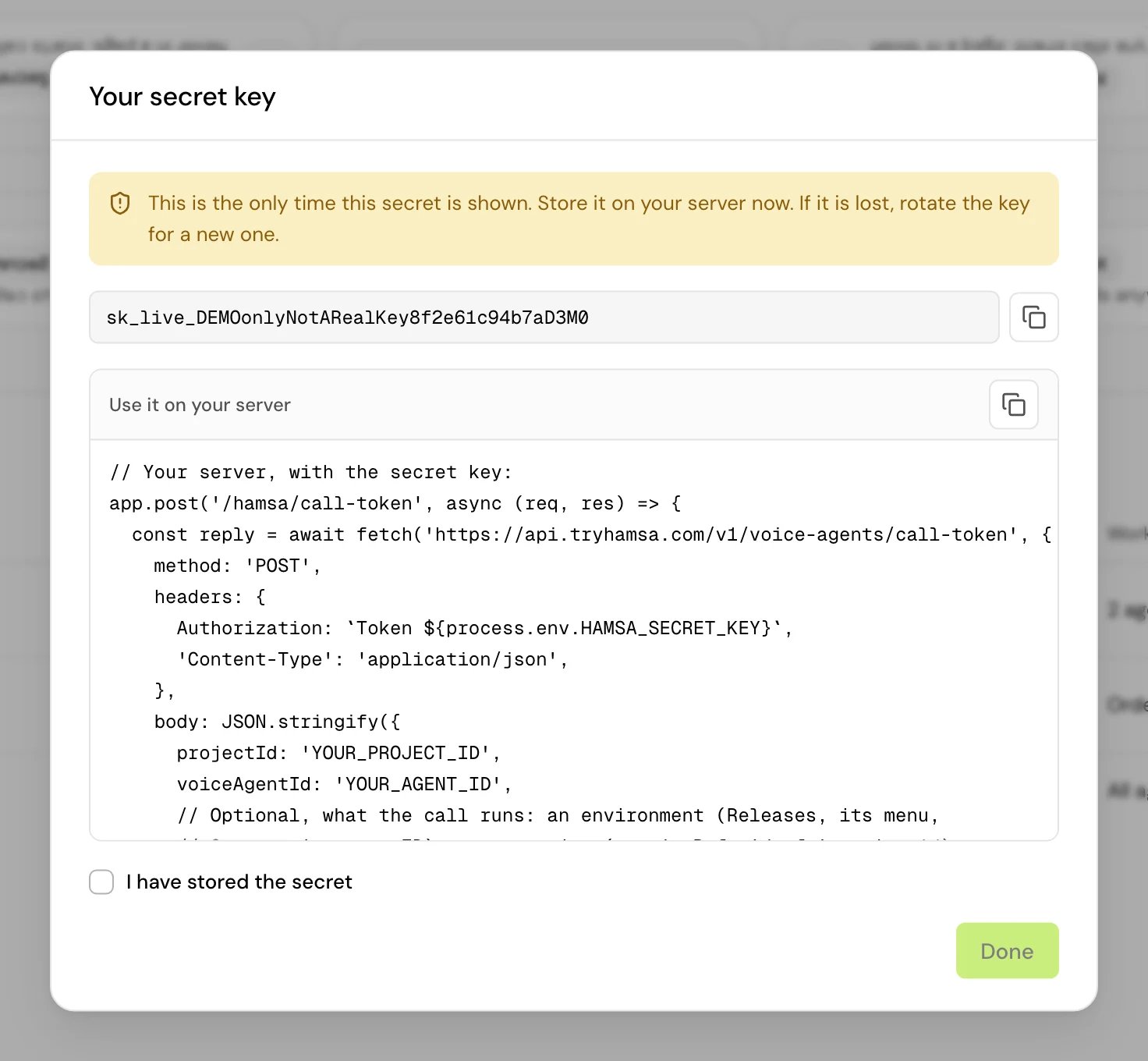
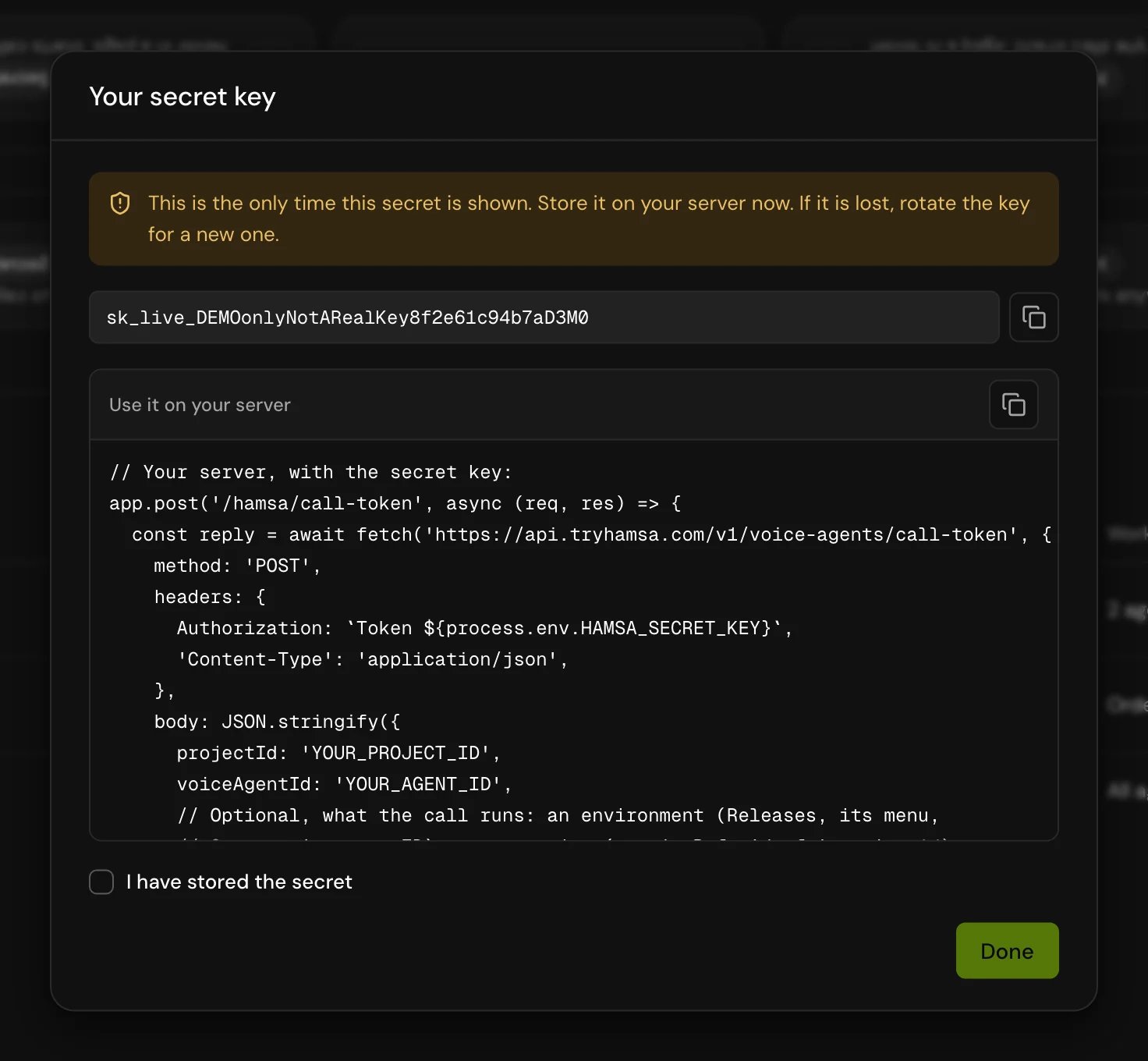
$HAMSA_SECRET_KEY.
Use a key
Send the key in theAuthorization header with the word Token:
Authorization: Bearer is refused with 401 “Bearer token Authorization header is deprecated!”.
From your server with a secret key
To start a call from a web page without putting a key in it, your server asks for a call token and hands it to the page. A call token works once and lasts 30 seconds.201. Only voiceAgentId is required; the project comes from the key. Optional fields:
With no
environmentId or versionRef, the call runs what prod serves. A limited secret key needs the agents:call scope. Too many tokens at once (over 120 a minute with one public key) are refused with 429.
Your page then starts the call with the token. With the web SDK, pass a function that gets one from your own server: an endpoint you build that requests the token with your secret key, as above, and returns it. /api/call-token below is only an example path.
Authorization: CallToken ct_... on the call start. A call token works only to start that call on that agent: anywhere else it is refused with 403 “A call token can only be used to start a call.” Once used or expired it gets 401 “The call token is invalid, expired or already used.”
A secret key sent from a browser is refused with 403 on the REST API, so it can’t be used from a page by accident. The realtime APIs don’t make this check: keep secret keys on your server anyway.
In your page with a public key
A public key goes in your page or app, with the Hamsa web SDK (@hamsa-ai/voice-agents-sdk 0.7.0 or later; call tokens need it too):
From your server in Hamsa Media
A Media secret key calls the Media API. For example, a text to speech job (the key needs the text to speech scope):Where each key works
The WebSockets don’t read the
Authorization header: they take the key in the x-api-key header or the api_key query parameter. See the WebSocket API tab.
Rotate a key
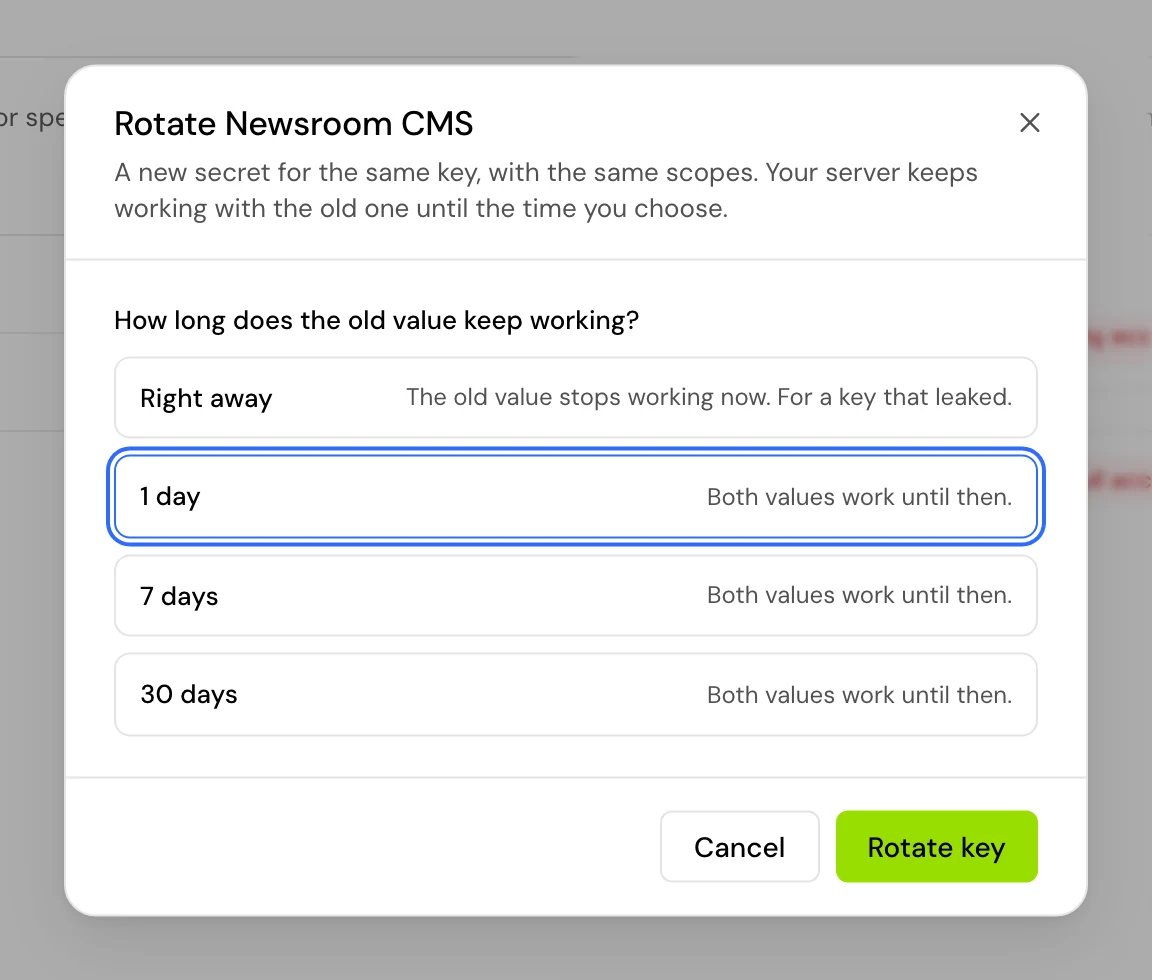
Rotating gives a key a new value and keeps everything else: its environment, origins, scopes and agents. Only the key’s creator can rotate it.1
Open the key's menu
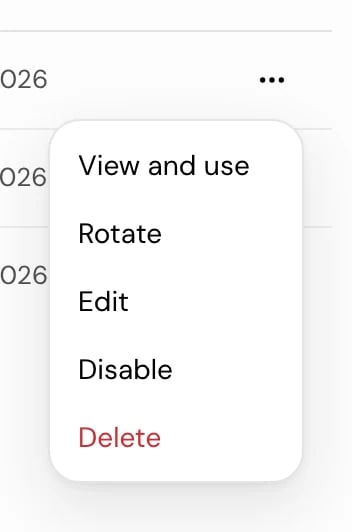
On API keys, open the key’s menu and click Rotate.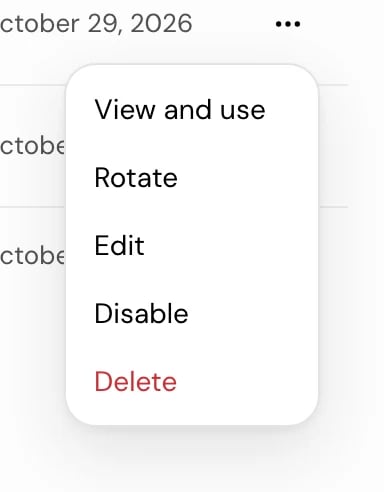
2
Choose the overlap
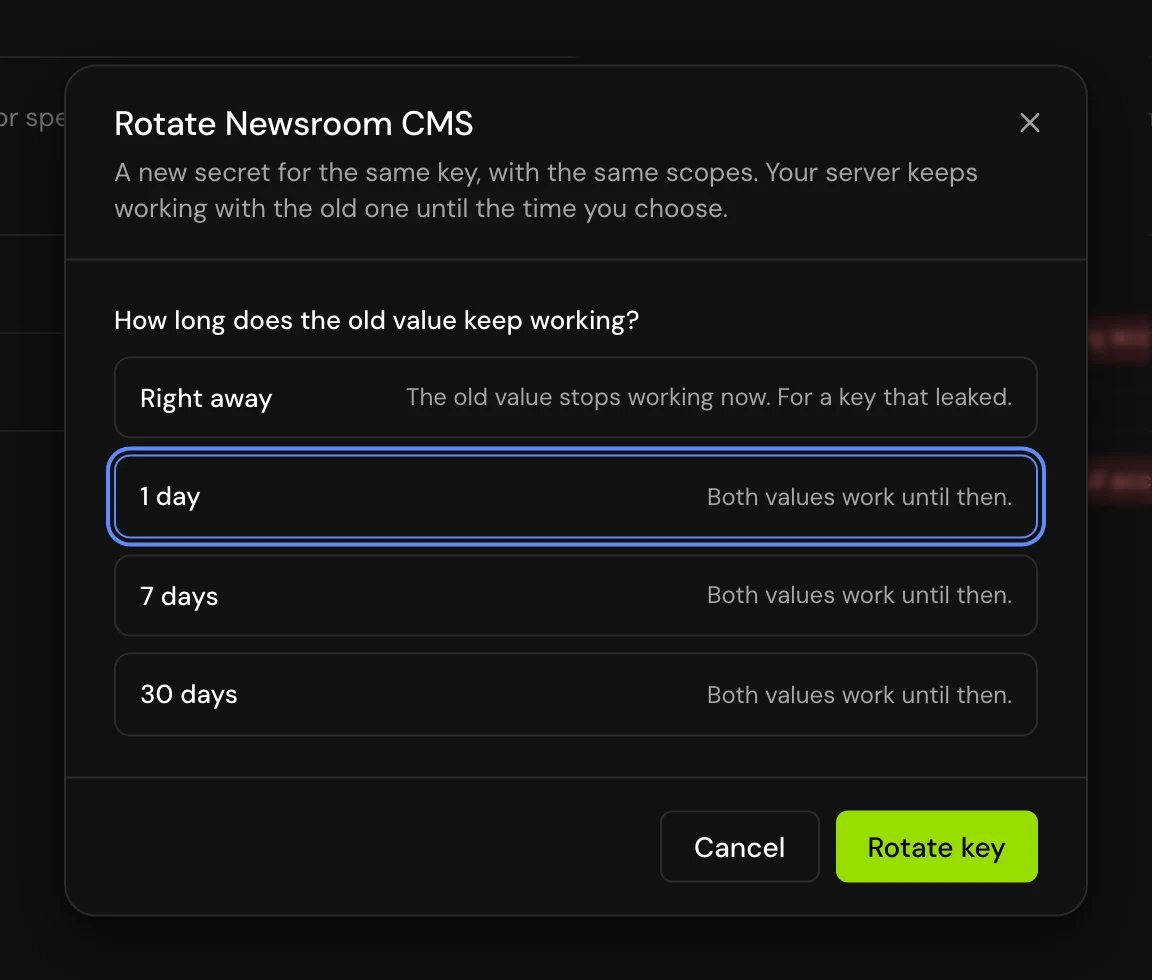
Under How long does the old value keep working?, choose Right away (for a key that leaked), 1 day, 7 days or 30 days. Both values work until then.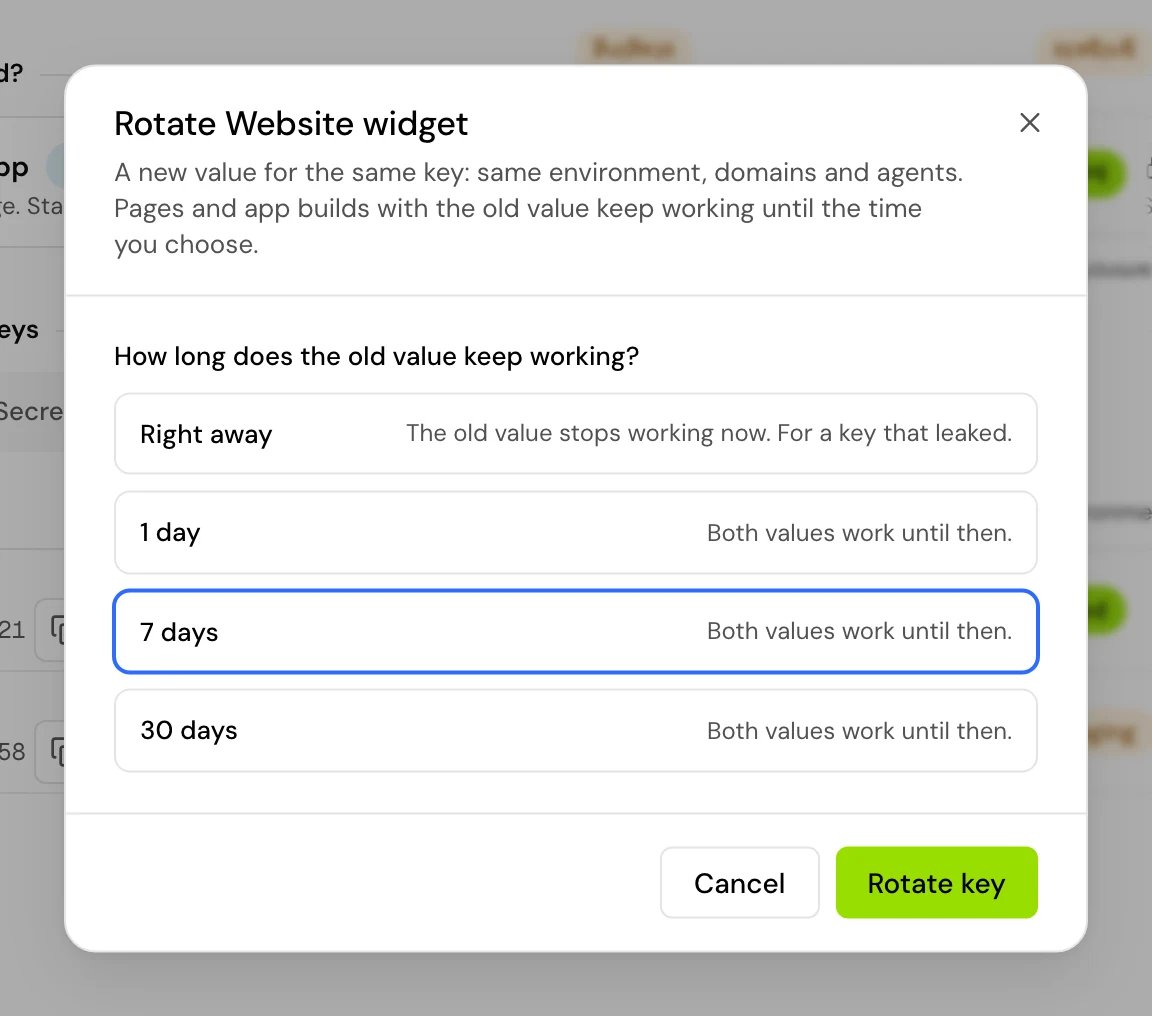
3
Rotate
Click Rotate key and store the new value.
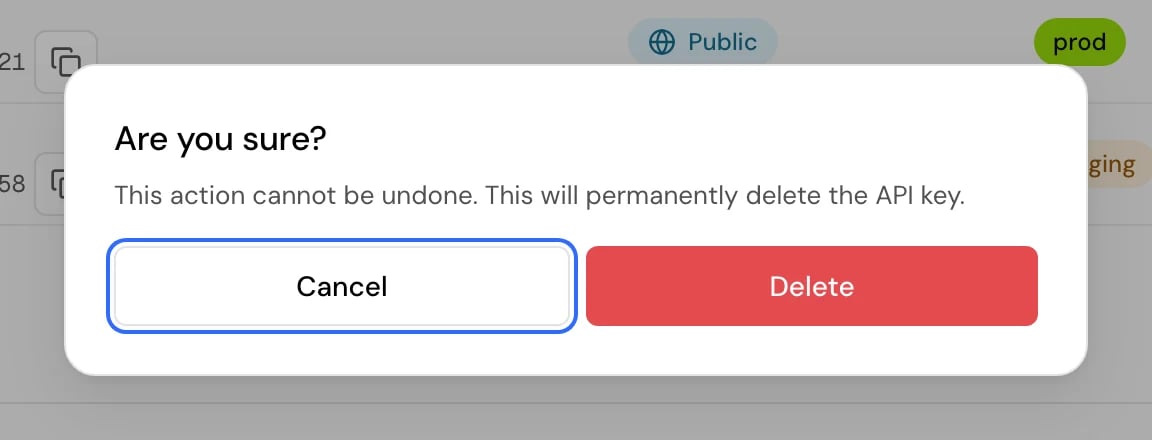
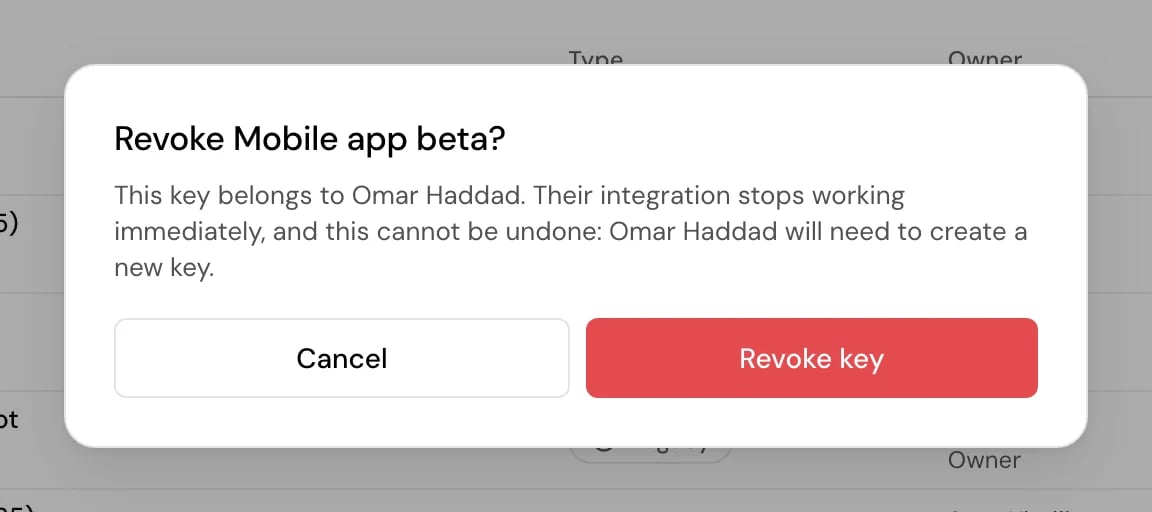
Disable, enable, delete and revoke
Owners and Admins can switch between Mine and Everyone’s to see every key in the project. Users see only their own. Only a key’s creator sees its full value or can edit it. An edit never changes what a key can do: to give different access, create a new key. In Hamsa Media, Edit changes only the key’s name.
LastApiKeyProtected).
The project’s Default key belongs to the project’s Owner and can’t be deleted or revoked: through the API it is refused with 400 “The project’s Default key cannot be deleted.” (DefaultApiKeyProtected). Disable it instead.
Older (legacy) keys
Older keys are the API keys a project had before public and secret keys. Each one is a single key for both pages and servers. Existing integrations keep working with them, and you can move each one to a public or secret key when you are ready.Recognize an older key
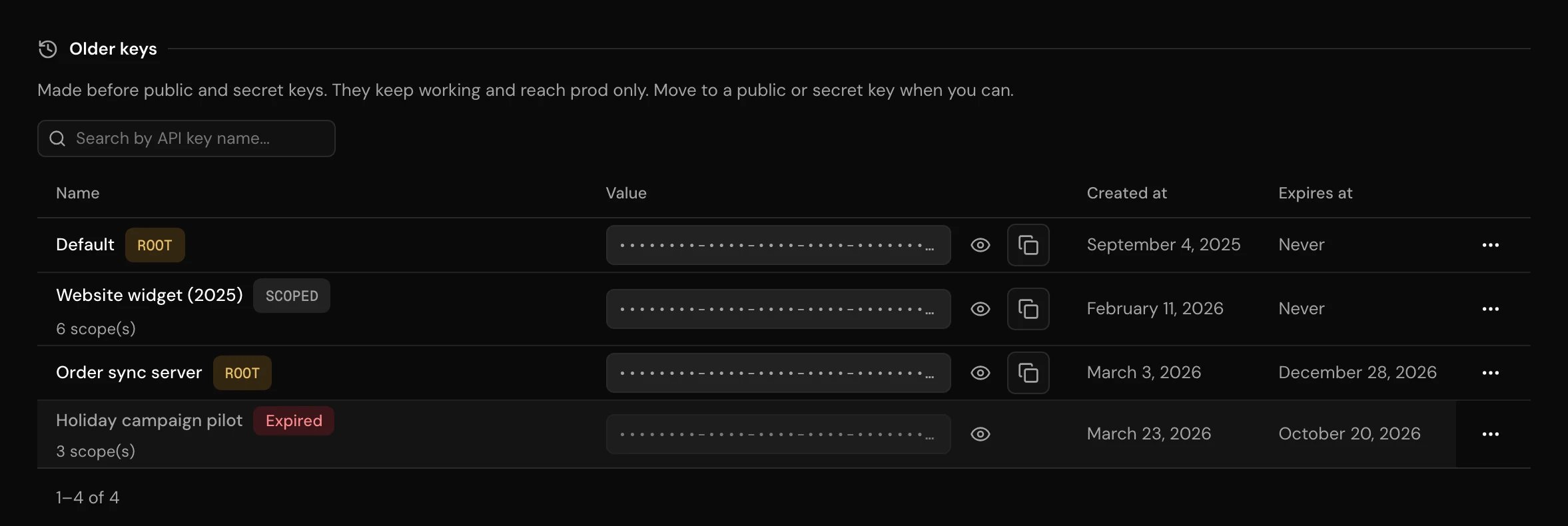
On API keys, your older keys are listed under Older keys, below your public and secret keys. The list shows only your own keys.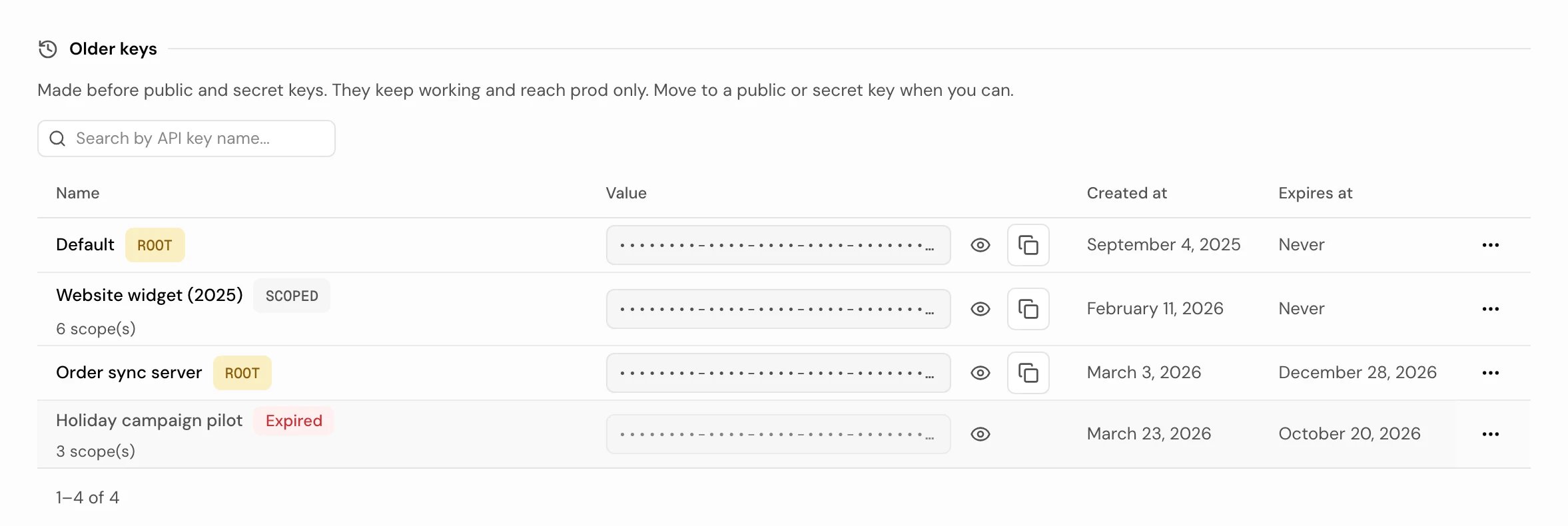
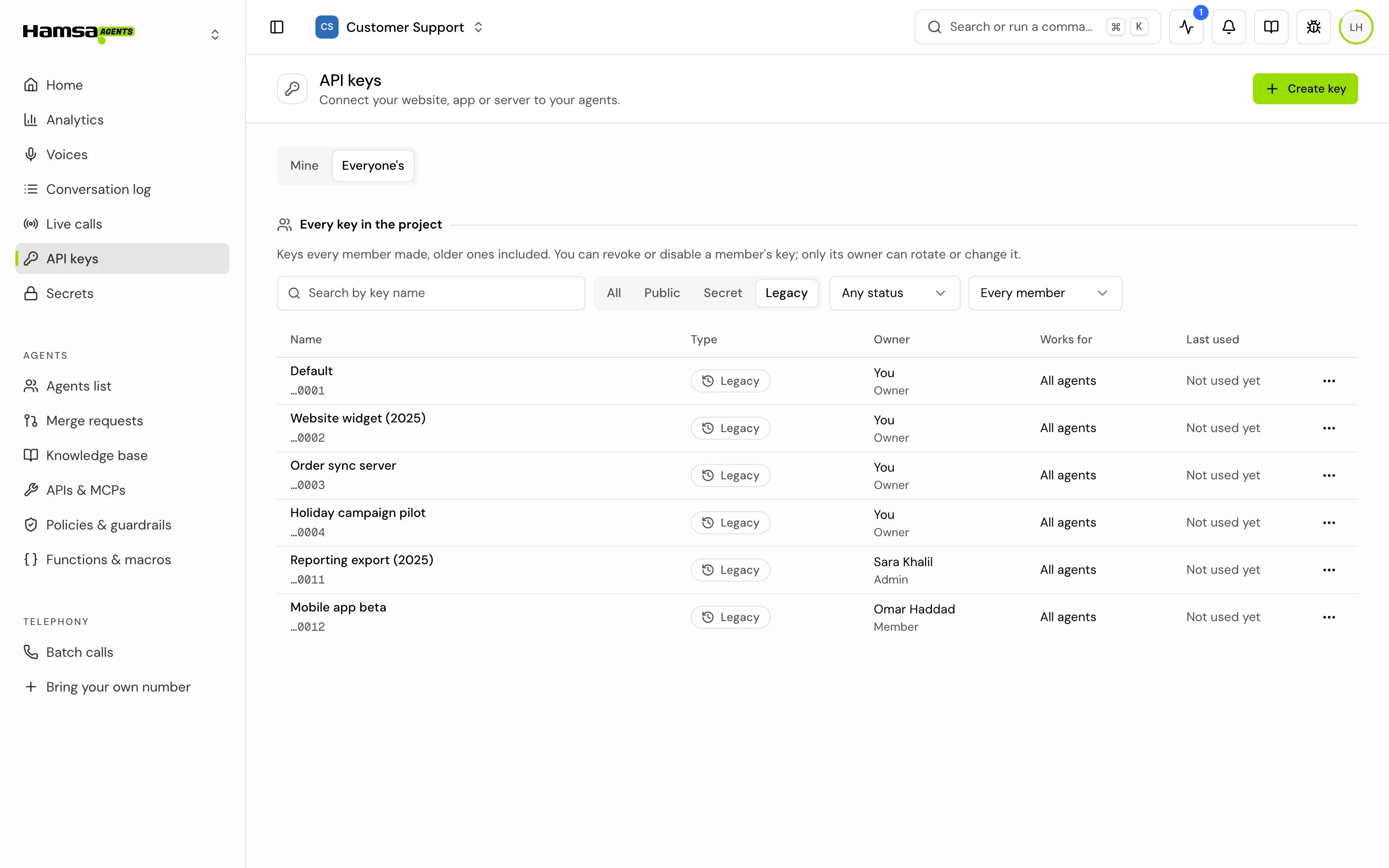
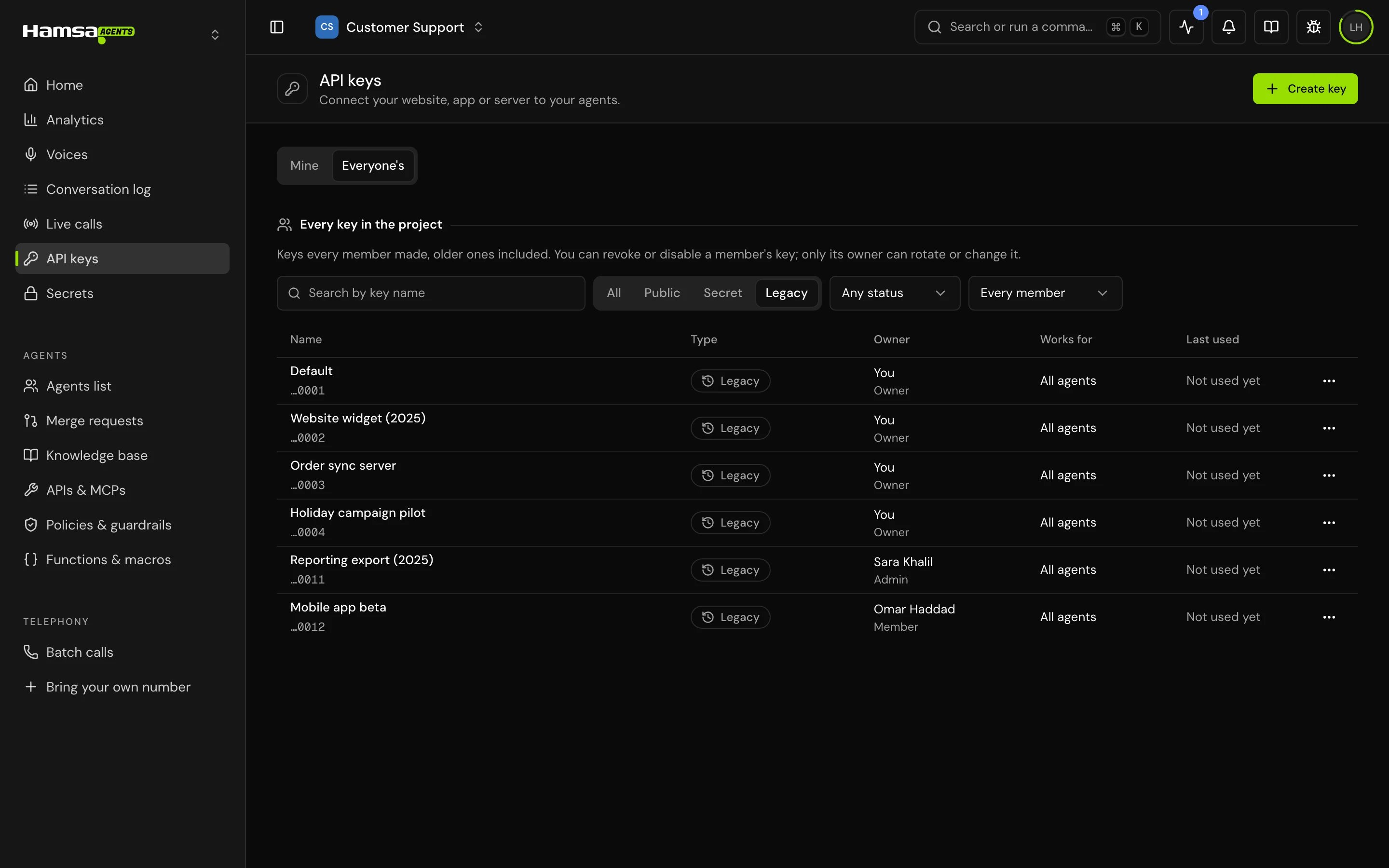
Owners and Admins also see every member’s older keys under Everyone’s, each with a Legacy tag. Click Legacy above the list to show only those.
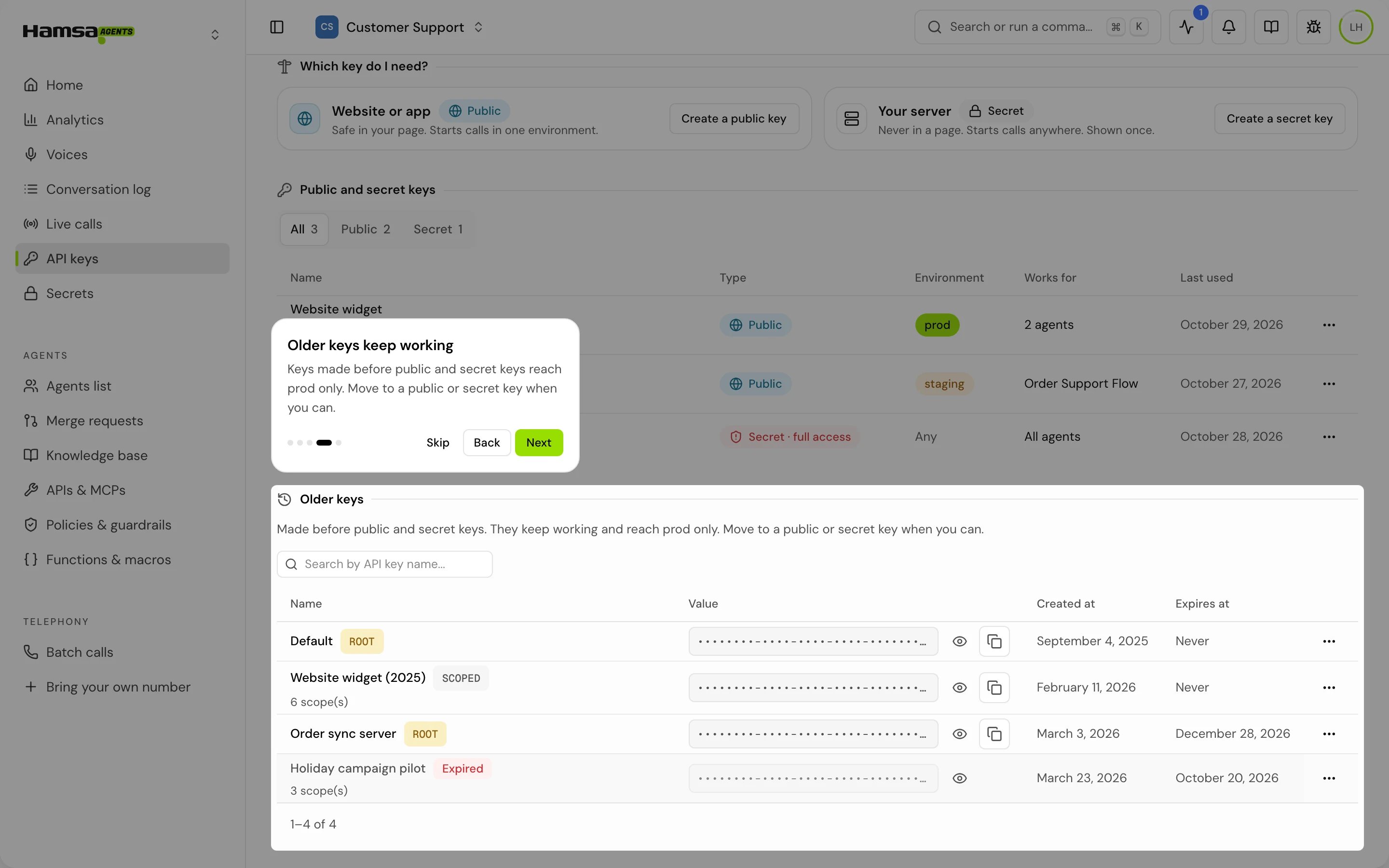
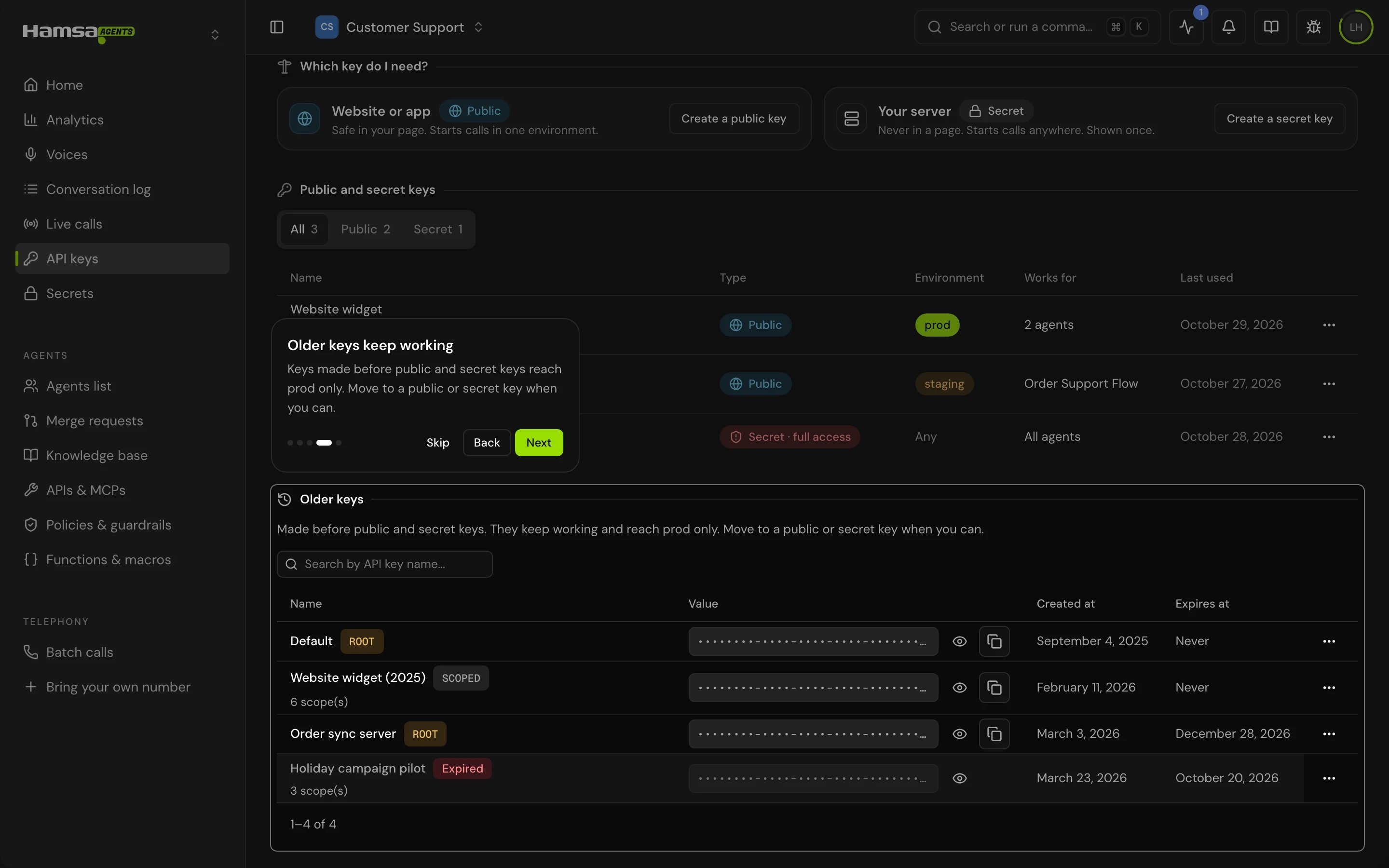
What an older key can and can’t do
An older key is sent like any other key, in theAuthorization: Token <key> header. It works from your server and from a browser.
Like any key, an older key never does more than you can: it follows your role and permissions in the project.
A full-access older key works in a browser, so anyone who opens a page that holds it can read it and use it for everything you can do. That is the main reason to move off older keys.
Allowed origins on an older key are checked on every request, against the
Origin header, else Referer, else Host. A server request sends no origin, so it is refused with 403 “This API key is not allowed to be used from the request origin!”: don’t set allowed origins on an older key that a server uses.
When an older key’s expiry date passes, its requests are refused with 401 “This API key has expired.”
You can’t create older keys. Create key makes only public and secret keys.
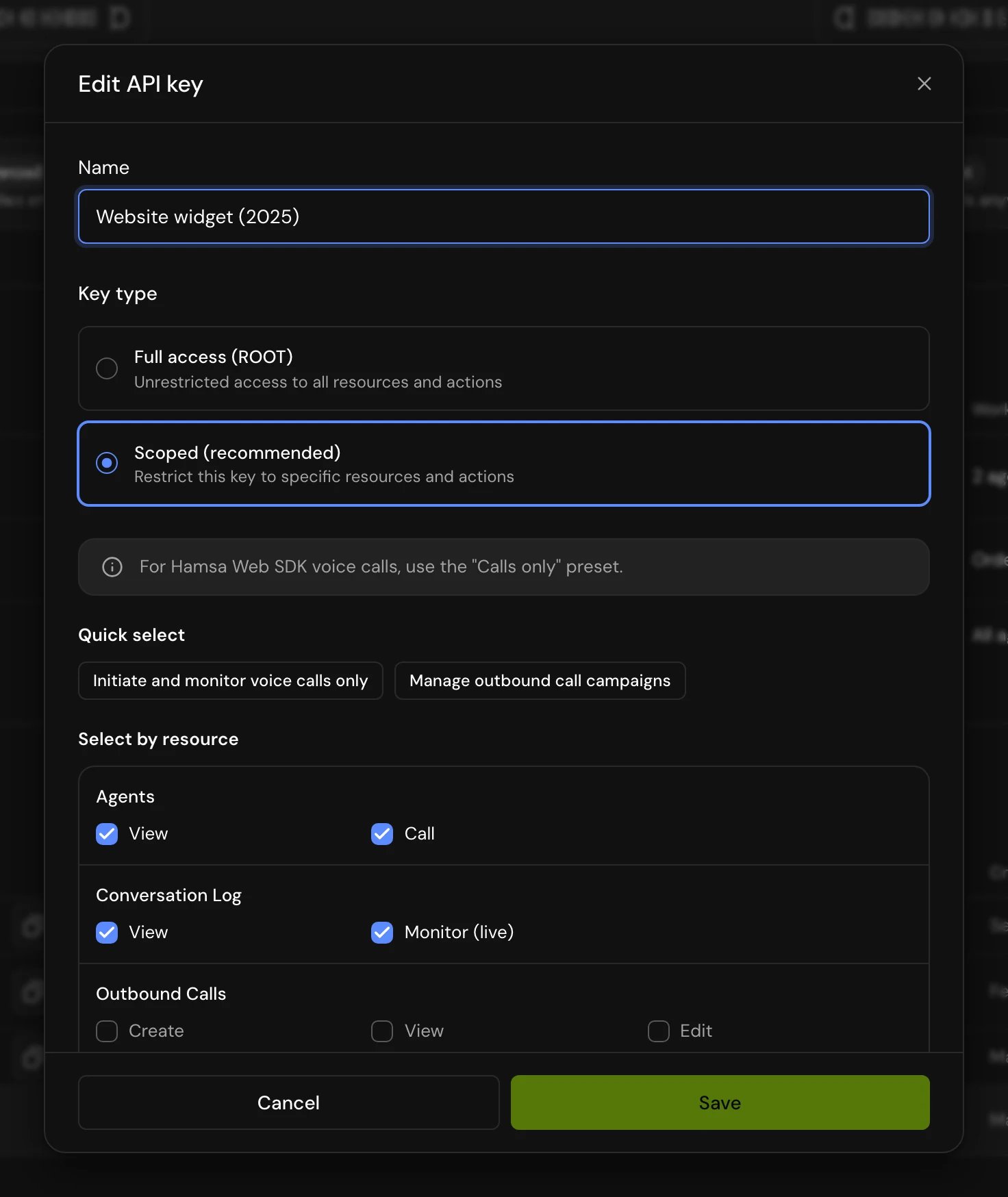
Manage an older key
Open the menu at the end of the key’s row under Older keys.

There is no Rotate for an older key. To get a new value, create a public or secret key.
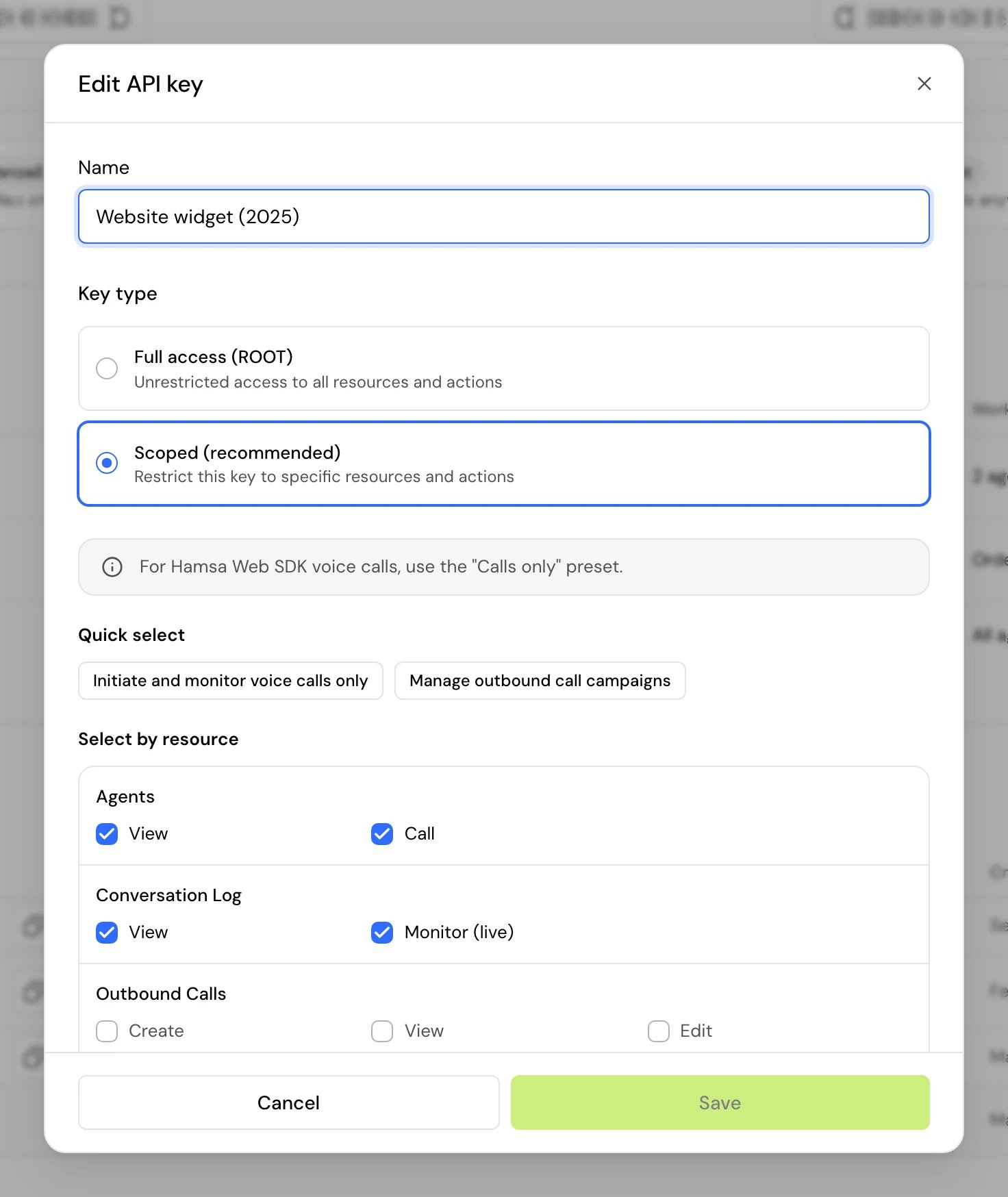
The Default key
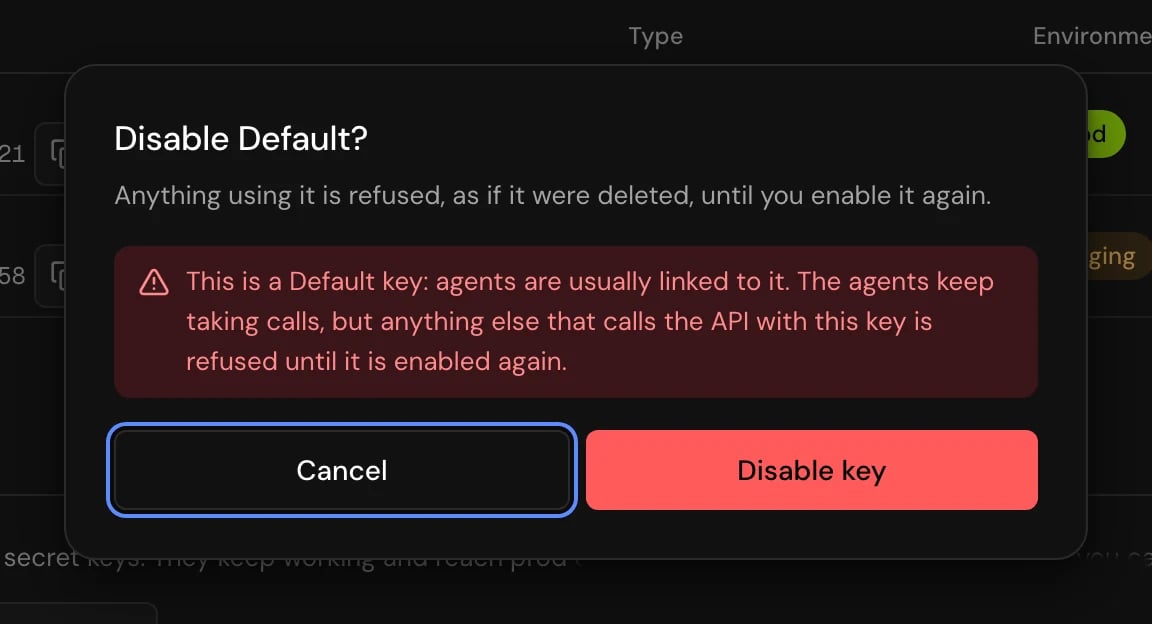
The project’s Default key can be an older key. Its menu offers only Disable (or Enable): it can’t be edited, deleted or revoked. Before you disable it, the dialog warns that agents are usually linked to it. The agents keep taking calls, but anything else that calls the API with this key is refused until it is enabled again.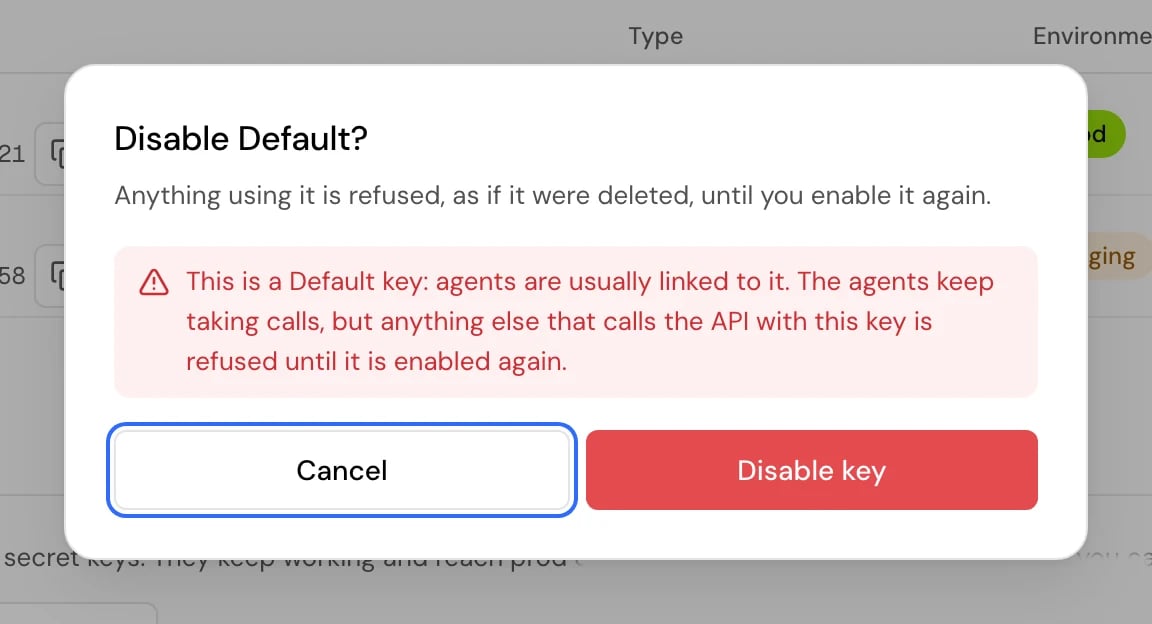
Which key replaces it
If one older key does both jobs, replace it with two keys: a public key for the page and a secret key for the server.
Move to public and secret keys
1
Find what uses the older key
Note its Access (full access or its scopes) and Allowed origins (open Edit to see them), and every page, app and server that sends it.
2
Create the replacement
Click Create key, choose Website or app or Your server, and fill in the fields from the table above. Store a secret key’s value when it’s shown: you see it once.
3
Switch the integration
In a page or app, update the web SDK to version 0.7.0 or later and pass the public key as
publicKey, with any options you already pass in the same object:start() and everything after it stay the same. On your server, put the secret key in the Authorization: Token header in place of the older key. Anything a page did with the older key other than starting calls now belongs on your server: a secret key sent from a browser is refused.4
Check that it works
Start a call or send a request, then open the new key on API keys: Last used shows when it was last used. A public key reaches only its own environment, so to try a version on your staging site, give that site a staging public key.
5
Disable the older key
Open its menu and click Disable. If something still used it, it stops and you’ll see it fail; click Enable to bring it back while you fix it.
6
Delete the older key
Once nothing needs it, open its menu, click Delete and confirm. If it’s the Default key, leave it disabled.
In Hamsa Media
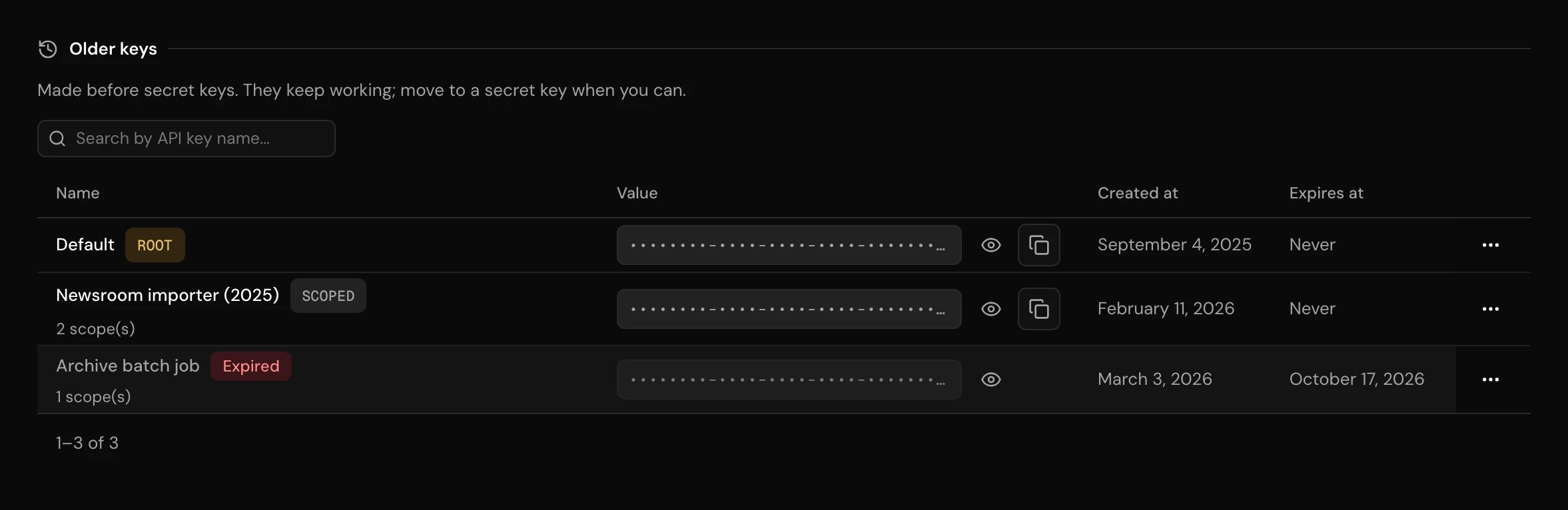
Hamsa Media lists your older keys under Older keys too, with the same columns, menu and rules, and Everyone’s lists them with the Legacy tag. Its Edit still shows Key type and the scopes, but only the name and allowed origins can change: changing the access is refused. There you move each one to a secret key: Hamsa Media doesn’t create public keys.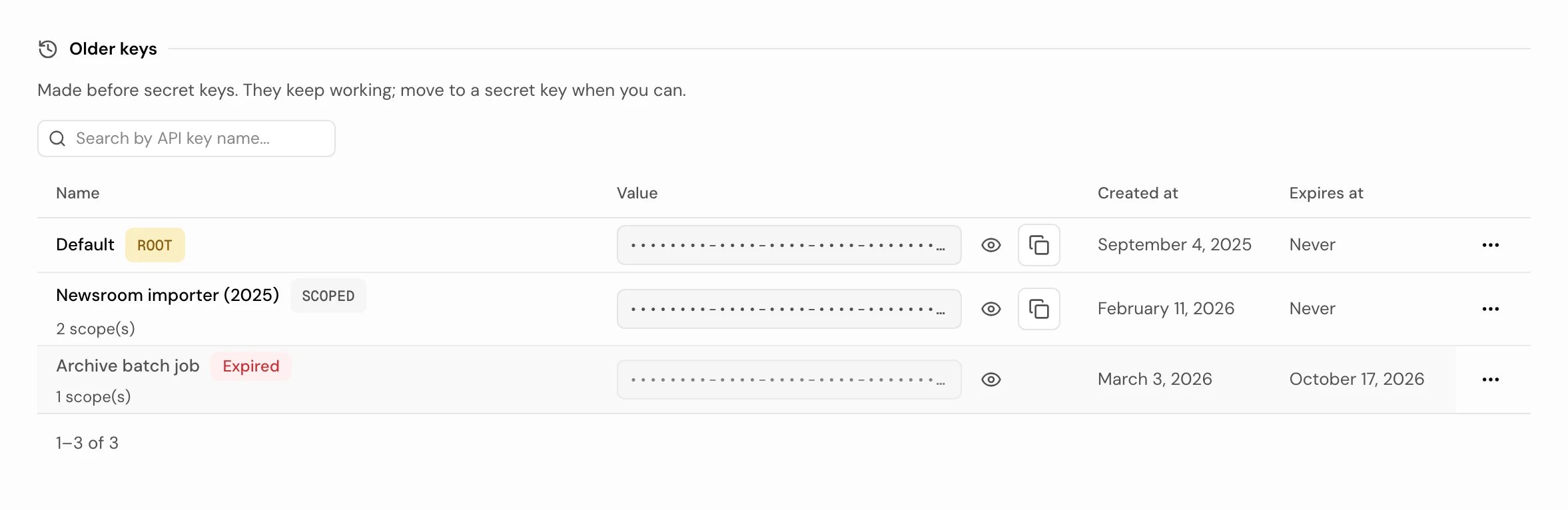
When a request is refused
A request with no
Authorization header is refused with 401.
The realtime HTTP APIs and the WebSockets answer key problems with their own messages: an unknown key gets 401, a missing scope 403 “API key does not have the required scope: realtime:create” (without params.scope), a refused origin “Request origin is not allowed for this API key”, and going over 100 requests a minute 429 “Rate limit exceeded for this API key”. On a WebSocket, each arrives as Authentication failed: … and the connection closes with 4001.
A refused request answers in this shape:
Good to know
- Keys created in the dashboard don’t expire. Rotate a key when you want a new value.
- Removing a member from a project stops their keys in that project from working.
- Owners and Admins get a notification when a key is created or revoked, and when a member is removed, with how many of the member’s keys were revoked.
- Older keys keep working and reach prod only. See Older (legacy) keys for what they can do and how to move off them.
- Every new project starts with a key named Default, and every member who joins a project gets a full-access key of their own.
Related
Embed on your website
Put an agent on your site with a public key.
Roles and permissions
What your keys can do follows your role.
Projects
Copy your project ID.
Environments and releases
Which version each environment serves.