

Before you start
Promoting and editing values depend on the environment. These are the role defaults; an owner can change them per member in Roles and permissions.
When you lack a permission, the button says which one, for example “Promoting to prod needs the Deploy permission.” Members who want to try other values use test values instead.
The three environments
Every agent with deployments on has exactly these three. You can’t add, rename or remove environments.
Turn on deployments
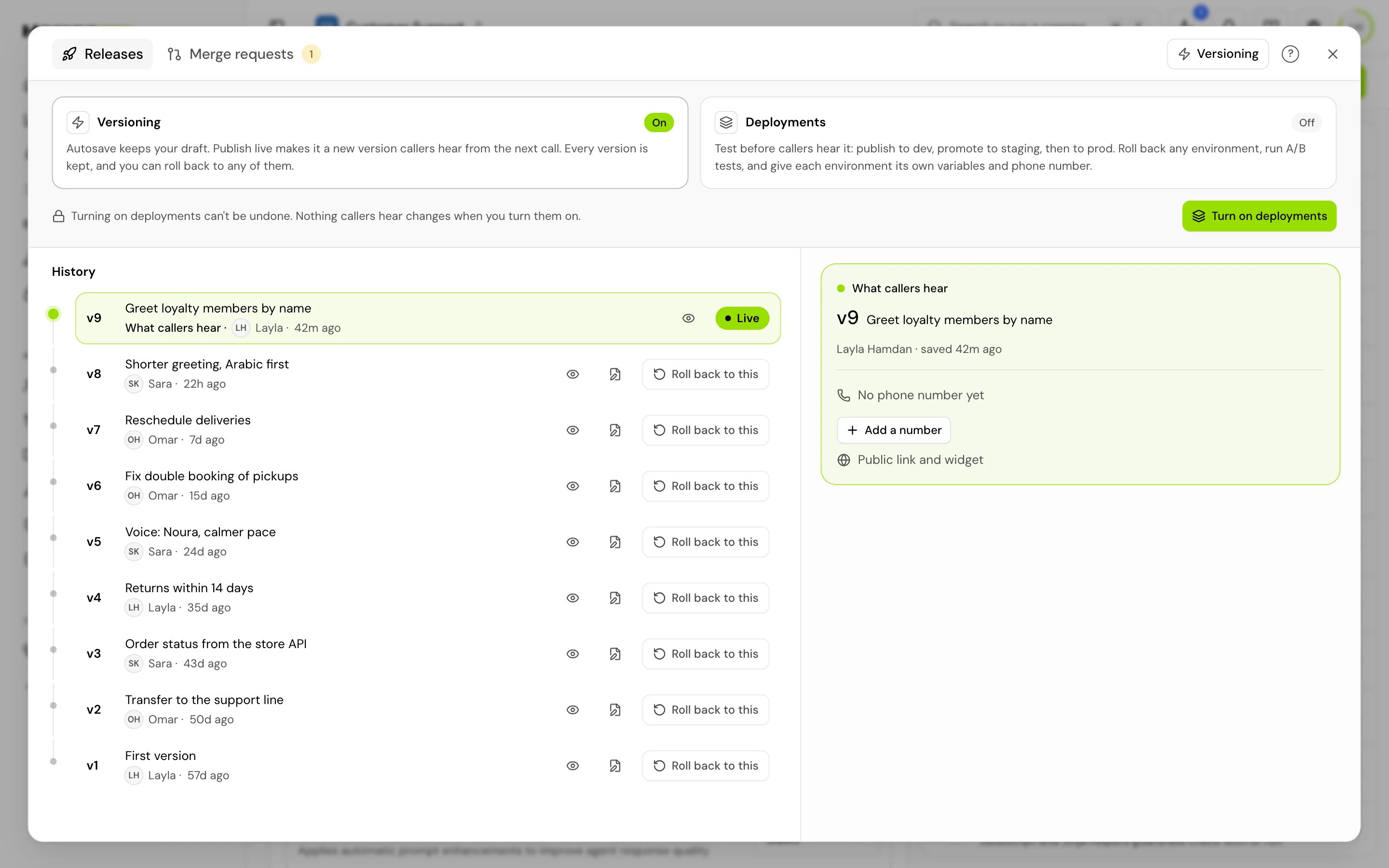
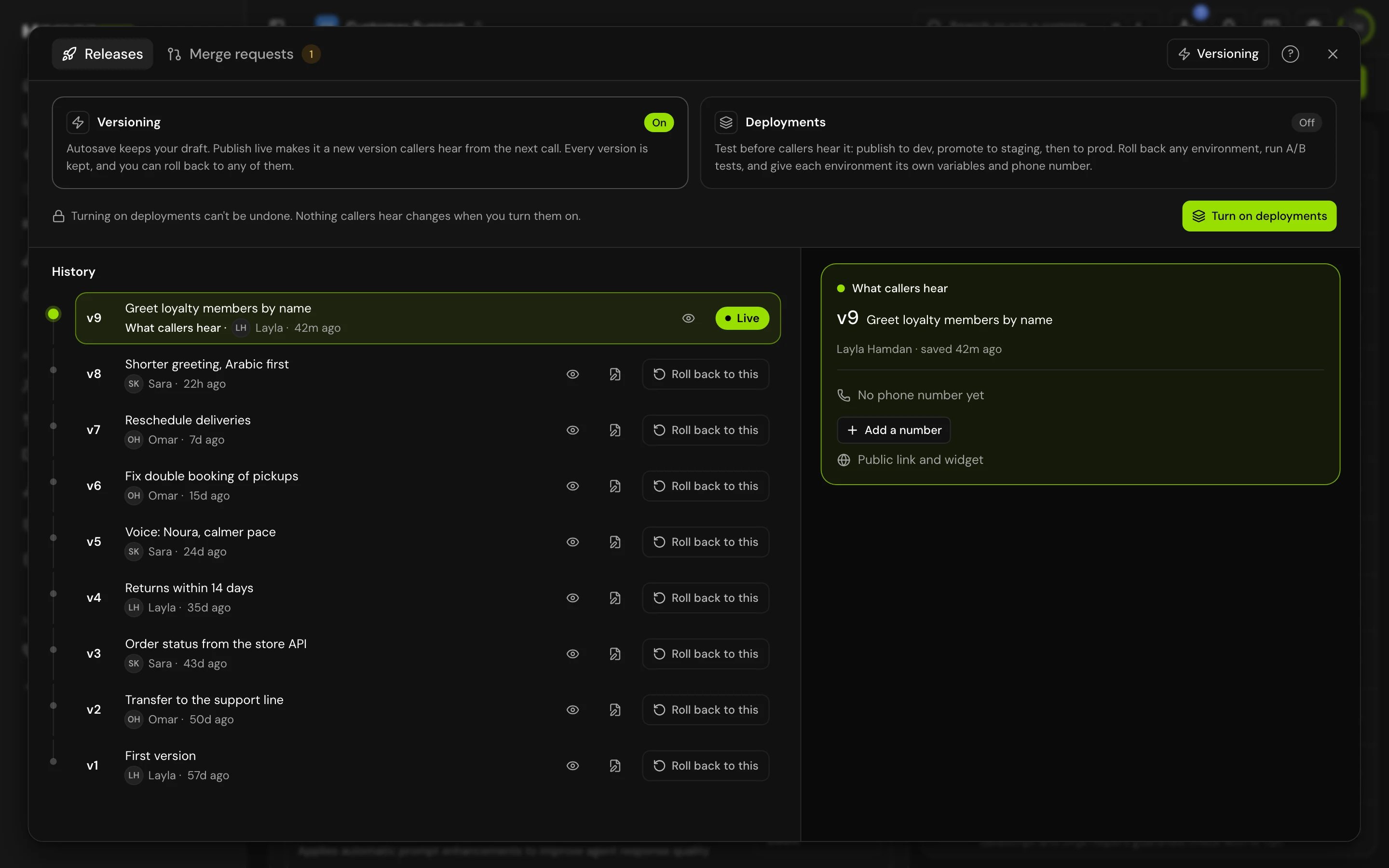
Agents start in Versioning mode, where Publish live puts a new version in front of callers. To add dev and staging:1
Open Releases
Click the version chip in the editor header. On a narrow screen, open ⋯ > Deployments.
2
Click Turn on deployments
The confirmation explains what happens: dev and staging start on what prod runs, with a copy of prod’s environment variables. “Saving stops going live. You publish, then promote to prod from here.” “Numbers stay on prod.” “Nothing callers hear changes.”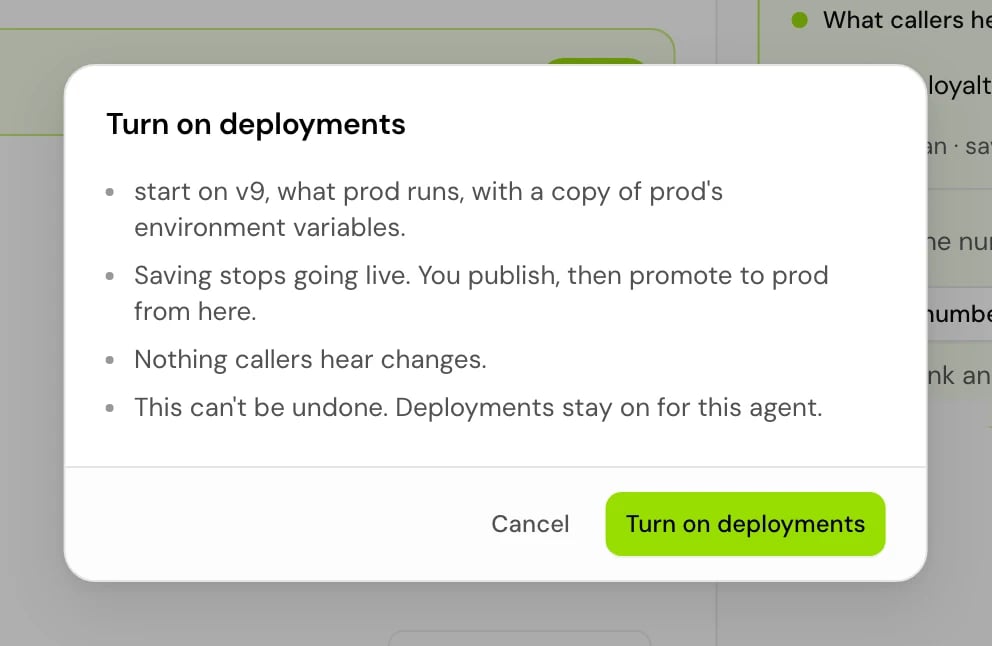
3
Confirm
Use Releases
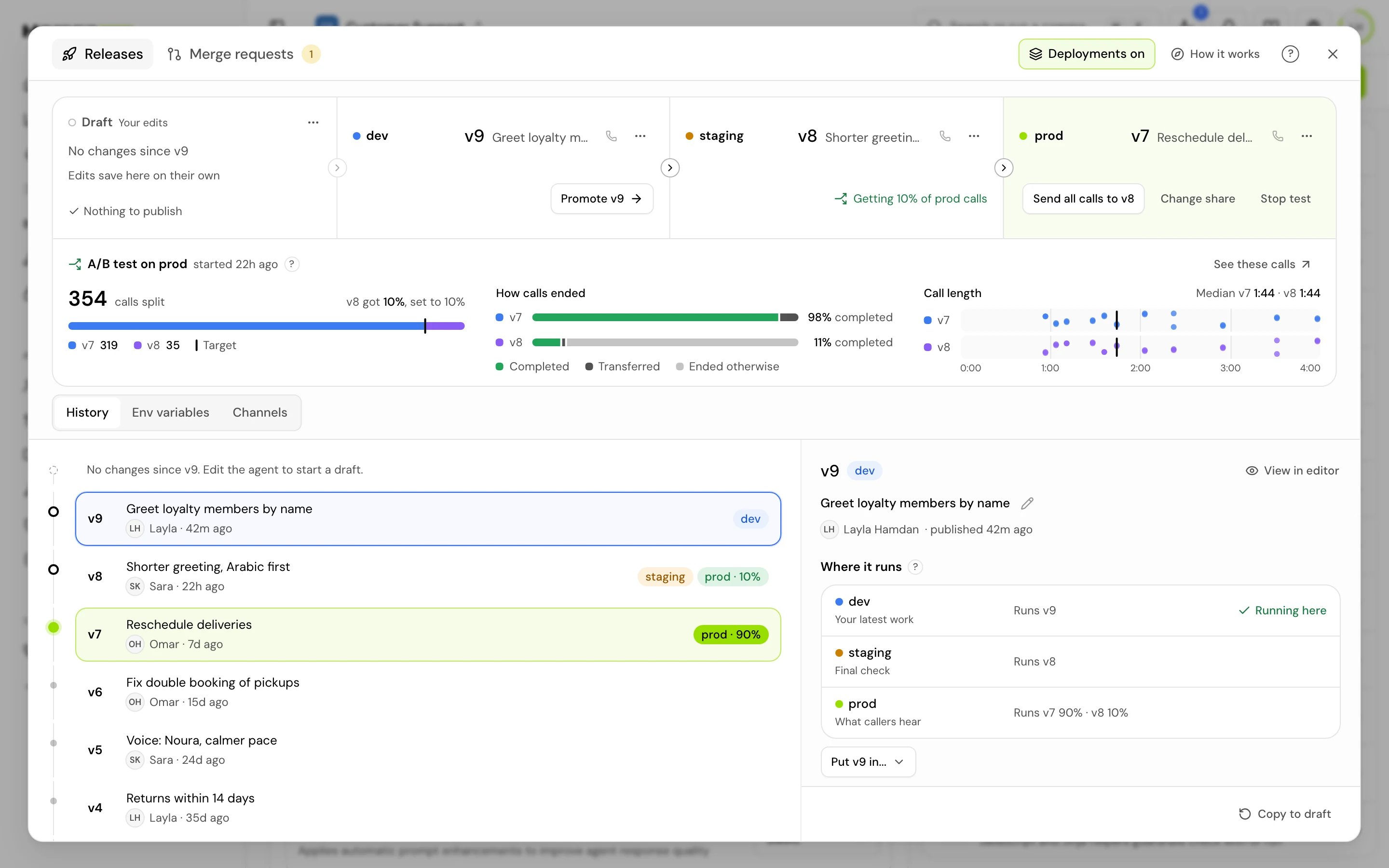
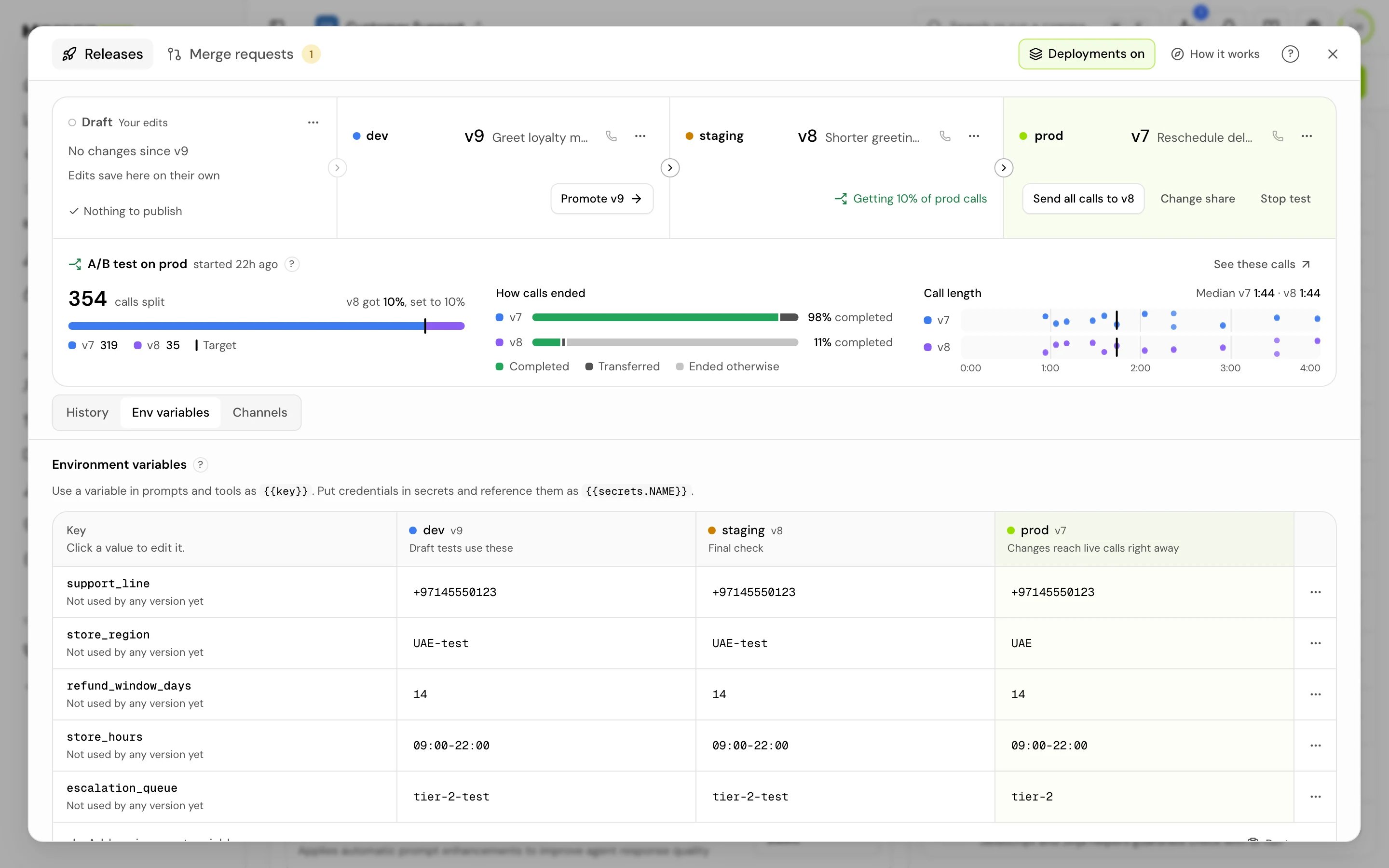
Releases has two tabs: Releases and Merge requests. At the top of Releases is the release path, Draft, dev, staging and prod, with what each one runs. Below it are three views:
How it works replays a short tour, and Glossary explains the words on the page.
Publish, promote and roll back
1
Publish into dev
Publish from the editor (Publish version) or from the Draft lane in Releases. The new version runs in dev. Nothing live changes.
2
Test it in dev
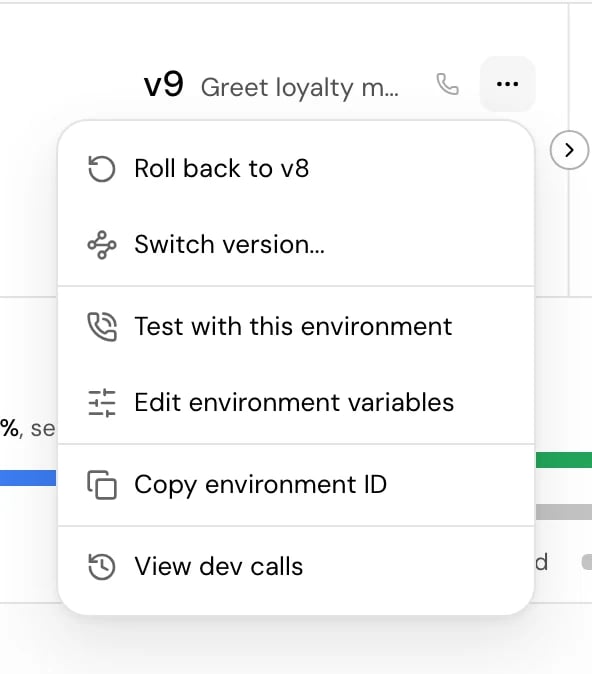
In the dev lane menu, click Test with this environment, or point a phone number at dev and call it.
3
Promote it
Click Promote {version} to {env} to move it one step toward live: dev to staging, then staging to prod. The confirmation says who is affected, for example “Every live call gets {version} from the next call”, or “No phone numbers reach {env}, so only tests use it.”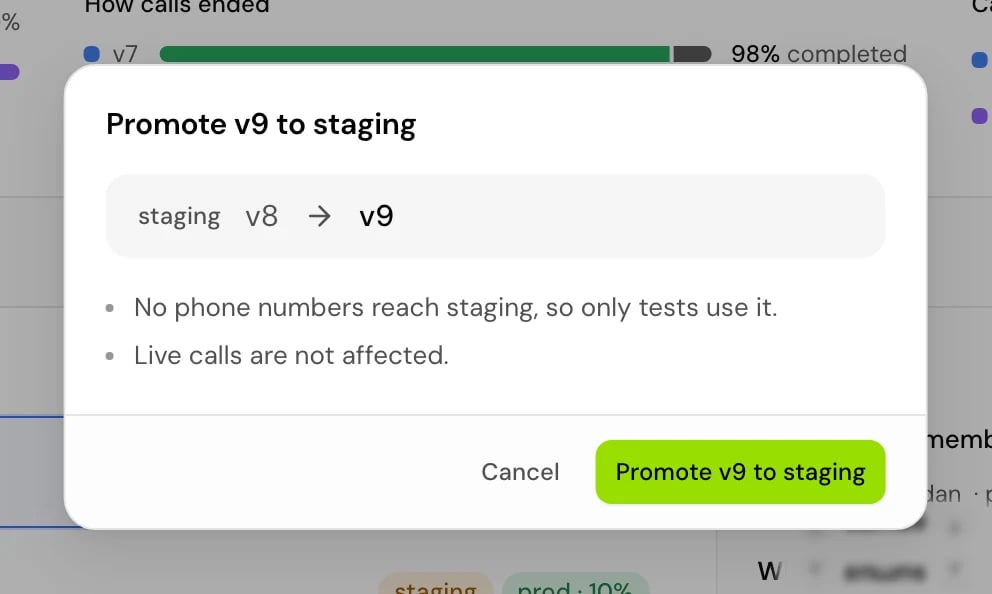
Environment variables per environment
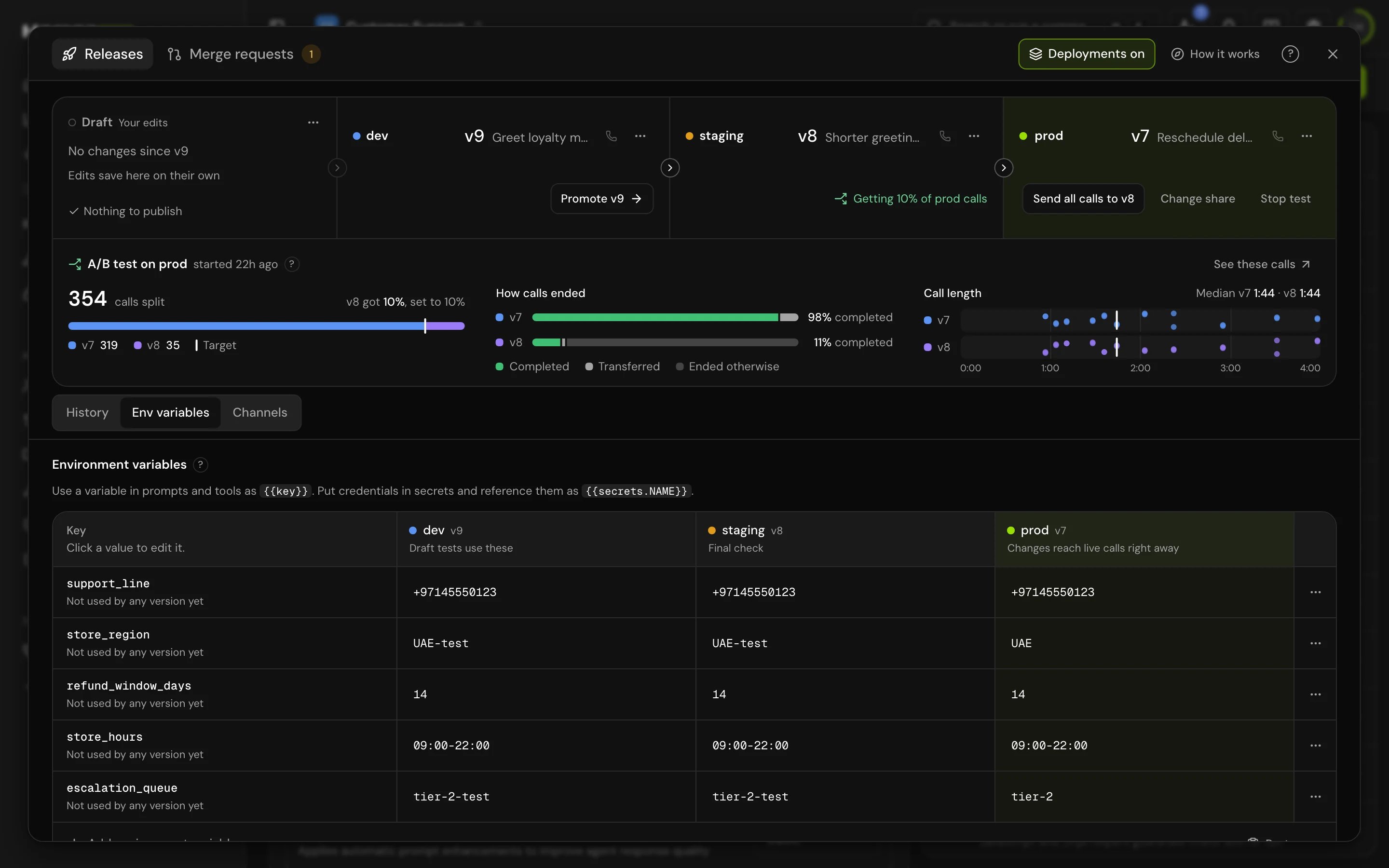
Each environment has its own value for every environment variable. A version reads the values of the environment it runs in, so staging can call your test API while prod calls the real one, from the same version. “Use a variable in prompts and tools as{{KEY}}.”
- Open Env variables to see keys down the side and environments across. Click a value to edit it.
- Add environment variable adds a key with a value for each environment. Paste .env adds several at once, one
KEY=valueper line. - Values are read at the start of each call. A prod change “Reaches live calls right away. No new version needed.”
- A value can’t be empty. To stop using a key, remove it from the row menu.
Channels: where calls land
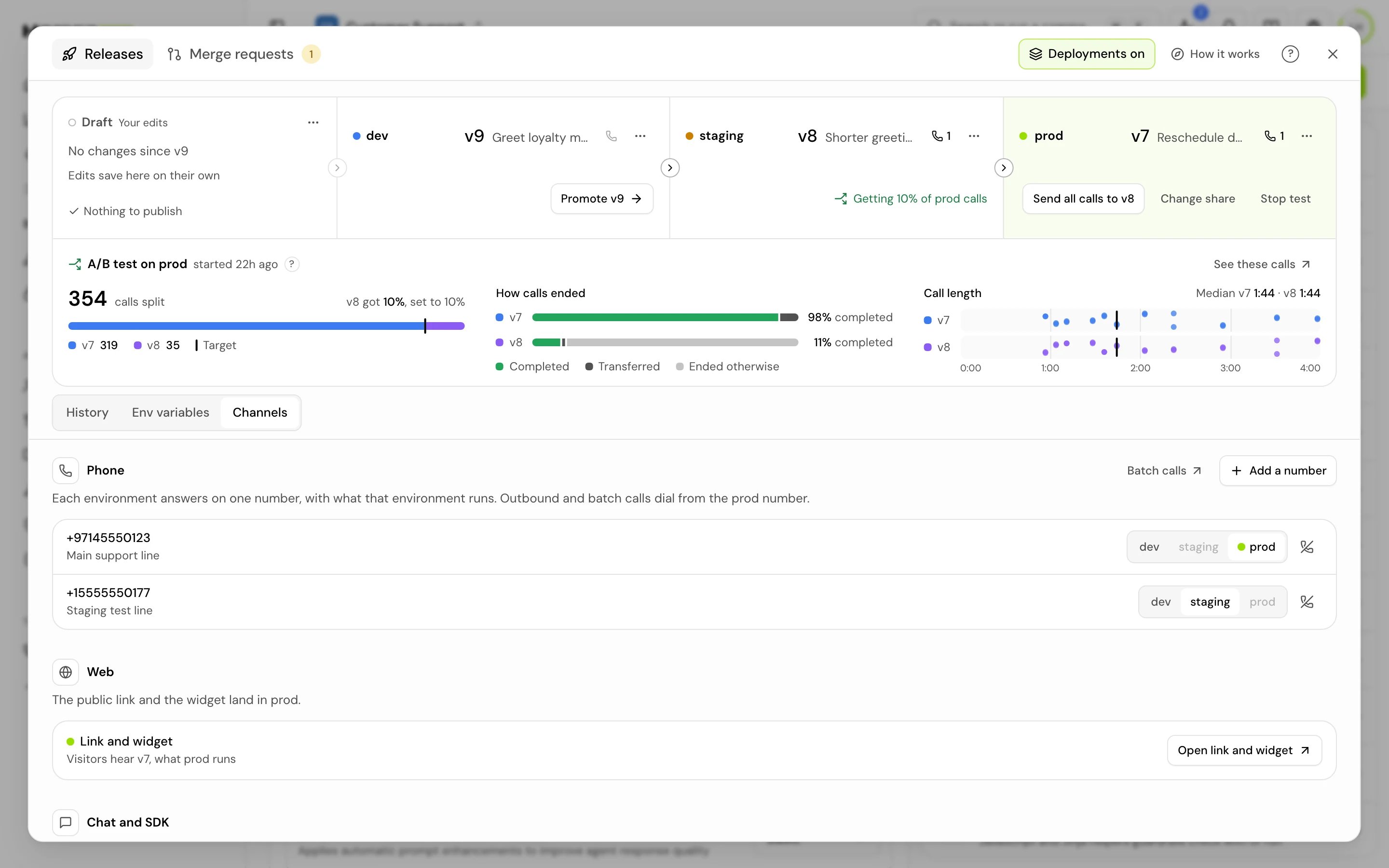
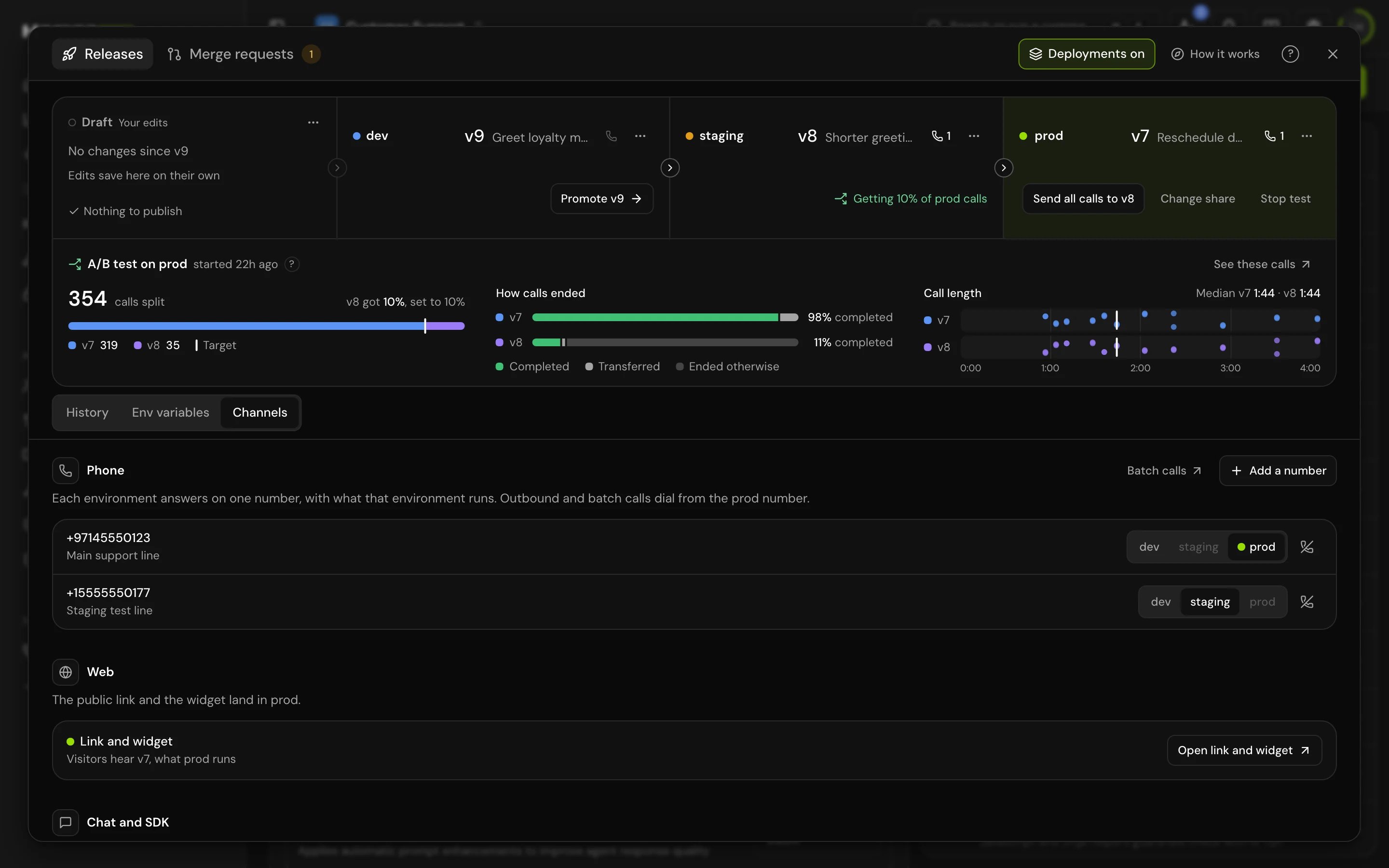
A phone call can’t choose an environment, so each phone number is pointed at one. Web and SDK sessions choose each time they start.Phone numbers
- An agent answers on at most one number per environment. “Each environment answers on one number, with what that environment runs.”
- To point a number at an environment, open Channels, click Add a number, and pick the environment under Lands in. Adding a number to an environment that already has one replaces it.
- Moving a number needs the Manage channels permission.
- With deployments off, every number answers from prod.
- A number pointed at an environment where nothing is published yet is answered by prod until you publish a version there, so callers always reach your live agent.
SDK sessions and public keys
The SDK snippet in Channels has Voice and Chat modes and an environment picker.- A public key belongs to one environment: dev, staging or prod. “The public key decides the environment: use the {env} key on your {env} site.” If there is none yet, click Create {env} public key.
- A public key can’t choose another environment or a version.
- Calls you start from your own server with a secret key can pass the environment’s ID.
With deployments off
In Versioning mode, Releases shows what callers hear, the draft, History and Variables:- Publish live in the editor makes a version and puts it live.
- In History, Roll back to this makes an older version live again. “The editor continues from {version}”, saved as a new version, so the next change builds on it.
- Variables holds one value per key. “A change reaches live calls right away.”
Find calls per environment
Click Calls in the editor header to see “Every call this agent answered”. Filter by Environment, or show only A/B test calls. Each call shows the version and environment that answered it.Related
Drafts and versions
How a draft becomes a version.
A/B tests
Send a share of prod calls to a new version.
Environment variables
Keys, values and how they reach prompts and tools.
Phone numbers
Buy numbers and assign them to agents.