

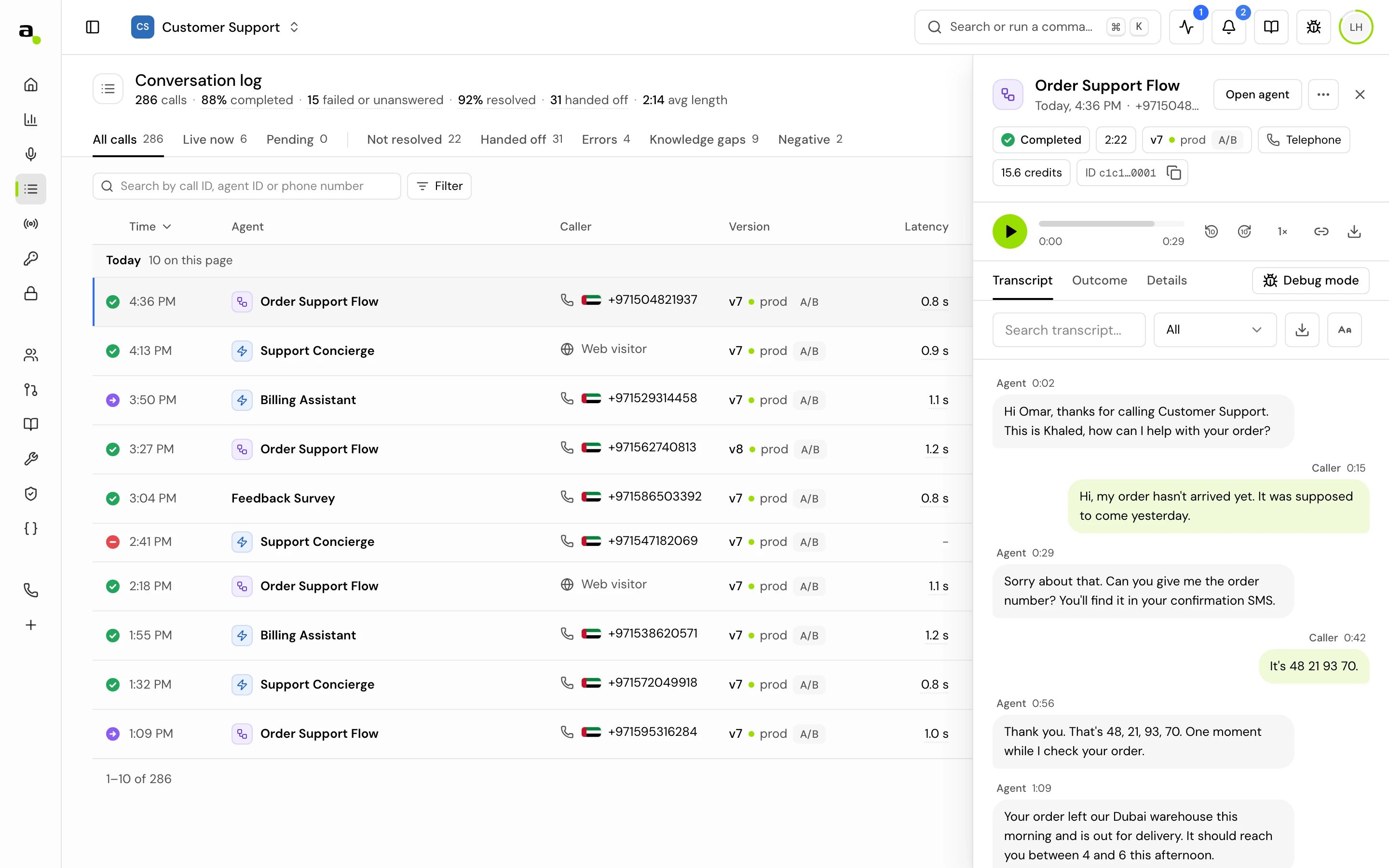
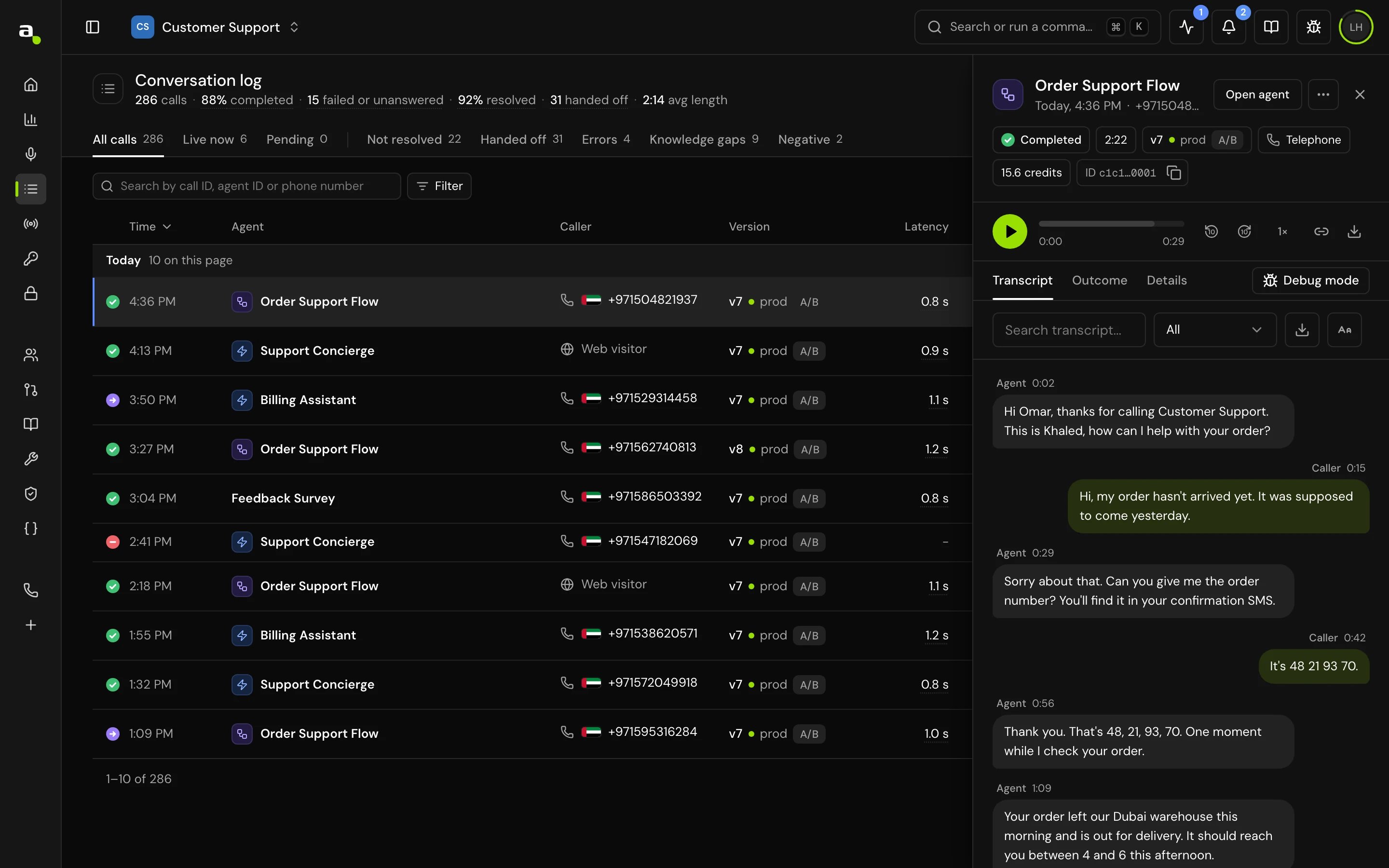
The header
The header shows the agent’s name and type (Flow agent or Single prompt agent), when the call happened, the caller, the channel, the status, the Call length, the Credits it used (once the call has ended), and the Version that answered.- Open agent opens the agent in its editor.
- Calls opens all of this agent’s calls.
- More actions has Copy call ID and Copy agent ID.
Play and download the recording
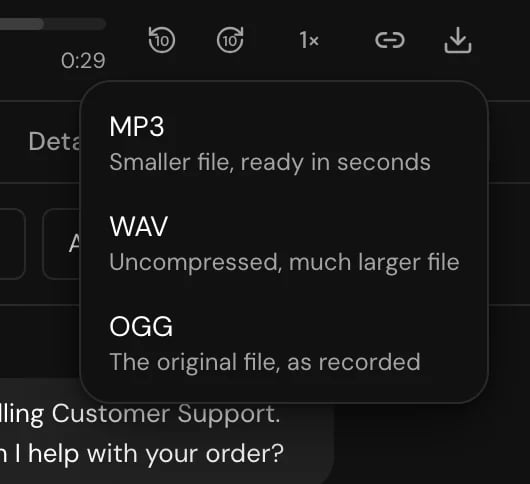
For a finished call, the Call recording player sits above the tabs.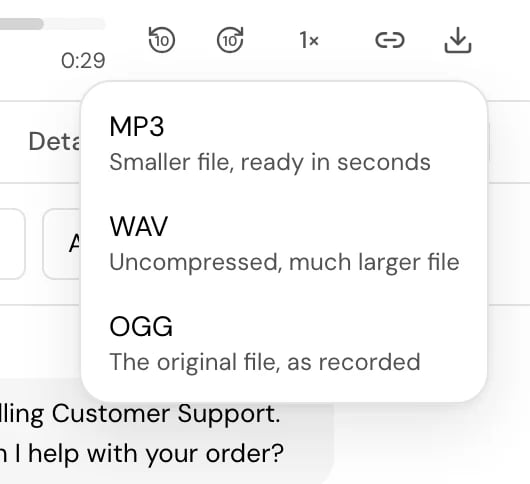
Keys for the recording
While a call is open, you can control the recording from the keyboard (not while you type in a field):
Press ? to see every shortcut. See Find your way around Hamsa Agents.
MP3 and WAV are converted when you ask. If many downloads are running, you may see “Downloads are busy right now. Try again shortly.”
Right after a call ends you may see “Processing call data, please wait…”. A call that failed before anyone spoke shows “No recording available”.
While a call is in progress, this area offers Monitor the call instead. See Live calls.
Transcript
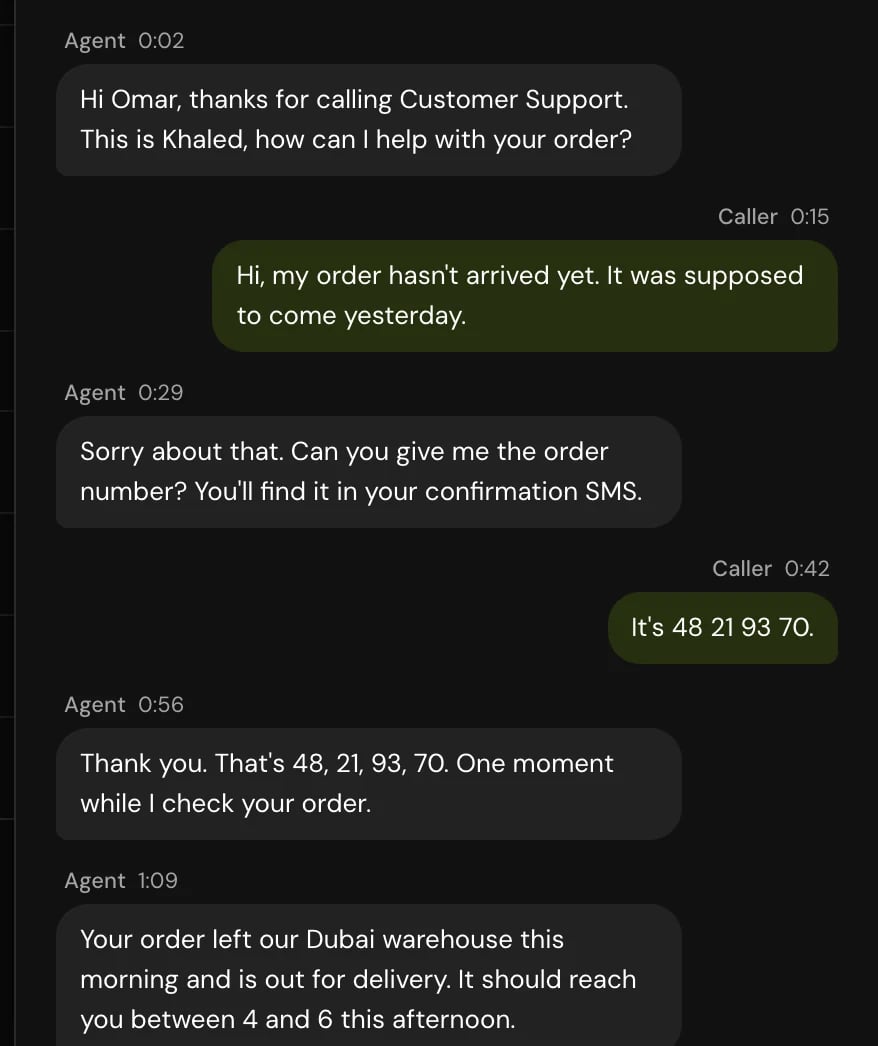
Transcript is the tab that opens first. It shows each turn with its speaker: Caller, Agent, Human agent (a member who took over the call) or Moderator (an instruction a member sent to the agent while listening). Next to the speaker, each line shows how far into the call it was said, such as 0:15 or 1:05:03 past the hour. Hover over it to see the time of day.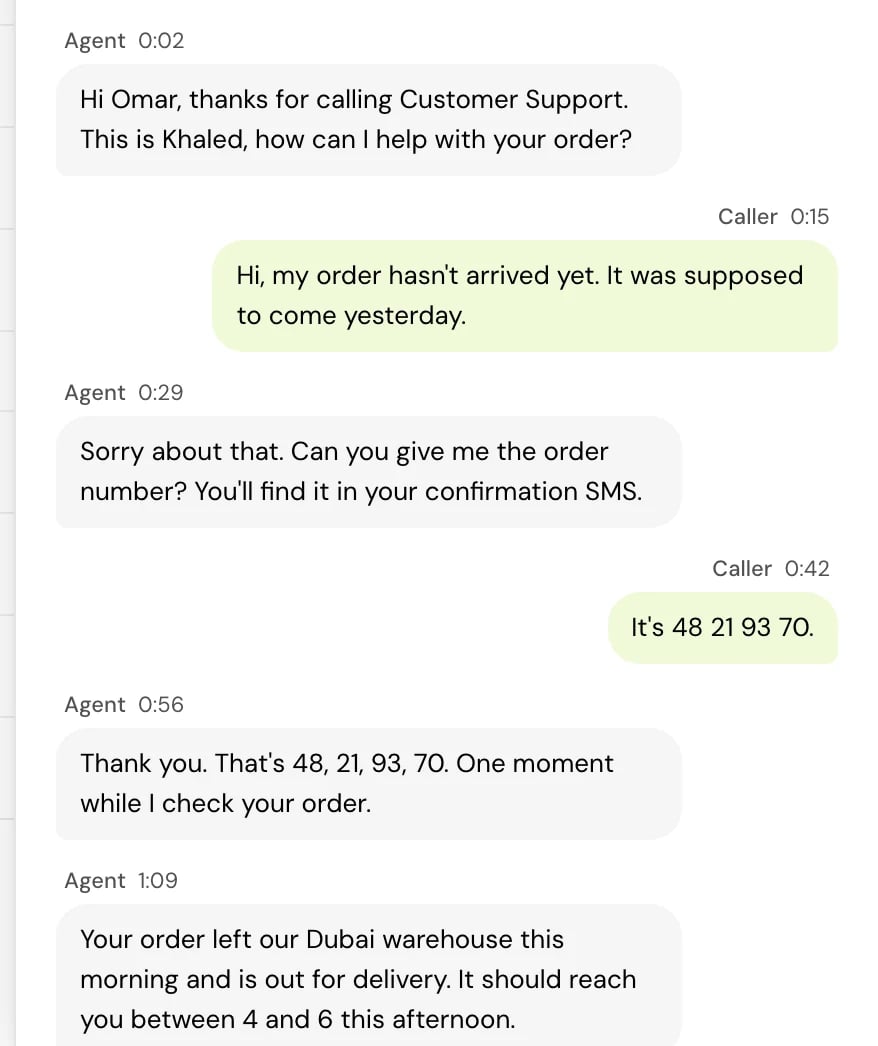
- Search transcript… finds words in the conversation.
- Speaker shows one speaker’s turns only.
- Copy link to this line copies a link that opens the call at that turn.
- Original and Translation switch views when the call was translated.
- Text size: Small, Medium or Large.
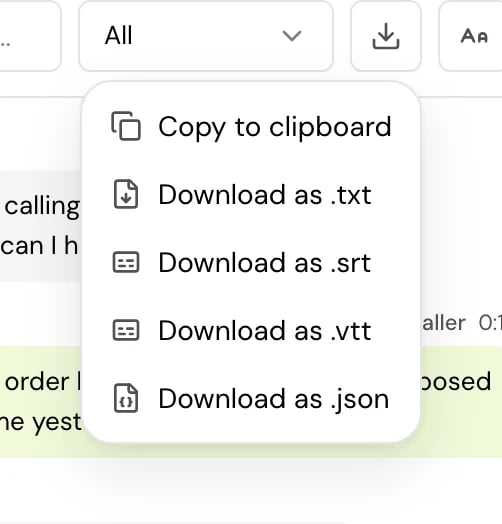
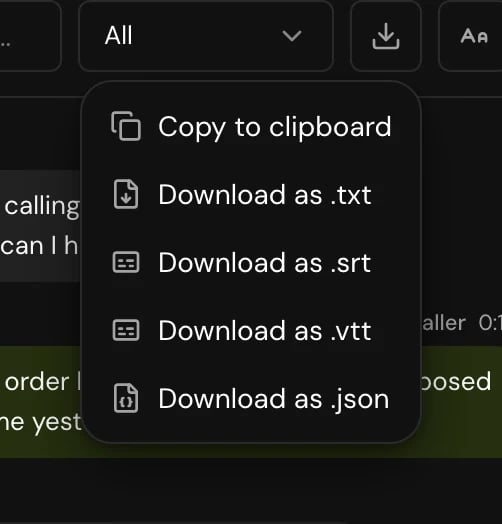
- Export conversation: Copy to clipboard, or Download as .txt, .srt, .vtt or .json. The .srt and .vtt files are subtitle files you can load beside the recording.
Outcome
While the call is in progress, this tab says “Call in progress”. Once it ends, it shows two parts.Call analysis
After each call, an AI model reads the transcript and judges how it went. Analytics explains the rules. Until it’s done you see “Still being analysed. What it found shows here once it is done.”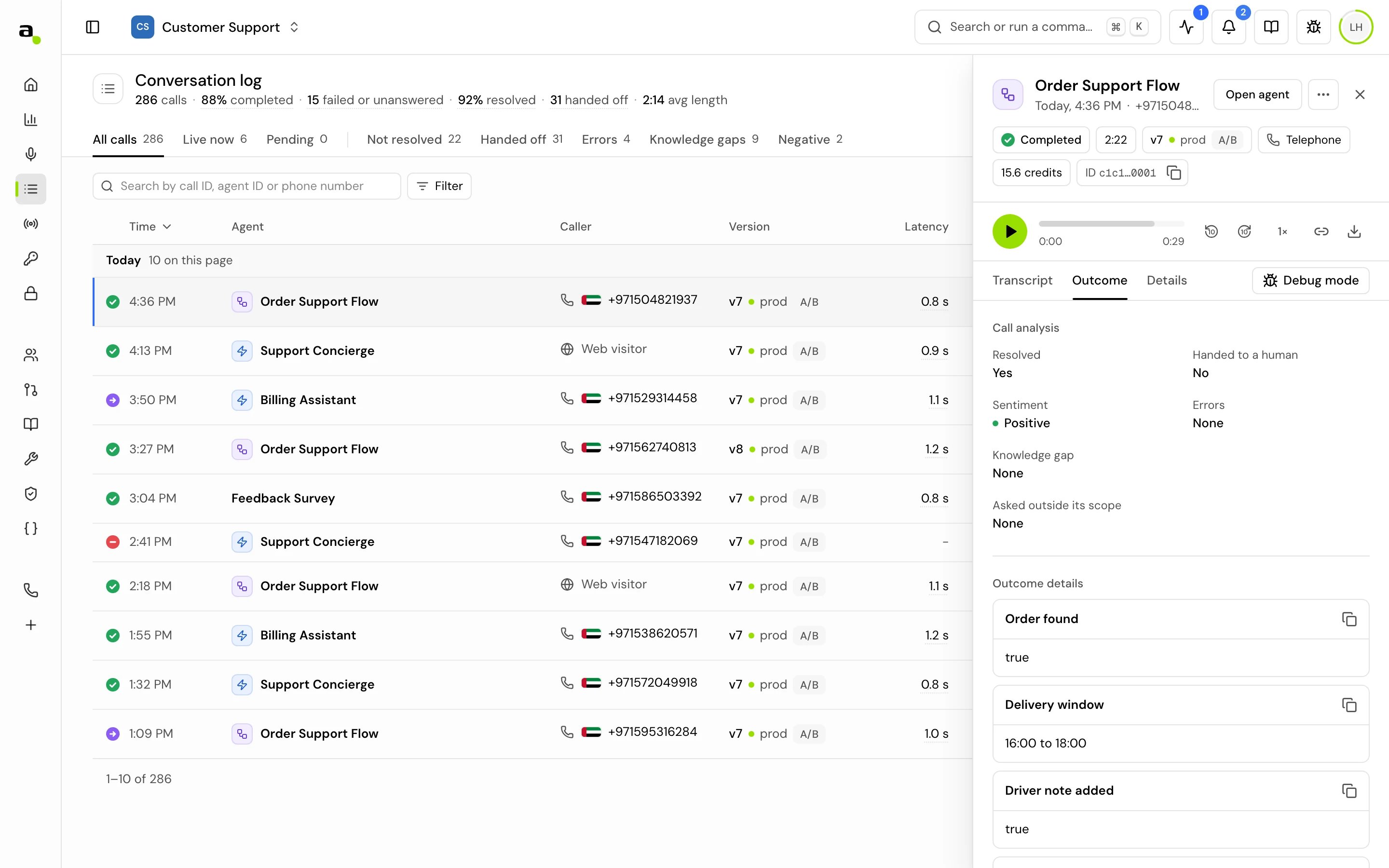
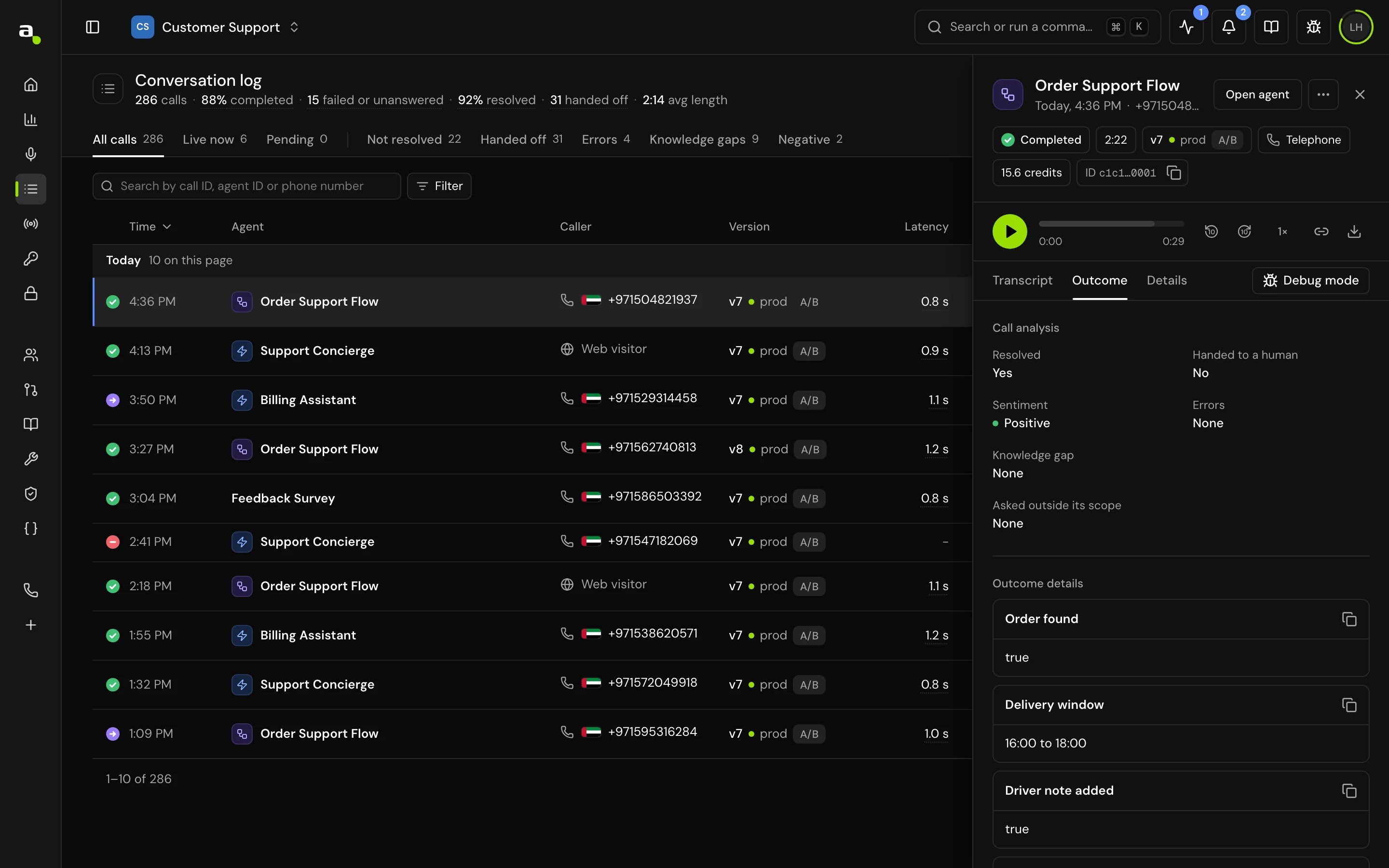
Outcome details
Below the analysis, Outcome details shows the fields your agent fills in after each call, as you defined them in the agent’s Outcome settings. Click Copy to copy them. If the agent has none, you see “No outcome data”.Details
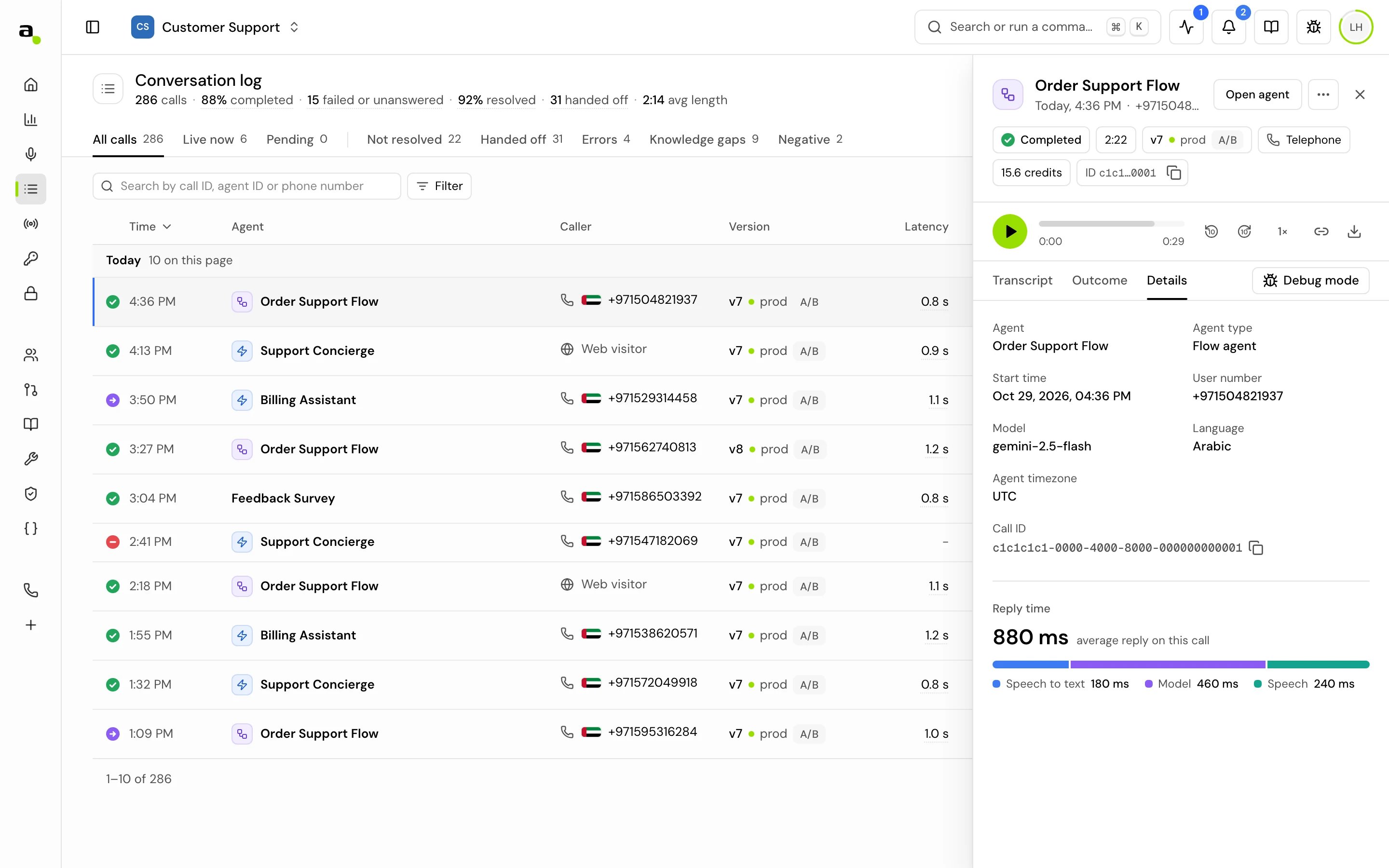
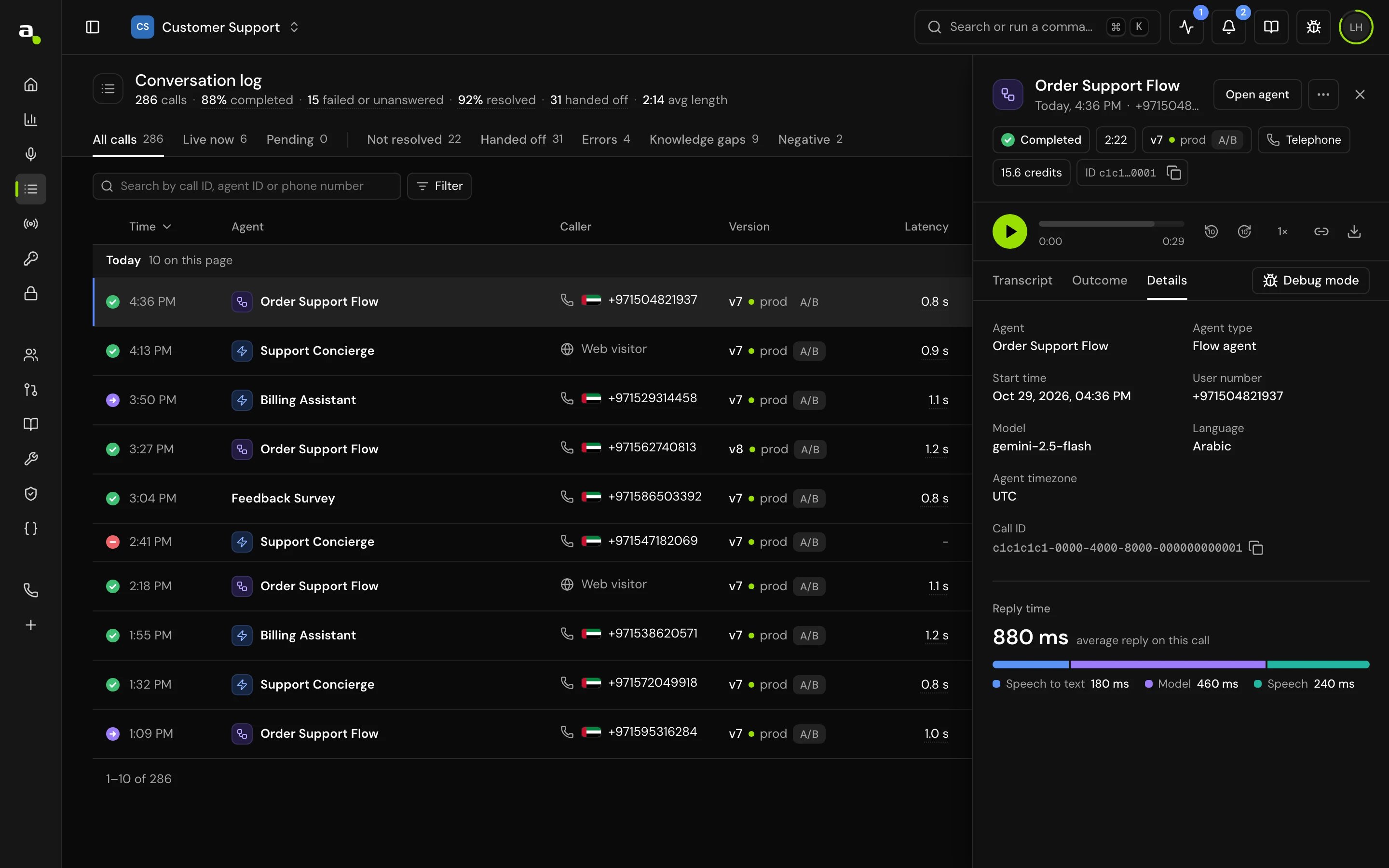
The Details tab lists the facts of the call:- Failure reason and Status code, for a failed call.
- The agent, Agent type and Start time.
- Agent number and User number.
- LLM provider, Model, Voice (with Copy voice ID), and Language or Translation language.
- Agent timezone and Call ID.
Logs
The Logs tab lists the events the agent recorded during the call.- Search logs… finds text in the events.
- Filter by type shows ERROR, WARNING, INFO or DEBUG events only.
- Export logs downloads the events as a JSON file.
- Clear all logs empties the list on your screen.
Show encoded personal details
If a guardrail encoded personal details on the call, they show as hidden values, under a bar that says “Personal details on this call are hidden.” To read them:1
Open the key dialog
Click a hidden value, or Show values on the bar. The Show encoded values dialog opens.
2
Enter the key
Type the key from the guardrail’s functions in Key and click Show values. A wrong key says “That key doesn’t open these values.”
Replay a flow agent’s call in debug mode
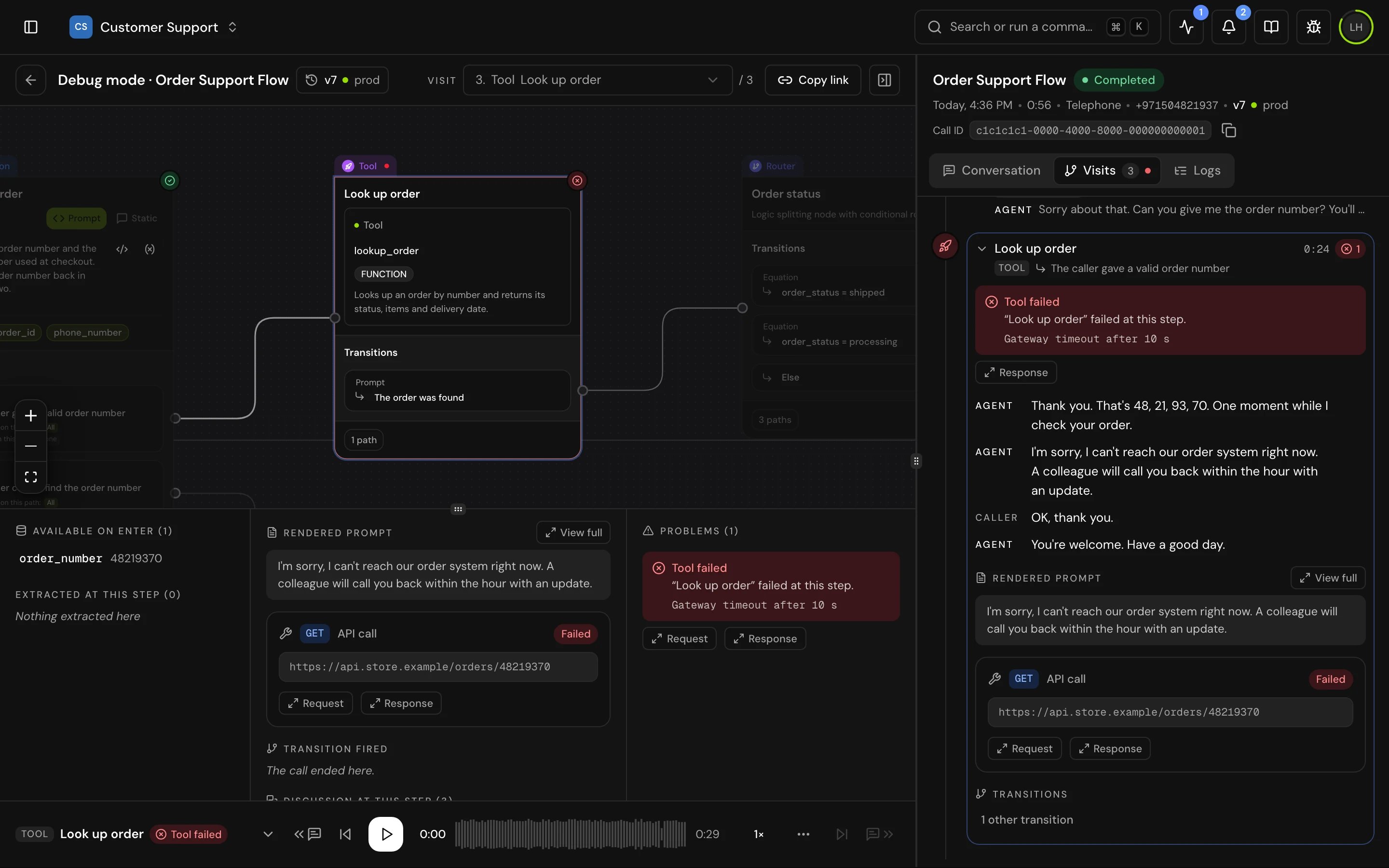
For a flow agent, Debug mode at the end of the tab row replays the call on its flow, in step with the recording, with each visit to a step and the call’s logs. On a live call it follows the call on the flow as it happens. Single prompt agents don’t have debug mode. See Debug mode.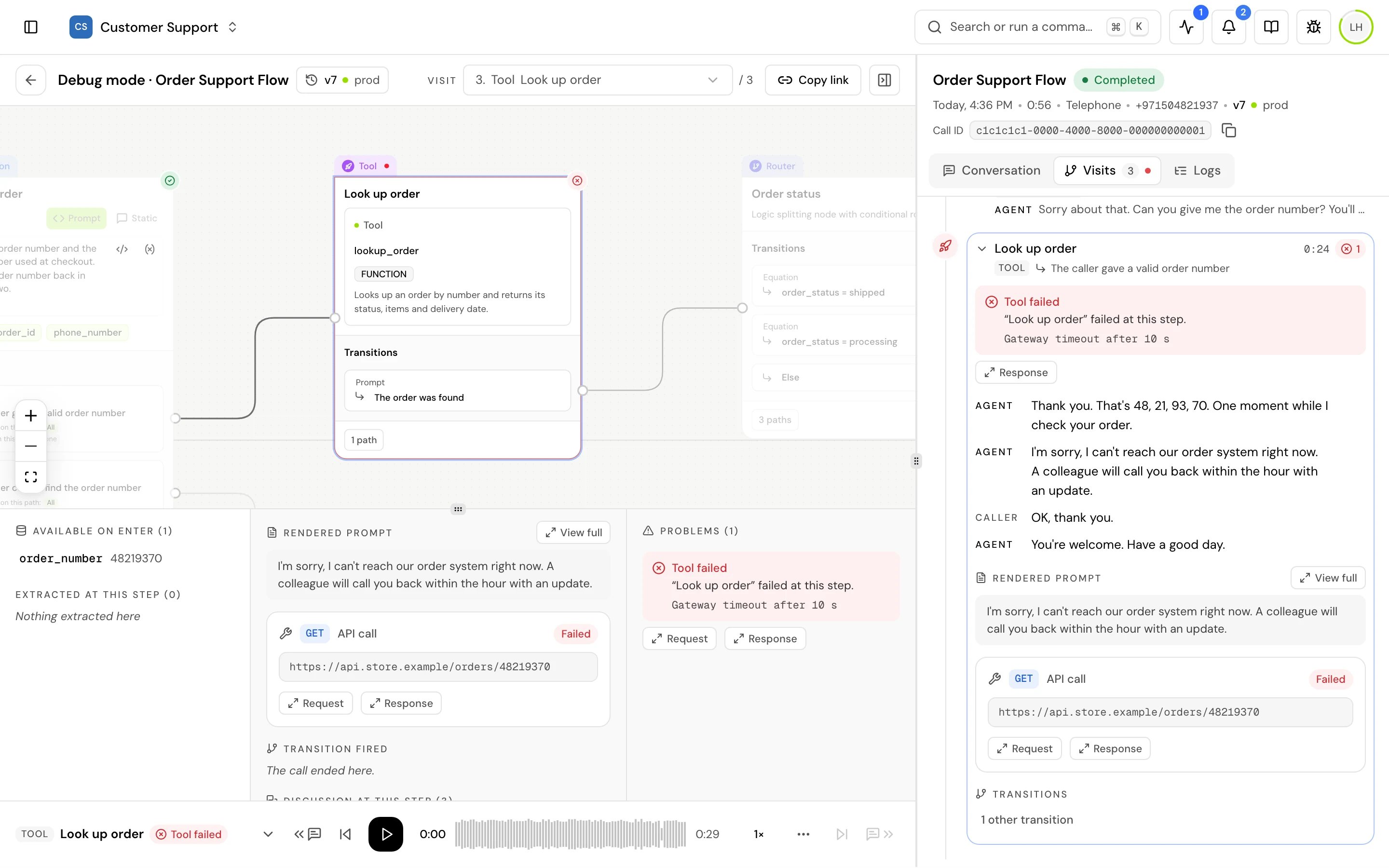
Good to know
- Calls in Pending have no details: they haven’t started.
- The recording and replay are usually ready a minute or two after a call ends.
- Call analysis and Outcome details are filled in after the call. They don’t change while the call runs.
- The transcript and analysis cover what was said on the call. Anything a tool did without the agent saying it doesn’t appear in the transcript; check the logs or debug mode.
Related
Live calls
Listen in, send instructions, or take over a call in progress.
Test your agent
Make test calls and open them in debug mode.
Analytics
How call analysis adds up across calls.
Protect personal data
Encode personal details on calls.