

File format
.csvor.xlsx(Excel). Older.xlsfiles aren’t accepted. From an Excel file, only the first sheet is read.- The first row holds the column names. Every row after it is one recipient.
- Empty lines are skipped.
- Save CSV files as UTF-8 so Arabic and other non-Latin text comes through. The CSV template already is.
dynamic_variable1 and dynamic_variable2 with your own column names.
Columns
Columns become variables
Every column that isn’tphone_number or ignore_e164_validation becomes a variable the agent can use, name included. A column named plan is {{plan}} in the prompt or greeting:
- Names are used exactly as written, including case and spaces.
Customer Nameandcustomer_nameare different variables. Use letters, numbers and underscores to keep them easy to write in prompts. - An empty cell isn’t sent at all. If the agent uses that variable, it’s empty on that call, and the call goes on.
- Values arrive as text. See Jinja syntax to compare or format them.
- If the agent’s prod environment has a variable with the same name, the environment value wins over the column.
Phone number rules
A number with
00 is saved with + instead.
In Excel, format the phone number column as text so Excel keeps the leading +. The Excel template already does.
A number without a prefix is dialed with a
+ in front of it. A number with ignore_e164_validation set to true is dialed exactly as written, with no + added. Whether a local number connects depends on the phone number you call from, so use full international numbers when you can.Time zones
The calling window you set on the batch call (Time range and Days of week) is read in the batch call’s Timezone. Add atimezone column to call each recipient inside the window in their own time zone, for example when one list covers Riyadh and Cairo.
- Use IANA names such as
Asia/Riyadh,Africa/CairoorEurope/London. Abbreviations likeGSTaren’t IANA names. - A time zone Hamsa doesn’t recognize is reported when you upload the file, so you can fix that row.
Fix rejected rows
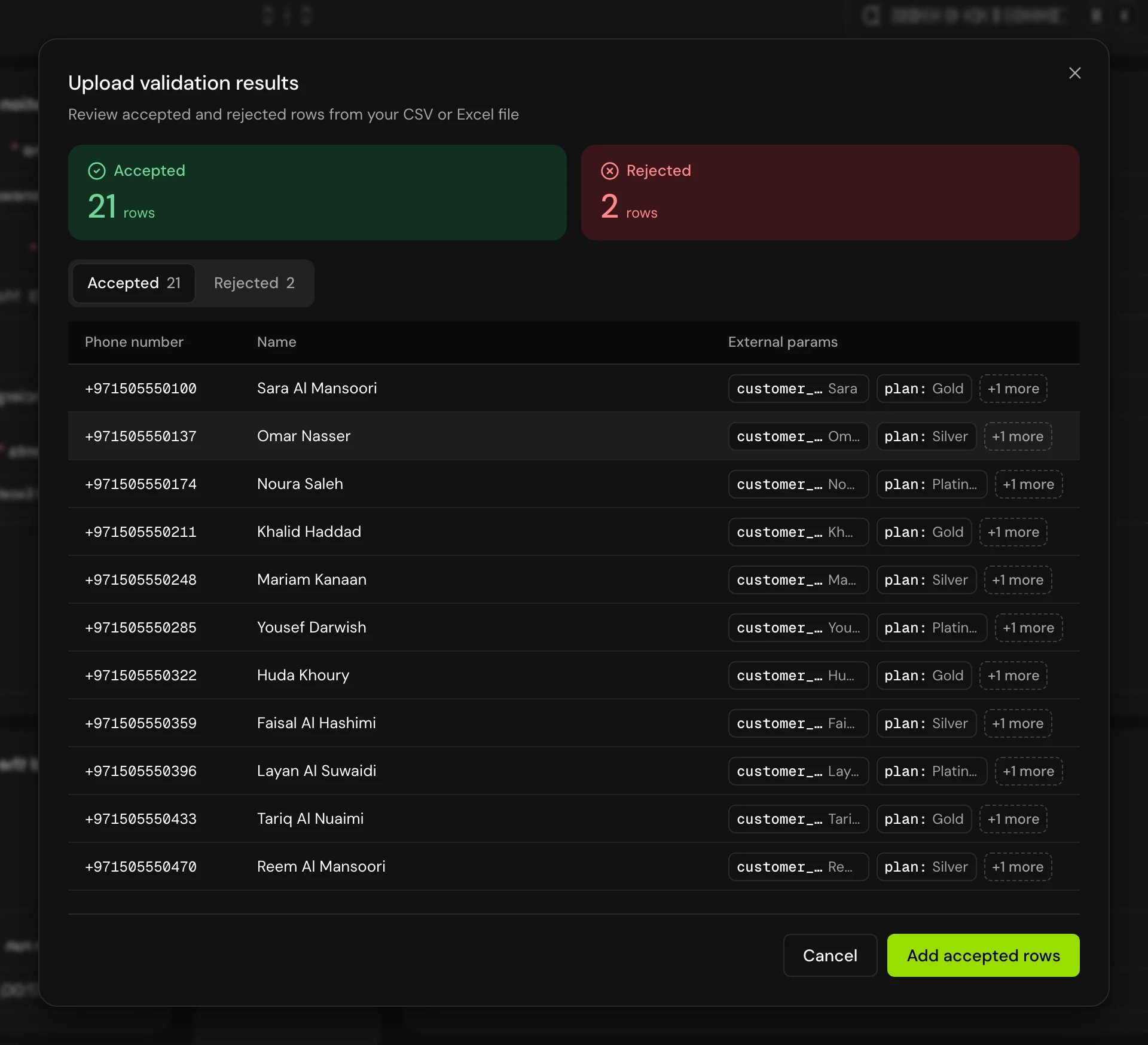
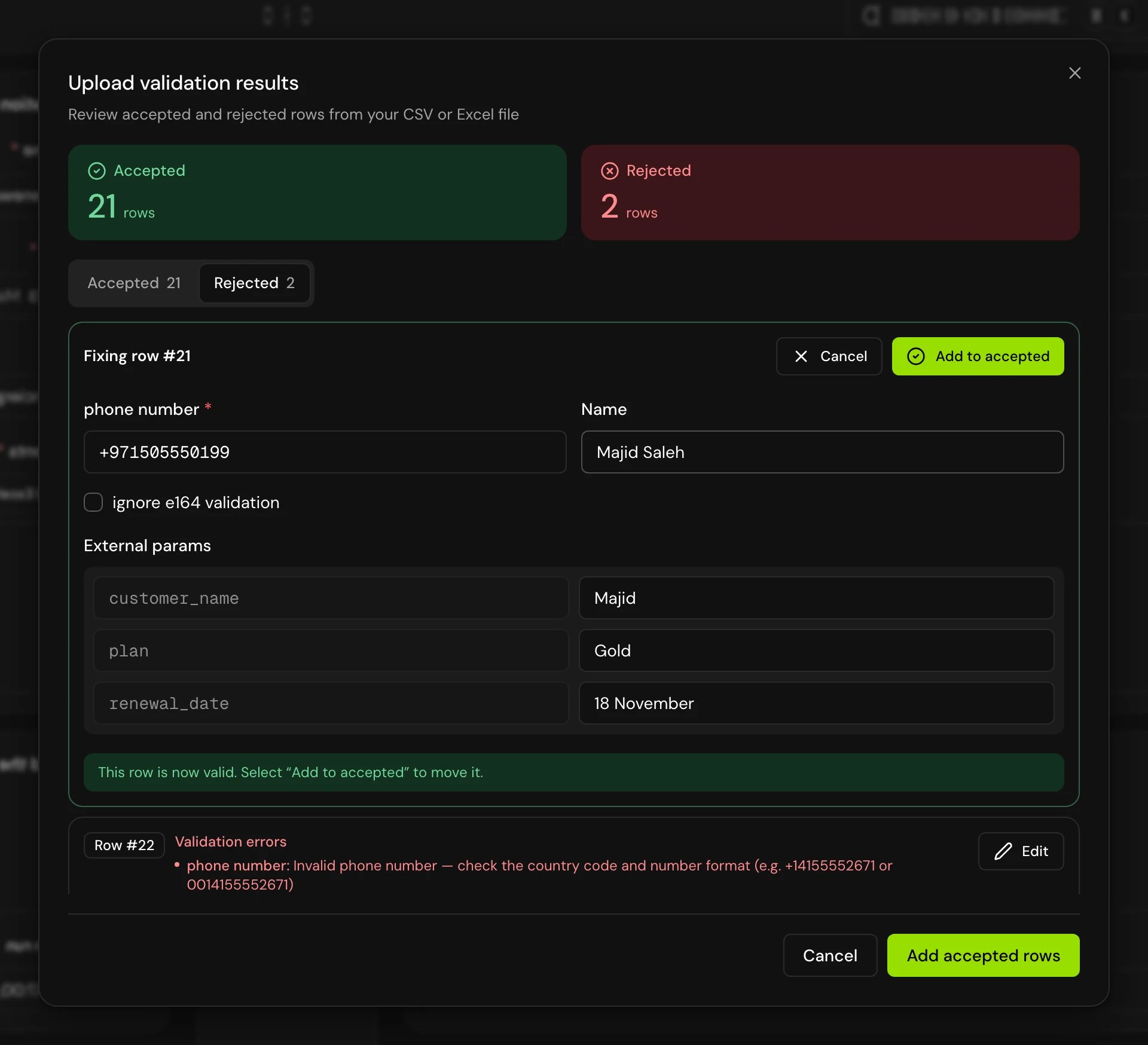
After you upload, Upload validation results shows Accepted and Rejected rows.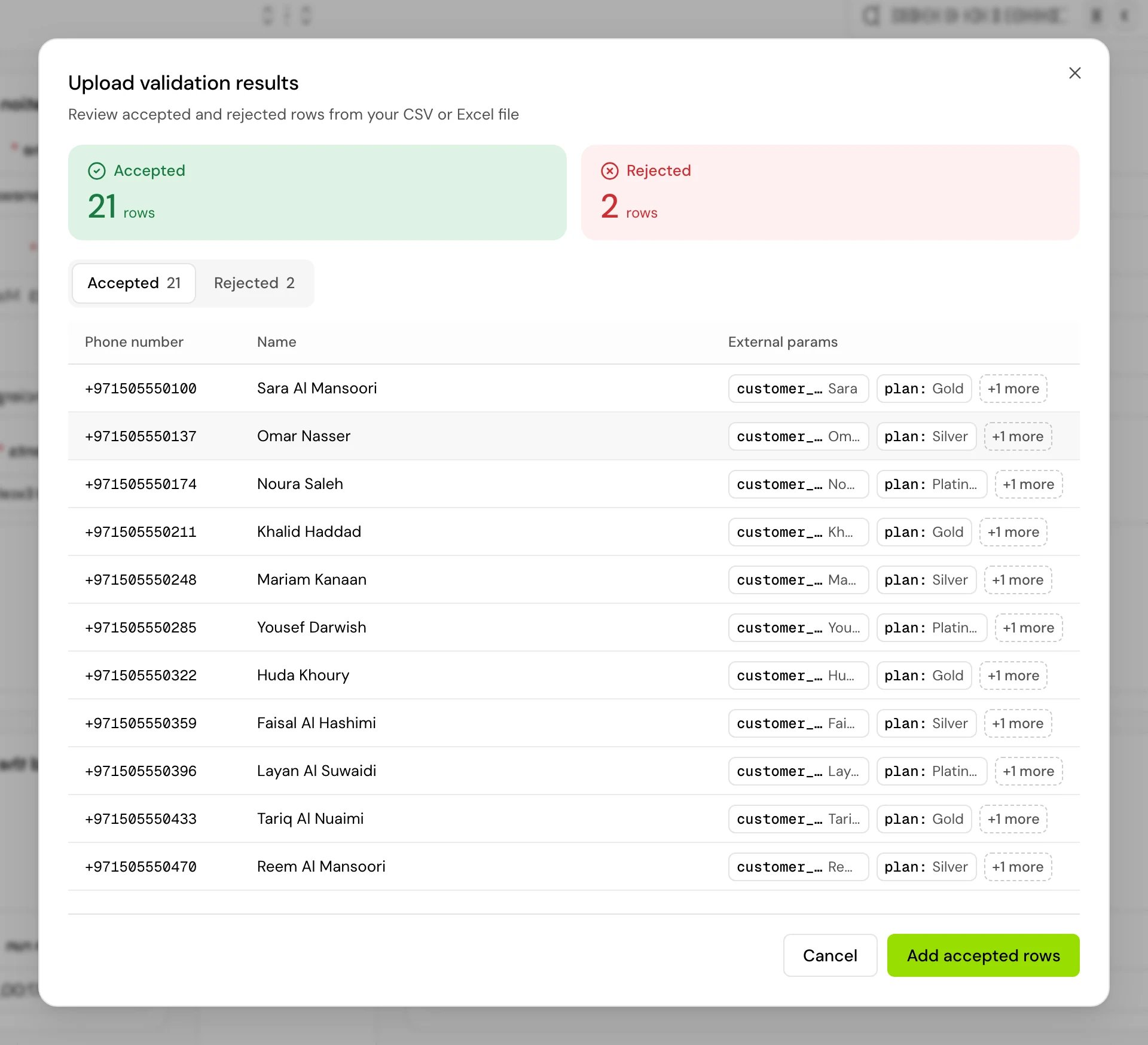
1
Open the Rejected tab
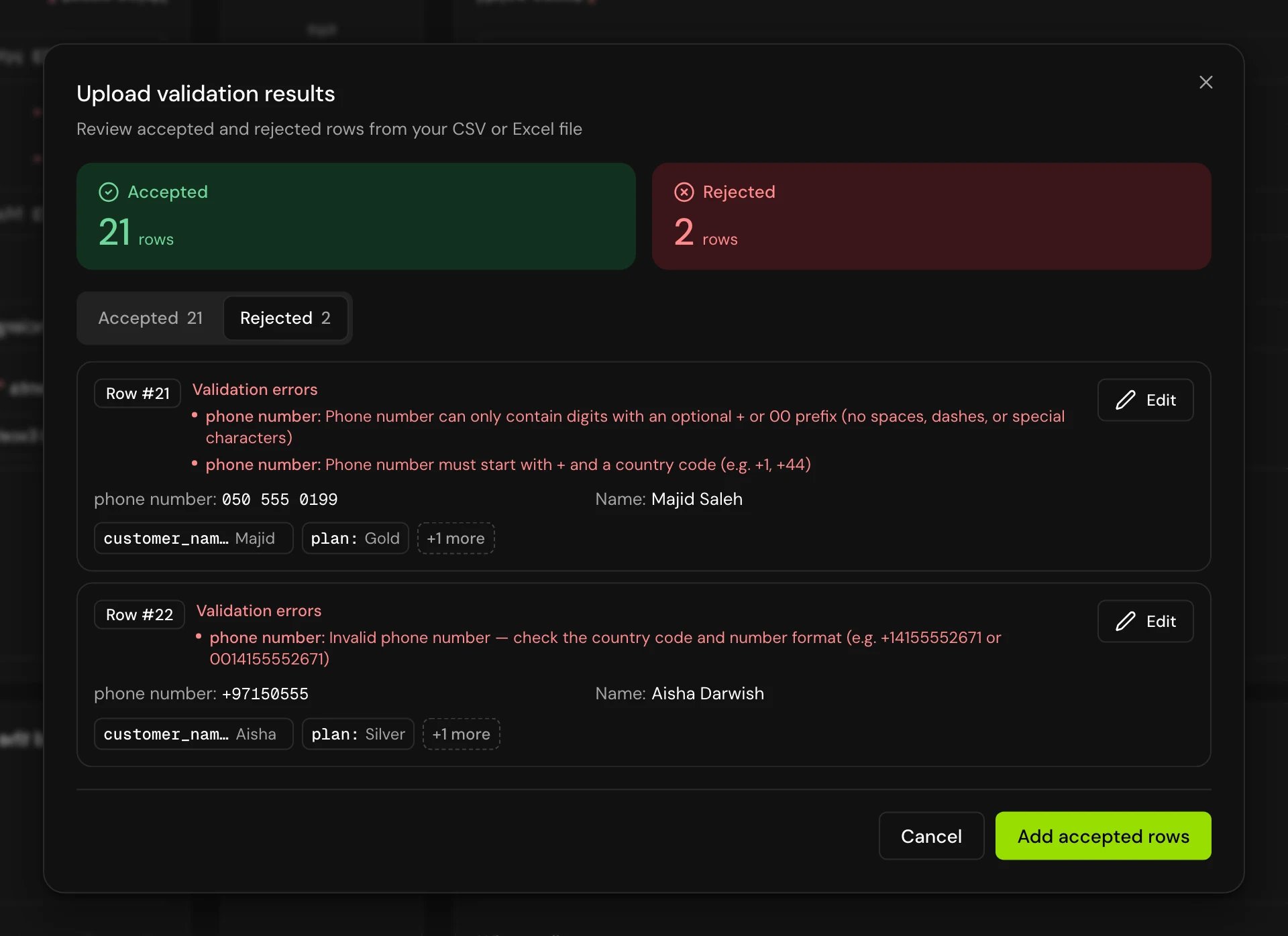
Each row shows why it was rejected.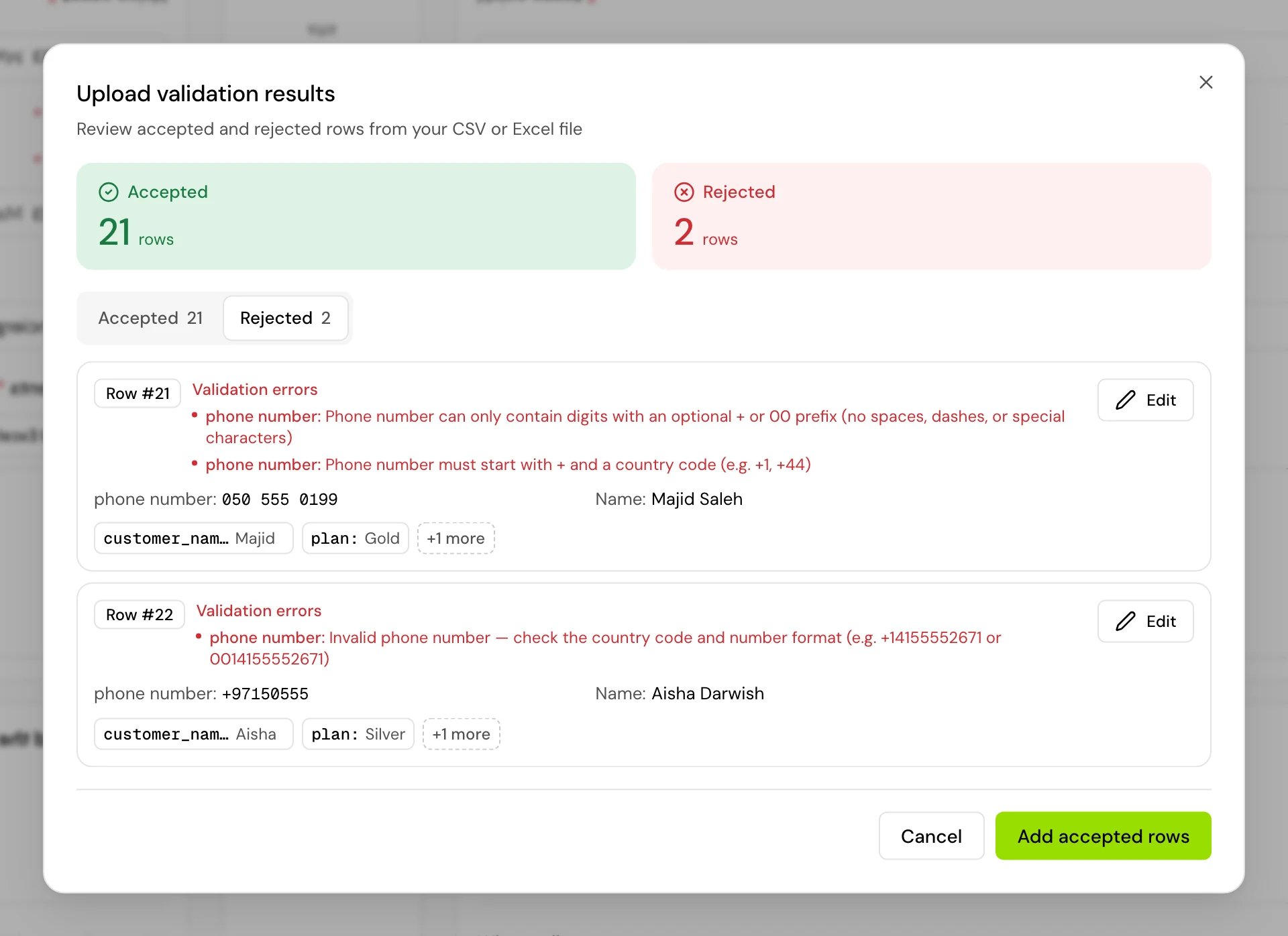
2
Click Edit
The row opens as Fixing row #n. Change the phone number, the name, ignore e164 validation, or any variable value. Column names can’t change here.
3
Click Add to accepted
Once the row is valid, the dialog says so and Add to accepted moves it over.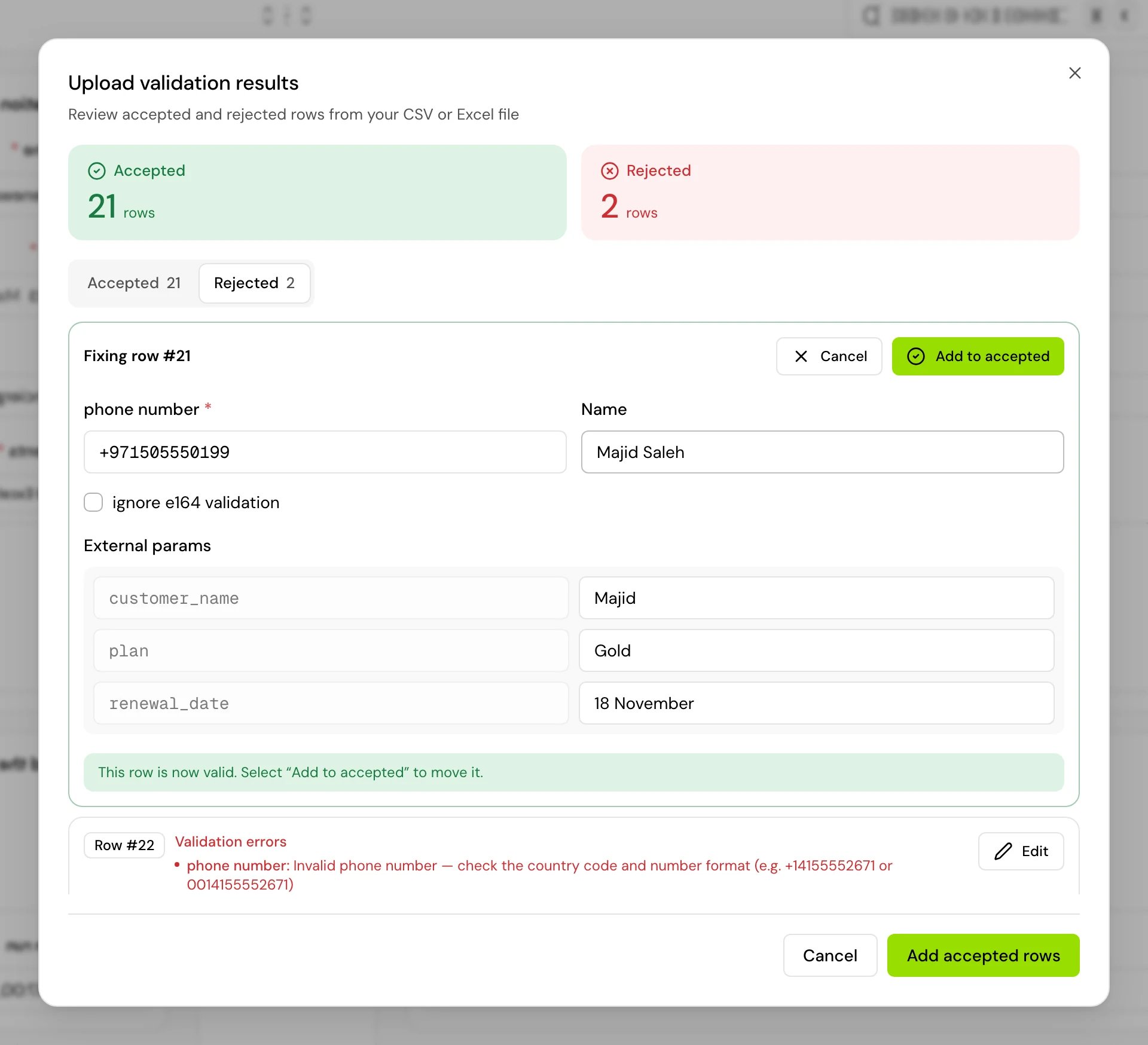
4
Click Add accepted rows
Accepted and fixed rows are added. Rows still rejected are dropped.
Limits
Related
Batch calls
Create, schedule and follow a batch call.
Pass values when a call starts
How column values reach your prompt.
Jinja syntax
Format and compare values in prompts.
Environment variables
Values that apply to every call in an environment.