

When to use a live variable
A variable on node exit is read once, when the call leaves its step, and it can be required. A live variable is read after every caller turn and can’t be required.
Set up live variables for the whole agent
1
Open Live variables
In the flow builder, click Global settings and open Live variables (“Extracted after every caller turn, in every node.”).
2
Add a variable
Click Add variable. A new row opens straight away as “Variable N” until you name it.
3
Fill in the card
Give it a snake_case name, a Data type (String, Number, Boolean, Array (JSON) or Object (JSON)) and an Extraction prompt that says what to listen for, for example “true when the caller asks to speak to a person, a human or an agent.” For a string, you can limit the value to a list with Use as enum.
4
Go back to the list
Click Back. Each variable is a row; click a row to open its card again.
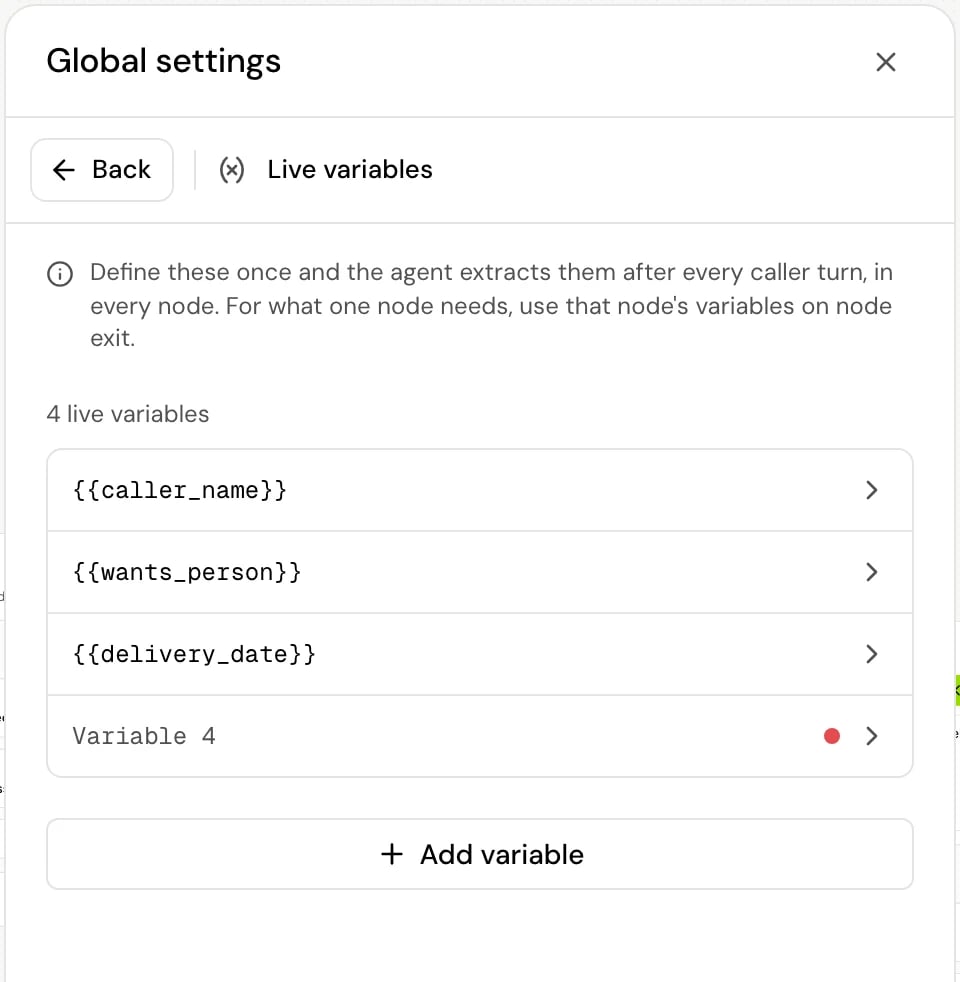
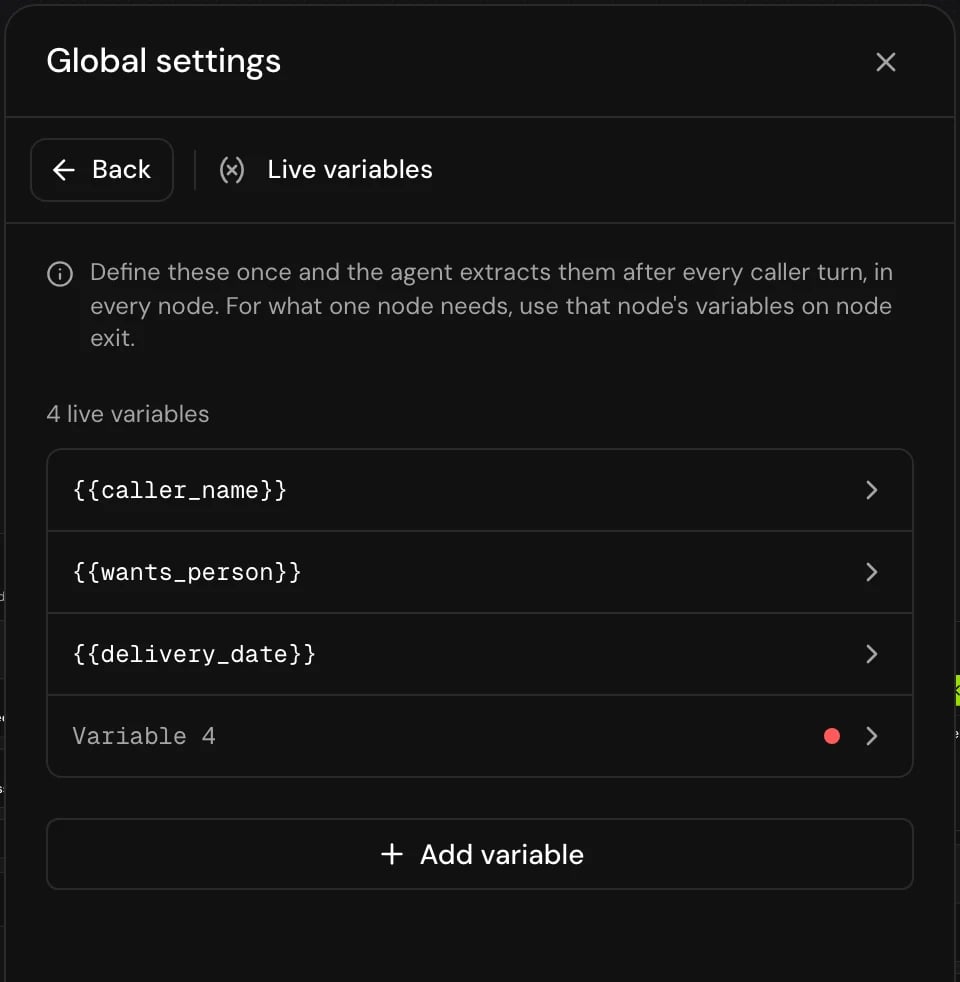
{{ }}, and they are filled in before each reading. Relative dates the caller says (“tomorrow”, “next Friday”) are worked out from today’s date in the agent’s time zone.
Turn live variables on or off in a step
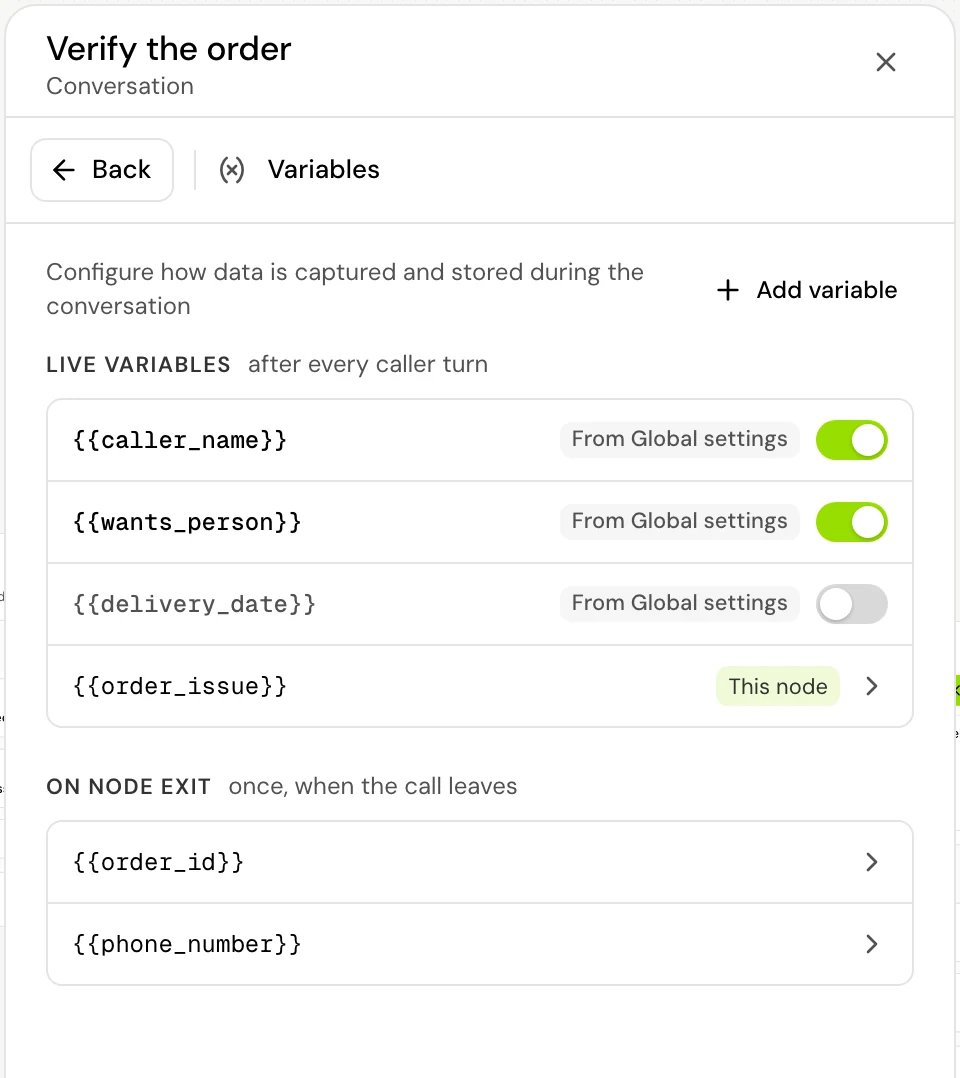
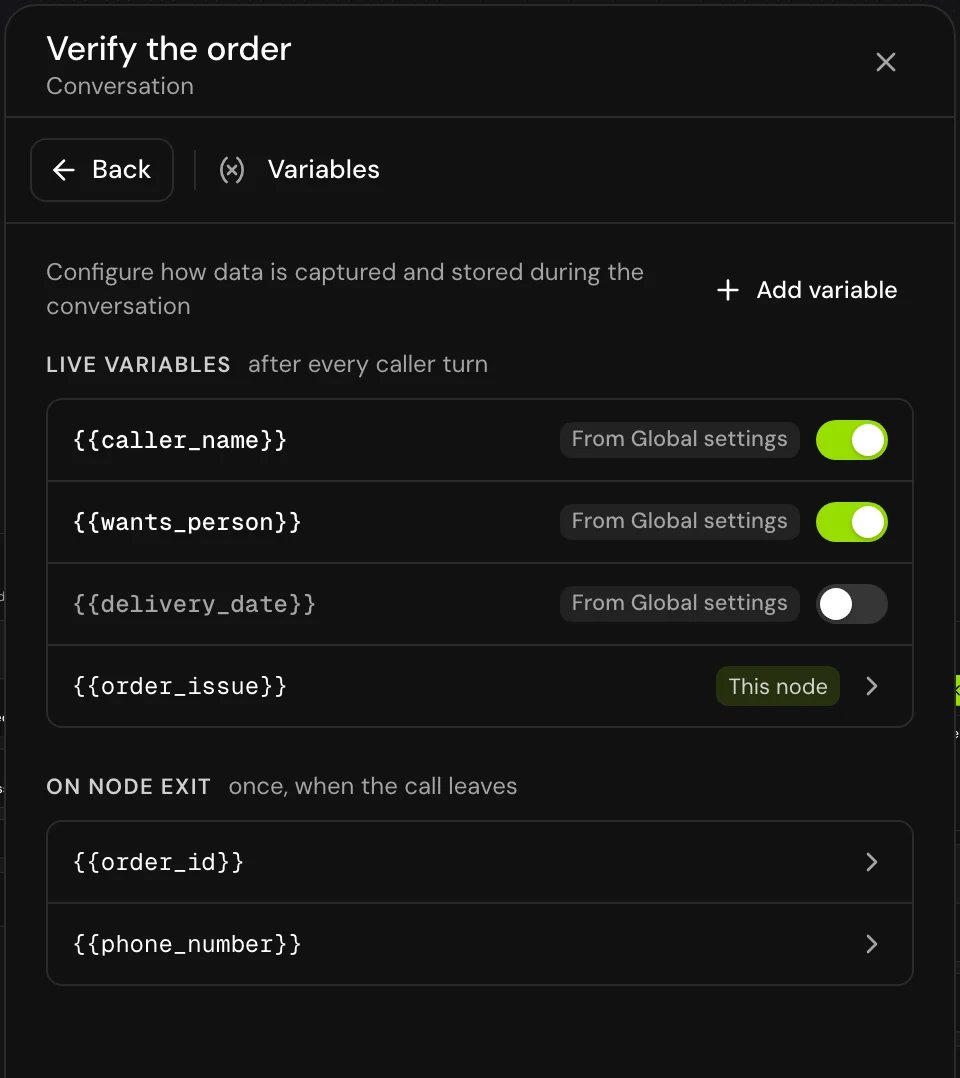
Live variables run in Conversation steps and in the Start step (when it starts with a conversation). Other step types don’t have caller turns, so they have none. Open a Conversation step and go to Variables. The Live variables group (“after every caller turn”) lists:- every live variable from Global settings, marked From Global settings, with a switch. Switch one off and it isn’t read while the call is in this step.
- the step’s own live variables, marked This node. Click one to open its card, and Back to return.
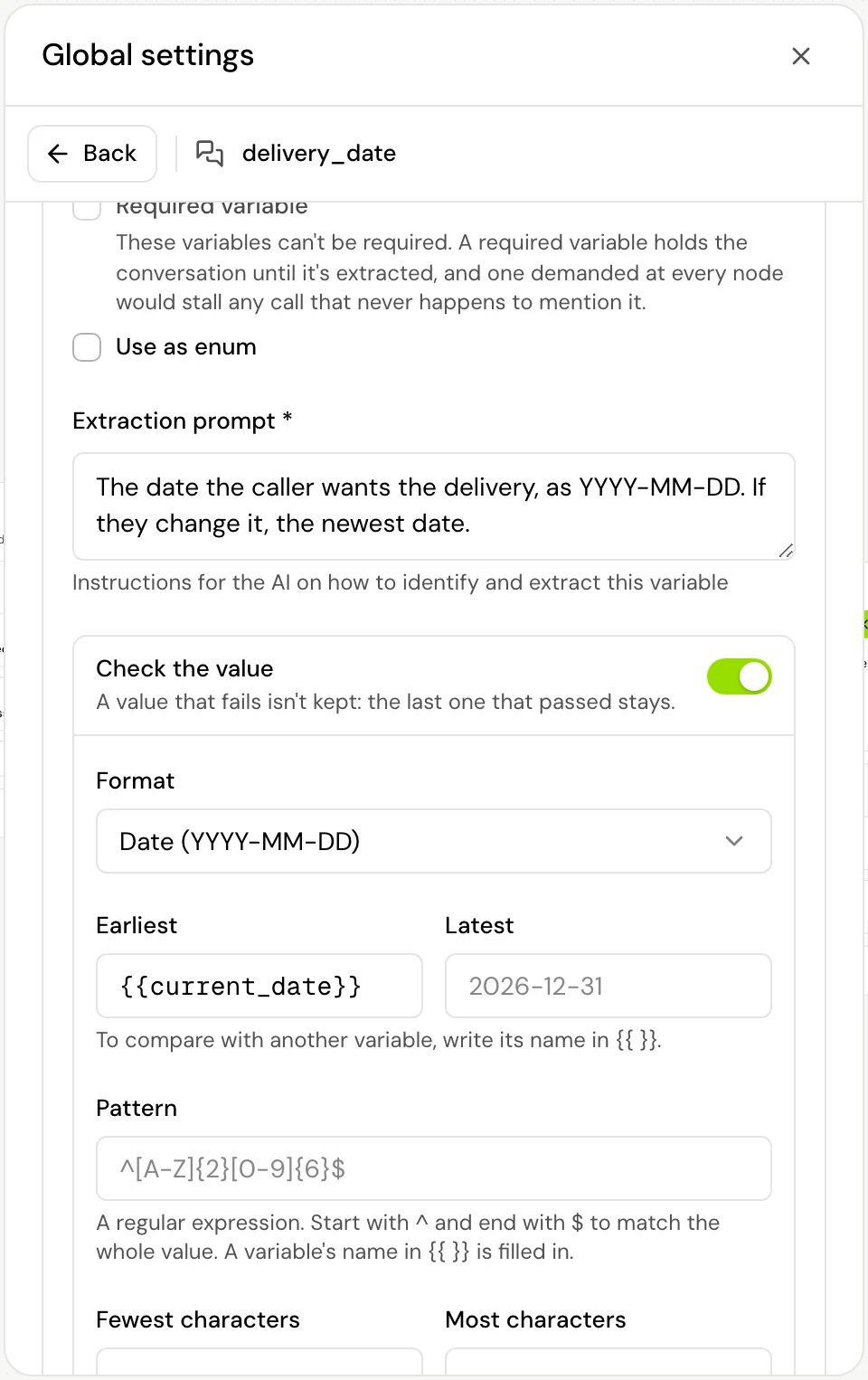
Check the value
Turn on Check the value in a live variable’s card to keep only values that pass. “A value that fails isn’t kept: the last one that passed stays.” For example, adelivery_date the caller can change at any time, which must be a date and not in the past:
“To compare with another variable, write its name in {{ }}.” The name is filled in when the value is checked, so
{{current_date}} is today’s date on the call. If the caller asks for a date that has passed, delivery_date keeps its last good value.
Move the call when a live variable matches
Two kinds of rules read live variables:
When a live variable matches is offered once the agent has live variables (“Add live variables in Global settings first.”), and its rules can only use live variables. See Transitions.
Example: the caller asks for a person at any step
1
Add the live variable
In Global settings > Live variables, add
wants_person, Data type Boolean, with the extraction prompt “true when the caller asks to speak to a person, a human or an agent.”2
Add the transition
On each Conversation step where the caller may ask, click Add and choose When a live variable matches. Click the transition to open its settings and add the condition 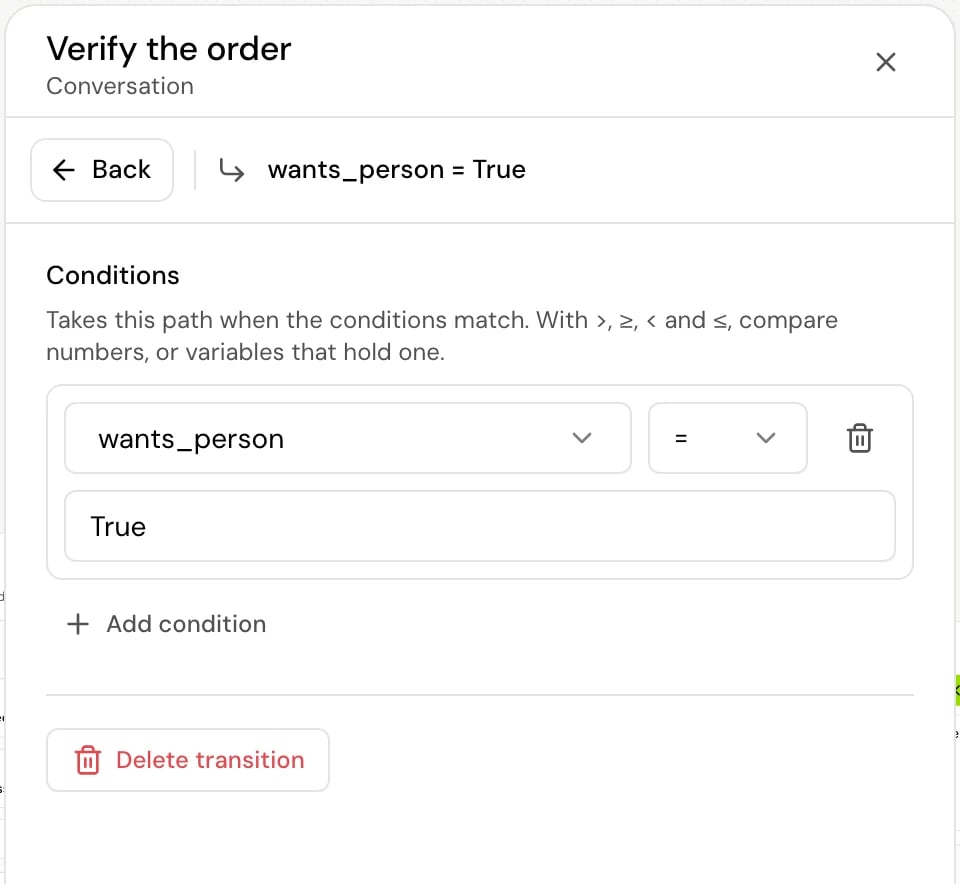
wants_person Equals (=) True.3
Connect it
Connect the transition to your Transfer call step.
wants_person to True, the rule holds, and the call moves to the transfer. If the agent had started a reply in the old step, that reply is dropped, so only the next step answers.
Values are stored as text, so a Boolean reads True or False: compare with that exact text.
To offer a path to the model only after the caller has given their name, add a Prompt transition and, under Offer it only when, add caller_name Exists (∃).
Use live variables in prompts and messages
Write a live variable as{{caller_name}} anywhere a flow step takes variables. In the variables picker (type {{), they have their own section, Live variables, “Extracted after every caller turn.” Global steps can use them too.
When a live variable changes while the call is in a step, the agent uses the new value in its next reply.
How it works on a call
- After each caller turn, the agent reads the last 3 exchanges with the caller, using the agent’s own model, and saves the values the caller stated or confirmed. A value only the agent said doesn’t count. This runs in the background, so it doesn’t hold up the reply.
- A newer turn wins. If the caller speaks again before a reading finishes, the older reading is cancelled and the new turn is read.
- The model sees the values. With Smart context manager on, the model is shown the current value of every live variable on every turn, so it notices when the caller changes one.
- Steps that use a value wait for it. A step that uses a live variable (in its text, a rule, or a tool setting) waits up to 1.5 seconds for that turn’s reading before it uses the value. After that it goes on with the values it has.
- One extra model call per turn. Each caller turn in a step with live variables adds one model call. A step with all of them switched off adds none.
Good to know
- A live variable can’t be required. “A required variable holds the conversation until it’s extracted, and one demanded at every node would stall any call that never happens to mention it.” If a step can’t go on without a value, use a variable on node exit there.
- A failed check keeps the last good value. A value that fails Check the value is dropped; the variable keeps the last value that passed.
- The latest write wins. A live variable and a variable on node exit with the same name write to the same value; whichever was set last is what the call uses.
- Don’t make everything live. Every live variable is read after every caller turn and adds to that reading. Keep the list to what can really come up anywhere, and collect step-specific values on node exit.
Related
Extract values from the conversation
Variables on node exit, tool responses and keypad digits.
Transitions
Every transition type, including live variable rules.
Global settings
System prompt, smart context manager and live variables.
Jinja syntax
Conditions and loops on variable values.