

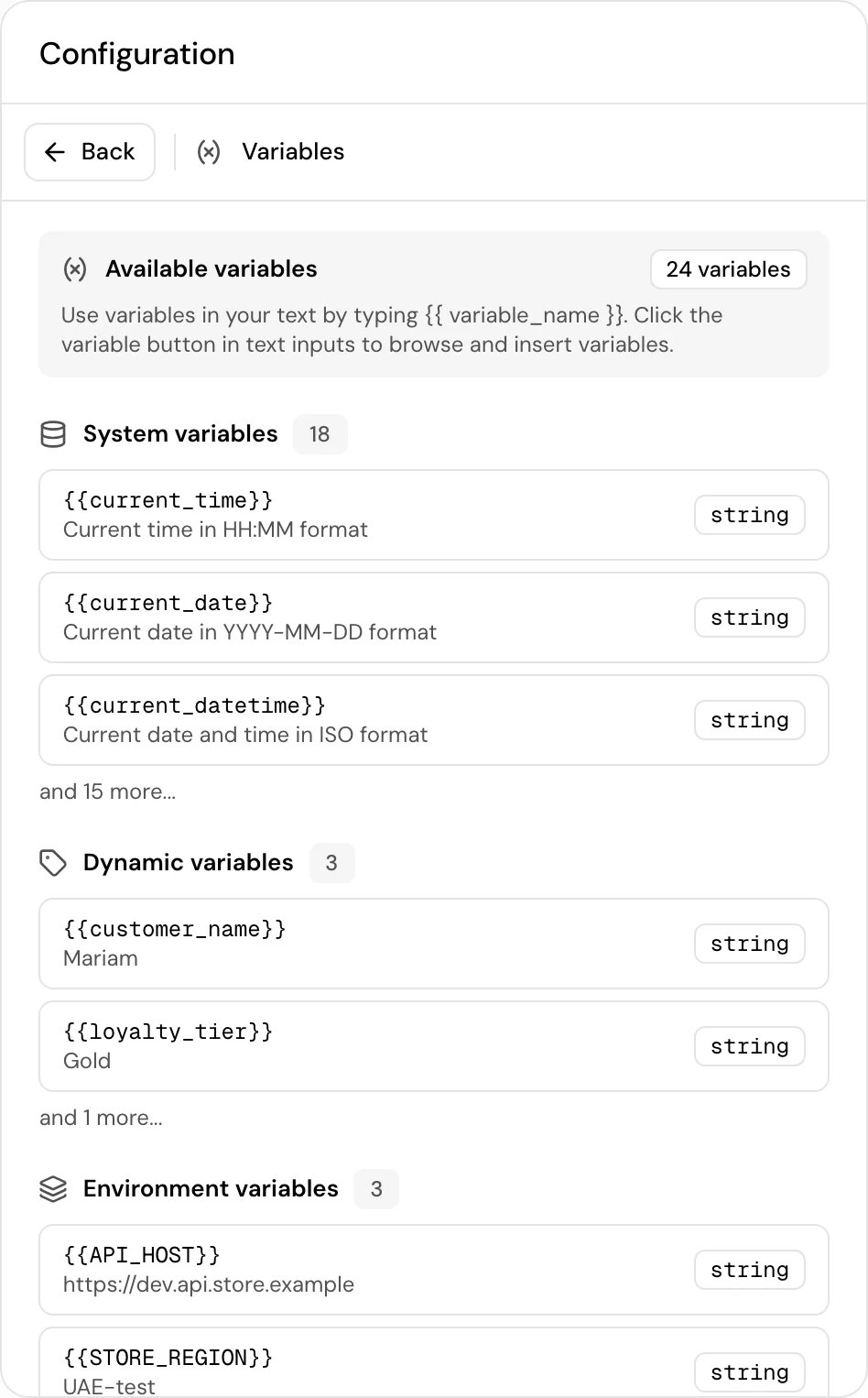
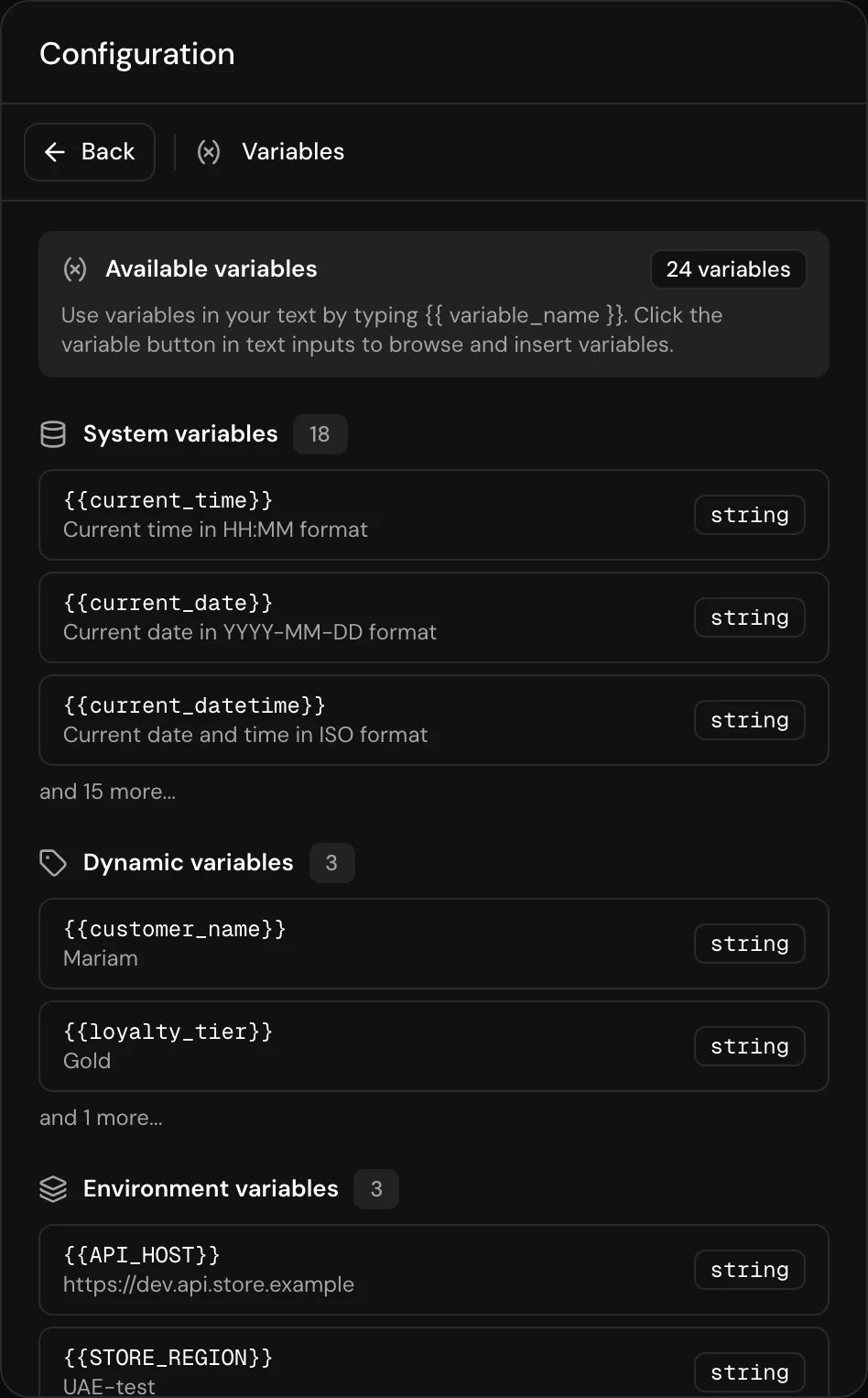
{{customer_name}} in a prompt, a message or a tool setting, and on the call the agent fills in the value. This page explains the kinds of variables, where each value comes from, and where you can use them.
Kinds of variables
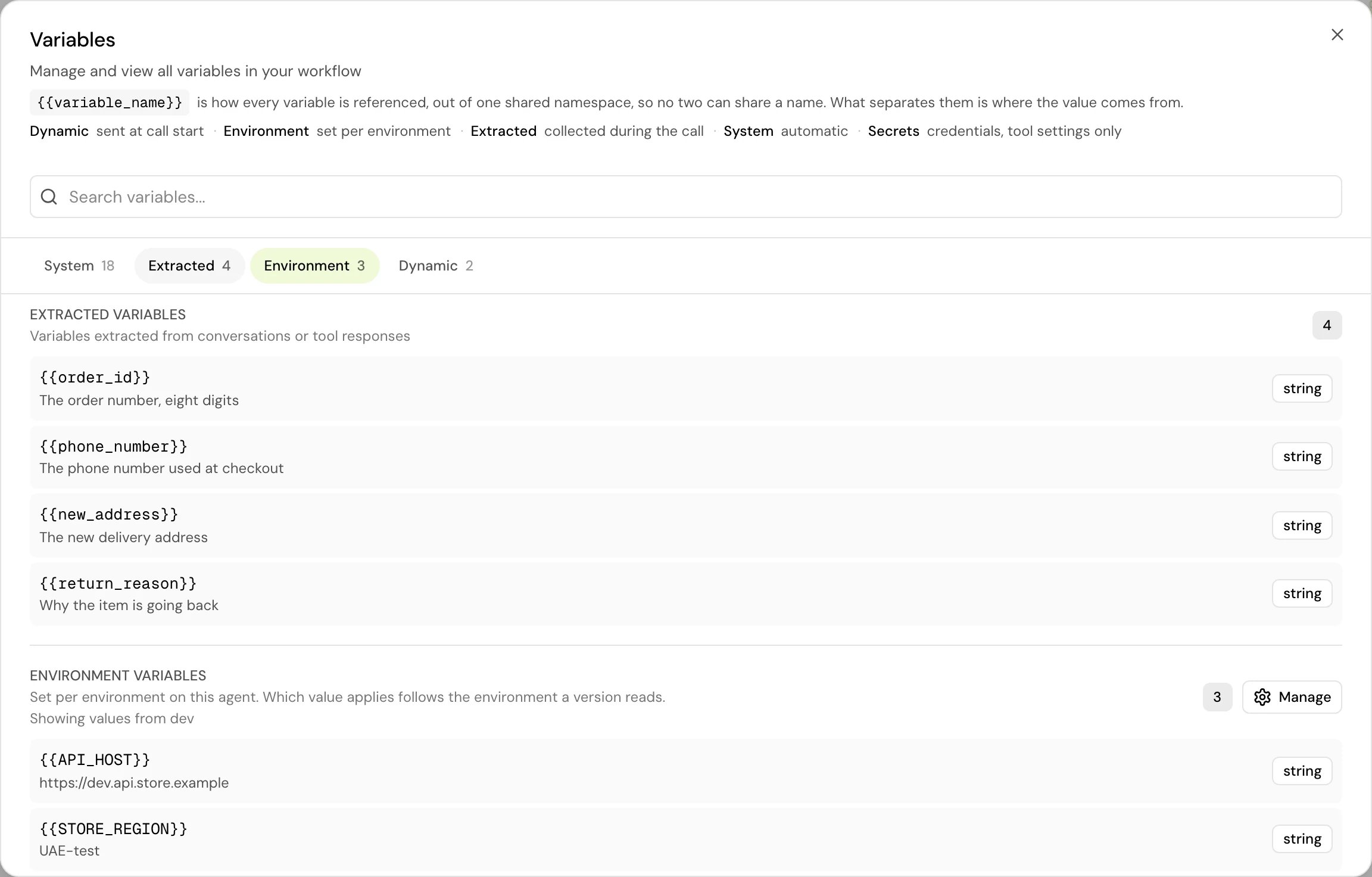
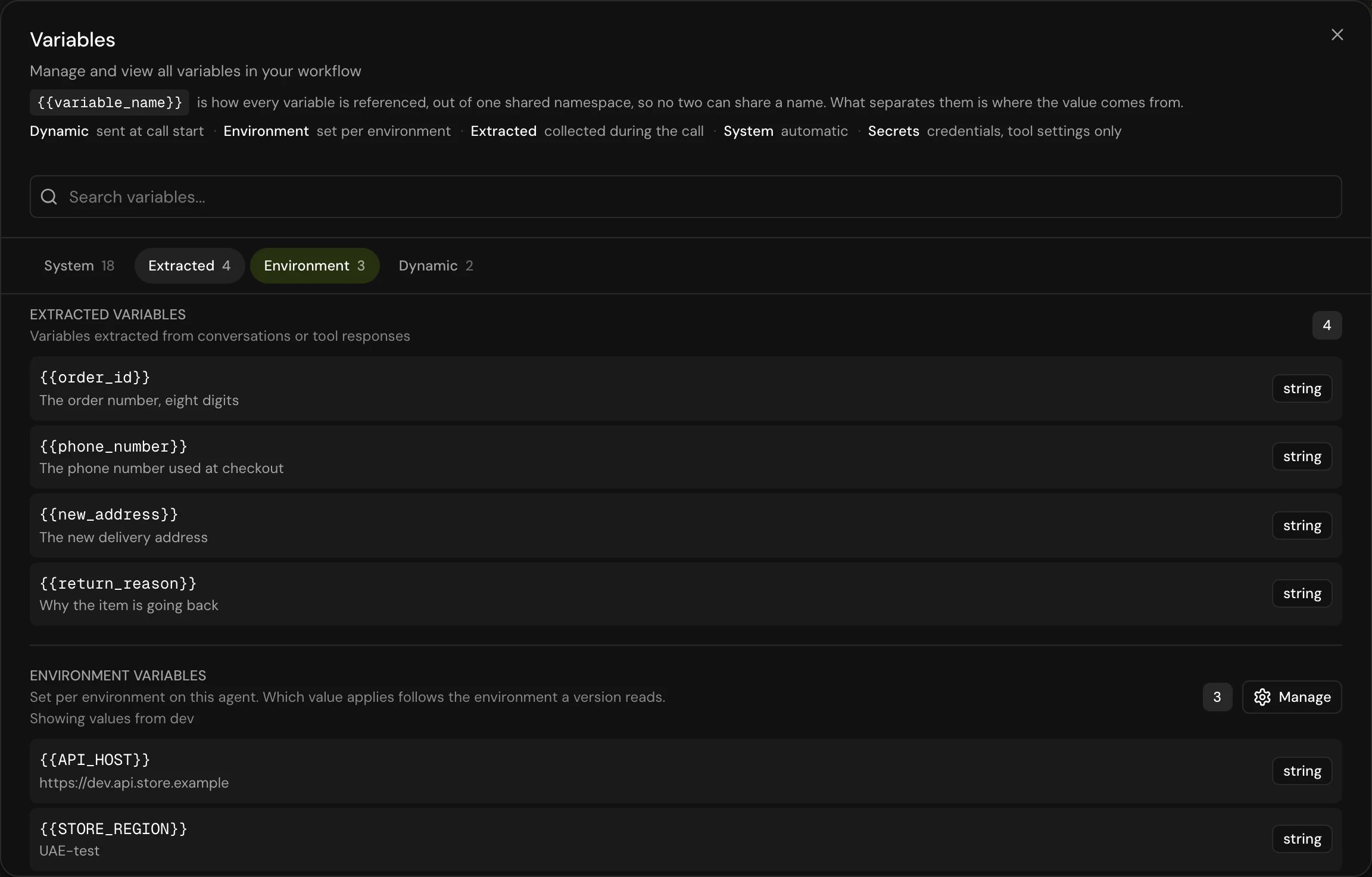
Every variable is written the same way,{{name}}, and they all share one set of names. As the app puts it, what separates them is where the value comes from.
See all variables
- Flow agent
- Single prompt agent
1
Open the Variables dialog
In the flow builder, click Variables on the toolbar at the left edge of the canvas. You can also press Cmd+K (Mac) or Ctrl+K (Windows) and choose Variables.
2
Find a variable
Type in Search variables…, or jump to a section: System, Extracted, Environment or Dynamic.
3
Change dynamic or environment variables
Click Manage next to Dynamic variables or Environment variables. Use the back arrow to return to the list.
Insert a variable
In any text field that takes variables, type{{ or click the variable button (Insert variable). A picker opens with the variables available at that point in the flow. Use the arrow keys to move, Enter or Tab to insert, and Esc to close.
You can also type the variable yourself: {{customer_name}} and {{ customer_name }} both work.
For conditions, loops and filters, use Jinja. See Jinja syntax for prompts and messages.
Where you can use variables
The agent fills in variables wherever it reads text from your agent, including:- the prompt (single prompt agents) and the global prompt and step prompts (flow agents)
- the greeting, step messages, and processing, confirmation and final messages
- an API tool’s URL, headers, auth token and parameters
- transition descriptions and condition values
- transfer phone numbers
Which value wins when names clash
The app stops you from giving a dynamic variable, an extracted variable or a local variable the same name as an environment key. When a value still reaches the call under a name that’s already taken, the call uses this order, highest first:- Environment values
- Local variables with Keep in sync on
- Values sent at call start, extracted values and other local variables (the most recent one written wins)
- System variables
Good to know
- Every value is text. On the call, numbers and true or false arrive as strings. Compare with
| intor== "True". See Jinja. - A variable with no value renders empty. The call goes on; nothing in braces is ever spoken.
- Names are snake_case. Dynamic, extracted and local variable names use lowercase letters, numbers and underscores and start with a letter, up to 50 characters. Environment keys use capital letters, like
API_HOST. - Variables carry over on a handoff. A Transfer to agent step passes the current variables to the receiving agent unless you turn off Handoff variables. Environment values don’t carry over: the receiving agent uses its own.
- Deleting a variable that’s in use asks first, for every kind of variable in a flow: dynamic, local, live, and a step’s own variables. The dialog says “{name} is used in N steps:” and links each step; click one to go to it. Click Delete anyway to remove the variable; those steps then show the name as not defined until you add it back or change them.
Related
System variables
Every variable the platform fills in, with its exact format.
Pass values when a call starts
Send customer data from the API, the web SDK or a batch call file.
Jinja syntax
Conditions, loops and filters that work on calls.
Test values
Try your own values in test calls, and fix variables that aren’t defined.