

{{name}}, you can branch with {% if %}, repeat with {% for %} and change values with filters such as | title or | int. This page shows the syntax that works on calls, the rules that catch people out (every value is a string), and what happens when a template has an error.
The templates are Jinja2. Handlebars syntax such as {{#if}} is not supported.
The basics
Conditions
Loops
Withorders set to [{"id": "A-1042", "status": "shipped"}, {"id": "A-1043", "status": "processing"}]:
loop.index gives the position, starting at 1.
Filters that come in handy
Any standard Jinja2 filter works. The editor’s suggestions also offer JavaScript-style forms such as
.length, .first, .trim() and .toFixed(). Don’t use them: on a call .length and .first render empty and .toFixed() is an error. Use the filters above.
Every value is a string
On a call, every variable reaches the template as text, whatever its data type: numbers, true and false, and values sent at call start. This changes how you compare.
Booleans from the agent are written
True and False, with a capital letter. A boolean you send at call start as JSON true also arrives as "True".
Lists and objects are the exception that helps: a value that starts with [ or { and holds valid JSON is read back as a list or an object, so {{ orders[0].id }} and {% for o in orders %} work.
If an object has a key named like a built-in method (items, keys, values, get), use brackets: {{ order["items"] | join(", ") }}. The dot form, order.items, is an error.
In tool parameters
When a tool parameter’s value is exactly one expression with a filter, the tool gets the filter’s type, not text.{{ visits | int }} sends the number 3; {{ is_vip == "True" }} without a filter sends text. Anything with text around the expression is sent as text.
When a variable has no value
A variable that isn’t set yet, or that doesn’t exist, doesn’t stop the call:default only replaces a variable that has no value at all. A variable set to empty text stays empty: {{ plan | default("standard") }} gives nothing when plan is "". Add true to replace empty text too: {{ plan | default("standard", true) }}.
What happens on a template error
If a template has an error (bad syntax, an unknown filter, comparing text with a number), the call goes on, and the agent uses the text with every Jinja tag removed. The text between the tags stays, from every branch. This template uses a filter that doesn’t exist (capitalise instead of capitalize):
- Handlebars:
{{#if is_vip}}VIP{{/if}}givesVIPon every call. - Comparing text with a number:
{% if visits > 2 %}keeps both branches. Usevisits | int. - A typo in a filter name.
- A missing
{% endif %}or{% endfor %}.
Write and preview in the editor
1
Open the editor
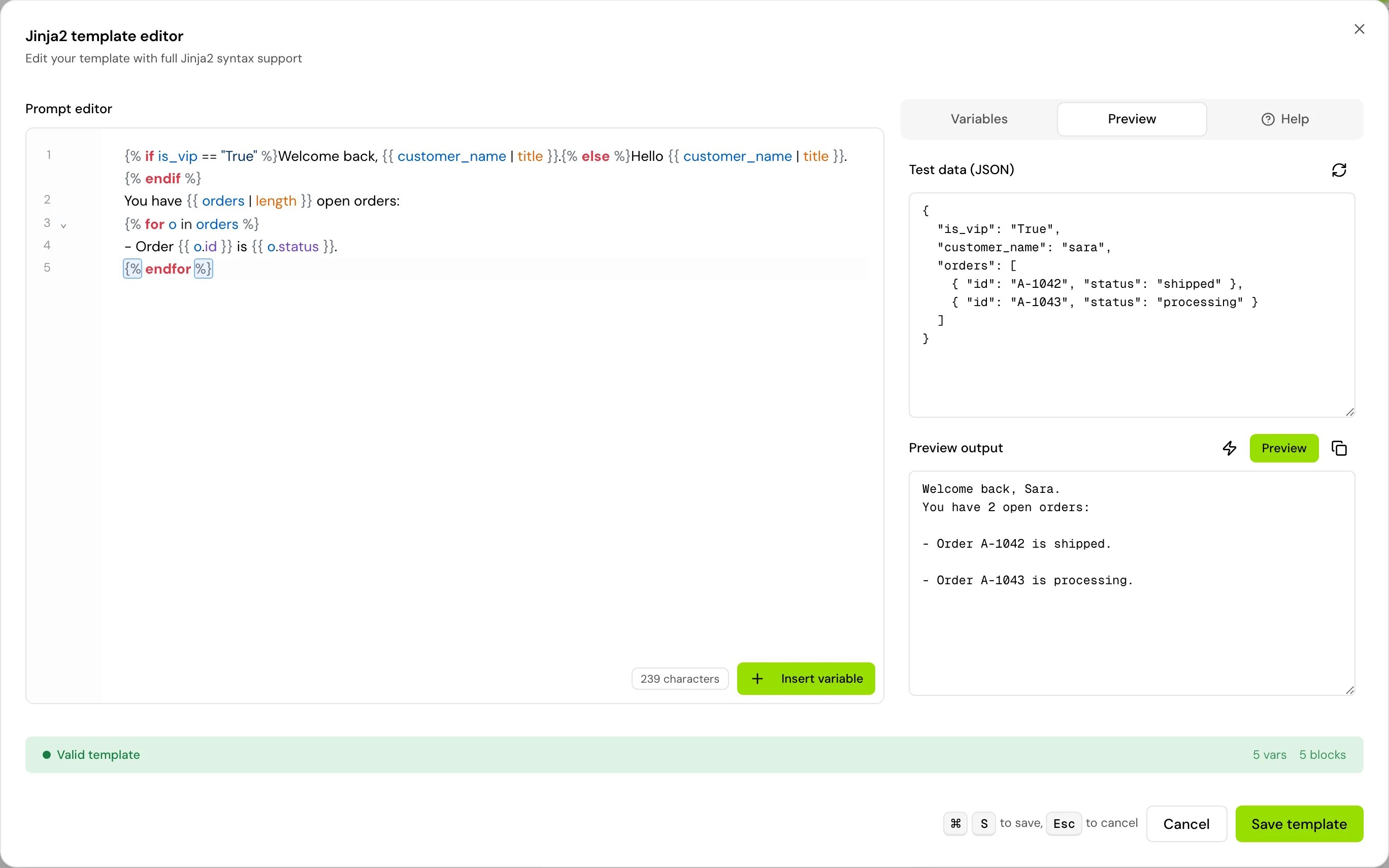
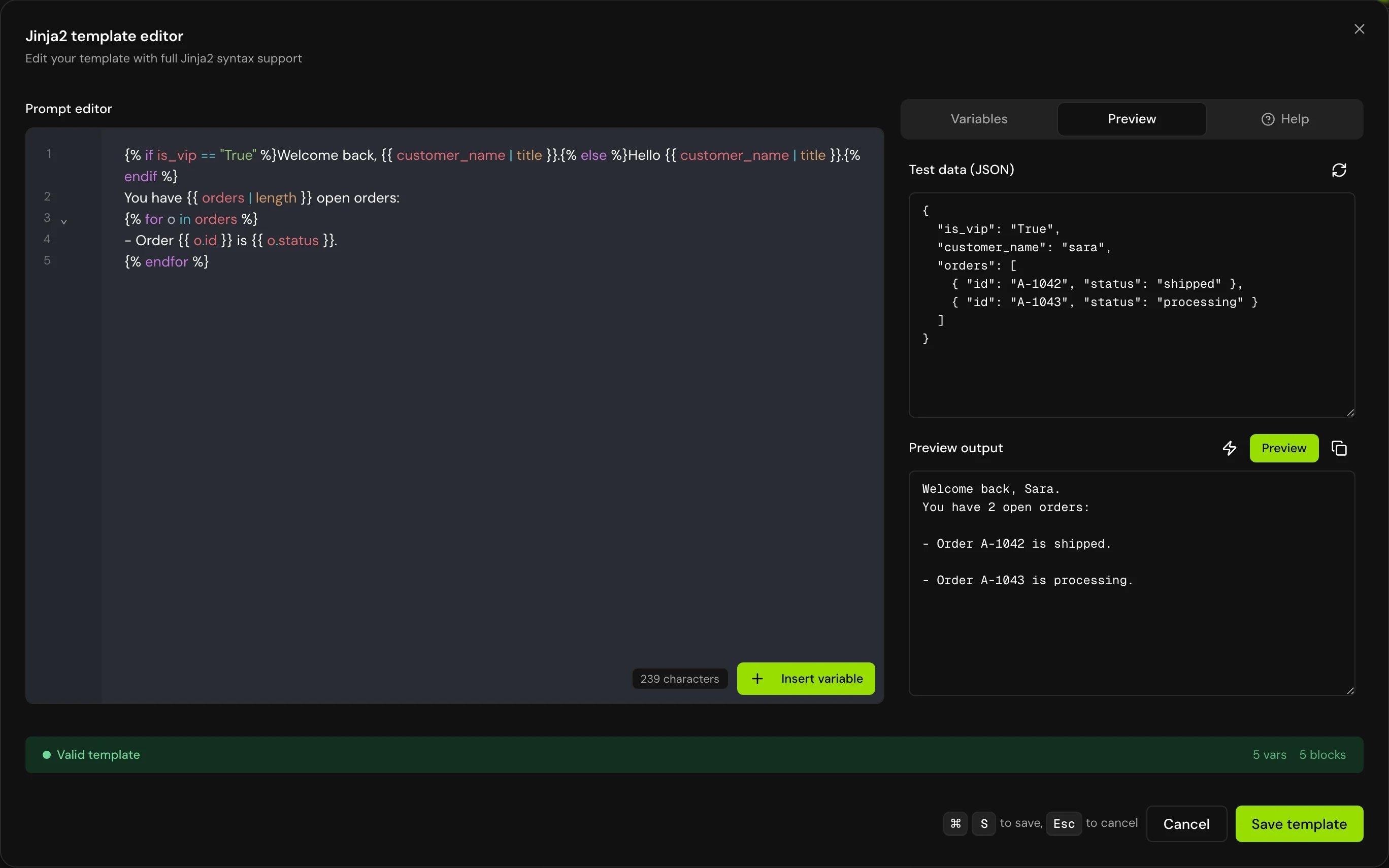
In a text field that takes variables, click Edit in expert mode. The Jinja2 template editor opens (“Edit your template with full Jinja2 syntax support”).
2
Write the template
Insert variables with Insert variable (Cmd+K on Mac, Ctrl+K on Windows). The editor marks syntax errors and names that aren’t defined.
3
Preview it
Open the Preview tab, adjust Test data (JSON) if you like, and click Preview. Regenerate test data fills in new sample values.
4
Save
Click Save template.
- Find text: press Cmd+F on Mac or Ctrl+F on Windows. The search opens in the editor, not the browser’s page search. On the Variables tab, the same keys jump to its search box.
- Jump to a macro: if the template defines a
{% macro %}, hold Cmd (Ctrl on Windows) and click a call to it. The editor jumps to where the macro is defined. - Read a filter: hover a filter after
|, such astitle, to see what it does.
The preview isn’t the call
“Sample data is used for variables. Actual data will be different at runtime.” The preview also differs from a call in these ways:- The preview’s sample data uses the variable’s type (a number, a true or false), but on a call every value is a string. A comparison like
visits > 2can work in the preview and fail on the call. Write templates for strings. range()isn’t available in the preview but works on calls.- The agent adds its own instructions around your prompt on a call, which the preview doesn’t show.
Call a project macro
In a flow step’s text, you can call a Jinja macro from Functions & macros that is used in prompts and switched on for the agent:Good to know
- In a single prompt agent, the prompt is filled in when the call starts (and again if the voice or language changes during the call). A time variable in the prompt shows the time at that moment.
- Write
{% if direction == "Outbound" %}with a capital letter: system values such asInbound,Outbound,PhoneandWebare capitalised. See System variables. - The preview takes templates up to 100,000 characters. For a longer one, split it, or move long tables of data into a variable and loop over it.
Related
Variables overview
Where values come from and which one wins.
System variables
Exact formats to compare against.
Write a prompt that works on calls
Prompt guidance for voice agents.
Test values
Fix names the editor marks as not defined.