

How the next step is chosen
Who decides depends on the transition type:
Rules, keys and fixed transitions always behave the same way for the same values. Prompt transitions depend on the model’s reading of the conversation, so describe them well. See Design tips.
A transition only works once it’s connected to a step on the canvas. Turned off or unconnected transitions are ignored on calls.
Which steps offer which types
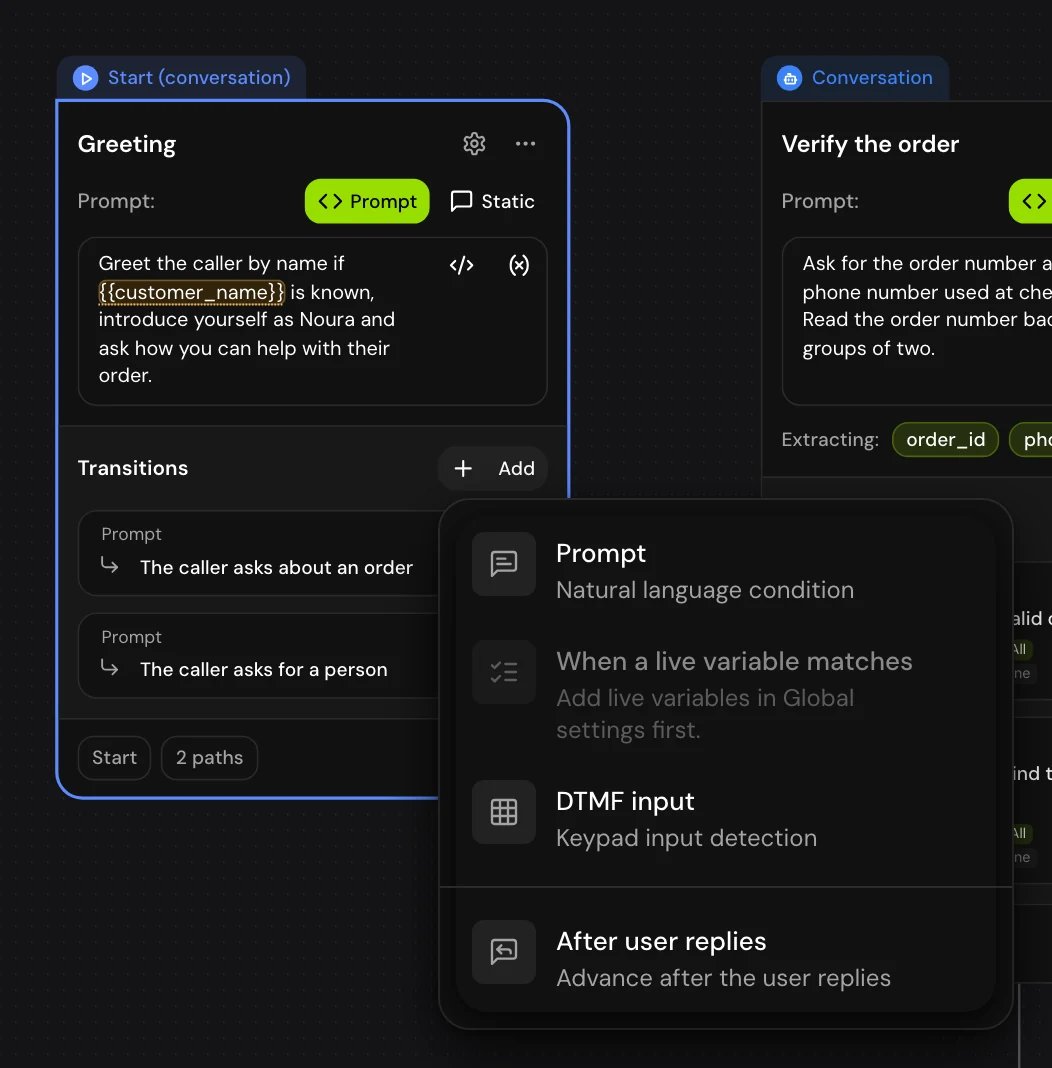
Add a transition on the step card: click Add (“Add new transition”) and pick a type. Then click the transition on the card to set it up in the step’s settings panel. Every step with transitions lists them in its Transitions section, and each row there opens that transition’s settings too.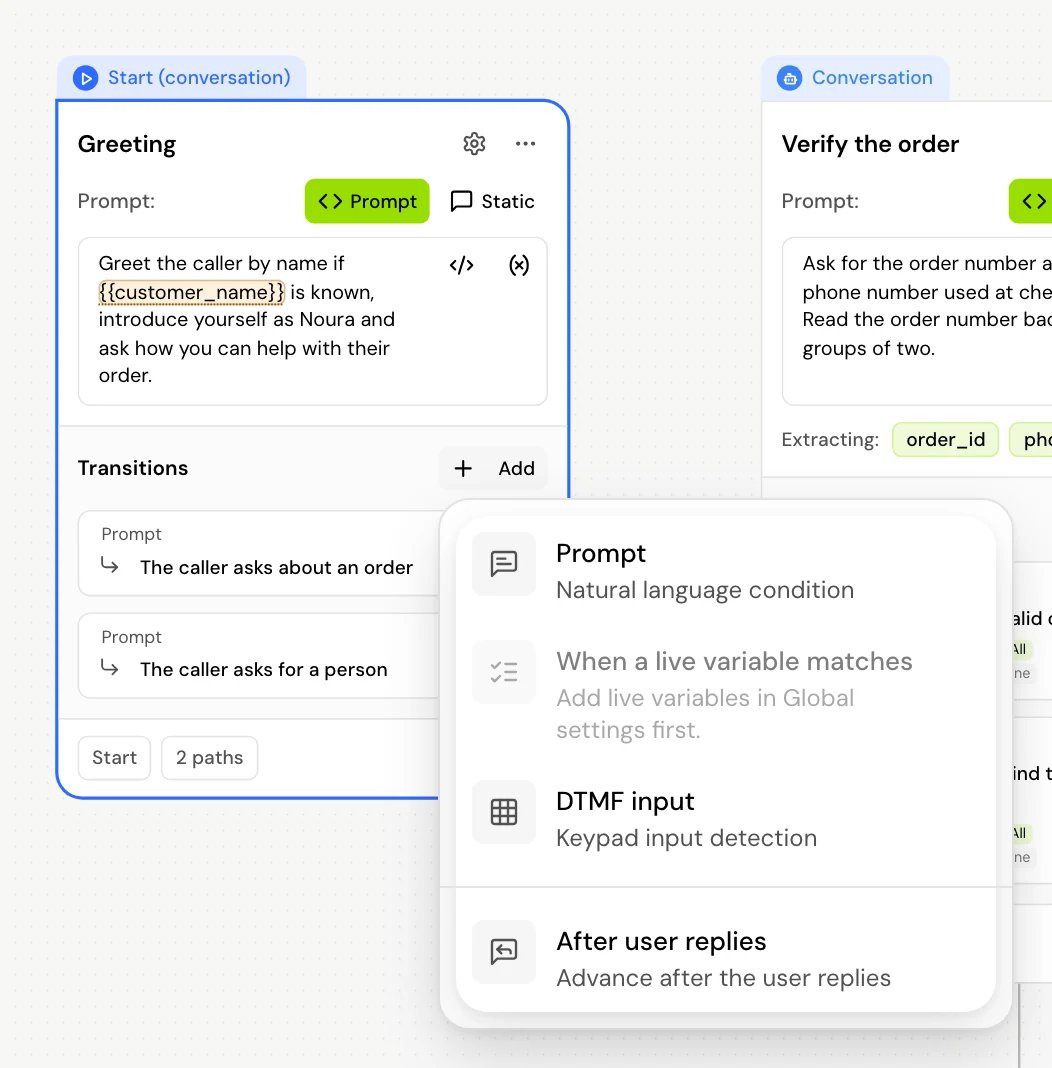
Prompt
A Prompt transition (“Natural language condition”) is taken when the model decides that what the caller said fits it.1
Add it
On a Conversation or Start step, click Add and choose Prompt.
2
Describe when to take it
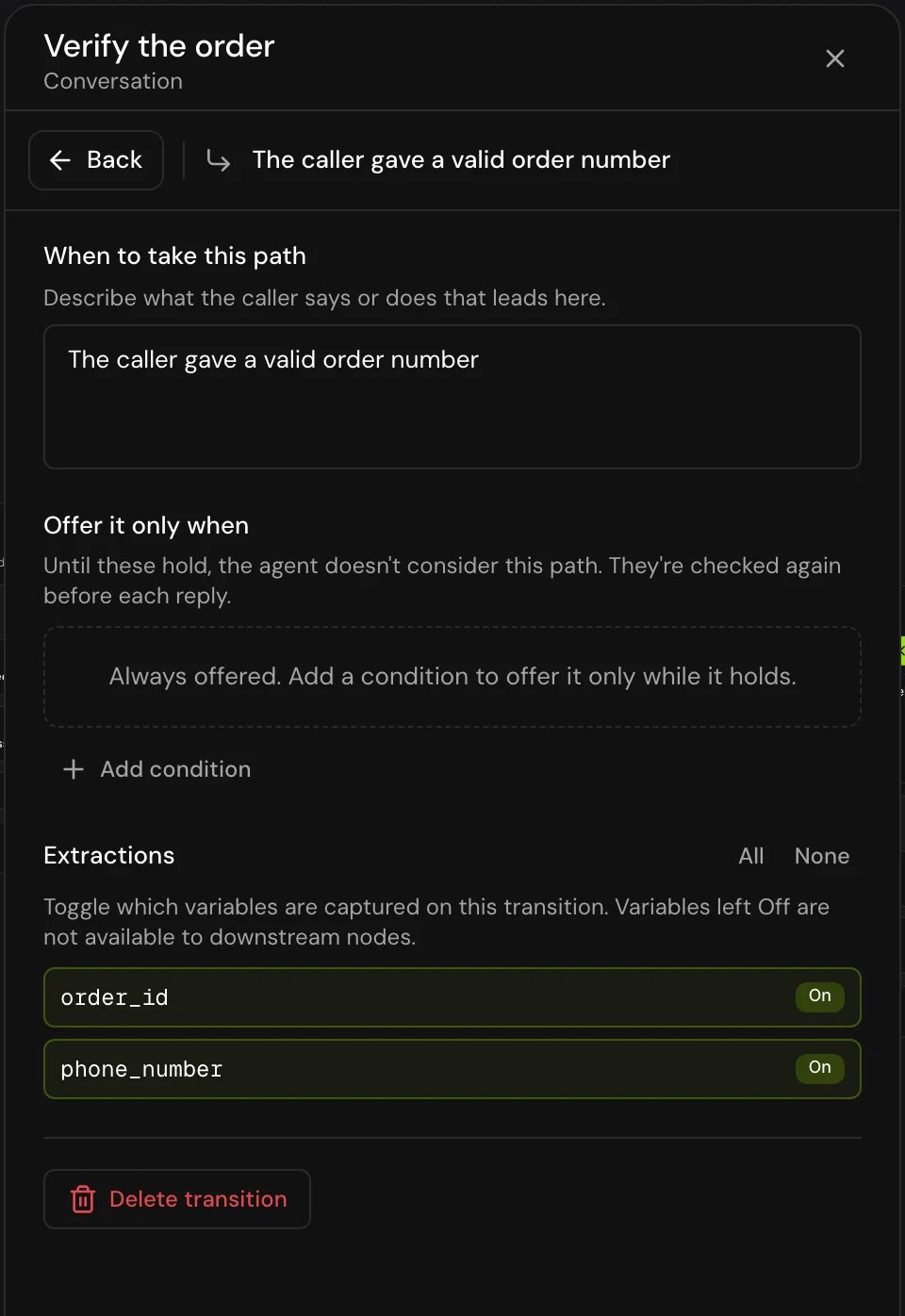
Click the transition on the card (or its row under the step’s Transitions) to open its settings, and fill in When to take this path: “Describe what the caller says or does that leads here.” For example: “The caller wants to change an existing booking.”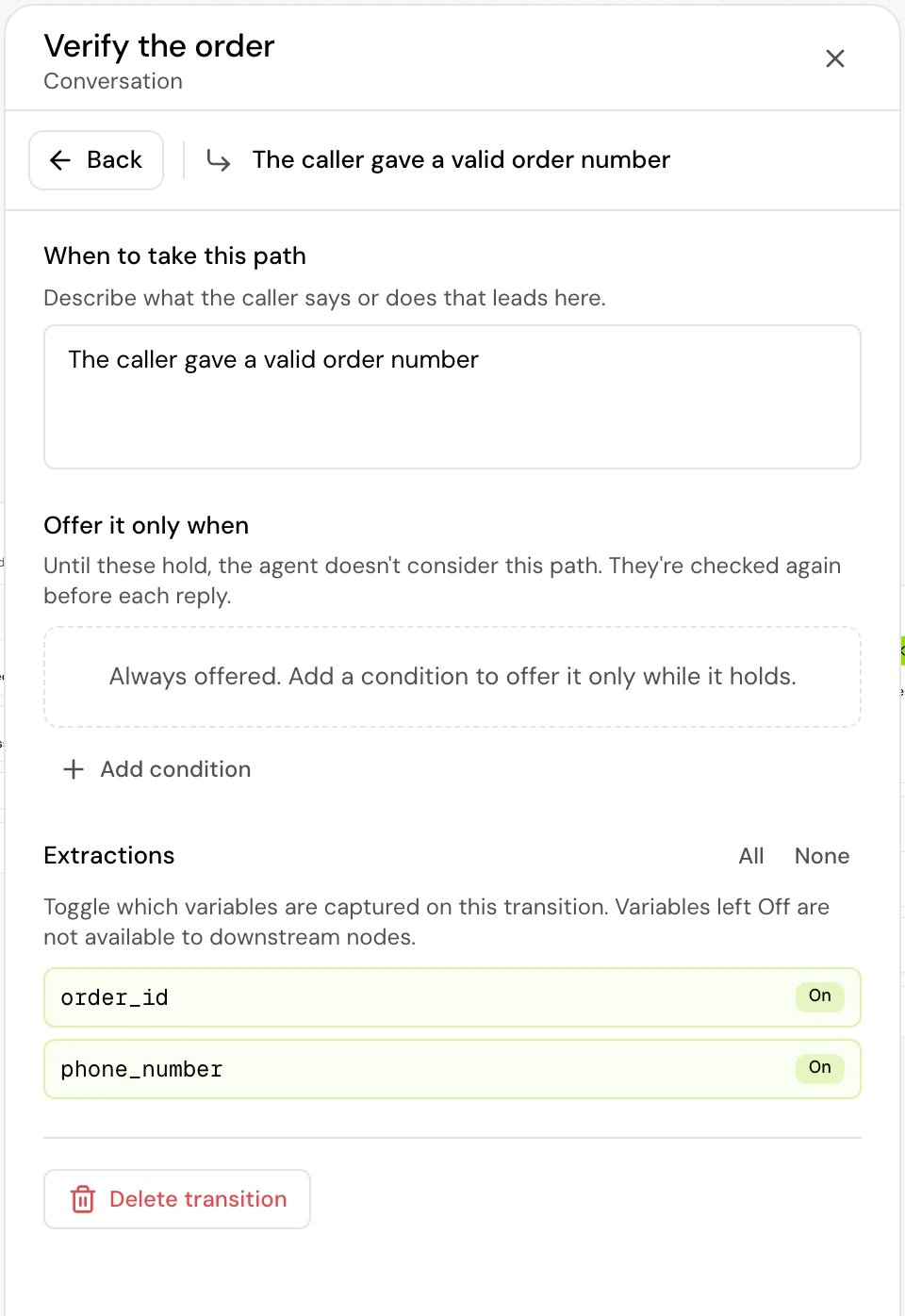
3
Optionally, limit when it's offered
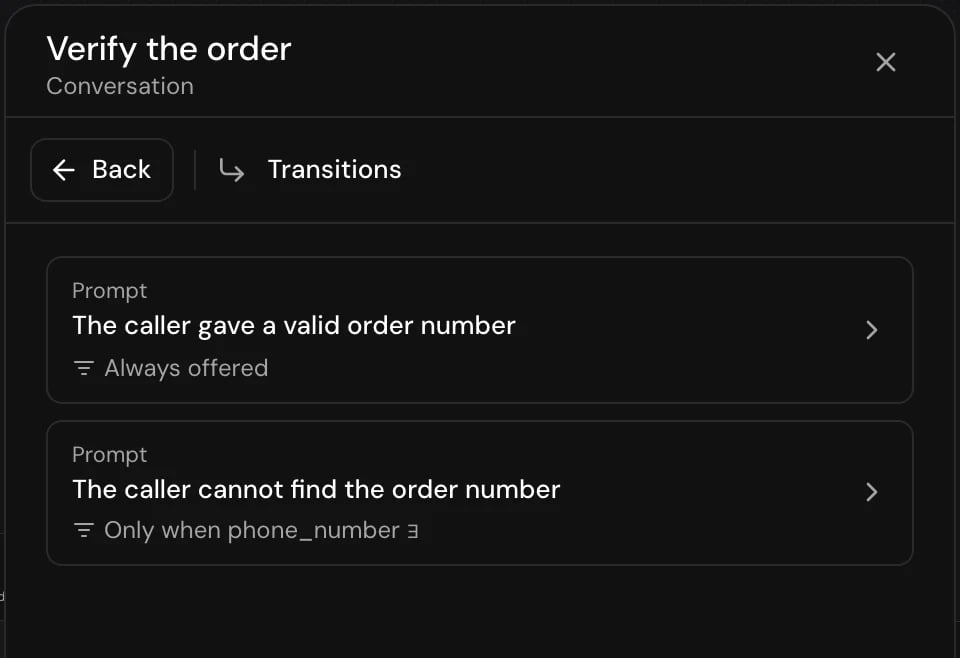
Under Offer it only when, add rules on variables. “Until these hold, the agent doesn’t consider this path. They’re checked again before each reply.” With no rules it reads Always offered; with rules the card shows a Conditioned tag, and the step’s Transitions list shows the rules, for example “Only when phone_number ∃”.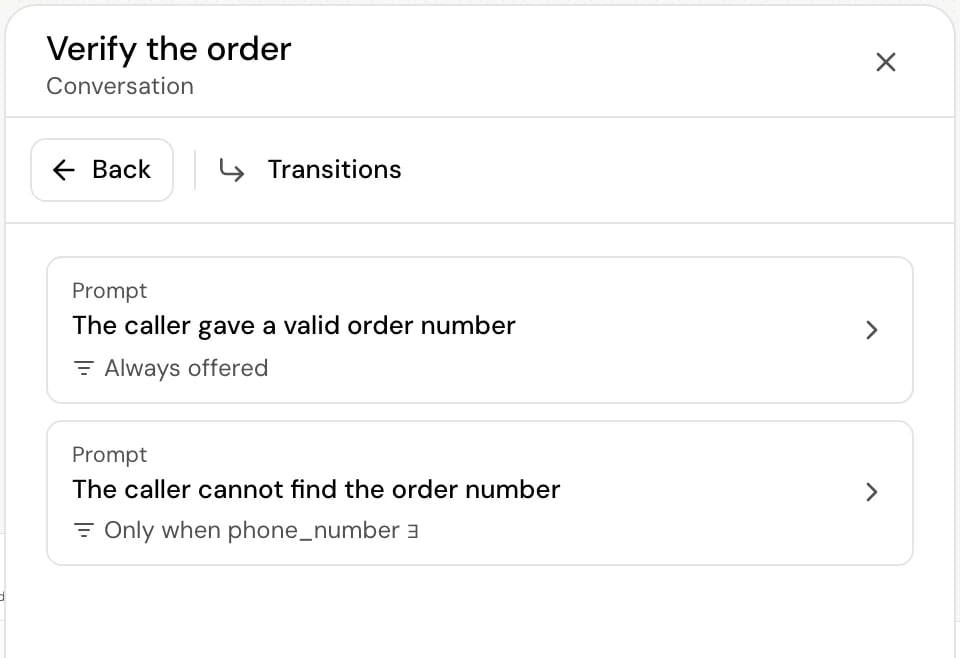
4
Connect it
Drag from its handle to the next step.
How the model picks a prompt transition
- Every prompt transition on the step the call is in is offered to the model as a possible move, described by its When to take this path text. Every global step is offered too, described by its trigger condition.
- When the caller speaks, the model replies. If one of the offered moves fits, it takes that move instead of answering in place. If none fits, it answers and the call stays in the step.
- The transitions have no order: the model picks the one whose description fits best. Write descriptions that don’t overlap.
- A step’s opening line can’t take a move. The call moves on only in reply to something the caller said, and at most one prompt move happens per caller turn.
- A transition with Offer it only when rules is hidden from the model while its rules don’t hold. The rules are checked again before every reply.
Variables collected on the way out
A Conversation step can have Variable on node exit variables (see Extract values from the conversation). The model fills them in when it takes a prompt transition.- A required variable must have a value before the model can take the transition. The model asks the caller for it first.
- A variable that already has a value is offered for update, not asked again.
- If a variable has Check the value rules and the value fails, the value isn’t kept. If that leaves a required variable without a valid value, the move doesn’t happen and the model asks the caller again.
- Per transition, Extractions in its settings lets you switch variables off for that path. Variables left off are not collected when the call takes it. The card sums it up as Extracted on this path and Ignored on this path.
Equation (router conditions)
An Equation transition (“Rule-based condition”) is how a Router step decides. The router runs without the model and without speaking.1
Add a condition
On a Router step, click Add and choose Equation. Under Conditions, pick a variable, an operator and a value. The value can be fixed text, a number, or another
{{variable}}.2
Combine conditions
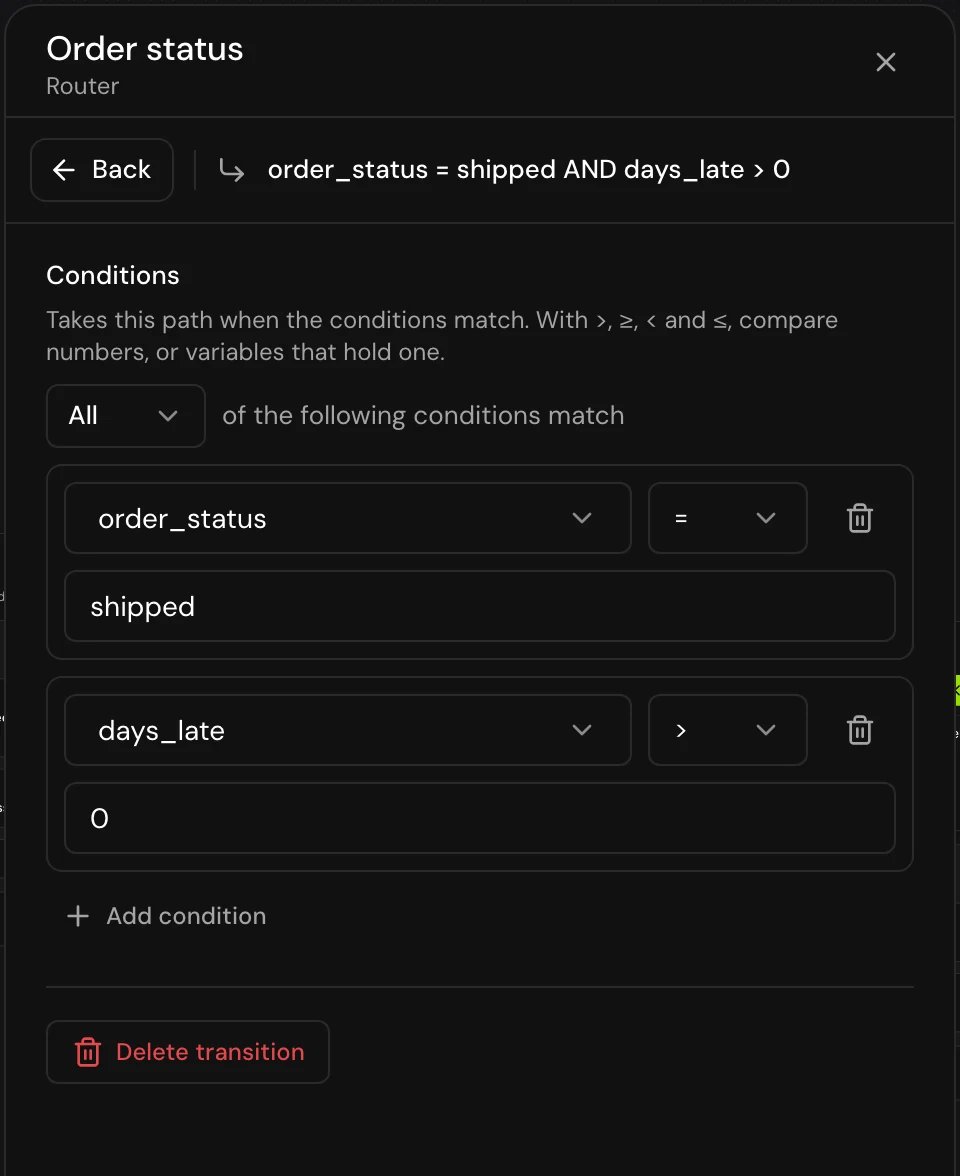
Click Add condition for more, and choose All or Any “of the following conditions match”.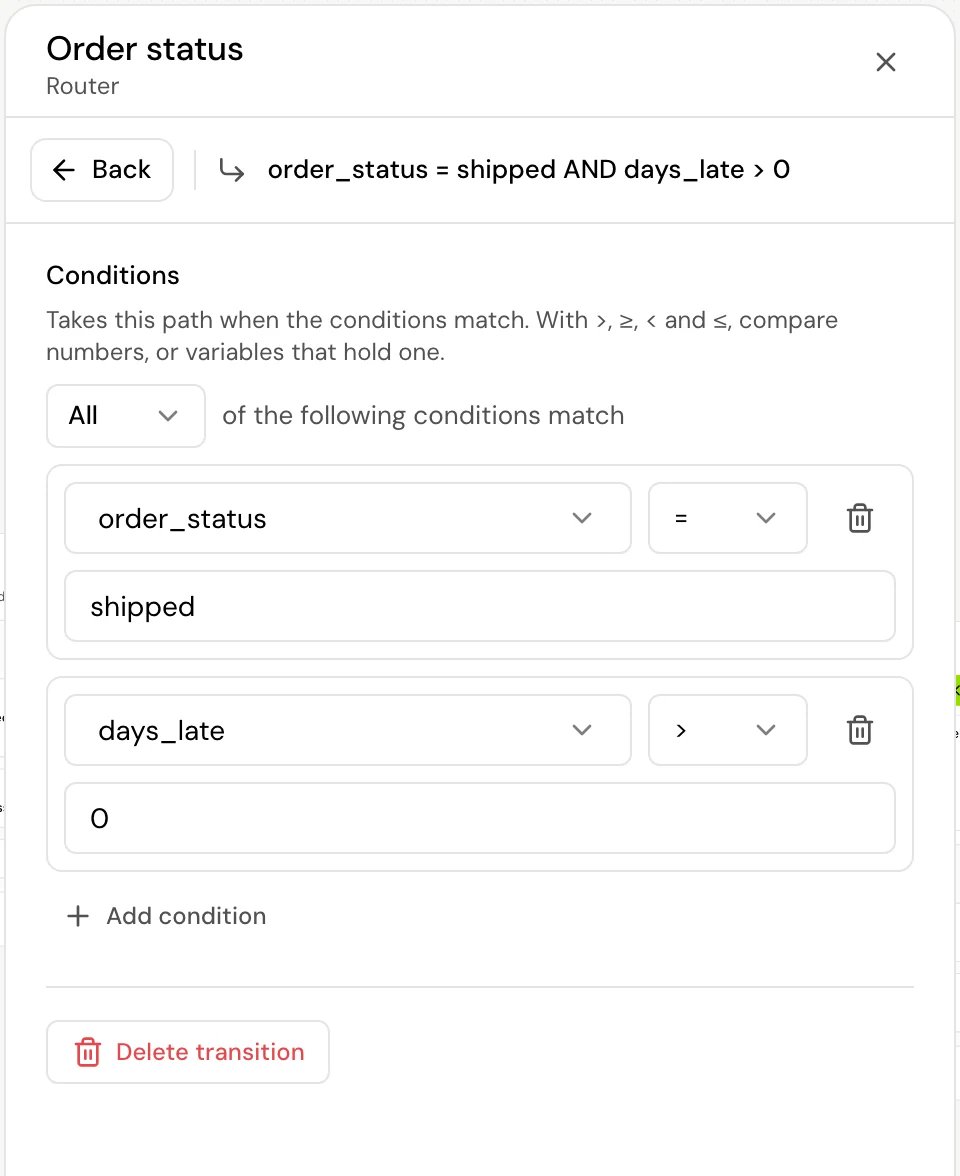
3
Connect it, and connect Else
Connect each condition to its step, and connect Else to where the call should go when nothing matches.
Operators
The same operators are used by Equation, Skip if, When a live variable matches and Offer it only when.
How values are compared:
- Every variable is stored as text. Equals and Contains compare text, so
10and10.0are different. - With >, ≥, < and ≤, both sides must read as numbers. If either doesn’t (for example
$100orten), the condition is false. - If the variable has no value at all, every operator except Exists and Does not exist is false. That includes Does not equal and Does not contain.
Delete a transition
Open the transition’s settings and click Delete transition at the bottom, or hover the transition on the card and click its ×. The transition and its connection are removed. Fixed transitions, such as On Success and Else, can’t be deleted.Skip if
Skip if (“Skip this node when conditions are met”) lets a step step aside when it isn’t needed: skip “What’s your name?” whencustomer_name already has a value, or skip a Tool step that looks up an order you already have. Every step except Start and End call can have one.
When the call reaches the step, its Skip if rules are checked first. If one matches, the call goes straight to that transition’s step: the skipped step doesn’t speak, doesn’t call its API or transfer, and doesn’t set its variables. Rules use the operators above.
When a live variable matches
When a live variable matches (“Rules on live variables”) moves the call as soon as a live variable takes a value you care about. Use it for things the caller can say at any moment, such as asking for a person. It’s available on Conversation and Start steps once the step has live variables (“Add live variables in Global settings first.”). Its rules can only use live variables.- On arrival: if a rule already holds when the call reaches the step, the call moves on without the step speaking. It won’t jump back to a step it has already passed through on the way.
- After each caller turn: live variables are updated in the background. When an update changes a variable a rule reads and the rule now holds, the call moves to that rule’s step. If the agent had started a reply, the reply is cut off so the next step can answer.
- If several rules hold, the first one wins.
DTMF input
DTMF input (“Keypad input detection”) is taken when the caller presses a key on their phone. It’s offered on Conversation and Start steps. The key works the moment it’s pressed, even while the agent is speaking. See Keypad input.Auto and After user replies
These two move the call on without the model choosing.
A step can have only one of them, and nothing else. Adding one asks first (“Add this transition?”), then turns off the step’s other transitions and deletes their connections. Removing it turns the others back on, but you have to draw their connections again.
Return to source
Return to source sends the call back to the step it came from: “Return to the calling node when the user’s reply matches”. Use it on a step the caller can reach from several places, such as a “Check opening hours” step, so it can hand the call back to wherever the caller was.- Write its condition like a prompt transition, for example “The caller has what they needed and wants to carry on.” The model takes it when the caller’s reply fits.
- It needs no connection on the canvas: the target is the step that led here on this call.
- Each step remembers its own source, also after the call comes back to it.
- It isn’t offered while the step has nowhere to go back to, for example when the call started there.
How it works on a call
When the call reaches a Conversation step (or a Start step in conversation mode), this happens in order:- The step’s interruption setting is applied.
- Skip if rules are checked. A match moves the call on at once.
- When a live variable matches rules are checked. A match moves the call on at once.
- The step’s local variables are set.
- The message plays. With Auto, the call then moves on.
- The step waits for the caller if it has a Prompt, DTMF input, After user replies or When a live variable matches transition, or if the flow has any global step.
Good to know
- A Conversation step with no Prompt, DTMF input, After user replies, live variable or Auto transition, in a flow with no global steps, speaks its message and stays there: the call has no way to leave it except the caller hanging up.
- Variables hold text. A true or false value reads
TrueorFalse, so compare with that exact text. current_timeis a full sentence (“Saturday, October 31, 2026 at 02:05:00 PM UTC”), so you can’t compare it as a number. See System variables.- If an Offer it only when rule reads a live variable, the reply can wait briefly (up to 1.5 seconds) for that turn’s background update.
Related
Router step
Branch on variables without the model.
Global steps
Steps the agent can reach from anywhere.
Keypad input
DTMF transitions and capturing digits.
Extract values from the conversation
Variables on node exit and live variables.