

When to use it
- To branch on a value you already have: an amount from an API, a status, a language, an answer the caller gave earlier.
- To check that a value exists before you use it, for example to skip a lookup when you already know the caller.
- To branch right after a Tool step, on what the API returned.
Add a Router step
1
Add the step
On the canvas, click Add node and choose Router (“Logic splitting node with conditional routing”). The panel explains: “Router nodes are configured through their transitions.”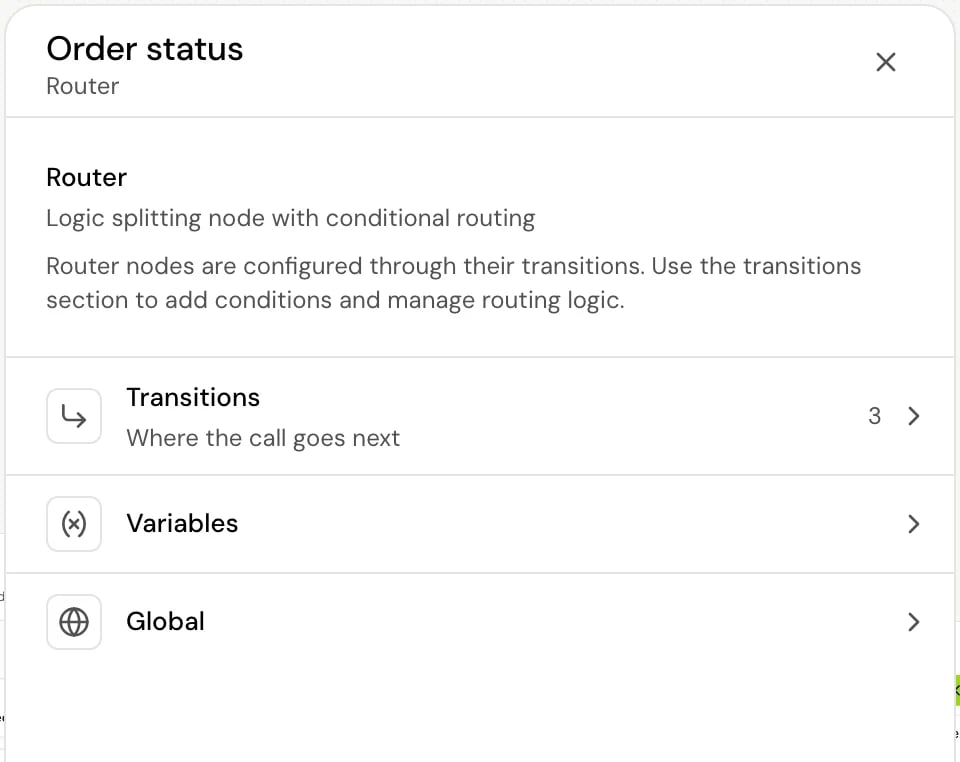
2
Add a path
Open Transitions, click Add new transition and choose Equation (“Rule-based condition”).
3
Write its conditions
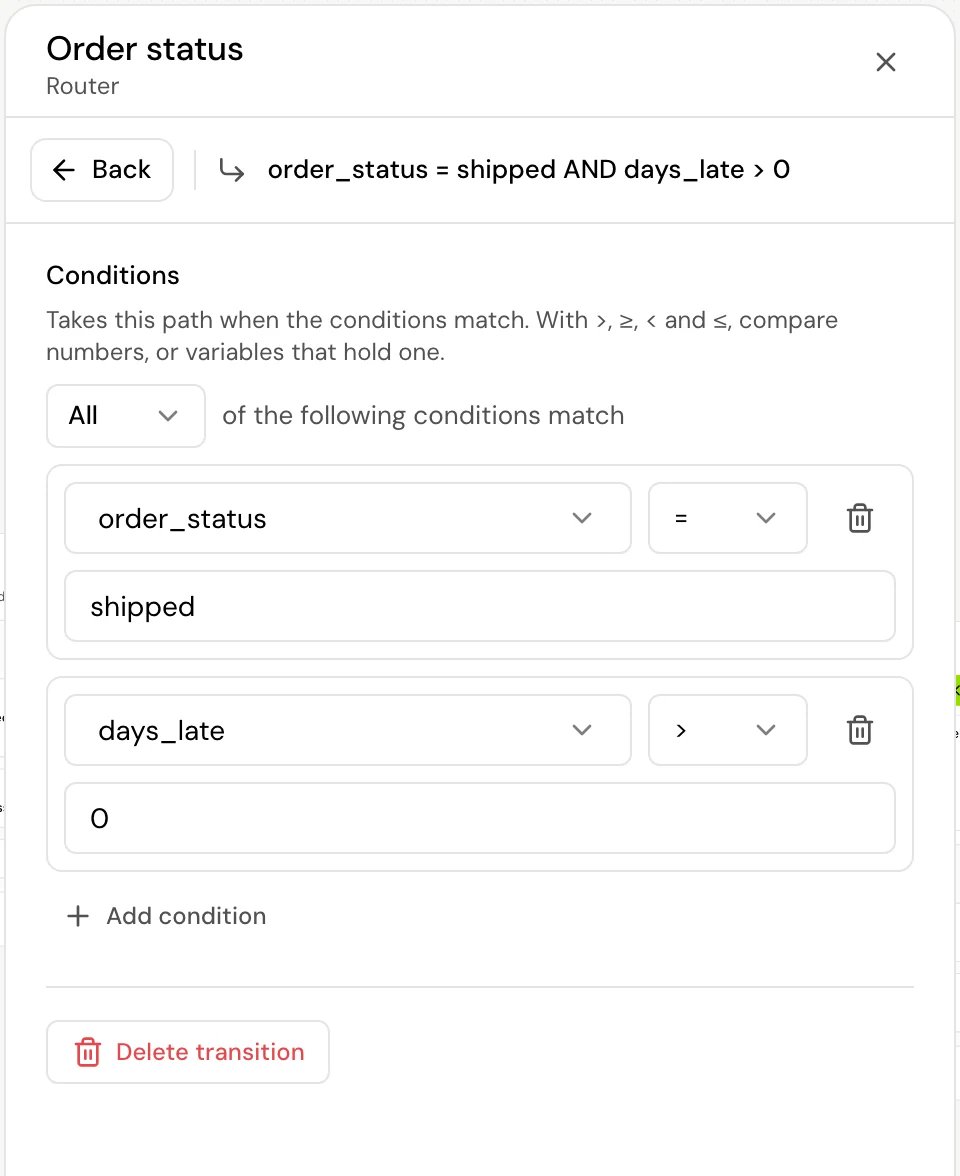
In Conditions, pick a variable, an operator and a value. Click Add condition for more, and choose All or Any “of the following conditions match”. Click Save.
4
Connect the paths
On the canvas, connect each path to its next step. Connect Else too.
Conditions
Each condition compares a variable with a value. The value can be text, a number, or another variable written as{{variable_name}}.
How values are compared:
- Equals, Does not equal, Contains and Does not contain compare text, and capital letters count:
Golddoesn’t equalgold. - A yes or no value that the agent extracted reads as
TrueorFalse, with a capital letter. Compare withTrue, nottrue. - >, <, ≥ and ≤ compare numbers. If either side isn’t a number, the condition doesn’t match. With these four, the editor asks for a number or a variable: “Use a number or a variable here.”
- Matches regex finds the pattern anywhere in the value. Add
^and$to match the whole value. Click Launch tester to try your expression on sample text in the Regex tester. An invalid expression shows “This is not a valid regular expression.” - If the variable has no value yet, every operator except Exists and Does not exist doesn’t match.
The order paths are checked in
The router checks its paths in the order you added them: the first path you added is checked first, and the first path whose conditions match wins. Else is always checked last. The step’s panel and the card on the canvas list the paths in that order, top to bottom, with Else at the bottom. You can’t reorder paths. If two paths could both match, make their conditions exclusive, or add them in the order you want them checked. A path that isn’t connected to a step is skipped.Else
Every router has an Else path. You can’t delete it, and it always stays at the bottom. The call takes Else when no other path matches. If nothing matches and Else isn’t connected, the agent says “No router path” and ends the call. Always connect Else, even if only to a step that asks the caller again or transfers them.Other sections
- Variables: add a Local variable to set a value when the call reaches the router. Local variables are set before the conditions are checked, so a condition can read one.
- Global: includes Confirm before proceeding. See Global steps.
How it works on a call
- The router’s local variables are set.
- Each path’s conditions are checked, in the order above. The first match sends the call to its step.
- If nothing matches, the call takes Else.
Related
Transitions
All transition types, including Skip if, which uses the same conditions.
Variables
Where the values you compare come from.
Tool step
Save values from an API, then route on them.
Set local variables step
Set flags and counters to route on later.