

Before you start
You need the View permission on Statistics. Owners, Admins and Users have it by default. Without View on the Conversation log, you still see Analytics, but without the How calls ended and Channels cards and without links into the log. See Roles and permissions.Choose the agent and the period
1
Open Analytics
Click Analytics in the sidebar, or the Analytics card on Home.
2
Pick an agent
The agent filter starts on All agents. Pick one agent to see only its calls. You can search the list; each agent shows whether it is a flow or a single prompt agent.
3
Pick a period
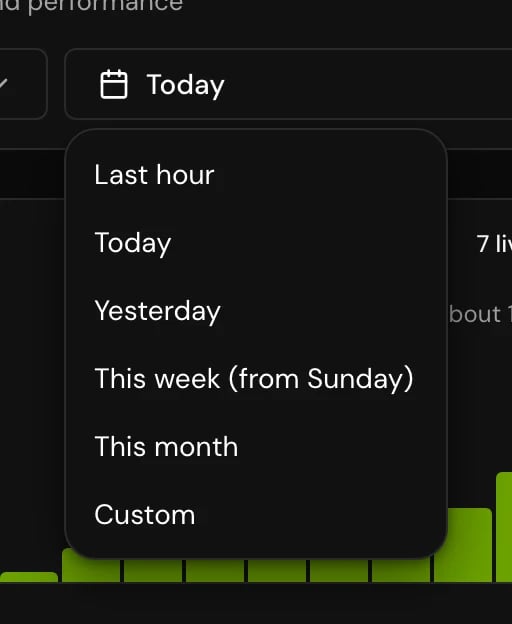
Choose Last hour, Today (the default), Yesterday, This week (from Sunday) or This month. For other dates, choose Custom, pick a start and an end on the calendar, and click Done. Future dates can’t be picked.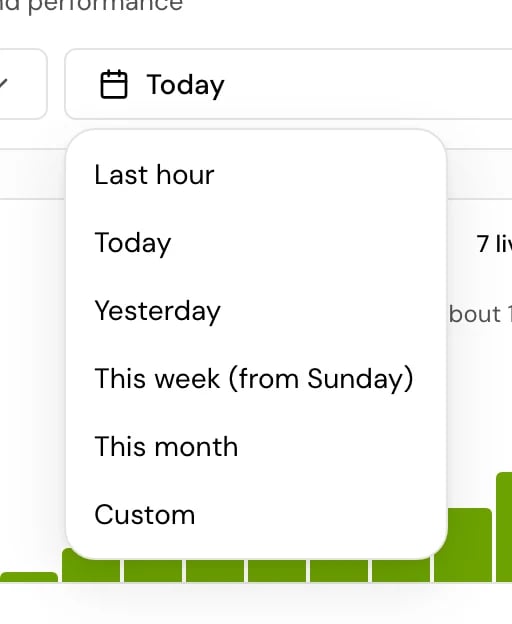
Read the change since the period before
Next to each headline figure, a small badge shows how it moved compared with an earlier stretch of the same length. It appears once the period has calls.What each figure means
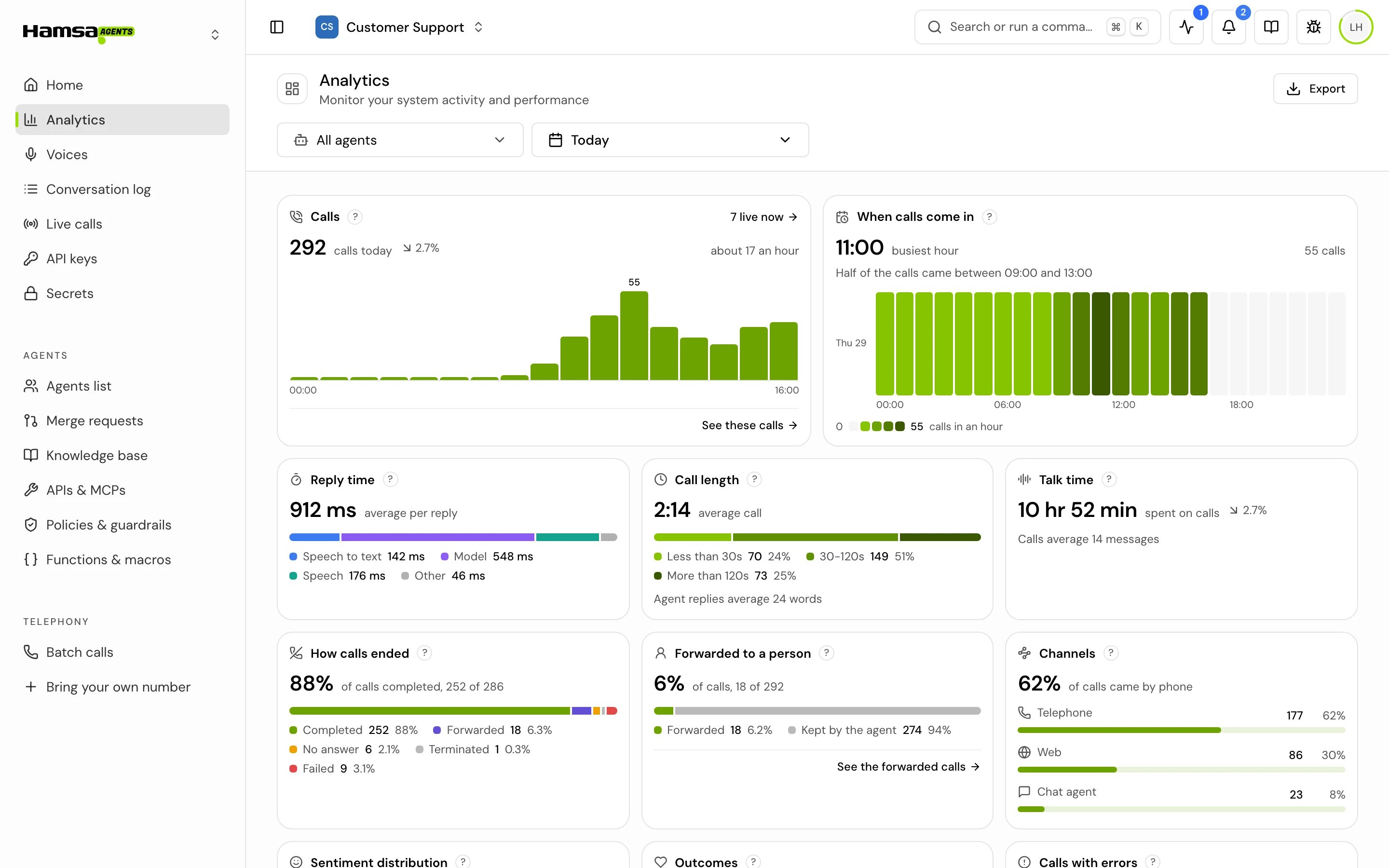
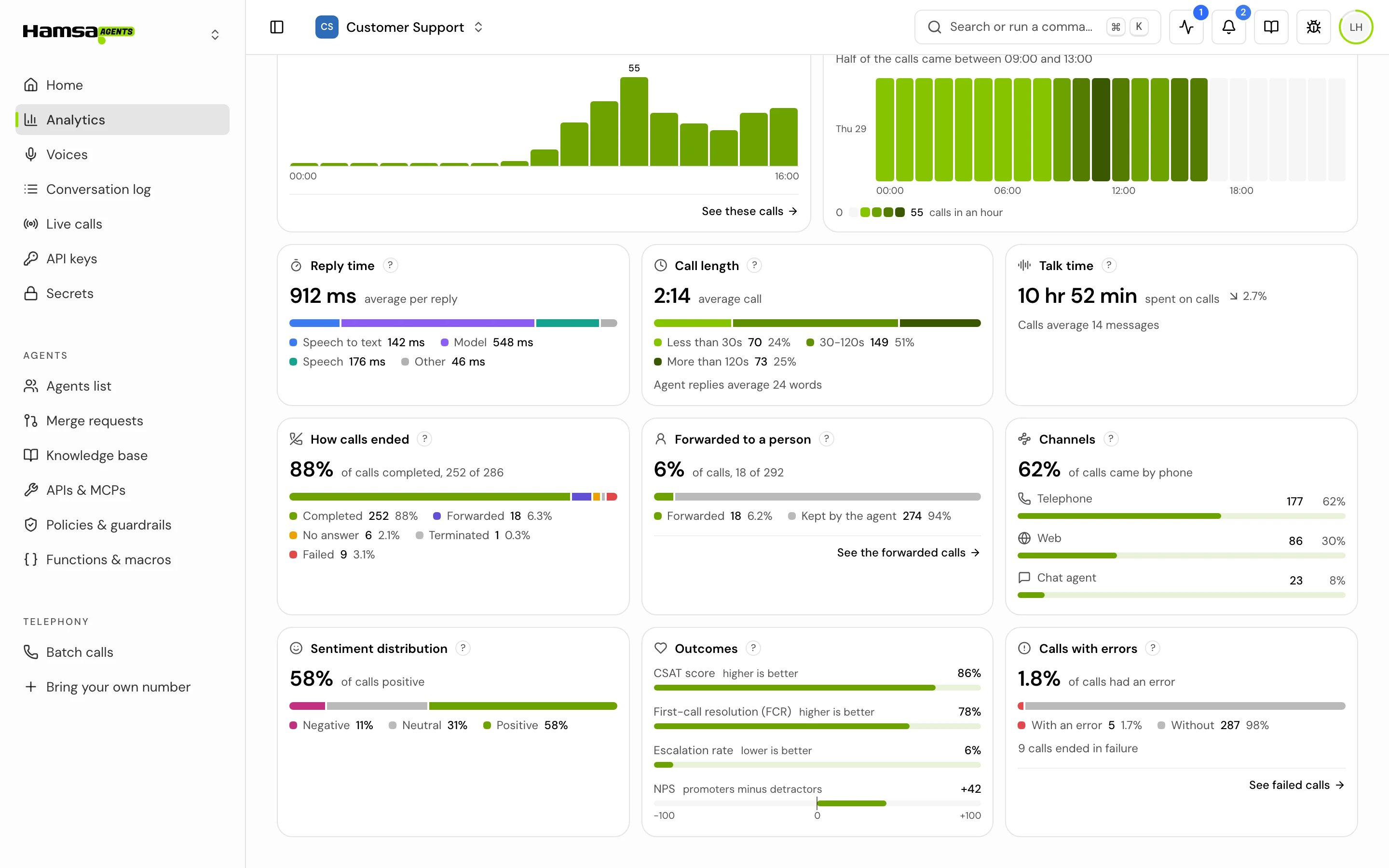
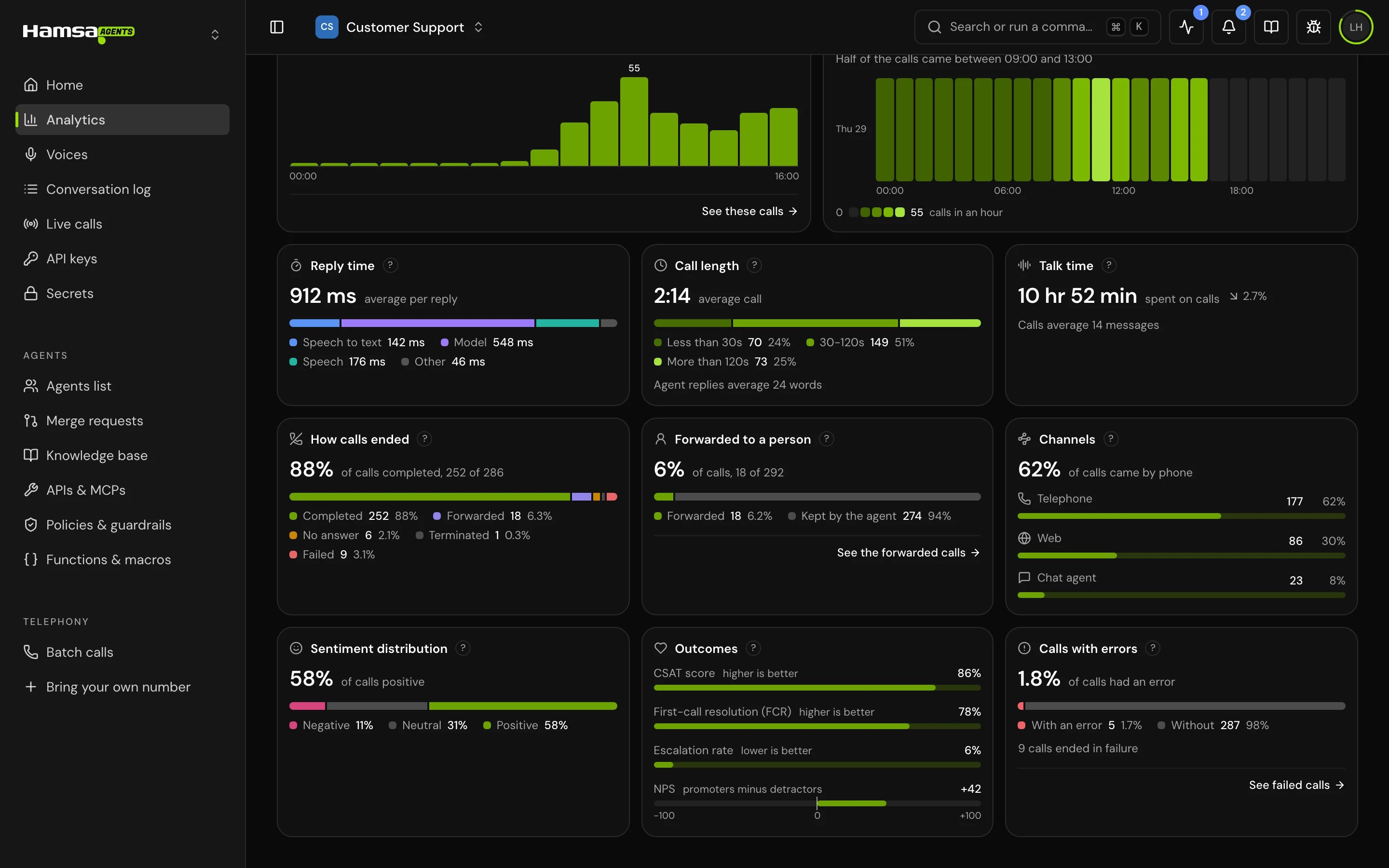
Every card has a ? button (“What do these figures mean?”) with a short definition. The tables below say exactly what is counted and what it is divided by. Two terms come up again and again:- Every call means every call in the period in any status: completed, forwarded, failed, no answer, terminated, in progress and pending.
- Finished calls means calls with the status Completed or Forwarded. A forwarded call finished like a completed one; it was transferred to a person on the way out. Length, reply time, scores and resolution are measured on finished calls only.
Volume and timing
The Calls chart has one column per hour for periods up to two days, one per day up to 62 days, and one per week beyond that. Last hour has no chart. Click a day’s column to narrow the whole page to that day; Back to … returns to your period.
How calls ended and where they came from
Reply time and errors
When the average is over 1.5 seconds, the card warns that replies are slow. The same limit marks a call Slow replies in the Conversation log.
How callers felt and how calls were resolved
How calls are scored
CSAT, NPS, sentiment and resolution are not caller surveys. Nobody asks the caller anything. After each call ends, an AI model reads the transcript and answers two sets of questions:- Scores: sentiment, CSAT and likelihood to recommend, each from 0 to 100.
- Resolution: whether the call was handled by the agent alone, whether the caller asked to speak to a person, whether a gap in knowledge stopped the agent from answering, and which topics the caller asked about that the agent couldn’t handle.
- Calls where the caller never spoke are not scored. A call with no answer, a lone greeting or an instant hang-up gets no scores and no verdict, so it doesn’t pull any rate up or down.
- A transferred call always counts as handed to a person, whatever the transcript says, and it always counts as judged.
- A call the analysis couldn’t judge counts in no rate. If the analysis fails for a call, that call drops out of the sample instead of counting as resolved.
- The analysis is strict about escalation. Frustration or a neutral ending is not enough: the transcript has to say that a person must take over.
Export the figures
Click Export to download an Excel file (.xlsx) titled “Hamsa Analytics Report”, with an Overview, a Performance and a Satisfaction sheet for the agent and period on screen. The file name has the period in it, for exampleanalytics_report_today_2026-10-31.xlsx.
When there’s nothing to show
- A period with no calls says so (“No calls today”, “No calls this week” and so on), offers Today, This week and This month, and tells you when the last call was, with See it. A project or agent that has never had a call says “This project has no calls yet.” or “This agent has no calls yet.”
- Reply time, length, scores and resolution fill in as calls finish. A call that is still in progress counts in Calls but nowhere else yet.
- The analysis runs after the call ends, so scores for the last few calls can take a moment to appear.
- If one card fails to load, it says “Couldn’t load this.” with Try again. The other cards still work.
Good to know
- The only threshold the product sets is reply time: over 1.5 seconds is slow. There are no built-in targets for CSAT, NPS or resolution; compare your agent with its own earlier periods.
- Satisfaction scores are an AI reading of the transcript. Use them to find calls worth listening to, not as a substitute for asking customers.
- Analysis looks at the transcript only. If the agent did something off the call (for example, a tool booked an appointment) but never said so, the analysis doesn’t see it.
Related
Conversation log
Open the calls behind any figure, with the same analysis per call.
Call details
Transcript, recording, call analysis and reply time for one call.
Outcome dashboard
Build charts for one agent from its own outcome fields.
Write a prompt that works on calls
Fix what the analysis finds.