

Before you start
- You need at least one number in the project. Add it under Telephony > Bring your own number.
- Owners and Admins can add numbers and assign them. Members can see them. Only the Owner can delete a number. See Roles and permissions.
How numbers and agents fit together
- A number answers for one agent at a time.
- An agent has at most one number per environment. Without deployments that means one number. With deployments on, it can have one number each for dev, staging and prod.
- The number decides which agent answers an inbound call. For outbound calls, you choose the number to call from.
- A number can be added to Hamsa only once. If it’s already in use anywhere in Hamsa, adding it again fails with “The phone number is already used in the system.”
The phone numbers page
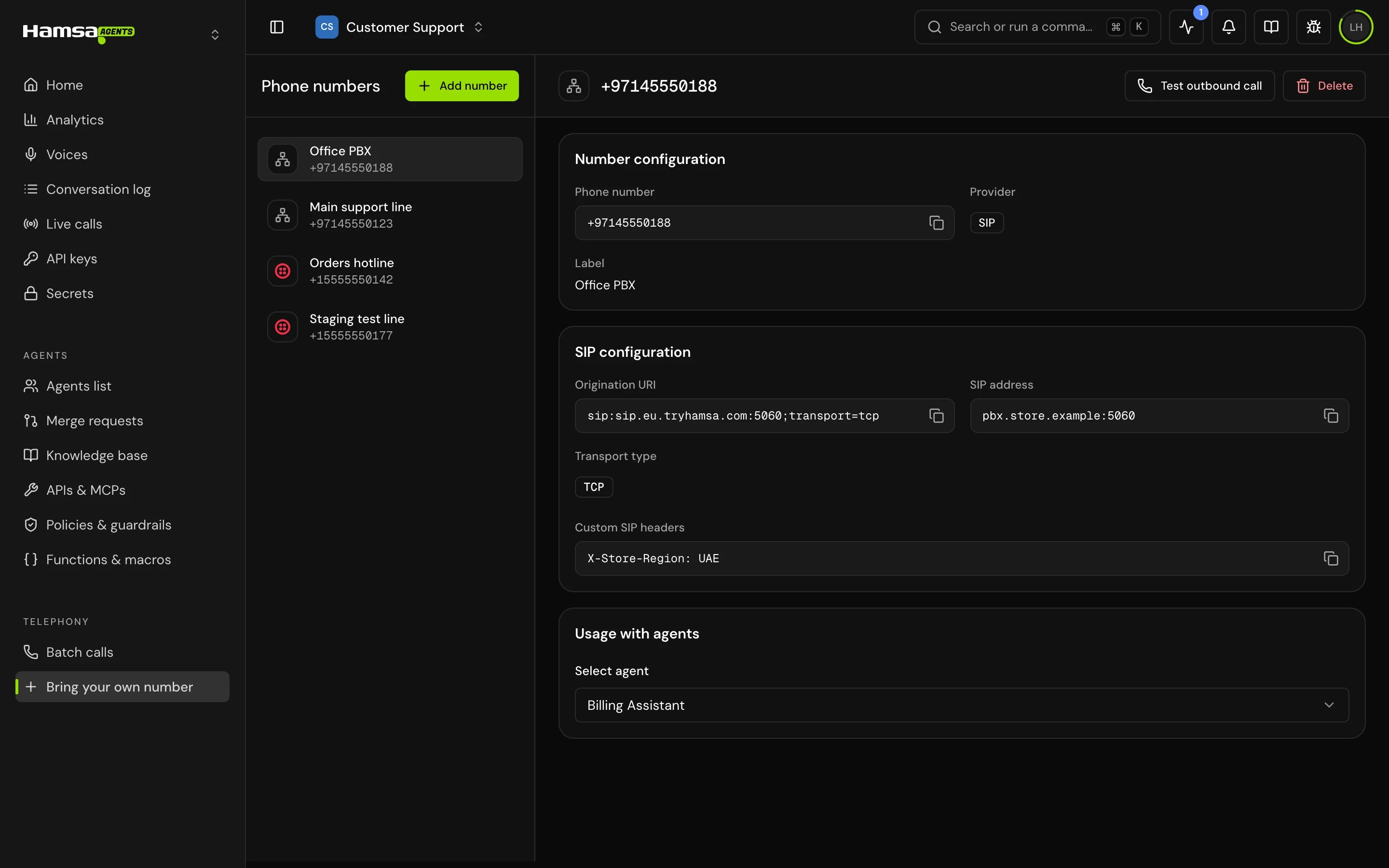
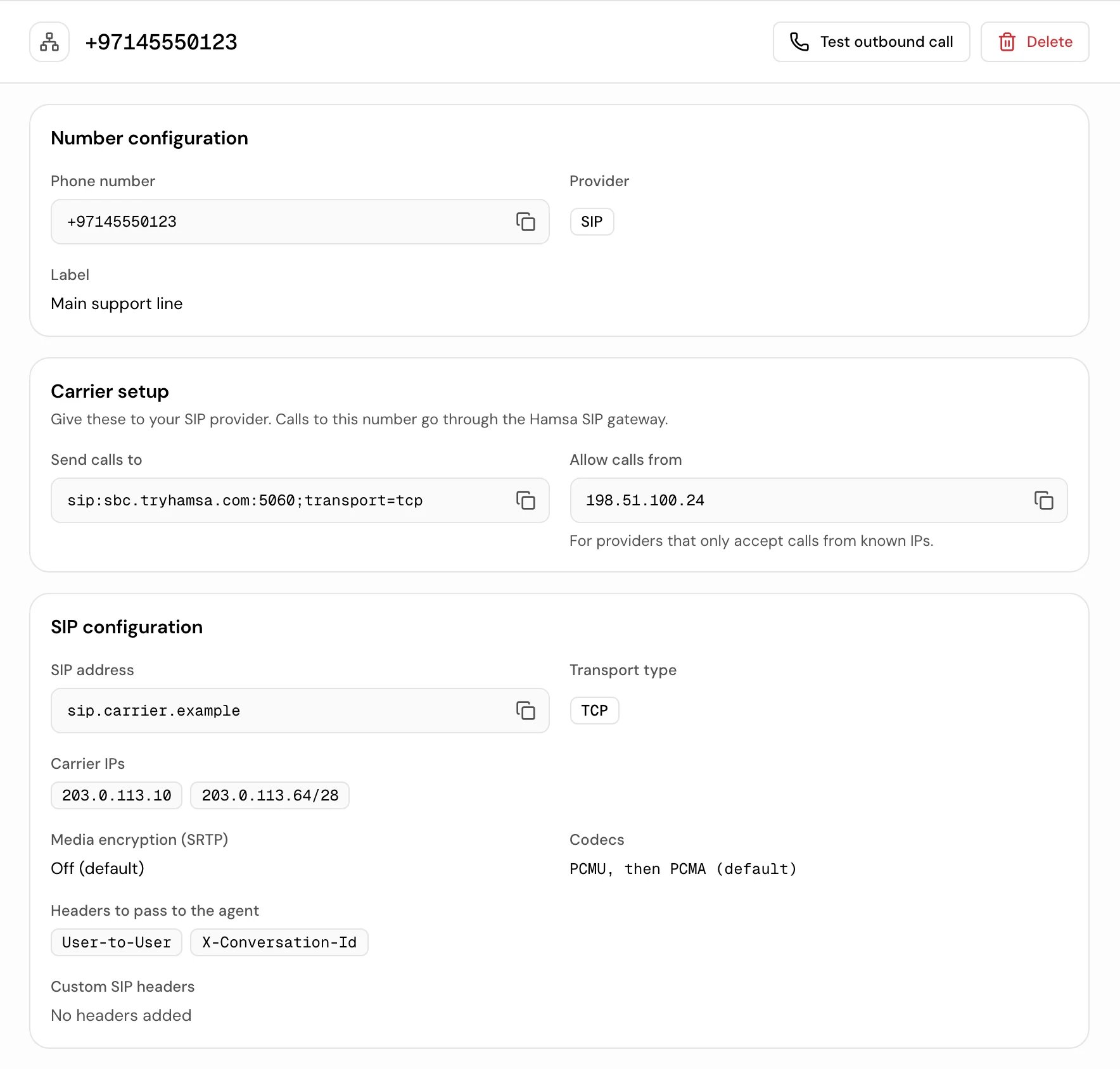
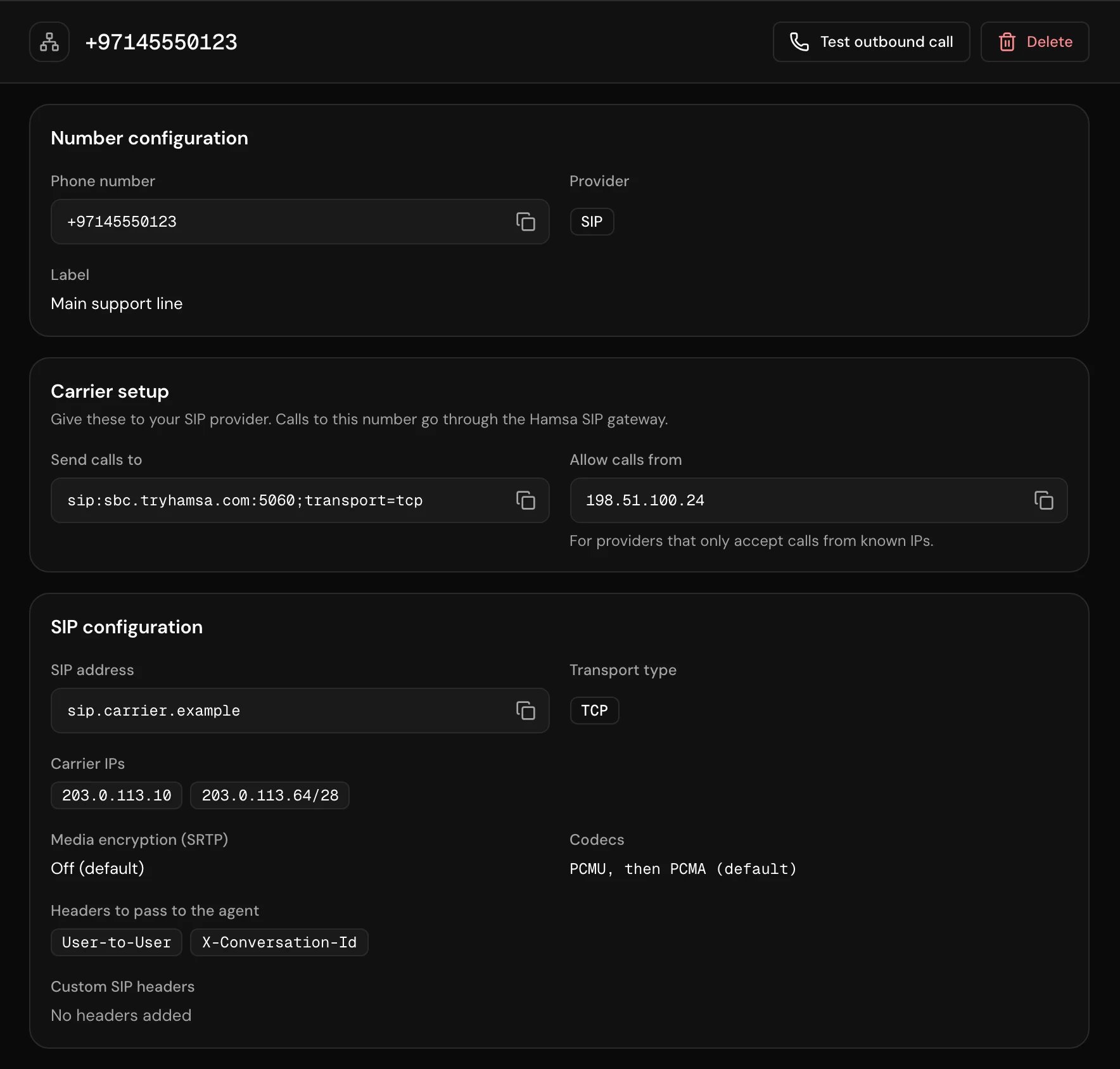
In the sidebar, open Telephony > Bring your own number. The page is titled Phone numbers. The list on the left shows each number with its label and provider. Click a number to open it.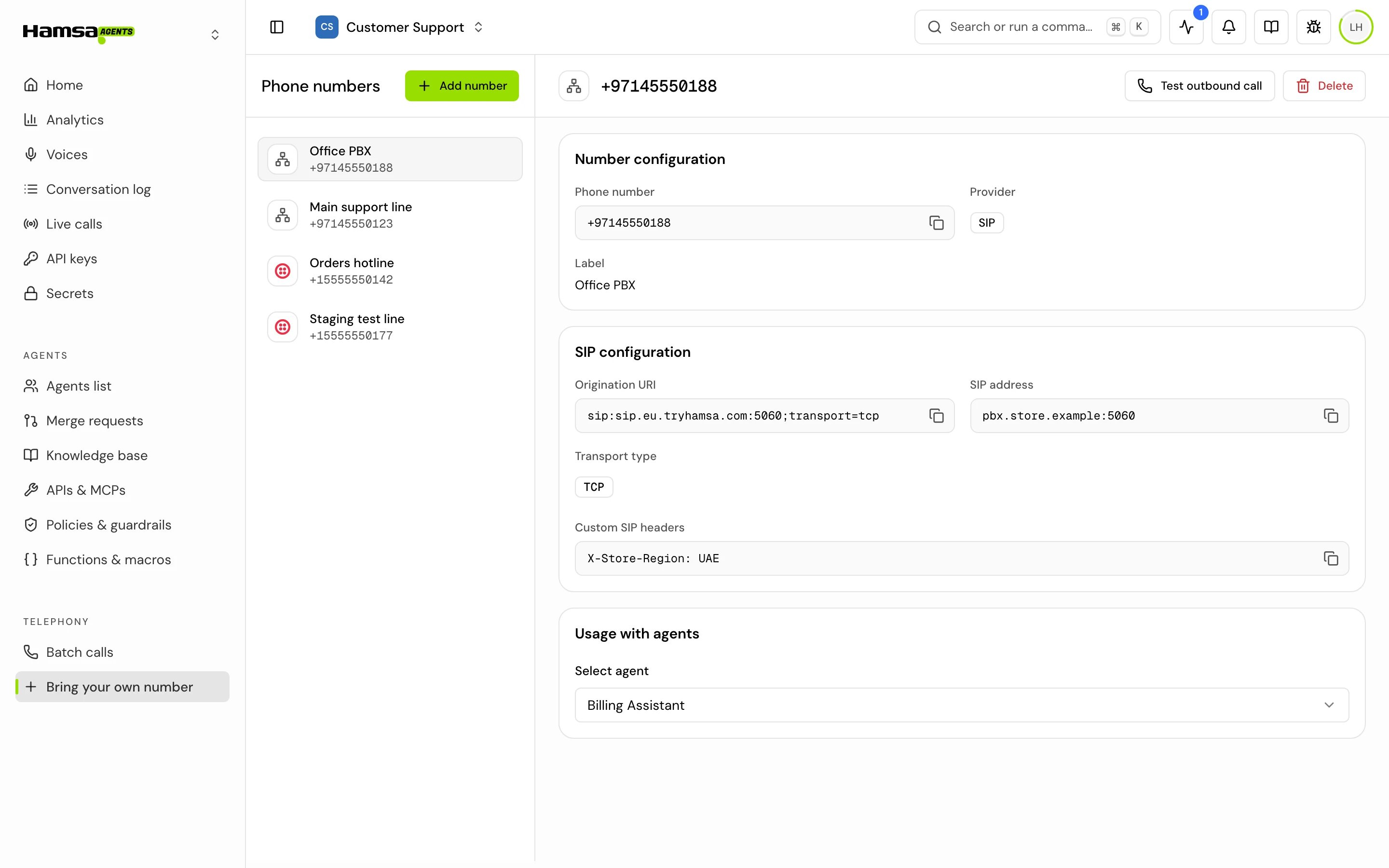
Assign a number to an agent
There are three places to do this. Use whichever you’re in.- From the number
- From the agent
- With deployments on
1
Open the number
Go to Telephony > Bring your own number and click the number.
2
Pick the agent
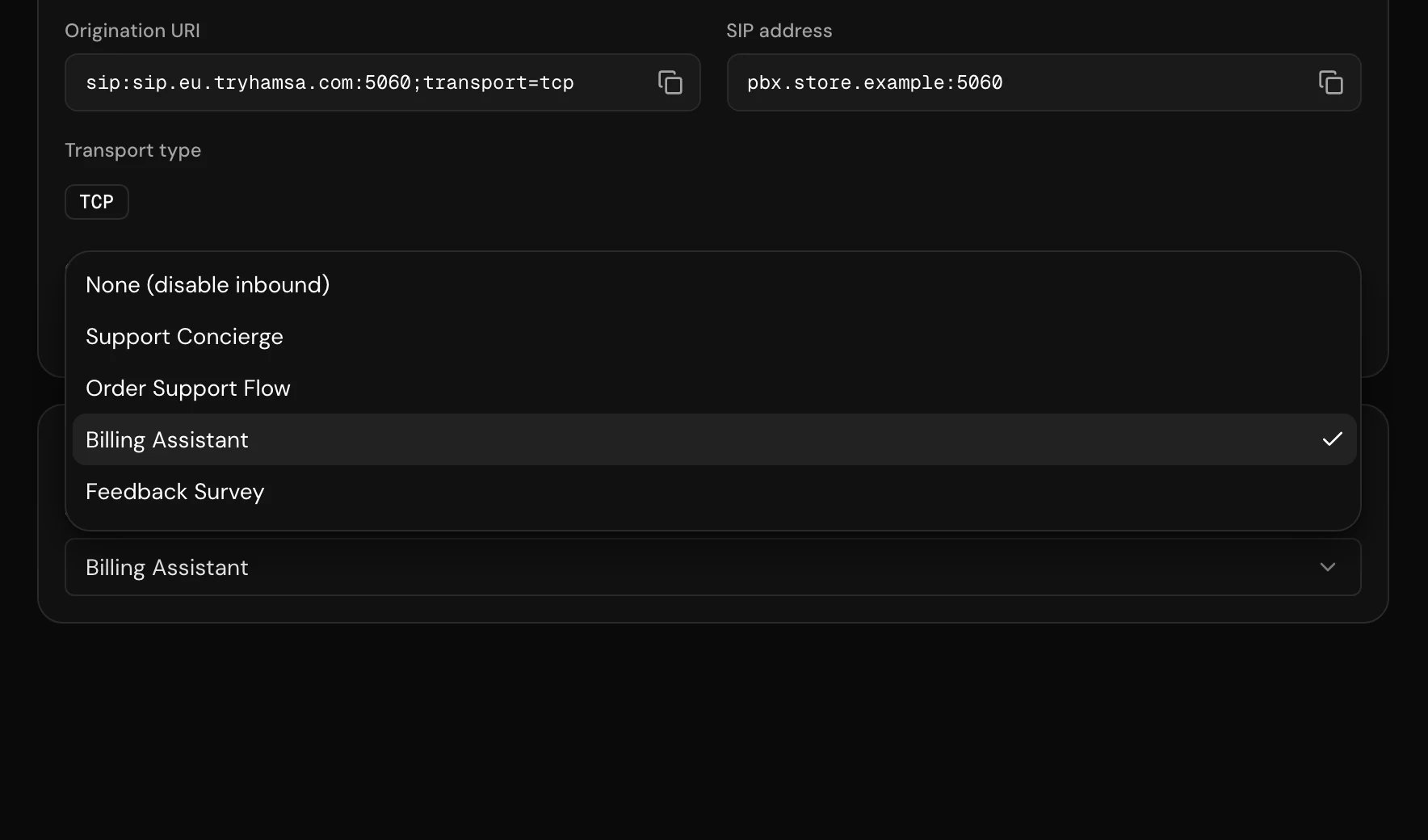
In Usage with agents, open Select agent and pick an agent. It saves at once and shows “Agent assigned”.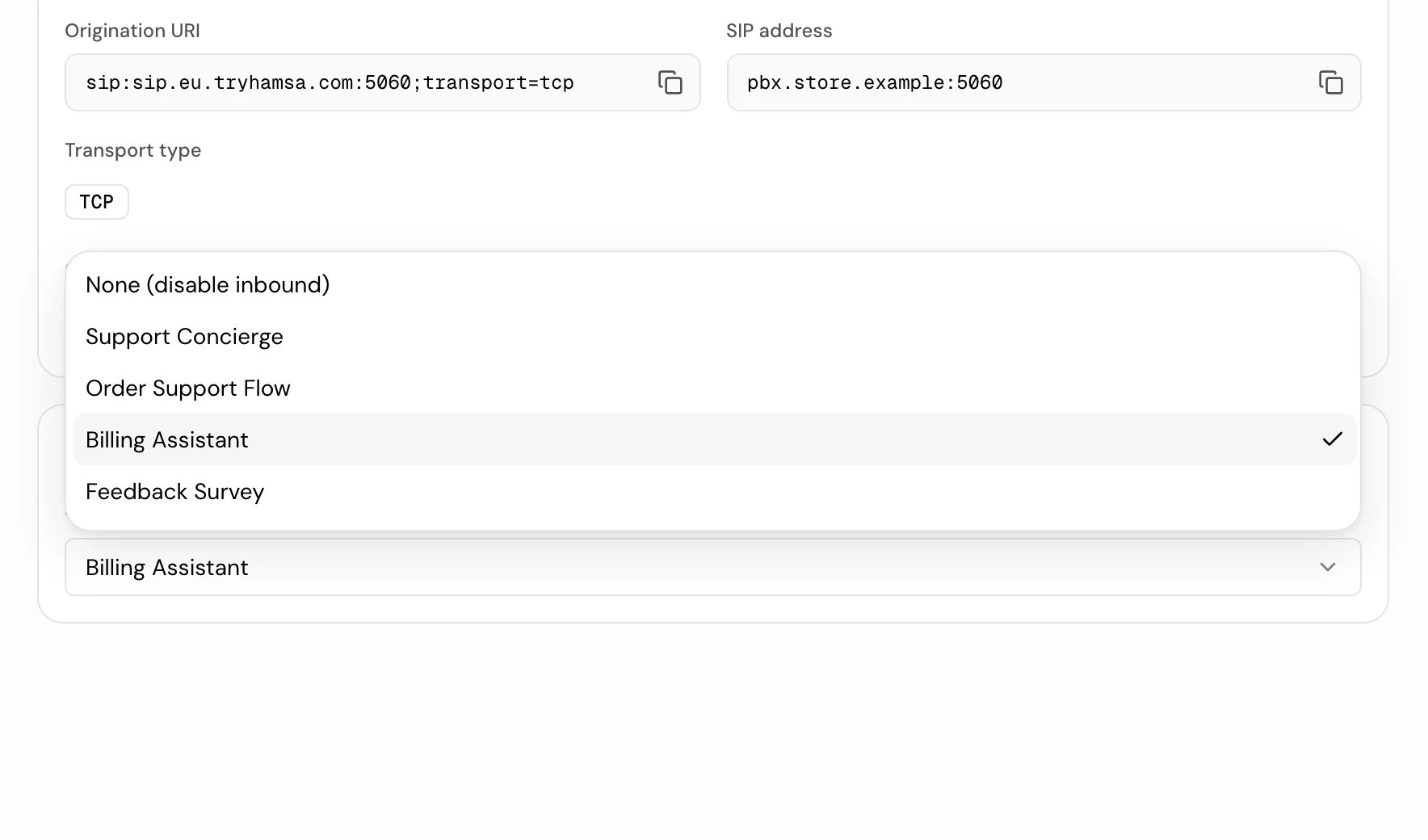
3
Confirm a move
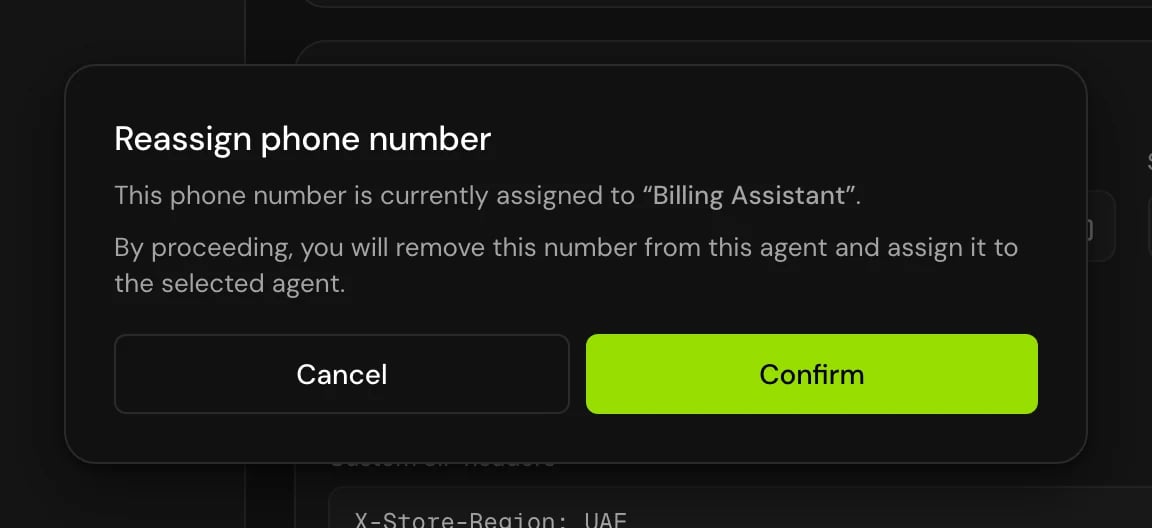
If the number already answers for another agent, Hamsa asks Reassign phone number first. Click Confirm to move it. The other agent stops answering on it.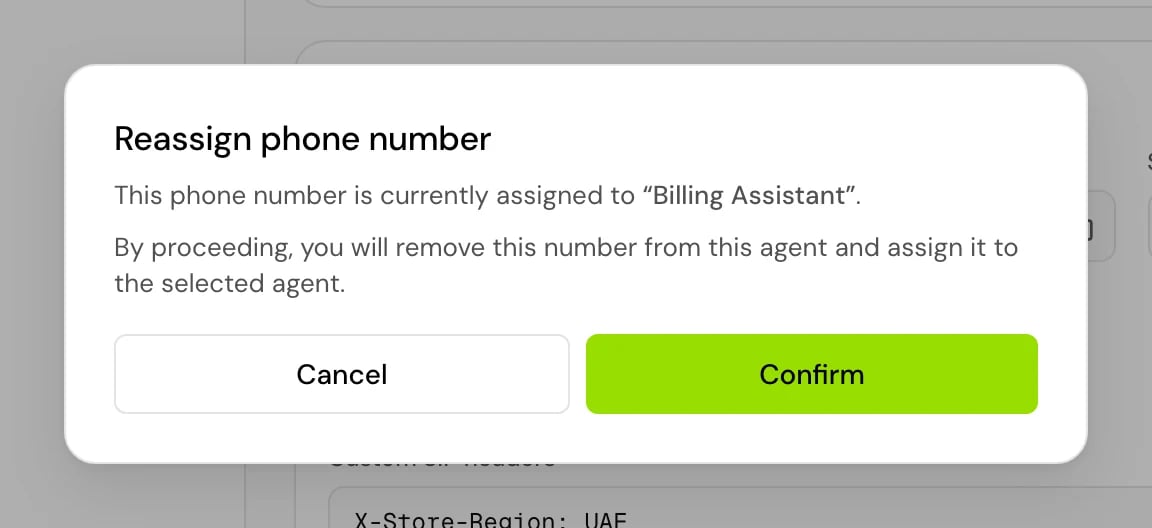
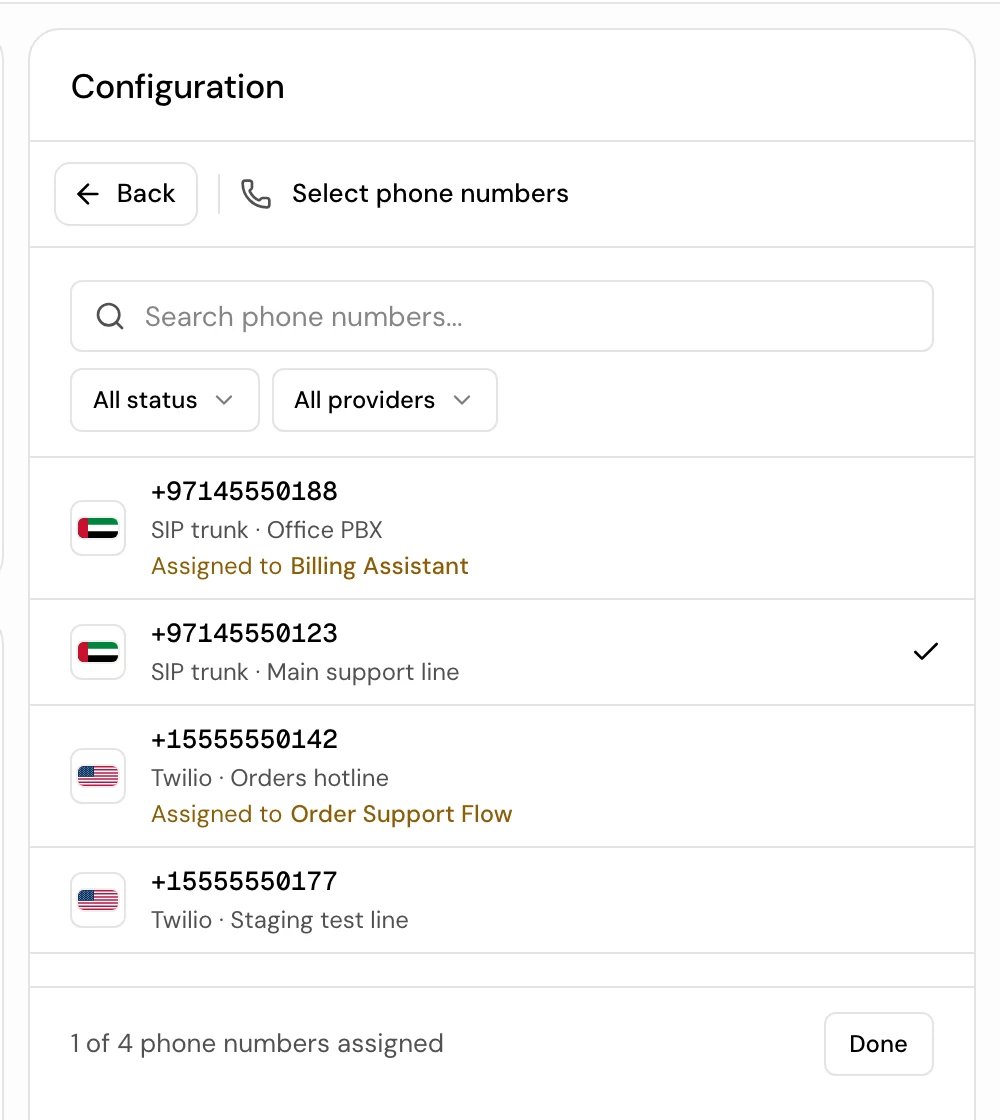
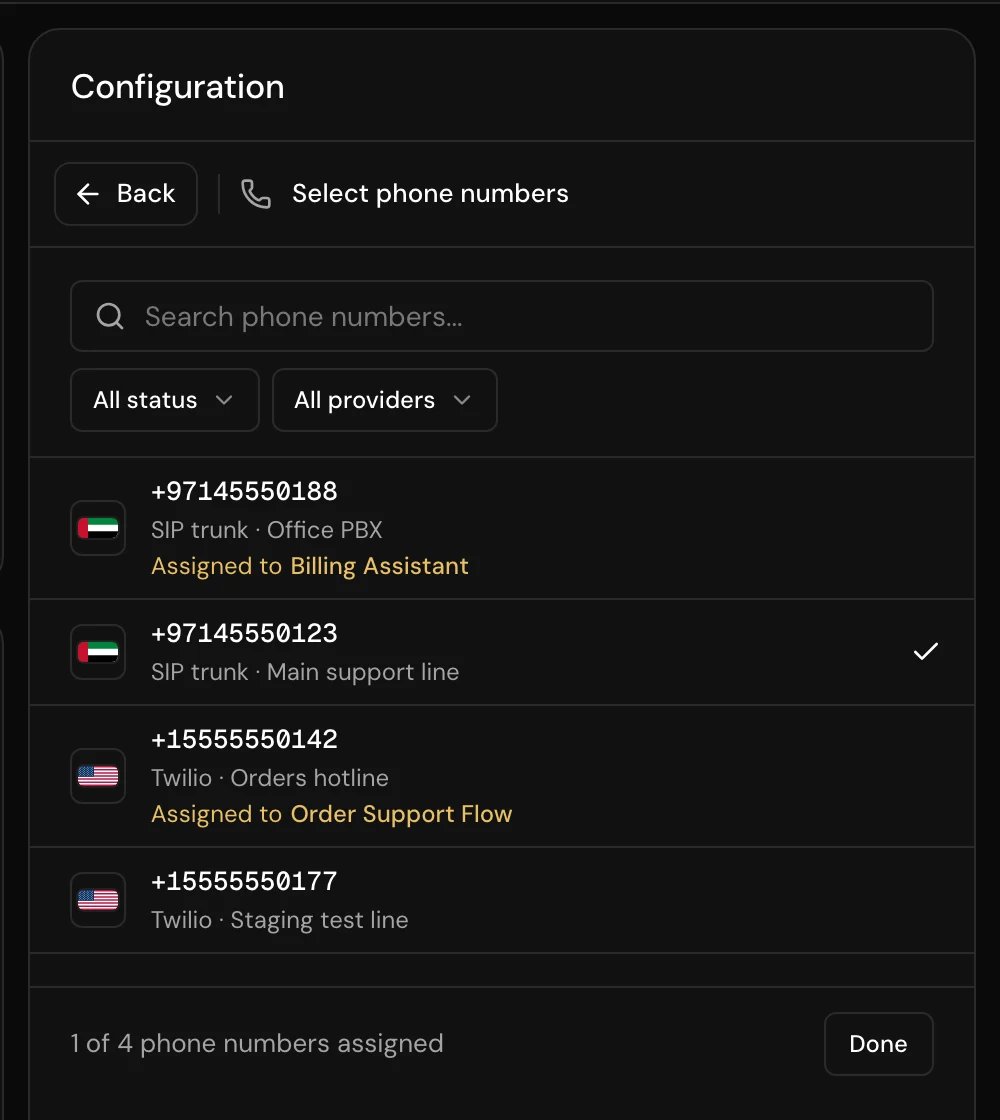
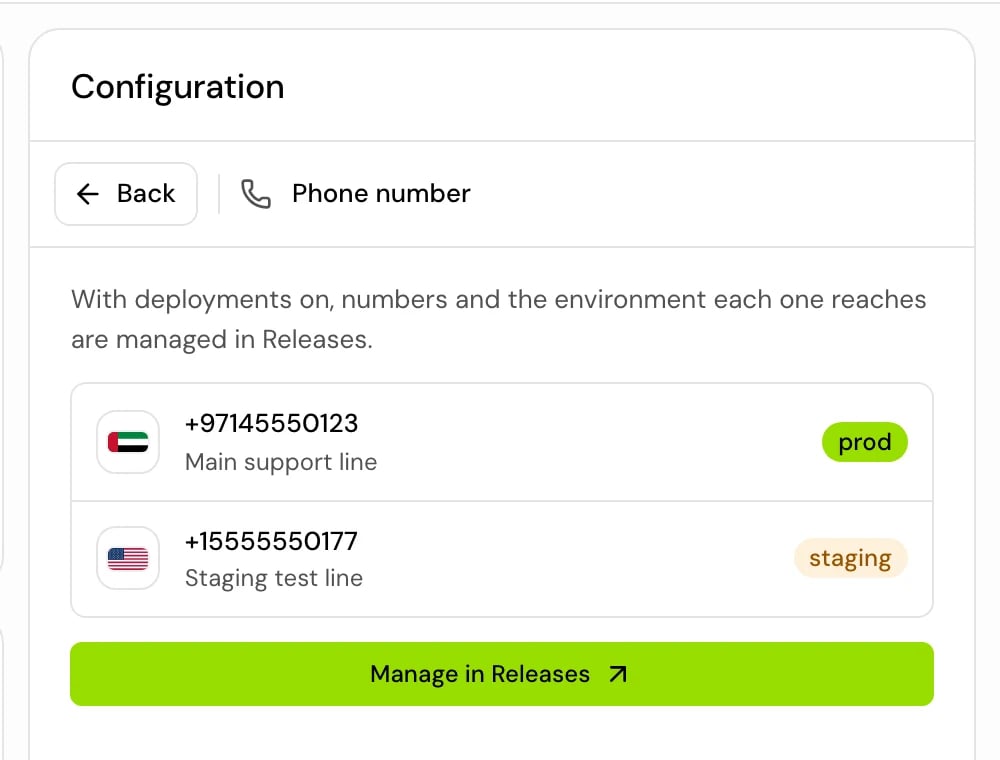
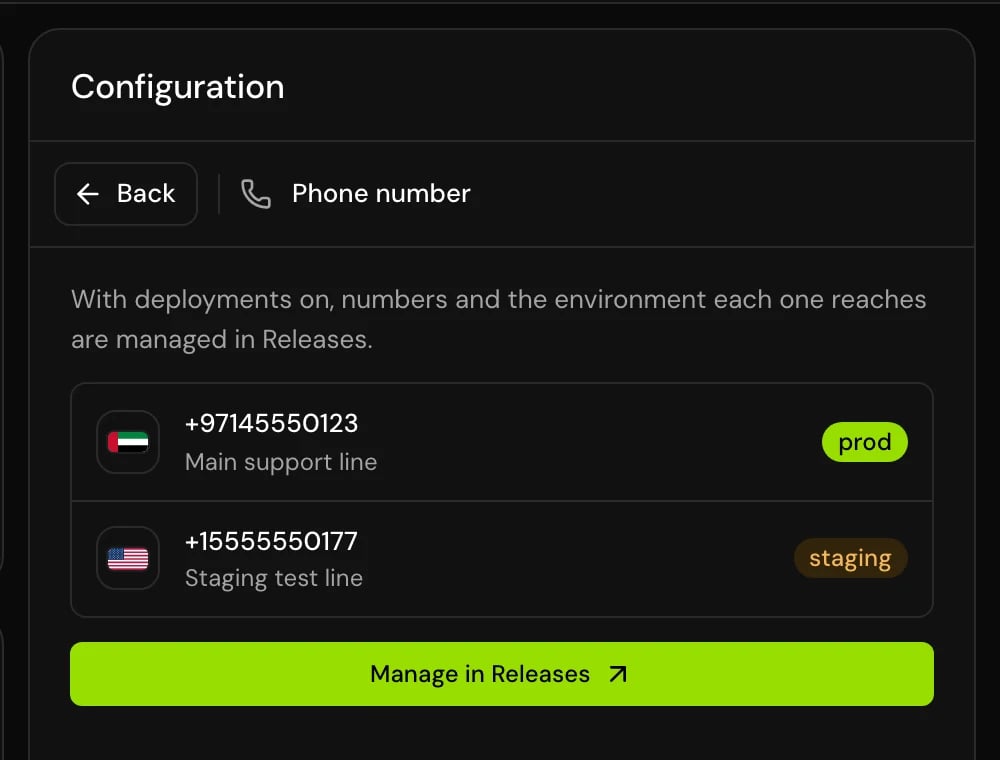
Assigning a number doesn’t need a publish. Phone numbers aren’t part of an agent version.
How an inbound call is answered
- Someone dials your number. Hamsa finds the agent the number is assigned to.
- With deployments on, the call lands in the environment the number points at and is answered by the version published there. Otherwise, or if that environment has nothing published yet, the prod version answers.
- If prod runs an A/B test, the caller’s number decides which version they hear, and the same caller keeps hearing the same version.
- The agent greets the caller and the call starts. The Conversation log shows it.
- the number has no agent. The call fails with “No voice agents assigned to this phone number.”
- the owner’s account already has as many calls running as the plan allows, across all of the owner’s projects. The call is refused with “Voice agent concurrency limit reached. Please wait for an active call to finish.” See Limits.
{{sip.headers['x-header-name']}}, with the header name in lowercase. See System variables.
Test a call from a number
Use this to check that a number can call out with its agent.1
Open the number
The number must be saved and assigned to an agent.
2
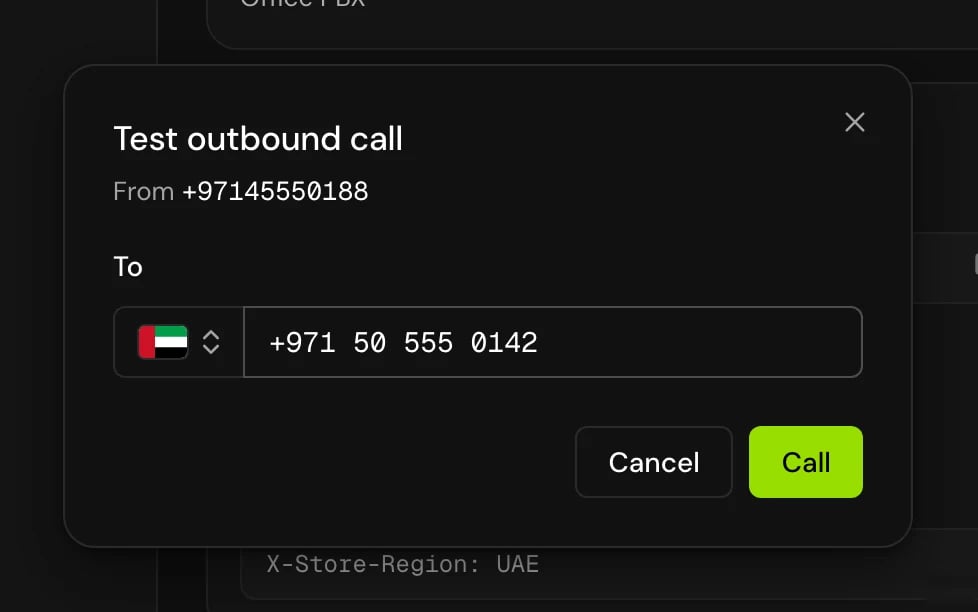
Click Test outbound call
In the dialog, enter the number to call in To and click Call. The toast says “Call started”, and your phone rings.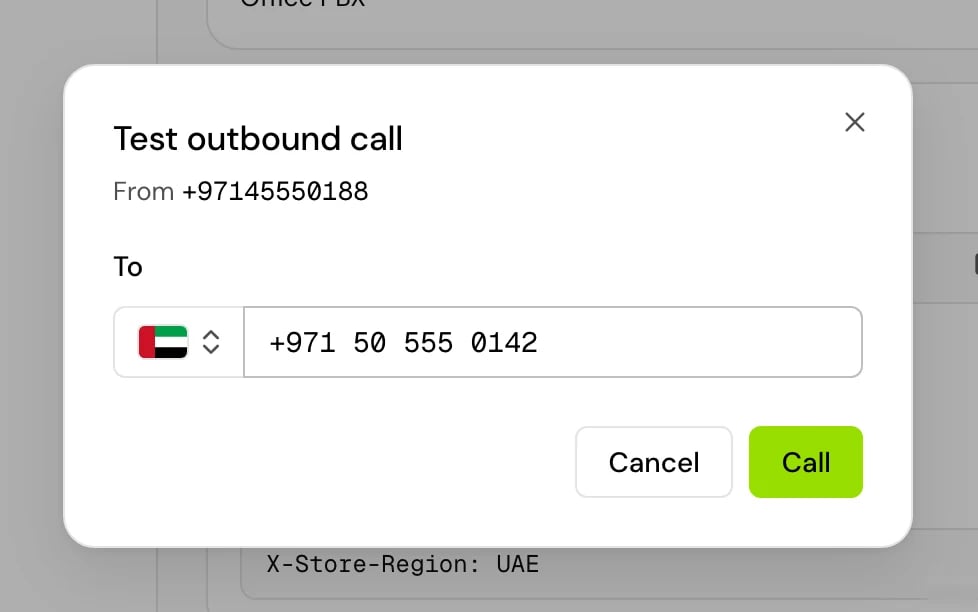
Delete a number
1
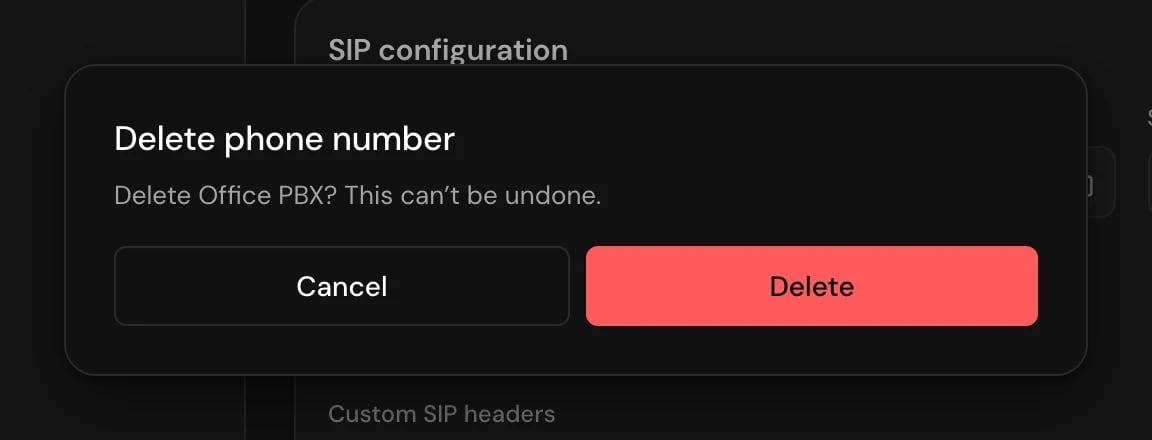
Open the number and click Delete
The dialog asks “Delete {label}? This can’t be undone.”, naming the number by its label (or the number, if it has none).
2
Click Delete
The number is removed at once. There’s no undo.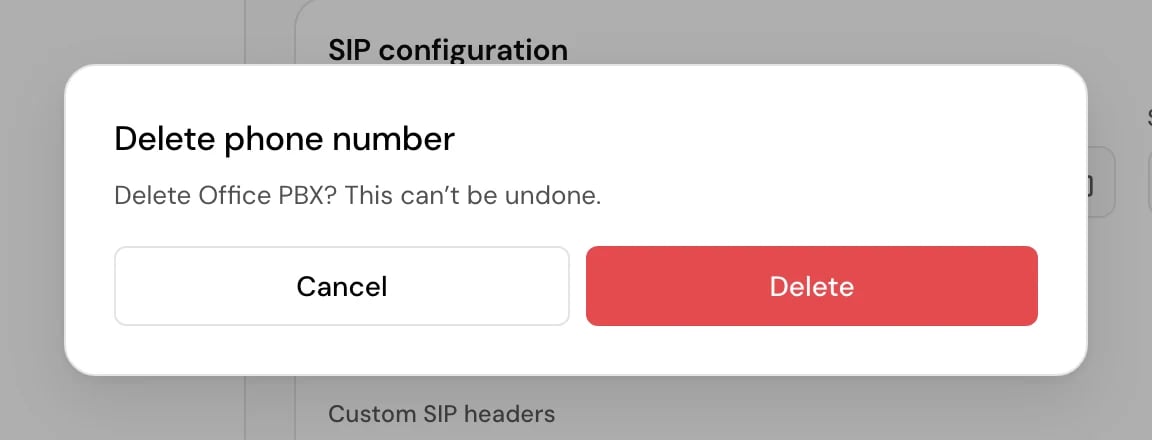
Good to know
- Admins can add and assign numbers but can’t delete them by default.
- A number with no agent can’t make a test call, and inbound calls to it fail.
- If the agent already has a number in that environment, the number you assign replaces it. The old number stops answering for the agent.
- Credits: every call needs a credit balance above zero. See Billing.
Related
Bring your own number
Add a Twilio number or connect a SIP trunk.
Make an outbound call
Call one person from the app or the API.
Batch calls
Call a list of people from one number.
Environments and releases
Point each number at dev, staging or prod.