

Where to find it
- Single prompt agent
- Flow agent
In the editor’s Configuration panel, open Voice settings. The Language/dialect switcher is in Call settings.
Choose the voice
1
Open the voice picker
In Voice settings, click Change on the voice row. Select agent voice opens.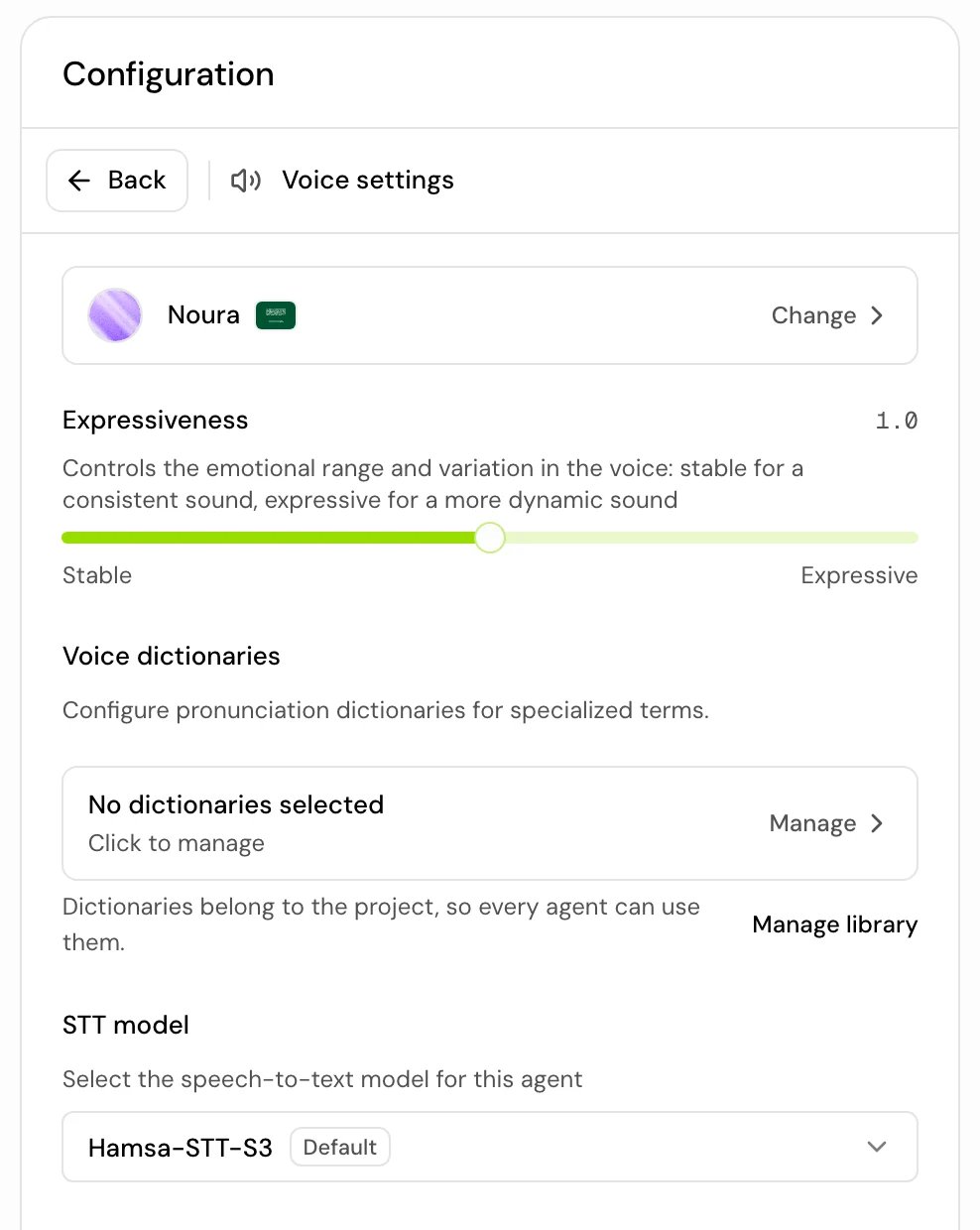
2
Narrow the list
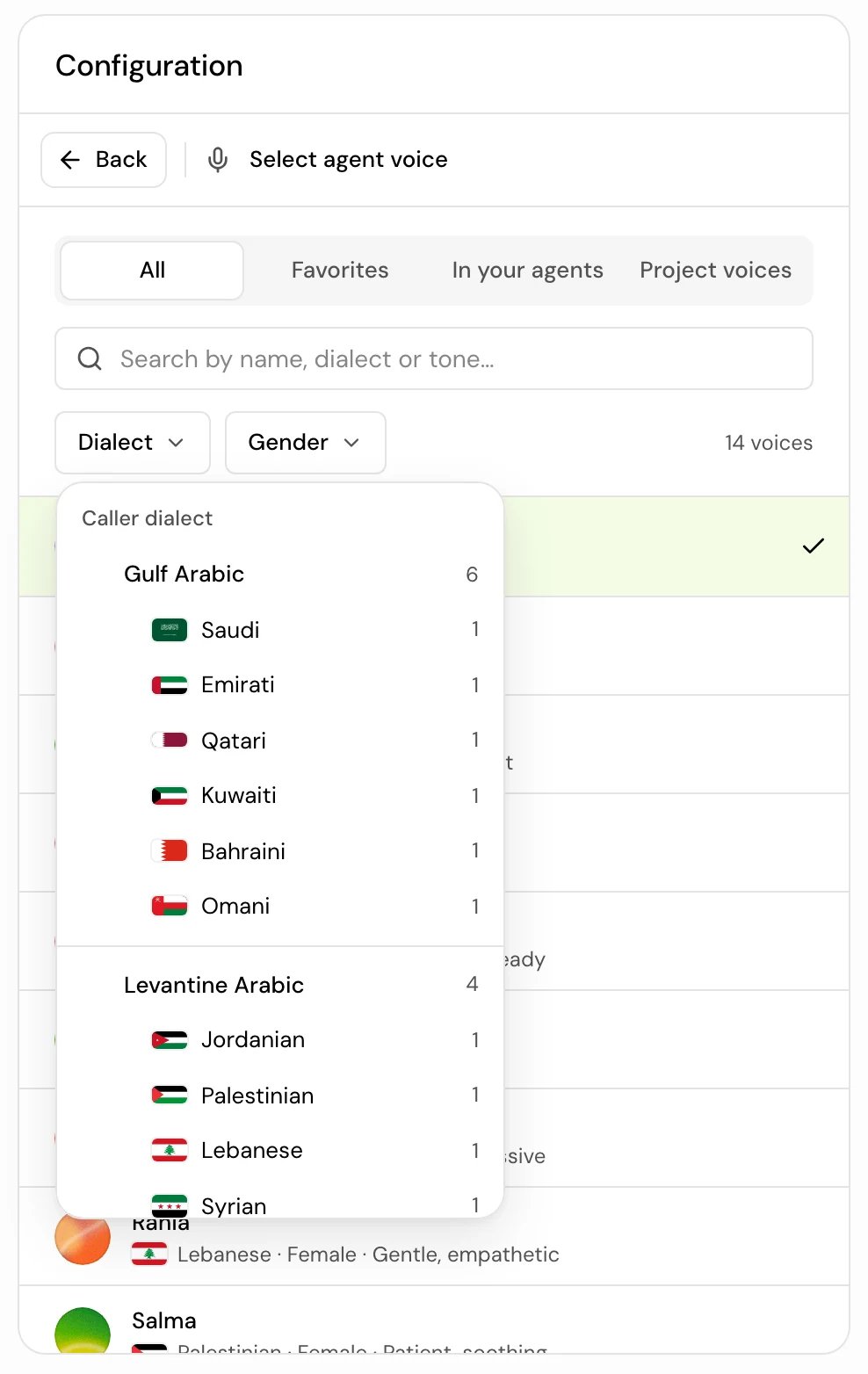
Under Show, pick All, Favorites, In your agents or Project voices. Search by name, or filter by Dialect and Gender. Clear resets the filters.
3
Listen and pick
Press play on a row to hear a sample. Click the voice to use it. The picker closes and the voice is set.
Language and dialect come from the voice
There is no separate language or dialect setting. Each voice has a dialect, and the agent takes its language and dialect from it:- An Arabic voice makes the agent speak Arabic in that voice’s dialect, for example Jordanian, Saudi or Egyptian. A Fusha voice speaks Modern Standard Arabic.
- An English voice makes the agent speak English.
- With the prompt enhancer on, Hamsa adds an instruction to the prompt such as “Always speak in Jordanian dialect of Arabic”, so the model writes in the same dialect the voice speaks.
- With the enhancer on, the voice’s gender is passed to the model too (“You are a female agent”), so Arabic replies use the right forms for the agent.
Voice settings reference
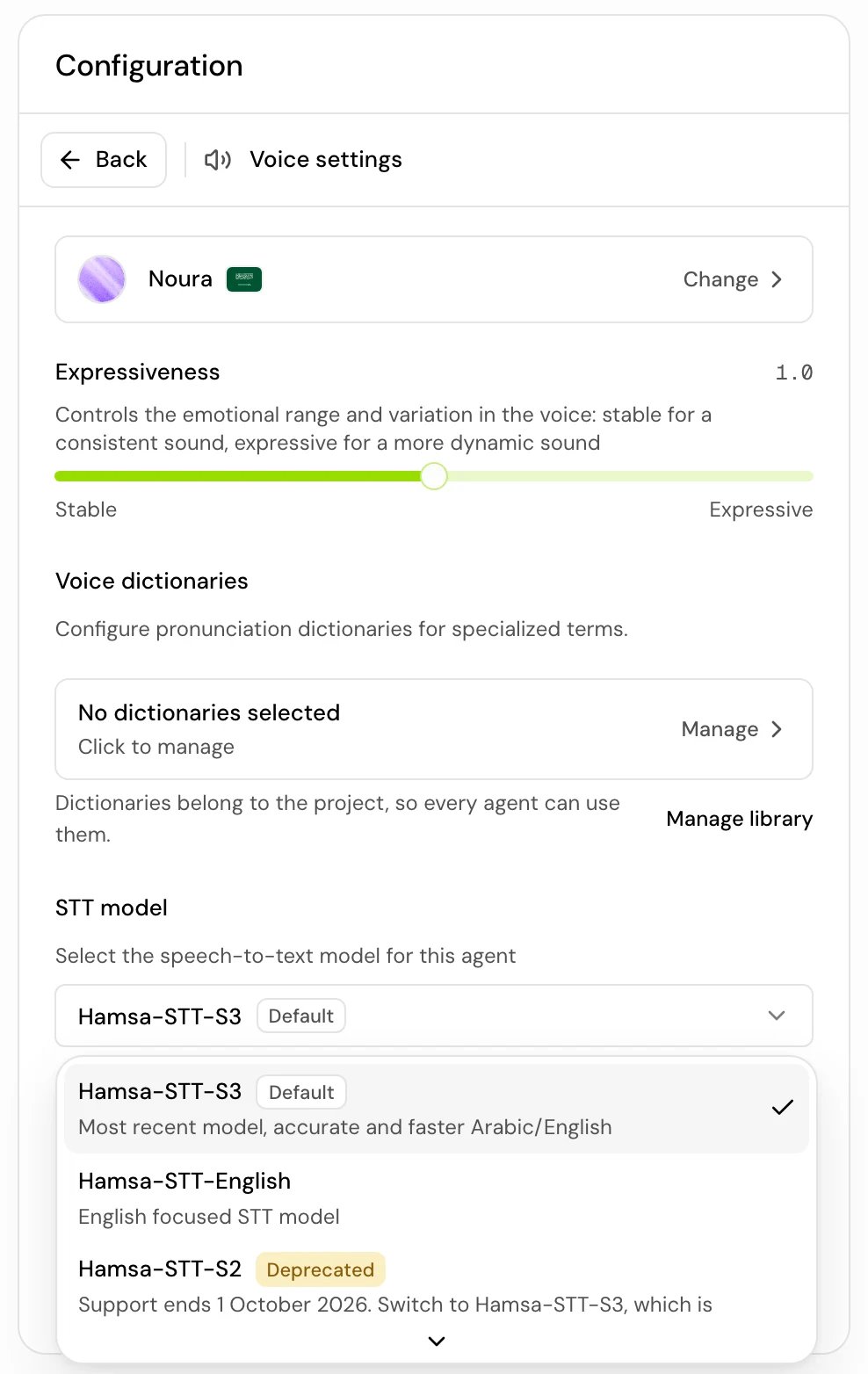
There is no voice speed setting.
Speech recognition model
Agents that used the retired Hamsa-STT-S2 now run on Hamsa-STT-S4.
Voice dictionaries
Dictionaries fix how the agent pronounces names, brands and terms. They belong to the project, so every agent can use them. Pick one or more in Voice dictionaries, or use Manage library and Create a dictionary. When two selected dictionaries have the same entry, the one later in the list wins. See Pronunciation dictionaries.Let the agent switch dialect during a call
Turn on Language/dialect switcher in Call settings when callers may speak a different dialect, or ask to.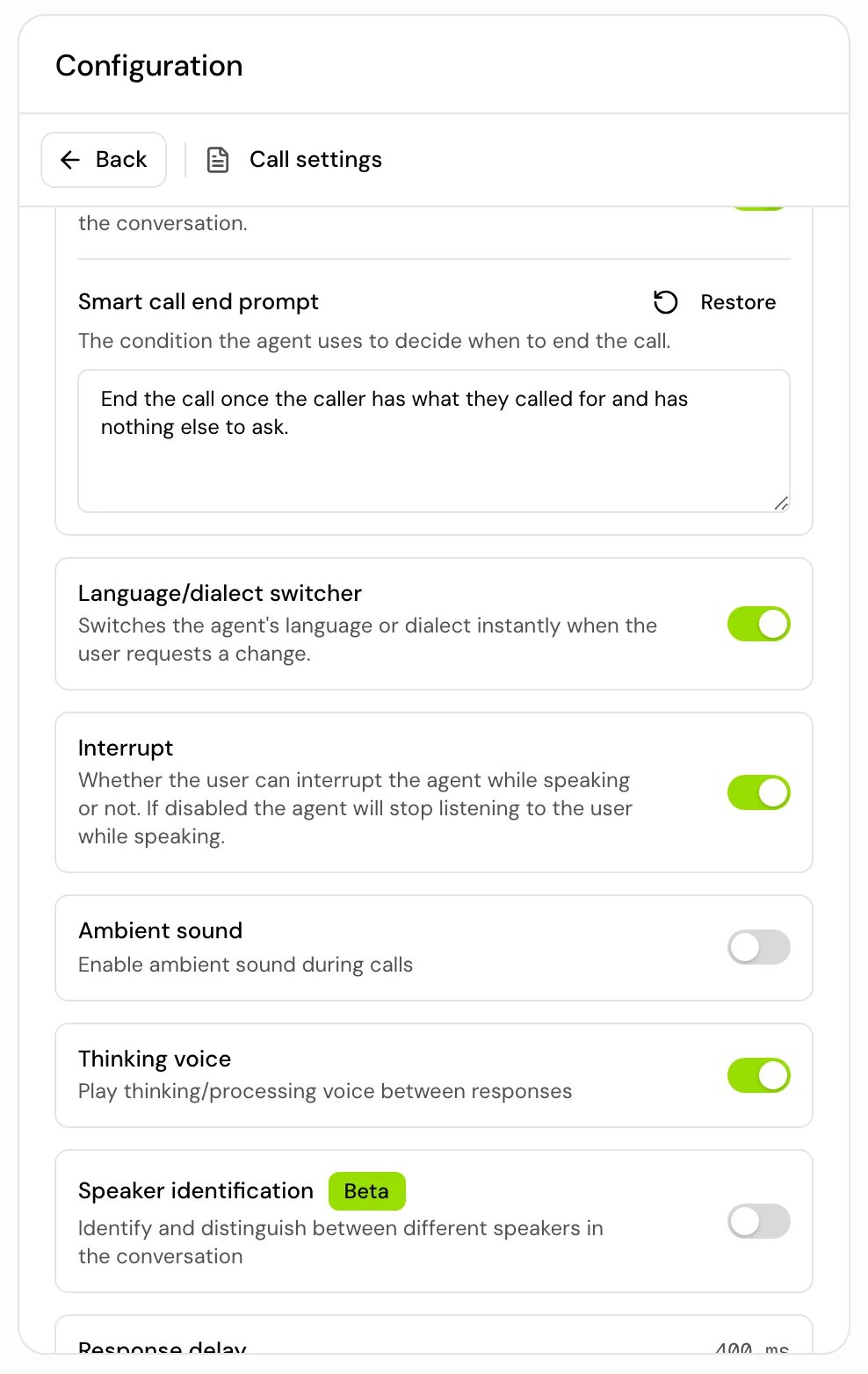
- The voice keeps its sound and speaks the new dialect.
- The dialect instruction in the prompt is rewritten for the new dialect.
- Speech recognition switches between Arabic and English if the language changed.
{{ agent_language }}and{{ agent_dialect }}hold the new values.- The agent replies in the new dialect right away.
How it works on a call
- Everything the agent says goes through the voice, after the voice dictionaries are applied.
- Everything the caller says goes through the STT model before the model reads it. Recognition can mishear names and numbers, so ask the agent to confirm them (see Write a prompt that works on calls).
{{ agent_language }}isarorenand{{ agent_dialect }}is a code such asjor,uae,msaoren. You can use them in prompts and messages. See System variables.
Good to know
- Changing the voice changes the agent’s language and dialect at the same time. Check the prompt and greeting still fit.
- The dialect switcher is offered to the model as an option. It switches when the model decides the caller wants it, not on a keyword.
- For Arabic agents, User gender detection in Call settings helps the agent address the caller with the right forms. See Call behavior settings.
Related
Choose a voice
Browse, preview and favorite voices.
Pronunciation dictionaries
Fix how names and terms are said.
Write a prompt that works on calls
How the dialect instruction fits your prompt.
Call behavior settings
Gender detection, turn taking and more.