

Before you start
- A phone number in the project with a working outbound connection. See Bring your own number.
- An agent to make the calls.
- A recipient file. See Batch call recipient file.
- Owner or Admin role. Members can see batch calls but can’t create, change or stop them.
Create a batch call
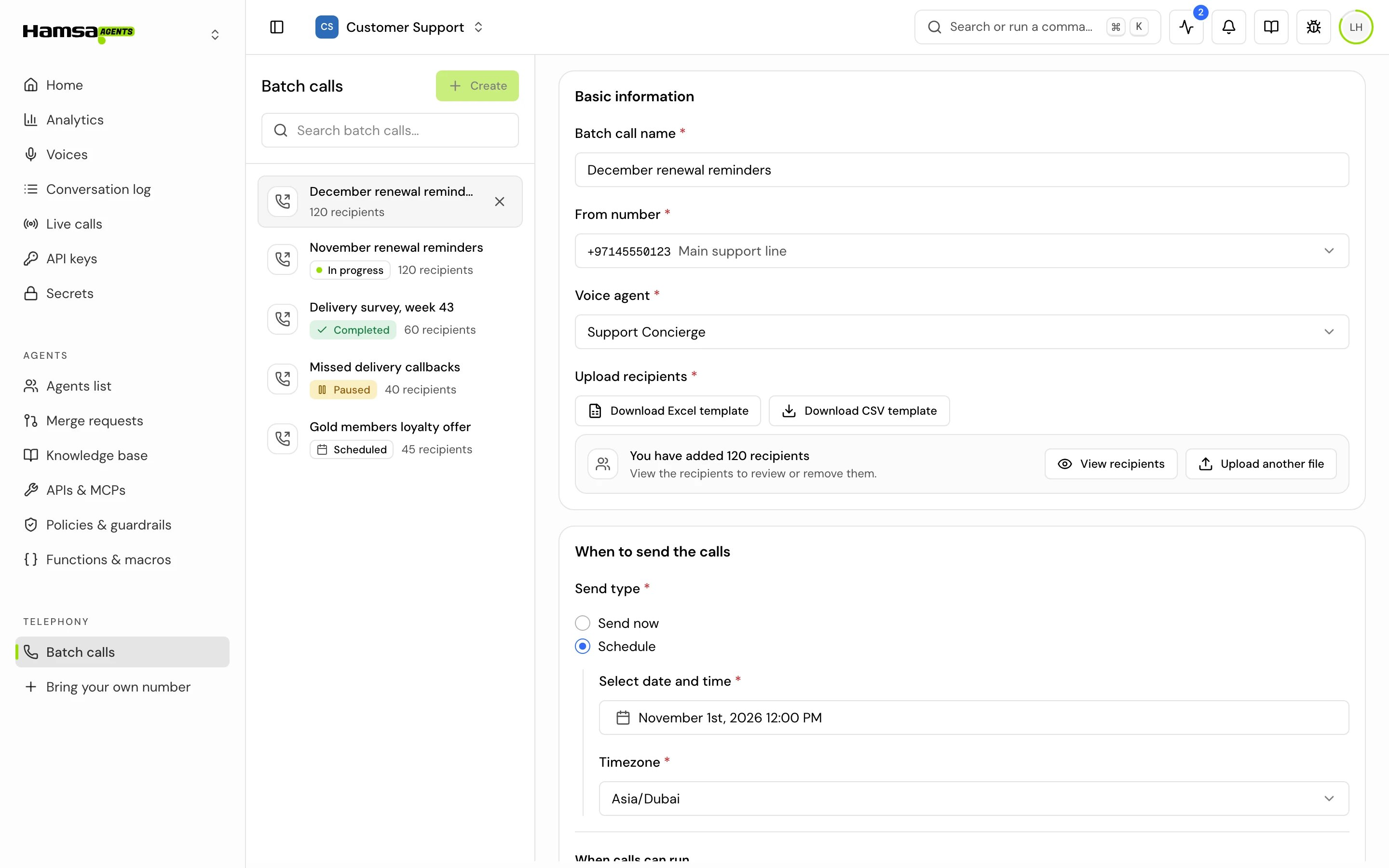
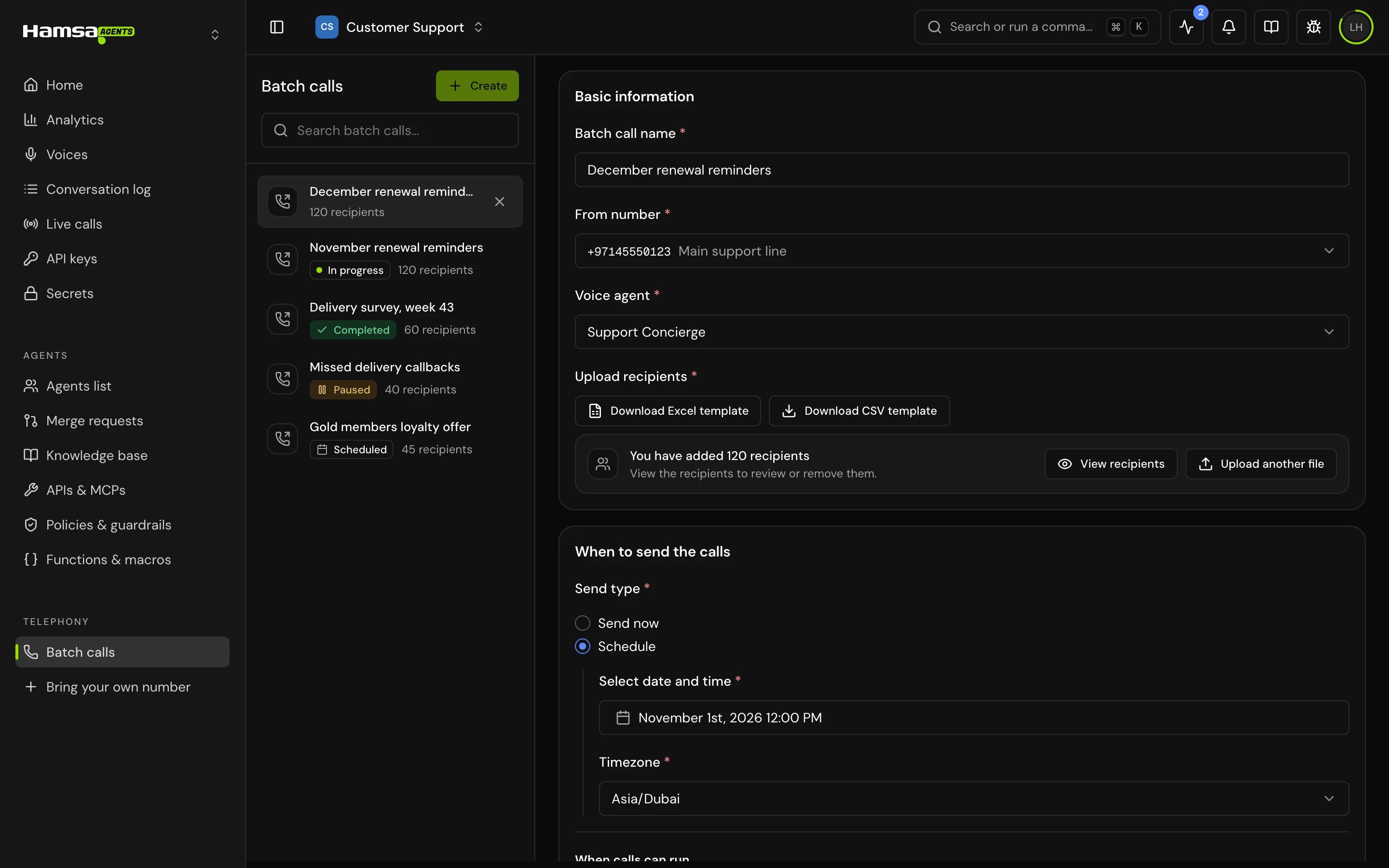
In the sidebar, open Telephony > Batch calls and click Create. The form Create a batch call opens.1
Basic information
- Batch call name: up to 100 characters, for example “September renewal reminders”.
- From number: the number the calls come from.
- Voice agent: the agent that talks to recipients.
2
Upload recipients
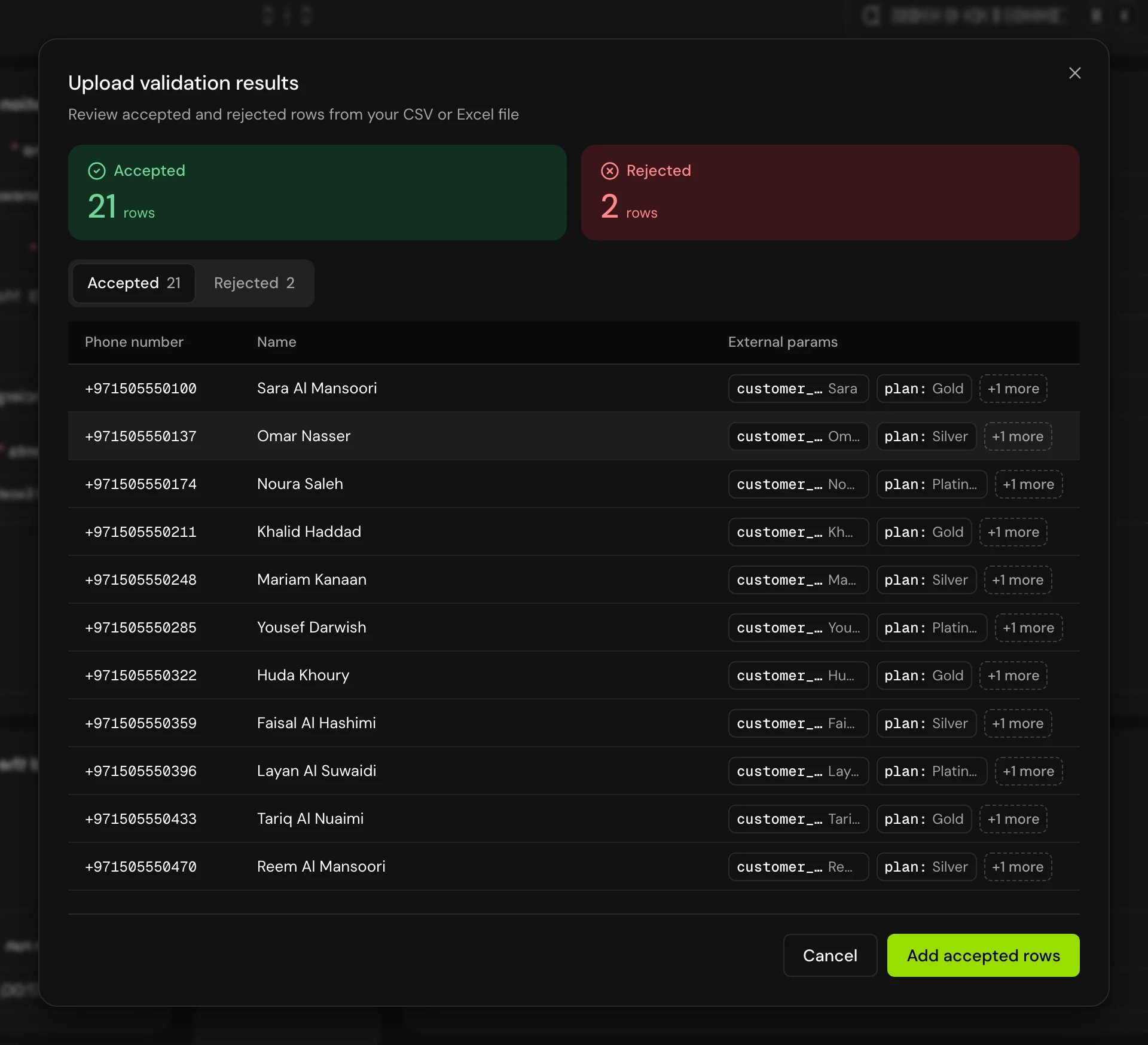
Under Upload recipients, click Download Excel template or Download CSV template if you need a starting point. Then choose your file or drag it in. Upload validation results opens with Accepted and Rejected rows.Fix a rejected row with Edit, then click Add to accepted once it’s valid. Click Add accepted rows to keep the accepted rows. Rows you don’t fix are dropped.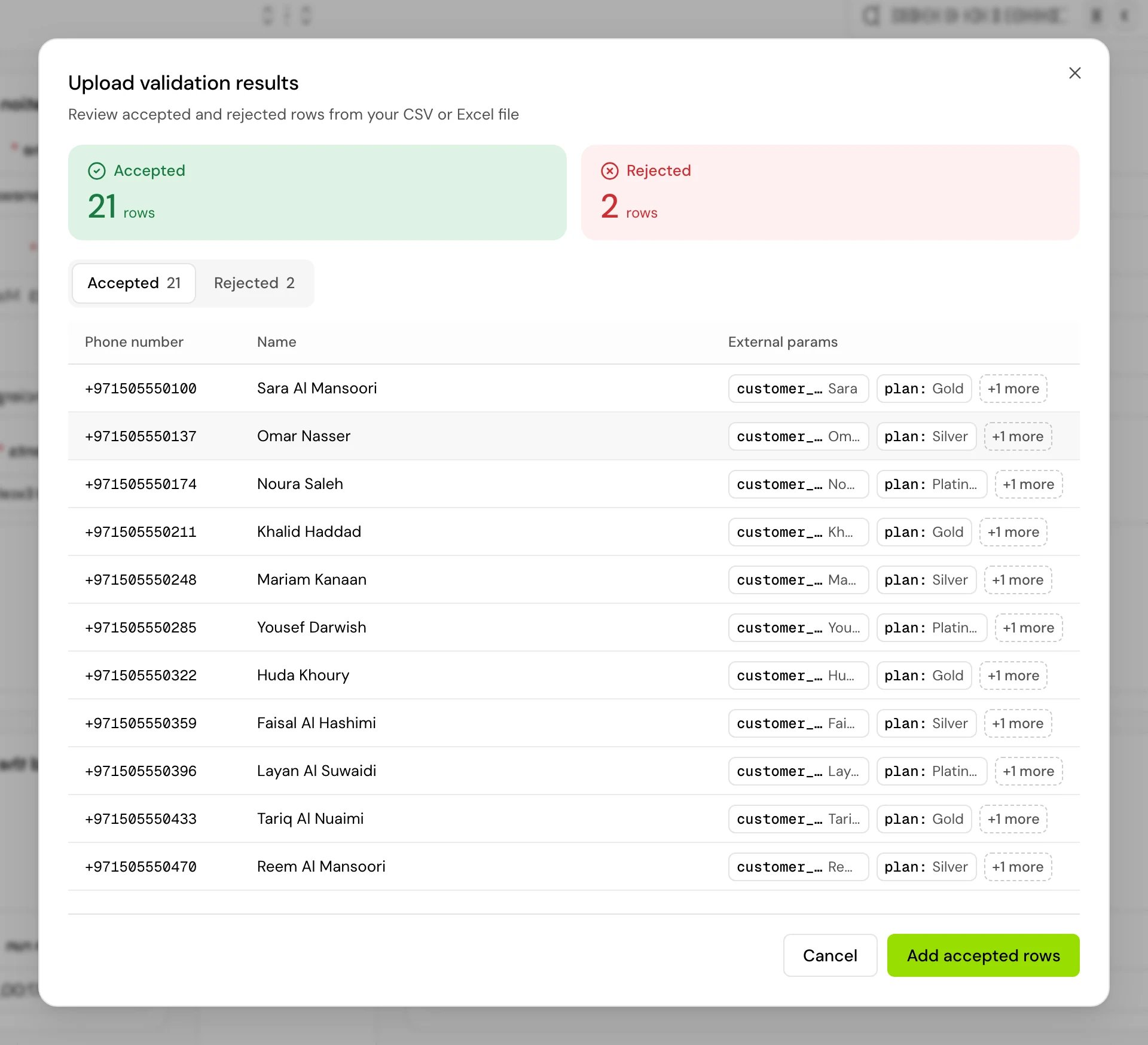
3
Review the recipients
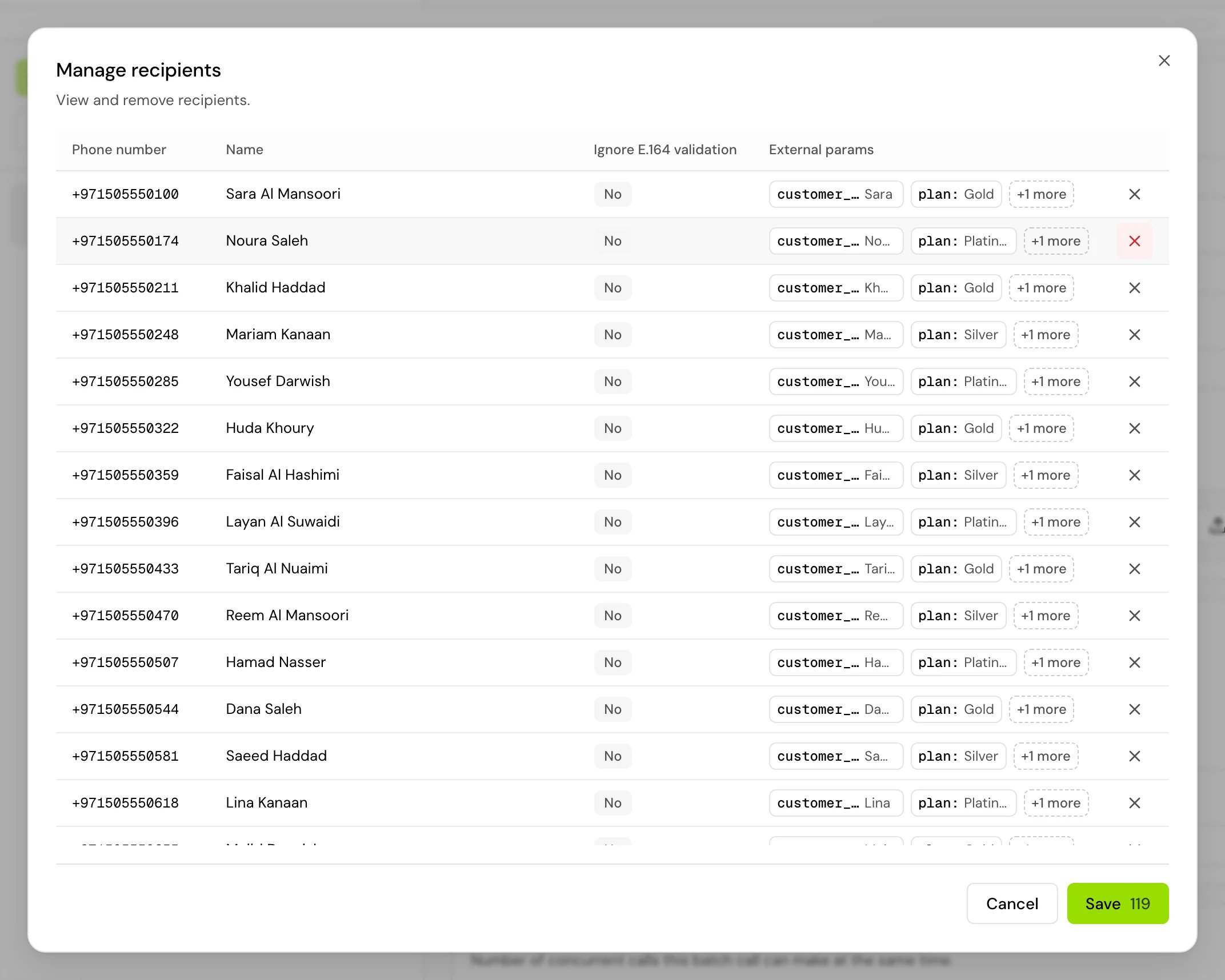
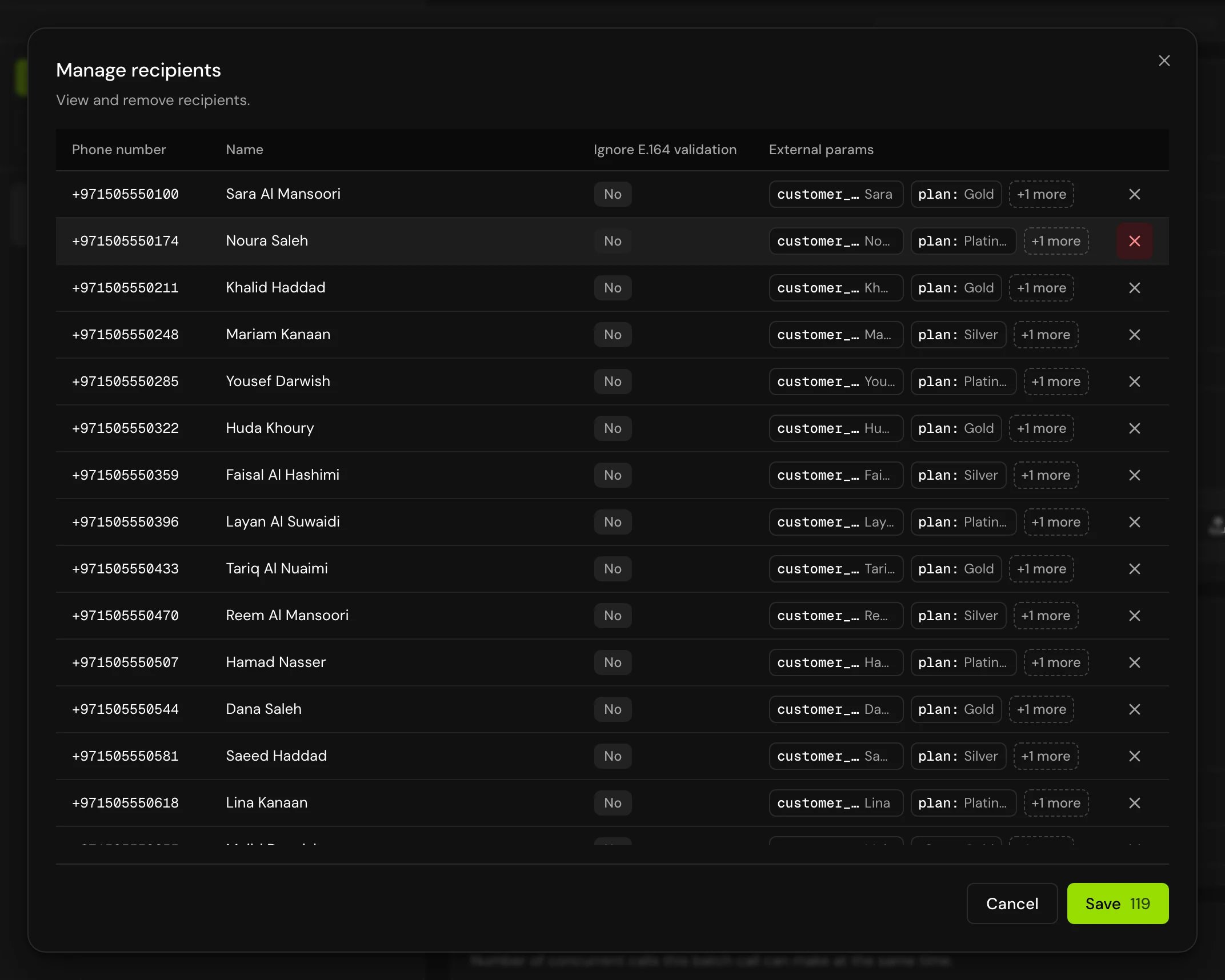
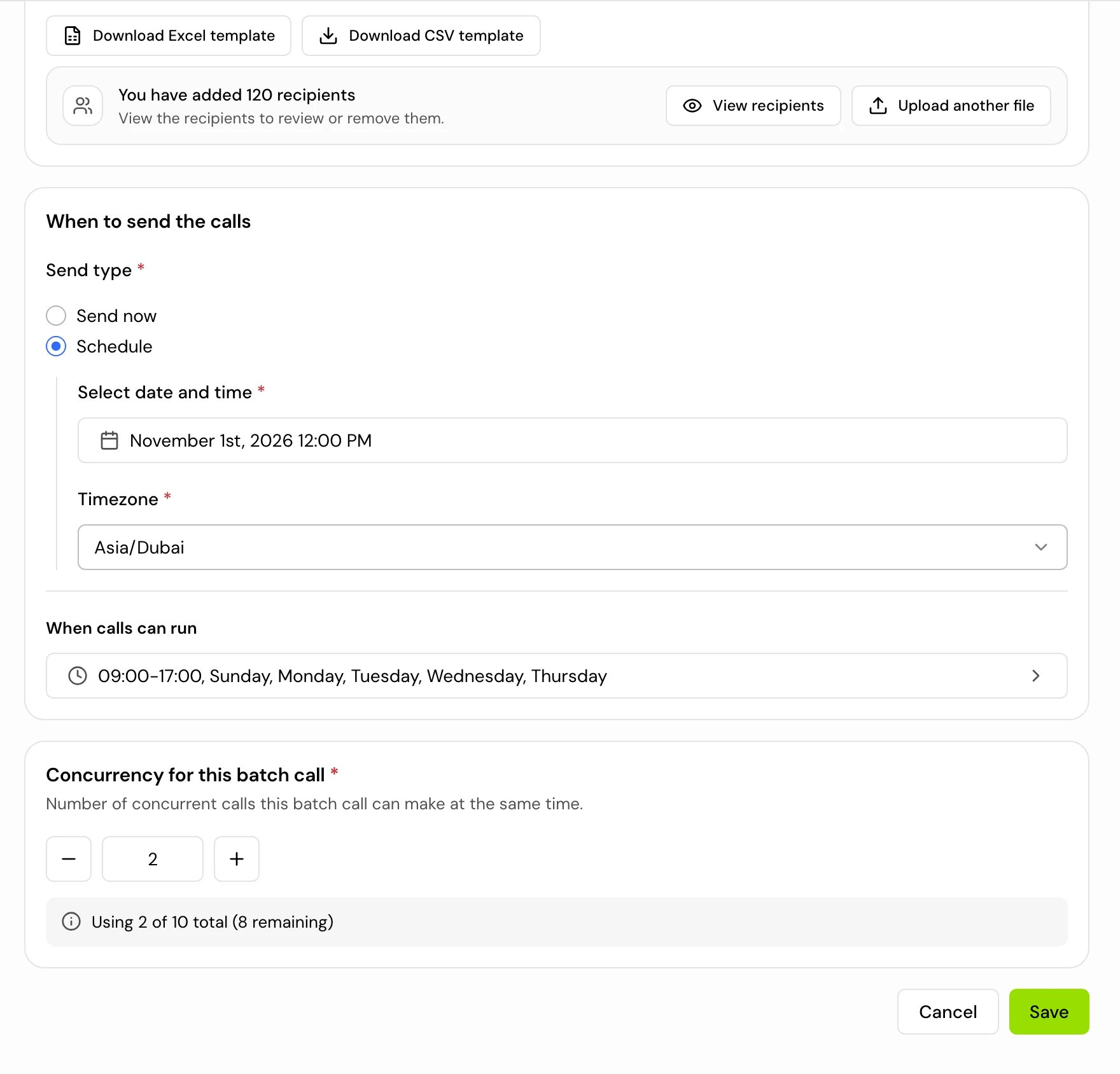
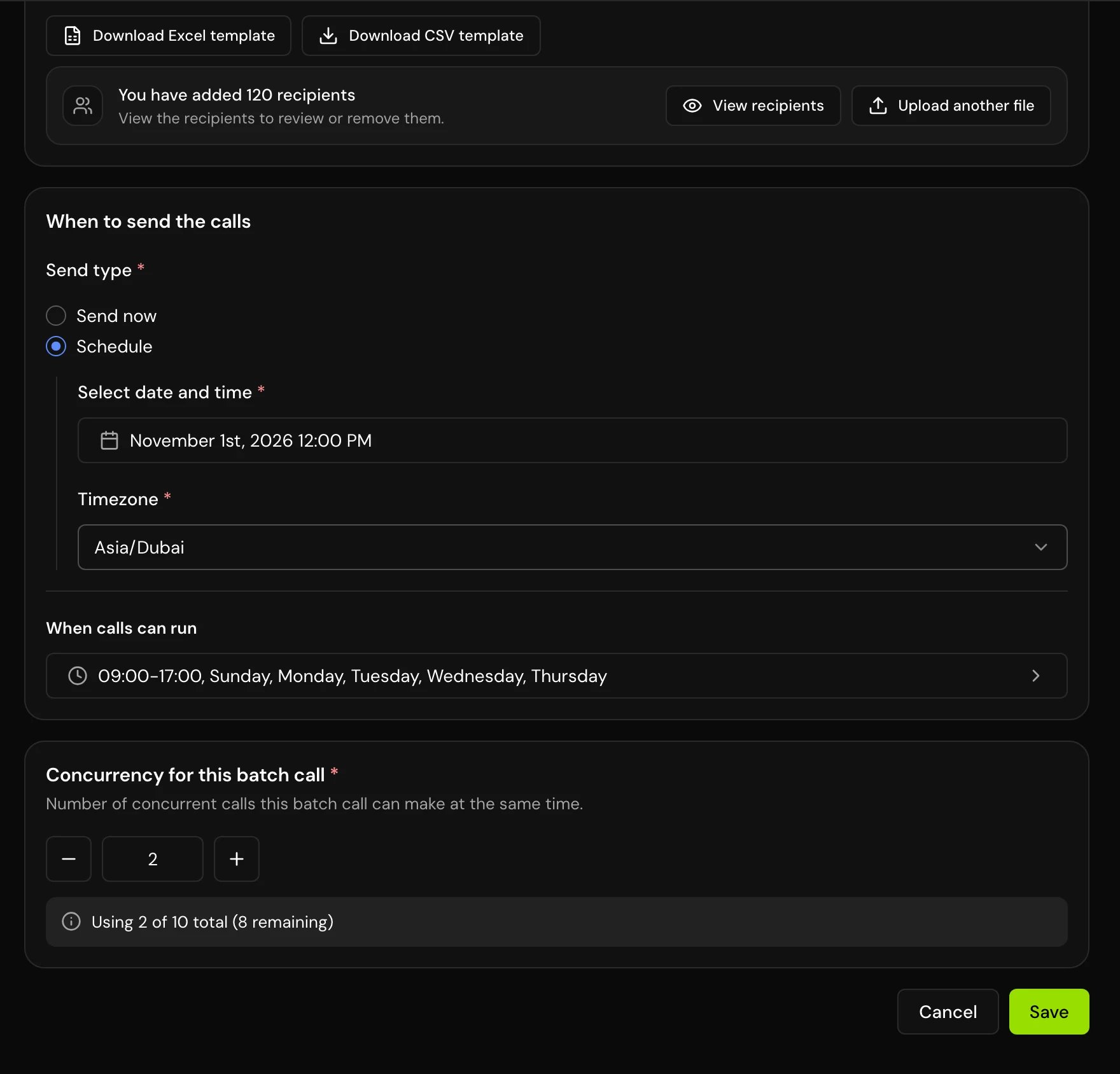
The form says “You have added 120 recipients” (your count). Click View recipients to open Manage recipients: every recipient with Phone number, Name, Ignore E.164 validation and External params, 30 to a page. Remove a recipient with the cross at the end of its row, then click Save (it shows how many recipients remain). Cancel with removals you haven’t saved asks first: Discard changes throws them away.

4
When to send the calls
Pick Send now or Schedule, and the Timezone (your computer’s time zone by default). For Schedule, choose Select date and time: the date and time are in that Timezone, and must be at least a minute ahead.
5
When calls can run
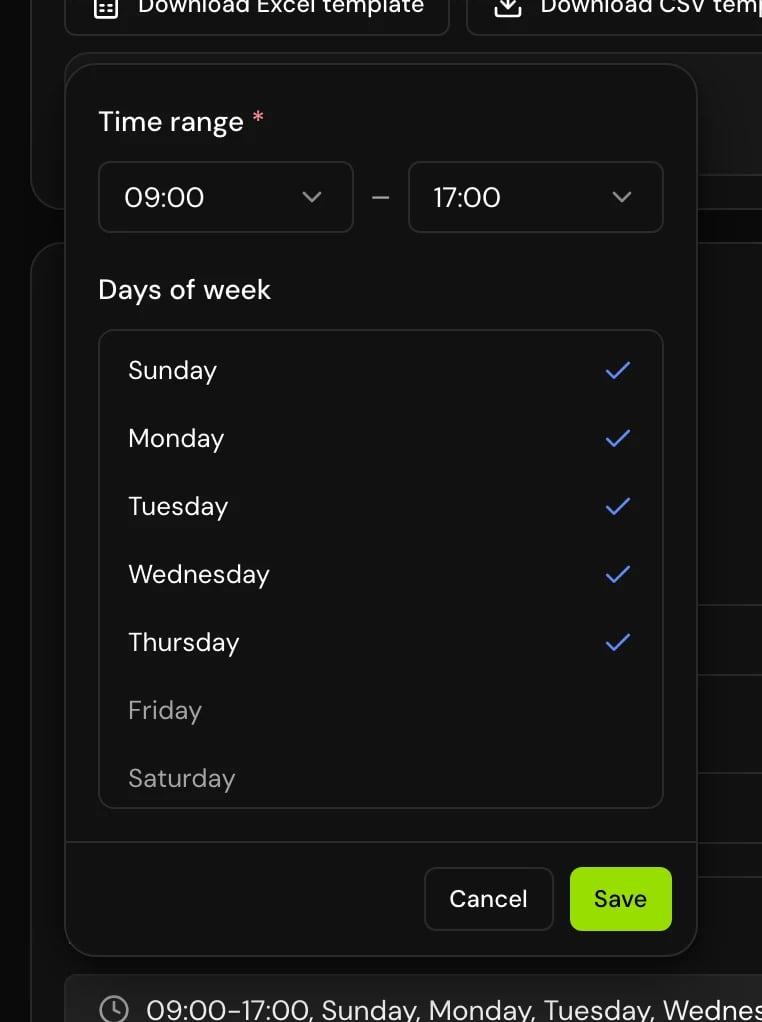
Set the Time range (start and end, in 15 minute steps) and the Days of week. Calls only go out inside this window. The default is 09:00 to 17:00, Sunday to Thursday.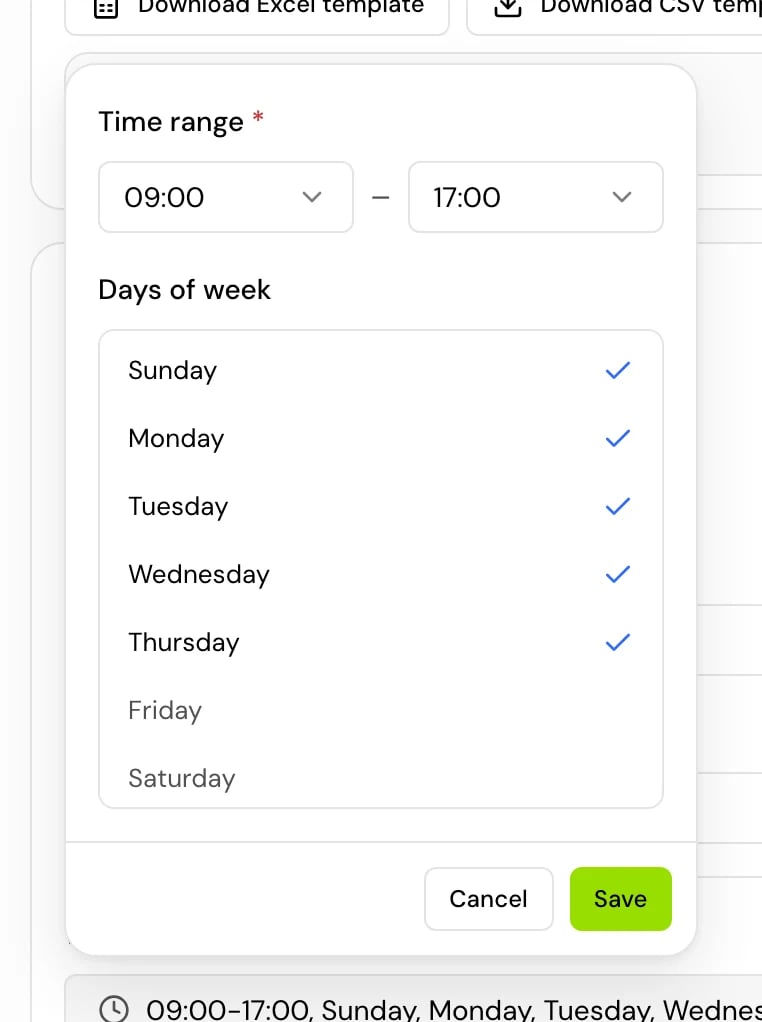
6
Concurrency for this batch call
Set how many calls this batch call can make at the same time. The default is 1. The card compares this batch call’s concurrency with your plan’s limit: “Using 2 of 5 total (3 remaining)”. It doesn’t count other active batch calls, which are checked when you save (see below).
7
Save
Click Save. The toast says “Batch call created” and the batch call shows as Scheduled.
When calls go out
Hamsa checks the list about once a minute. On each check, for each batch call that is due:- If today isn’t one of the Days of week, or the time is outside the Time range, nobody is called. Recipients wait for the next allowed window.
- Otherwise Hamsa starts as many calls as this batch call has free slots, up to its concurrency.
- Recipients who haven’t been tried yet go first, then retries that are due.
timezone column is called inside the window in their own time zone. See Batch call recipient file.
The batch call’s Timezone decides both the start time and the calling window, for Send now and Schedule alike.
Concurrency
Your plan sets how many calls can run at the same time. The limit belongs to the owner’s account, so it’s shared by every project the owner has. See Billing. Every batch call reserves part of it with its own concurrency, from the moment you save it until it finishes.- When you save, the concurrency of this batch call plus every Scheduled, In progress and Paused batch call in all of the owner’s projects must fit in the plan’s limit. If it doesn’t, saving fails with “Reserved concurrency exceeds your voice agent concurrency limit”.
- To free some up, wait for a batch call to finish, cancel one, or lower this one’s number.
- While it runs, a batch call never has more calls on the line than its concurrency.
Statuses
A batch call has one of these statuses:
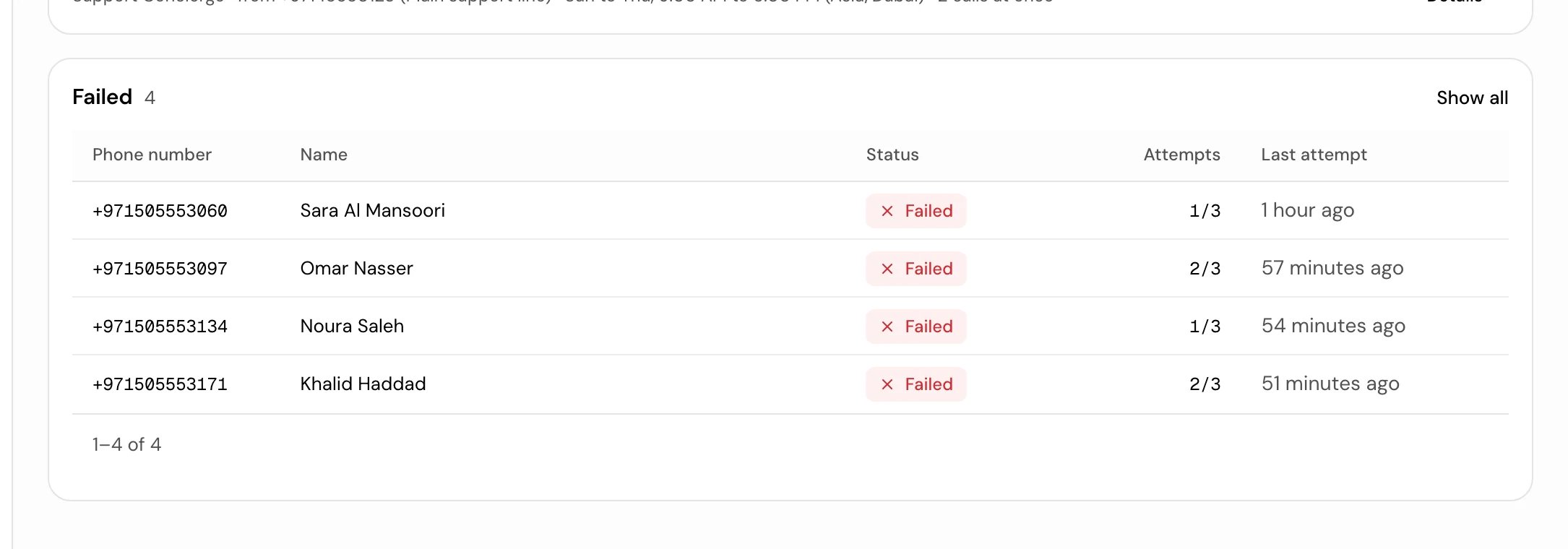
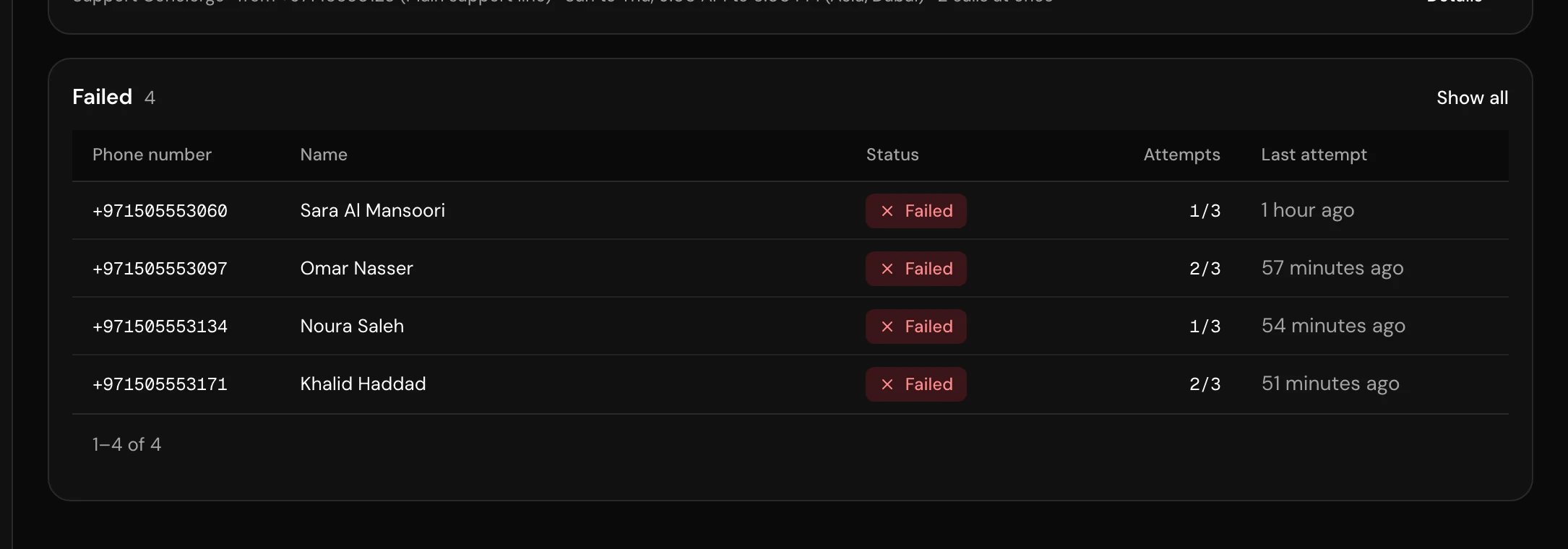
Each recipient has one of these:
Retries
A failed call is retried on its own:- Up to 3 attempts per recipient: the first call, then a retry after 10 minutes, then one after another 20 minutes.
- Only Failed calls are retried automatically. No answer is final until you retry the batch call yourself.
- A call that never reports an end is counted as failed after 90 minutes.
- Retries still wait for the calling window.
Manage a batch call
Open a batch call from the list. The buttons in its header depend on the status:
To rename a batch call, click the pencil next to its name. Nothing else can change after you save: to change the list, number, agent or window, create a new batch call.
Pausing or cancelling doesn’t hang up calls already on the line.
The open batch call refreshes every 30 seconds while it’s Scheduled or In progress.
Follow the results
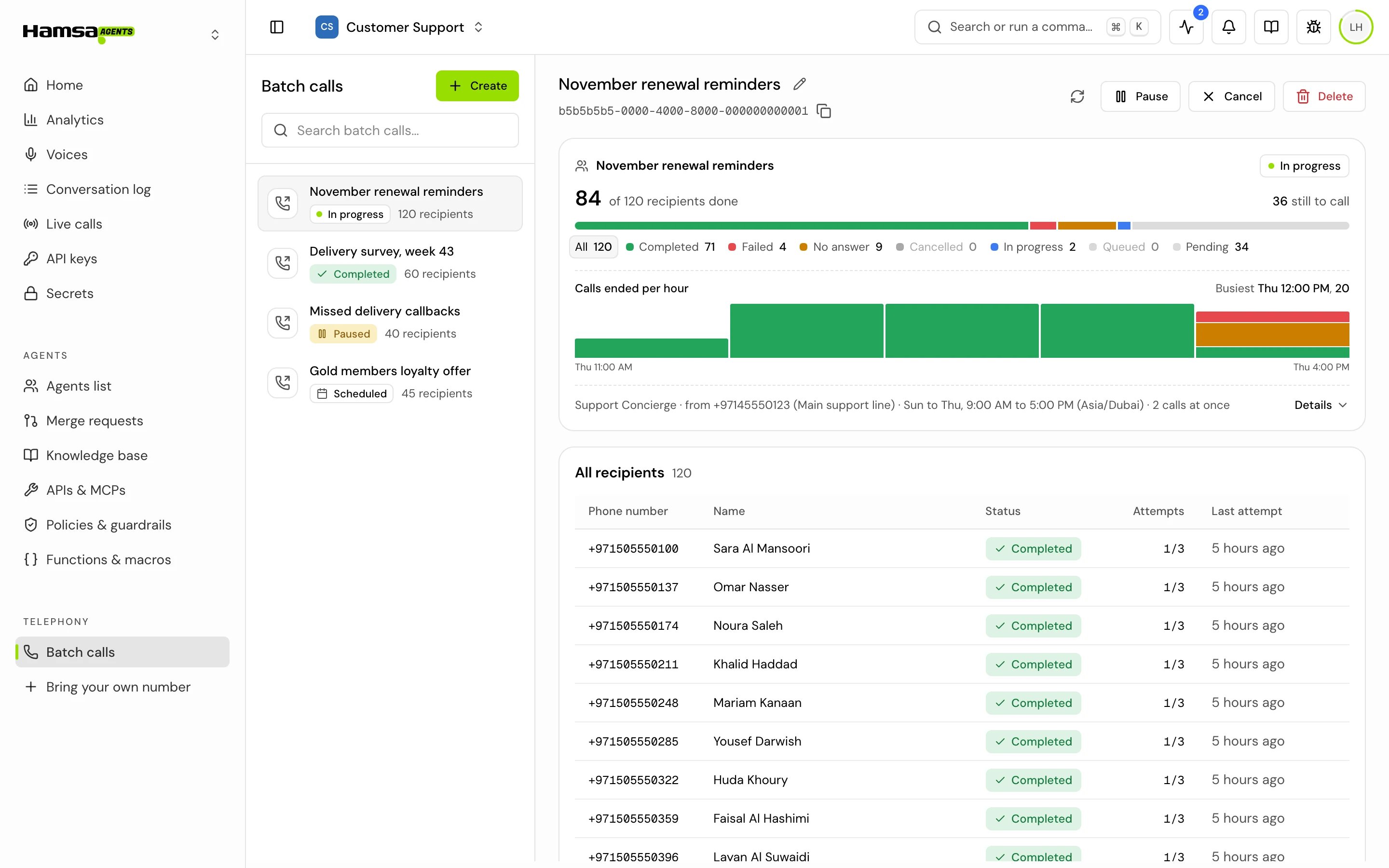
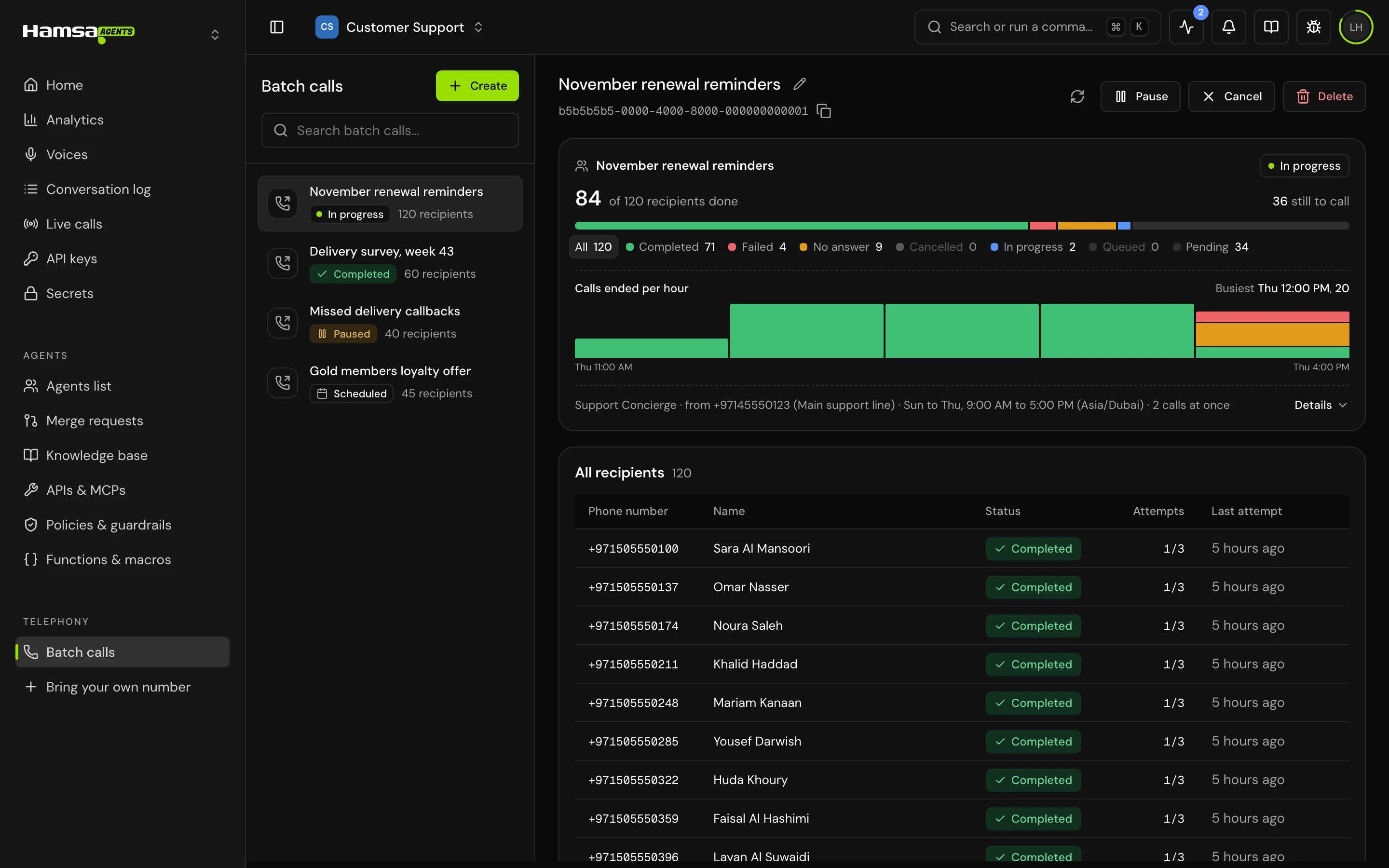
The summary at the top of a batch call shows:- “84 of 120 recipients done” and how many are still to call.
- A bar of recipient statuses. Click a status in the legend to filter the list, and Show all to clear it.
- Calls ended per hour (or per day for longer batch calls).
- The setup in one line: from number, calling days and hours with the time zone, and “2 calls at once”.
- Details: Type, Started, When calls can run, Timezone and Concurrency for this batch call.
Which agent and values a call gets
- The Voice agent you picked talks to the recipient.
- Batch calls run what prod runs. If prod runs an A/B test, the recipient’s number decides the version.
- Each recipient’s columns become variables for that call. See Batch call recipient file.
- The default values, default parameters and the model check come from the batch call’s own agent. The From number only supplies the line and the caller ID, so it doesn’t matter which agent it’s assigned to, or whether it has one.
Create a batch call with the API
Send the recipients as JSON. Use a secret key on your server; with Limited access, the quick select Manage outbound call campaigns covers these requests.
The response has the new batch call’s
id and status (SCHEDULED). Other requests on /v1/voice-agents/campaigns:
Good to know
- There’s no export of results. Use the agent’s webhook, or open each call from the recipients table.
- Search in the batch calls list matches the name or the ID.
- The list doesn’t refresh on its own. The open batch call does.
- Resuming a paused batch call starts calling at once, even if it was scheduled for later.
Related
Batch call recipient file
Columns, phone number rules and time zones.
Webhooks
Get each call’s transcript and outcome.
Pass values when a call starts
Use recipient columns in your prompt.
Phone numbers
Manage the numbers your batch calls come from.