

Before you start
Create the API tool first, in APIs & MCPs. The Tool step runs a saved tool, which you can adjust for this step. See Connect an API.Add a Tool step
1
Add the step
On the canvas, click Add node and choose Tool (“Execute pre-configured tools”).
2
Pick the tool
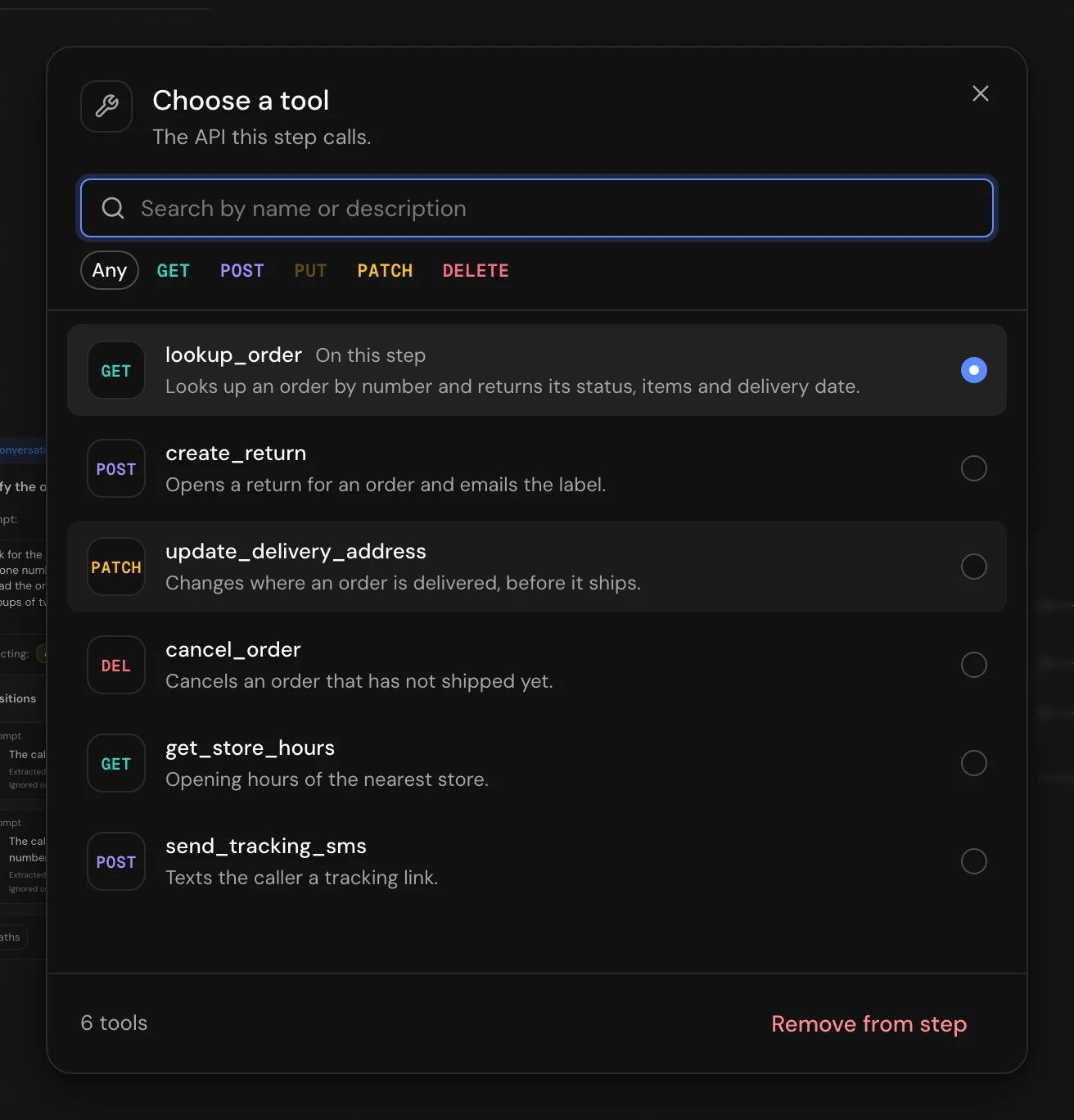
On the step’s card, click Select a tool. In Choose a tool (“The API this step calls.”), pick one of your API tools. Until you do, saving shows “Please select a tool for this node to use”.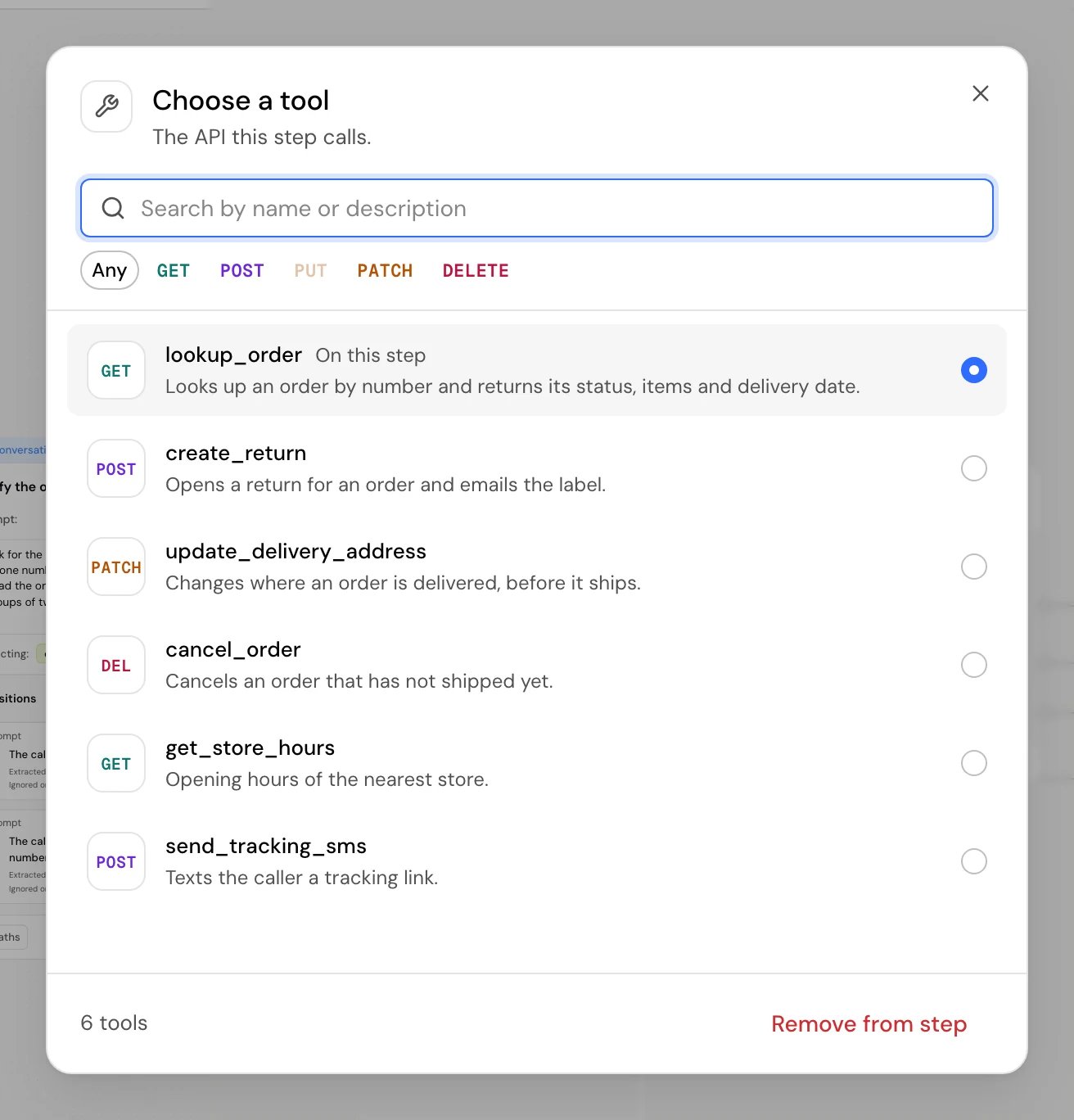
3
Set its parameters
In the panel, open Tool configuration and decide where each parameter’s value comes from.
4
Save values from the response
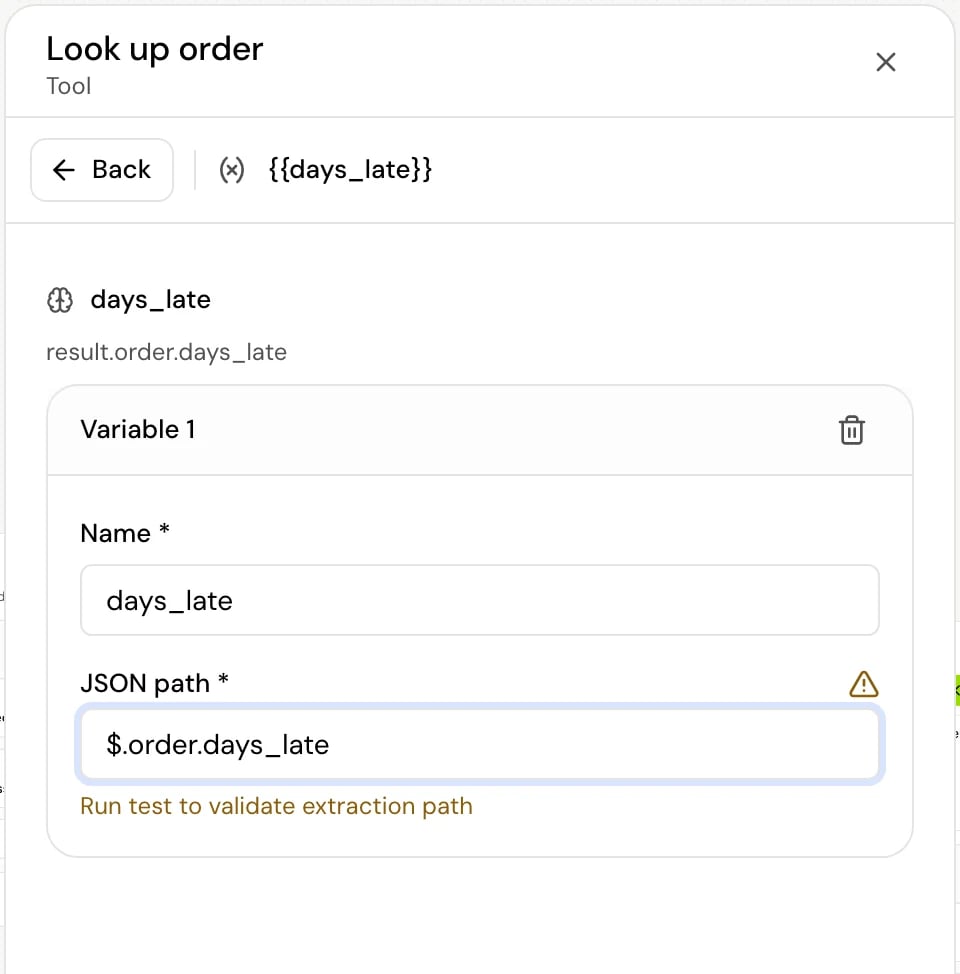
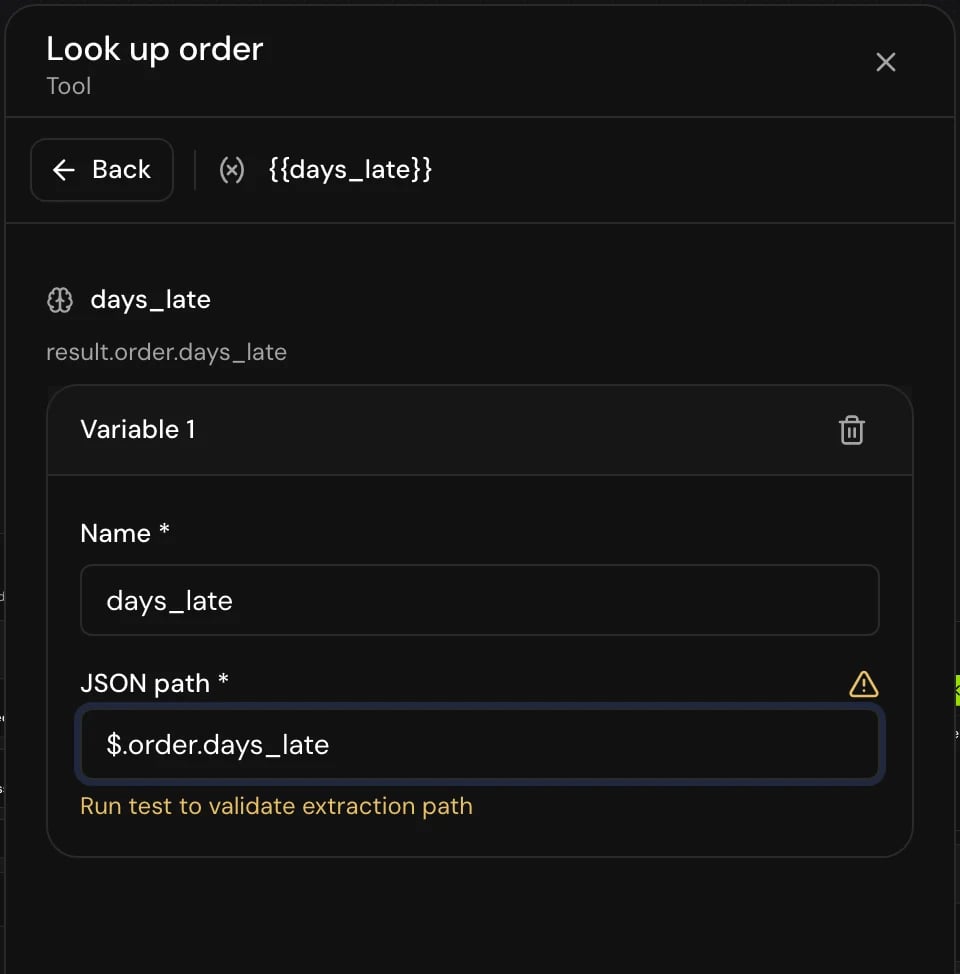
Open Variables, click Add variable, choose Tool response variable and give its JSON path.
5
Connect both outcomes
Connect On Success and On Failure to their next steps.
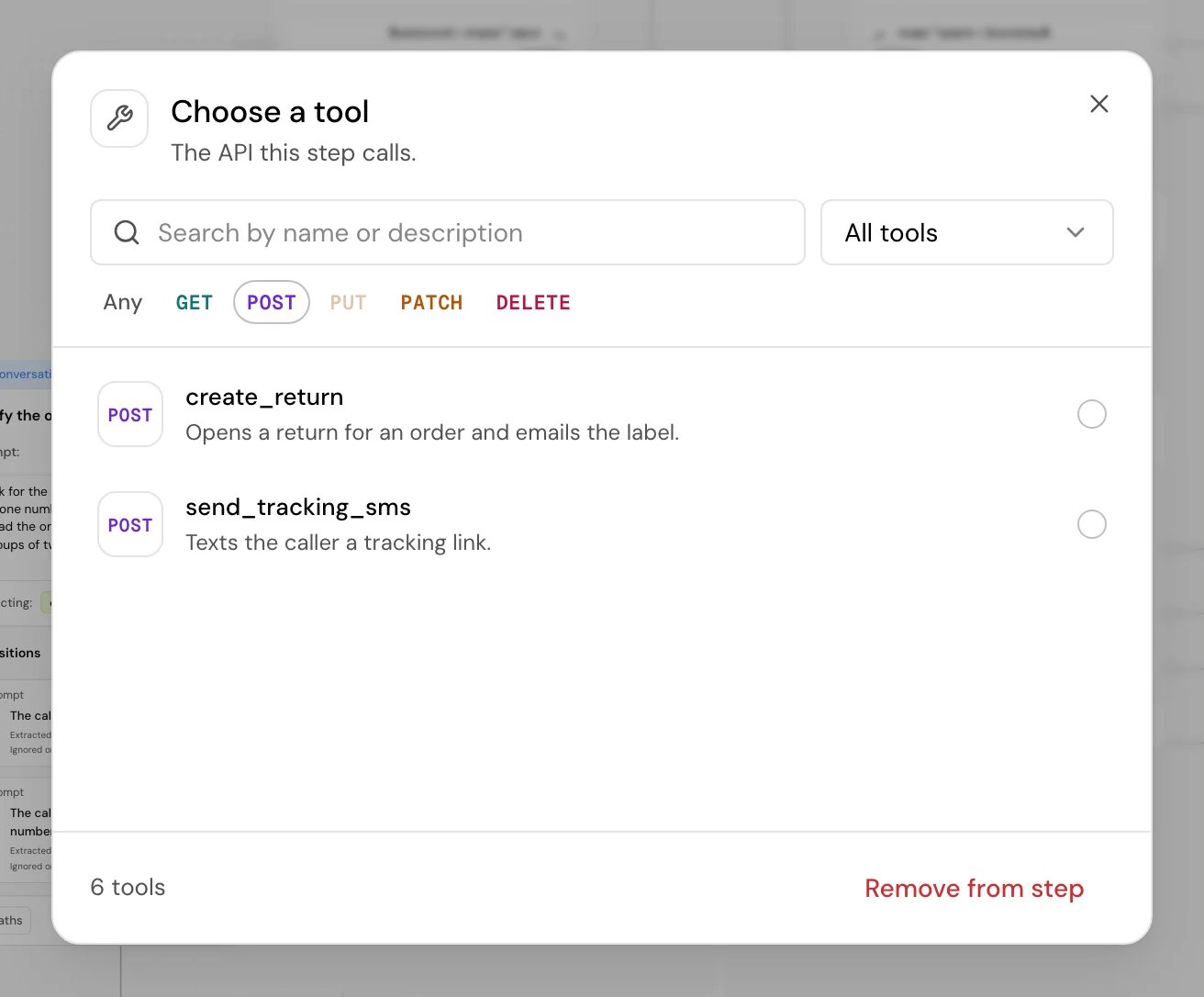
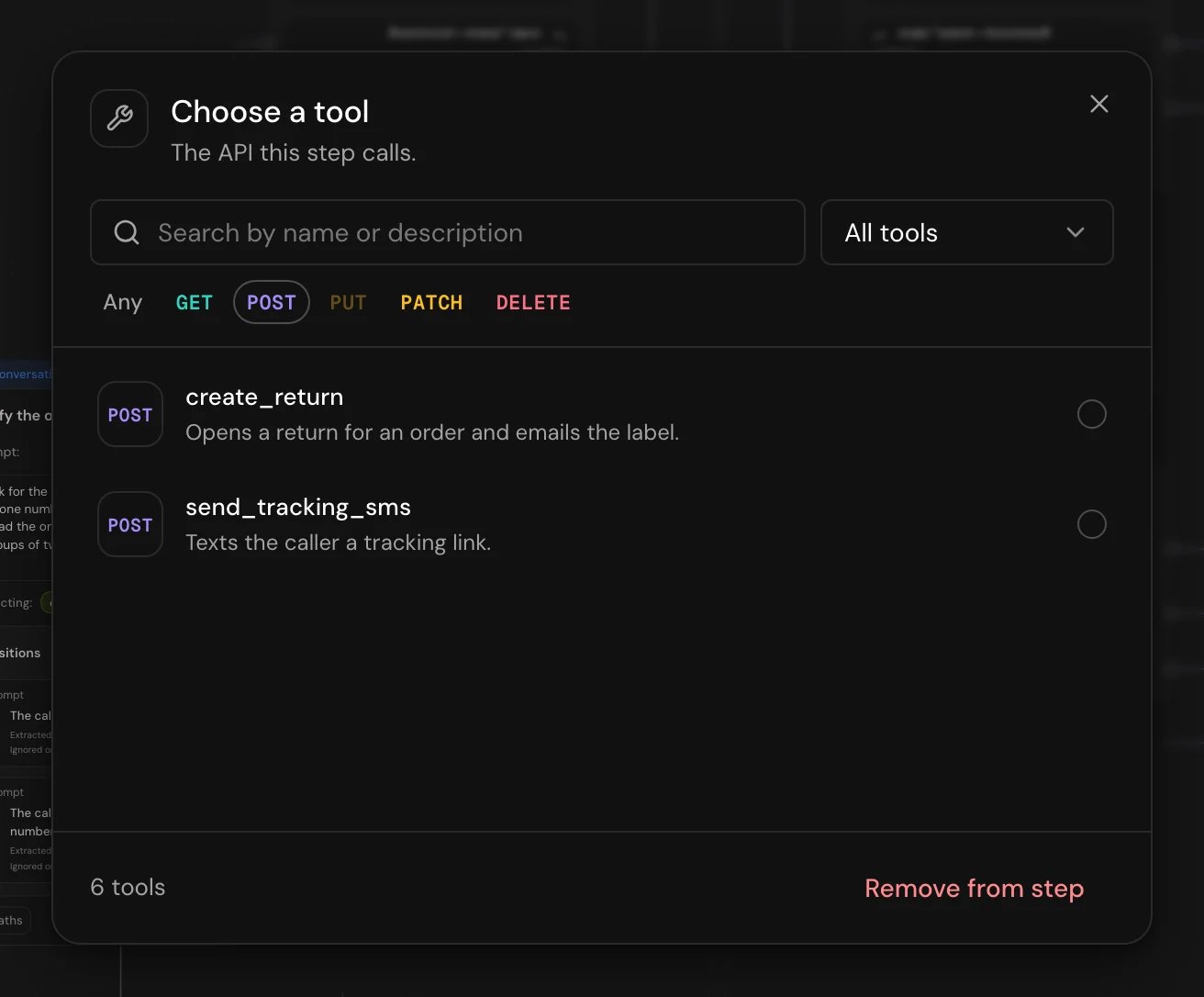
Find a tool in the picker
- Search by name or description narrows the list as you type.
- When your project has tool collections, a menu next to the search box shows one collection at a time: All tools, a collection, or Uncategorized.
- The method filter (Any, GET, POST, PUT, PATCH, DELETE) shows only tools that use that method. A method none of your tools use is greyed out.
- The tool the step uses now is marked On this step. Remove from step takes it off the step. Tools set to run asynchronously have an Async badge.
- The footer counts the tools, for example “6 tools”.
Fields
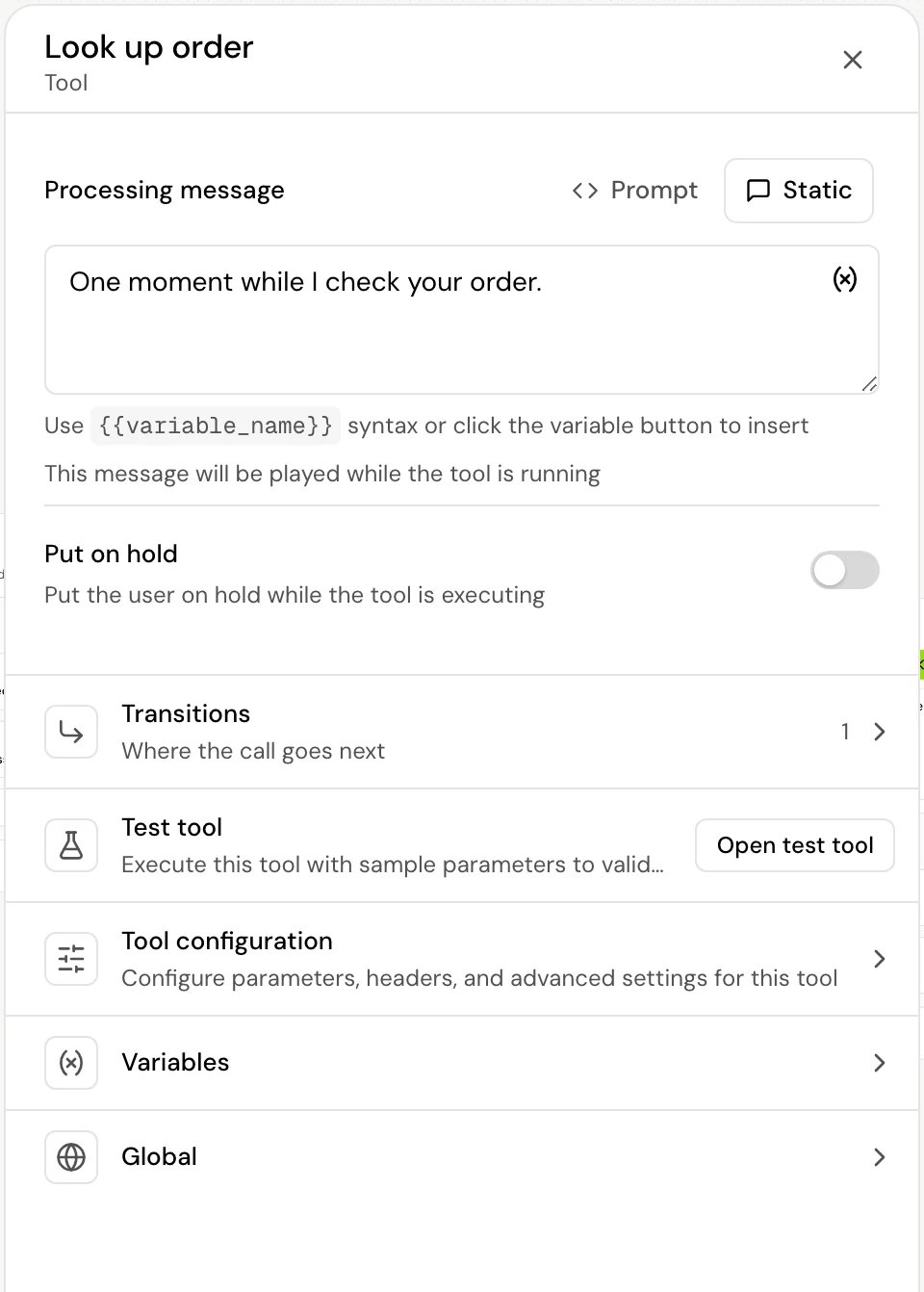
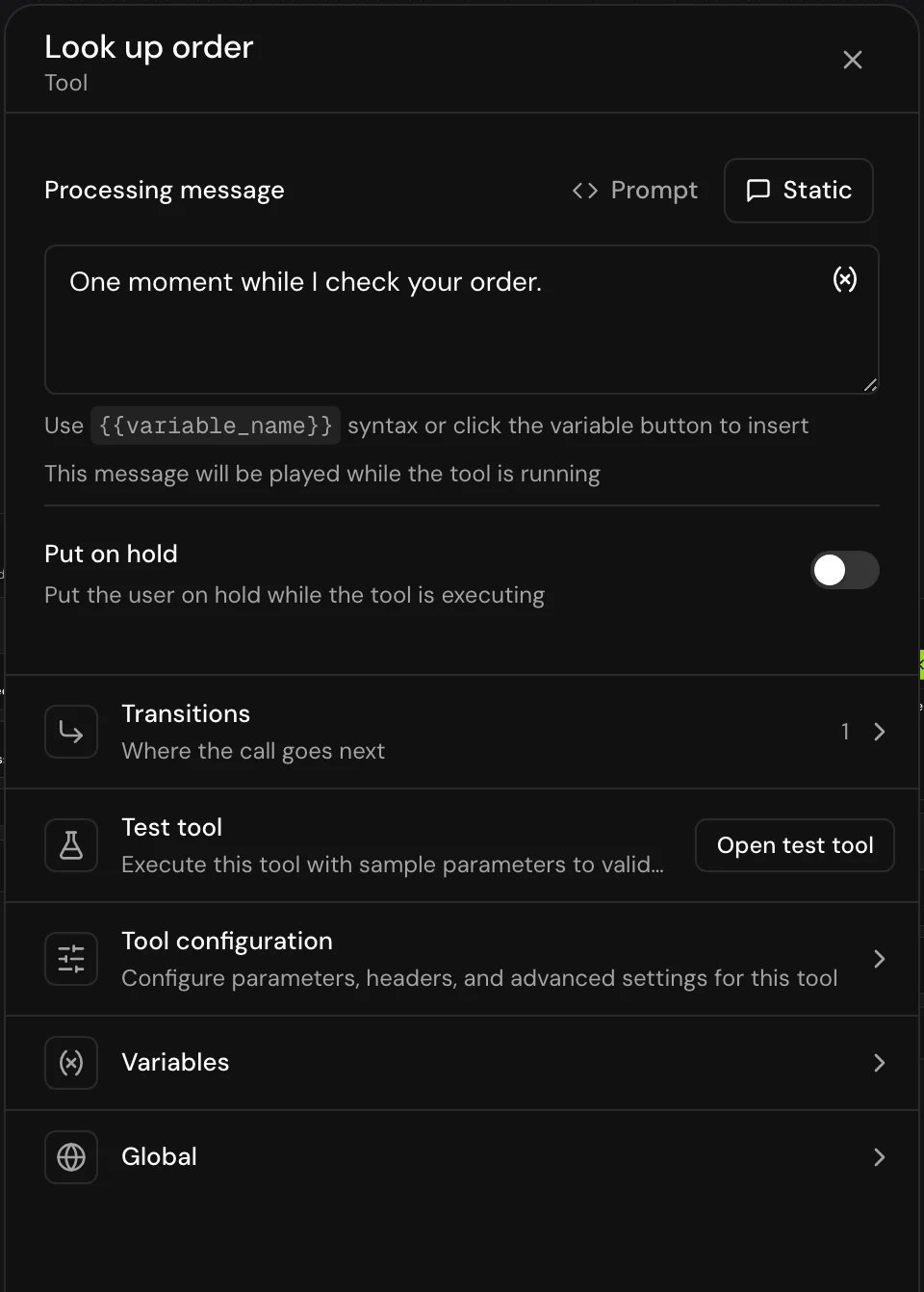
Tool configuration
Tool configuration changes how the tool behaves on this step only. The tool itself stays as it is in APIs & MCPs. Each changed field has Restore to go back to the tool’s value.
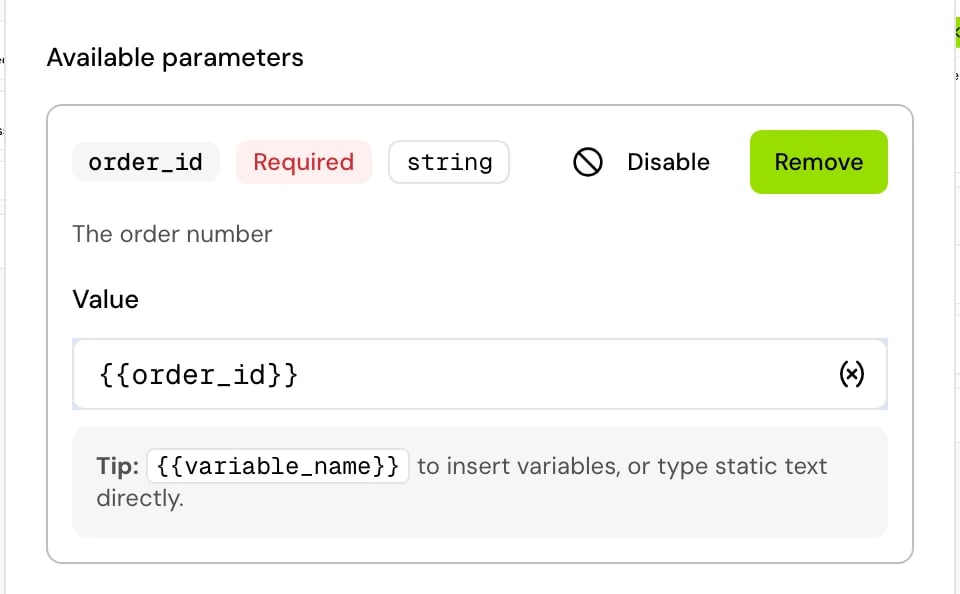
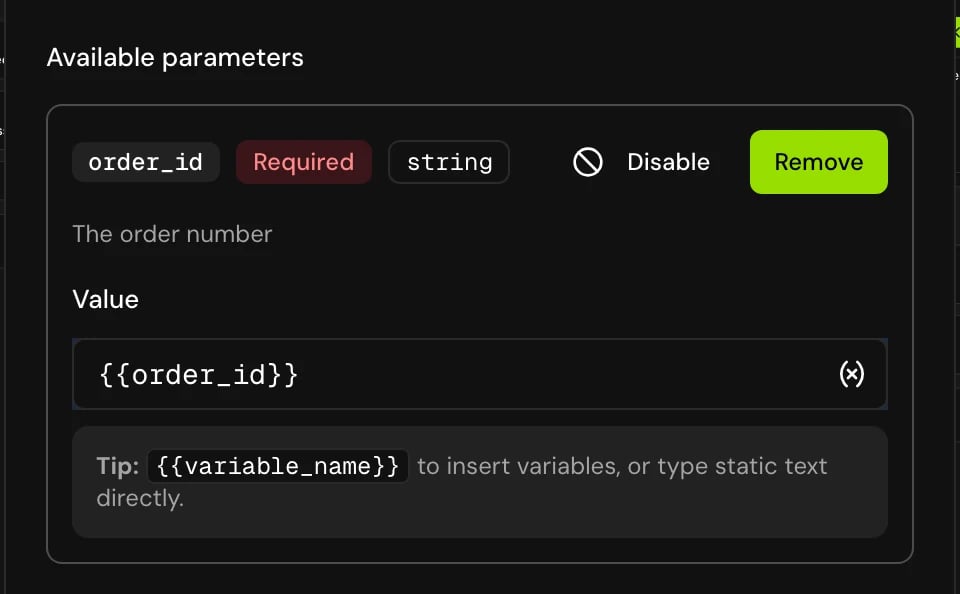
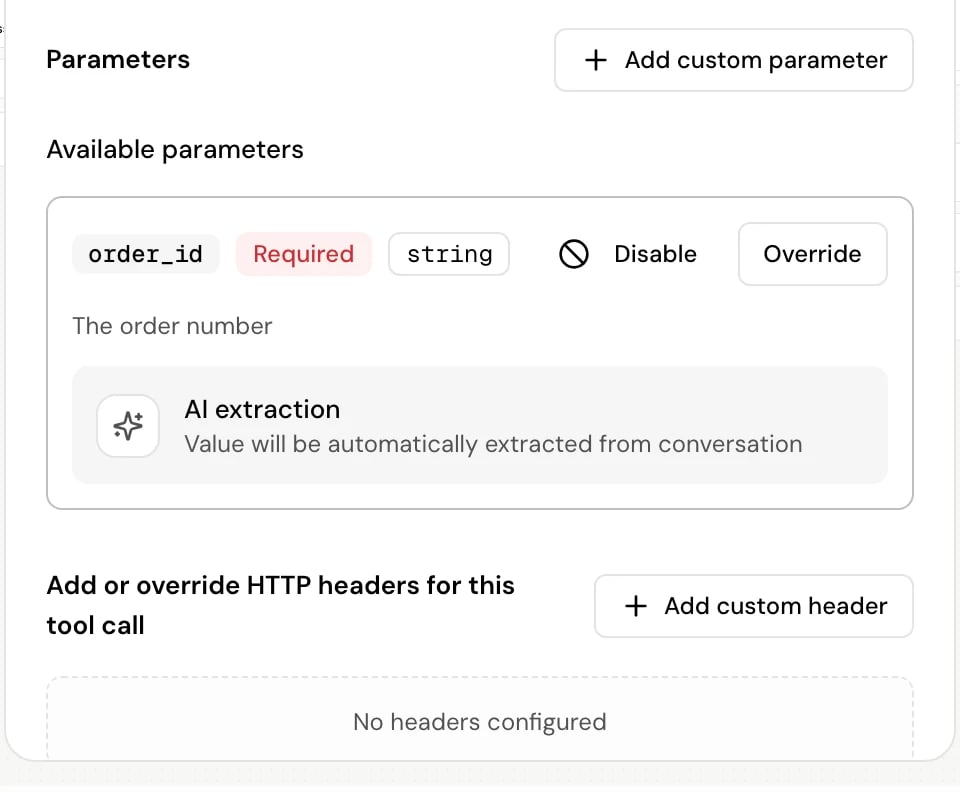
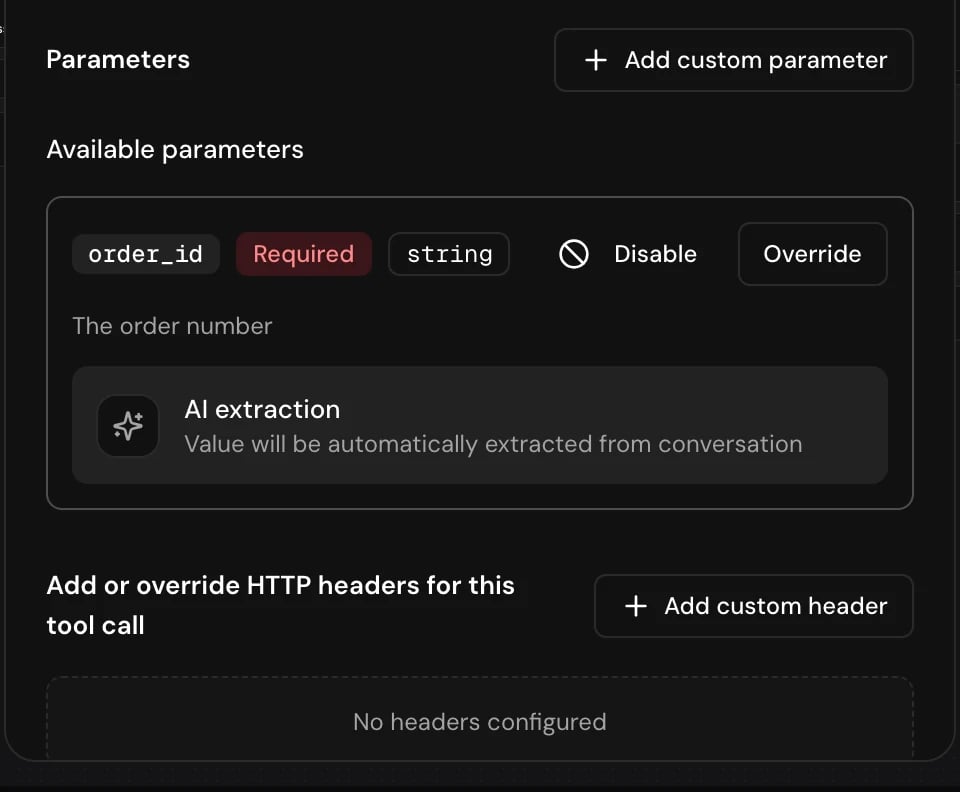
Under Available parameters, each parameter shows where its value comes from:
- AI extraction (“Value will be automatically extracted from conversation”): the agent fills it from the conversation. This is the default.
- Override: click it and a Value field opens. Type a fixed value, such as
en, or insert a variable with{{variable_name}}, such as one the caller gave earlier or a value passed when the call started. You can mix the two. Click Remove to go back to AI extraction. - Disable: leaves the parameter out of the call completely. The agent isn’t asked for it, and it isn’t sent in the request. Click Enable to bring it back. Test tool leaves it out too.
Test the tool
Open Test tool (“Execute this tool with sample parameters to validate response and extraction paths”) and click Open test tool. Fill in sample values, click Execute test, and review the response. The result is saved with the flow and used to check your JSON paths.Save values from the response
In Variables, add a Tool response variable for each value you need. Its JSON path says where the value is in the response body:$ stands for the whole body, and result means the same thing.
Transitions
Both are created with the step and can’t be removed.
You can also add Skip if to this step: when its conditions already hold as the call arrives, the call goes straight to its target and the step doesn’t run. See Skip if.
Async tools
With Execute tool asynchronously on, the step has a single Move to transition instead of On Success and On Failure. Turning it on or off opens Change async execution mode, which replaces the transitions and clears their connections. On a call, the request is sent and the flow moves on right away. The response isn’t used: no response variables are saved and no path depends on it. Use async for requests whose answer you don’t need, such as logging a call or sending a notification.How it works on a call
1
Local variables are set
Any Local variable on the step gets its value first.
2
The processing message starts
Without Put on hold, the request is sent while it plays. It’s skipped if another processing message is playing or ended less than 5 seconds ago, so back to back tools don’t repeat “one moment”.
3
Hold music starts, if Put on hold is on
It starts after the processing message ends, and then the request is sent. The agent keeps listening, and keeps what the caller says for the next step that speaks.
4
The request is sent
The flow waits up to the tool’s Timeout for the response: the step’s own Timeout (seconds) in Tool configuration if set, otherwise the tool’s (5 seconds by default).
5
The call moves on
A 2xx response takes On Success and saves your response variables. Anything else takes On Failure.
Related
Connect an API
Create the tool this step calls.
Router step
Branch on the values the API returned.
Variables
Use response values in later steps.
Web tool step
Run a tool in the caller’s browser instead.