

Overview
File items allow you to upload documents that will be processed and indexed.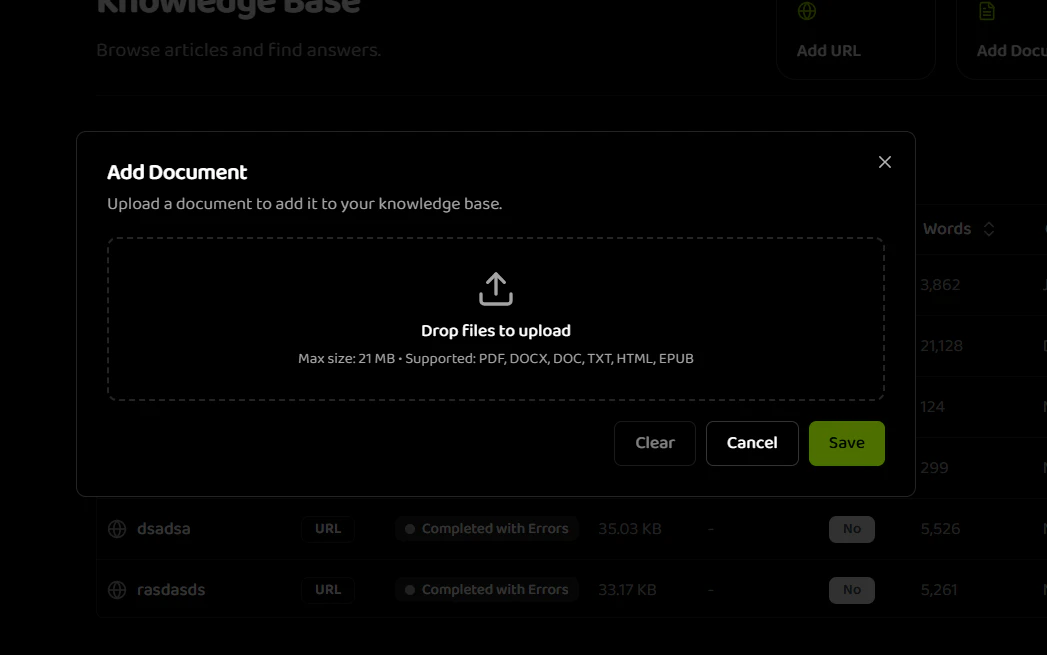
When to Use File Items
File items are ideal for:- Product manuals and documentation
- Technical specifications
- Policy documents
- Training materials
- Comprehensive guides
Supported File Formats
Requirements
Step-by-Step Process
-
Navigate to Knowledge Base
- Go to the Knowledge Base section
- Click “Add Document” button
-
Upload Files
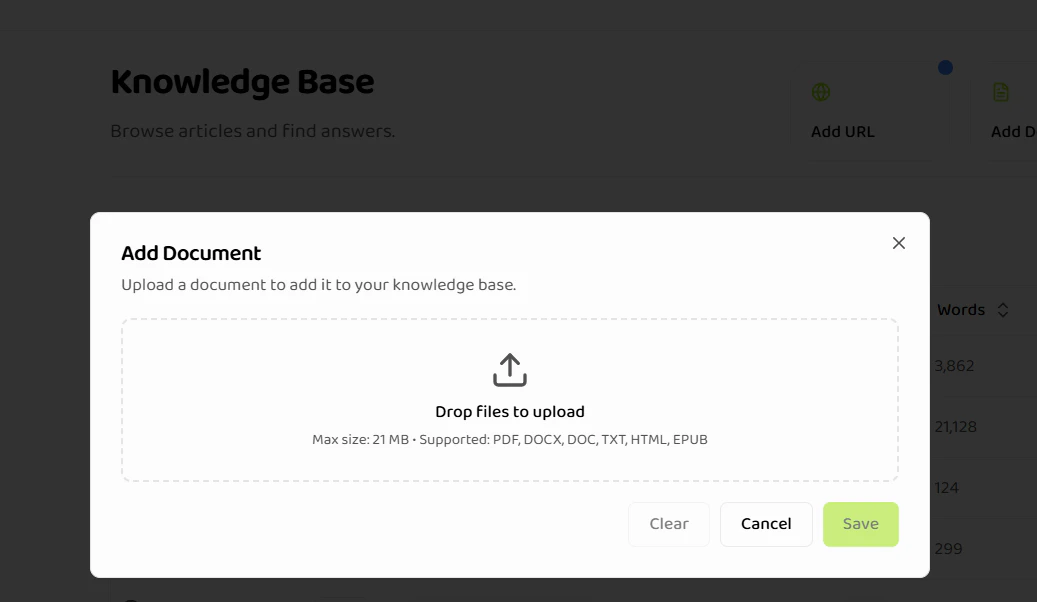
- The “Add Document” modal opens
- Drag and Drop: Drag files into the upload area (shows “Drop files to upload”)
- Click to Browse: Click the upload area to select files from your computer
- Supported formats: PDF, DOCX, DOC, TXT, HTML, EPUB
- Max size: 21 MB per file
-
Review Uploaded File
- Once uploaded, the file appears with:
- File icon and type indicator
- Filename
- File size
- Remove button (X icon) to delete the file
- Once uploaded, the file appears with:
-
Edit Document Name
- Document name is auto-filled from the filename
- Edit the name in the “Document Name” field (1-100 characters)
- Character counter shows current length (e.g., “27/100”)
- File extension (e.g., “.docx”) is displayed next to the name field
-
Save or Cancel
- Click “Save” to create the knowledge base item
- Click “Cancel” to close without saving
- Click “Clear” to remove the uploaded file and start over
- Processing begins automatically after saving
Each uploaded file becomes a separate knowledge base item. You can upload multiple files in one session, but they’re processed individually.
File Upload Best Practices
File Preparation:- Ensure files are not password-protected
- Verify files open correctly on your computer
- Check file size (max 21MB per file)
- Use clear, descriptive filenames
- Use well-formatted documents with clear headings
- Ensure text is extractable (not just images)
- Avoid complex layouts that may not parse well
- Include relevant metadata in filenames
File Processing
After upload, files go through these stages:- Upload: File is uploaded to the server
- Reading: Content is extracted from the file
- Ingestion: Content is indexed for retrieval
- PROCESSED: Item is ready for use (shown as “completed” in dashboard)
Related Documentation
Creating Items
Overview of all item creation types
Text Items
Learn how to create text content
URL Items
Learn how to import web content
Status Lifecycle
Understand file processing states