

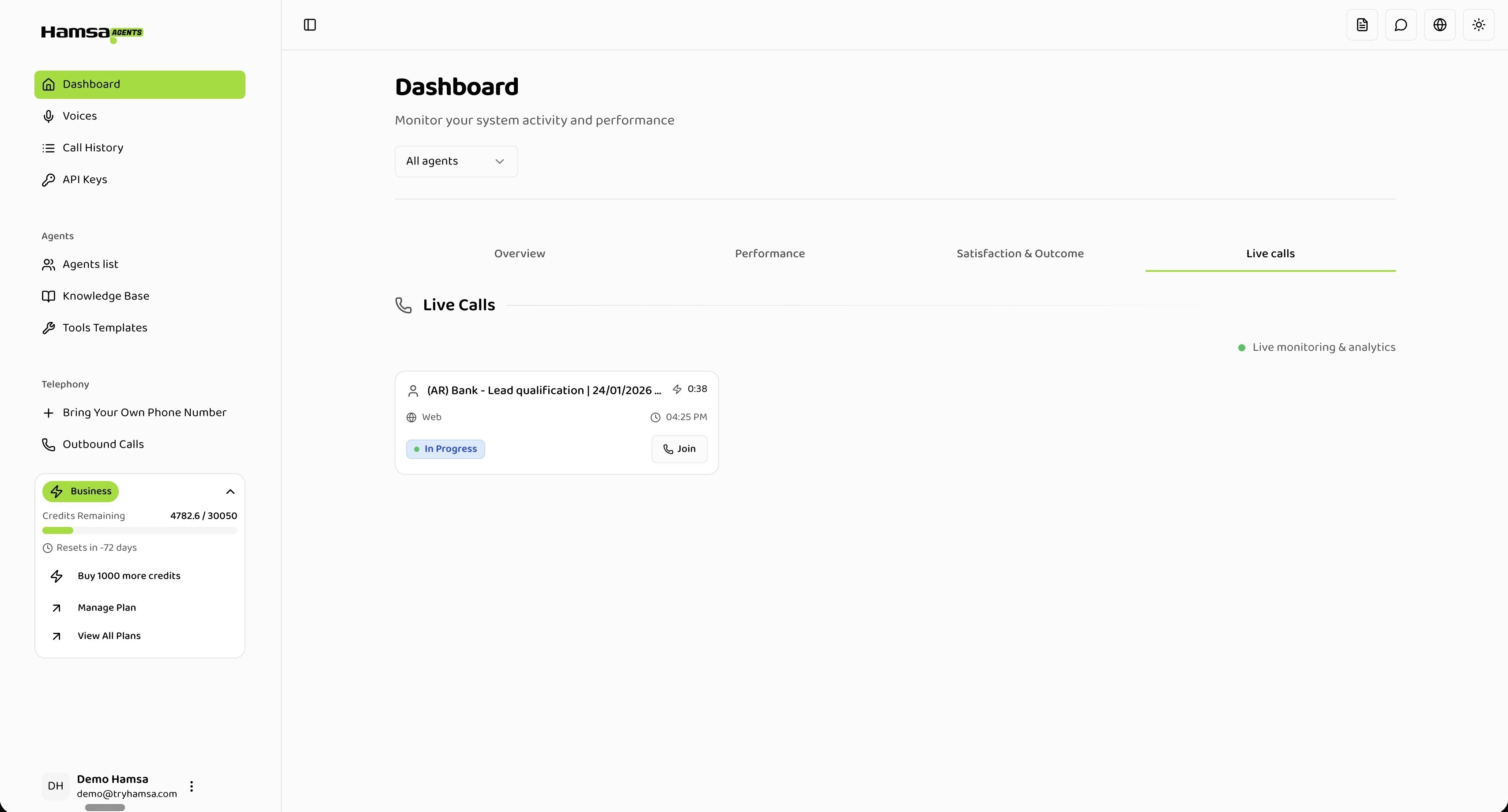
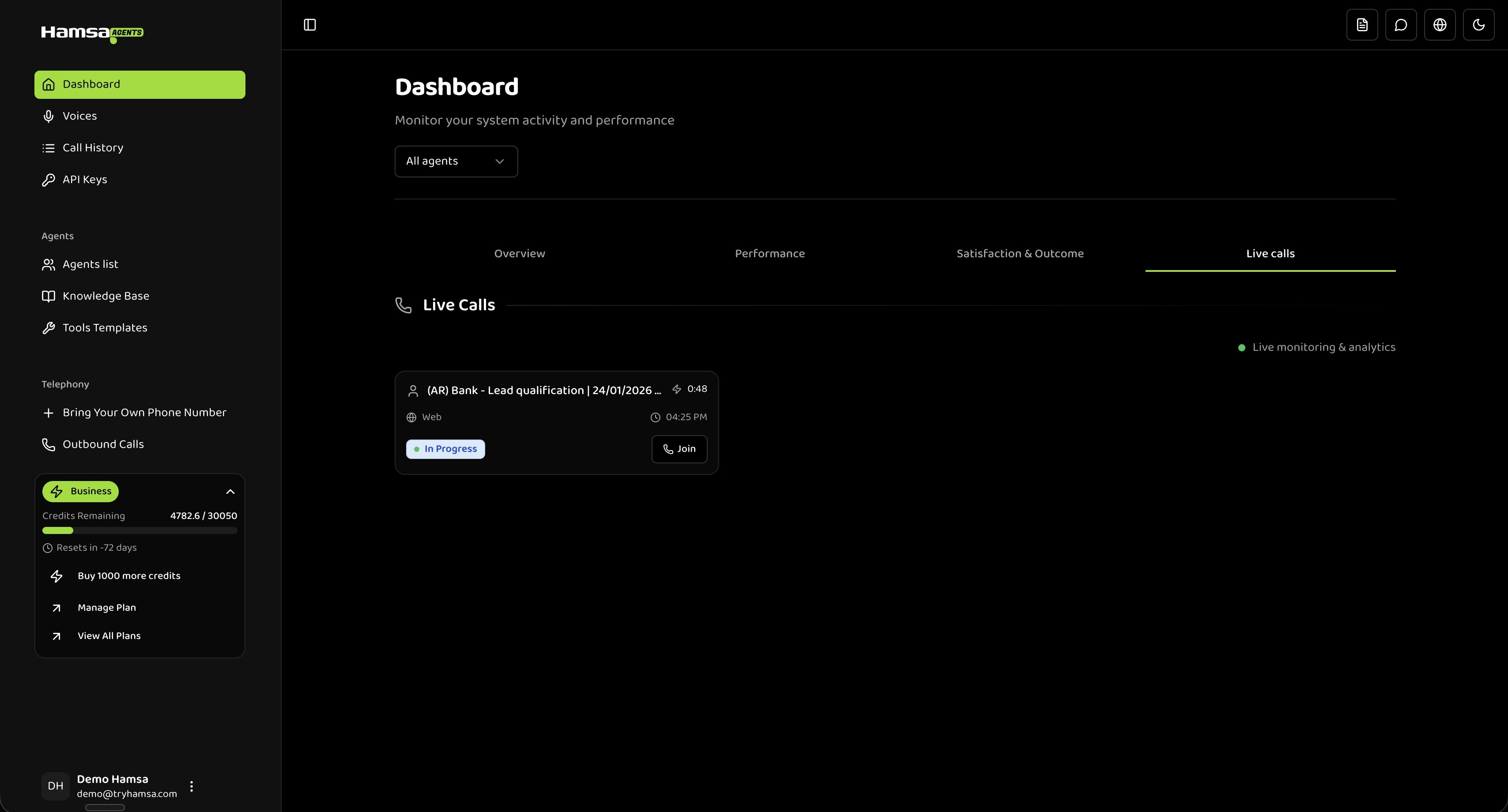
Accessing Live Calls
- Navigate to Dashboard from the main menu
- Click the Live calls tab
Only calls with status “IN_PROGRESS” appear here. Completed calls move to Call History.
Call Cards
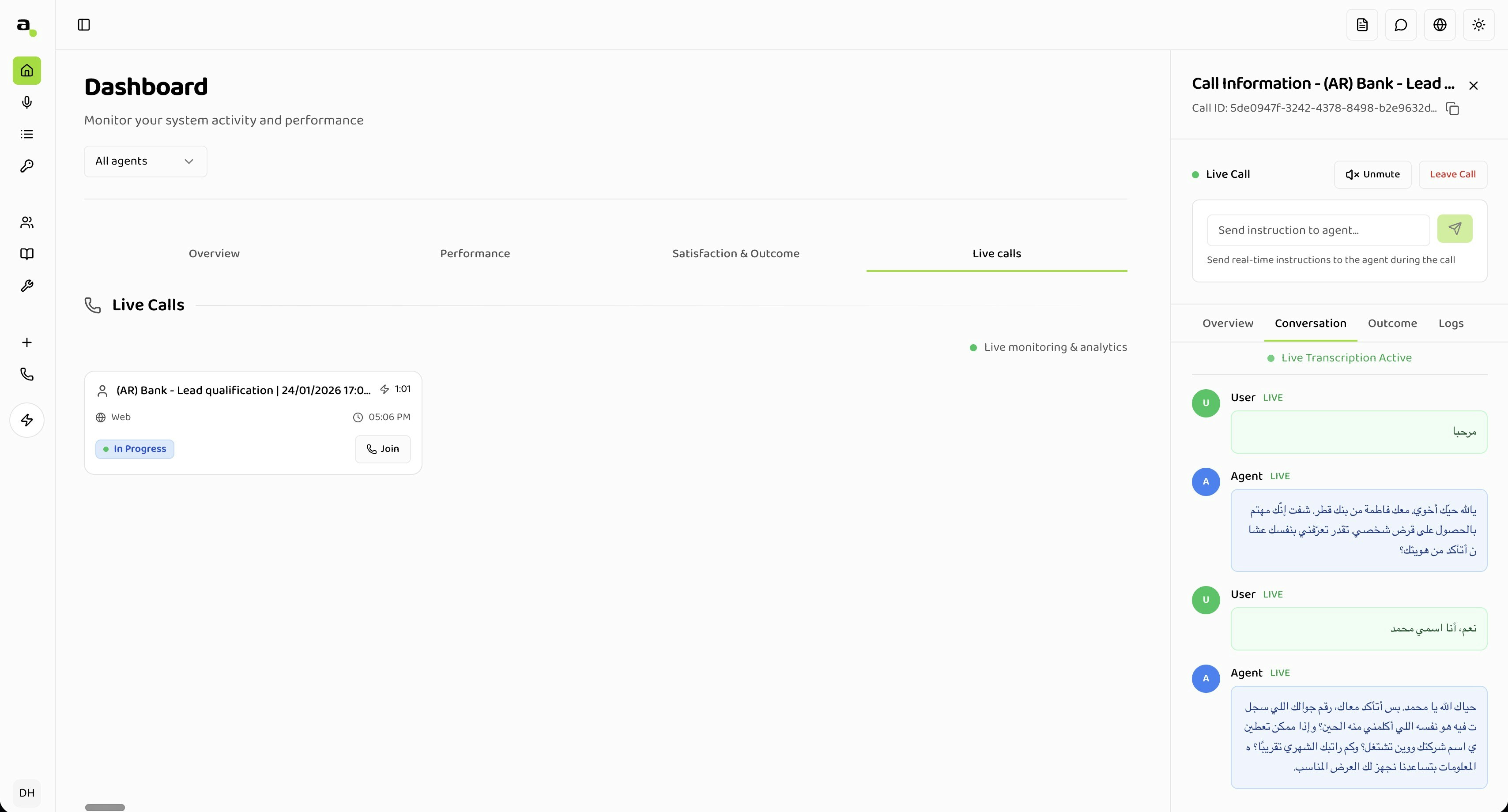
Each active call is displayed as a card showing:- Agent name: The voice agent handling the call
- Timestamp: When the call started
- Duration: Live counter showing elapsed time
- Channel: Phone, Web, or WhatsApp
- Status: “In Progress” indicator
- Join button: Click to listen in on the call
Joining a Call
You can join any active call as a silent listener — the caller and agent are not aware you’re listening.How to Join
- Click the Join button on a call card
- The call details drawer opens on the right
- Click Join Call in the drawer header
- You’re now connected and can hear both sides of the conversation
While Listening
- Live audio: Hear both the caller and agent in real-time
- Live transcription: See the conversation transcribed as it happens, with speaker labels (User/Agent)
- Performance metrics: View ASR, LLM, TTS, and latency metrics updating in real-time
Leaving a Call
- Click Leave Call in the drawer header, or
- Close the drawer (X button)
When a call ends while you’re listening, the drawer closes automatically with a notification.
Call Details Drawer
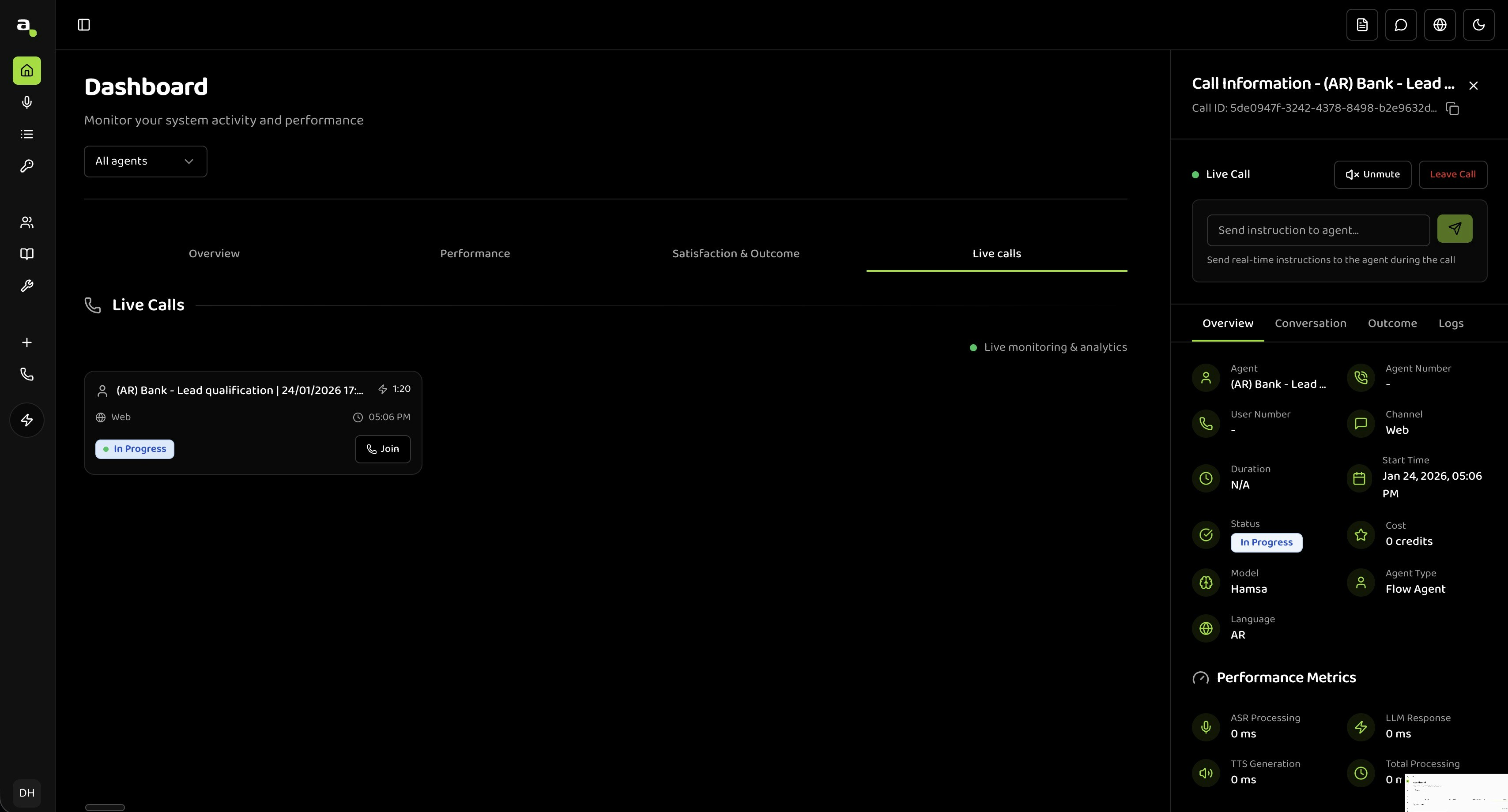
The drawer opens on the right side of the screen and contains detailed information about the call.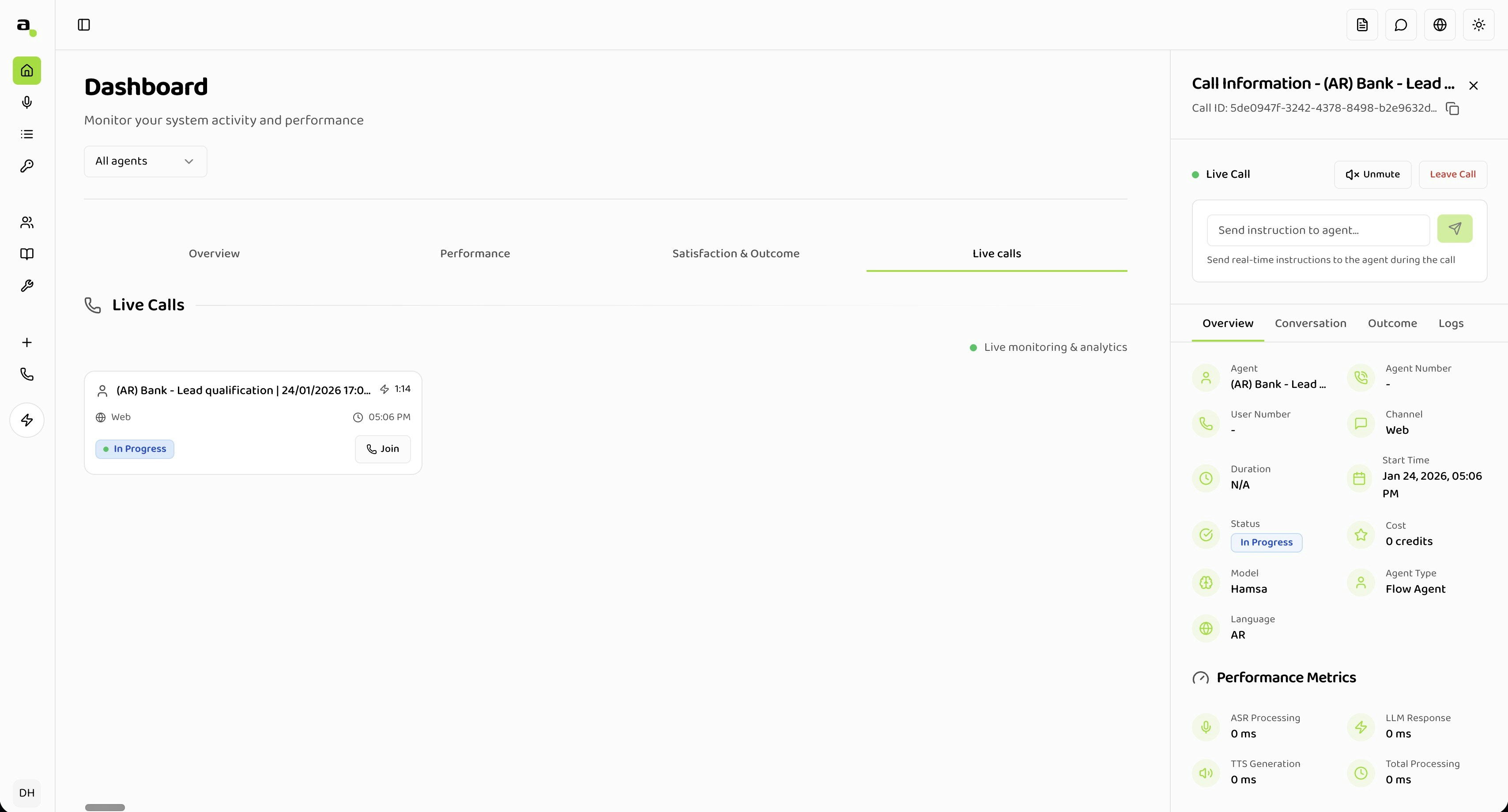
Overview
- Session ID, status, start time, and duration
- Channel type
- Performance metrics (ASR, LLM, TTS, Latency) updating in real-time
Conversation
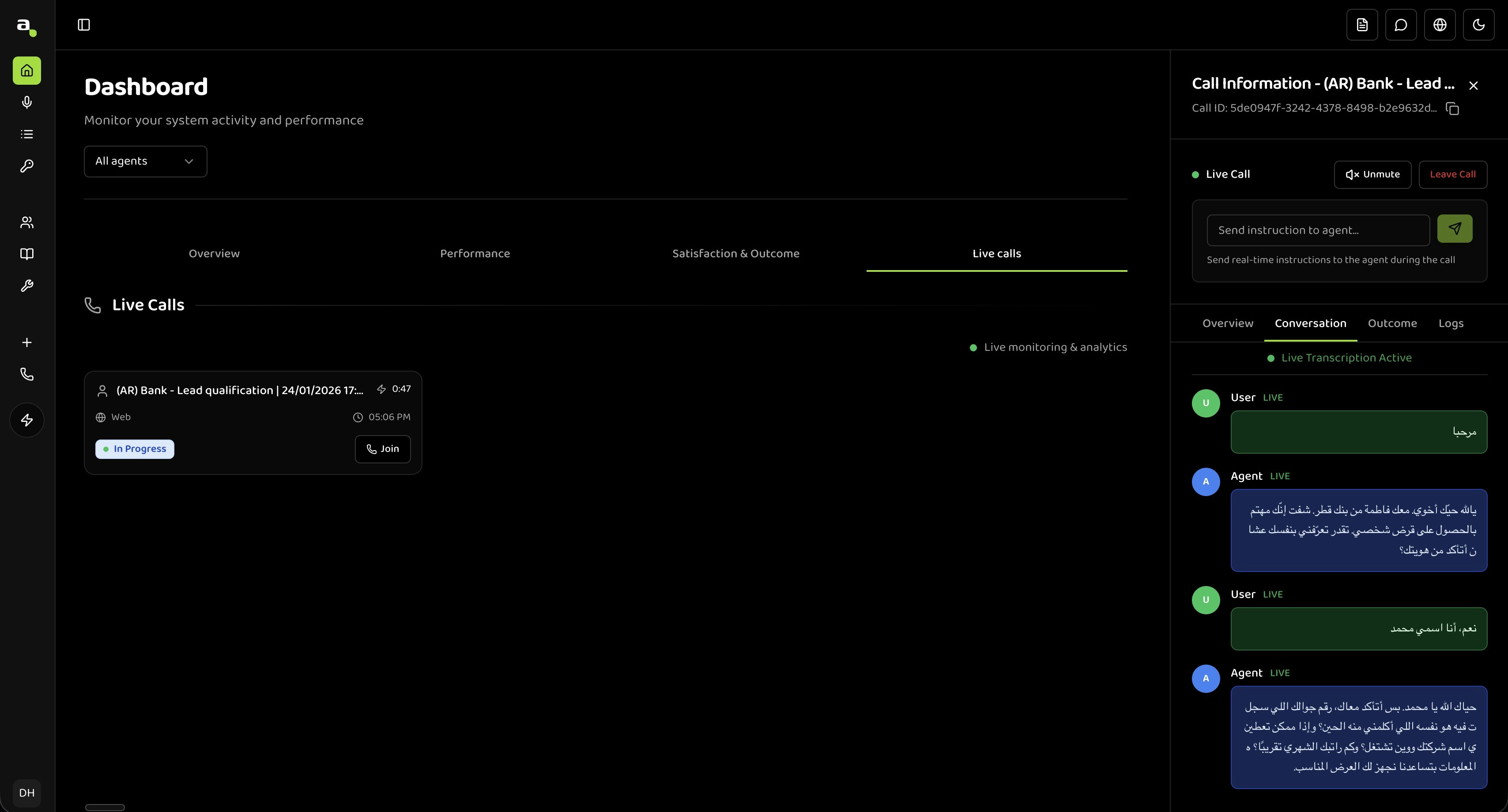
- Full live transcript with speaker labels and timestamps
- Auto-scrolls to the latest message
- After the call ends, an audio recording becomes available with playback controls
Outcome
Populates after the call ends:- AI-generated call summary
- Sentiment analysis
- Resolution status (Resolved / Escalated)
Auto-Refresh
The call list refreshes every 10 seconds automatically. Auto-refresh pauses when you open a call details drawer and resumes when you close it.Troubleshooting
No Calls Showing
- Check the agent filter — it may be set to an agent with no active calls
- Calls older than 10 minutes are no longer shown
- Verify calls are actually being made to your agents
Can’t Join or Hear Audio
- Ensure your browser allows microphone/audio permissions for the site
- Check your system volume and audio output device
- Use a recent version of Chrome, Firefox, or Edge
- Verify your network doesn’t block WebRTC connections
Transcription Not Appearing
Live transcription typically appears 2-3 seconds after speech. If nothing appears:- Wait a few seconds after joining — connection may still be establishing
- Check that someone is actually speaking
- Close and reopen the drawer
Privacy Note
Related
Dashboard Overview
View overall system metrics and statistics
Call History
Search and review completed call recordings
Performance Metrics
Analyze detailed performance data
Satisfaction
Track customer satisfaction and sentiment