

Overview
The Knowledge Base list view provides comprehensive management capabilities:- Search items by name
- Filter by type, status, extension, usage, and active state
- Sort by date, word count, or file size
- Edit item titles
- Delete items (with protection for items in use)
- Download items (Text and File types)
- View item details in drawer
All management actions are available from the Knowledge Base list view. Click any item to open the details drawer for more information.
List View Overview
The Knowledge Base list displays all items in a table format with the following columns: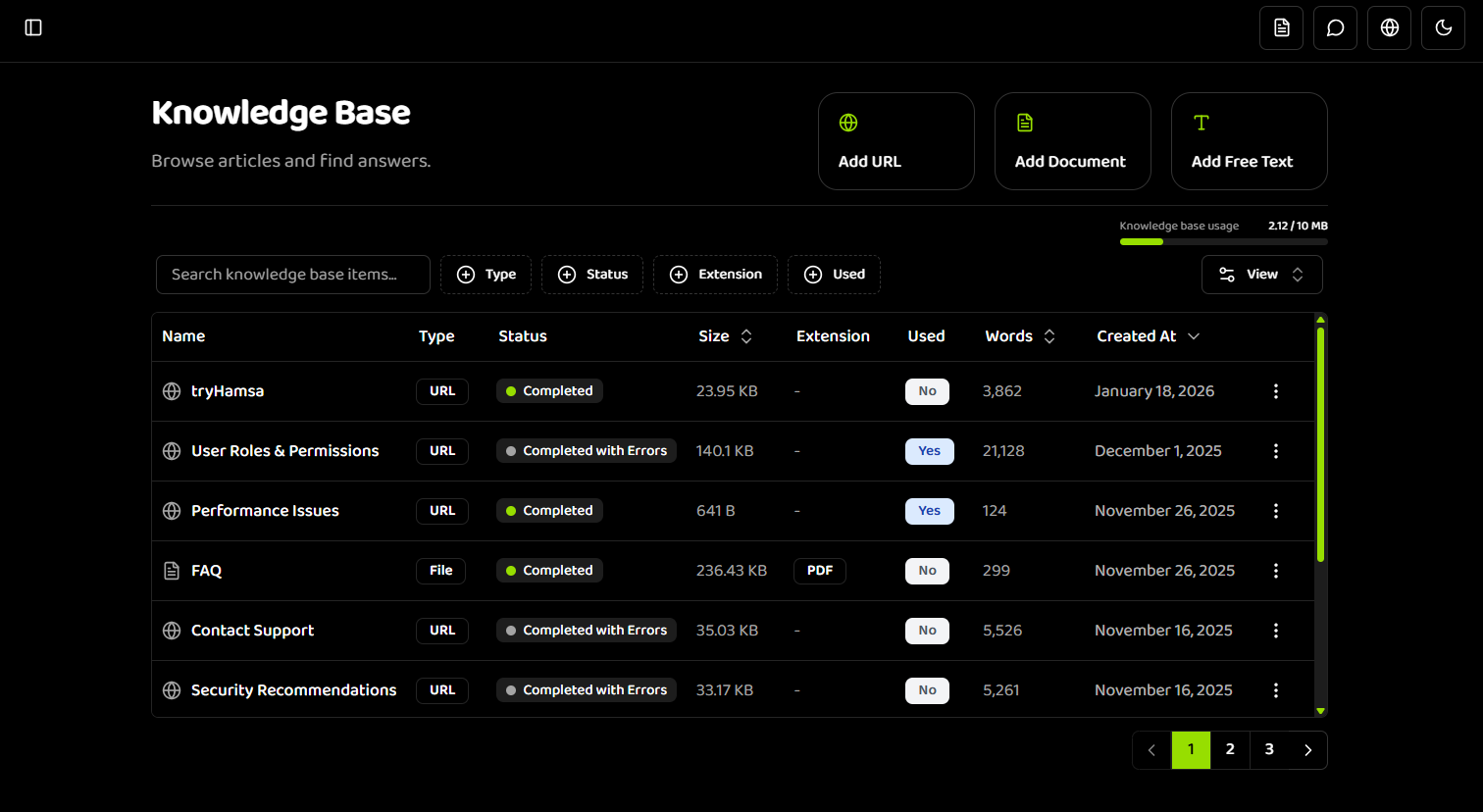
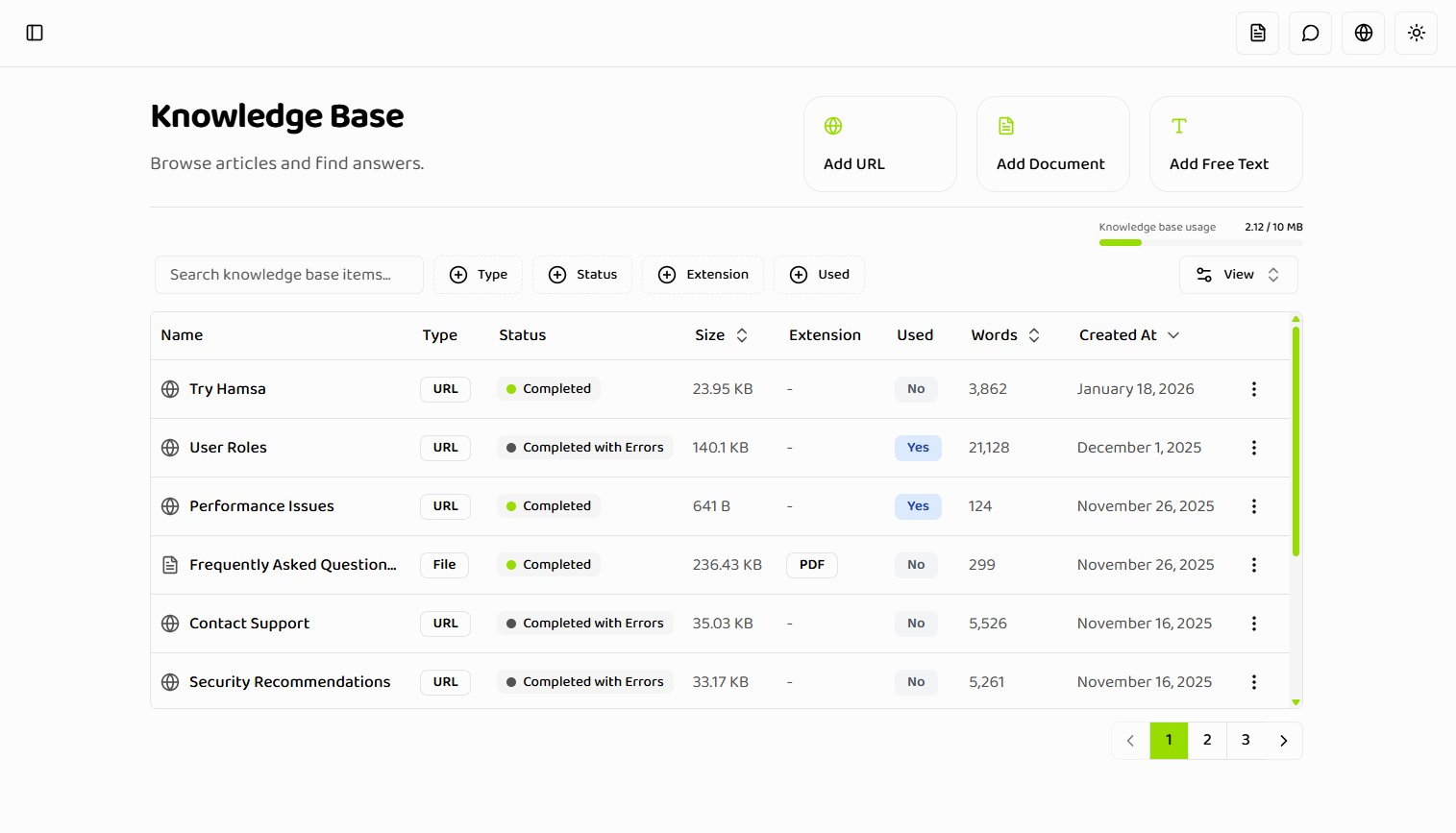
Displayed Information
Visual Indicators
Status Colors:- 🟡 PROCESSING: Item is being processed (yellow indicator)
- 🟢 PROCESSED: Item is ready for use (green indicator, shown as “completed” in dashboard)
- 🔴 FAILED: Item processing failed (red indicator)
- 🟠 COMPLETED_WITH_ERRORS: Item processed with warnings (orange indicator)
API vs Dashboard Terminology:
The API returns status values like
PROCESSED, PROCESSING, FAILED, etc. In the dashboard UI, PROCESSED is displayed as “completed” for better user experience. API users should always use the API status values (PROCESSED) when working with the API endpoints.- ✓ Used: Item is assigned to one or more agents
- — Not Used: Item is not currently used
Search Functionality
Searching by Name
The search bar allows real-time searching by item name:-
Enter Search Query
- Type in the search bar at the top
- Search is case-insensitive
- Searches item names only
-
View Results
- Results update as you type
- Matching items are highlighted
- Non-matching items are hidden
-
Clear Search
- Click the X button or clear the search field
- All items are shown again
Filtering Options
The Knowledge Base supports multiple filter types that can be combined:Filter by Type
Filter items by their content type: Options:- All Types (default)
- TEXT only
- FILE only
- URL only
- Find all text items for quick review
- Locate all uploaded documents
- View only URL-based items
Filter by Status
Filter items by their processing status: Options:- All Statuses (default)
- PROCESSED - Ready for use (shown as “completed” in dashboard, returned as
PROCESSEDfrom API) - PROCESSING - Currently being processed
- FAILED - Processing failed
- COMPLETED_WITH_ERRORS - Processed with warnings
- UPLOAD_FAILURE - Upload failed
- READING_FAILURE - File reading failed
- INGESTION_FAILURE - Content ingestion failed
- Find items that need attention (failed statuses)
- See which items are still processing
- View only ready-to-use items
When using the API, filter by
PROCESSED status. The dashboard displays this as “completed” for better user experience, but the API always returns PROCESSED.Filter by Extension
Filter file items by their file extension: Options:- All Extensions (default)
- PDF (
.pdf) - Word (
.docx) - Word Legacy (
.doc) - Text (
.txt) - HTML (
.html) - EPUB (
.epub)
Filter by Usage
Filter items by whether they’re used in agents: Options:- All Items (default)
- Used in agents - Assigned to one or more agents
- Not used in agents - Not currently assigned
- Identify unused items for deletion
- Find items currently in use
- Review which items need to be assigned
Filter Conflicts
Type + Extension Conflict: If you select both a type filter (TEXT or URL) and an extension filter:- Error message is displayed
- API calls are blocked
- Clear one of the conflicting filters
- Select FILE type only when using extension filter
- Remove TEXT/URL from type filter
- Clear extension filter when filtering by TEXT/URL
Sorting Options
Sort items by different criteria:Sort by Created Date
Options:- Newest First (default)
- Oldest First
- Find recently created items
- Review oldest items for cleanup
- Track item creation timeline
Sort by Word Count
Options:- Most Words First
- Fewest Words First
- Identify comprehensive items
- Find short items that may need expansion
- Review content depth
Sort by File Size
Options:- Largest First
- Smallest First
- Identify large files consuming storage
- Find small files for review
- Monitor storage usage
Item Actions Menu
Each item has an actions menu (⋮) with the following options:Edit Title
Change the item’s display name:- Click the Actions menu (⋮) on the item
- Select “Edit Title”
- Enter new name (1-100 characters)
- Click “Save Changes”
Editing the title doesn’t affect the item’s content, only its display name. Content cannot be edited after creation.
Download Item
Download the original content: Text Items:- Downloads as
.txtfile - Contains the text content
- Downloads original file in its format
- Preserves original file extension
- Downloads extracted content as
.txtfile - Contains scraped web content
- Click the Actions menu (⋮)
- Select “Download”
- File downloads to your computer
Delete Item
Remove an item from your knowledge base: Process:- Click the Actions menu (⋮)
- Select “Delete”
- Type
DELETEto confirm - Click “Confirm Deletion”
- Delete action is disabled or shows warning
- Message indicates which agents use the item
- Remove from agents first, then delete
Activate/Deactivate
Control item availability without deleting: Active:- Item is available for agents to use
- Appears in agent knowledge base selection
- Can be assigned to agents
- Item is hidden from agent selection
- Cannot be assigned to new agents
- Still exists in knowledge base
- Can be reactivated later
- Click the Actions menu (⋮)
- Select “Activate” or “Deactivate”
- Status updates immediately
Item Details Drawer
Click any item to open the details drawer: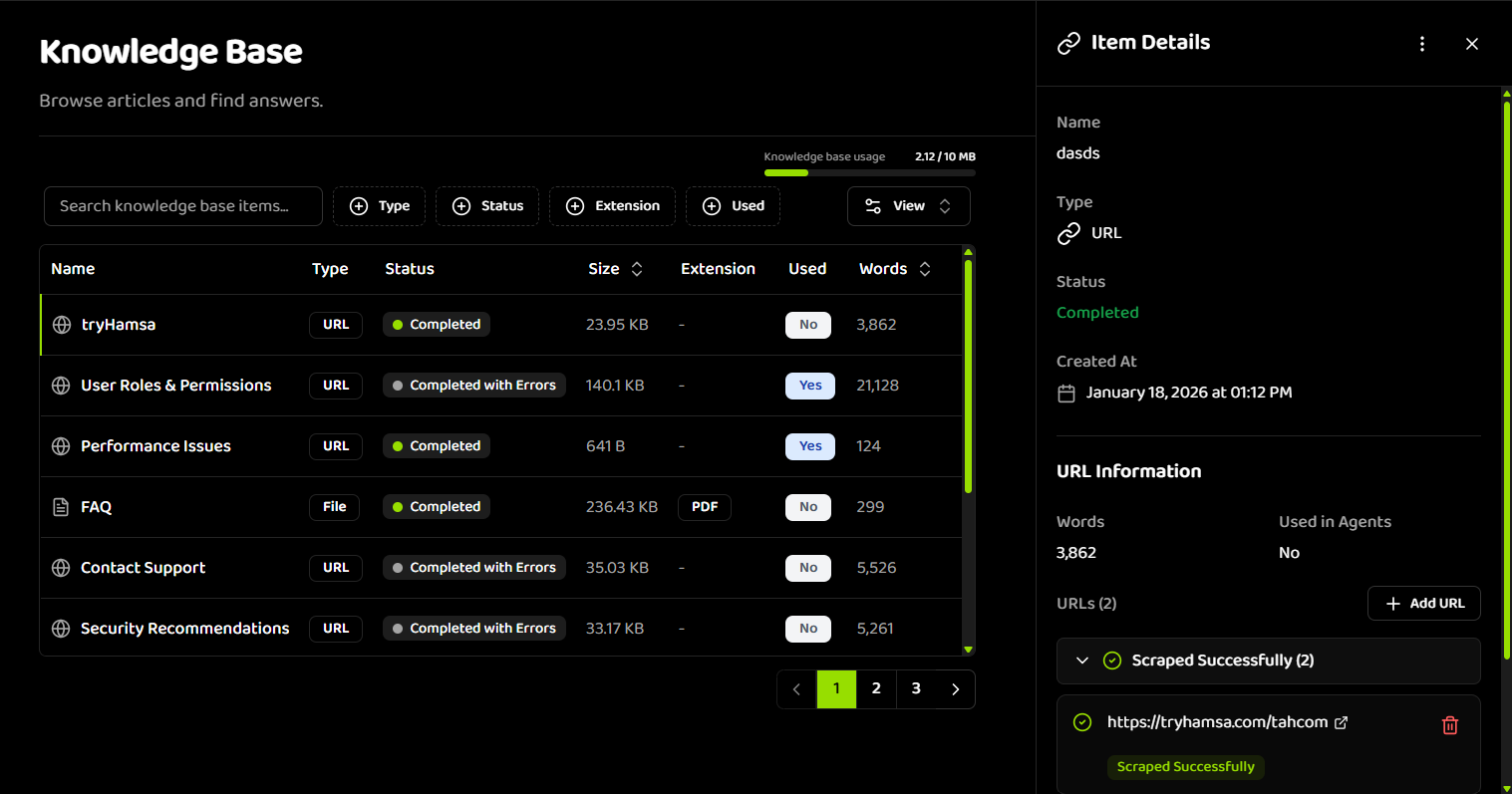
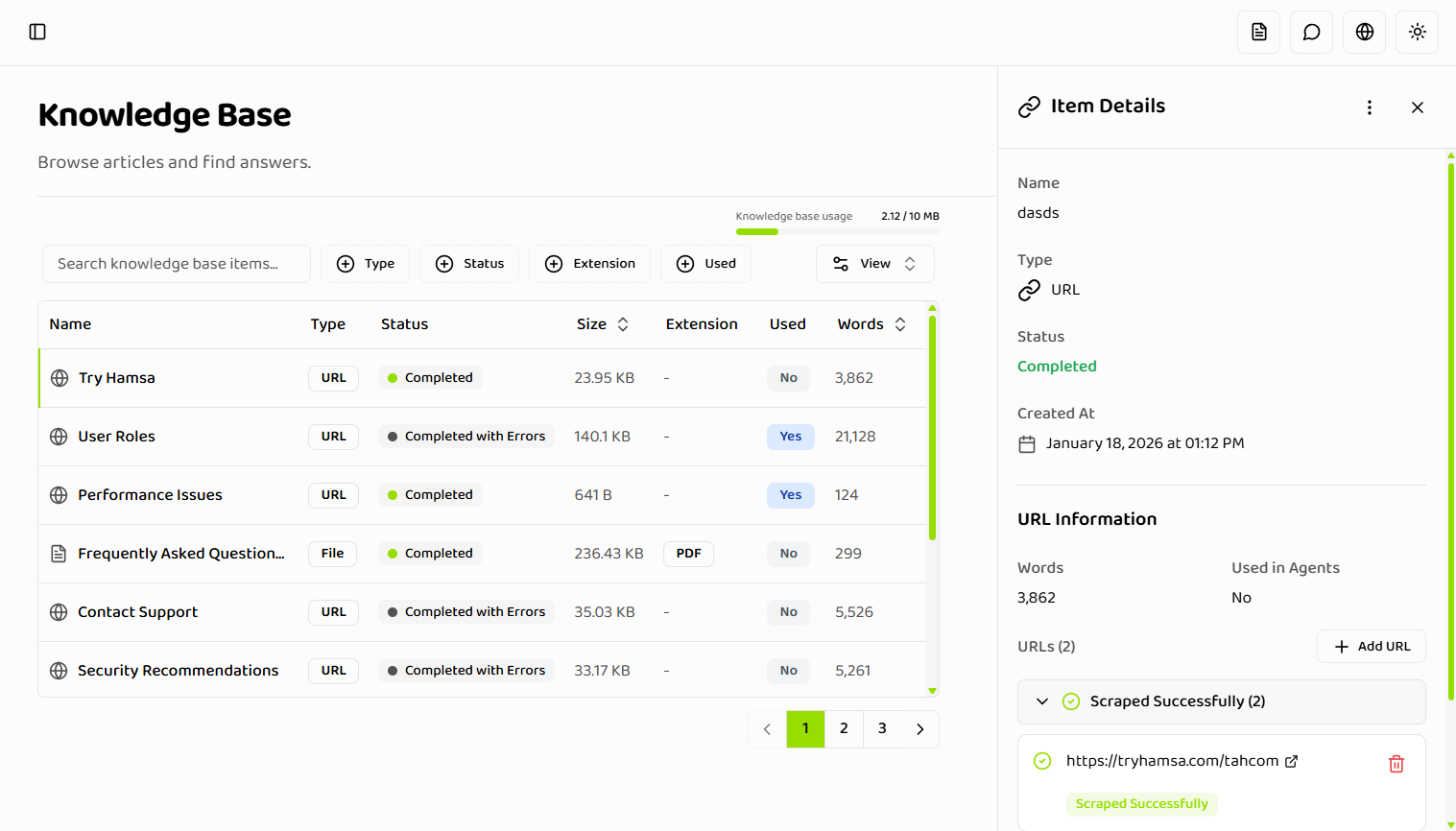
Drawer Sections
Basic Information:- Item name
- Type (TEXT, FILE, URL)
- Status with detailed information
- Created date
- Last updated date
- Shows if item is used in agents
- Lists which agents use the item (if any)
- File size
- File extension
- Download button
- Original filename
- Full text content
- Word count
- Character count
- Download button
- Grouped URLs by domain
- Per-URL status
- Scraping status for each URL
- Error messages for failed URLs
- Delete individual URLs
- Add more URLs (up to 100 total)
URL Item Management
In the URL item drawer, you can: View URLs:- See all URLs in the item
- Grouped by domain for easy navigation
- Status indicator for each URL
- Remove individual URLs from the item
- Useful for cleaning up failed URLs
- Maintains other URLs in the item
- Add more URLs to existing item
- Maximum 100 URLs per item
- Same validation as creating new URL items
Bulk Operations
While bulk operations aren’t currently supported, you can: Efficient Management:- Use filters to narrow down items
- Sort to group similar items
- Use search to find specific items
- Delete multiple items individually
- Filter by “Not used” to find items for cleanup
- Sort by “Oldest First” to review old items
- Use status filters to find failed items
Storage Management
Viewing Storage Usage
The system displays:- Current storage usage
- Storage limit for your plan
- Visual progress indicator
- Percentage used
Managing Storage
When Approaching Limit:- Review and delete unused items
- Deactivate items instead of deleting
- Consider upgrading your plan
- Delete failed items that can’t be fixed
- Remove duplicate items
- Archive old items you no longer need
- Compress large files before uploading
Troubleshooting
Items Not Appearing
Possible Causes:- Filters are applied (check filter settings)
- Search query is too specific
- Item is inactive
- Item failed to process
- Clear all filters
- Clear search query
- Check item status
- Verify item is active
Cannot Delete Item
Possible Causes:- Item is used in one or more agents
- Item is currently processing
- Network error
- Remove item from all agents first
- Wait for processing to complete
- Check network connection and retry
Filter Not Working
Possible Causes:- Filter conflict (Type + Extension)
- No items match filter criteria
- Filter not applied correctly
- Check for filter conflicts
- Verify items exist that match criteria
- Clear and reapply filters
Next Steps
- Status Lifecycle - Understand processing states
- Creating Items - Learn how to create new items
- Best Practices - Optimize your knowledge base
Related Documentation
Creating Items
Learn how to create knowledge base items
Status Lifecycle
Understand processing states and errors
Best Practices
Optimize your knowledge base management