

Overview
The Call History feature provides comprehensive tracking and management of all voice conversations in the Hamsa platform. It enables you to view, filter, search, and export call records with detailed information about each conversation.Call History enables you to:
- Track all voice conversations in your project
- Filter calls by date, status, channel, and agent
- Search calls by ID, user number, or agent ID
- Export call data for analysis
- View detailed call information
- Join active calls as a listener
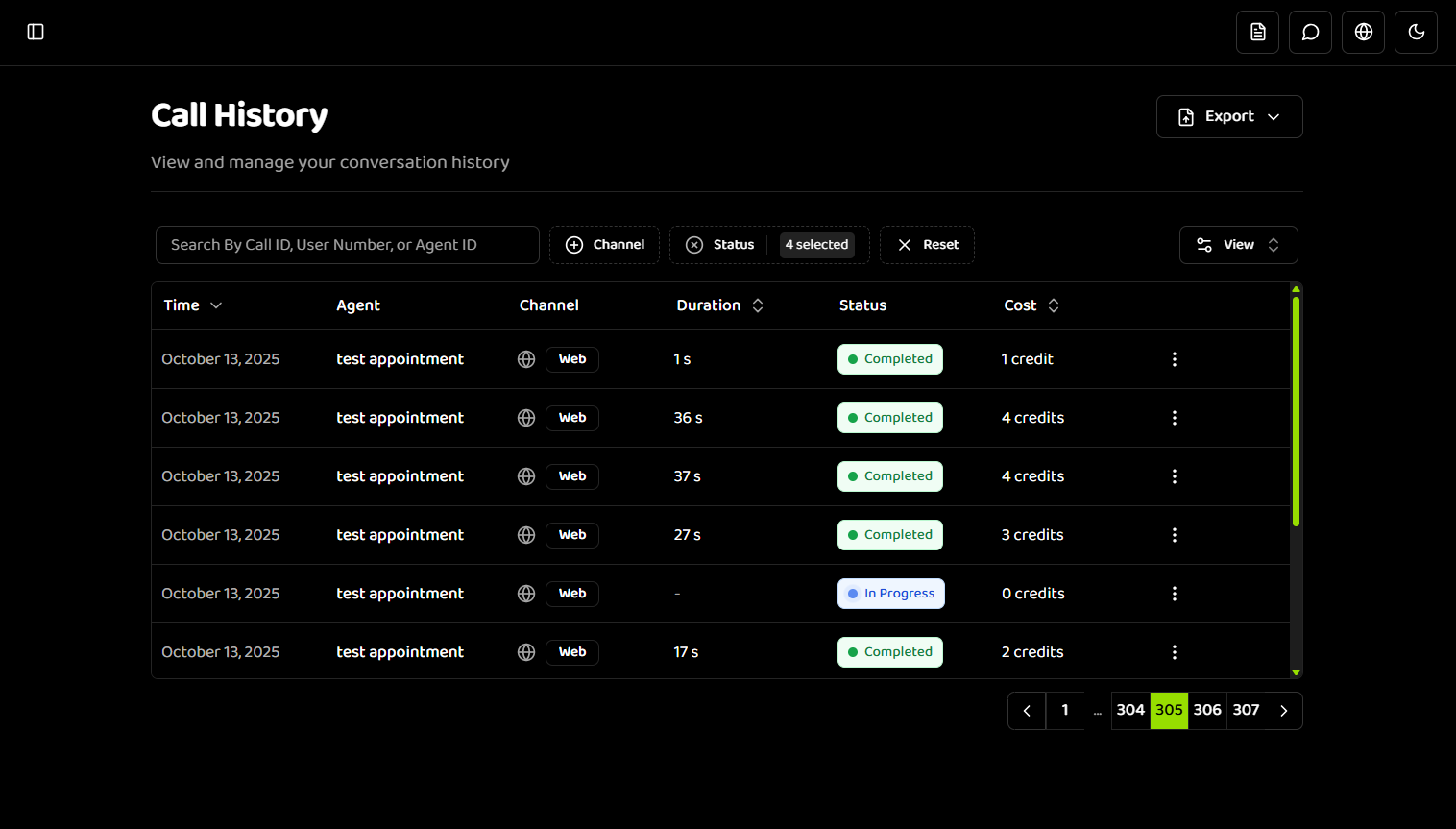
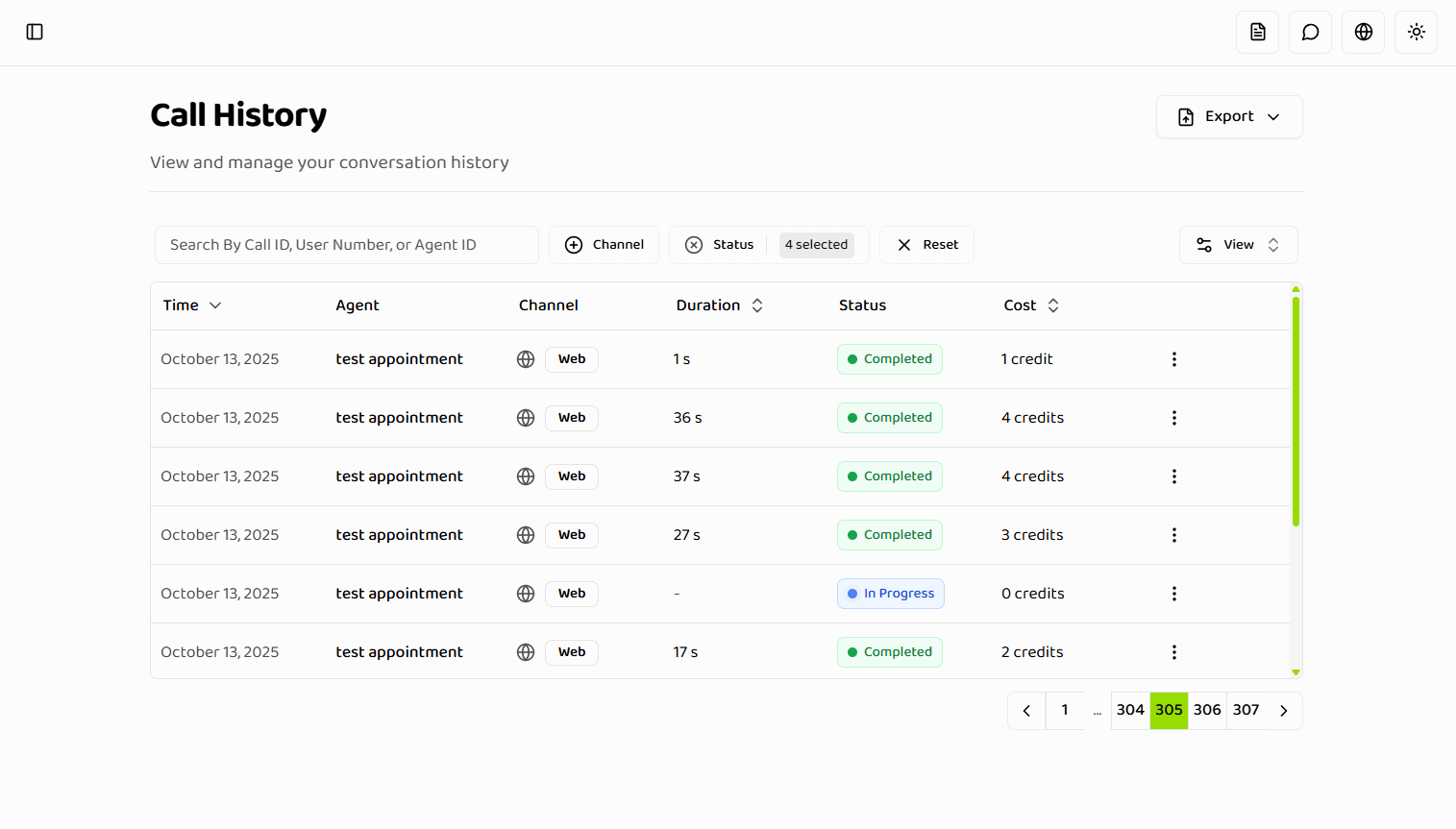
What is Call History?
Call History is a comprehensive record of all voice conversations in your Hamsa project. Each call record contains metadata, conversation details, and status information that helps you monitor, analyze, and manage your voice interactions.Key Capabilities
Call Tracking- Records all voice conversations
- Tracks metadata (time, duration, cost, status)
- Associates calls with Voice Agents
- Records channel type (Web, Telephone)
- Filter by date range, status, channel, and agent
- Search by call ID, user number, or agent ID
- Multiple filter combinations
- Real-time search results
- Export current page or filtered results
- CSV format for analysis
- Preserves filter settings
- Bulk data export
- Comprehensive call details drawer
- Conversation transcripts
- Call logs and outcomes
- Real-time updates for active calls
- Send real-time instructions to agents during ongoing calls
Call Status Lifecycle
Calls move through the following states:Calls reach terminal states automatically. Status updates happen in real-time for active calls.
Prerequisites
Before viewing call history, you must have:- An active project selected
- Appropriate permissions to view call history
- At least one completed or in-progress call
Call Record Information
Each call record in the history includes: Basic Information:- Time: Call timestamp (relative or absolute)
- Agent: Voice Agent name and ID
- Channel: Communication channel (Web or Telephone)
- Duration: Call duration in readable format
- Status: Current call status with color-coded badge
- Cost: Cost in credits
- Call parameters (user number, agent number)
- Conversation metadata
- Call logs and transcripts
- Outcomes and results
Default View Settings
Default Filters
On first load, the following statuses are selected by default:- COMPLETED
- FAILED
- IN_PROGRESS
- FORWARDED
Default filters can be cleared or modified. Filter settings persist across page navigation via URL parameters.
Default Sort
Calls are sorted by time (descending) by default, showing most recent calls first.Column Visibility
Some columns are hidden by default but can be shown:- Agent Number - Hidden by default
- Client Number - Hidden by default
- Timestamp - Hidden by default
Real-Time Updates
Active Calls:- Status updates in real-time
- Duration updates live
- New calls appear automatically
- No manual refresh needed
- Active calls show live transcription
- Updates as conversation progresses
- Available in call details drawer
Scope & Access
Project Scoping:- Call history is scoped to projects
- Only shows calls for selected project
- Project selection required
- Requires appropriate permissions
- Access controlled by role
- Audit trail maintained
Getting Started
- Select Project - Ensure an active project is selected
- Navigate to Call History - Go to Dashboard → Call History
- View Calls - Browse recent calls with default filters
- Filter & Search - Use filters and search to find specific calls
- View Details - Click any call to see detailed information
What’s Next?
- Viewing Calls - Learn how to filter, search, and sort calls
- Call Details - Understand call details drawer and tabs
- Best Practices - Optimize your call history usage
Related Documentation
Dashboard Overview
Monitor overall system performance
Live Calls
Monitor active calls in real-time
Voice Agents
Learn about Voice Agents
Quick Start
Get started with Hamsa platform