

Overview
Batch Calls enable you to execute batch outbound calls using your Voice Agents. Each batch call manages a set of recipients, tracks call progress, and provides comprehensive control over execution.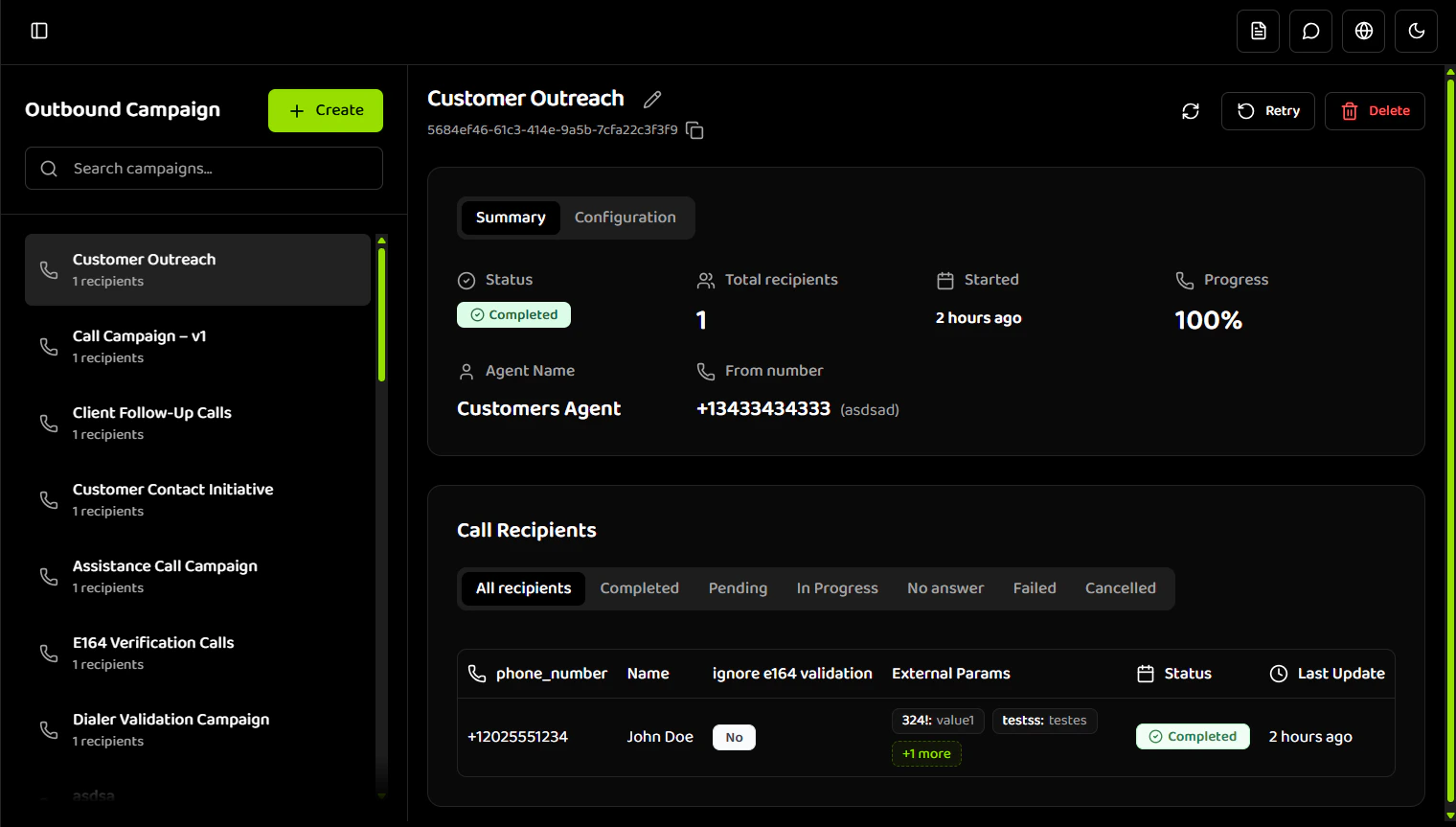
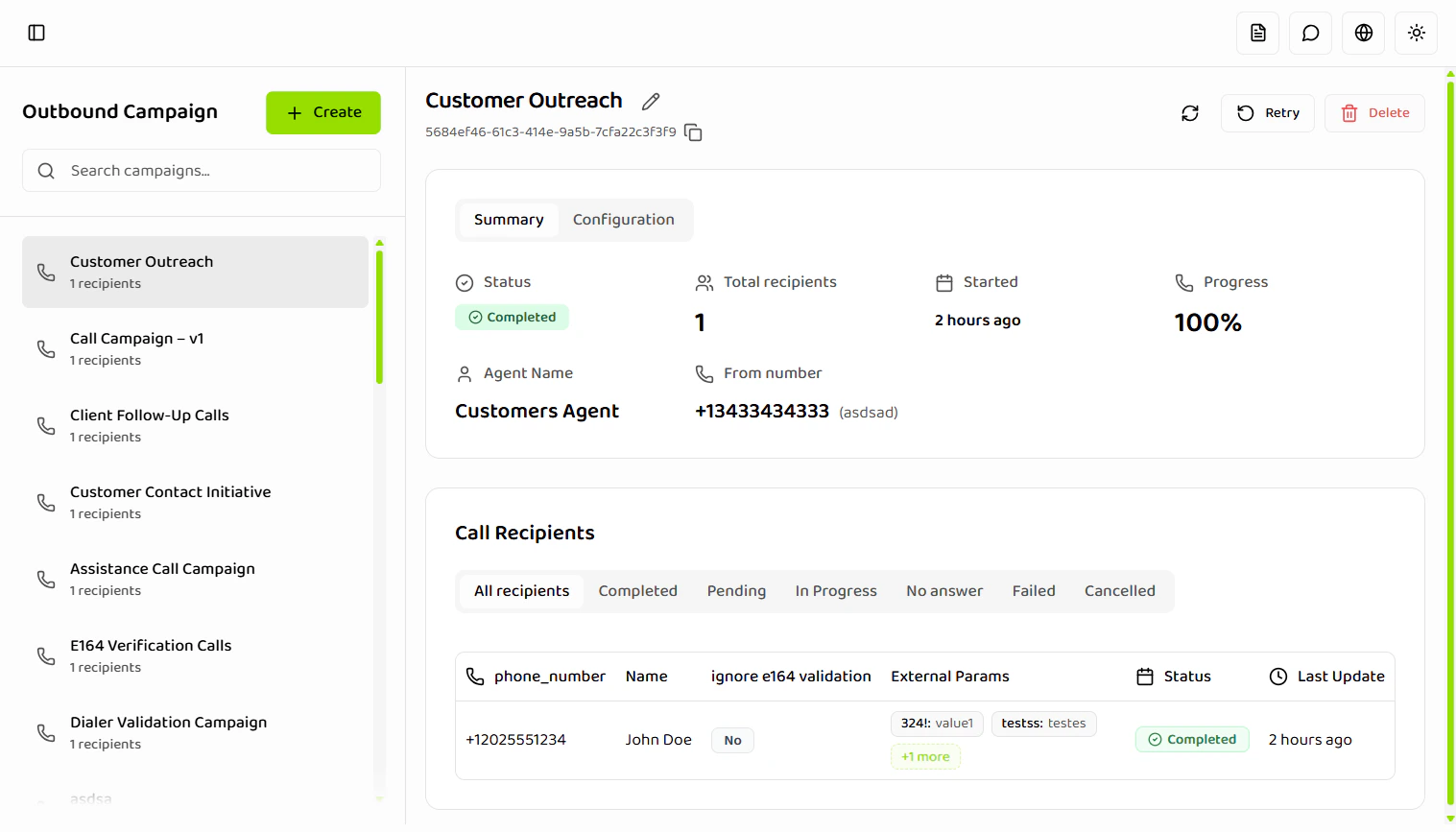
Batch Calls enable you to:
- Execute batch outbound calls to multiple recipients
- Schedule batch calls for specific times
- Track individual call statuses
- Personalize calls with dynamic variables
- Manage batch call execution (pause, resume, retry, cancel)
What is an Batch Call?
An Batch Call represents a batch of outbound calls executed by the Hamsa platform. Each batch call uses one Voice Agent and one outbound phone number to call one or more recipients.Key Capabilities
Batch Call Management- Create batch calls with CSV recipient uploads
- Schedule batch calls for future execution
- Monitor batch call progress in real-time
- Control batch call execution (pause, resume, cancel)
- Upload recipients via CSV file
- Validate recipient data before execution
- Track individual call statuses
- Retry failed or unanswered calls
- Schedule batch calls for specific dates and times
- Define time ranges when calls can run
- Set allowed days of the week
- Automatic execution within constraints
- Pass custom variables per recipient
- Personalize agent responses
- No validation on dynamic variables
- Variables only used if agent references them
Batch Call Lifecycle
Batch Calls move through the following states depending on their send type:Lifecycle Flow
Send Now:- SCHEDULED (scheduled to run; queue and worker fetch every minute) → RUNNING (when picked up) → COMPLETED/FAILED
- User can PAUSE during RUNNING → PAUSED → Resume to RUNNING
- User can CANCEL at any time → CANCELLED
- From FAILED/CANCELLED/COMPLETED: Retry → SCHEDULED → continues
- SCHEDULED (waiting for scheduled time; worker fetches every minute) → RUNNING (when time arrives and worker picks it up) → COMPLETED/FAILED
- Once RUNNING, follows the same flow as Send Now
- Batch calls respect account-level concurrent call limits
- Multiple batch calls share the concurrency pool
- Batch calls queue and execute as capacity becomes available
- Execution continues until all recipients are processed
Batch Calls are not indefinite and always reach a terminal state. They execute automatically and progress until completion or cancellation.Note: The API returns
RUNNING status, but in the dashboard it is displayed as “In Progress”. All other status values match between API and dashboard.Prerequisites
Before creating an batch call, you must have: Voice Agent- At least one Voice Agent created and configured
- Agent must be in the Voice Agents section
- Agent should be tested and ready for use
- At least one outbound phone number configured
- Number must be available in your account
- Number must support outbound calling
- Concurrency is handled automatically by the system
- No user management required
- Based on your subscription plan limits
- Batch Calls always start regardless of current capacity
Batch Call Components
Basic Information
Each batch call requires:- Batch Call Name: 1-100 characters (required)
- From Number: A configured outbound phone number (required)
- Voice Agent: A previously created voice agent (required)
Recipients
Recipients are added via CSV upload:- At least one valid recipient required
- CSV file with phone numbers and optional data
- Validation before batch call creation
- Support for dynamic variables
Scheduling
Batch Calls can be:- Send Now: Starts immediately
- Schedule: Starts at selected date & time with timezone
Time Constraints
All batch calls must define:- Daily start and end time
- Allowed days of the week
- Calls outside range are deferred, not skipped
Concurrency Behavior
Concurrency defines the maximum number of calls that may run in parallel for an batch call. How It Works:- Limits are defined by your subscription plan
- Users do not see or manage live availability
- Batch calls are created as SCHEDULED; the queue and worker fetch them every minute, then they run
- Calls are queued and executed as capacity becomes available
Batch Calls never fail or pause due to concurrency limits. They always start and calls execute as capacity becomes available.
Batch Call Actions
Available actions depend on batch call status:Recipient Call Statuses
Each recipient in an batch call has a call status:Dynamic Variables
Dynamic variables enable per-recipient personalization: How It Works:- Additional CSV columns become dynamic variables
- Passed as key-value pairs to the agent
- No validation applied
- Editable during CSV validation
- Variables are only used if the Voice Agent explicitly references them
- If a variable is not used by the agent, it is ignored
- No error is raised if variables are unused
- Call behavior is unaffected by unused variables
In this example,
plan and language are dynamic variables that can be referenced by the agent.
Getting Started
- Create a Voice Agent - Ensure you have a configured agent ready
- Configure Phone Number - Set up an outbound phone number
- Create Batch Call - Use the Batch Calls section to create a new batch call
- Upload Recipients - Upload CSV file with recipient data
- Schedule & Configure - Set schedule and time constraints
- Monitor Progress - Track batch call execution and recipient statuses
What’s Next?
- Creating Batch Calls - Learn how to create batch calls and upload recipients
- Managing Batch Calls - Schedule, control, and monitor batch calls
- Recipients & Status - Understand recipient management and call statuses
- Best Practices - Optimize your batch calls for best results
Related Documentation
Voice Agents
Learn about creating and configuring Voice Agents
Phone Numbers
Configure outbound phone numbers
Dashboard
Monitor batch call performance
Quick Start
Get started with Hamsa platform