

Overview
The Call Details drawer provides comprehensive information about individual calls, including conversation transcripts, logs, outcomes, and metadata. It’s accessible by clicking any call in the call history list.Accessing Call Details
Opening the Drawer
Methods:- Click any call row in the list
- Click “View Details” from actions menu
- Exception: PENDING calls do not open drawer
- Opens as side panel
- Overlays the call history list
- Can be closed via X button or outside click
- Preserves scroll position
Drawer Tabs
The call details drawer includes four main tabs:Overview Tab
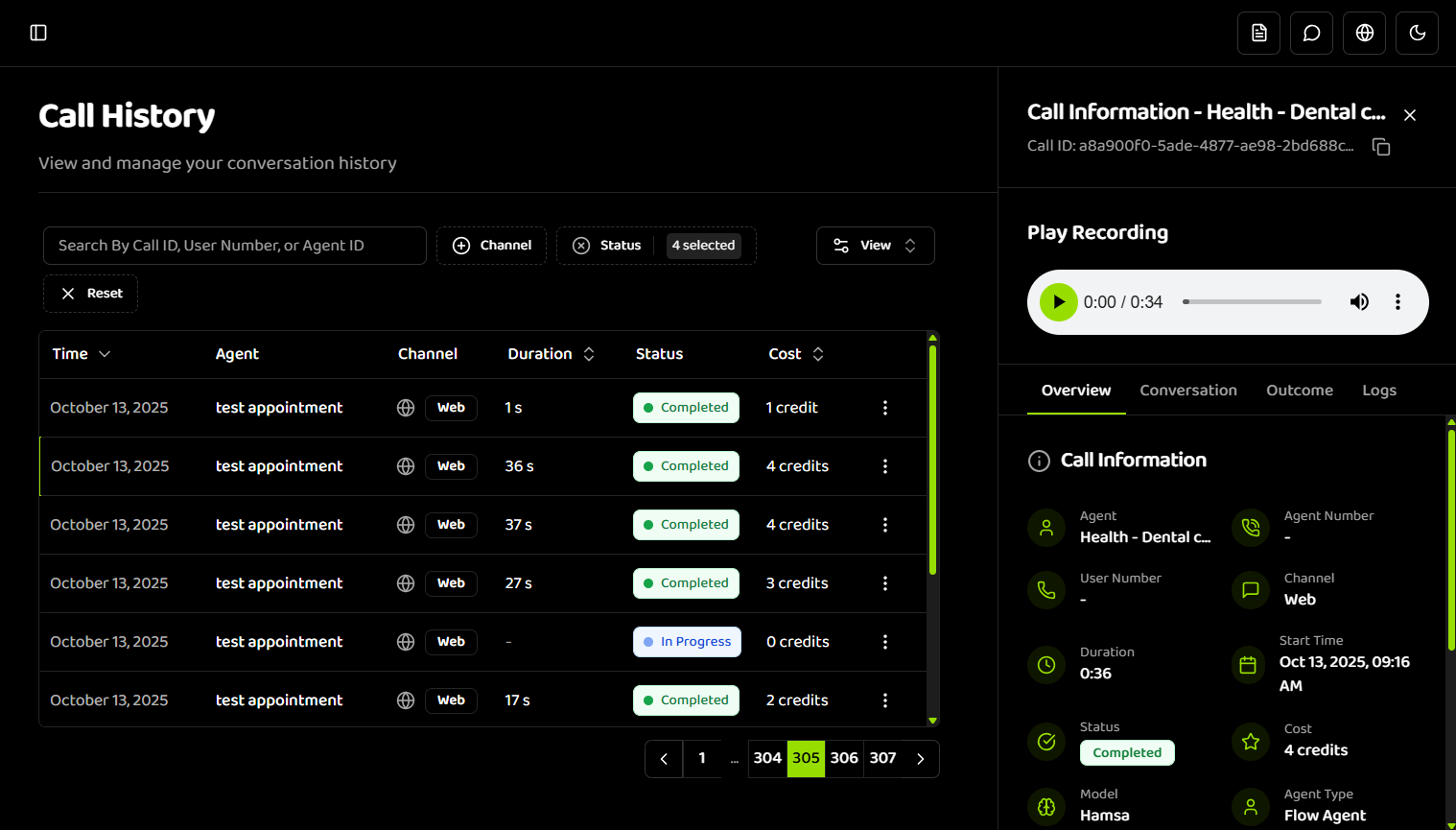
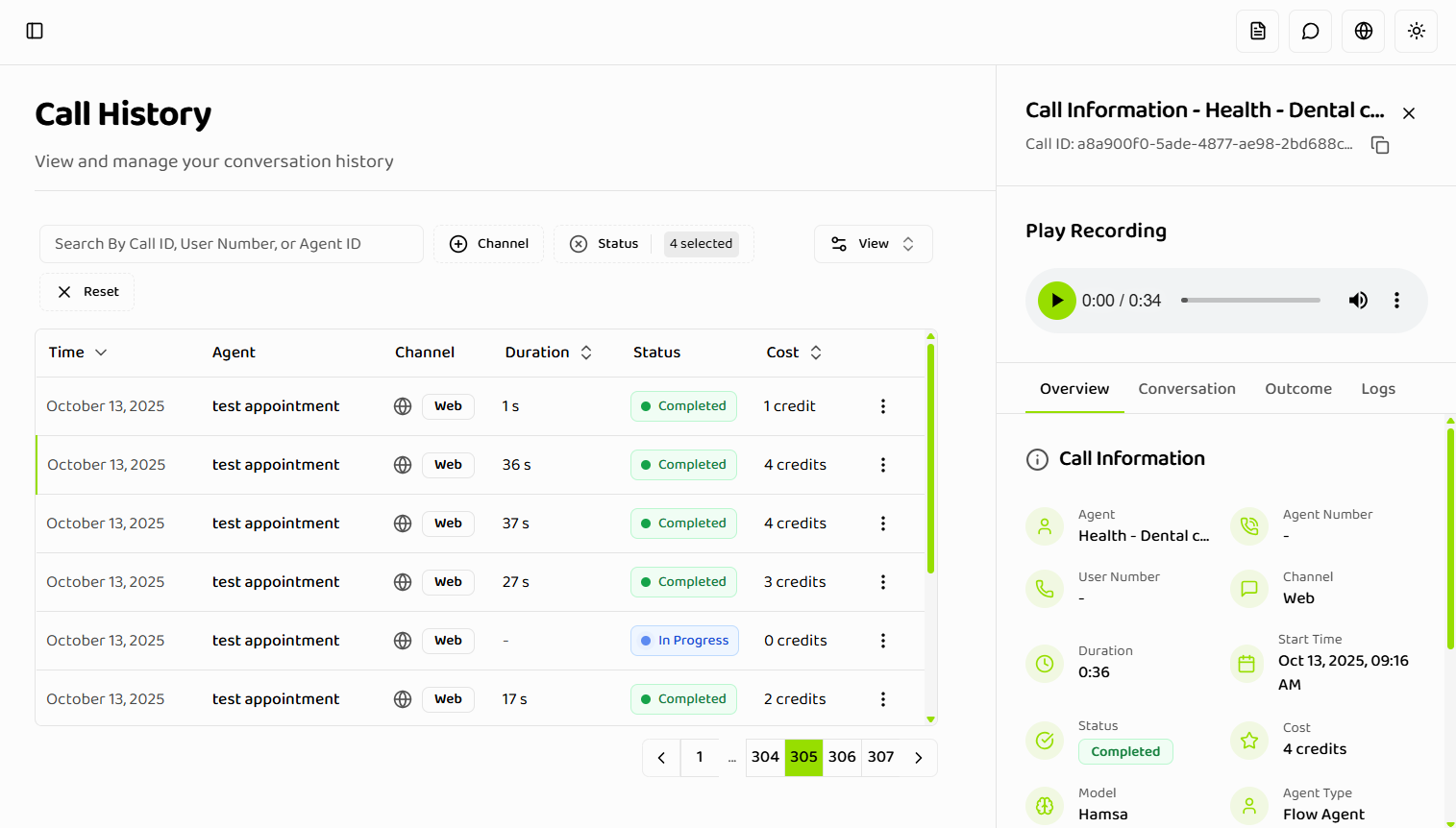
- Call metadata (time, duration, cost)
- Agent information
- Channel type
- Status and outcome
- Call parameters (user number, agent number)
- Basic call statistics
- Quick call summary
- Basic information review
- Status verification
- Cost tracking
Conversation Tab
Content:- Full conversation transcript
- Speaker identification
- Timestamps for each message
- Message formatting
- Real-time updates for active calls
- Scrollable transcript
- Search within transcript
- Copy transcript option
- Export conversation
- Live transcription updates
- Real-time message display
- Auto-scroll to latest
- Live indicator
- Send Real-Time Instructions: After joining the call via “Start Live Monitoring”, use the “Send instruction to agent…” input field to send prompts during the ongoing call
Logs Tab
Information:- System logs and events
- Call flow events
- Error messages
- Debug information
- Timestamped entries
- Troubleshooting issues
- Understanding call flow
- Debugging problems
- System event tracking
Outcome Tab
Content:- Call outcome summary
- Results and conclusions
- Outcome parameters
- Structured data
- Outcome metadata
- Review call results
- Extract structured data
- Analyze outcomes
- Track success metrics
Monitor The Call
For active calls (IN_PROGRESS status), you can join the call as a listener to monitor the conversation in real-time.Before Joining
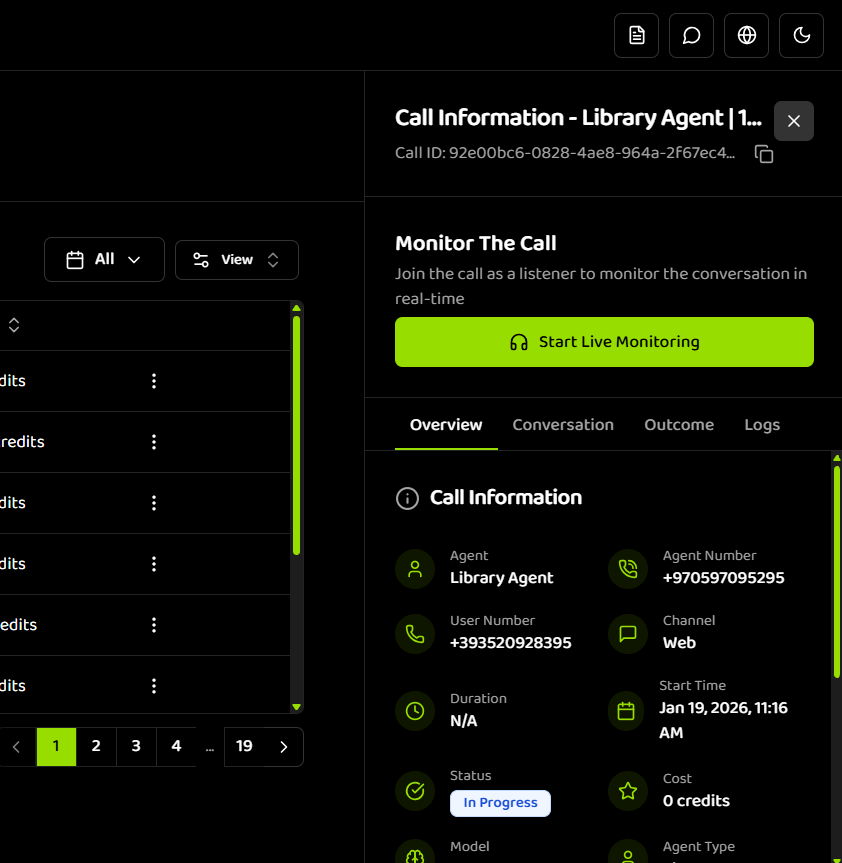
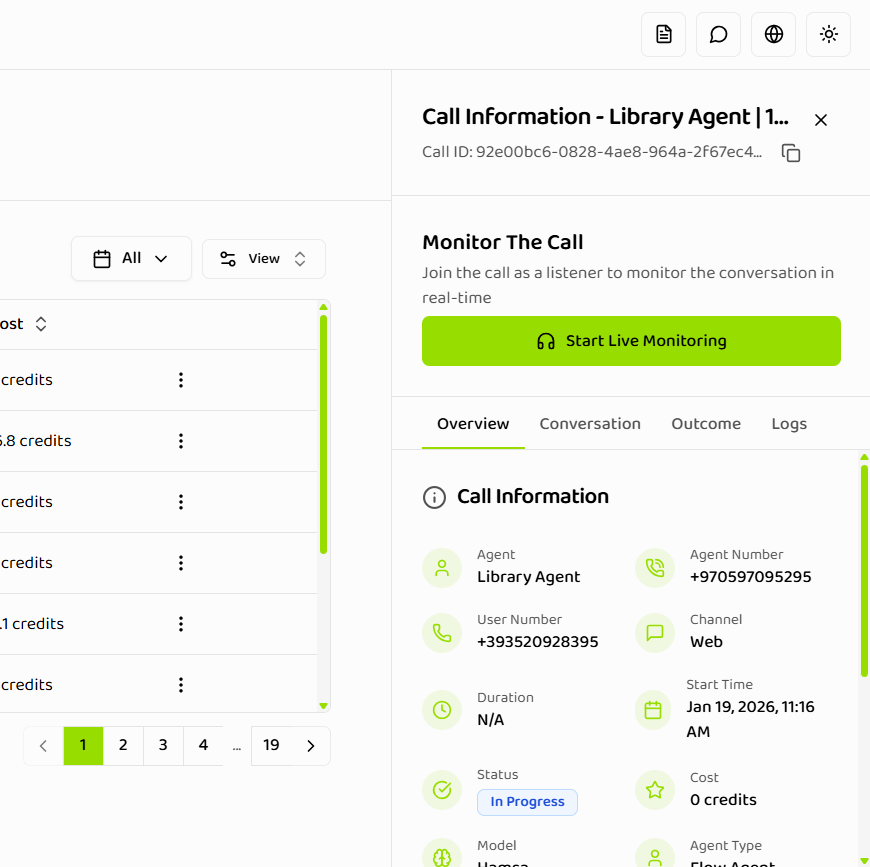
- Appears in the call details drawer for active calls
- Description: “Join the call as a listener to monitor the conversation in real-time”
- “Start Live Monitoring” button - Click to join the call
After Joining
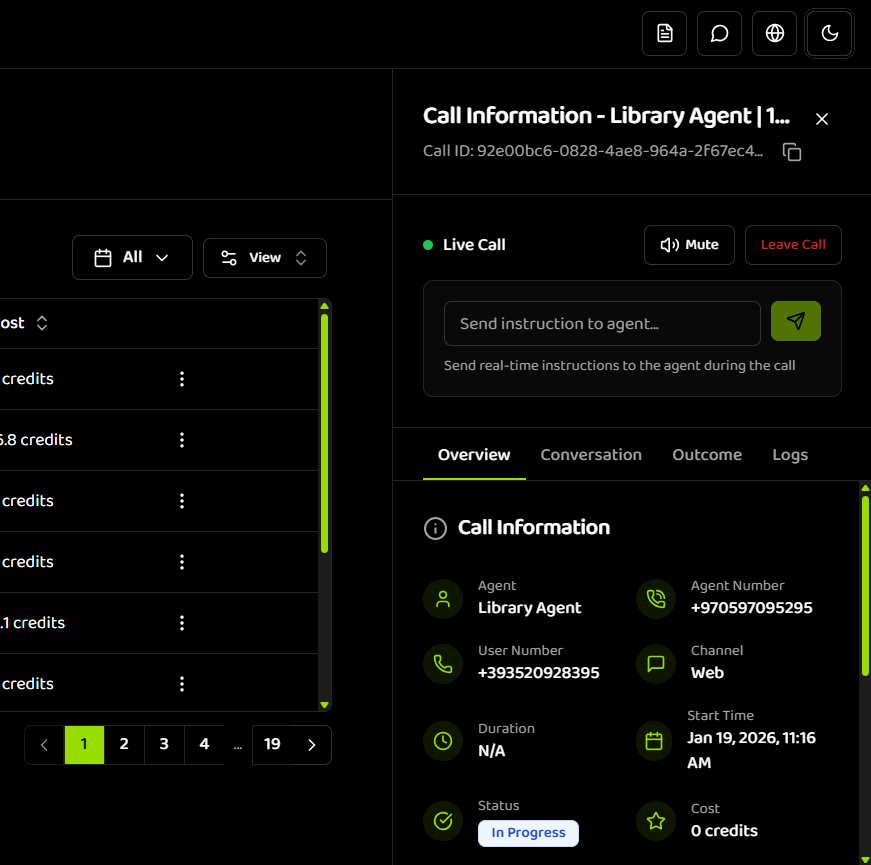
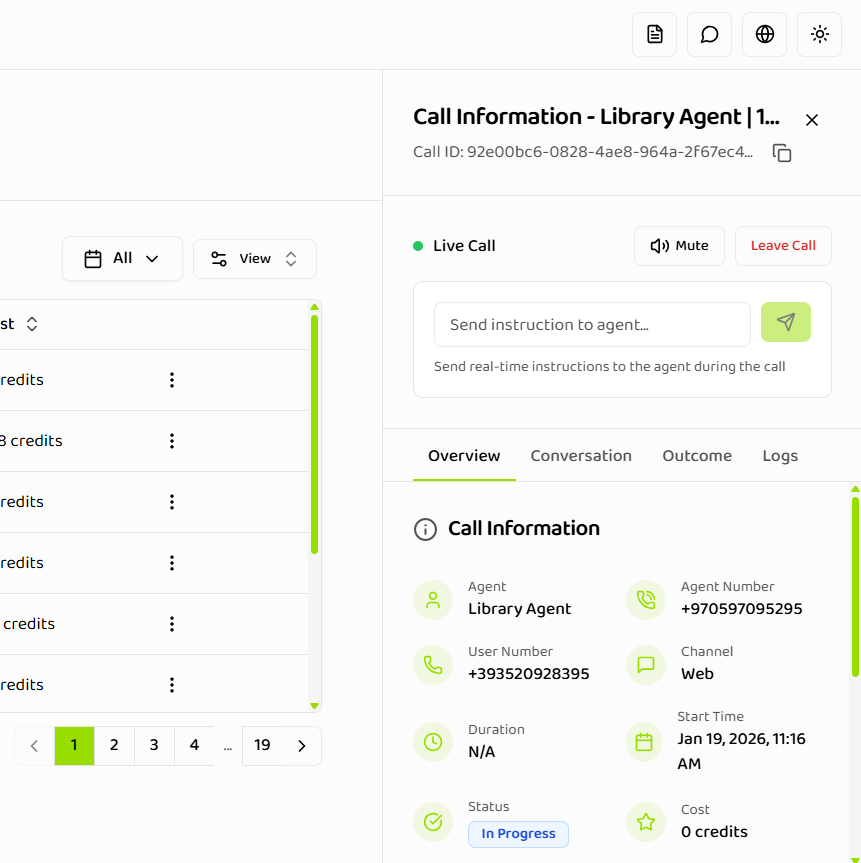
- “Live Call” indicator appears with green dot
- Audio controls become available:
- Mute button (speaker icon) - Mute/unmute the call audio
- Leave Call button (red text) - Exit the live monitoring session
- “Send instruction to agent…” input field appears below audio controls
- Helper text: “Send real-time instructions to the agent during the call”
- Send button (paper airplane icon) - Submit your instruction
- Monitor conversations in real-time
- Hear live audio from the call
- Send real-time instructions to guide the agent
- View live transcription updates in the Conversation tab
Live monitoring is only available for calls with IN_PROGRESS status. You must join as a listener before you can send real-time instructions to the agent.
Call Information
Basic Metadata
Displayed Information:- Call ID: Unique identifier
- Time: Call timestamp
- Duration: Total call duration
- Status: Current call status
- Cost: Cost in credits
- Channel: Communication channel
Agent Information
Details:- Agent name
- Agent ID (copyable)
- Agent configuration
- Agent settings used
Channel Information
Details:- Channel type (Web/Telephone)
- Channel-specific metadata
- Connection information
- Channel quality metrics
Call Parameters
Parameters:- User/Client number
- Agent number
- Additional parameters
- Custom variables
Real-Time Updates
Active Calls
Live Updates:- Conversation tab updates in real-time
- New messages appear automatically
- Status changes reflected immediately
- Duration updates live
- “Live” badge on active calls
- Real-time transcription indicator
- Auto-scroll to latest message
- Live status updates
Status Changes
Updates:- Status changes update automatically
- Transition animations
- Visual status indicators
- Real-time badge updates
Sending Real-Time Instructions
During an ongoing call (IN_PROGRESS status), you can send real-time prompts or instructions to the agent. Instructions can only be sent after joining the call as a listener.How to Send Instructions
Step 1: Join the Call- Open the call details drawer for an active call (IN_PROGRESS status)
- In the Monitor The Call section, click “Start Live Monitoring”
- You’ll join the call as a listener to monitor the conversation in real-time
- After joining, the interface updates to show:
- “Live Call” indicator with green dot
- Audio controls (Mute, Leave Call)
- “Send instruction to agent…” input field appears below the audio controls
- Type your instruction or prompt in the input field
- Click the send button (paper airplane icon) to send the instruction to the agent
- Before joining: “Start Live Monitoring” button in the Monitor The Call section
- After joining: “Live Call” indicator, audio controls, and “Send instruction to agent…” input field
- Helper text: “Send real-time instructions to the agent during the call”
- Provide additional context during the call
- Guide the agent’s response to specific questions
- Update information or correct misunderstandings
- Escalate or change call direction
- Provide real-time coaching or corrections
Real-time instructions are only available for calls with IN_PROGRESS status. You must first join the call using “Start Live Monitoring” before the instruction input field becomes available.
Conversation Transcript
Transcript Format
Structure:- Speaker identification
- Message content
- Timestamps
- Message types
Transcript Features
Functionality:- Scrollable view
- Search within transcript
- Copy to clipboard
- Export transcript
- Print option
- Live updates
- Auto-scroll
- New message indicators
- Real-time display
Call Logs
Log Entries
Types:- System events
- Call flow events
- Error messages
- Debug information
- Status changes
- Timestamped entries
- Event type
- Event description
- Additional details
Log Analysis
Use Cases:- Troubleshooting
- Understanding call flow
- Debugging issues
- System monitoring
Call Outcomes
Outcome Information
Content:- Outcome summary
- Structured results
- Outcome parameters
- Success indicators
- Result data
Outcome Types
Varieties:- Success outcomes
- Failure outcomes
- Partial outcomes
- Custom outcomes
Join Active Call
Join as Listener
Functionality:- Join active calls as listener
- Real-time monitoring
- No interruption to call
- Listen-only mode
- Available for IN_PROGRESS calls
- “Join Call” button in drawer
- Opens call interface
- Listener mode activated
- Quality monitoring
- Training purposes
- Support assistance
- Real-time oversight
Export Options
Export Conversation
Options:- Export transcript
- Export as text
- Export as PDF
- Copy to clipboard
Export Logs
Options:- Export log entries
- Export as text
- Export as JSON
- Copy logs
Drawer Navigation
Tab Navigation
Methods:- Click tab headers
- Keyboard shortcuts
- Tab order navigation
- Direct tab access
Closing Drawer
Methods:- Click X button
- Click outside drawer
- Press Escape key
- Navigate away
Limitations
PENDING Calls
Restriction:- PENDING calls do not open drawer
- No details available yet
- Wait for call to start
- Refresh to check status
Export Constraints
Limitations:- Export size limits
- Format restrictions
- Data availability
- Performance considerations
Next Steps
- Viewing Calls - Learn how to filter and search calls
- Best Practices - Optimize call review process
Related Documentation
Viewing Calls
Learn how to filter and search calls
Best Practices
Optimize call review and analysis
Introduction
Understand call history fundamentals