

Overview
Knowledge base items automatically progress through processing states until they reach a terminal state. Understanding these states helps you monitor item creation and troubleshoot issues.Processing happens automatically after item creation. You don’t need to manually trigger processing - the system handles it for you.
Processing States
Knowledge base items move through the following states: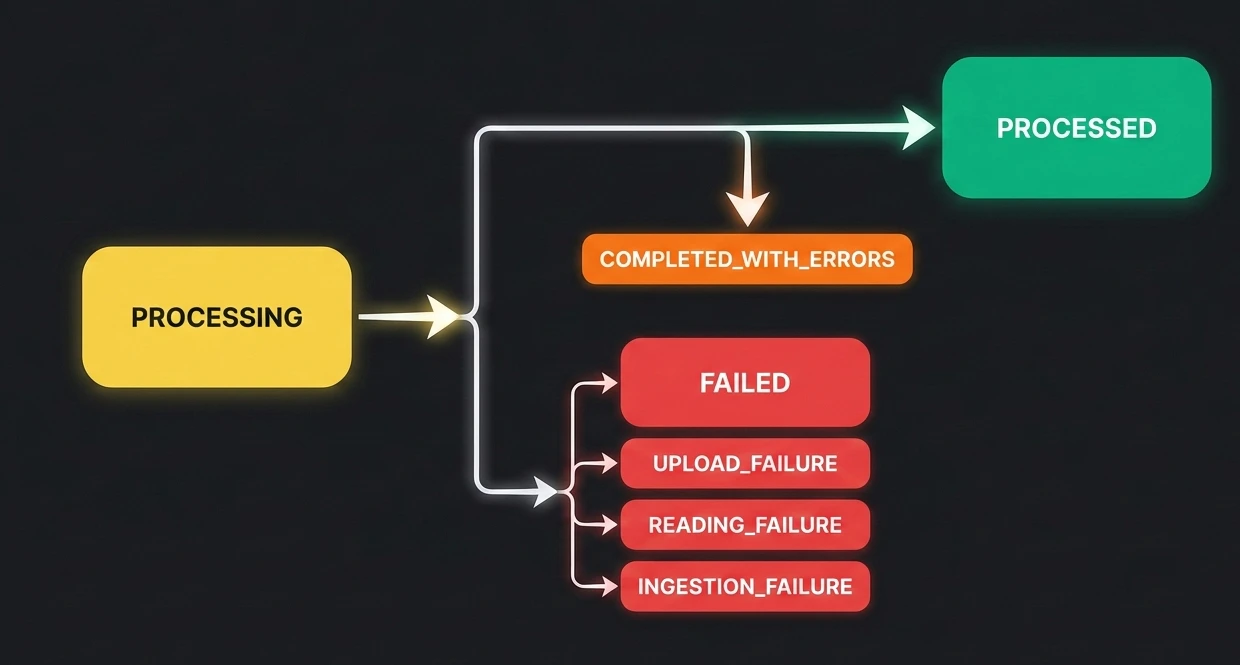
Terminal States
These are final states that items reach after processing:Intermediate States
Status by Item Type
Text Items
Processing Flow:- PROCESSING → PROCESSED (instant)
- None (text items process instantly)
File Items
Processing Flow:- PROCESSING (Upload) → PROCESSING (Reading) → PROCESSING (Ingestion) → PROCESSED
- Depends on the uploaded file (varies by size and complexity)
- UPLOAD_FAILURE: Network issues, file too large
- READING_FAILURE: Corrupted file, unsupported format, password-protected
- INGESTION_FAILURE: Content extraction issues, complex formatting
URL Items
Processing Flow:- PROCESSING (Scraping) → PROCESSED or FAILED
- Depends on the content and nested links (varies by page complexity and number of links)
- FAILED: URL not accessible, requires authentication, blocked by site
- COMPLETED_WITH_ERRORS: Some URLs failed, others succeeded
Status Details
PROCESSED
Meaning: Item has been successfully processed and is ready for use. Characteristics:- ✅ Green status indicator
- Available for selection in agents
- Content is indexed and searchable
- No action required
- Content is extracted and indexed
- Item appears in knowledge base list
- Can be assigned to agents
- Ready for retrieval during conversations
PROCESSING
Meaning: Item is currently being processed. Characteristics:- 🟡 Yellow status indicator
- Not yet available for use
- Processing in progress
- Wait for PROCESSED status (shown as “completed” in dashboard)
- System is extracting content
- Content is being indexed
- Processing stages vary by type
- Upload Stage: File is being uploaded to server
- Reading Stage: Content is being extracted from file
- Ingestion Stage: Content is being indexed for retrieval
- Scraping Stage: Web page content is being fetched
- Extraction Stage: Text content is being extracted
- Indexing Stage: Content is being indexed
FAILED
Meaning: Fatal error occurred during processing. Characteristics:- 🔴 Red status indicator
- Item cannot be used
- Error message displayed
- Action required
- URL Items: Site blocked scraping, requires authentication, URL not accessible
- File Items: Corrupted file, unsupported format
- Network Issues: Connection timeout, server error
- Review error message in item details
- Check item content/source
- Fix the issue (if possible)
- Delete failed item and recreate
COMPLETED_WITH_ERRORS
Meaning: Processing completed but some parts failed. Characteristics:- 🟠 Orange status indicator
- Partially usable
- Some content may be missing
- Review recommended
- URL Items: Some URLs in a multi-URL item failed
- File Items: Some pages/sections couldn’t be extracted
- Review item details for specific errors
- Check which parts failed
- Decide if item is usable as-is
- Delete and recreate if too many errors
UPLOAD_FAILURE
Meaning: File upload to server failed. Characteristics:- 🔴 Red status indicator
- File never reached server
- Upload stage failed
- File size exceeds 21MB limit
- Network connection interrupted
- Server temporarily unavailable
- File corruption during upload
- Check file size (must be < 21MB)
- Verify network connection
- Try uploading again
- Compress file if too large
READING_FAILURE
Meaning: System couldn’t read/extract content from file. Characteristics:- 🔴 Red status indicator
- File uploaded but content couldn’t be extracted
- Reading stage failed
- File is password-protected
- File is corrupted
- Unsupported file format
- File contains only images (no extractable text)
- Complex formatting that parser can’t handle
- Remove password protection
- Verify file opens correctly on your computer
- Ensure file is in supported format
- Save file in simpler format (e.g., .txt)
- Ensure file contains extractable text
INGESTION_FAILURE
Meaning: Content extracted but couldn’t be indexed. Characteristics:- 🔴 Red status indicator
- Content read but indexing failed
- Ingestion stage failed
- Content quality issues
- Extremely complex formatting
- Content too large for processing
- Server-side processing error
- Check content quality
- Simplify file formatting
- Break into smaller items
- Try recreating with different format
Status Tracking
Real-Time Updates
Status updates happen in real-time:- Status changes automatically
- No page refresh needed
- Visual indicators update immediately
Status Indicators
Visual Colors:- 🟢 Green: Success (PROCESSED)
- 🟡 Yellow: In Progress (PROCESSING)
- 🔴 Red: Failed (FAILED, UPLOAD_FAILURE, READING_FAILURE, INGESTION_FAILURE)
- 🟠 Orange: Warning (COMPLETED_WITH_ERRORS)
Status in List View
The list view shows:- Current status with color indicator
- Status text label
- Quick visual reference
Status in Details Drawer
The details drawer shows:- Current status
- Detailed status information
- Error messages (if failed)
- Processing history (if available)
Error Handling
Error Messages
When an item fails, you’ll see:- Status: Failed state (FAILED, UPLOAD_FAILURE, etc.)
- Error Message: Brief description of the issue
- Failure Reason: Detailed explanation (in drawer)
Common Error Messages
File Upload Errors:- “File size exceeds 21MB limit”
- “Upload failed. Please try again.”
- “Network error during upload”
- “File is password-protected”
- “Could not read file format”
- “File appears to be corrupted”
- “No extractable text found in file”
- “URL is not accessible”
- “Site requires authentication”
- “Scraping blocked by website”
- “Invalid URL format”
- “Media URL not supported”
- “Content could not be indexed”
- “Processing timeout”
- “Content format not supported”
Error Resolution
Step 1: Review Error- Open item details drawer
- Read error message and failure reason
- Understand what went wrong
- Check item source/content
- Verify requirements are met
- Test item independently (open file, visit URL)
- Address the root cause
- Modify content if needed
- Ensure item meets requirements
- Delete failed item
- Recreate with fixed content
- Monitor processing status
Monitoring Processing
During Creation
What to Watch:- Status changes from PROCESSING to terminal state
- Processing time (varies by type and size)
- Any error messages
- Text: Instant processing
- URL: Depends on content and nested links
- File: Depends on the uploaded file
After Creation
Check Status:- View list to see all item statuses
- Filter by status to find issues
- Open details for more information
- Review failed items weekly
- Check processing times
- Monitor for unusual patterns
Troubleshooting
Item Stuck in PROCESSING
Possible Causes:- Very large file taking time
- Network issues
- Server processing delay
- Wait longer (up to 5 minutes for large files)
- Check network connection
- Refresh page to see updated status
- Contact support if stuck > 10 minutes
Multiple Failures
Possible Causes:- Systematic issue (network, server)
- Content quality problems
- Format incompatibility
- Check system status
- Review content quality
- Try different format
- Contact support if persistent
Inconsistent Status
Possible Causes:- Page not refreshed
- Cache issues
- Real-time update delay
- Refresh page
- Clear browser cache
- Wait a few seconds for updates
Next Steps
- Managing Items - Organize and filter your items
- Creating Items - Learn how to create items properly
- Best Practices - Optimize your knowledge base
Related Documentation
Creating Items
Learn how to create items that process successfully
Managing Items
Filter and manage items by status
Best Practices
Avoid common processing issues