

Overview
Batch Calls can be created via the Dashboard UI or the API. This guide covers the UI creation process, including CSV upload, validation, and configuration.Prerequisites
Before creating an batch call, ensure you have:- At least one Voice Agent created and configured
- At least one outbound phone number configured
- A CSV file with recipient data (at least one valid recipient)
Basic Information
The following fields are required when creating an batch call:Batch Call Name
Requirements:- Required field
- 1-100 characters
- Descriptive name for identification
From Number
Requirements:- Required field
- Must be a configured outbound phone number
- Number must exist in your account
- Number must support outbound calling
- Choose from dropdown of available numbers
- Only outbound-capable numbers are shown
- Number cannot be changed after batch call creation
Voice Agent
Requirements:- Required field
- Must be a previously created voice agent
- Agent must be configured and ready
- Choose from dropdown of available agents
- Only active agents are shown
- Agent cannot be changed after batch call creation
The Voice Agent and From Number are locked after batch call creation. If you need to change them, create a new batch call.
Upload Recipients (CSV)
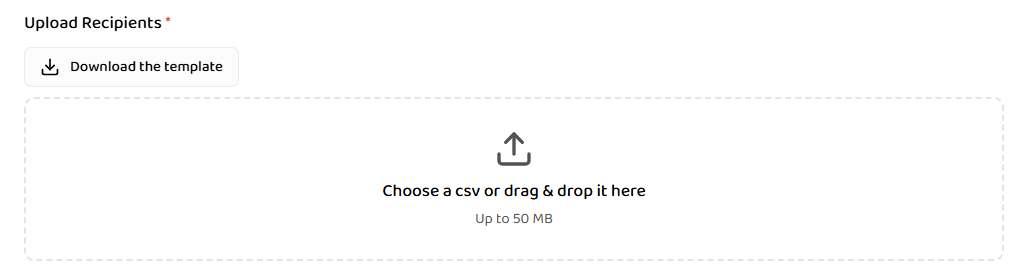
Recipients are added to an batch call via CSV upload. At least one valid recipient is required to proceed.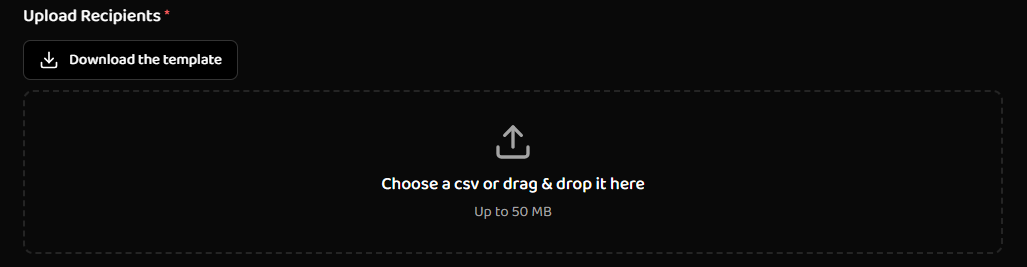
File Upload
File Requirements:- Format:
.csvfile - First row is treated as column headers
- No fixed file-size limit enforced at application level
- Maximum file size: 50 MB
- A downloadable CSV template is available in the UI
- Click the “Download the template” button in the Upload Recipients section
- The template includes example columns and sample data
- Use the template as a starting point to ensure proper format
- You can add or remove columns as needed (see Supported Columns below)
- Download the CSV template (recommended)
- Fill in your recipient data following the template structure
- Click “Upload CSV” or drag and drop the file into the upload area
- File is parsed and validated
- Validation results dialog opens automatically
- Review accepted and rejected rows
- Fix rejected rows if needed
- Confirm to add recipients
The platform validates CSV structure and content automatically. Download the template from the UI to ensure proper format and avoid validation errors.
Supported Columns
The system recognizes the following standard columns (both naming styles are supported):
Dynamic Variables (External Params):
- Any additional columns are treated as dynamic variables
- Dynamic variables have no validation
- Are passed as key-value pairs to the agent
- Are editable during validation
Template Columns Explained:
phone_number- Required standard column (can also usephoneNumber)name- Optional standard columnignore_e164_validation- Optional standard column (can also useignoreE164Validation). Set totrueto skip E.164 format validationdynamic_variable1,dynamic_variable2- Example dynamic variable columns. You can rename these and add as many as needed
In this example:
phone_numberandnameare standard columnsplan,language, andregionare dynamic variables (custom columns you define)
Validation Rules
Phone Number (Required)
Each phone number must:- Be present and non-empty
- Contain only digits (optional leading
+) - Be at least 7 digits
- Be valid E.164 format (unless
ignoreE164Validationis set totrue)
Name
- Optional field
- No validation applied
- Can be empty
- Used for personalization if agent references it
ignoreE164Validation
- Optional field
- Boolean value:
trueorfalse - Skips E.164 validation when set to
true - Useful for international numbers or special formats
Dynamic Variables
- Optional fields
- Any value accepted
- No validation applied
- Keys are fixed after upload (values can be edited)
CSV Validation Results Dialog
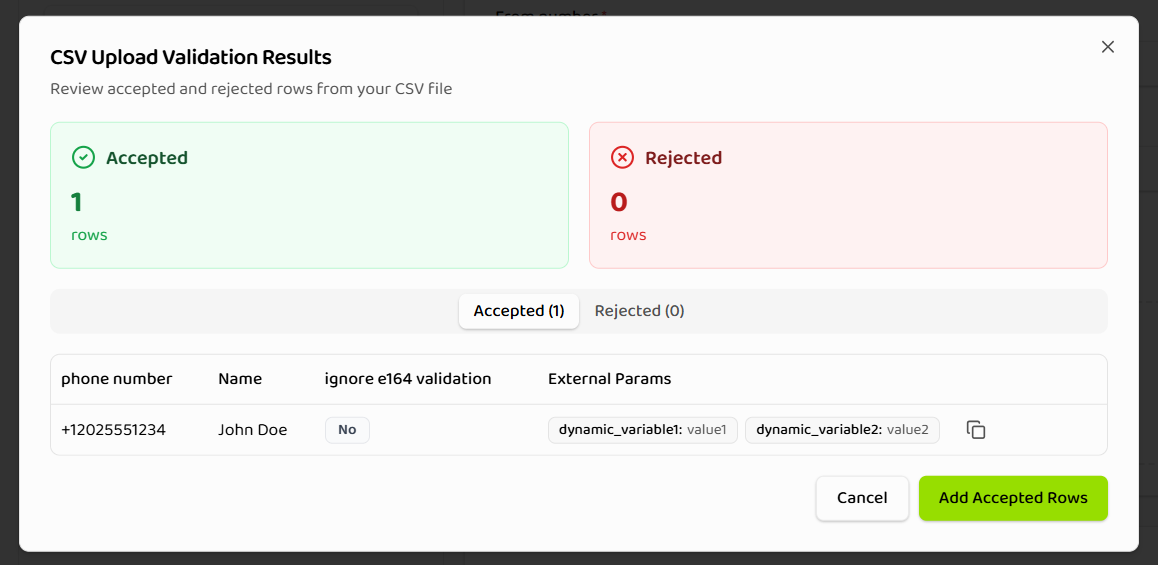
After upload, a validation dialog opens automatically showing: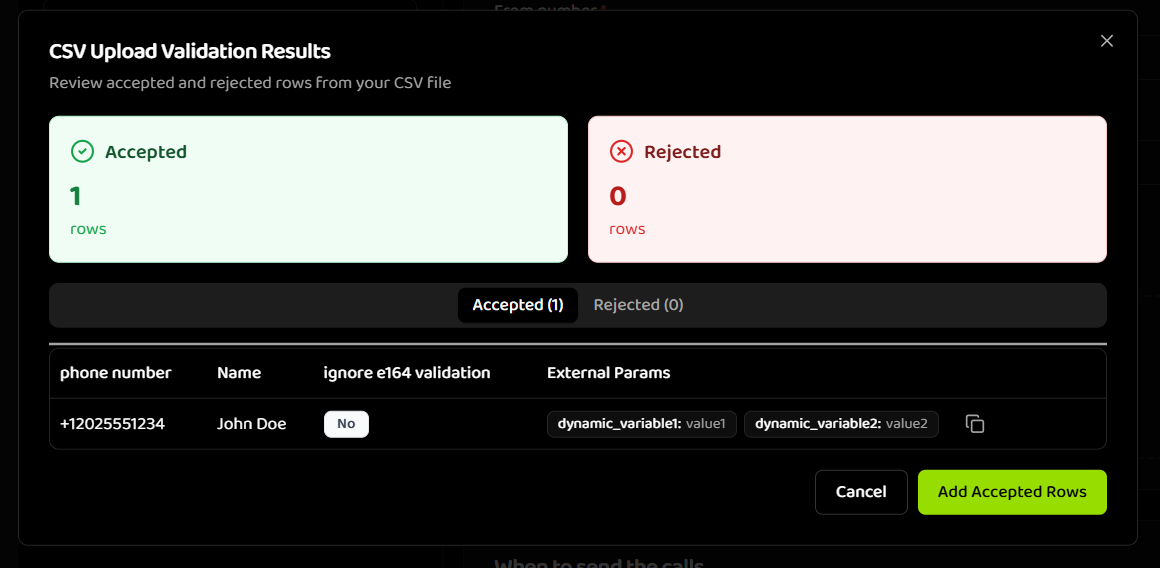
-
Summary Cards (Top):
- Accepted: Green card showing count of rows that passed validation
- Rejected: Red card showing count of rows that failed validation
-
Tabbed Interface:
- Accepted Tab: Displays all rows that passed validation
- Rejected Tab: Displays all rows that failed validation with error details
- Shows all rows that passed all validations
- Displays phone number, name, ignore E.164 validation flag, and dynamic variables
- Rows are ready to be added to the batch call
- Count is shown in the tab label (e.g., “Accepted (1)”)
- Shows all rows that failed one or more validations
- Displays detailed validation error messages for each field
- Each rejected row has an “Edit” button to fix errors
- Count is shown in the tab label (e.g., “Rejected (25)”)
- Rows must be fixed before they can be added to the batch call
Editing Rejected Rows
Rejected rows can be fixed using the inline editing panel: Editable Fields:- Phone number - Can be edited to fix validation errors
- Name - Can be edited or left empty
- ignore E.164 validation - Toggle checkbox to skip E.164 format validation
- Dynamic variable values - Values can be edited, but column titles (keys) are fixed and cannot be changed
Dynamic variable column titles (keys) are determined by your CSV file headers and cannot be modified in the validation dialog. Only the values can be edited. If you need different column names, update your CSV file and re-upload.
- Validation runs in real-time as you edit each field
- Error messages appear immediately below invalid fields
- Success indicators appear when fields become valid
- All fields must be valid before the row can be saved
- Navigate to the Rejected tab in the validation dialog
- Click the “Edit” button (pencil icon) on the rejected row you want to fix
- An editing panel opens showing all fields for that row
- Fix the invalid field(s) - validation runs automatically as you type
- Review validation messages to ensure all errors are resolved
- Click “Save” button (with disk icon) when all fields are valid
- The row automatically moves to the Accepted tab after saving
- Repeat for other rejected rows if needed
- Fixed rows appear in the Accepted tab immediately after saving
- The summary cards update to reflect the new counts
- You can continue editing other rejected rows or proceed to add all accepted rows
Final Confirmation
Once you have fixed all rejected rows (or are satisfied with the accepted rows):- Review the Accepted tab to see all rows that will be added
- Click “Add Accepted Rows” button at the bottom right of the dialog
- All accepted rows are added to the batch call
- Duplicate phone numbers are checked (warnings shown if duplicates exist)
- Batch Call form is updated with the recipient count
- Validation dialog closes automatically
You can add accepted rows even if there are still rejected rows remaining. Rejected rows that are not fixed will not be added to the batch call. You can always upload a new CSV file or create a new batch call for those recipients.
After Adding Recipients
After clicking “Add Accepted Rows”, a status box appears in the Upload Recipients section showing:

- Recipient count: “You have added X recipient(s)” message with icon
- View Recipients button: Opens a modal to view and manage all added recipients
- Upload Another CSV button: Allows you to upload additional CSV files to add more recipients
- Table view showing all added recipients with columns:
- Phone number
- Name
- ignore e164 validation (displayed as Yes/No)
- External Params (dynamic variables shown as tags/pills)
- Remove action: Each row has an ‘X’ icon to remove that specific recipient
- Save button: Shows count of recipients (e.g., “Save (1)”) to confirm changes
- Cancel button: Closes the modal without saving changes
- Remove recipients: Click the ‘X’ icon on any row to remove that recipient
- Save changes: Click “Save” to confirm removals and update the recipient count
- Cancel: Click “Cancel” to close without making changes
You can only view and remove recipients at this stage. To add more recipients, use the “Upload Another CSV” button to upload additional CSV files.
- Click “Upload Another CSV” to add more recipients from a new CSV file
- The same validation process applies to the new CSV file
- New recipients are added to the existing list
- Recipient count updates to reflect the total number of recipients
Scheduling & Time Constraints
Send Type
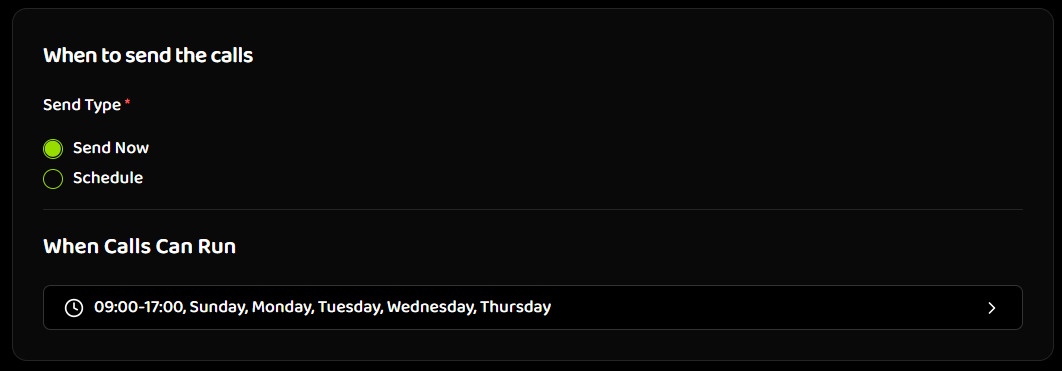
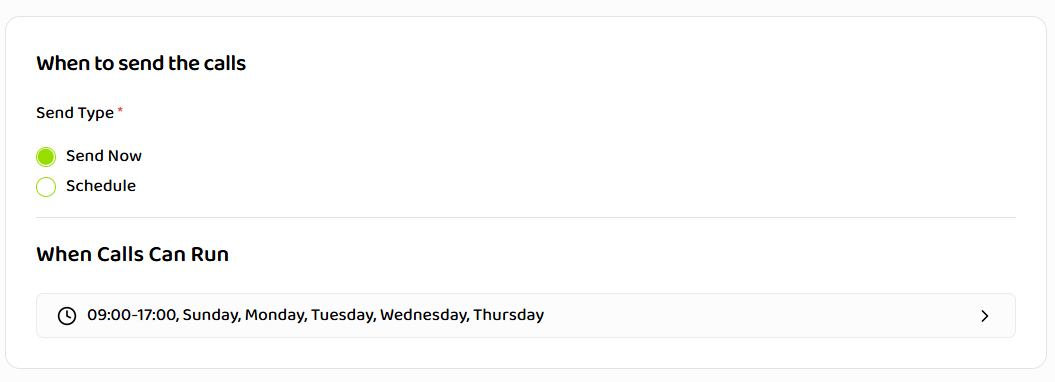
Batch Calls can be configured with two send types: Send Now:- Batch Call is created with status SCHEDULED (scheduled to run as soon as possible)
- No date/time selection required
- The queue and worker fetch batch calls every minute; once picked up, the batch call transitions to RUNNING
- Respects time range constraints
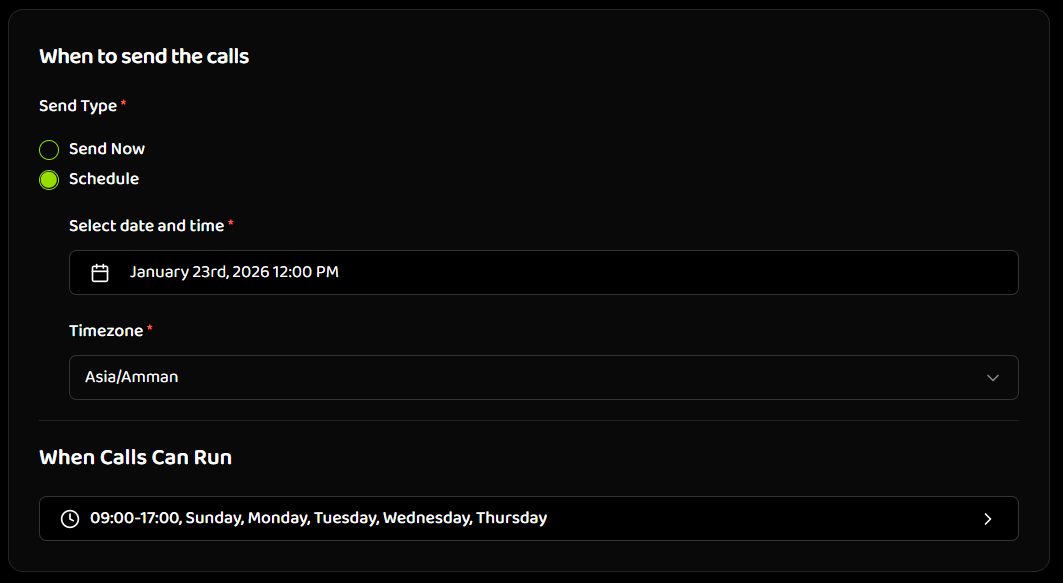
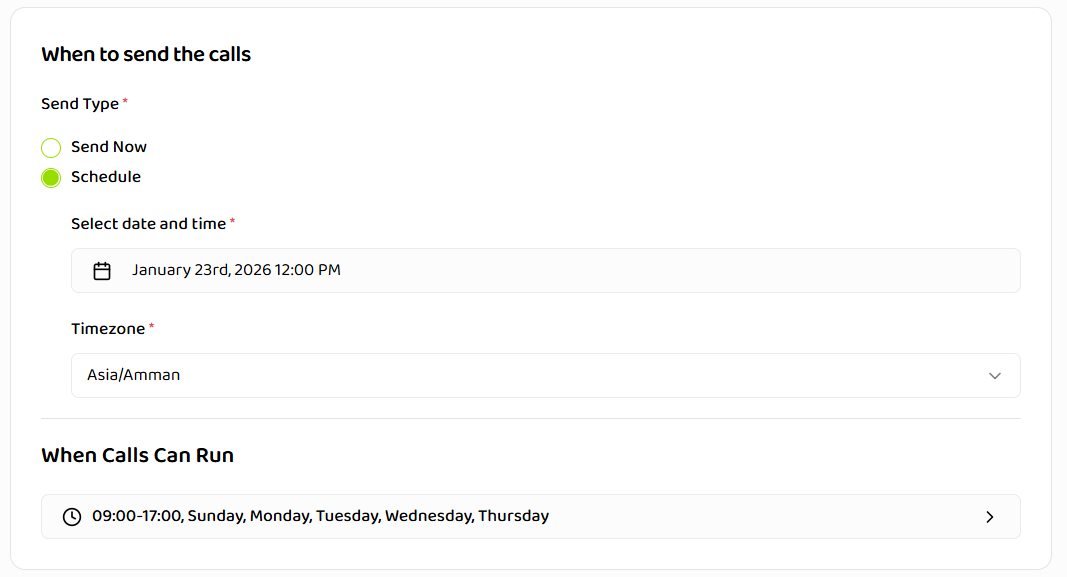
- Batch Call starts at selected date & time
- Date & time are required
- Timezone is required
- Batch Call status is SCHEDULED until start time
Both Send Now and Schedule batch calls appear with SCHEDULED status at first. The queue and worker fetch batch calls every minute. When a batch call is picked up (immediately for Send Now, or at the scheduled time for Schedule), it transitions to RUNNING and begins execution.
When Calls Can Run (Required)
All batch calls must define a time range: Required Settings:- Daily start time (e.g., 9:00 AM)
- Daily end time (e.g., 6:00 PM)
- Allowed days of the week (e.g., Monday-Friday)
- Calls outside this range are deferred, not skipped
- Batch Calls continue running but only place calls within the range
- Batch Calls cannot be created without a valid time range
Batch Call Creation Process
Step-by-Step
-
Navigate to Batch Calls
- Go to the Batch Calls section in your dashboard
- Click “Create” button
-
Enter Basic Information
- Enter batch call name (1-100 characters)
- Select from number (outbound phone number)
- Select voice agent
-
Upload Recipients
- Click “Upload CSV” or drag and drop file
- Review validation results
- Fix rejected rows if needed
- Confirm to add recipients
-
Configure Schedule
- Choose “Send Now” or “Schedule”
- If Schedule: Select date, time, and timezone
- Set daily start and end time
- Select allowed days of the week
-
Review and Create
- Review all settings
- Check recipient count
- Click “Create Batch Call”
-
Batch Call Starts
- If Send Now: Batch Call status is SCHEDULED until the worker picks it up (every minute); then RUNNING
- If Schedule: Batch Call status is SCHEDULED until the scheduled time; worker picks it up every minute, then RUNNING
- Monitor progress in batch call details
Limits & Constraints
Batch Call Creation:- Batch Call name: Maximum 100 characters
- Minimum recipients: 1
- CSV upload required
- Time range is mandatory
- Agent and phone number must exist
- Governed by subscription plan
- No user management required
- Batch Calls always start
- Calls queue automatically
- No fixed file-size limit
- At least one valid recipient required
- Standard columns validated
- Dynamic variables unlimited
Next Steps
After creating a batch call:- Monitor Batch Call - Track batch call progress and status
- View Recipients - Check individual call statuses
- Manage Batch Call - Pause, resume, retry, or cancel
Related Documentation
Managing Batch Calls
Learn how to control and monitor batch calls
Recipients & Status
Understand recipient management and call statuses
Best Practices
Optimize your batch calls