


The sidebar


The header
From start to end:


Links that open the right project
A link with?projectId= in it opens the page in that project, switching to it first. Notifications use this, so a notice about another project opens in that project.
A link can also open a page’s create dialog. Add ?start=upload to the Speech to text address, or ?start=clone to the Voices library address, and the upload or add voice dialog opens when the page loads. For example, https://media.tryhamsa.com/app/speech-to-text?start=upload opens the upload dialog. The quick starts on Home work this way. If you can’t create on that page, the page opens without the dialog.
The command palette
To search or run a command, press Cmd+K on Mac or Ctrl+K on Windows, or click “Search or run a command” in the header. Type to filter, use the arrow keys to move, Enter to pick and Esc to close.


Find your content
Type two letters or more and the palette also searches Your content in the current project:- Transcripts and AI docs, by title. Picking one opens it.
- Voices. Picking one opens Text to speech with that voice selected.
- Dictionaries. Picking one opens it.
Examples of what you can type
Words can come in any order; every word you type must match.
Keyboard shortcuts
Press ? anywhere (except while you type in a field) to open Keyboard shortcuts, or pick Keyboard shortcuts in Cmd+K. The sheet lists the keys that work in the app and on the page you’re on.

Single-letter keys don’t fire while you type in a field, or while a dialog or menu is open. The transcript editor has more keys for moving between segments; see Transcript editor.
See an example
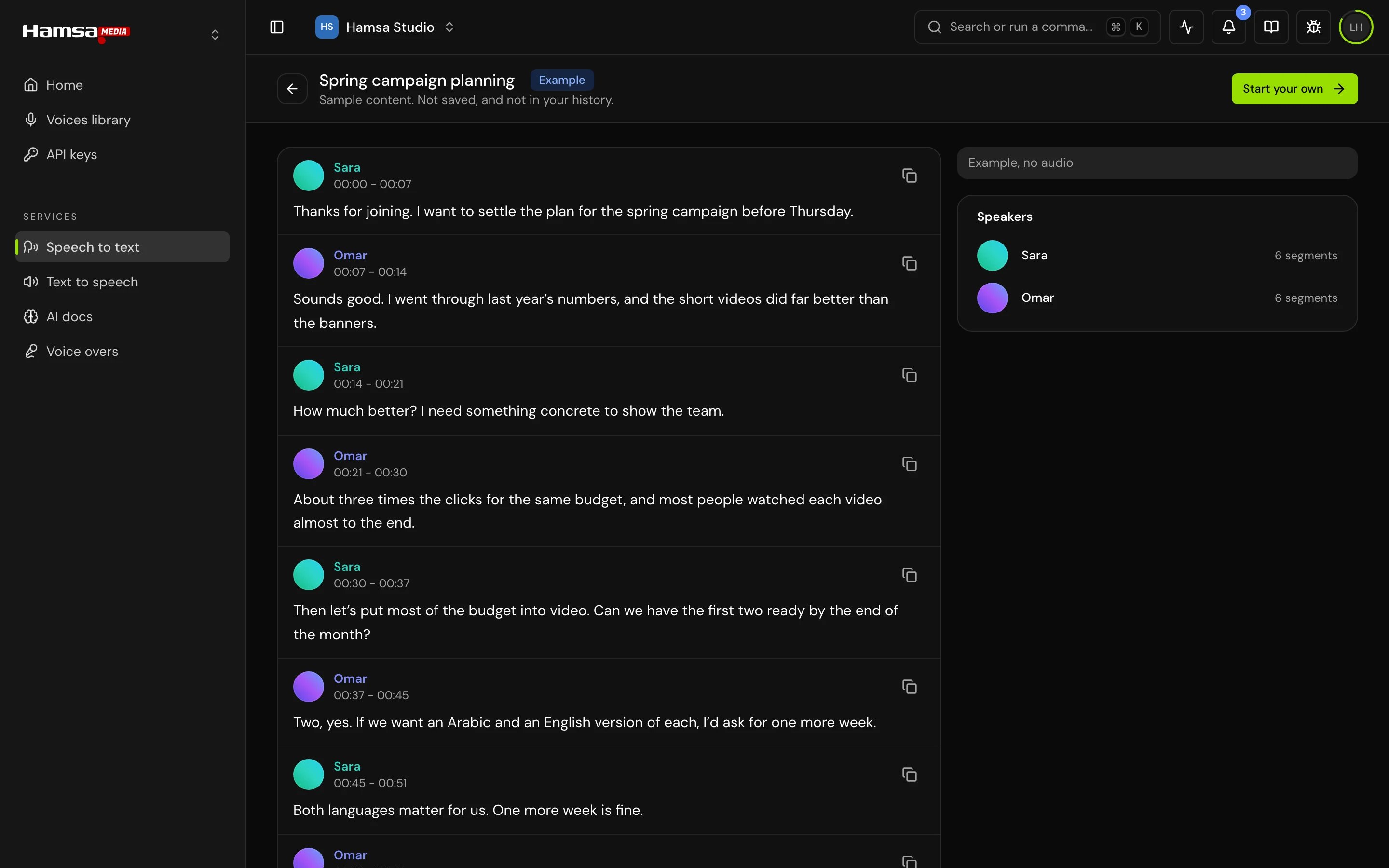
Before you have made anything, you can look at a finished example of each service: a transcript, text to speech, an AI doc, and a voice over. Each is read-only, marked Example, and “Not saved, and not in your history.” Examples have no audio. Start your own takes you to the real create flow. You find them:

- On an empty list (Speech to text, Text to speech, AI docs) and in an empty Voice overs history: See an example.
- On Home, under “Or see an example:” while you have no work.
- In Cmd+K: type
exampleor a service’s name, such as See an example of a transcript.

Send feedback
Use the bug icon in the header to tell the Hamsa team about a problem or an idea, pointing at the exact part of the page.1
Start
Click Send feedback in the header. The first time, a card explains how to point; click Start, or Whole page instead.

2
Point at the part
Move over the page: the part under your cursor is outlined. Click it. Press Esc to cancel, or click Whole page at the top.

3
Write and send
The form shows what you picked (Pick again to change it). Write Your feedback, keep or clear Include a screenshot, and click Send feedback. “Thanks, your feedback was sent.” confirms it.

Good to know
- In Arabic the sidebar moves to the right and pages read right to left. Switch the language from your avatar or with Language in Cmd+K.
- Cmd+K lists only pages that are switched on for your account.
Related
Home
Quick starts, recent work and credits.
Activity and notifications
The tray, the bell and browser notifications.
Lists and uploads
Saved views, bulk actions, undo and the player.
Account settings
Profile, security and notification settings.