

The job history
The Job history column sits to the right of the composer, with the number of voice overs you have made. On a narrow window or a phone, it moves behind the History button in the page header.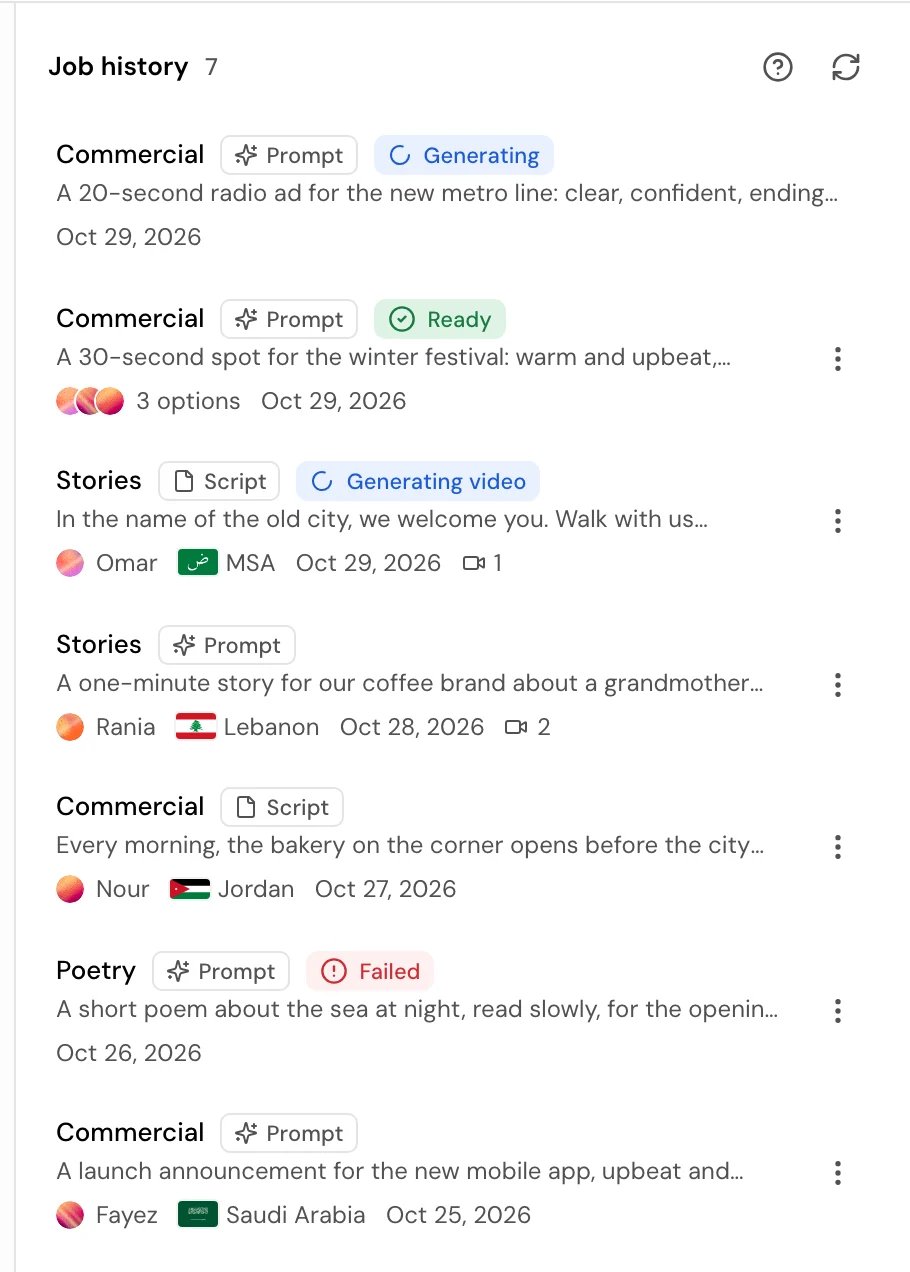
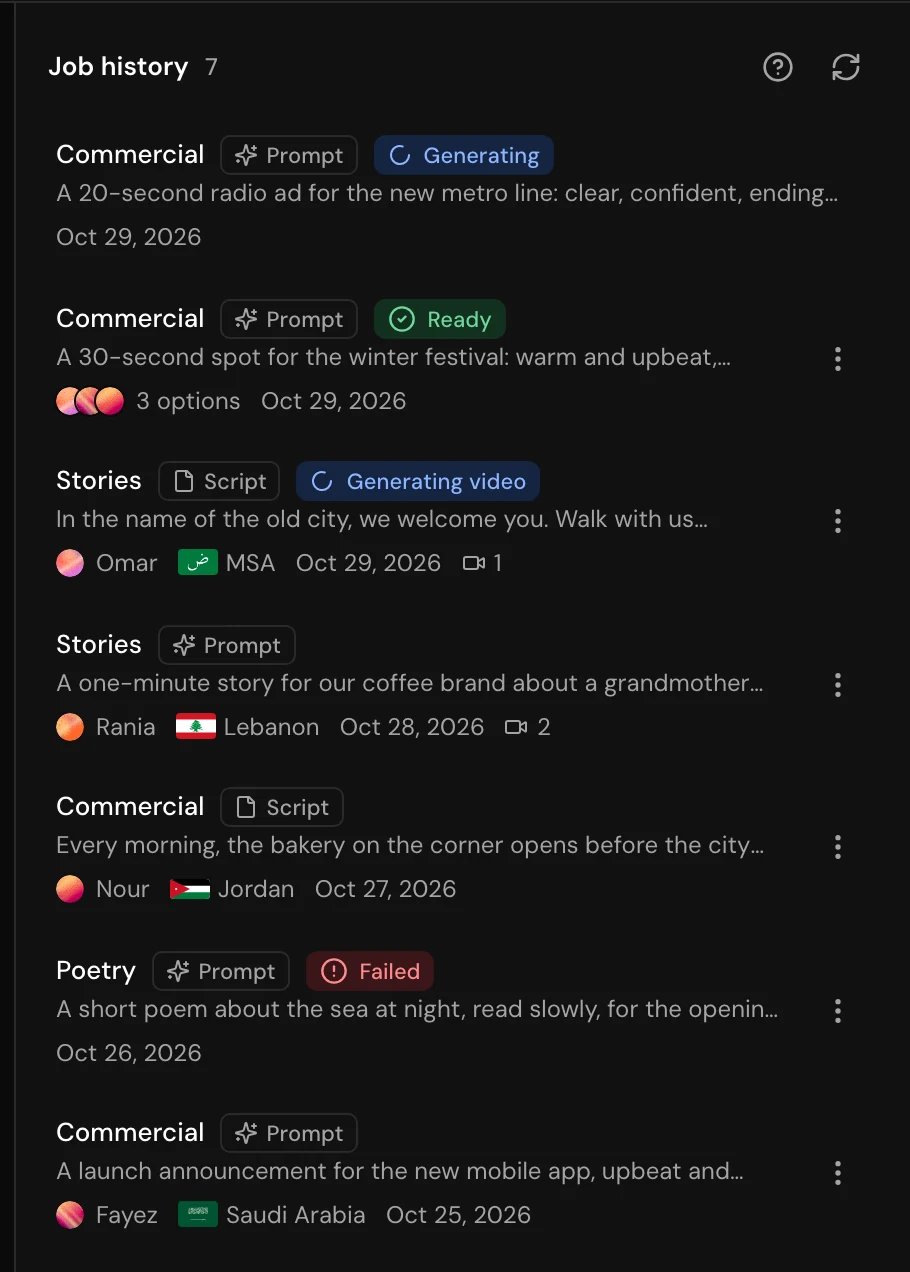
- Newest first. More load as you scroll, 10 at a time.
- It refreshes by itself every few seconds while something is running; the refresh button updates it now.
- There’s no search or filter.
- You see only the voice overs you created. A teammate’s voice overs in the same project don’t show for you, and yours don’t show for them.
Statuses
Open a voice over
An opened voice over shows the use case, then the dialect, Background music or Original (no music), the number of videos and the date. Below it:- The take, with its voice, a play button and Download.
- Source: the Prompt you wrote (or the attached file) and the Script that was read. In My script there is only the script.
- The videos made from it, or Turn this into a video if there are none. See Turn it into a video.
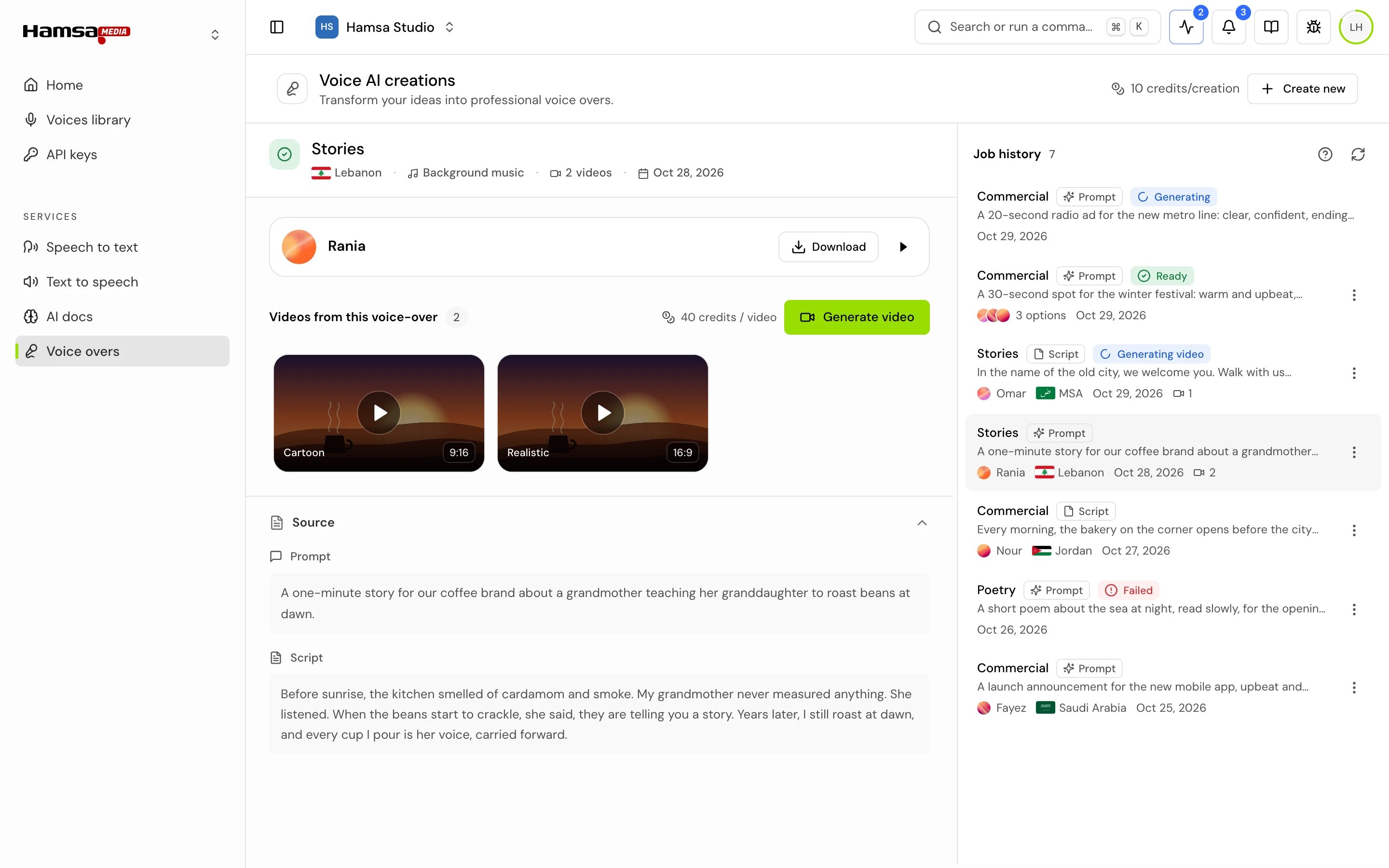
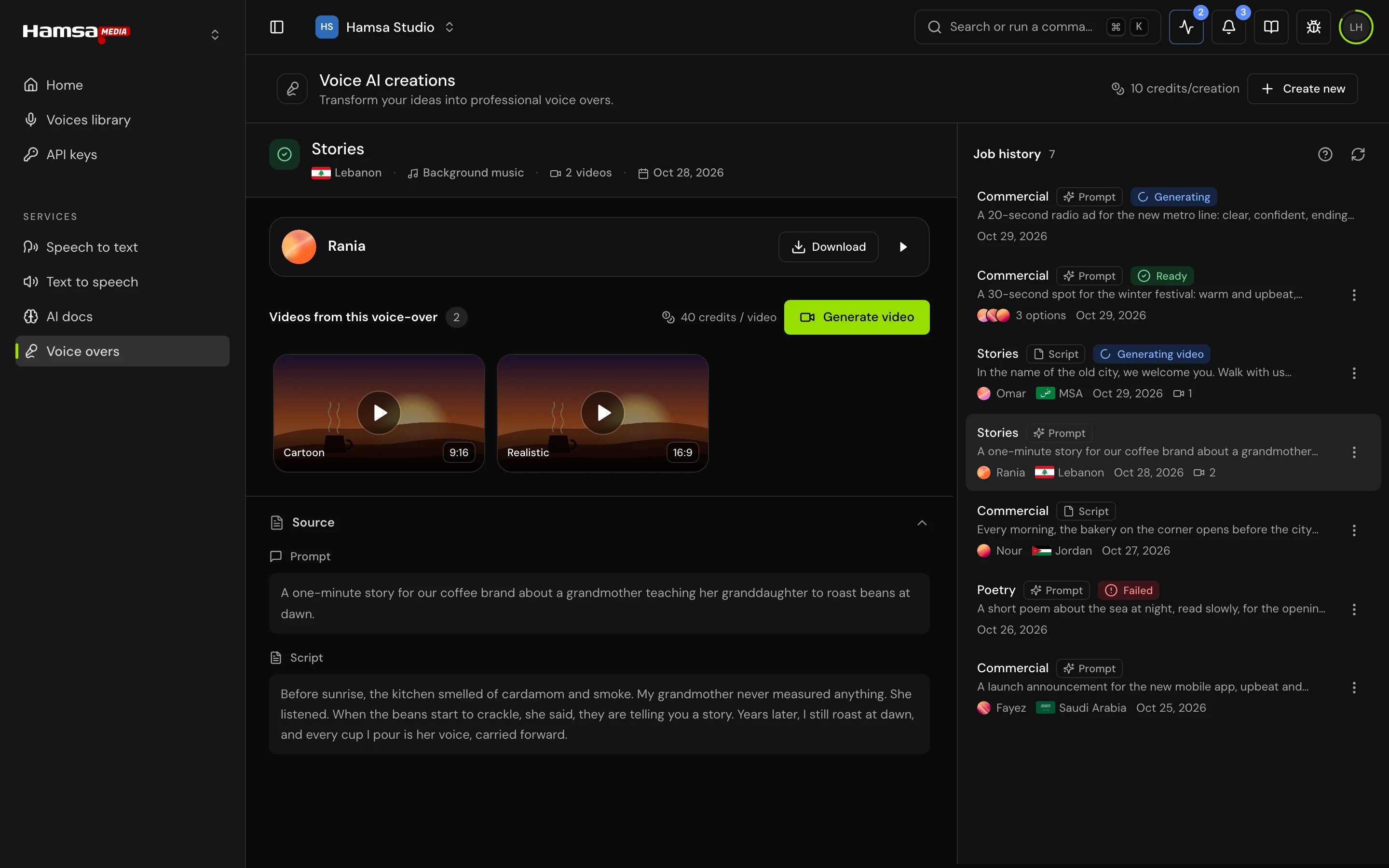
Download the audio
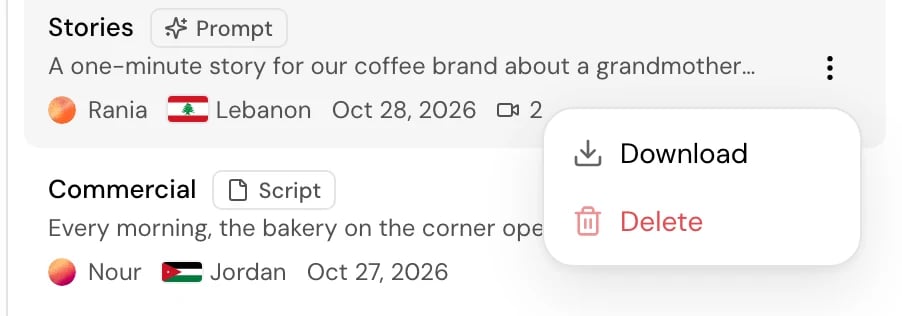
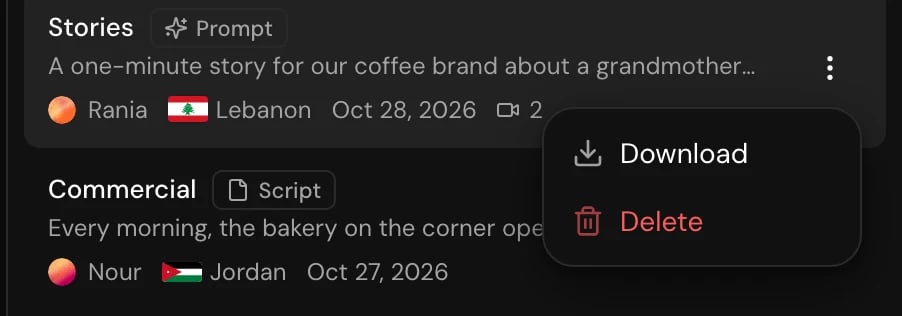
Click Download on the take, or open the row’s Actions menu in the history and click Download. The file is named after the use case and the day it was made, for examplecommercial_20261101.mp3.
Videos
A voice over can have several videos, listed under Videos from this voice-over, newest first. Click Generate video to add another.While it renders
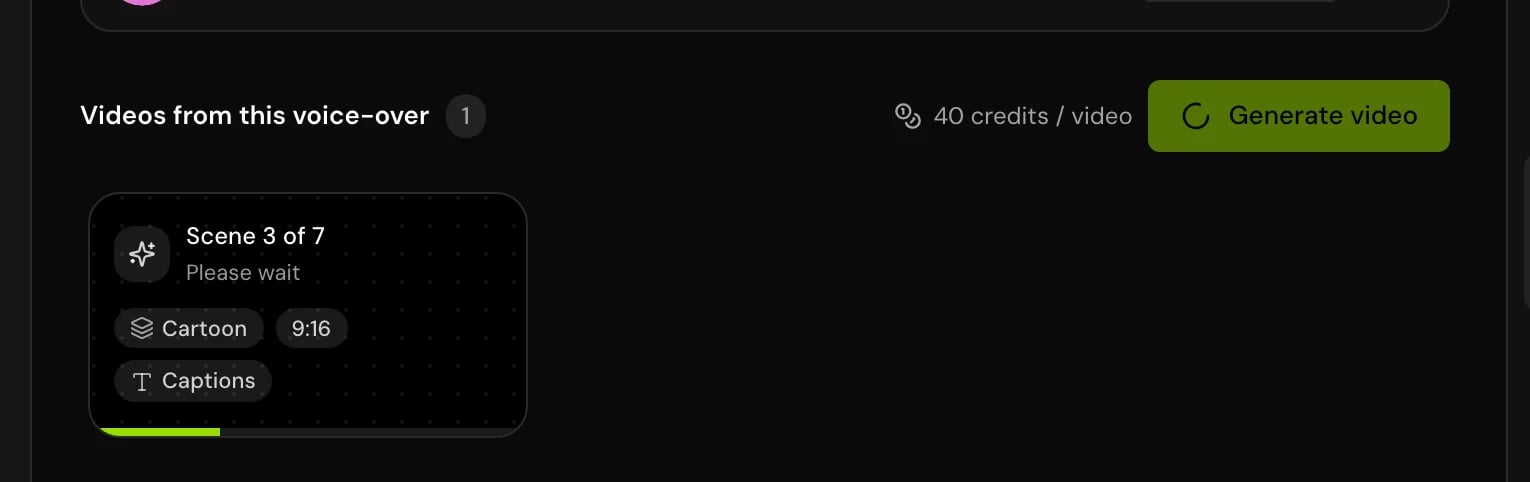
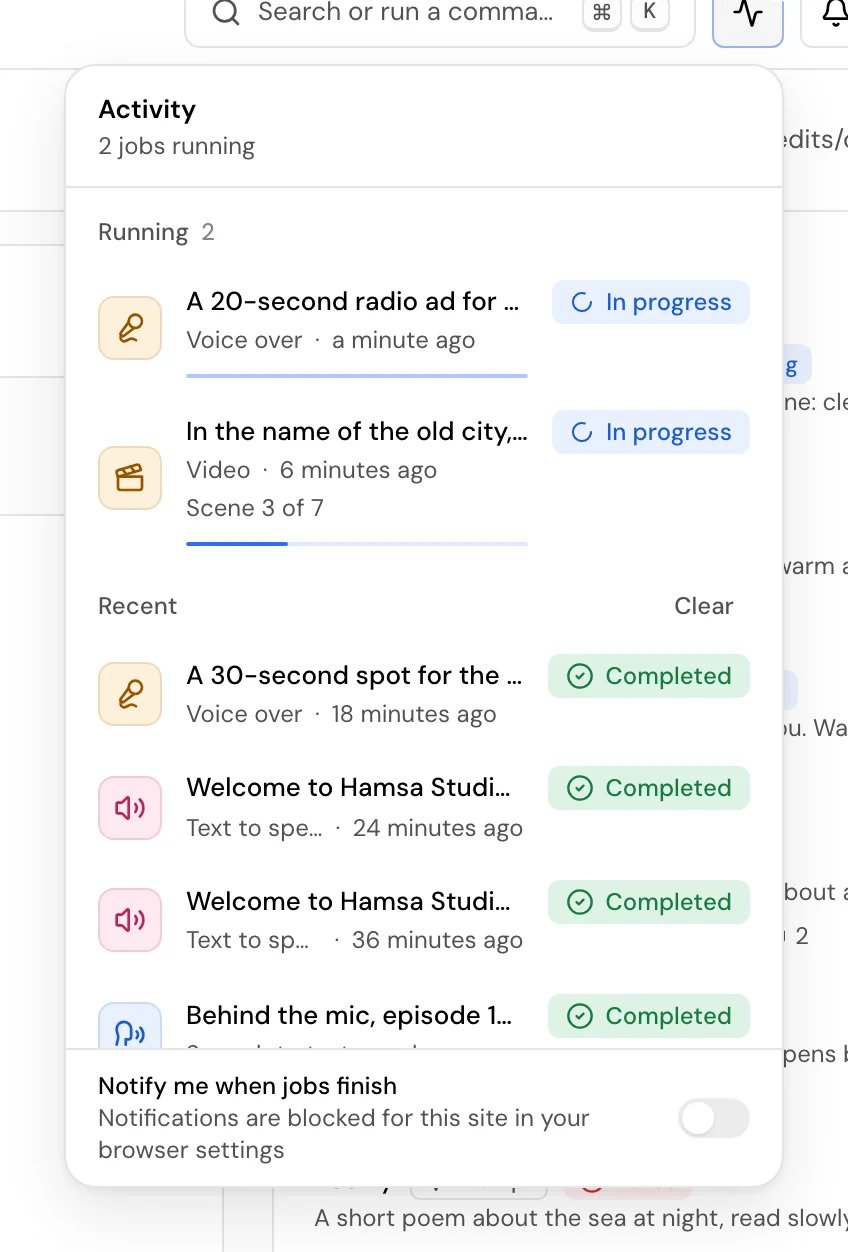
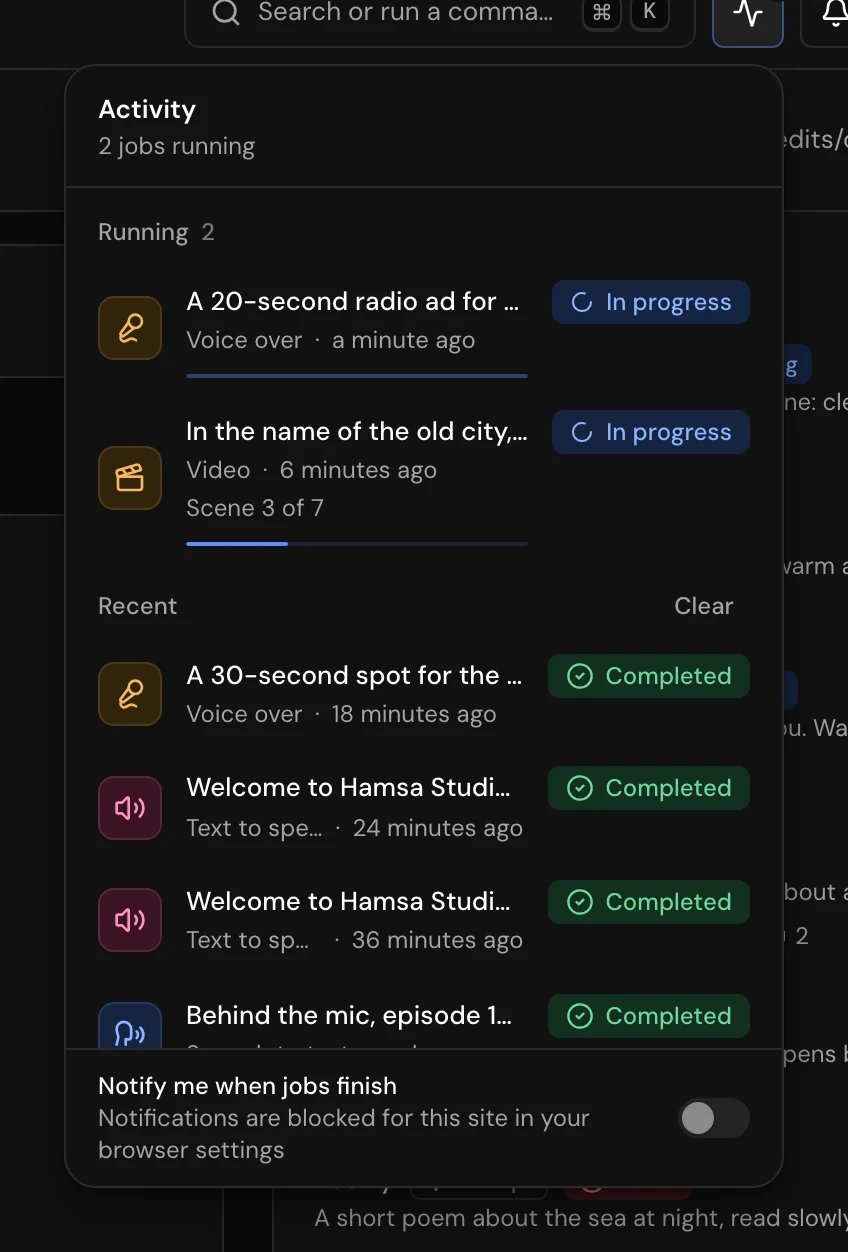
A rendering video shows a progress bar and the step it is on: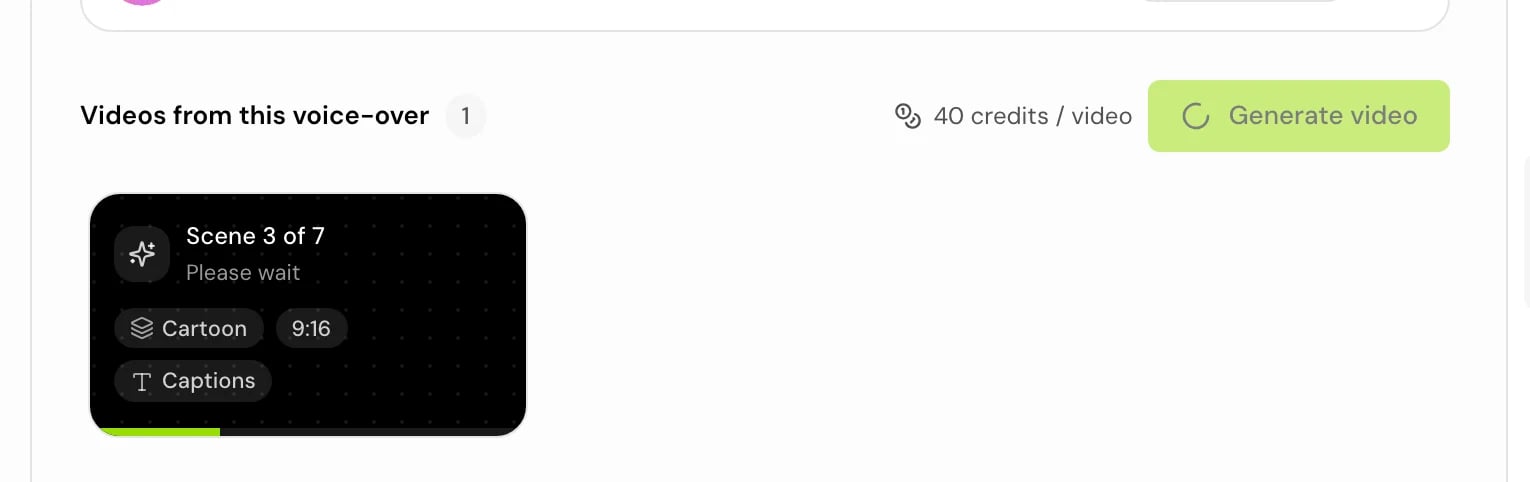
If a video fails
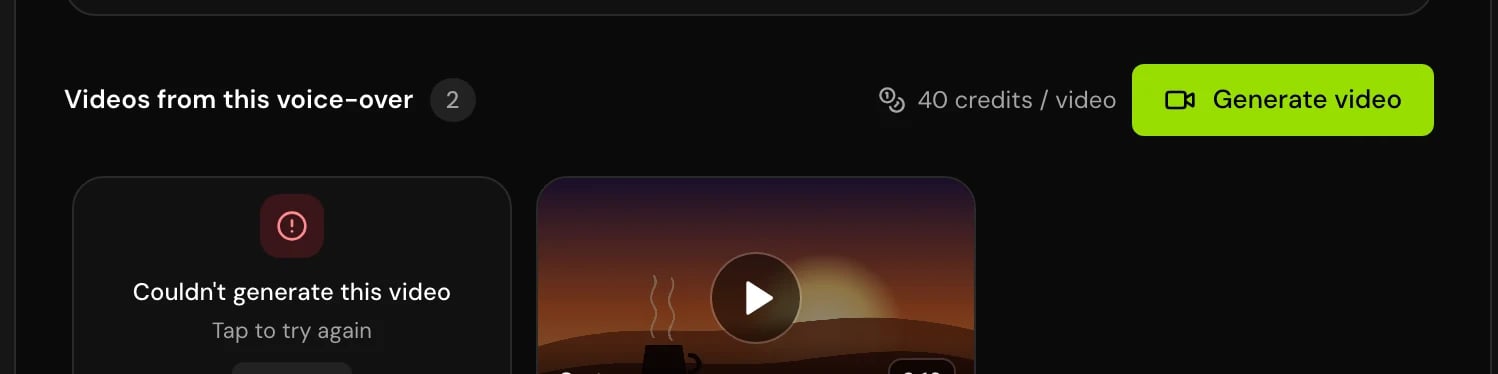
The tile says Couldn’t generate this video. Click it, or Retry, to render it again with the same settings. A failed render isn’t charged; the 40 credits are charged only when a video finishes.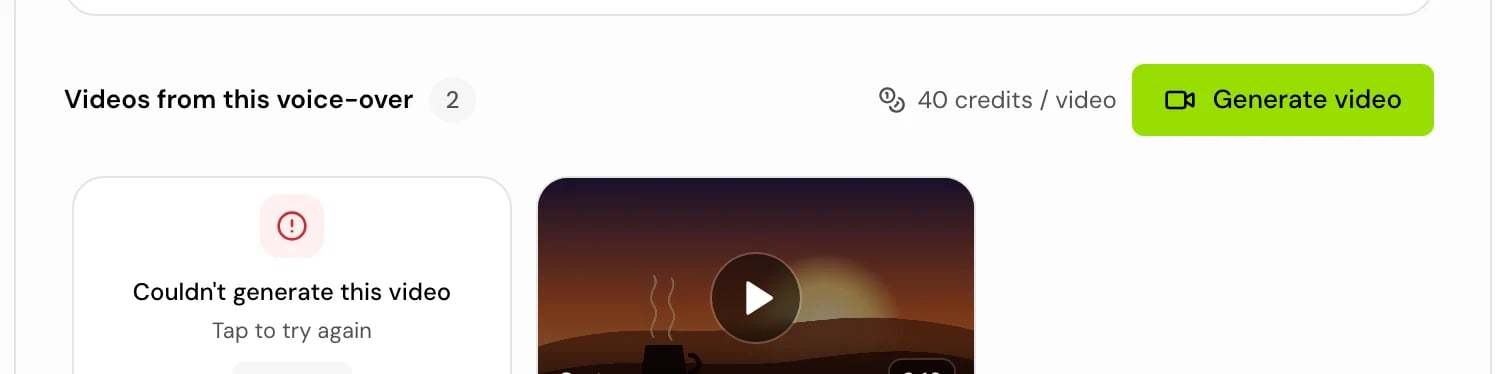
Watch a video
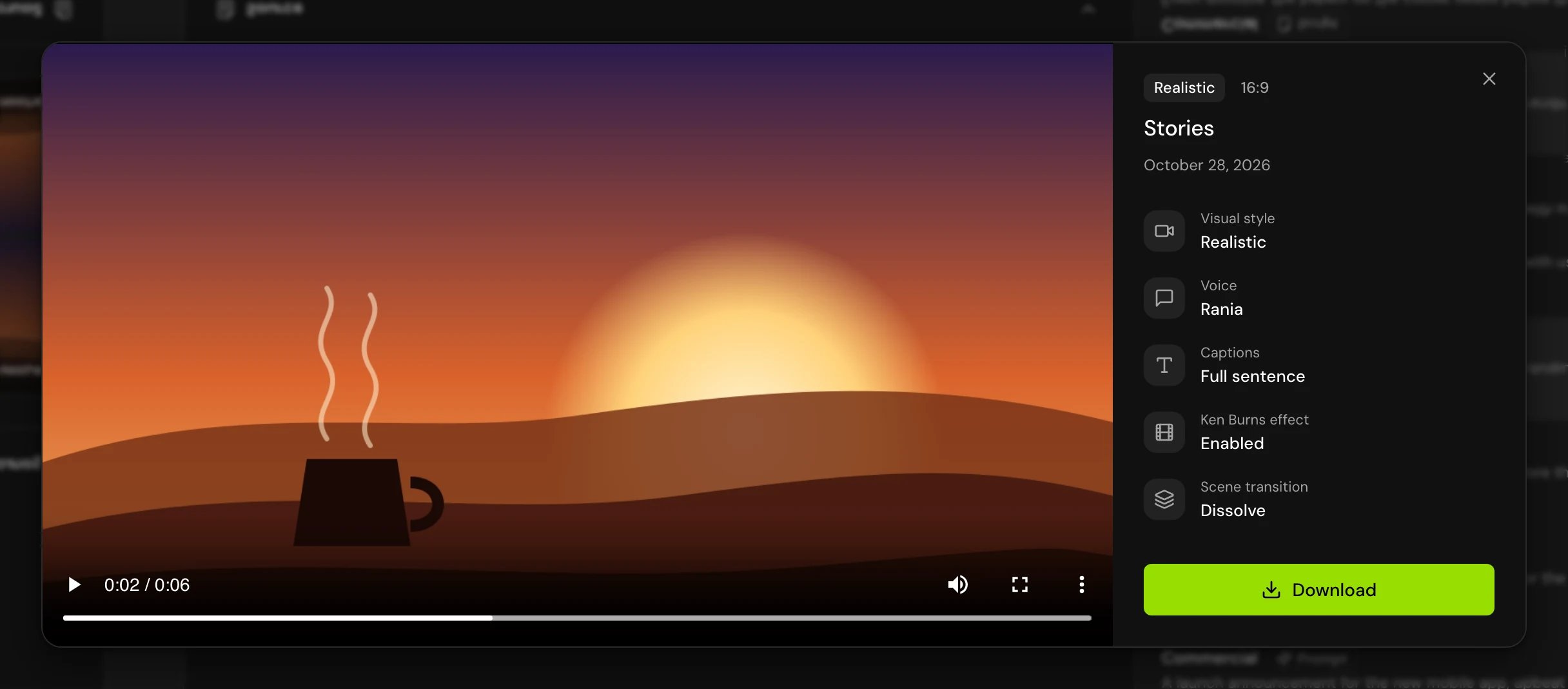
Click a finished video to open it. It plays at once, with the browser’s video controls, and lists its Visual style, Voice, Captions, Ken Burns effect and Scene transition.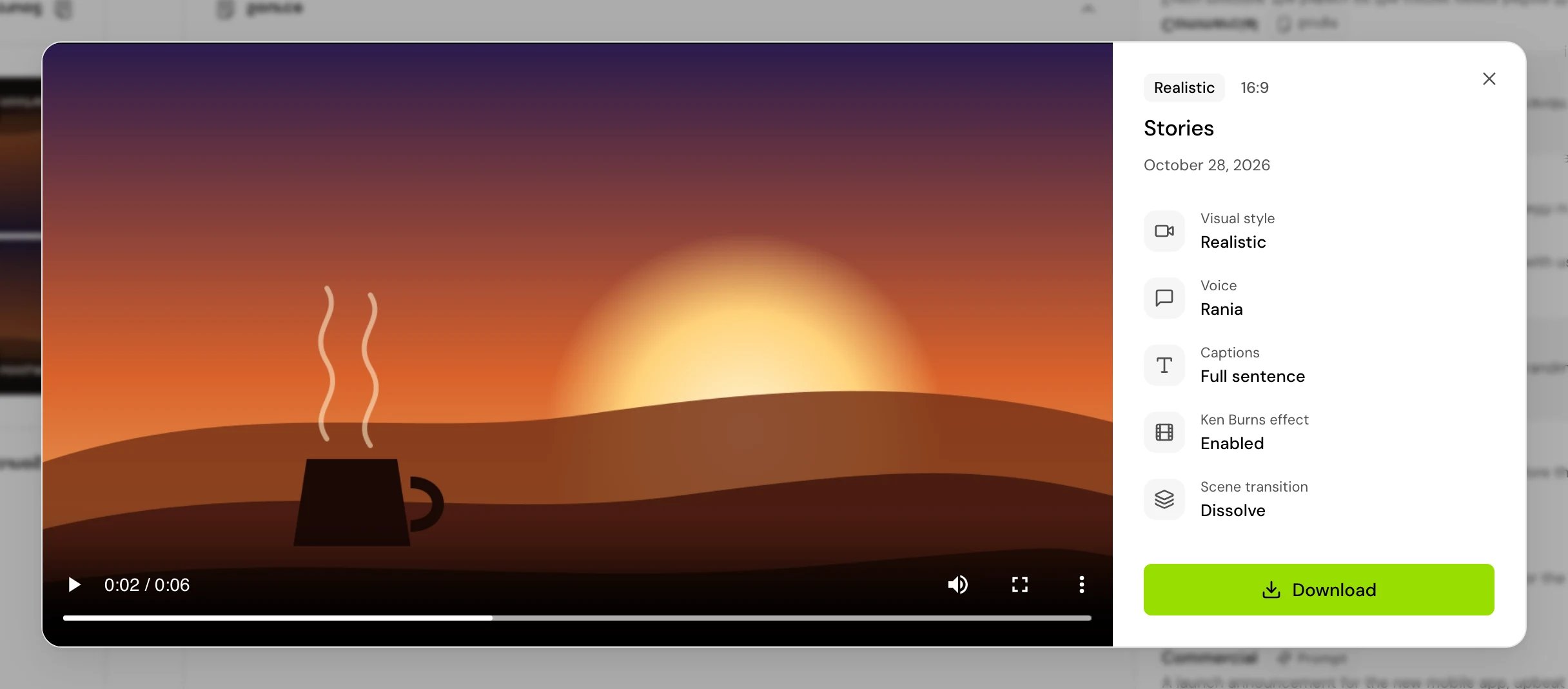
Download a video
Open the video and click Download, or use the download button on its tile. The file is an MP4 named after the use case, the date, the style and the shape, for examplecommercial_20261101-cartoon-9x16.mp4.
Delete a voice over
1
Open the menu
In the Job history, open the row’s Actions menu and click Delete.
2
Confirm
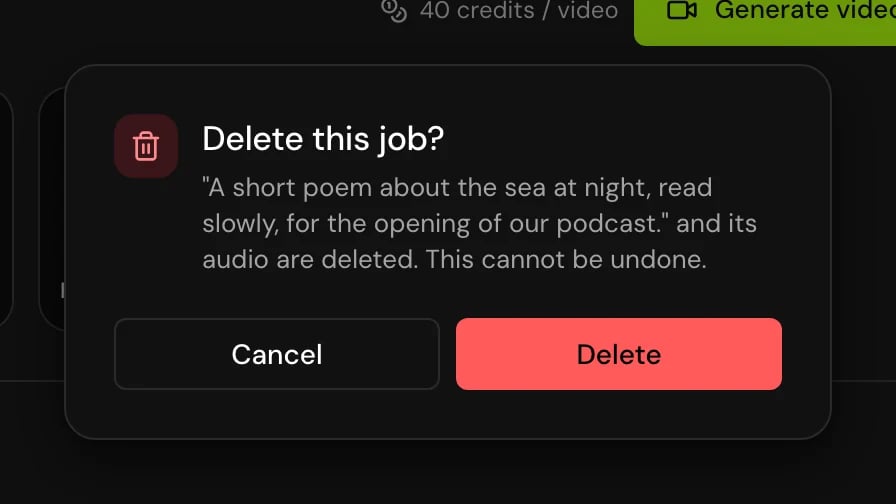
Delete this job? says the voice over and its audio are deleted. Click Delete.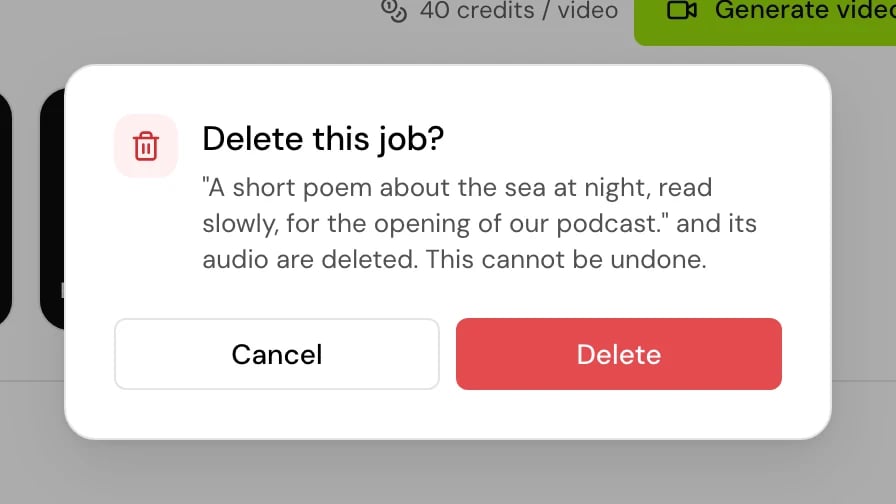
3
Undo if you need to
The row leaves at once and a toast says “Deleted” with the title and Undo. The delete goes through after a few seconds, or when you close the toast.
Page tour and shortcuts
- The page tour, “How voice overs work”, opens by itself on your first visit to a project with no voice overs. Click Tour in the page header to see it again. It shows the use case bar, the two modes, the text, the bar under it, Create voice over and the history.
- In Cmd+K (Ctrl+K on Windows), the Voice overs group has New voice over while a voice over is open, Start the voice over tour, Open job history on narrow screens, and Defaults for this project.
Good to know
- Only the member who made a voice over can open it, download it from the history, make videos from it or delete it.
- Each video is charged on its own, so three videos of one voice over cost three times 40 credits. With no credits left, a video or a retry is refused and the top-up dialog opens.
- Closing the page doesn’t stop a voice over or a video. Both keep going and are in the history when you come back.
Related
Create a voice over
The composer, music, files and video settings.
Activity and notifications
Follow running jobs and videos from anywhere in the app.
Voice overs
What a voice over is and what it costs.
Billing
Credits, plans and usage.