

Before you start
- Credits left on the project owner’s account. A job is refused when there are none. See Credits.
- A clear idea of the main language spoken: Arabic or English.
Upload files
1
Open the upload dialog
In the sidebar, open Speech to text and click Upload a file. You can also drop files anywhere on the page (“Drop to transcribe”), or choose Transcribe a file on Home.
2
Choose the files
Drop them on “Drop files here, or choose them”, or click Choose files. Add up to 10 files, each up to 200 MB. Click Add files to add more.
3
Name and set the language
With one file, check the Title (filled in from the file name) and pick the Main language: العربية (Arabic, the default) or English.

4
Start
Click Transcribe (or Transcribe 3 files). “Transcription started.” confirms it and the dialog closes.


Supported files
A file of another type is turned away with “Upload an audio or video file.”, and a file over 200 MB with “This file is over 200 MB. Upload a smaller one.” When you add several files, the ones that weren’t added are listed with the reason (“Not an audio or video file”, “Over 200 MB”, “Over the limit of 10 files”).


Transcribe a YouTube video
1
Paste the link
Click YouTube link and paste the video’s address in YouTube link. “This link works.” shows when Hamsa Media recognises it.

2
Load the video
Click Continue. The video appears with its title from YouTube.
3
Name and set the language
Change the Title if you want, and pick the Main language.

4
Start
Click Transcribe. Hamsa Media fetches the audio from YouTube and transcribes it.
youtube.com/watch?v=…, youtu.be/…, youtube.com/shorts/…, youtube.com/live/…, youtube.com/embed/… and music.youtube.com/watch?v=…. A link to a channel or playlist shows “This is not a YouTube video link.”
Videos longer than 1 hour are refused when you click Transcribe: “The YouTube video is too long, the maximum allowed duration is 1 hour!”
Private or unavailable videos are refused too: “This YouTube video is private or unavailable!” So are live streams while they’re on air: “YouTube live streams are not supported, please try again after the stream has ended!” Use a public or unlisted video, or upload the audio as a file.
Record with your microphone
1
Open the recorder
Click Record. The browser asks for the microphone the first time; allow it.

2
Record
Click the microphone (Start recording) and speak. Use Pause and Resume as you need, then Stop.
3
Check it
Play the recording back. Retake records again; Delete recording removes it.
4
Name and start
Give it a Title, pick the Main language and click Transcribe.
What happens next
The transcript appears at the top of the list as Pending while it is transcribed. Leave the page if you like: the Activity tray follows the job and tells you “Transcript ready” or “Transcript failed”, and you get an email when it’s ready unless you’ve turned job emails off.
The list has the columns Title, Status, Cost, Source (Upload, YouTube or Recording) and Created. Search by title with “Search transcripts” and filter by status. Sorting, columns and filters work as in every list; see Lists and uploads.
Try a failed job again
1
Pick the failed transcript
Open the row’s menu (or find it in the Activity tray) and choose Try again.

2
Confirm
Run this job again? explains that it runs with the same settings and uses credits like the first run. If the job didn’t keep its language, choose the Main language here.

3
Run it
Click Run again. “Started again” confirms it, and a new transcript starts from the same audio and title.
Delete transcripts
Choose Delete in a row’s menu. Delete transcript? warns that the transcript and its audio are deleted for good; confirm with Delete. The row leaves the list at once and you can undo for a few seconds. To delete or download several at once, select their rows. See Lists and uploads.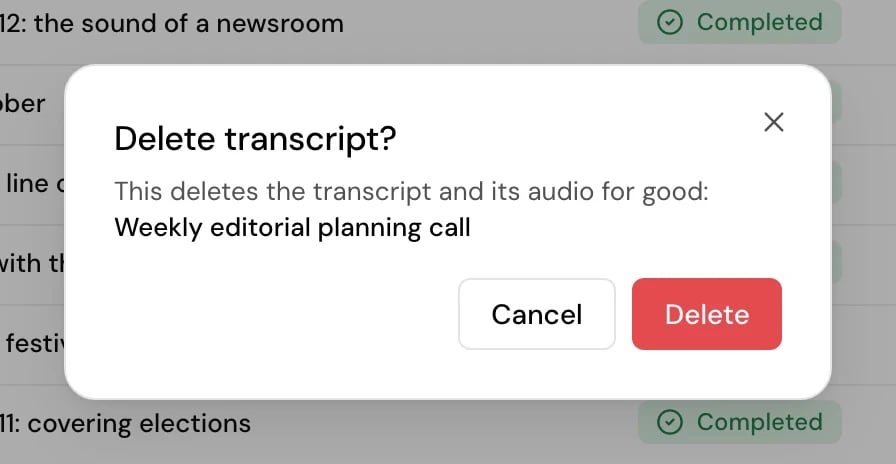

Start a transcript from the API
You can create the same job from your own system with an API key. Upload the file somewhere Hamsa can download it (or use a YouTube link) and send its address:language is ar or en. webhookUrl (optional) is called when the transcript is ready; add webhookAuth with authKey and authSecret, and the call carries the header Authorization: <authKey> <authSecret> (for example Bearer abc123). The job then appears in the app’s list like any other. For keys, see API keys; for the full request and the webhook payload, see the API reference.
Good to know
- One language per transcript. A recording that switches between Arabic and English is transcribed in the language you chose.
- Switching project while files upload stops the uploads; nothing is created in the old project.
- If you close the upload dialog with files chosen and nothing started, it asks before dropping them.
- Every member of the project can start transcripts, whatever their role. See Roles and permissions.
Related
Transcript editor
Read, correct and navigate the finished transcript.
Speech to text overview
Languages, what a transcript contains, credits.
Live speech to text
See the text as you speak.
Activity and notifications
Follow jobs and get told when they finish.