

Tables


- Search, to find rows by name.
- Filter (or press F), to narrow the rows by a property such as status or date. Dates offer Today, Yesterday, Last 7 days, Last 30 days, This month, Custom date… and Custom range…. Each filter shows as a chip; click it to change it, or remove it.


- Display: Ordering (which column, Ascending or Descending), Columns to show or hide, and Reset view.
Saved views
Your table setup is remembered for each table and project, in this browser: the ordering, the filters, the rows per page and the hidden columns. The Display menu says “Remembered for this project”. A search isn’t kept. Reset view goes back to the table’s defaults. Tables with saved views: Speech to text, AI docs, Dictionaries and the web reader’s conversion logs.Act on several rows
1
Select the rows
Tick the box on each row, or the box in the header to select every row on the page.
2
Pick an action
A bar appears with “3 selected” and the actions this table offers. Press Esc or click Clear to drop the selection.

Files download one after another, one per row (there is no zip). Your browser may ask to allow several downloads; allow it. Rows that aren’t finished are skipped, and “None of these is ready to download yet.” means none was.
Delete asks once for all of them (“Delete 3 items?”).
Undo a delete
When you delete something, it leaves the list at once and a message says “Deleted Board meeting” (or “Deleted 3 items”) with Undo. You have 6 seconds to click Undo and get it back.

Upload files
Drop files anywhere on the page
On Speech to text and AI docs, drag files from your computer onto any part of the page. The page dims and a card says what will happen (“Drop to transcribe”, “Drop to make an AI doc”). Drop the files and the upload dialog opens with them, checked as if you had chosen them. Press Esc to hide the card if you change your mind. Dropping doesn’t work while a dialog is open; drop into the dialog instead.

Several files at once
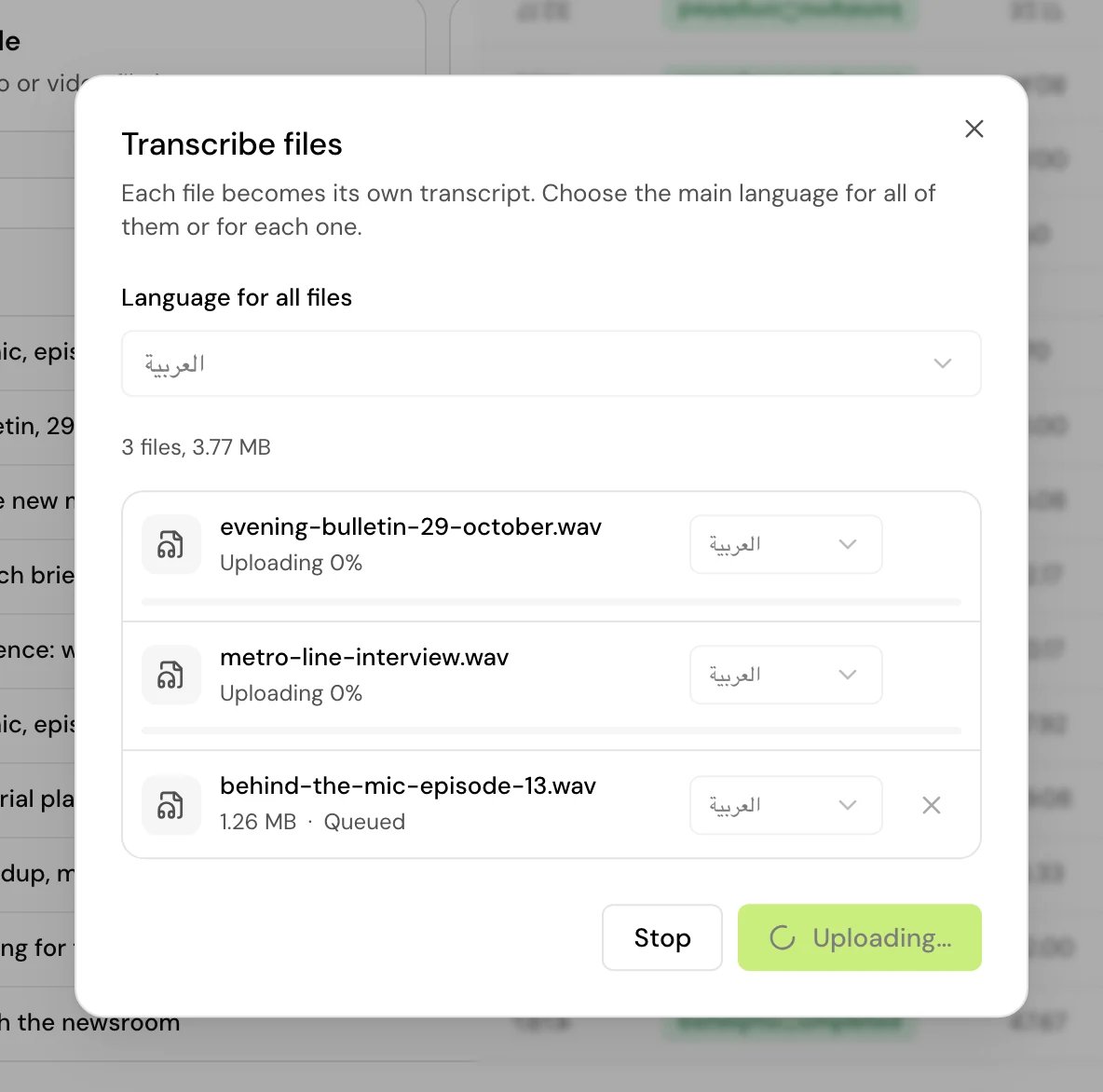
Speech to text takes up to 10 files at once. Each file becomes its own job.1
Add the files
Drop them on the page, or open the upload dialog and choose them. Add files adds more, up to 10.
2
Choose the languages
Set Language for all files, then change any one file’s language next to its name. Each file’s title is its file name without the extension.

3
Start
Click Transcribe 3 files. Files upload two at a time, each with its own status: Queued, “Uploading 40%”, Starting, Started, Failed or Stopped.
4
Fix what failed
Click Stop to halt the rest. A failed or stopped file can be retried on its own.

What each service takes
The language you pick for each file is the main language spoken in it: العربية (Arabic) or English.
Files that can’t be added are listed with the reason, such as “Not an audio or video file”, “Over 200 MB” or “Over the limit of 10 files”.
If you switch project while files are uploading, the uploads stop, so no job is created in the wrong project.
The player
Pages with audio or video (a transcript, text to speech, a voice over) play it in a bar at the bottom of the page.


Player keys
They work anywhere on the page while a track is loaded, except while you type in a field or a dialog is open.

Space presses a button that has focus; K always plays and pauses. In Cmd+K (Ctrl+K on Windows), the Player group has Play/pause and each speed.
In Arabic, the timeline still runs left to right, like the media.
Good to know
- Saved views live in your browser. On another browser or device, tables start from their defaults.
- On a narrow screen, the player puts the timeline on its own row.
Related
Transcribe files
Upload or record, options and statuses.
Navigation
Every keyboard shortcut and Cmd+K.
Activity and notifications
Follow uploads once they become jobs.
Export transcripts
Formats, with or without speaker names.